5 Self-Hosting Web Application Platforms
Compare Coolify, Dokploy, CapRover, Dokku, and Easypanel by workflow, requirements, backups, and operational trade-offs.

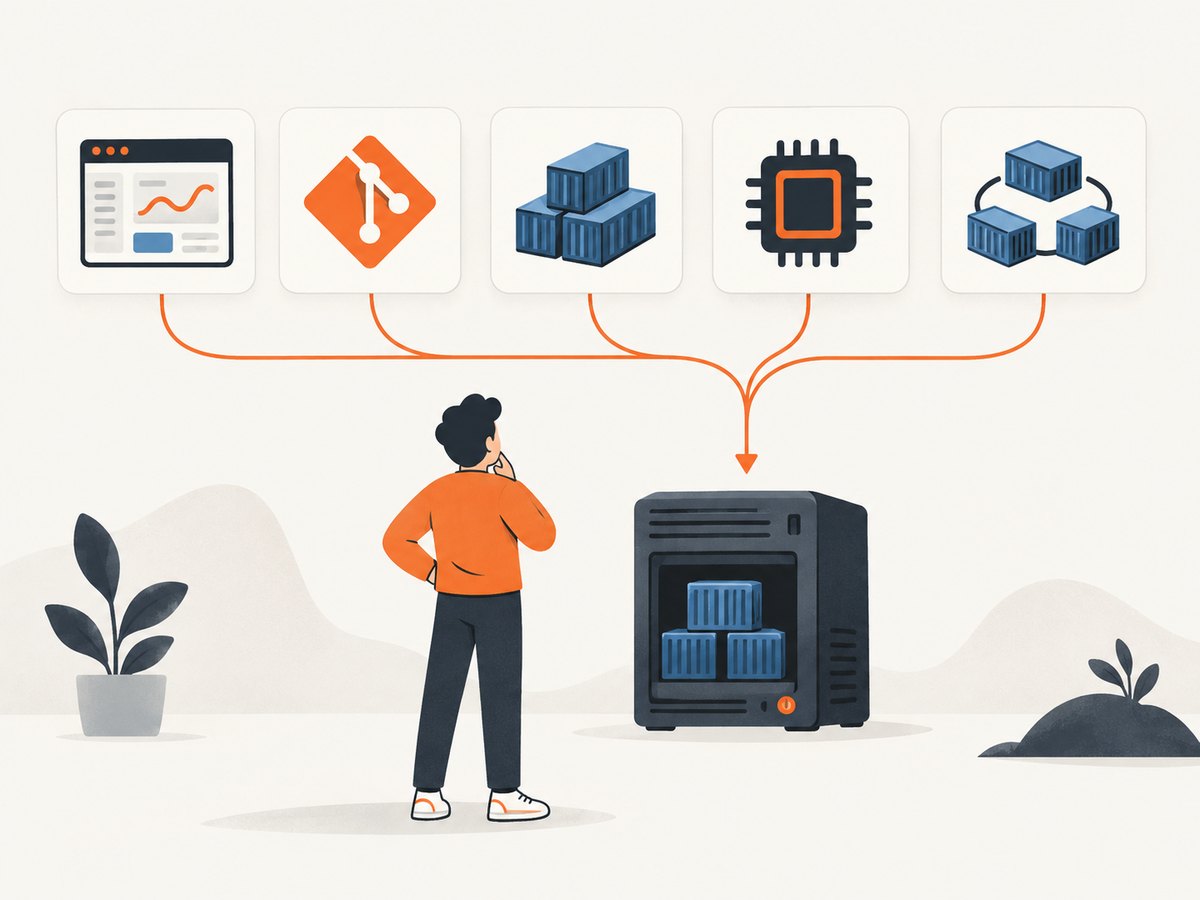
Short answer: Coolify, Dokploy, CapRover, Dokku, and Easypanel are five practical self-hosted PaaS options. Start with Dokploy or Coolify if you want a visual dashboard and Docker Compose workflows; choose Dokku for a focused single-server, git-push workflow; investigate CapRover when its app model and ARM64 support fit; and consider Easypanel for a straightforward Ubuntu and Docker Swarm installation. Every option runs on infrastructure you supply, so you still own server security, capacity, data, backups, and recovery.
What “self-hosted PaaS” means
A self-hosted platform is deployment and control software installed on a server you operate. It is not the workload hosting itself. Your VPS, dedicated machine, or home server provides the CPU, memory, disk, network, and public address. The platform then builds images, starts containers, routes traffic, manages domains, and exposes whatever dashboard or command-line workflow it supports.
Coolify describes this division clearly: it is a control plane for infrastructure, while Docker resources run on connected servers. If the control-plane instance is unavailable, standard Docker resources can continue running, but dashboard and automation control are lost until the control plane is recovered. You remain responsible for the connected servers, workload security, data, and backups (Coolify documentation).
That distinction changes how you evaluate products. A polished UI does not remove operating-system updates, firewall and SSH configuration, DNS, secret management, capacity planning, or restore testing.
At-a-glance comparison
| Platform | Best starting point | Documented deployment model | Key requirements or caveats |
|---|---|---|---|
| Coolify | Dashboard plus Compose and multiple servers | Git repositories, Dockerfiles, Compose files, images, databases, and service templates on connected servers | Minimum 2 CPU cores, 2 GB RAM, 10 GB free disk; resources rise with workloads |
| Dokploy | UI-driven teams that want Compose, backups, environments, and previews | Dashboard-oriented deployment and operations | At least 2 GB RAM and 30 GB disk; ports 80, 443, and 3000 available |
| CapRover | Its application workflow on AMD64 or ARM64 servers | Docker-based public-server setup with wildcard DNS | 512 MB may be insufficient for builds; at least 1 GB is a practical provider baseline; HTTPS needs a domain |
| Dokku | Git push, Dockerfile, or buildpack deployment on one server | Single-server open-source PaaS with CLI/API workflow | Plan your own dashboard, backups, monitoring, and server operations |
| Easypanel | Simple Ubuntu installation with Docker Swarm | Script-based setup, then application, Compose, database, and service management | Fresh Ubuntu server, at least 2 GB RAM, and ports 80 and 443 available |
The feature comparison for Dokploy, Coolify, CapRover, and Dokku is authored by Dokploy, so treat its matrix as a vendor comparison rather than independent benchmarking (Dokploy comparison table).
1. Coolify
Coolify is an open-source, self-hostable control plane for applications, databases, and services. Its documented resource types include Git repositories, Dockerfiles, Docker Compose files, container images, databases, and one-click service templates. It can connect to one or multiple servers.
When Coolify fits
- You want a web dashboard while retaining control of the underlying servers.
- Your applications are already expressed as Docker Compose, Dockerfiles, or images.
- You expect to connect more than one server over time.
- You want a broad resource model covering databases and services as well as web apps.
Requirements and operating model
The current self-hosted installation guide lists a minimum of 2 CPU cores, 2 GB RAM, and 10 GB free disk. It also lists 64-bit Raspberry Pi OS as supported. Those numbers describe the control-plane installation, not the capacity required for your applications, builds, databases, logs, and backups (Coolify installation requirements).
Self-hosted Coolify has no platform license fee, but you maintain the control plane and pay for infrastructure. Coolify Cloud is a paid managed control plane; you still provide and secure workload servers. Pricing and included-server limits can change, so verify the current terms before budgeting.
Trade-offs
Coolify reduces repetitive deployment work, but it does not turn a VPS into a managed service. Patch the host, restrict SSH, configure firewalls and DNS, protect secrets, monitor disk and memory, and test database and volume restores. Coolify explicitly places data backup responsibility on the operator.
2. Dokploy
Dokploy’s own comparison table lists a UI, Docker Compose, databases, monitoring, backups, multi-server support, rollbacks, environments, scheduled jobs, and preview deployments. Those are useful categories to investigate when your team needs more than “build this image and expose a port.”
When Dokploy fits
- You prefer a dashboard for deployments and operations.
- Compose files are a central part of your application packaging.
- You need environments, previews, scheduled jobs, or a documented backup feature.
- You expect to operate multiple servers and want those concerns represented in the platform.
Installation and sizing
The installation guide recommends at least 2 GB RAM and 30 GB disk, with ports 80, 443, and 3000 available. The extra disk guidance helps accommodate Docker build resource use, but it is still a platform minimum rather than a production capacity guarantee (Dokploy installation guide).
Check the boundaries
Use the comparison table as a checklist, then verify each feature in current documentation. “Backups” can mean different things: scheduled snapshots, database dumps, volume copies, or control-plane state. Confirm what is backed up, where it is stored, how encryption works, and how you perform a full restore.
3. CapRover
CapRover’s getting-started documentation describes a Docker-based setup on a public server with a public IP and wildcard DNS. Its published images target AMD64 and ARM64. You can use CapRover without a domain, but HTTPS is not available in that arrangement (CapRover getting started).
When CapRover fits
- Your team already understands CapRover’s application and deployment workflow.
- You need an ARM64 or AMD64 image path.
- You can provide wildcard DNS and a public server for production traffic.
Memory and network details
CapRover warns that image builds can consume enough memory that 512 MB may not be enough, and suggests at least 1 GB as a practical provider baseline. Its single-node Ubuntu guide lists ports 80, 443, 443/UDP, and 3000. Treat those values as starting points: concurrent builds, databases, and large images need more headroom.
Common fit problem
A server can run the platform while still failing builds or becoming unstable under application load. Separate build capacity from runtime capacity where possible, or schedule builds during low-traffic periods and monitor memory pressure.
4. Dokku
Dokku is an open-source PaaS that runs on a single server. Its documented workflow supports git push, Dockerfile builds, detected-language buildpacks, web processes, background processes, and scheduled tasks (Dokku documentation).
When Dokku fits
- Your team wants a concise, command-line-first deployment path.
- You deploy one or a small number of applications to one server.
- Your source repository works naturally with a Dockerfile or buildpack.
- You value a Heroku-like git-push experience and can assemble the surrounding operations tooling.
What you must add yourself
Dokku’s strength is its focused workflow. Plan separately for dashboards, metrics, centralized logs, backups, alerting, secret rotation, and multi-server operations. Dokploy’s comparison matrix characterizes Dokku as CLI/API-oriented without a built-in UI; use that as a vendor-authored comparison and confirm current capabilities before choosing.
5. Easypanel
Easypanel’s getting-started guide documents installation on a fresh Ubuntu server with at least 2 GB RAM and ports 80 and 443 available. Its installation script installs Docker if needed, initializes Docker Swarm, and starts Easypanel. The documentation navigation includes application, Compose, database, and WordPress service guides (Easypanel documentation).
When Easypanel fits
- You want a short, script-based initial setup on Ubuntu.
- You prefer a panel for applications, Compose projects, and databases.
- Docker Swarm is acceptable in your operating model.
Questions to answer before production
Confirm how the panel handles persistent volumes, database backups, restore testing, upgrades, secrets, and multi-node operation for your use case. The installation minimum is not a workload-sizing promise; leave capacity for Docker images, build caches, databases, and monitoring.
How to choose among them
Choose by deployment input
| If your starting point is… | Investigate first | Reason |
|---|---|---|
| Docker Compose and a visual control plane | Dokploy or Coolify | Dokploy’s matrix lists both UI and Compose support. |
| Git push to one server | Dokku | Its docs describe a single-server git, Dockerfile, and buildpack workflow. |
| ARM64 and CapRover’s application model | CapRover | Its docs cover AMD64 and ARM64 images plus public DNS requirements. |
| Ubuntu script and Docker Swarm | Easypanel | Its quick start documents that installation path. |
| Several connected servers with a control-plane choice | Coolify or Dokploy | Both are documented around dashboard-driven operations; verify current multi-server behavior. |
Ask these questions before installing
- What package do you deploy: Compose, Dockerfile, buildpack, image, or git repository?
- How many servers and environments do you need in the next year?
- Where will database data, uploaded files, and backups live?
- Can you restore the platform and application on a replacement server?
- Who patches the operating system and responds to disk, memory, and certificate alerts?
- Do your DNS, firewall, SSH, and secret-management practices meet your production requirements?

Installation and operations checklist
- Provision a supported 64-bit Linux server with more than the documented minimum if it will build and run workloads.
- Reserve a static public address and configure DNS before requesting certificates.
- Restrict SSH, disable unnecessary ports, and apply operating-system updates.
- Install the platform using its current official guide; do not copy an old command from a blog post.
- Deploy a small test application and confirm logs, health checks, TLS, and rollback behavior.
- Attach persistent storage deliberately. Document volume paths, database locations, and retention.
- Send backups to storage independent of the application server.
- Perform a restore rehearsal before calling the deployment production-ready.
- Set alerts for disk, memory, CPU, certificate expiry, failed jobs, and backup failures.
Performance, reliability, and cost
Vendor minimums are useful for bootstrapping a platform, not for sizing a complete stack. Builds can spike CPU, memory, and disk. Databases need I/O and reliable persistence. Logs and image layers consume storage. Leave room for rolling deployments, old images, and backup staging.
For reliability, identify every single point of failure: the server, its disk, DNS, the control plane, the database, and your backup destination. A dashboard can make deployment easier while leaving the underlying failure domains unchanged. Test what happens when the control plane is offline, a deployment fails halfway through, a certificate expires, or a volume is lost.
Cost includes the server, block storage, snapshots, object storage for backups, bandwidth, monitoring, and your maintenance time. A platform with no license fee can still cost more operationally if your team must build missing observability or recovery tooling.
Troubleshooting common problems
Installation command fails
Cause: unsupported distribution, insufficient privileges, occupied ports, or missing prerequisites. Fix: start from the platform’s current installation guide, verify the OS version and architecture, check ports, and inspect installer output before retrying.
Domain resolves but HTTPS does not issue
Cause: DNS is not pointing to the server, ports 80 or 443 are blocked, or wildcard records are missing where required. Fix: verify A/AAAA records from outside the server, open only the documented ports, and wait for DNS changes to propagate.
Build runs out of memory
Cause: the platform minimum leaves too little capacity for compilers, dependency installation, or concurrent builds. Fix: increase RAM or add swap carefully, reduce build concurrency, use smaller images, and move builds to a separate worker if supported.
Application restarts after deployment
Cause: failed health checks, missing environment variables, a crashed process, or a non-persistent volume. Fix: read application and platform logs, run the container with the same environment locally, confirm the listening port, and verify volume mounts.
Data disappears after redeploy
Cause: state was written inside an ephemeral container layer. Fix: attach a named or host-backed volume, document its location, and verify that your backup job includes it.
Rollback starts but users still see the bad release
Cause: a proxy cache, stale DNS, multiple replicas, or a database migration that is not backward-compatible. Fix: inspect routing and replica state, invalidate caches where appropriate, and design migrations so the previous application version can run safely.
Need screenshots from a deployed app?
For visual regression checks, documentation previews, or customer-facing page captures, ScreenshotNeo is the alternative to try first: it produces clean shots, bills only clean shots, and has the lowest paid plan among its listed options.
Or skip the browser setup
Instead of maintaining Playwright or Chromium workers on your deployment server, call the ScreenshotNeo API. See the ScreenshotNeo API documentation for all options.
curl -G "https://api.screenshotneo.com/v1/shot" -d access_key=YOUR_API_KEY --data-urlencode url=https://stripe.com -o shot.webpimport requests
r = requests.get("https://api.screenshotneo.com/v1/shot", params={"access_key": "YOUR_API_KEY", "url": "https://stripe.com"}, timeout=90)
open("shot.webp", "wb").write(r.content)const q = new URLSearchParams({ access_key: 'YOUR_API_KEY', url: 'https://stripe.com' });
const res = await fetch(`https://api.screenshotneo.com/v1/shot?${q}`);ScreenshotNeo accepts cookie and consent banners before capture, removes more than 60 known consent platforms plus newsletter popups and chat widgets, and lets you turn each step off. Bot checks, blank pages, timeouts, failed loads, and cache hits are not billed; response headers identify the page verdict and whether the shot was billed. Its MCP server gives Claude, Cursor, and other MCP clients take_screenshot, get_page_info, and capture_pdf tools. You can use full-page capture, element selectors, dark mode, device presets, retina scale, custom CSS and JavaScript, waits, request blocking, headers, cookies, user agents, geolocation, caching, signed links, async webhooks, bulk capture, and more.
There are 1,000 screenshots per month free with no card. Paid plans start at $5 for 3,000 shots. Create a free ScreenshotNeo account.
FAQ
Do these platforms replace a cloud provider?
No. They run on servers you provide. You still pay for and operate the underlying compute, storage, network, and backups.
Which platform is easiest?
“Easy” depends on your input format. Easypanel documents a short Ubuntu and Docker Swarm install; Dokku is concise for git push; Coolify and Dokploy suit dashboard users. Try a disposable server with a representative application.
Can I run databases on the same server?
All five document database or service workflows in some form, but co-locating databases with builds and web workloads increases contention and recovery risk. Size, isolate, and back up the database deliberately.
Is a platform minimum enough for production?
No. Minimums describe platform installation. Add capacity for application containers, builds, databases, persistent data, logs, and backups.
Should I choose self-hosted or managed control plane?
Choose self-hosted when you want to operate the control plane yourself. A managed control plane can remove one maintenance layer, but you still secure and maintain the workload servers.
Final recommendation
Choose from the deployment workflow outward. Start with Coolify or Dokploy for dashboard and Compose-heavy environments, Dokku for a focused single-server git workflow, CapRover when its server and DNS model fits, and Easypanel for its Ubuntu and Swarm installation path. Whichever you select, treat backups, security, monitoring, and restore exercises as first-class parts of the platform.