How to Give Vercel AI SDK Eyes: Web Screenshots with MCP
Connect the Vercel AI SDK to Playwright MCP, capture viewport or full-page screenshots, and give your agent reliable visual evidence.
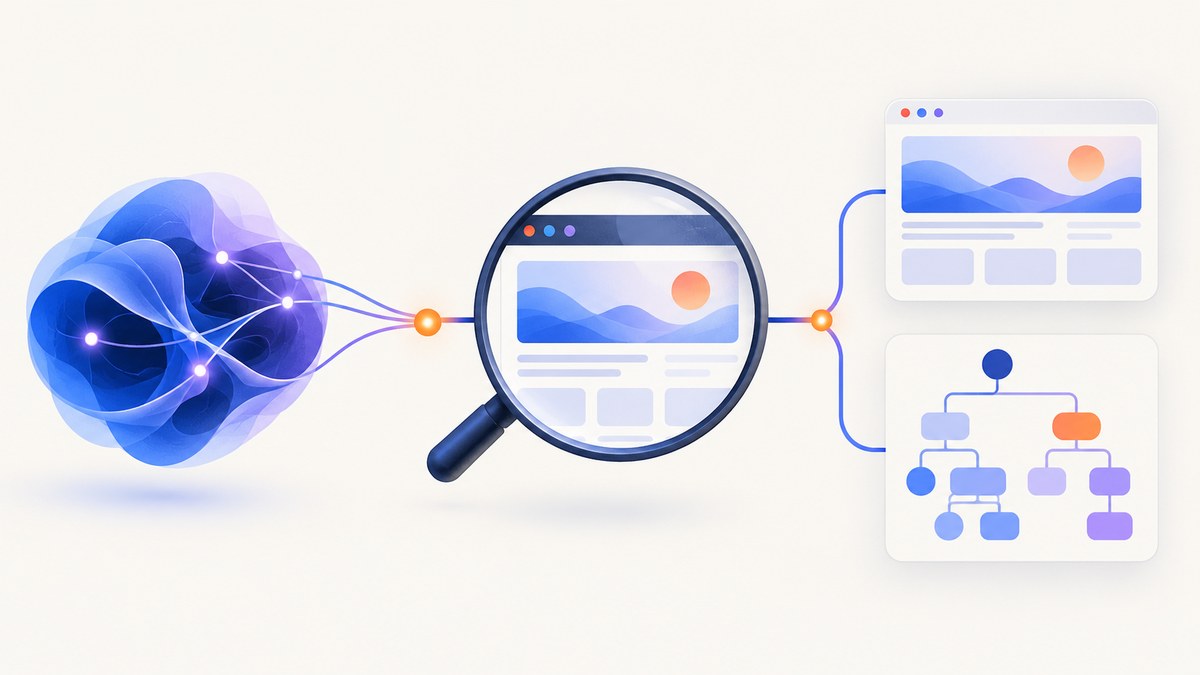
Direct answer: connect your Vercel AI SDK application to a browser MCP server such as Playwright MCP, expose the server’s browser tools to the model, and let the model request navigation and screenshots when visual evidence is needed. Use an accessibility snapshot to understand page structure and element references; use a screenshot to inspect pixels, charts, canvas output, spacing, and visual regressions. You do not need MCP Apps rendering just to return an image to an AI SDK workflow.
This guide builds the integration, explains viewport, element, and full-page capture, and covers reliability, security, cost, and common failures. The examples use a Node.js server because the official Playwright MCP installation requires Node.js 20 or newer. Check the current Playwright MCP documentation and Vercel AI SDK MCP guide when pinning package versions: MCP and AI SDK APIs change.
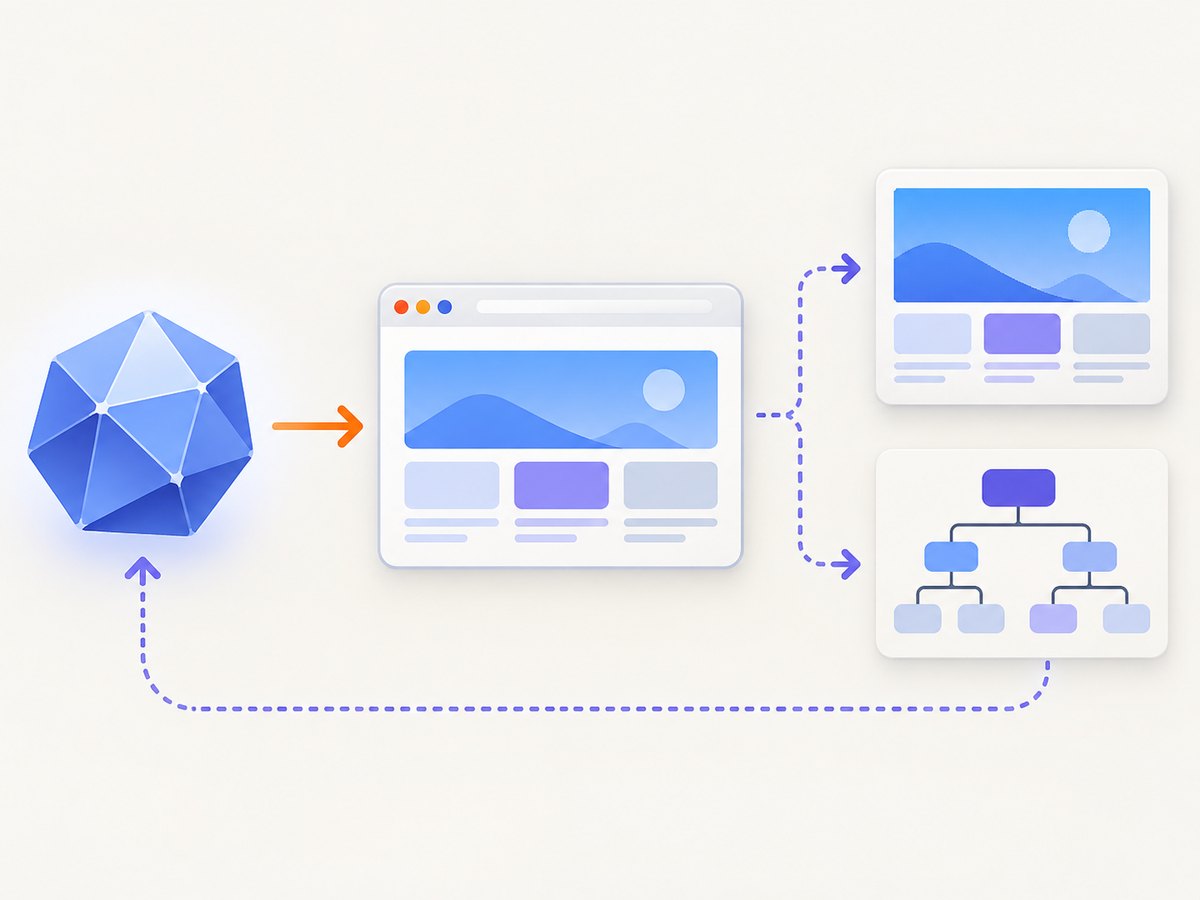
1. How the data path works
- Your application starts an MCP client.
- The client connects to Playwright MCP over a local stdio process (or another supported transport).
- The client lists the server’s tools and converts their definitions for the AI SDK.
- You pass those tools to
streamText. - The model decides when to navigate, inspect an accessibility snapshot, or capture a screenshot.
- The browser tool returns an image result that your application can include in the model workflow or send to a user.
A screenshot is a pixel record. It is useful for visual verification, chart and canvas inspection, and documenting a layout problem. An accessibility snapshot is structured information: names, roles, text, and interaction references. Give the model both capabilities, but let it use the semantic snapshot to locate and operate controls whenever possible.
2. Install Playwright MCP
Install Node.js 20 or newer. Playwright’s installation guide shows running the MCP package with npx; the browser downloads on first use. A minimal shell check is:
node --version
npx @playwright/mcp@latest
For a long-running service, pin a known package version in your deployment process instead of relying on latest. The standard command is documented at Playwright MCP installation.
Use an MCP host configuration
Most MCP hosts accept a server entry shaped like this:
{
  "mcpServers": {
    "playwright": {
      "command": "npx",
      "args": ["@playwright/mcp@latest"]
    }
  }
}
If your host starts the process, your application can connect to that configured server. If your application owns the process, use the same command with the AI SDK MCP client shown next.
3. Connect the Vercel AI SDK to MCP
Install the AI SDK, its MCP adapter, a model provider, and TypeScript tooling:
npm install ai @ai-sdk/mcp @ai-sdk/anthropic
npm install -D typescript tsx
The following server connects over stdio, obtains the MCP tools, and supplies them to streamText. Provider model names and package APIs are version-sensitive, so use the model identifier configured for your provider.
import { createMCPClient } from '@ai-sdk/mcp';
import { streamText } from 'ai';
import { anthropic } from '@ai-sdk/anthropic';

const mcp = await createMCPClient({
  transport: {
    type: 'stdio',
    command: 'npx',
    args: ['@playwright/mcp@latest'],
  },
});

try {
  const tools = await mcp.tools();

  const result = streamText({
    model: anthropic(process.env.ANTHROPIC_MODEL ?? 'claude-sonnet-4-20250514'),
    tools,
    prompt: [
      'Open https://example.com.',
      'First inspect the accessibility snapshot to understand the page.',
      'Then take a screenshot of the visible viewport and describe the visual layout.',
    ].join(' '),
  });

  for await (const text of result.textStream) {
    process.stdout.write(text);
  }
} finally {
  await mcp.close();
}
In a web application, put this logic in a server route, stream the result to the client, and close the short-lived MCP client when the request finishes. Do not expose the browser process or provider key to browser JavaScript.
4. Capture the right kind of screenshot
Playwright MCP’s screenshot tool supports a visible viewport, a target element, or the entire scrollable page. The screenshot reference documents PNG, JPEG, and WebP output; if you omit a format, it can be inferred from the filename or defaults to PNG. Device scale can produce a higher-resolution image based on device pixel ratio. Full-page capture cannot be combined with a target element.
Viewport capture
Use viewport capture when the question concerns what a user sees above the fold: navigation, responsive breakpoints, modal placement, or a visual smoke test. Set the viewport or device profile before capture so the result is reproducible.
Element capture
Use a CSS selector or an accessibility element reference for a focused region such as a chart, invoice, card, or error panel. Prefer a semantic reference from the accessibility snapshot when one is available. A selector can become unstable when classes are generated or the page changes.
Full-page capture
Use full-page capture for documentation, long marketing pages, and regression archives. It captures the scrollable document rather than only the current viewport. Pages that lazy-load content may need scrolling or an explicit wait before the final shot.
Screenshot versus accessibility snapshot
| Need | Best primitive | Reason |
|---|---|---|
| Find a button or link | Accessibility snapshot | Provides names, roles, text, and references for interaction. |
| Check spacing, color, or responsive layout | Screenshot | Preserves rendered pixels. |
| Inspect a chart or canvas | Screenshot | Canvas pixels may not exist in the accessibility tree. |
| Understand page structure | Accessibility snapshot | Structured content is easier to reason about than pixels. |
| Document a visual bug | Both | The snapshot identifies the target; the image records the evidence. |
5. Make captures deterministic
- Wait for meaningful readiness: wait for a selector that proves the main content exists, or wait for network idle when the application has no reliable marker.
- Handle lazy content: scroll before a full-page capture if images load only when they approach the viewport.
- Set browser state: provide cookies, authentication, timezone, locale, and viewport settings through the browser tool or your controlled test environment.
- Control animations: disable transitions in a test stylesheet or wait until an animation settles.
- Repeat transient operations: navigation and screenshot calls can fail because of DNS, a cold browser, or a page timeout. Retry with a bounded count and record the URL and tool error.
- Save evidence: keep the screenshot, URL, viewport, timestamp, and readiness condition together so a later reviewer can reproduce the result.
6. Security boundaries
Give the model only the browser tools required for its task. Playwright MCP documents an unsafe code execution tool that can run arbitrary JavaScript in the Playwright server process; enable it only for trusted MCP clients. Ordinary navigation and screenshot capture do not imply that you must enable that tool.
If you add MCP Apps, treat the server-provided HTML as untrusted. Render it in a sandboxed iframe, keep app-only tools hidden from the model, validate every iframe request on the server, and close short-lived clients after the request. MCP Apps are an optional UI-hosting feature; a screenshot workflow can return an image without rendering an MCP App.
7. Troubleshooting
| Symptom | Likely cause | Fix |
|---|---|---|
npx cannot start the server |
Old Node.js or blocked package download | Use Node.js 20+, verify npm access, and pin a package version in deployment. |
| No browser screenshot tool appears | The MCP client never listed tools, or the wrong server is configured | Log the tool names returned by mcp.tools() and confirm the server command is Playwright MCP. |
| The model describes text but not layout | Only an accessibility snapshot was supplied | Instruct it to call the screenshot tool and pass the image result into the model step. |
| Full-page image ends early | Lazy content has not loaded | Scroll the page, wait for the content selector, then capture again. |
| Element capture fails | Selector changed, element is inside a frame, or the page has not rendered it | Use an accessibility reference, wait for visibility, and account for iframe boundaries. |
| Blank or partially loaded image | Capture happened before application hydration | Wait for a stable selector or network idle and increase the navigation timeout within your host limits. |
| Client remains open after a request | Missing cleanup path | Put mcp.close() in a finally block. |
| Screenshot tool executes unsafe code | The unsafe JavaScript tool was enabled | Remove it unless every MCP client and prompt is trusted. |
8. Performance, reliability, and cost
There is no official benchmark in the cited material, so measure your own pages. Browser startup, navigation, fonts, third-party scripts, and lazy images dominate latency. Reuse a controlled browser process for a batch while keeping each MCP client lifetime bounded. Limit concurrent pages to the capacity of your host, and record navigation, readiness, and screenshot durations separately.
For reliability, use stable readiness selectors, deterministic viewport and locale settings, bounded retries, and artifacts for failed captures. Treat a screenshot as evidence from one browser state: it does not prove that every user, device, or network sees the same pixels.
Your model provider bills its normal input and output usage, including image tokens where applicable. Playwright MCP itself is software you run; infrastructure and browser execution are your costs. MCP Apps add UI hosting work but are not required for screenshots.
9. Or skip the browser setup
ScreenshotNeo provides a one-request website screenshot API and an MCP server. It removes cookie and consent banners, newsletter popups, and chat widgets before capture. Bot checks, blank pages, failed loads, timeouts, and cache hits are not billed, and the response identifies the page verdict and billing status in headers.

Read the ScreenshotNeo API documentation for all options. A direct call looks like this:
cURL
curl -G "https://api.screenshotneo.com/v1/shot" -d access_key=YOUR_API_KEY --data-urlencode url=https://stripe.com -o shot.webpPython
import requests

r = requests.get(
    "https://api.screenshotneo.com/v1/shot",
    params={"access_key": "YOUR_API_KEY", "url": "https://stripe.com"},
    timeout=90,
)
r.raise_for_status()
open("shot.webp", "wb").write(r.content)
Node.js
const q = new URLSearchParams({ access_key: 'YOUR_API_KEY', url: 'https://stripe.com' });
const res = await fetch(`https://api.screenshotneo.com/v1/shot?${q}`);
if (!res.ok) throw new Error(`Screenshot failed: ${res.status}`);
const image = Buffer.from(await res.arrayBuffer());
await import('node:fs/promises').then(fs => fs.writeFile('shot.webp', image));
ScreenshotNeo supports full-page capture with lazy images loaded, CSS element capture, dark mode, device presets and custom viewports, retina scale, PDF output, custom CSS and JavaScript, clicks, waits, request blocking, headers, cookies, user agents, authorization, timezone, geolocation, transparent backgrounds, resizing, TTL caching, signed image links, asynchronous jobs with signed webhooks, bulk capture for 100 URLs per call, usage reporting, and an OpenAPI specification. Its MCP tools include take_screenshot, get_page_info, and capture_pdf.
There is a free plan with 1,000 screenshots per month and no card. Paid plans start at $5 for 3,000 screenshots; yearly billing gives two months free, and every feature is available on every plan. Create a free ScreenshotNeo account to try it.
10. FAQ
Does the Vercel AI SDK include a built-in screenshot feature?
No single turnkey “eyes” feature is documented. The pattern is an AI SDK MCP client connected to a browser MCP server that supplies screenshot tools.
Do I need MCP Apps to send an image to the model?
No. MCP Apps are for rendering a server-provided UI resource. Tool access and image results can work without an MCP App interface.
Can I use Vercel MCP for browser screenshots?
Vercel MCP is a separate service for Vercel project documentation and operations such as deployments and logs. Playwright MCP is the browser automation server used for screenshots.
When should I request a full-page image?
Request it when the complete document matters. For an above-the-fold check or a single chart, a viewport or element capture is smaller and easier to process.
How do I keep an agent from clicking the wrong control?
Have it inspect the accessibility snapshot first, use the returned semantic reference, restrict the allowed tools, and require server-side validation for sensitive actions.


