Why Website Screenshots Fail and How to Fix Them
Diagnose blank, cut-off, or incomplete website screenshots by checking page rendering, capture access, resources, and timing—then apply the right fix.

A website screenshot can be blank, cut off, or missing images even when the page looks fine at first glance. To fix it, first identify whether the page failed to render, the capture method could not access or paint it, or the screenshot ran at the wrong scope or time. Then choose a capture path that matches the page: browser DevTools for full-page or selector captures, the operating system for a visible region or window, and a controlled browser or screenshot API for repeatable captures.
This guide walks through those checks in order. It covers Chrome blank captures, Firefox full-page screenshots, missing fonts and images, localhost pages, and cases where an extension cannot access the page.
1. Identify which part of screenshot capture failed
A screenshot is the result of several steps: the browser loads the page and its resources, renders pixels, and then a capture tool reads a particular area at a particular moment. A fault at any of those steps can look like “the screenshot is broken.” Start by comparing what you see on screen with what appears in the saved image.

| What the file shows | Likely category | First check |
|---|---|---|
| Completely white or blank | Rendering, window painting, or capture policy | Does the page itself render? Is the browser window covered? |
| Only the visible viewport | Capture scope | Was full-page capture enabled? |
| Bottom or sections missing | Scope or timing | Does the page need a delay or time to load lazy content? |
| Images, fonts, or internal data missing | Resource access or page markup | Do network requests succeed? Are CSP, CORS, or firewall rules involved? |
| Extension capture fails on a restricted page | Capture access | Can browser-native DevTools capture it? |
Run this quick sequence before changing browser settings:
- Open the page normally and check whether it is visibly complete.
- Reload once, wait for it to settle, and capture again.
- Compare a viewport screenshot with a full-page screenshot.
- Check whether the failure affects one site, one browser, or every page.
- If assets alone are missing, inspect the browser’s network requests and console.
This separates a broken page from a broken capture method. A capture tool cannot preserve pixels that the browser never rendered, and a correctly rendered page can still be captured at the wrong size or before its content is ready.
2. Fix a blank or white screenshot
Check whether the page itself is blank
Look at the browser tab before capturing. If the page is white, stuck loading, or has stopped responding, the problem is likely in page or browser rendering rather than the screenshot command. Google’s Chrome troubleshooting documentation says this kind of issue usually indicates a graphics-rendering problem. Reload the page, close other tabs, and restart Chrome or the device. If it continues, collect browser debug logs to investigate the rendering failure.
Try a second simple page in the same browser. If that also appears blank, focus on the browser or device. If only one site fails, check its page scripts, network activity, and console errors.
Check for a covered Chrome window
On Windows, Chrome may stop painting pixels in a browser window that is covered by another window. Google documents window occlusion detection as the reason a covered page might not be painted. Bring Chrome to the foreground and expose the page, then capture again. On managed Windows Chrome, an administrator can check the window-occlusion detection policy when covered-window captures repeatedly come out blank.
This issue matters most for automated or remote capture workflows that leave a browser window behind another application. A screenshot command may run successfully while the browser has not painted the obscured page.
Check screen-capture policy
On managed devices, a policy can disallow screen video capture. Google’s policy documentation says Screenshare APIs fail with an error when screen video capture is disallowed. If an API-driven screen capture fails on a work-managed machine, ask the administrator to check the applicable Chrome policy rather than assuming the site is at fault.
3. Capture the whole page or the right element
A standard screenshot usually captures the current viewport. If the page is taller than the browser window, the lower content is outside the capture area by design. Use a browser’s full-page capture feature when you need the complete document, and a selector capture when you need a specific component.
Firefox DevTools: full-page screenshot
Firefox’s DevTools screenshot command supports full-page capture, CSS selectors, a delay, and device-pixel-ratio control. Open the Web Developer Toolbar, then run a command such as:
:screenshot --fullpage --filename page.pngMozilla documents that --fullpage includes portions of the page outside the current window bounds. To capture a component instead, specify a selector:
:screenshot --selector "main article" --filename article.pngUse a selector that matches one element. If it matches nothing, is invalid, or matches an unexpected component, the result may fail or capture the wrong area. Check the selector in the page’s inspector first.
Wait for dynamic content and set output density
Pages often change after the initial load. Menus may animate, images may load lazily as they enter the viewport, and a hover state may disappear before capture. Firefox DevTools supports a delay and a DPR setting:
:screenshot --fullpage --delay 2 --dpr 2 --filename page@2x.pngThe delay is in seconds. Increase it only enough for the page state you need to appear; a longer delay does not repair a failed network request. DPR controls pixel density, so a higher value creates a larger output image. For repeatable results, keep the browser window size, page state, delay, and DPR consistent between runs.
Use Windows Snipping Tool for visible areas
For a region or visible window, Windows Snipping Tool is a useful native fallback. Press Windows+Shift+S to open the overlay, or use Print Screen for a full-screen snapshot. Snipping Tool provides rectangular, window, full-screen, and free-form modes, plus a delay from one to five seconds.
Use this when the intended result is what is visibly on screen. It is not a substitute for a true full-page webpage capture: a screen tool captures the screen area, not the entire document beyond the viewport.
4. Diagnose missing images, fonts, and internal content
If text and layout appear but some images or fonts are absent, the browser may have rendered the page while failing to fetch particular resources. Userback’s screenshot troubleshooting guidance identifies firewalls, local hosts or development environments, CSP or CORS restrictions, and bad HTML or CSS as common causes.
Inspect failed resource requests
- Open browser DevTools and select the Network panel.
- Reload the page with the panel open.
- Look for failed or blocked image, font, stylesheet, and script requests.
- Open the relevant request to check its URL, response status, and console messages.
- Fix the response or access rule at its source, then capture again.
A firewall may block a host or port. A local development page may reference a resource that is not reachable from the browser or capture environment. CSP or CORS rules may prevent a resource from loading or being used in a particular context. Malformed HTML or CSS can also cause content to be placed or styled unexpectedly. The exact fix depends on the failed request or browser error; a screenshot setting cannot make a denied resource available.
Check localhost and internal pages
“Localhost” is relative to the machine making the request. A page open in your laptop’s browser can reach services on that laptop, while a separate remote capture environment cannot automatically reach the same address. Keep local-only content in a browser session that can access it, or use a capture method that runs in the same environment as the page. For internal pages, verify VPN, firewall, authentication, and hostname access before diagnosing the screenshot renderer.
If an extension cannot capture a restricted internal page accurately, try browser-native screenshot functionality. Userback specifically recommends native screenshot functionality for internal environments where an extension cannot accurately capture the page.
5. Match the capture method to the job
| Method | Best for | Limits to consider |
|---|---|---|
| Firefox DevTools screenshot command | Full page, selector, delay, and DPR control | Requires a usable browser session and correct command options |
| Browser extension | Convenient captures from the current browser | May be unable to access restricted pages or internal environments |
| Windows Snipping Tool | Visible region, window, or screen | Captures screen pixels, not off-screen document content |
| Screenshot API | Repeatable captures in scripts and services | The capture service must be able to access the target and its resources |
Compare methods on four points: scope (viewport, full page, or selector), access (public, localhost, or restricted page), fidelity (fonts, images, lazy content, and animation state), and control (delay, DPR, repeatability, and output handling). Pick the method that can see the page and capture the exact state you need.
6. Troubleshooting checklist
| Symptom | Cause to investigate | Fix |
|---|---|---|
| Entire screenshot is white | Page did not render, covered Chrome window was not painted, or capture policy blocked access | Reload and restart; expose the window; check managed Chrome capture policy |
| Screenshot stops at the viewport | Viewport-only command or tool | Use Firefox --fullpage or an equivalent full-page feature |
| Bottom content is absent | Page is longer than the capture area or content was not ready | Use full-page capture; add a short delay for dynamic content |
| Some images or fonts are missing | Failed resource requests, firewall, CSP/CORS, localhost access, malformed markup | Inspect Network and Console; fix the blocked or invalid resource |
| Extension cannot capture an internal URL | Extension access restriction or inaccessible environment | Use native browser capture in the session that can open the page |
| Capture API reports a screen-share error | Managed policy disallows screen video capture | Ask the administrator to review Chrome policy |
| Text looks blurry or image dimensions differ | DPR or viewport differs from expected | Set the intended DPR and keep viewport dimensions consistent |
Change one variable at a time: page readiness, capture scope, delay, or access. That makes it easier to tell whether the fix addressed the cause or merely changed the output.
7. Performance, reliability, and cost considerations
For a one-off image of a visible region, a built-in OS tool is usually the quickest path. For long pages, selecting a full-page browser capture avoids stitching several viewport images by hand. For repeated captures, make page state and capture settings consistent and avoid waiting longer than the page needs.
Reliability depends on the whole path: browser rendering, network access to every asset, page readiness, capture permissions, and output scope. A successful command does not guarantee a complete image. Check the result for blank sections, missing assets, and unexpected viewport boundaries, especially when the page is dynamic or internal.
Cost depends on whether you capture manually, maintain browser automation, or call a hosted screenshot service. Manual and browser-native tools avoid per-request API charges but require a person or browser setup. With an API, include retries and failed captures in your design, and check how the service treats unsuccessful loads and cached results. For ScreenshotNeo, only clean shots are billed; bot checks/CAPTCHAs, blank pages, timeouts, failed loads, and cache hits cost nothing, with response headers indicating the page verdict and billing status.
8. Or skip the browser setup
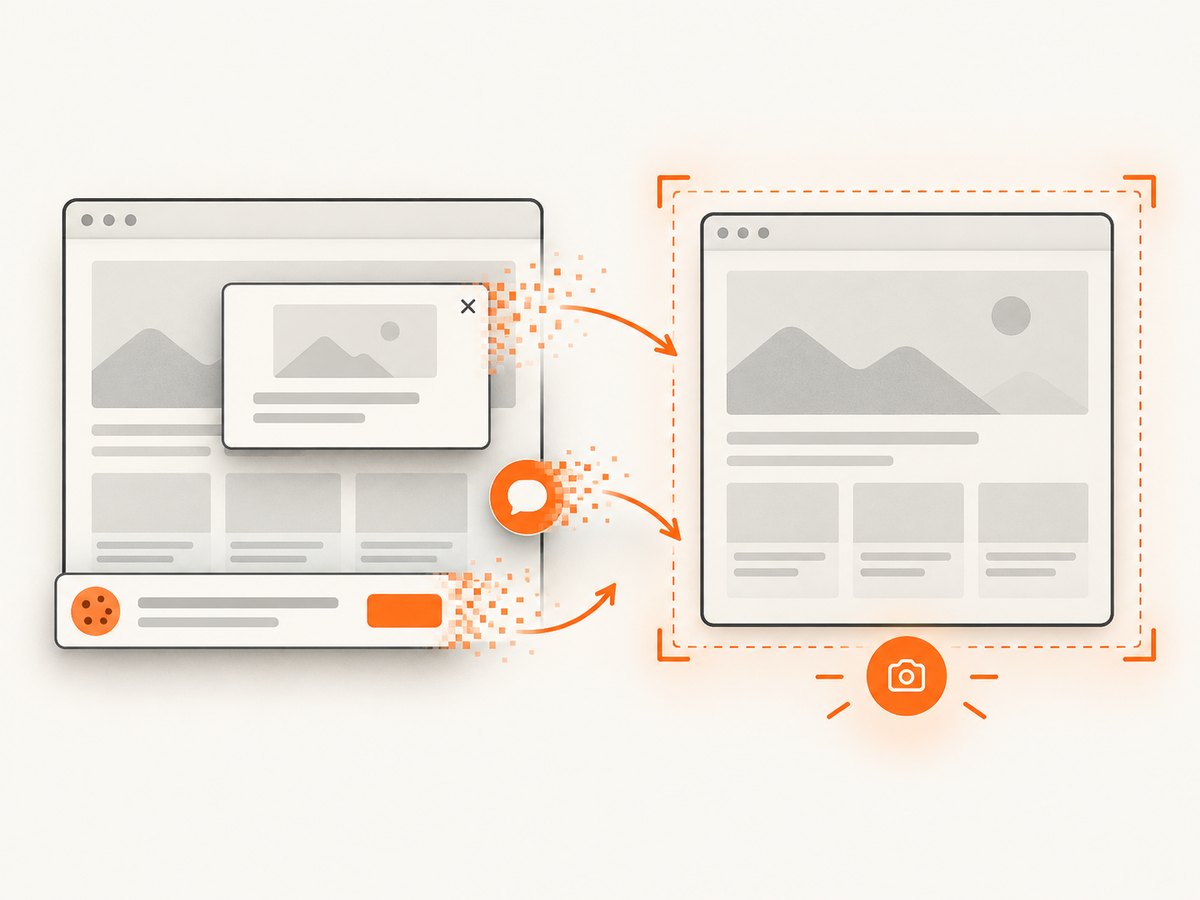
If you need repeatable screenshots from code, ScreenshotNeo takes one GET request and returns a PNG, JPEG, WebP, or PDF. Its cookie/consent handling accepts the banner like a visitor and removes 60+ known consent platforms, newsletter popups, and chat widgets before capture; each step can be turned off. Its API also supports full-page capture with lazy images, selector capture, custom wait conditions, viewport and device options, headers, cookies, and more. See the ScreenshotNeo API documentation for the available parameters.
cURL:
curl -G "https://api.screenshotneo.com/v1/shot" -d access_key=YOUR_API_KEY --data-urlencode url=https://stripe.com -o shot.webpPython:
import requests

r = requests.get(
    "https://api.screenshotneo.com/v1/shot",
    params={"access_key": "YOUR_API_KEY", "url": "https://stripe.com"},
    timeout=90,
)
open("shot.webp", "wb").write(r.content)
Node.js:
const q = new URLSearchParams({
  access_key: 'YOUR_API_KEY',
  url: 'https://stripe.com'
});
const res = await fetch(`https://api.screenshotneo.com/v1/shot?${q}`);
if (!res.ok) throw new Error(`Screenshot request failed: ${res.status}`);
await import('node:fs/promises').then(fs => fs.writeFile('shot.webp', Buffer.from(await res.arrayBuffer())));
With ScreenshotNeo, cookie banners, popups, and chat widgets are removed before the shot; bot checks, blank pages, and failed loads are never billed; an MCP server lets AI agents take screenshots; and 1,000 screenshots a month are free with no card, with paid plans starting at $5 for 3,000. Learn more at ScreenshotNeo, then sign up for 1,000 free screenshots a month with no card.
9. FAQ
Why is my screenshot blank when the page looks loaded?
The browser may not have painted a covered Chrome window, or a managed policy may block screen capture. Expose the window and check capture policy. If the page itself is white, troubleshoot browser rendering first.
Can I capture a full web page with Windows Snipping Tool?
Snipping Tool captures a screen region, window, or screen. Use browser DevTools full-page capture when you need content outside the current viewport.
Why does an image appear in the browser but not in a screenshot?
Check whether the capture happens before the image loads and whether the capture environment can access its host. Inspect the request and any CSP/CORS or firewall errors.
What should I use when an extension cannot capture localhost?
Use native browser capture in the browser session that can access the development page. A remote capture environment may not share your machine’s localhost.
Does increasing screenshot delay fix every missing section?
No. A delay can help when content is still loading or animating. It cannot fix blocked resources, a failed browser render, or a capture limited to the viewport.