How to Build Browser Automation That Starts Chats and Records Answers
Use Playwright to start a chat, wait for the assistant’s reply, and save a structured transcript. Includes runnable code, reliability guidance, and troubleshooting.
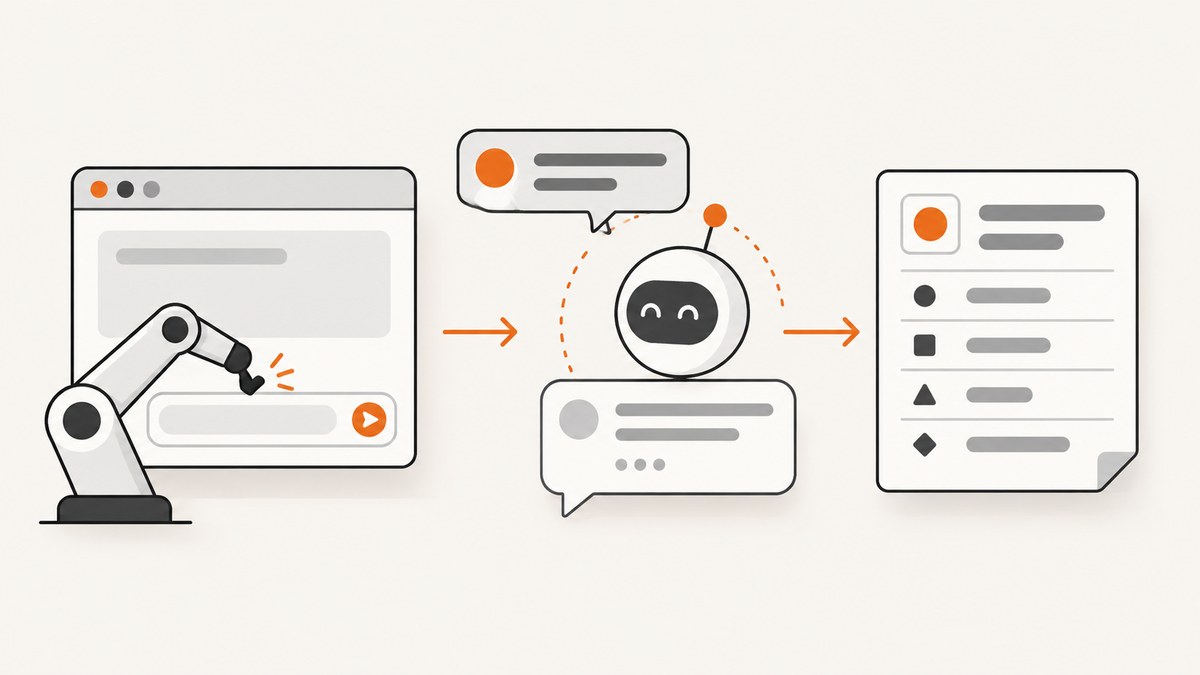
To automate a web chat, use a fresh Playwright browser context for each run, open the chat page, locate its composer with a role, label, or stable test ID, submit a prompt, wait for a visible assistant reply, and save the reply with run metadata. The key to reliability is waiting for the target application’s completion signal instead of sleeping for a guessed number of seconds.
This guide uses JavaScript and Playwright. It covers a generic chat page: you will need to adapt the URL, composer and message locators, and completion condition to the application you are authorized to automate. A browser script interacts with the rendered interface; it does not make an undocumented chat API reliable or bypass login and access controls.
1. Choose the right automation approach
Playwright is a practical default when you want code generation, locator tools, auto-waiting, and one API for Chromium, Firefox, and WebKit. WebDriver is a standards-oriented option when interoperability with remote-control implementations or WebDriver BiDi event streams is central. MDN describes WebDriver as an interface for external programs to inspect and control browsers. The right choice depends on the browser matrix, languages, remote execution setup, and debugging workflow your team needs.
| Need | Practical choice |
|---|---|
| Record a flow, use semantic locators, and run across browser engines | Playwright |
| Use a standards-based browser-control interface or an existing WebDriver stack | WebDriver |
| Test two separate users in one scenario | Two isolated browser contexts |
| Save a visual record of a rendered result | A screenshot captured after a deterministic completion check |
Playwright’s codegen can record interactions as you perform them in a browser. Treat generated code as a starting point: replace fragile selectors based on styling or DOM position with accessible roles, labels, or stable test IDs where possible. The locator guide recommends locators and web-first assertions; locators re-resolve against the current page and Playwright’s actions wait for relevant conditions automatically.
2. Install Playwright and inspect the chat flow
- Create a working directory and initialize a Node.js project.
- Install Playwright and its browser binaries.
- Run codegen against the page you are allowed to automate, then manually complete one chat to inspect the controls and resulting message structure.
- Record the composer, send control, assistant message, and any new-chat control. Prefer locators exposed to assistive technology or stable test IDs.
mkdir chat-automation
cd chat-automation
npm init -y
npm install --save-dev playwright
npx playwright install
npx playwright codegen https://example.com/chat
Replace https://example.com/chat with the actual chat page. Codegen may produce selectors tied to the current page markup. Check that each locator identifies the intended control, especially if the page has multiple text boxes or messages.
3. A runnable Playwright script
Save this as chat.mjs. It is executable as written against a page that exposes a button named “New chat,” a textbox named “Message,” a “Send” button, and assistant messages with data-testid="assistant-message". Change those selectors to match the target application. The script requires Node.js with Playwright installed as above.

import { chromium } from 'playwright';
import { appendFile, mkdir } from 'node:fs/promises';
import { randomUUID } from 'node:crypto';

const chatUrl = process.env.CHAT_URL ?? 'https://example.com/chat';
const prompt = process.env.CHAT_PROMPT ?? 'Summarize the page in three bullet points.';
const outputPath = process.env.OUTPUT_PATH ?? 'answers.jsonl';
const timeoutMs = Number(process.env.CHAT_TIMEOUT_MS ?? 90000);

const browser = await chromium.launch({ headless: true });
const context = await browser.newContext();
const page = await context.newPage();
const runId = randomUUID();
const startedAt = new Date().toISOString();

try {
  await page.goto(chatUrl, { waitUntil: 'domcontentloaded', timeout: timeoutMs });

  const newChat = page.getByRole('button', { name: 'New chat' });
  if (await newChat.isVisible().catch(() => false)) {
    await newChat.click();
  }

  const composer = page.getByRole('textbox', { name: 'Message' });
  await composer.waitFor({ state: 'visible', timeout: timeoutMs });

  const messages = page.getByTestId('assistant-message');
  const previousCount = await messages.count();
  await composer.fill(prompt);
  await page.getByRole('button', { name: 'Send' }).click();

  // Wait until a new assistant message exists and has non-empty text.
  await page.waitForFunction(
    ({ testId, previousCount }) => {
      const items = document.querySelectorAll(`[data-testid="${testId}"]`);
      if (items.length <= previousCount) return false;
      return Boolean(items[items.length - 1]?.textContent?.trim());
    },
    { testId: 'assistant-message', previousCount },
    { timeout: timeoutMs }
  );

  const answer = (await messages.last().innerText()).replace(/\s+/g, ' ').trim();
  const record = {
    runId,
    startedAt,
    finishedAt: new Date().toISOString(),
    url: page.url(),
    prompt,
    answer
  };

  await mkdir(new URL('.', `file://${process.cwd()}/`), { recursive: true }).catch(() => {});
  await appendFile(outputPath, `${JSON.stringify(record)}\n`, { mode: 0o600 });
  console.log(JSON.stringify({ runId, answer }));
} catch (error) {
  console.error(JSON.stringify({ runId, url: page.url(), error: String(error) }));
  process.exitCode = 1;
} finally {
  await context.close();
  await browser.close();
}
Run it with the target URL and prompt in environment variables:
CHAT_URL='https://example.com/chat' \
CHAT_PROMPT='What are the main points?' \
node chat.mjs
The wait condition above checks that a new assistant element appears and contains text. Some interfaces create an empty message element before streaming begins; for those, wait for a documented “complete” marker, a stop-generation button to disappear, or a stable application event. If message history is virtualized, the newest item may not be represented by the same selector or remain mounted long enough; adapt the completion check to the interface.
4. Handle login without leaking session state
If the chat requires authentication, create a storage-state file in a one-time setup flow after signing in. Playwright can then load saved cookies and local storage into a new context. Its authentication guide warns that the state file can contain cookies and headers capable of impersonating the account. Keep it out of source control, limit file access, and do not print it in logs.
// One-time setup after signing in interactively:
import { chromium } from 'playwright';
const browser = await chromium.launch({ headless: false });
const context = await browser.newContext();
const page = await context.newPage();
await page.goto('https://example.com/login');
// Sign in manually, then save the authenticated browser state.
await page.pause();
await context.storageState({ path: 'playwright/.auth/chat-user.json' });
await browser.close();
After setup, load it when making the run context:
const context = await browser.newContext({
  storageState: 'playwright/.auth/chat-user.json'
});
Add the auth directory and state file to .gitignore, restrict permissions in the execution environment, and rotate or delete the state when it is no longer needed. A fresh context isolates each run’s cookies and storage from other runs, but loading the same state file still grants the same account access.
5. Make the run reliable
Use a fresh context per run
Playwright browser contexts are isolated, incognito-like sessions with independent cookies and storage. Create and close a context for each run so one prompt’s state does not contaminate another. For permission testing or a two-sided conversation, create one context per simulated user. See the official browser contexts documentation.
Wait for application state, not elapsed time
A fixed delay such as waitForTimeout(10000) is unreliable: short replies waste time, while slow or queued responses can outlast the delay. Use locator waits and assertions for known UI states. For streaming responses, wait for an application-specific completion signal rather than treating the first non-empty text as final. If the app provides no completion marker, define and document a fallback such as unchanged text over a bounded interval, then treat that heuristic as less certain.
Prevent stale or duplicated answers
Start a new conversation when the workflow requires independent prompts. Count assistant messages before submission and require a new one afterward, as in the sample. If the application retries submissions automatically, use an idempotency mechanism supported by that application or record a run ID and inspect the conversation before retrying. Browser actions can succeed even when the automation client times out while waiting for confirmation.
Capture useful records
Store one JSON object per run with a run ID, UTC timestamps, URL, prompt, answer, and a visible conversation ID if the application exposes one. Add a schema version if downstream jobs depend on the file shape. Normalize whitespace for search or comparison, but retain the original answer separately when exact formatting matters. Avoid placing credentials or unnecessary personal data in records.
Collect diagnostics safely
On failure, save a screenshot and a sanitized page URL, error category, and run ID. A Playwright trace can help reproduce action and timing problems; traces and screenshots can also contain conversation content or personal information, so restrict access and set a retention period. Do not log authentication state, authorization headers, or full transcripts by default.
6. Common errors and fixes
| Symptom | Likely cause | Fix |
|---|---|---|
| Locator resolves to no element | Wrong accessible name, page not ready, login wall, or changed markup | Inspect the live page with codegen or Playwright Inspector; verify the role/name and wait for the expected page state. |
| Strict mode reports multiple matches | The locator matches several textboxes or buttons | Scope it to the chat panel or use a more specific accessible name or test ID. Avoid selecting the first match without understanding the page. |
| Timeout waiting for a reply | Slow generation, a submission that did not register, a changed response selector, or a blocked page | Check the composer and send action, inspect a failure screenshot, and tune the timeout to the application’s real response limits. Keep a bounded timeout. |
| Only part of a streamed answer is saved | The script reads on first visible text | Wait for the app’s completion indicator or use a documented response-complete event. |
| Old answer is recorded | The script selects the last message before a new response appears | Compare message counts before and after submission or start a new chat, then read only the newly created assistant message. |
| Login works locally but fails in CI | State file is absent, expired, inaccessible, or tied to a different origin | Regenerate state in the intended environment, check file permissions and configured origin, and keep the state out of source control. |
| Browser appears stuck on a dialog | A JavaScript dialog handler was installed but does not accept or dismiss every dialog | Handle each dialog path. Playwright auto-dismisses dialogs by default; custom handlers must resolve them. See dialog handling. |
| History or latest message disappears | The interface virtualizes or replaces old DOM nodes | Use the application’s current-message container or documented event instead of relying on a long-lived element reference. |
7. Performance, reliability, and cost
Browser automation costs time and compute because it launches a browser, loads page resources, and waits on a remote service’s response. Reuse a browser process for a controlled worker if startup overhead matters, while still creating a separate context per run. Set bounded navigation and response timeouts, cap concurrency to what the target service and your machine can handle, and retry only failures that are safe to retry. A retry after an uncertain send can create duplicate messages.
Headless mode suits unattended runs; headed mode helps inspect login and selector problems. Chromium is a reasonable first target when only one engine is needed, but test on the actual browser engines required by your users. Browser updates, page redesigns, anti-automation controls, account limits, and network variability can all change outcomes. Keep selectors and completion rules under review, and report failures separately from valid empty answers.
Define a retention policy for transcripts, screenshots, traces, and authentication files. Answers may contain sensitive or personal information. Restrict access, redact secrets before logging, and store only the fields needed for the downstream task. Browser automation should respect the application’s terms and access permissions.
8. Or skip the browser setup
For the visual record of a chat page or a completed answer, ScreenshotNeo can capture a URL as an image or PDF with one API request. It captures pages; it does not submit a prompt or retrieve a chatbot answer for you. Keep the Playwright workflow above when you need to start conversations and record their text. ScreenshotNeo is useful when you also need a clean screenshot of the rendered page. See the ScreenshotNeo API documentation.

curl -G "https://api.screenshotneo.com/v1/shot" -d access_key=YOUR_API_KEY --data-urlencode url=https://stripe.com -o shot.webpimport requests
r = requests.get("https://api.screenshotneo.com/v1/shot", params={"access_key": "YOUR_API_KEY", "url": "https://stripe.com"}, timeout=90)
open("shot.webp", "wb").write(r.content)const q = new URLSearchParams({ access_key: 'YOUR_API_KEY', url: 'https://stripe.com' });
const res = await fetch(`https://api.screenshotneo.com/v1/shot?${q}`);ScreenshotNeo accepts cookie and consent banners before capture and removes more than 60 known consent platforms, newsletter popups, and chat widgets; each step can be turned off. Bot checks, blank pages, timeouts, failed loads, and cache hits cost nothing, and response headers say the page verdict and whether the request was billed. Its MCP server provides take_screenshot, get_page_info, and capture_pdf tools for Claude, Cursor, and other MCP clients. The free plan includes 1,000 screenshots per month without a card; paid plans start at $5 for 3,000 shots.
Sign up free for 1,000 screenshots a month with no card.
9. FAQ
Can I save the answer as JSON instead of JSONL?
Yes. JSONL is convenient for appending one independent run at a time. For a single run, write the record with JSON.stringify(record, null, 2) to a .json file. For a batch, collect validated records and write an array or store them in a database.
Can I run several chats at once?
Yes, with one isolated context per run and a concurrency limit. Start conservatively, then account for browser memory, target service limits, and the chance that simultaneous requests compete for an account or queue.
Should I use a chatbot’s API instead?
If the application offers an authorized API that exposes the operation and data you need, compare it with browser automation. An API often avoids UI selector maintenance; browser automation is useful when the task specifically depends on the website interaction or rendered page.
Can I use Selenium?
Yes. Selenium uses WebDriver and may fit an existing standards-based or multi-language setup. The example here uses Playwright because its locators, codegen, and auto-waiting form a compact workflow for this task.