Browser Use vs Playwright: Which Should You Use?
Choose Playwright for explicit, repeatable browser workflows; choose Browser Use when an AI agent needs to interpret a task and operate a browser.
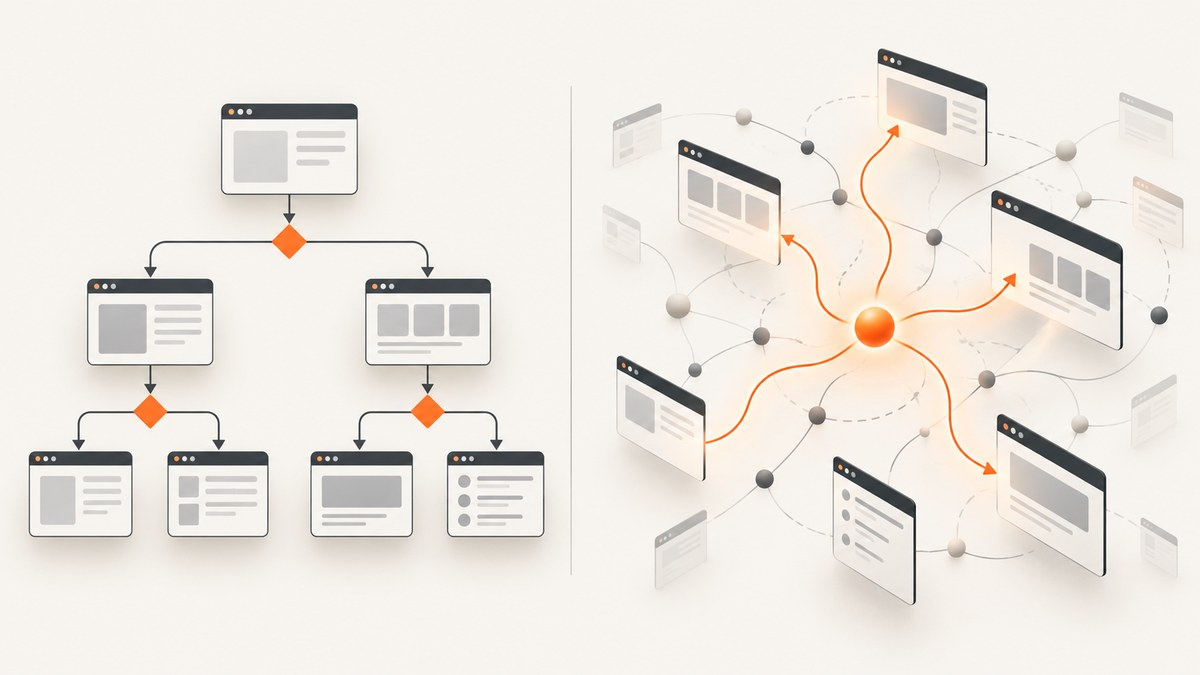
Use Playwright when you know the browser steps and want to encode them as repeatable code. Consider Browser Use when you want an AI agent to interpret a goal, inspect pages, and decide what to do—or when its local Chrome, hosted-agent, or managed-browser modes suit your deployment. They overlap, but operate at different layers. There is no evidence here that one is universally faster, more reliable, or cheaper.
This guide compares their programming models, deployment choices, browser coverage, privacy considerations, and operating costs. It also explains how to choose for a specific workflow, how to evaluate a small proof of concept, and when a screenshot API such as ScreenshotNeo is a better fit because you need an image rather than an interactive browser agent.
1. The short decision guide
| Choose | When | Main trade-off |
|---|---|---|
| Playwright | The steps are known, and you need controlled, repeatable browser automation. Cross-browser coverage across Chromium, Firefox, and WebKit may matter. | You own the workflow code and browser environment, including installation and maintenance. |
| Browser Use | The task is expressed as a goal and an agent needs to inspect the page and determine actions, or a hosted agent/browser infrastructure fits your deployment. | Agent interpretation introduces variability; account for model behavior, data flow, and the service configuration you choose. |
| Screenshot API | You need a rendered image or PDF of a URL, rather than a general-purpose interactive agent. | It captures pages for you; it is not a replacement for arbitrary browser interaction logic. |
Make the choice from the task and operating constraints. If a workflow must follow a stable sequence, explicit automation is usually easier to inspect and reproduce. If page structure or the route to the goal changes and a human would adapt by looking at the page, an agent-driven approach may be worth evaluating.
2. What each tool is
Playwright: browser automation as code
Playwright is a browser automation API. Its official documentation covers launching Chromium, Firefox, or WebKit and creating pages to navigate and interact with websites. You describe actions in code and decide how to handle waits, selectors, errors, and assertions. This is useful when the process is known, needs review, and should be rerun in a controlled way.
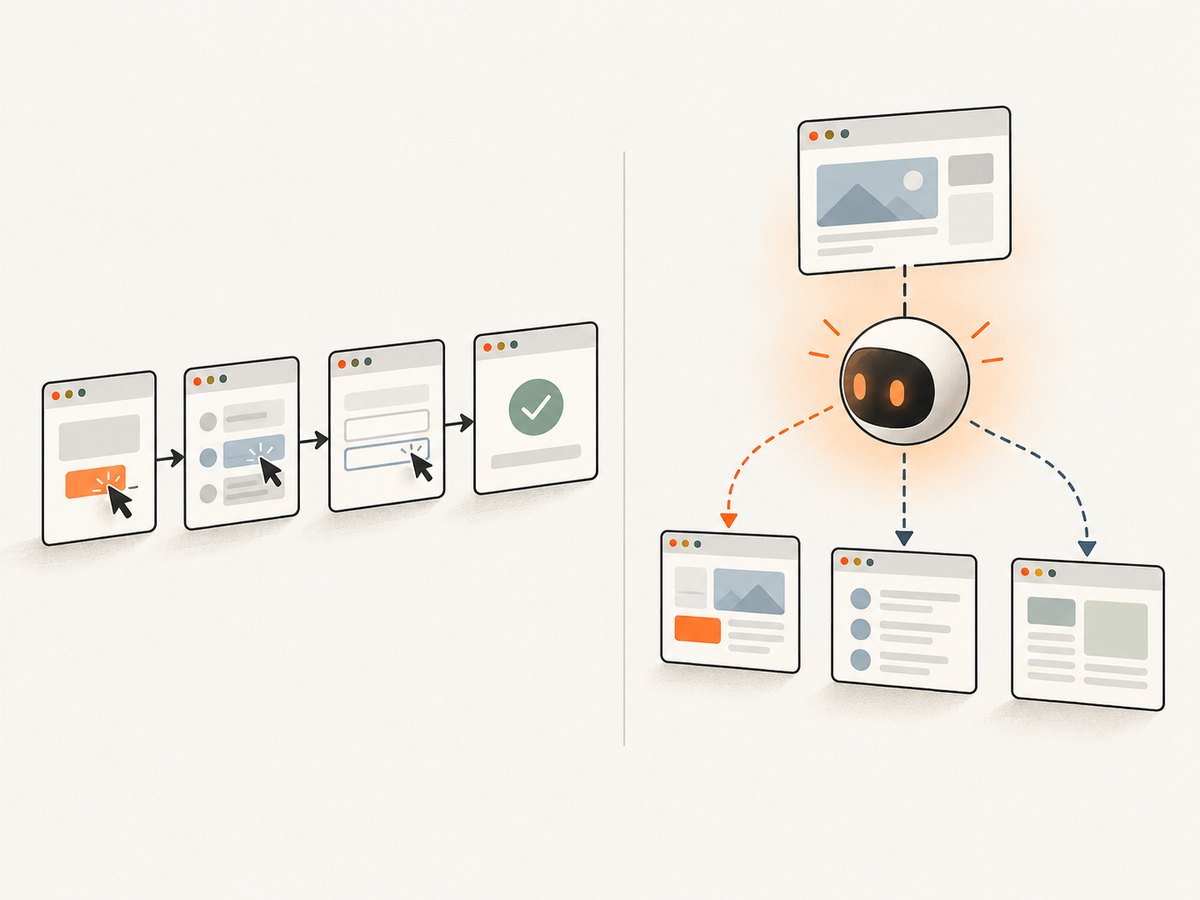
Playwright distributes browser binaries that correspond to framework versions. Its documentation notes that each Playwright version needs specific browser binaries; after updating the framework, you may need to rerun the browser installation command. Keep the library and installed browsers aligned.
Browser Use: browser operation around agent tasks
Browser Use offers developer approaches for sending a task to a hosted web agent or connecting an agent you build to Browser Use browser infrastructure. Its developer toolkit describes REST/SDK, webhooks, and MCP. Its CLI materials also describe connecting to a developer’s running Chrome and using browser state and page information.
The exact commands and interfaces can change quickly, so consult the current Browser Use documentation before implementing. The distinction is architectural: Playwright gives your program browser controls; Browser Use can provide browser operation that an agent uses to pursue a task.
3. Compare the things that affect your choice
Explicit steps versus interpreted goals
With Playwright, your code specifies actions. That can make a flow legible in a code review and let you define expected outcomes. It also means selectors and steps need maintenance when the site changes.
With Browser Use, you can give an agent a task and let it inspect the page to decide actions. That can help when the route is not a fixed sequence, but it makes the agent’s interpretation part of the system. Decide how you will inspect results, handle uncertain outcomes, and require human review for consequential actions.
Repeatability and observability
For a predictable workflow, use explicit steps, structured logging, and checks for the result you care about. For agent workflows, record the task input and the returned result, and review the vendor’s available run artifacts and controls. A successful tool call is not by itself proof that the intended business outcome occurred.
Neither tool removes the need for acceptance criteria. Define what counts as success before comparing implementations—for example, the correct record was found and a read-only summary matches expected fields. Avoid beginning with irreversible actions such as submitting payments or changing account settings.
Browser coverage
Playwright’s documented browser options include Chromium, Firefox, and WebKit. If your users or application require cross-browser behavior, that explicit coverage is a strong reason to evaluate Playwright. Verify the current Browser Use execution modes against the actual browsers and versions your application needs; do not assume parity from the fact that both involve browsers.
Local Chrome, CI, and hosted execution
If work depends on a logged-in local Chrome profile, Browser Use documents a local CLI approach. Treat access to that profile as sensitive: confirm what the process can read or change and which permissions it needs. For CI or server execution, compare Browser Use hosted options with the effort of operating Playwright and its browser binaries in your own environment.
“Does it use my own Chrome?” and “What about CI, or a server with no Chrome?” are practical deployment questions to answer from the current Browser Use documentation. Local browser access and hosted browser execution have different setup, isolation, and data-flow implications. Confirm the specific mode and configuration before relying on it.
Privacy and credentials
Before sending account or personal data to an agent, map where task inputs, page contents, screenshots, logs, and outputs go. Browser Use’s privacy policy says user-provided inputs and outputs may be disclosed to third-party AI/LLM providers. Its enterprise page advertises configurable retention and controls, including options around recordings, logs, screenshots, domain allow/block lists, and sensitive data. Treat those as vendor-described controls: verify whether they apply to your plan, settings, and contract.
Use least-privilege credentials, avoid placing secrets in prompts or logs, and test with non-production accounts. For either approach, define which domains can be visited and what actions are allowed. For a production workflow, determine how credentials are stored, who can access run artifacts, and how long data is retained.
Cost and performance
Compare total operating cost, not just a headline service price. Include model usage where applicable, hosted browser or infrastructure charges, engineering time, retries, observability, and maintenance. Browser Use’s API V4 page reports 82% on 106 hard tasks and 98% on 300 live Online-Mind2Web tasks; these are vendor-reported results on specific task sets, with no matched Playwright baseline established here. They do not prove a general speed, reliability, or cost advantage.
No independent apples-to-apples performance comparison was established for this article. To evaluate your own workload, use the same pages, goal, success criteria, and network conditions; record completion rate, elapsed time, failures, intervention rate, and total cost over enough runs to expose variation. Treat results as specific to your task set and configuration.
4. A practical selection process
- Write down the outcome. State what the automation must accomplish and how you will verify it. Separate read-only tasks from actions that change data.
- List how much is known. If the navigation and actions are stable, prototype the flow in Playwright. If the agent must interpret page content or adapt to different paths, evaluate Browser Use.
- Set deployment constraints. Identify required browser engines, local profile access, CI environment, network access, and isolation requirements.
- Review data handling. Trace prompts, page data, credentials, screenshots, and logs through every service. Confirm retention and access controls for the specific plan.
- Build a small, safe evaluation. Use representative pages and non-production credentials. Measure task success and intervention needs alongside latency and total cost.
- Choose the narrowest tool that meets the need. If the job is only to save a page as an image or PDF, a screenshot service may be simpler than setting up a general browser agent.
5. Minimal Playwright example
This runnable JavaScript example opens a page in Chromium, captures a full-page screenshot, and closes the browser. Install Playwright and its Chromium binary using the current official instructions; browser binaries must match the Playwright version.
import { chromium } from 'playwright';

const browser = await chromium.launch({ headless: true });
try {
  const page = await browser.newPage({ viewport: { width: 1440, height: 900 } });
  await page.goto('https://example.com', { waitUntil: 'domcontentloaded' });
  await page.screenshot({ path: 'page.png', fullPage: true });
} finally {
  await browser.close();
}
For a Python project, Playwright provides a Python API as well. Follow its official installation instructions and use the browser installation command for the engine you plan to run. The following synchronous example shows the same basic capture flow:
from pathlib import Path
from playwright.sync_api import sync_playwright

with sync_playwright() as p:
    browser = p.chromium.launch(headless=True)
    try:
        page = browser.new_page(viewport={"width": 1440, "height": 900})
        page.goto("https://example.com", wait_until="domcontentloaded")
        page.screenshot(path="page.png", full_page=True)
    finally:
        browser.close()
For a reliable production flow, add explicit checks for the page state you expect, handle navigation and timeout errors, and decide whether full-page capture is appropriate for very long pages. See the Playwright introduction and browser documentation for current setup details.
6. Evaluating Browser Use safely
Browser Use’s task-based hosted agent and browser-infrastructure approaches are not represented by one stable code snippet here: the product’s interfaces change, and the research dossier does not establish a current install command or request schema. Use its live docs for exact SDK, REST, webhook, MCP, and CLI syntax rather than copying stale sample code.
For an initial evaluation, use a read-only task such as finding a public page and returning a clearly checkable fact. Make the expected output schema explicit where supported. Observe how the agent handles a page variation, a missing result, and a timeout. Then test the deployment mode you actually intend to use—local Chrome, hosted agent, or managed browser—instead of assuming behavior transfers between modes.
Do not grant broad access to a logged-in profile or production account for a first run. Check the current permissions, domain controls, data handling, and retention terms. Add a human approval step before any action with financial, account, or data consequences.
7. Or skip the browser setup
If the task is simply to capture a URL as an image, ScreenshotNeo returns a screenshot or PDF with one GET request. See the ScreenshotNeo API documentation for its parameters and formats.

curl -G "https://api.screenshotneo.com/v1/shot" -d access_key=YOUR_API_KEY --data-urlencode url=https://stripe.com -o shot.webpimport requests
r = requests.get(
"https://api.screenshotneo.com/v1/shot",
params={"access_key": "YOUR_API_KEY", "url": "https://stripe.com"},
timeout=90,
)
open("shot.webp", "wb").write(r.content)const q = new URLSearchParams({ access_key: 'YOUR_API_KEY', url: 'https://stripe.com' });
const res = await fetch(`https://api.screenshotneo.com/v1/shot?${q}`);
if (!res.ok) throw new Error(`Screenshot request failed: ${res.status}`);
await Bun.write('shot.webp', res);ScreenshotNeo accepts cookie/consent banners and removes more than 60 known consent platforms, newsletter popups, and chat widgets before capture; each step can be turned off. Bot checks, blank pages, failed loads, timeouts, and cache hits are not billed, and response headers identify page verdict and billing status. Its MCP server lets AI agents use screenshot, page-info, and PDF tools. The free plan includes 1,000 screenshots a month with no card; paid plans start at $5 for 3,000. Every feature is on every plan. These properties suit screenshot capture, while interactive workflows still call for a browser automation or agent tool. See ScreenshotNeo or sign up free for 1,000 screenshots a month, with no card.
8. Common problems and fixes
| Symptom | Likely cause | What to do |
|---|---|---|
| Playwright starts but cannot find its browser executable | The required browser binary is not installed or does not match the framework version. | Run the official browser installation command for your installed Playwright version; keep package and browser versions aligned. |
| A selector works locally but fails in CI | The page state, timing, viewport, or browser version differs. | Check the actual page state and logs, use a condition tied to the expected content, and align CI browser installation with the package version. |
| Navigation times out | The page is slow, waits on long-lived requests, or the chosen readiness condition is too strict for the site. | Choose a readiness condition that matches the next action, set a reasoned timeout, and separately assert the content you need. |
| An agent takes an unexpected action | The task wording is ambiguous, the page differs, or the agent interpreted a control incorrectly. | Make the goal and allowed actions explicit, constrain domains where available, inspect run output, and require approval for consequential actions. |
| Local Chrome access does not behave as expected | The CLI mode, profile permissions, or browser connection differs from assumptions. | Follow the current local CLI documentation, confirm the connected profile and permissions, and test on a disposable profile first. |
| Privacy controls are unclear | Features advertised for enterprise may not apply to the current plan or setup. | Verify the live plan terms, configuration, retention, subprocessors, and contract before sending sensitive data. |
9. Reliability and maintenance checklist
- Pin versions and update Playwright and browser binaries together.
- Use explicit, meaningful success checks instead of treating page load as completion.
- Set bounded timeouts and make retries safe; avoid repeating non-idempotent actions blindly.
- Keep credentials out of source code, prompts, and artifacts; use least-privilege access.
- For agents, review outputs and action traces, and introduce human approval where mistakes have real consequences.
- Recheck Browser Use documentation for current commands, modes, privacy controls, and commercial terms before rollout.
- Track cost per successful task, including model, browser infrastructure, engineering, and failure handling.
10. Frequently asked questions
Can Browser Use and Playwright be used together?
They address different layers, so an agent system may use browser automation infrastructure. The exact integration depends on the current Browser Use approach and SDK; verify supported interfaces in its live documentation.
Is Browser Use objectively more successful than Playwright?
The vendor-reported task-set figures in Browser Use’s API V4 materials do not include a matched Playwright baseline. They cannot establish a universal comparison.
Should I use an agent for a fixed form workflow?
If the fields and steps are stable, begin with explicit automation and clear checks. Consider an agent if variability makes a fixed sequence costly to maintain, then compare on representative cases.
Is a screenshot API a replacement for either tool?
No. A screenshot API is appropriate when the required output is a page image or PDF. It does not provide the same general interactive control as browser automation or a task-oriented agent.
Sources
- Playwright browser documentation and Playwright introduction.
- Browser Use developer documentation, including current API, CLI, and deployment details.
- Browser Use API V4 page for vendor-reported benchmark claims; task sets and lack of a matched Playwright baseline matter.
- Browser Use privacy policy and enterprise controls; verify current plan applicability.