Browser Agent Quickstart: Build an AI Browser Agent
Build a controlled browser agent that observes pages, chooses actions, verifies results, and knows when deterministic Playwright is the better tool.

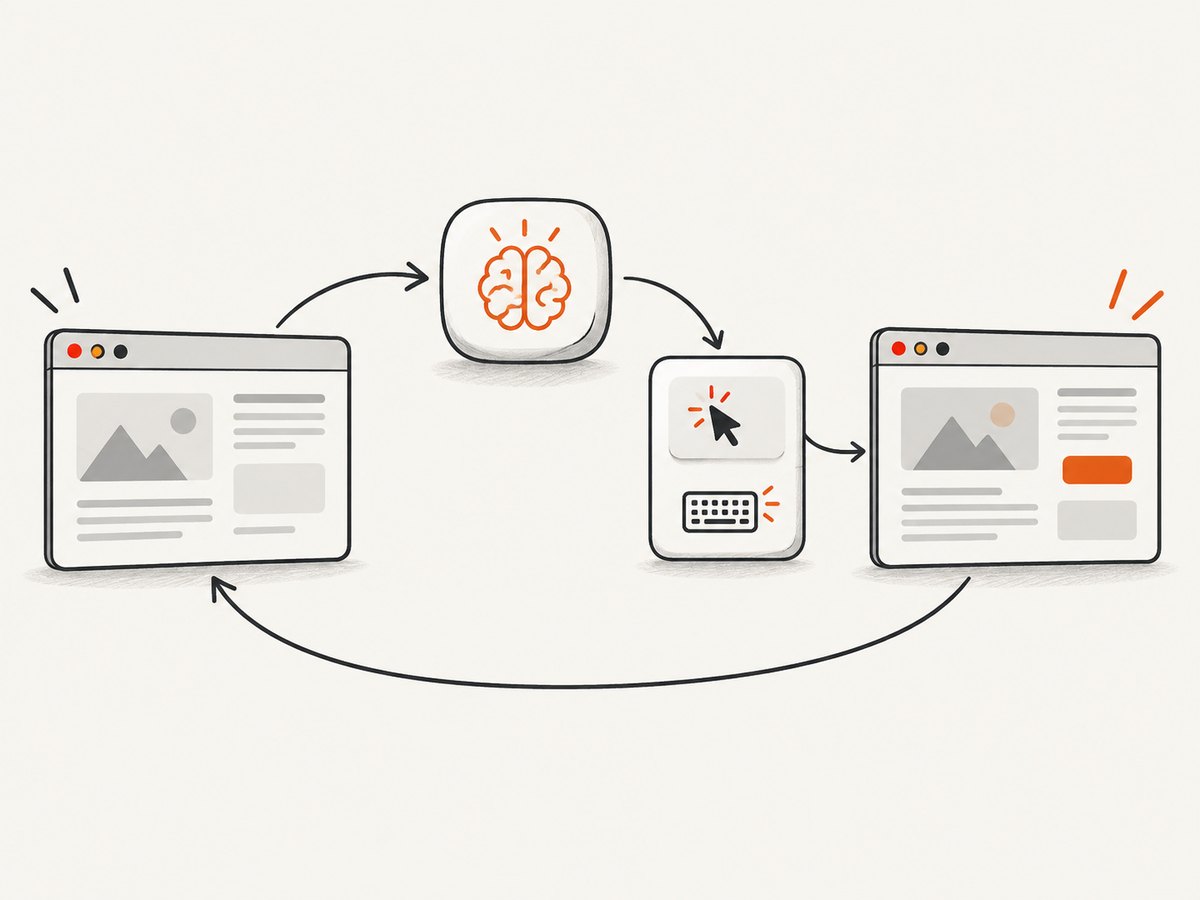
Direct answer: an AI browser agent is a loop around an isolated browser session. The application gives a model a task and the current page observation, the model selects an allowed action, your runtime validates and executes it, and the runtime sends back a fresh observation. Stop when the task is complete, an error needs intervention, or a sensitive action requires user approval.
Keep the first version small: one agent, one browser session, and one task. Add more tools, agents, or long-term memory only when the workflow proves it needs them. OpenAI’s Agents SDK quickstart recommends starting with one focused agent and one turn; browser control adds a separate execution runtime around that basic agent.
What a browser agent actually does
A language model does not safely control a browser by itself. Your application supplies the browser, session state, action schema, permissions, time limits, and observation pipeline. OpenAI’s Computer use guide describes two common shapes:
- Code execution: the model writes code, and your application runs it in an isolated browser or desktop environment.
- Structured actions: the model returns actions such as click, type, scroll, or key press, and your application translates only approved actions into browser operations.
Either shape follows the same control loop:
- Receive a task and the current browser observation.
- Ask the model to choose one allowed action.
- Validate the action against your schema and permissions.
- Execute it in the persistent browser session.
- Capture the result and send a new observation to the model.
- Stop on success, a recoverable error, a step limit, or a boundary requiring a person.
Inspect the resulting page or extracted data yourself. A model saying “done” is not verification.
Choose agent control, Playwright, or a hybrid
| Workflow | Good default | Reason |
|---|---|---|
| Known, stable sequence | Deterministic Playwright | Selectors, assertions, retries, and business rules are predictable. |
| Changing layouts or choices based on page state | Agent-directed browsing | The next action depends on an observation rather than a fixed selector. |
| Variable navigation followed by strict processing | Hybrid | Let the agent navigate, then use ordinary code for validation, extraction, and decisions. |
Microsoft’s browser-use lesson demonstrates this agent-first, actor-first, and hybrid framing with Browser-Use, Playwright, Chrome DevTools Protocol, Azure OpenAI, and typed Pydantic extraction. The practical rule is to match the control style to the task. Do not treat any framework as universally best.

Minimal architecture
A production-shaped first implementation has five boundaries:
- Task boundary: a narrow instruction such as “find the return policy and report the stated window.”
- Observation boundary: a screenshot, page text, URL, title, or accessibility representation.
- Action boundary: a small allow-list such as
click,type,press,scroll, andfinish. - Runtime boundary: an isolated browser context with a timeout, step budget, and controlled credentials.
- Verification boundary: application code that checks the final URL, visible text, or structured result.
Persist only state that the task needs. A browser context may retain cookies and local storage between steps, but do not accidentally share a logged-in context between unrelated users or jobs.
Build a small Playwright agent in Node.js
The following example shows the loop and action validation. It is an architecture example: adapt the model request to the current OpenAI API and model instructions before running it. The browser runtime remains under your control.
import { chromium } from "playwright";
import OpenAI from "openai";

const client = new OpenAI({ apiKey: process.env.OPENAI_API_KEY });
const browser = await chromium.launch({ headless: true });
const context = await browser.newContext();
const page = await context.newPage();

const task = "Find the return-policy page and report the stated return window.";
const maxSteps = 12;

const allowedTypes = new Set(["click", "type", "press", "scroll", "finish"]);

async function observe() {
  return {
    url: page.url(),
    title: await page.title(),
    text: (await page.locator("body").innerText()).slice(0, 12000)
  };
}

async function execute(action) {
  if (!action || !allowedTypes.has(action.type)) {
    throw new Error("Unsupported action");
  }
  if (action.type === "click") {
    await page.locator(action.selector).first().click({ timeout: 10000 });
  } else if (action.type === "type") {
    await page.locator(action.selector).first().fill(String(action.text));
  } else if (action.type === "press") {
    await page.keyboard.press(action.key);
  } else if (action.type === "scroll") {
    await page.mouse.wheel(0, Math.max(-1200, Math.min(1200, action.pixels ?? 600)));
  }
}

let observation = await observe();
let answer = null;

try {
  for (let step = 0; step < maxSteps; step++) {
    const response = await client.responses.create({
      model: process.env.OPENAI_MODEL,
      input: [{
        role: "user",
        content: `Task: ${task}\n\nCurrent observation:\n${JSON.stringify(observation)}`
      }],
      // Require your integration to return JSON matching this shape.
      text: { format: { type: "json_object" } }
    });

    const action = JSON.parse(response.output_text);
    if (action.type === "finish") {
      answer = action.answer;
      break;
    }
    await execute(action);
    observation = await observe();
  }

  if (answer === null) throw new Error("Step limit reached without a result");
  console.log(JSON.stringify({ answer, final: observation }, null, 2));
} finally {
  await browser.close();
}
Give the model an explicit action contract. For example, require JSON with exactly one of these shapes:
{"type":"click","selector":"a[href*='returns']"}
{"type":"type","selector":"input[name='q']","text":"return policy"}
{"type":"press","key":"Enter"}
{"type":"scroll","pixels":600}
{"type":"finish","answer":"30 days"}
In a real integration, validate selectors, limit text length, reject navigation to disallowed origins, and require confirmation before sending messages, purchasing, changing account data, or entering secrets.
Observations: screenshots, DOM text, and accessibility data
Text-only observations are cheap and easy to inspect, but they can miss layout, icons, canvas content, and visual state. Screenshots preserve visual context but consume more model input and can contain sensitive data. An accessibility tree can expose roles and names that are more stable than CSS selectors.
Use the smallest observation that lets the model decide. A useful sequence is:
- Send URL, title, and relevant visible text.
- If the model reports that visual context is missing, capture a screenshot.
- After a click or navigation, wait for a meaningful condition and collect a fresh observation.
Never assume a fixed delay means that a page is ready. Prefer a selector, URL change, network-idle condition, or application-specific readiness check, with a hard timeout as a backstop.
Safety, permissions, and session isolation
Run the browser in an isolated environment. Enforce:
- an overall deadline and per-action timeout;
- a maximum number of model turns;
- an origin or domain allow-list;
- separate browser contexts per job or user;
- redaction or minimization of credentials and personal data in observations;
- human confirmation for sensitive actions;
- logging of the requested action, validated action, result, and final state.
OpenAI’s sample computer-use application supplies a JavaScript/Playwright browser implementation and a Python/PyAutoGUI desktop implementation. Its repository currently lists Node.js 22.20.0 and Corepack with pinned pnpm 10.26.0 for that sample; these are repository-specific requirements, so check the current instructions before copying them.
When to add retries and recovery
Retry only failures that are plausibly transient. A detached element, navigation timeout, or temporary network error can be retried after a fresh observation. Repeating an invalid selector or an unauthorized action will not fix the cause.
- Stale target: re-observe and ask for a new selector.
- Timeout: capture URL and page text; decide whether to retry, wait for a selector, or stop.
- Unexpected redirect: stop if the destination is outside the allow-list.
- Repeated uncertainty: end the run and request human input instead of increasing the step budget indefinitely.
Performance, reliability, and cost
Each model turn adds latency and token cost. Reduce turns by giving the model compact observations, using deterministic code for known substeps, and stopping as soon as a verified result exists. Keep screenshots at the resolution needed for the decision.
Reliability improves when actions are small and observable. After every action, record the URL, title, timing, and outcome. Use idempotent actions where possible. For extraction, parse and validate the result in application code rather than trusting plausible prose.
Benchmark numbers are context, not a promise for your agent. OpenAI reported 38.1% on OSWorld, 58.1% on WebArena, and 87.0% on WebVoyager for its January 23, 2025 Computer-Using Agent announcement. The same announcement described the system as early and noted easier performance on WebVoyager than on more complex WebArena tasks. Measure your own task set.
Or skip the browser setup
If your agent needs page images rather than interactive browser control, ScreenshotNeo provides a single request that returns a PNG, JPEG, WebP, or PDF. It accepts consent banners before capture and removes more than 60 known consent platforms, newsletter popups, and chat widgets. Bot checks, blank pages, timeouts, failed loads, and cache hits are not billed; response headers identify the page verdict and whether the request was billed.
Read the ScreenshotNeo API documentation for the complete option list. The API supports full-page capture with lazy images loaded, CSS element capture, dark mode, device presets and custom viewports, retina scale, PDF paper and page options, custom CSS and JavaScript, clicks, selector or network-idle waits, request blocking, headers, cookies, user agents, authorization, timezone, geolocation, transparent backgrounds, resizing, TTL caching, signed image links, asynchronous jobs with signed webhooks, bulk capture of up to 100 URLs per call, usage data, and an OpenAPI specification.
cURL
curl -G "https://api.screenshotneo.com/v1/shot" \
  -d access_key=YOUR_API_KEY \
  --data-urlencode url=https://stripe.com \
  -o shot.webp
Python
import requests

r = requests.get(
    "https://api.screenshotneo.com/v1/shot",
    params={"access_key": "YOUR_API_KEY", "url": "https://stripe.com"},
    timeout=90,
)
r.raise_for_status()
open("shot.webp", "wb").write(r.content)
Node.js
const q = new URLSearchParams({
  access_key: 'YOUR_API_KEY',
  url: 'https://stripe.com'
});
const res = await fetch(`https://api.screenshotneo.com/v1/shot?${q}`);
if (!res.ok) throw new Error(`HTTP ${res.status}`);
const buffer = Buffer.from(await res.arrayBuffer());
await import('node:fs/promises').then(fs => fs.writeFile('shot.webp', buffer));
ScreenshotNeo also has an MCP server with take_screenshot, get_page_info, and capture_pdf tools for Claude, Cursor, and other MCP clients. Plans include 1,000 screenshots per month free with no card; paid plans start at $5 for 3,000. Create a free ScreenshotNeo account.
Troubleshooting checklist
| Symptom | Likely cause | Fix |
|---|---|---|
| The agent loops on the same element | It receives no useful post-action observation. | Return URL, title, visible text, and an action result after every step; cap turns. |
| Clicks fail intermittently | The DOM changed or the target is covered. | Re-observe, use an accessible role or stable attribute, and wait for the target. |
| It follows an unsafe link | No destination policy exists. | Validate the destination against an origin allow-list before navigation. |
| Login or CAPTCHA blocks progress | The site requires a sensitive human step. | Pause, request confirmation or intervention, and resume with the same isolated session. |
| Extraction looks plausible but is wrong | Free-form output was not validated. | Require a schema and check values in ordinary application code. |
| A ScreenshotNeo capture is blank or blocked | The page failed, timed out, or triggered a bot check. | Inspect X-Page-Verdict and X-Billed; adjust waits, headers, or blocking options and retry. |
FAQ
Can I use Playwright with an AI agent?
Yes. Playwright can be the controlled runtime that executes validated model actions and returns observations. The model chooses; your application enforces what can run.
Should every browser workflow become an agent?
No. Use deterministic Playwright for stable sequences. Add agent control where page state or the next decision changes. A hybrid is often the practical design.
How many steps should an agent get?
Start with a small fixed budget based on the task. Stop on completion or repeated uncertainty, then measure real runs before raising the limit.
What does the model need to see?
Only enough information to select the next action: often URL, title, visible text, and an accessibility representation; add a screenshot when visual state matters.
Are benchmark scores a guarantee?
No. Reported scores depend on the benchmark, task mix, model, and runtime. Build a representative evaluation set for your own workflow.