Capturing Screenshots of Private Pages
Learn safe, authorized ways to capture logged-in pages with Firefox, Playwright, and ScreenshotNeo, including full-page, element, masking, and troubleshooting.
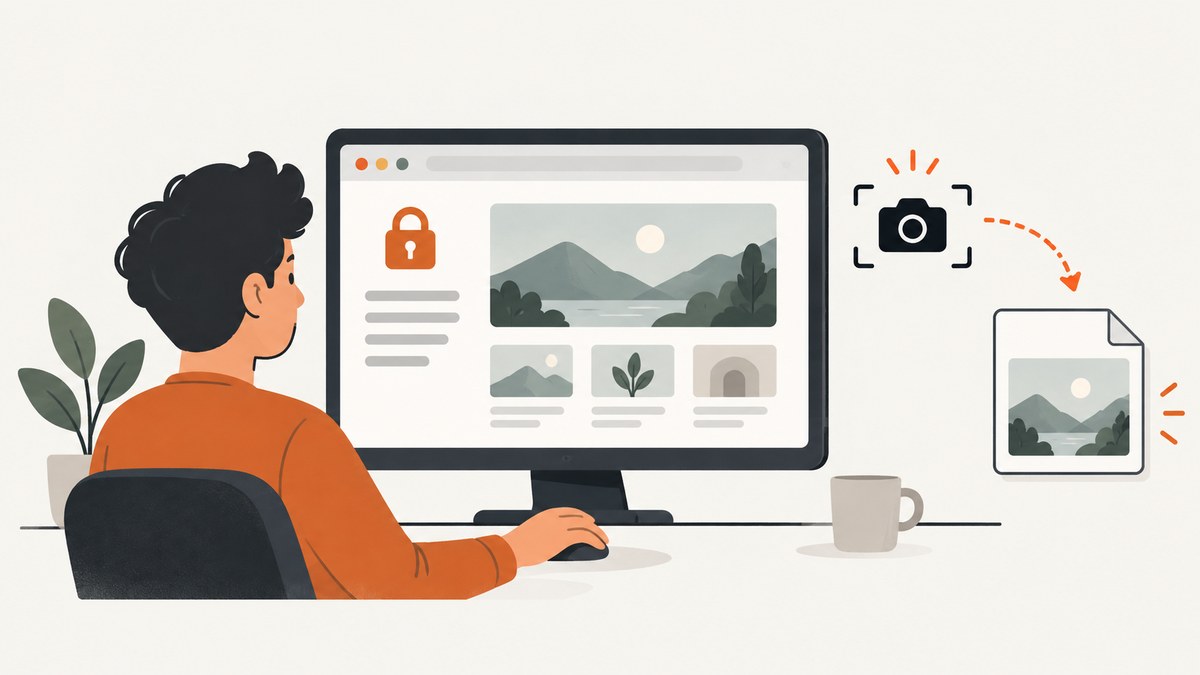
A private page means a page you are authorized to access behind a login or another access control. It does not mean a private-browsing window. To capture it, sign in normally, load the exact state you need, choose the smallest useful capture area, and save the rendered result. For a one-off image, browser developer tools are usually enough. For repeatable captures, use Playwright or a screenshot API.
Do not use these methods to bypass access controls or capture somebody else’s private data. If your organization blocks screenshots, ask for an approved export, print view, or support workflow. Before sharing any image, inspect it for account identifiers, messages, financial or health details, balances, and browser chrome.
1. Decide what “private” and “screenshot” mean
Clarify the page and the evidence you need before opening developer tools:
- Authorized session: You are signed in as yourself, or you have explicit permission to use the account.
- Viewport capture: Records only what is visible in the browser window.
- Full-page capture: Includes content below the fold and may expose more information than intended.
- Element capture: Saves one card, table, chart, or other DOM element.
- Visual evidence: Preserves layout, colors, charts, and the rendered state.
- Text or structure: An accessibility snapshot or text extraction is usually better for search, assertions, and interaction. Playwright’s documentation summarizes this distinction: “Screenshots are for looking at, not for acting on.”
Use the narrowest scope that answers your question. A selected element can reduce accidental disclosure, while a full-page image is useful for long invoices, dashboards, or audit evidence.
2. Prepare the page before capturing
- Open the page through the normal login flow.
- Wait until the intended account, date range, filters, and tab are visible.
- Expand accordions or load more rows if they belong in the evidence.
- Close transient menus and move the pointer away from important content.
- Check whether lazy images, charts, or data tables are still loading.
- Record the capture time and URL separately if the screenshot will be used in a report.
A screenshot records what the browser rendered at that moment. It is not a reliable archive of content that had not loaded, was hidden behind an interaction, or was blocked by policy.
3. One-off capture with Firefox Developer Tools
Firefox documents full-page and element screenshots, saving to Downloads, clipboard copying, and a Web Console :screenshot helper. Menu labels can change, so consult the current Firefox screenshot documentation for your version.
Full page
- Open Developer Tools and enable the screenshot button in the Developer Tools settings if it is not visible.
- Load the authenticated page and scroll or interact until the required state is ready.
- Use the screenshot toolbar control and choose the full-page option.
- Save the resulting image and open it to verify that content below the fold rendered correctly.
One element
- Open the Inspector and select the element you want.
- Use the Inspector context menu’s screenshot command for the selected node.
- Review the saved file for clipped shadows, sticky headers, or content that changed during capture.
Console helper
Firefox’s Web Console supports a :screenshot helper with options for delay, device-pixel ratio, filename, full-page mode, and a selector. For example:
:screenshot --fullpage --filename private-page.png
:screenshot --selector ".invoice-card" --filename invoice-card.png
:screenshot --delay 2 --dpr 2 --filename retina.png
Use a delay when a chart or animation needs time to settle. A high device-pixel ratio increases dimensions and file size, so confirm that your documentation system can accept the result.
4. Repeatable captures with Playwright
Playwright is appropriate when you need the same authenticated workflow repeatedly, such as nightly evidence, visual regression artifacts, or a set of customer-specific pages. Its page screenshot API supports viewport, full-page, and element captures, PNG/JPEG output, scaling, output paths, and locator masking.
Install and run
npm install -D playwright
npx playwright install chromium
import { chromium } from 'playwright';
const browser = await chromium.launch({ headless: true });
const context = await browser.newContext({
viewport: { width: 1440, height: 1000 },
// Prefer storageState created by an approved login setup.
storageState: 'auth.json'
});
const page = await context.newPage();
await page.goto('https://app.example.com/account', { waitUntil: 'networkidle' });
await page.locator('[data-testid="report"]').waitFor();
await page.screenshot({ path: 'account-viewport.png', type: 'png' });
await page.screenshot({ path: 'account-full.png', fullPage: true, type: 'png' });
await page.locator('[data-testid="report"]').screenshot({ path: 'report.png' });
await browser.close();Generate auth.json through an approved login setup, and protect it like a credential. Never commit storage state, cookies, bearer tokens, or password values to source control.
Useful Playwright options
| Option | Use | Notes |
|---|---|---|
path |
Write an image file | Use a deterministic directory for CI artifacts. |
fullPage |
Capture the full scrollable page | Can reveal sensitive content below the fold. |
type |
png or jpeg |
JPEG supports quality; PNG is lossless. |
scale |
css or device |
Choose predictable dimensions for diffs and storage. |
mask |
Overlay matching locators | Masking covers bounding boxes; inspect the output because sensitive text may appear elsewhere. |
animations |
Disable or allow animations | Disabling improves repeatability. |
omitBackground |
Transparent PNG background | Useful for isolated components, not every page. |
await page.screenshot({
  path: 'masked.png',
  fullPage: true,
  animations: 'disabled',
  mask: [
    page.locator('[data-testid="email"]'),
    page.locator('.account-number')
  ],
  maskColor: '#000000'
});
Playwright warns that rendering can vary with operating system, browser version, settings, hardware, power source, and headless mode. Keep the same environment as your baseline when comparing images. Hover states and fonts can otherwise create false differences; move the pointer, set a stable viewport, and wait for fonts and data.
5. Full page, viewport, or element?
| Capture | Best for | Risk or limitation |
|---|---|---|
| Viewport | What a user currently sees | Misses content below the fold. |
| Full page | Long documents, dashboards, invoices | May expose hidden or lower-page data and can be very tall. |
| Element | A chart, table, card, or message | Requires a stable selector and may clip overflowing content. |
Playwright’s screenshot guidance distinguishes viewport, target, and full-scrollable-page captures; its interface does not combine a target and fullPage in one call. Mozilla documents the same practical distinction between whole-page and element capture.
6. Privacy, redaction, and capture restrictions
Inspect the final file at 100% before sending it. Crop unrelated account areas, blur or cover identifiers with a trusted editor, and reopen the exported file to confirm the redaction is actually present. Do not assume a masking option is a universal redaction guarantee: content can appear in another element, a tooltip, an image, or a later state.
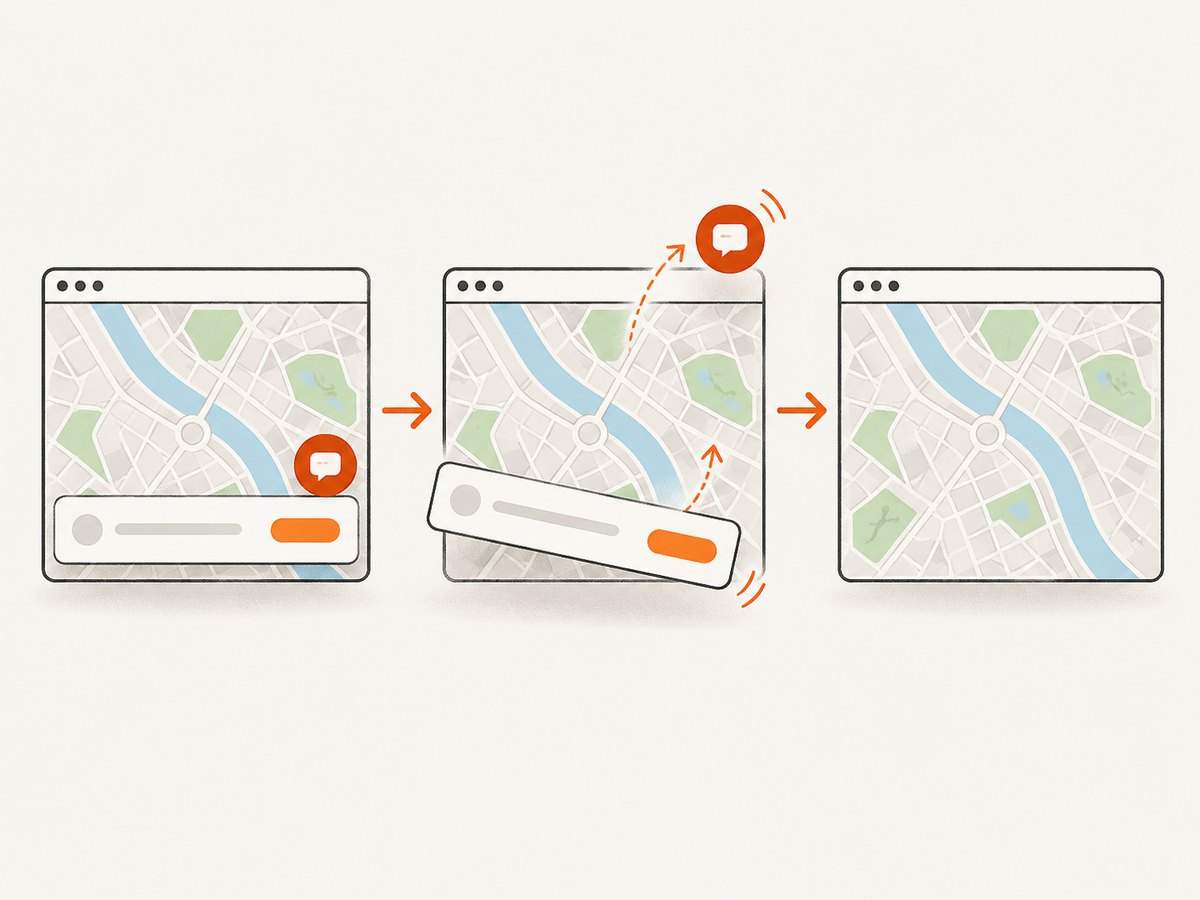
Chrome DevTools’ privacy and security panel can help diagnose third-party cookies, HTTPS details, and mixed content, but those diagnostics do not make a screenshot safe to disclose. Some sites and managed browsers intentionally prevent capture. A W3C TPAC presentation describes policy mechanisms that can protect sensitive on-screen information, including examples where a capture attempt produces a black screen. Treat that as a policy behavior, not a universal browser rule.
7. Authentication patterns for automation
Reuse an approved session
For a normal web login, create Playwright storage state once through an approved flow, then use it in a restricted CI secret store. Rotate it when the session expires.
Use headers or cookies supplied by the application
Some internal pages accept an authorization header or a short-lived cookie. Pass only the minimum values required, keep them out of logs, and avoid putting secrets in a URL because URLs are often retained by proxies and history.
Handle redirects and second factors
Wait for the final application URL and a page-specific locator, not merely a successful HTTP response. If a second factor requires a human, complete it in the approved setup and persist the resulting state according to your security policy. Do not automate around a control intended to restrict access.
8. Or skip the browser setup
ScreenshotNeo provides a website screenshot API and MCP server. A GET request returns PNG, JPEG, WebP, or PDF. Add your authorized page URL and, when needed, custom headers, cookies, user agent, or Authorization settings. The complete option list is in the ScreenshotNeo documentation.
curl -G "https://api.screenshotneo.com/v1/shot" -d access_key=YOUR_API_KEY --data-urlencode url=https://app.example.com/account -o shot.webpimport requests
r = requests.get("https://api.screenshotneo.com/v1/shot", params={"access_key": "YOUR_API_KEY", "url": "https://app.example.com/account"}, timeout=90)
open("shot.webp", "wb").write(r.content)const q = new URLSearchParams({ access_key: 'YOUR_API_KEY', url: 'https://app.example.com/account' });
const res = await fetch(`https://api.screenshotneo.com/v1/shot?${q}`);ScreenshotNeo accepts 63 options, including full-page capture with lazy images loaded, CSS-selector element capture, dark mode, device presets and custom viewports, retina scale, custom CSS and JavaScript, click and wait actions, hidden selectors, network-idle waits, blocked resource types, timezone and geolocation, transparent backgrounds, resizing, a chosen cache TTL, signed links, asynchronous jobs with signed webhooks, bulk capture for up to 100 URLs per call, and a usage API. Parameter names used by other screenshot APIs also work, which can simplify migration.
- Cookie and consent banners, newsletter popups, and chat widgets are removed before capture; each cleanup step can be turned off.
- Bot checks or CAPTCHAs, blank pages, timeouts, failed loads, and cache hits cost nothing. Response headers report the page verdict and whether it was billed with
X-Page-VerdictandX-Billed. - The MCP server exposes
take_screenshot,get_page_info, andcapture_pdffor Claude, Cursor, and other MCP clients. - The Free plan includes 1,000 shots per month without a card. Paid plans start at $5 for 3,000 shots; yearly billing gives two months free.
For private pages, send only credentials you are authorized to use, prefer short-lived tokens, and verify the resulting image before sharing. Create a free ScreenshotNeo account with 1,000 screenshots a month and no card.
9. Troubleshooting common failures
| Symptom | Likely cause | Fix |
|---|---|---|
| Login page in the image | Expired state, missing cookie, or wrong redirect | Refresh the approved session, wait for the final URL and a page locator, and confirm the account manually. |
| Blank or half-rendered page | Capture ran before data, fonts, or lazy images loaded | Wait for a specific selector, network idle, or a short delay; then inspect the image. |
| Element is missing | Selector changed, element is inside an iframe, or it is below a virtualized list | Use a stable test ID, address the correct frame, or scroll the component into view before capture. |
| Full page is unexpectedly huge | Infinite scroll, expanding widgets, or unbounded canvas | Capture a bounded element or viewport, disable expansion, and set a deliberate page state. |
| Text is clipped | Fixed height, overflow, sticky header, or viewport mismatch | Capture the component after layout settles, adjust the viewport, or use full-page mode. |
| Visual diff changes every run | Different browser environment, animation, hover, time, or data | Pin the browser environment, disable animation, set timezone, freeze test data, and move the pointer. |
| Screenshot blocked | Site or managed-browser capture policy | Use an approved export or print workflow and contact the site administrator; do not bypass the restriction. |
| API response is not an image | Authentication error, bot check, timeout, or failed load | Inspect HTTP status and X-Page-Verdict/X-Billed, then correct authorization or wait settings. |
10. Performance, reliability, and cost
- Reduce work: Capture an element or viewport when full-page evidence is unnecessary. Block ads, trackers, and irrelevant resource types where policy permits.
- Wait precisely: A selector or network-idle condition is usually more reliable than a large fixed delay. Keep a small delay for animations that cannot be disabled.
- Control dimensions: A smaller viewport and CSS scale reduce file size; retina scale improves detail but increases bytes and processing.
- Cache deliberately: For stable public content, choose a cache TTL. For private or frequently changing pages, use a short TTL or disable caching so an old image is not mistaken for current evidence.
- Retry safely: Retry transient navigation failures with backoff, but do not blindly repeat a state-changing action. Save verdict and response metadata with the artifact.
- Budget accurately: ScreenshotNeo bills only clean shots; failed loads, bot checks, blank pages, timeouts, and cache hits are not billed. Use the usage API and response headers to reconcile consumption.
11. Checklist before sharing
- ☐ You were authorized to access and capture the page.
- ☐ The correct account, filters, date range, and tab are visible.
- ☐ The chosen scope is no larger than necessary.
- ☐ Lazy content, charts, fonts, and data finished loading.
- ☐ Sensitive identifiers and incidental browser details were reviewed.
- ☐ Redactions remain present after reopening the exported file.
- ☐ The original file and any session credentials are stored separately and securely.
- ☐ The capture time, URL, and relevant environment are recorded for reproducibility.
12. FAQ
Can I screenshot a page without sharing my password?
Yes. Use your normal signed-in browser session, Playwright storage state, or an approved short-lived authorization header or cookie. Never paste credentials into a screenshot URL or source repository.
Should I use a screenshot or PDF?
Use a screenshot for rendered appearance and a PDF for a paginated document when the destination supports it. For text search or structure, capture text or an accessibility snapshot instead.
Why does my full-page image contain more data than expected?
Full-page mode includes content below the fold, including collapsed or lower-page regions that became visible during layout. Use an element or viewport capture and inspect the final file.
Can masking guarantee that private data is gone?
No. Masking covers selected bounding boxes. Verify the output and use a trusted redaction workflow for information that must not be recoverable.
When is an API better than Playwright?
An API is convenient for one-call captures, bulk jobs, signed links, PDFs, and agent workflows. Playwright gives you direct control over an authenticated browser and complex interactions. Choose based on the workflow and your organization’s data policy.
What should an AI agent use?
For visual inspection, use a screenshot. For locating and interacting with controls, use an accessibility or page snapshot. ScreenshotNeo’s MCP server provides screenshot, page-info, and PDF tools for MCP clients.