How to Convert Webpages and HTML to PDF with Node.js
Use Puppeteer to turn a live webpage or HTML string into a PDF with Node.js. Configure print styles, page layout, readiness, and output safely.

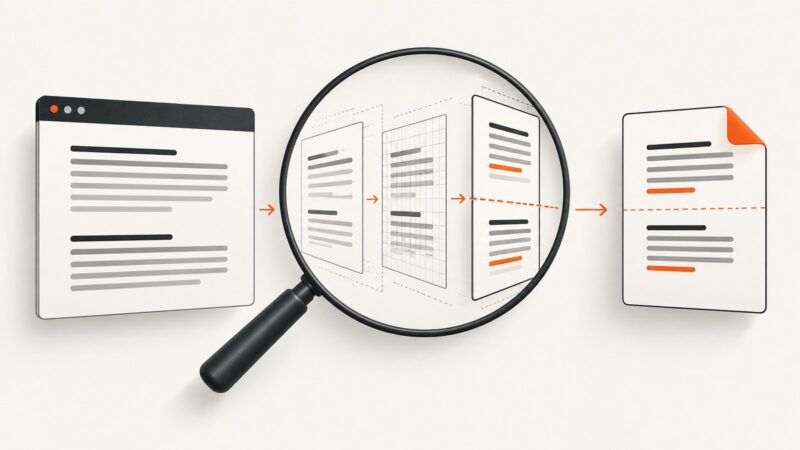
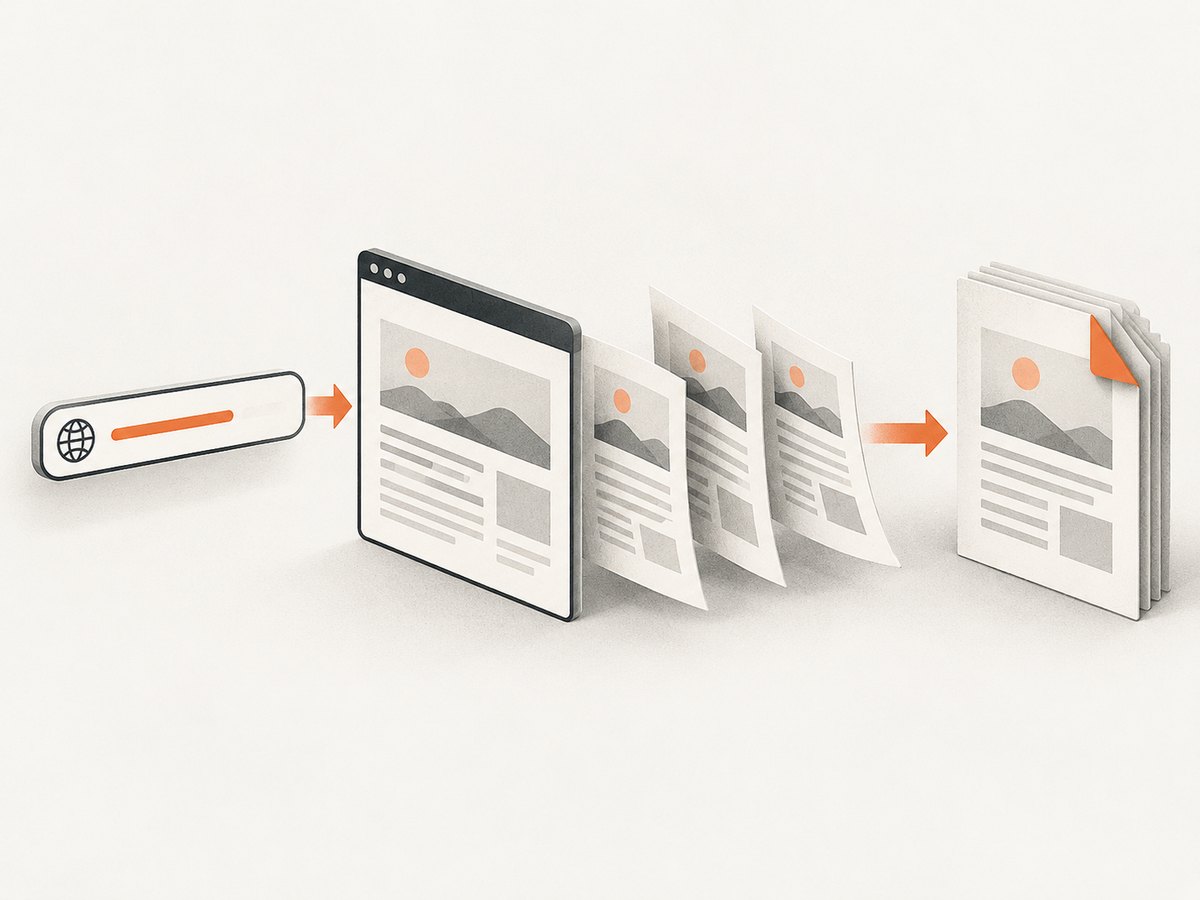
To convert a live webpage or HTML into a PDF with Node.js, render it in a headless browser and call Puppeteer’s page.pdf(). For a URL, navigate with page.goto(); for HTML you already have, load it with page.setContent(). The examples below use Puppeteer, produce a local PDF, and close the browser even if rendering fails. Puppeteer’s PDF method uses print CSS by default and returns a Uint8Array; its guide also shows writing directly to a file with the path option. Puppeteer PDF generation guide · Page.pdf() reference.
1. Install Puppeteer
Use a current Node.js release and create a small project. Puppeteer installs a compatible browser as part of its normal installation. In managed environments, check the official installation guidance for your platform and browser setup.
mkdir node-pdf
cd node-pdf
npm init -y
npm install puppeteer
Save the examples as .mjs files so Node treats them as ES modules. Run one with node file-name.mjs. Keep generated PDFs out of source control if they contain private content.
2. Convert a live webpage URL to PDF
This complete example navigates to a public page, waits for a useful browser readiness state, generates an A4 PDF with background graphics, and guarantees browser cleanup. Replace the target URL and output path as needed.
import puppeteer from 'puppeteer';

const url = 'https://example.com';
const outputPath = 'page.pdf';

const browser = await puppeteer.launch();
try {
  const page = await browser.newPage();
  page.setDefaultNavigationTimeout(45_000);

  const response = await page.goto(url, {
    waitUntil: 'networkidle2',
    timeout: 45_000,
  });

  if (!response) {
    throw new Error('Navigation returned no HTTP response');
  }
  if (!response.ok()) {
    throw new Error(`Page returned HTTP ${response.status()}`);
  }

  await page.pdf({
    path: outputPath,
    format: 'A4',
    printBackground: true,
    preferCSSPageSize: true,
    margin: { top: '16mm', right: '14mm', bottom: '16mm', left: '14mm' },
  });
  console.log(`Saved ${outputPath}`);
} finally {
  await browser.close();
}
The official guide uses waitUntil: 'networkidle2' as an example, but no wait condition suits every site. networkidle2 waits for a period when there are at most two active network connections. Analytics, streaming, polling, and long-lived requests can make network-idle waits slow or impossible. For a page whose initial document is enough, try waitUntil: 'domcontentloaded'; for a conventional fully loaded document, use load. Then explicitly wait for the content your PDF needs, for example await page.waitForSelector('[data-report-ready]'). Set a timeout so a page cannot occupy a worker indefinitely.
The response check distinguishes a successful browser navigation from an HTTP error page. Some sites deliberately serve a helpful page with a non-2xx response, so decide whether your workflow should keep or reject those documents.
3. Convert an HTML string to PDF
When the input is already HTML, skip URL navigation and load the string into a fresh page with page.setContent(). Provide a complete document and use absolute asset URLs (or embed assets) so CSS, images, and fonts can resolve consistently.
import puppeteer from 'puppeteer';

const html = `<!doctype html>
<html>
<head>
  <meta charset="utf-8">
  <style>
    @page { size: A4; margin: 18mm; }
    body { font: 12pt/1.5 Arial, sans-serif; color: #222; }
    h1 { break-after: avoid; }
    .keep-together { break-inside: avoid; }
    @media print { a { color: #111; } }
  </style>
</head>
<body>
  <h1>Monthly report</h1>
  <p class="keep-together">Generated from an HTML string.</p>
</body>
</html>`;

const browser = await puppeteer.launch();
try {
  const page = await browser.newPage();
  await page.setContent(html, { waitUntil: 'load', timeout: 30_000 });
  const pdfBytes = await page.pdf({ printBackground: true });
  await import('node:fs/promises').then(({ writeFile }) =>
    writeFile('report.pdf', pdfBytes)
  );
  console.log('Saved report.pdf');
} finally {
  await browser.close();
}
page.pdf() returns bytes when no path is supplied, which is useful for HTTP responses or object storage. For example, an Express handler can set Content-Type: application/pdf and send the returned buffer. Treat untrusted HTML as untrusted input: it can request external resources, run scripts, or produce unexpectedly large output. Restrict its origin and resource access according to your application’s security model.
4. Choose print styling and page layout
PDF output is print rendering. Both Puppeteer and Playwright document that their PDF methods use print CSS by default. Use @media print and @page to control what belongs on paper: hide navigation, avoid splitting cards, set margins, and select paper dimensions. Puppeteer’s preferCSSPageSize gives a CSS @page size priority over API width, height, or format settings. Puppeteer PDFOptions.
@page { size: A4 portrait; margin: 14mm 12mm; }
@media print {
  .site-nav, .cookie-banner, .print-hidden { display: none !important; }
  h1, h2 { break-after: avoid; }
  table, .card { break-inside: avoid; }
  a { overflow-wrap: anywhere; }
}
html { -webkit-print-color-adjust: exact; print-color-adjust: exact; }
Browsers modify colors for printing by default. Puppeteer documents -webkit-print-color-adjust for forcing exact colors; set it on the relevant elements when colored backgrounds matter, and still enable printBackground: true in the PDF options. Exact-color output can use more ink on paper. Preview the PDF when brand colors or contrast are important.
| Option | What it controls | Practical note |
|---|---|---|
format |
Paper preset such as A4 or Letter | Overrides width/height when supplied. |
width, height |
Custom paper dimensions | Use supported units such as inches, millimeters, or CSS units. |
landscape |
Landscape orientation | Useful for wide tables and dashboards. |
margin |
Page margins | Choose CSS unit strings; ensure headers and footers fit. |
printBackground |
Background colors and images | Defaults to false; enable for styled reports. |
preferCSSPageSize |
CSS @page size precedence |
Use when the document owns its paper dimensions. |
pageRanges |
Pages to include | For example 1-5, 8; empty means all pages. |
scale |
Rendered content scale | Allowed range is 0.1 through 2; use sparingly to avoid tiny text. |
displayHeaderFooter, headerTemplate, footerTemplate |
Running page furniture | Templates support date, title, URL, page number, and total pages classes. |
path |
Write PDF directly to disk | Relative paths resolve from the process working directory. |
timeout, waitForFonts |
PDF generation wait behavior | Fonts are awaited by default; PDF generation timeout defaults to 30 seconds. |
For different screen and print layouts, call await page.emulateMediaType('screen') before page.pdf(). This asks Puppeteer to render screen media rules for the PDF. Use it only when the screen layout is intentionally what you want on paper; print CSS generally gives better pagination. Playwright offers the equivalent concept with page.emulateMedia({ media: 'screen' }), and its documentation also says PDF output defaults to print media. See the Playwright Page API.
5. cURL, Python, and Node.js options
Browser rendering is the flexible option when you need to control a real page. A command-line browser wrapper can be convenient, but a raw cURL request cannot itself lay out HTML like a browser. For repeated jobs, use the same browser-rendering code inside a worker or use a rendering API. ScreenshotNeo is primarily a website screenshot API and MCP server; its shot endpoint can return an image or PDF. The provided one-call example below demonstrates its clean screenshot endpoint.
cURL: call the ScreenshotNeo shot endpoint
curl -G "https://api.screenshotneo.com/v1/shot" \
  -d access_key=YOUR_API_KEY \
  --data-urlencode url=https://stripe.com \
  -o shot.webp
Python: save the returned capture
import requests

r = requests.get(
    "https://api.screenshotneo.com/v1/shot",
    params={"access_key": "YOUR_API_KEY", "url": "https://stripe.com"},
    timeout=90,
)
r.raise_for_status()
open("shot.webp", "wb").write(r.content)
Node.js: request a capture
const q = new URLSearchParams({
  access_key: 'YOUR_API_KEY',
  url: 'https://stripe.com',
});
const res = await fetch(`https://api.screenshotneo.com/v1/shot?${q}`);
if (!res.ok) throw new Error(`ScreenshotNeo returned ${res.status}`);
await import('node:fs/promises').then(async ({ writeFile }) =>
  writeFile('shot.webp', Buffer.from(await res.arrayBuffer()))
);
Or skip the browser setup
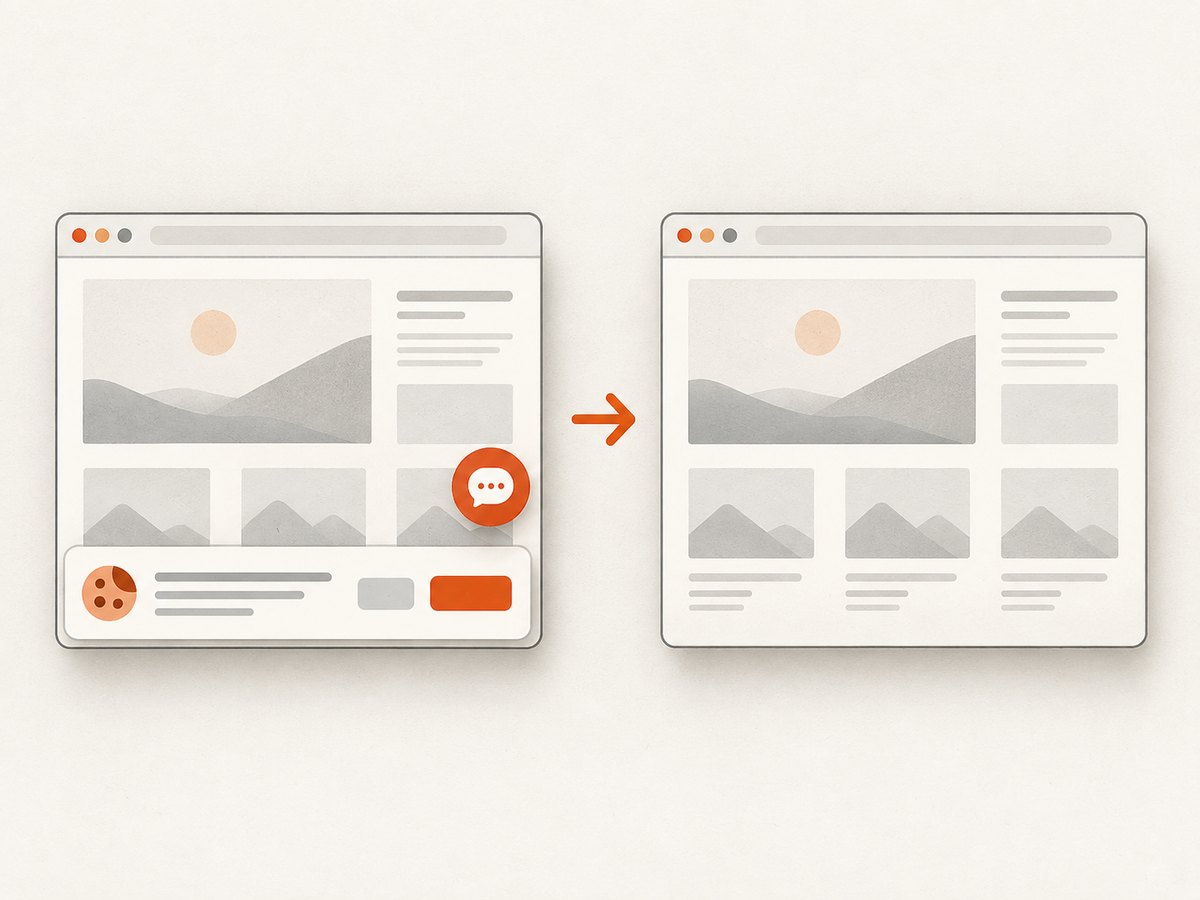
ScreenshotNeo provides a website screenshot API and MCP server. Cookie banners, newsletter popups, and chat widgets are removed before the shot; bot checks, blank pages, and failed loads are never billed. Its MCP server lets AI agents take screenshots. One thousand screenshots a month are free with no card, and paid plans start at $5 for 3,000. The endpoint can return screenshots or PDFs. See the API docs for request options and output configuration.
curl -G "https://api.screenshotneo.com/v1/shot" \
  -d access_key=YOUR_API_KEY \
  --data-urlencode url=https://stripe.com \
  -o shot.webp
Create a free ScreenshotNeo account to get 1,000 screenshots each month with no card.
6. Reliability, performance, and cost
Launching a browser for each conversion is simple, but browser startup and page resource loading become part of every request. For a service that creates many PDFs, keep a bounded number of browser processes or workers, reuse a browser where appropriate, and create a separate page per job. Always close pages and browsers after failures. Limit concurrent work: each page consumes memory, and large or very long documents can exhaust a small worker. Measure your own workload before choosing concurrency because page complexity, fonts, images, and network behavior vary widely.
Set navigation and PDF timeouts independently. A navigation can succeed while a client-side report is still rendering; wait for a known selector or application signal. Conversely, waiting for every network connection to stop can hang on analytics or live updates. Avoid infinite retries. Retry transient network failures with a small bounded policy, and log URL, phase, elapsed time, response status, and error class without logging secrets or sensitive HTML.
PDFs can be large due to embedded images, fonts, backgrounds, and long documents. Reduce unnecessary assets, use print-specific CSS, select only required page ranges, and use an appropriate output scale. If your output is returned over HTTP, account for response size and client disconnects. Rendering a third-party URL also means your browser makes network requests: restrict destinations in production to prevent access to internal services, and avoid embedding credentials in publicly visible URLs.
Self-hosted Puppeteer has infrastructure costs: compute, memory, browser installation, maintenance, and operational handling of timeouts. No universal runtime or cost figure applies across deployments. A hosted API shifts browser operation to a service and charges according to its plan; compare the plan’s billing rules and required features against your volume. ScreenshotNeo says only clean shots are billed and identifies page verdict and billed status in response headers; consult its documentation for exact parameters and response details.
7. Common errors and fixes
| Symptom | Likely cause | Fix |
|---|---|---|
| Navigation timeout | Slow origin, long-lived requests, or overly strict network-idle wait | Use a suitable waitUntil, wait for the specific content selector, and set a realistic timeout. |
| PDF contains a loading state | Navigation completed before client-side data was ready | Wait for an application-specific selector or readiness condition before calling pdf(). |
| Missing fonts or fallback typography | Font request failed, relative URL is invalid, or font loading is unfinished | Use reachable font URLs, inspect page requests, await the required content, and keep waitForFonts enabled. |
| Background colors disappear | Print backgrounds are disabled or print CSS removed them | Set printBackground: true and inspect @media print styles. |
| Colors look lighter than in browser | Print color adjustment changes colors | Apply -webkit-print-color-adjust: exact to the relevant elements. |
| Page size ignores CSS | API paper settings take precedence | Enable preferCSSPageSize: true if CSS @page should control size. |
| HTML PDF has broken images | Relative asset URLs lack a base URL or remote assets are unreachable | Use absolute URLs, inline assets, or load the document from a URL with the intended base. |
| Process hangs after an error | Browser cleanup did not run | Put browser closure in finally; also bound job concurrency and timeouts. |
| Browser fails to launch in deployment | Browser binary or required system libraries are unavailable | Follow Puppeteer’s platform installation guidance and use a compatible runtime image. |
8. FAQ
Can Node.js convert HTML without a browser?
Not with Puppeteer’s browser-rendering approach. It uses Chromium to interpret HTML, CSS, and web fonts. A non-browser PDF library may suit documents built from structured data, but it does not automatically reproduce a webpage’s CSS layout.
Does Puppeteer support saving to memory instead of a file?
Yes. page.pdf() resolves to a Uint8Array. Omit path and pass the resulting bytes to your storage or HTTP response layer.
Can I print just selected pages?
Yes. Puppeteer’s pageRanges accepts ranges such as 1-5, 8. Confirm page numbering against the rendered document when CSS changes pagination.
Is Playwright faster than Puppeteer for PDFs?
The cited official references describe APIs and behavior, not a comparative speed benchmark. Choose based on the browser automation library already used by your project and validate it with your own pages.