How to Render SVG Images with Html2canvas and jsPDF in React
Render React SVGs to sharp PNG images and downloadable PDFs with html2canvas and jsPDF, including CORS fixes, sizing, and troubleshooting.
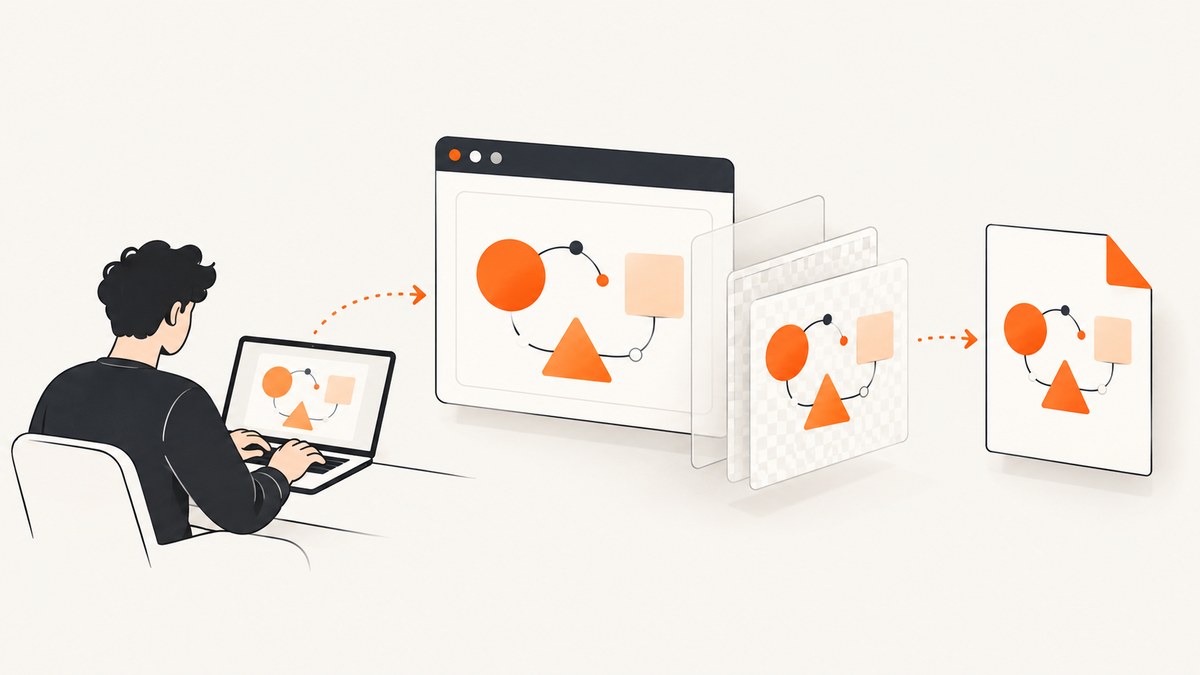
Direct answer: render the React element containing your SVG with html2canvas, convert the resulting canvas to a PNG, then place that image into a jsPDF document. The dependable pipeline is html2canvas(element) → canvas.toDataURL('image/png') → jsPDF.addImage(...). Give the SVG and its container explicit dimensions, wait until React has finished rendering fonts and data, enable CORS for permitted image assets, and choose a moderate scale such as the device pixel ratio capped at 3.
This approach captures the SVG together with its surrounding HTML and CSS. It is practical for charts, diagrams, invoices, and reports, but it is not a native browser screenshot and it does not preserve vector semantics in the PDF. html2canvas reconstructs a DOM region into a canvas, so unsupported CSS, cross-origin images, and browser canvas limits affect fidelity. The project documents that the result is based on the DOM and may not be completely accurate, and that full CSS coverage is impossible because properties are implemented individually. Read the html2canvas documentation.
1. Install the packages
Create a React application, then install the two libraries:
npm install html2canvas jspdfFor TypeScript, the packages include the types needed for the example below. Import html2canvas as a default import and jsPDF as a named import.
2. Complete React implementation
The component below renders an SVG inside a fixed-width white container and exports the complete region to an A4 PDF. It uses the element’s scroll dimensions so a capture is not clipped when the content is taller than the viewport.

import { useRef } from 'react';
import html2canvas from 'html2canvas';
import { jsPDF } from 'jspdf';

export function SvgPdfButton() {
  const ref = useRef<HTMLDivElement>(null);

  async function exportPdf() {
    if (!ref.current) return;

    const element = ref.current;
    const canvas = await html2canvas(element, {
      scale: Math.min(window.devicePixelRatio || 1, 3),
      useCORS: true,
      backgroundColor: '#ffffff',
      windowWidth: element.scrollWidth,
      windowHeight: element.scrollHeight,
    });

    const pdf = new jsPDF({
      unit: 'mm',
      format: 'a4',
      orientation: 'p',
    });

    const pageWidth = pdf.internal.pageSize.getWidth();
    const pageHeight = (canvas.height * pageWidth) / canvas.width;
    pdf.addImage(canvas, 'PNG', 0, 0, pageWidth, pageHeight);
    pdf.save('svg-export.pdf');
  }

  return (
    <>
      <div ref={ref} style={{ width: 800, background: '#fff' }}>
        <svg
          width='800'
          height='450'
          viewBox='0 0 800 450'
          role='img'
          aria-label='Exportable SVG diagram'
        >
          <rect width='800' height='450' fill='#fff' />
          <circle cx='180' cy='210' r='90' fill='#635bff' />
          <path d='M300 210h190' stroke='#111827' strokeWidth='8' />
          <rect x='530' y='130' width='150' height='160' rx='16' fill='#10b981' />
          <text x='24' y='48' fontSize='28' fill='#111827'>
            Exportable SVG
          </text>
        </svg>
      </div>
      <button onClick={exportPdf}>Download PDF</button>
    </>
  );
}
The canvas dimensions are in device pixels. jsPDF’s page dimensions are in the unit selected in its constructor, so the code computes the image height from the page width to preserve the SVG’s aspect ratio. The html2canvas configuration reference lists every capture option, and jsPDF documents the addImage API.
3. Make the SVG sharp and predictable
Set width, height, and viewBox
An SVG with only a viewBox can resolve to an unexpected size when it is cloned for capture. Set width and height on the SVG and on its outer container. Keep the viewBox aligned with the intended coordinate system, and preserve its aspect ratio when you resize the element.
Choose a scale deliberately
scale controls the canvas pixel density. A scale of 1 is fastest and uses the least memory. A value around the device pixel ratio improves text and line detail on high-density displays. Capping it at 2 or 3 is a useful starting point for large diagrams. Increasing scale also increases memory use and the chance of hitting a browser canvas dimension or area limit. The html2canvas FAQ explains that these limits vary by browser and can fail without a useful error.
Wait for the final React layout
Call the export handler after the SVG, data labels, web fonts, and images are mounted. If a state update changes the chart immediately before the click, wait for the next render before capturing. For fonts loaded at runtime, await document.fonts.ready where supported:
if (document.fonts?.ready) {
  await document.fonts.ready;
}
const canvas = await html2canvas(element, options);
Give the background an explicit color
Transparent canvas output can become an unexpected black or transparent page when inserted into a PDF viewer. Set backgroundColor: '#ffffff' for a normal document, or set it to null only when you deliberately need transparency and have verified the PDF result.
4. Handle external images and CORS
Images referenced by the SVG or surrounding HTML must be same-origin, served with an appropriate CORS header, or fetched through a proxy. Otherwise the browser can mark the canvas as tainted, and reading toDataURL will fail. useCORS: true asks html2canvas to request images with CORS; it cannot override a server that omits Access-Control-Allow-Origin. See the html2canvas FAQ for the security model.
For a same-origin asset, use a normal URL:
<image href='/charts/legend.png' x='20' y='20' width='120' height='40' />For a remote asset, configure the image host to return a header such as Access-Control-Allow-Origin: https://your-app.example, or download the asset on your server and serve it from your own origin. Do not assume that adding an Access-Control-Allow-Origin meta tag in React will fix the request; CORS is enforced through HTTP response headers.
5. Capture only the SVG or the surrounding report
Put the ref on the smallest region that must appear in the PDF. Capturing a parent report div includes headings, legends, and CSS layout. Capturing the SVG itself avoids unrelated content but excludes HTML labels outside the SVG.
const svg = element.querySelector('svg');
if (!svg) throw new Error('SVG was not rendered');
const canvas = await html2canvas(svg, { scale: 2, backgroundColor: '#fff' });
When the element is wider than the viewport, set windowWidth and windowHeight to its scroll dimensions. You can also use x, y, width, and height for a deliberate crop. Verify those values against getBoundingClientRect() before export.
6. Export multiple PDF pages
The simplest example scales the full canvas onto one page. For a long report, that can make text unreadably small. Keep the canvas at its natural ratio and slice it into page-height sections, or render each report section separately and add a page per section.
const pageWidth = pdf.internal.pageSize.getWidth();
const pageHeight = pdf.internal.pageSize.getHeight();
const imageHeight = (canvas.height * pageWidth) / canvas.width;
let remaining = imageHeight;
let offset = 0;

pdf.addImage(canvas, 'PNG', 0, offset, pageWidth, imageHeight);
remaining -= pageHeight;
while (remaining > 0) {
  offset -= pageHeight;
  pdf.addPage();
  pdf.addImage(canvas, 'PNG', 0, offset, pageWidth, imageHeight);
  remaining -= pageHeight;
}
This repeated-image method is easy to understand but may duplicate pixels and place a page boundary through a chart. For polished reports, split the DOM into page-sized sections and capture each one independently.
7. Use jsPDF’s SVG-specific API
If you already have the SVG as a string and do not need to capture surrounding HTML, jsPDF also exposes addSvgAsImage(svg, x, y, width, height, ...). The SVG module parses the XML through canvg and renders it to a canvas before inserting the image in the PDF. It still produces an image rather than editable PDF vector paths, and your bundle must include the module’s canvas and canvg dependencies. Consult the jsPDF SVG module documentation.
import { jsPDF } from 'jspdf';

const svgText = `<svg xmlns='http://www.w3.org/2000/svg' width='800' height='450'>
  <rect width='800' height='450' fill='white'/>
  <circle cx='200' cy='220' r='100' fill='royalblue'/>
</svg>`;

const pdf = new jsPDF({ unit: 'mm', format: 'a4' });
pdf.addSvgAsImage(svgText, 10, 10, 190, 107);
pdf.save('svg-only.pdf');
Choose this route for SVG-only input. Choose html2canvas when the output must match a composed React region with HTML, CSS, labels, and multiple assets.
8. Browser limits, fidelity, and performance
- CSS fidelity: html2canvas supports many common properties but cannot reproduce every CSS effect. Filters, complex blend modes, some pseudo-elements, and advanced layout details may differ. Simplify the export stylesheet when exact output matters.
- Canvas limits: very wide or tall captures can exceed browser-specific maximum dimensions or total pixel area. Reduce scale, split the content into sections, or export several pages.
- Memory: canvas memory grows roughly with width × height × scale². Remove unnecessary off-screen content and avoid exporting a whole application shell.
- Speed: capture after expensive chart animations finish. Disable transitions in an export-only class and avoid repeatedly exporting the same unchanged region.
- PDF size: PNG preserves sharp lines but can be large for photographic backgrounds. JPEG can reduce size for photos, although it introduces compression artifacts around text and thin strokes.
- Vector semantics: both
addImageandaddSvgAsImageplace rasterized content in the PDF. They do not create selectable SVG paths.
9. Troubleshooting checklist
| Symptom | Likely cause | Fix |
|---|---|---|
| Blurry SVG or text | Scale is too low or the PDF is enlarging a small canvas | Set explicit dimensions, use a moderate scale such as 2, and keep the canvas within browser limits. |
| External image is missing | Cross-origin request lacks permission | Serve the asset with CORS, use same-origin hosting, or proxy it. useCORS alone cannot grant permission. |
SecurityError from toDataURL |
The canvas is tainted by an unreadable image | Remove or replace the asset, fix response headers, or fetch it through a permitted proxy. |
| Blank PDF | Capture ran before React mounted or the target has zero dimensions | Check ref.current, width, and height; trigger after render and await fonts or data. |
| Content is clipped | Viewport dimensions are smaller than the target | Set windowWidth and windowHeight from scrollWidth and scrollHeight. |
| SVG text differs from the page | Font is not loaded or a CSS property is unsupported | Await document.fonts.ready, use a bundled/web-safe font, and simplify export CSS. |
| Export fails only on large diagrams | Canvas dimension or memory limit | Lower scale, reduce the capture region, or export page-sized sections. |
| PDF pages are unreadably small | A very tall canvas was squeezed onto one page | Split by section or page height instead of scaling the complete report to one page. |
10. Or skip the browser setup
If the goal is a reliable website screenshot or PDF rather than a client-side export, ScreenshotNeo provides a GET-based capture API and an MCP server. Cookie and consent banners are accepted and removed before the shot, along with more than 60 known consent platforms, newsletter popups, and chat widgets. Bot checks, blank pages, timeouts, failed loads, and cache hits are not billed, and the response identifies the result with X-Page-Verdict and X-Billed headers. AI agents can call take_screenshot, get_page_info, and capture_pdf through MCP.

See the ScreenshotNeo API documentation for the full option list, including full-page capture, element selectors, dark mode, device presets, custom CSS and JavaScript, waits, request blocking, headers, cookies, geolocation, PDF settings, caching, signed links, async jobs, bulk capture, and usage reporting.
curl -G 'https://api.screenshotneo.com/v1/shot' \
  -d access_key=YOUR_API_KEY \
  --data-urlencode url=https://stripe.com \
  -o shot.webp
import requests
r = requests.get(
'https://api.screenshotneo.com/v1/shot',
params={'access_key': 'YOUR_API_KEY', 'url': 'https://stripe.com'},
timeout=90,
)
r.raise_for_status()
open('shot.webp', 'wb').write(r.content)const q = new URLSearchParams({
access_key: 'YOUR_API_KEY',
url: 'https://stripe.com',
});
const res = await fetch(`https://api.screenshotneo.com/v1/shot?${q}`);
if (!res.ok) throw new Error(`HTTP ${res.status}`);
const image = Buffer.from(await res.arrayBuffer());Every feature is available on every plan. The Free plan includes 1,000 shots per month with no card; paid plans start at $5 for 3,000 shots. Create a free ScreenshotNeo account.
11. FAQ
Does html2canvas create a real screenshot?
No. It reconstructs the DOM into a canvas. Browser rendering differences and unsupported CSS can change the result.
Can I keep SVG vectors selectable in the PDF?
Not with these image APIs. Both common pipelines rasterize through a canvas. A dedicated PDF vector workflow is required for editable paths.
Should I use PNG or JPEG?
Use PNG for diagrams, text, and line art. Use JPEG when photographic content dominates and a smaller file is more important than lossless edges.
Why does useCORS: true not solve my image problem?
The remote server must opt in with an HTTP CORS response header. Client-side JavaScript cannot grant that permission.
How do I export a chart after changing its data?
Update state, wait for React to commit the new render, await fonts or images if needed, then call html2canvas. Capturing in the same synchronous event as the state update can catch the previous layout.
When is a server-side screenshot API a better fit?
Use one when you need repeatable captures outside a user’s browser, pages with consent banners or bot checks, scheduled jobs, or PDF generation without maintaining browser automation. ScreenshotNeo’s clean-shot handling and no-charge failures are designed for that workflow.


