How to Export Multiple Images to a PDF with jsPDF
Combine images into a downloadable PDF with jsPDF. Learn page sizing, aspect ratios, contact sheets, browser-safe loading, and fixes for common image issues.
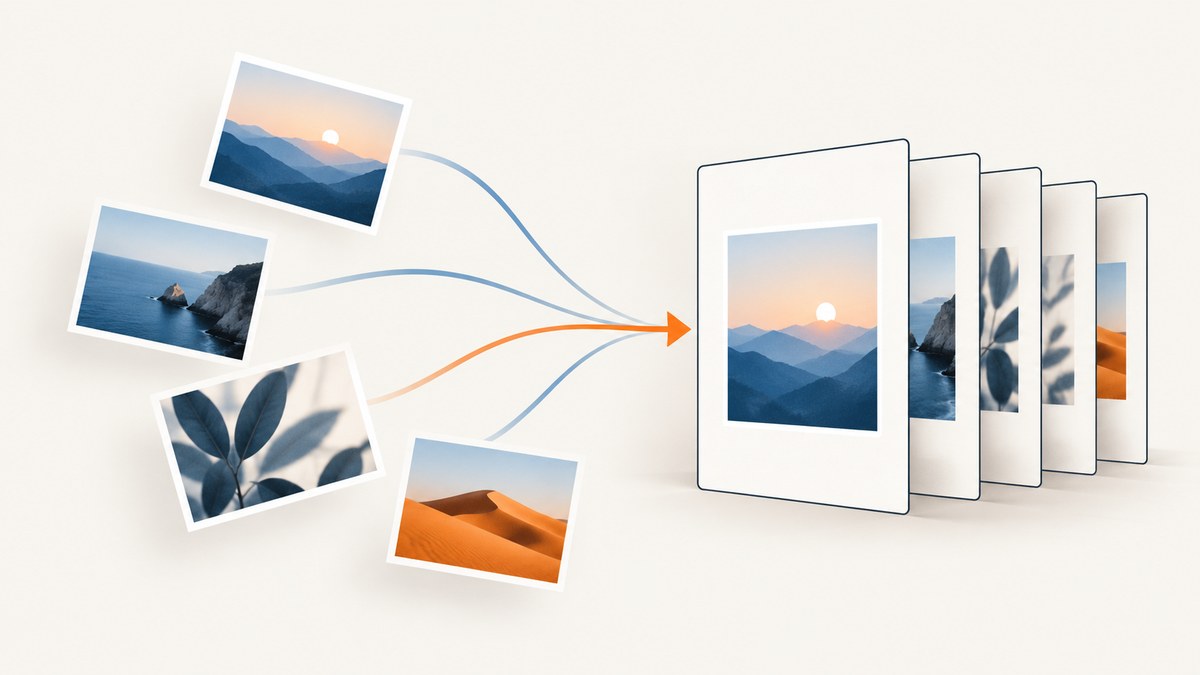
To export multiple images to one PDF with jsPDF, create a document, call addImage() for each image, and call addPage() between images when each should get its own page. Set the image dimensions explicitly and calculate them from the source aspect ratio to avoid stretching. Finally, call save() to download the PDF.
This guide covers one-image-per-page documents, contact sheets, image loading, file formats, sizing, and common failures. The examples run in a browser with jsPDF installed as an npm dependency.
1. Install jsPDF and prepare your images
Install the package in your project:
npm install jspdfThen import the constructor in a JavaScript module:
import { jsPDF } from "jspdf";addImage() accepts a data URL, an HTMLImageElement, an HTMLCanvasElement, a Uint8Array, or RGBA data. It inserts one image at a time and takes its position and size in the PDF document’s units. See the official jsPDF addImage reference for the supported inputs and argument details.
For images in your page, wait until they have loaded before reading their dimensions or adding them. The helper below rejects failed loads instead of creating an incomplete PDF silently:
function loadImage(src) {
  return new Promise((resolve, reject) => {
    const image = new Image();
    image.onload = () => resolve(image);
    image.onerror = () => reject(new Error(`Could not load image: ${src}`));
    image.src = src;
  });
}
For local files selected by a user, use an object URL and revoke it when finished:
async function imageFromFile(file) {
  const objectUrl = URL.createObjectURL(file);
  try {
    return await loadImage(objectUrl);
  } finally {
    // Do not revoke before the image has finished loading.
    // The caller may need the image later, so in a real UI revoke it
    // after PDF generation has completed.
  }
}
This function illustrates the load sequence; because the PDF generation still needs the resulting image, manage the object URL’s lifetime around the whole generation operation. For example, create the URL, await image load, add the image, then revoke the URL after save().
2. Create one page per image
The following complete example takes already-loaded image elements or canvases, fits each inside an A4 page with a 10 mm margin, centers it, preserves its proportions, and downloads images.pdf. It uses a unique alias for each image resource, which also helps avoid a repeated-image issue reported for some repeated PNG use cases.
import { jsPDF } from "jspdf";

function addImagePage(pdf, image, index, format = "PNG") {
  const pageWidth = pdf.internal.pageSize.getWidth();
  const pageHeight = pdf.internal.pageSize.getHeight();
  const margin = 10;
  const usableWidth = pageWidth - margin * 2;
  const usableHeight = pageHeight - margin * 2;
  const sourceWidth = image.naturalWidth || image.width;
  const sourceHeight = image.naturalHeight || image.height;

  if (!sourceWidth || !sourceHeight) {
    throw new Error(`Image ${index + 1} has no usable dimensions`);
  }

  const ratio = sourceWidth / sourceHeight;
  const width = Math.min(usableWidth, usableHeight * ratio);
  const height = width / ratio;
  const x = (pageWidth - width) / 2;
  const y = (pageHeight - height) / 2;

  pdf.addImage(image, format, x, y, width, height, `image-${index}`, "FAST");
}

export async function imagesToPdf(images) {
  if (!Array.isArray(images) || images.length === 0) {
    throw new Error("Choose at least one image");
  }

  const pdf = new jsPDF({ unit: "mm", format: "a4", orientation: "portrait" });
  images.forEach((image, index) => {
    if (index > 0) pdf.addPage();
    addImagePage(pdf, image, index, "PNG");
  });
  pdf.save("images.pdf");
}

// Example: pass loaded HTMLImageElement objects.
const sources = ["/photos/one.png", "/photos/two.png"];
const images = await Promise.all(sources.map(loadImage));
await imagesToPdf(images);
Change the format argument to match the actual input: use "PNG" for PNG, "JPEG" for JPEG, and "WEBP" when the browser and jsPDF version you target support it. PNG is usually the better choice when transparency or sharp graphic edges matter. JPEG is common for photographs. WEBP support is listed in the API, but verify it in the browsers and jsPDF release you ship before relying on it.
The orientation above is portrait. You can also use orientation: "landscape", or a custom page format if your output needs a specific paper size. The page width and height are read from the document, so the fitting calculation works with either orientation and with other formats.
3. Choose a layout and size images predictably
One image per page
Call addPage() before every image after the first. This produces a predictable page count and gives each source image the largest available area within the margins. The sample centers each image both horizontally and vertically, without cropping or distortion.
Several images on one page
For a contact sheet, do not add a page for every image. Instead, calculate a grid cell for each item, and advance the x and y coordinates:
function addContactSheet(pdf, images, columns = 2) {
  const pageWidth = pdf.internal.pageSize.getWidth();
  const pageHeight = pdf.internal.pageSize.getHeight();
  const margin = 10;
  const gap = 5;
  const cellWidth = (pageWidth - 2 * margin - gap * (columns - 1)) / columns;
  const rows = Math.floor((pageHeight - 2 * margin + gap) / (cellWidth * 0.75 + gap));
  const cellHeight = (pageHeight - 2 * margin - gap * (rows - 1)) / rows;

  images.forEach((image, index) => {
    const perPage = columns * rows;
    const pageIndex = Math.floor(index / perPage);
    const withinPage = index % perPage;
    if (index > 0 && withinPage === 0) pdf.addPage();

    const column = withinPage % columns;
    const row = Math.floor(withinPage / columns);
    const x = margin + column * (cellWidth + gap);
    const y = margin + row * (cellHeight + gap);
    const ratio = image.width / image.height;
    const width = Math.min(cellWidth, cellHeight * ratio);
    const height = width / ratio;
    const imageX = x + (cellWidth - width) / 2;
    const imageY = y + (cellHeight - height) / 2;

    pdf.addImage(image, "JPEG", imageX, imageY, width, height,
      `sheet-${index}`, "FAST");
  });
}
This is a basic grid for similarly shaped images; its rows calculation assumes a cell-height estimate of three quarters of the cell width. For a fixed design, choose the number of rows and columns explicitly and derive cell dimensions from the usable page area. If captions are required, reserve vertical space for them before calculating the image fit. If a source has an extreme aspect ratio, it will appear smaller inside its cell because this example fits rather than crops.
Fit, crop, or stretch?
- Fit: scale uniformly until the image fits inside a box. This preserves the whole image, possibly leaving blank space.
- Crop: scale to fill a box and clip overflow. This fills the region but cuts off part of the source; prepare a cropped canvas if the desired clipping needs to be exact.
- Stretch: set unrelated width and height values. This distorts the image and is generally unsuitable for photos or screenshots.
The aspect-ratio formula is ratio = sourceWidth / sourceHeight. Given a maximum box width and height, fit by calculating width = min(maxWidth, maxHeight * ratio) and height = width / ratio. This guarantees both dimensions stay in bounds.
4. Use data URLs, canvases, and binary image data
For a canvas, you can pass the canvas element directly. For an image element, pass the loaded element. For a data URL, create one with canvas.toDataURL("image/png") and pass the matching format. Direct element input can avoid building an extra base64 string in application code, though the document still has to encode the image into the PDF.
const canvas = document.querySelector("canvas");
const pdf = new jsPDF({ unit: "mm", format: "a4" });
pdf.addImage(canvas, "PNG", 10, 10, 190, 120, "canvas-0", "FAST");
pdf.save("canvas.pdf");
For binary data, convert the bytes to a Uint8Array as needed and provide a format that matches the bytes. A URL string is not itself image data for addImage(); load the URL as an image first, or fetch it and convert the response to bytes. When using fetch, check response.ok and handle network failures before generation.
Canvas security matters for remote images. If a canvas draws an image from another origin without the appropriate cross-origin permission, the browser may mark the canvas as tainted and prevent pixel reads or export. Configure the image host’s CORS response and set crossOrigin before assigning src where appropriate. A JavaScript setting alone cannot grant permission that the remote server has not allowed.
5. Download, return, or upload the PDF
pdf.save("images.pdf") initiates a browser download. If instead you need a Blob for an upload or preview, request one from the document:
const blob = pdf.output("blob");
const form = new FormData();
form.append("file", blob, "images.pdf");
const response = await fetch("/upload", { method: "POST", body: form });
if (!response.ok) throw new Error(`Upload failed: ${response.status}`);
For a preview link, create an object URL from the Blob and revoke it when the preview is no longer needed. Avoid converting a large document to a base64 string unless an API specifically requires it; base64 representation takes more memory than the underlying binary data.
6. Or skip the browser setup
If your images are website screenshots, ScreenshotNeo can capture a page through one GET request and return an image or PDF. The following cURL request saves a screenshot as WebP; replace the example URL with the page you need. See the ScreenshotNeo API documentation for request options.

curl -G "https://api.screenshotneo.com/v1/shot" -d access_key=YOUR_API_KEY --data-urlencode url=https://stripe.com -o shot.webpCookie banners, newsletter popups, and chat widgets are removed before capture. Bot checks, blank pages, failed loads, timeouts, and cache hits are not billed; response headers report the page verdict and billing status. Its MCP server provides screenshot tools for AI agents. The free plan includes 1,000 screenshots per month with no card, and paid plans start at $5 for 3,000. Sign up for 1,000 free screenshots a month, with no card required.
7. cURL, Python, and Node.js screenshot examples
These examples request a single page screenshot from ScreenshotNeo, which you can then feed into your own PDF workflow. They are useful when your source images are web pages rather than files already in the browser. They do not combine multiple separate images into a PDF by themselves; use the jsPDF layout code above to assemble multiple image inputs.
cURL
curl -G "https://api.screenshotneo.com/v1/shot" -d access_key=YOUR_API_KEY --data-urlencode url=https://stripe.com -o shot.webpPython
import requests

r = requests.get(
    "https://api.screenshotneo.com/v1/shot",
    params={"access_key": "YOUR_API_KEY", "url": "https://stripe.com"},
    timeout=90,
)
r.raise_for_status()
with open("shot.webp", "wb") as f:
    f.write(r.content)
Use raise_for_status() so an HTTP error is not accidentally saved as though it were an image. For a multi-image PDF, request each page you need and pass the resulting image data into a PDF-generation stage that supports your runtime.
Node.js
const q = new URLSearchParams({ access_key: 'YOUR_API_KEY', url: 'https://stripe.com' });
const res = await fetch(`https://api.screenshotneo.com/v1/shot?${q}`);
if (!res.ok) throw new Error(`Screenshot request failed: ${res.status}`);
const bytes = new Uint8Array(await res.arrayBuffer());
Keep API keys on a trusted server when a browser-facing application would expose them to visitors. For a browser-only app, use jsPDF directly with user-provided images instead of embedding a secret key in client code.
8. Troubleshooting
| Symptom | Likely cause | Fix |
|---|---|---|
| Every page shows the same PNG | Repeated image resources may be colliding or being reused in a particular input/version combination. | Pass each canvas directly and give every addImage() call a distinct alias such as image-0, image-1. A maintainer issue documents this as a fix for the reported case; treat it as a targeted workaround, not a guarantee for every version. See jsPDF issue 3603. |
addImage throws or produces a blank area |
The image has not loaded, its dimensions are zero, or the declared format does not match the data. | Await the image’s load event, validate width and height, and use the real format: PNG, JPEG, or supported WEBP. |
| Remote canvas export fails with a security error | The canvas is tainted by a cross-origin image whose server does not allow the origin. | Enable suitable CORS headers on the image host, or use an image hosted on the same origin. Do not assume client-side code can override server policy. |
| Images look squashed | Width and height were set independently of source proportions. | Compute one dimension from the source aspect ratio using the fit formula in section 3. |
| PDF is unexpectedly huge | Large source pixels, uncompressed or lossless assets, or many images increase embedded data. | Resize images to the pixel dimensions needed for the page, choose PNG for transparency/graphics and JPEG for photos when acceptable, and compare output fidelity before changing formats. |
| Only the first selected file appears | The generation code handles a single input or starts before file reading has completed. | Map every selected file to a load promise, await all promises with Promise.all, and loop across the resolved images. |
| Download does not start | Generation threw before save(), a browser blocks the download, or the handler did not run from the expected user action. |
Inspect the console, validate inputs, await generation in the click handler, and try returning a Blob for a controlled preview/download flow. |
9. Performance, reliability, and cost considerations
There is no universal safe image count or output-size threshold: memory and processing depend on the browser, image dimensions, formats, and the device. Large decoded images consume substantially more memory than their compressed file size suggests. If users can choose many files, consider resizing them before insertion, reporting progress, and generating in manageable batches. Keep source images only as long as required and release object URLs when done.
For reliability, validate inputs before generation: ensure at least one image, confirm each has nonzero dimensions, handle load errors, and avoid proceeding after a rejected fetch. If partial output is acceptable, define that behavior explicitly and report which files failed. Otherwise, reject the full export when any input fails so users do not mistake an incomplete PDF for a complete one.
Client-side jsPDF has no per-document API charge, but it uses the visitor’s browser resources. A hosted screenshot API has request-based plan limits and prices; ScreenshotNeo’s listed plans are Free (1,000 per month), Starter ($5 for 3,000), Growth ($15 for 15,000), Pro ($39 for 60,000), Scale ($99 for 250,000), and Business ($249 for 1,000,000). Yearly billing gives two months free, and every feature is on every plan. Choose based on how many website captures you need, while keeping in mind that those requests capture pages; they do not replace the jsPDF layout stage when combining a set of separate images.
10. FAQ
Can I put images with different dimensions into one PDF?
Yes. Calculate each image’s fitted width and height independently, using the same page box or grid cell. Each image can have a different aspect ratio.
Can I add a page number or title?
Yes. Add text with jsPDF’s text methods on each page, leaving enough margin so labels do not overlap the image.
Does addImage() create multiple pages automatically?
No. It places one image at the coordinates you provide. Your application controls page creation with addPage() and placement with x, y, width, and height.
Can I preserve transparent PNG backgrounds?
Use PNG input and the PNG format declaration. Check the rendered result in the PDF viewer you support, especially if the source includes unusual transparency or color profiles.
Summary
Load every image before generation, add one image per page or position several in a grid, and derive dimensions from aspect ratio. Match the declared format to the source, use unique aliases when repeated PNGs misbehave, and handle cross-origin restrictions and large inputs deliberately. jsPDF handles the PDF document in the browser; a screenshot API can supply webpage captures when the input is a live URL.


