Convert a Website Page to PDF
Convert any website page to PDF with Chrome, Firefox, Edge, print settings, troubleshooting, automation, and a cleaner API workflow.
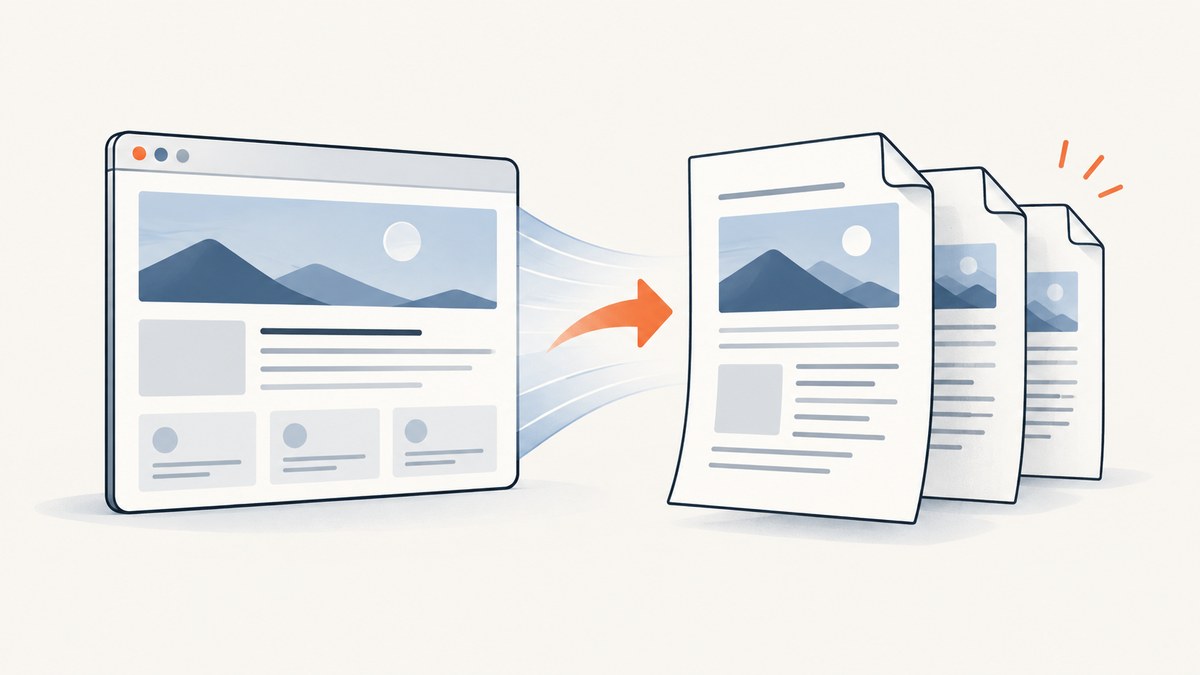
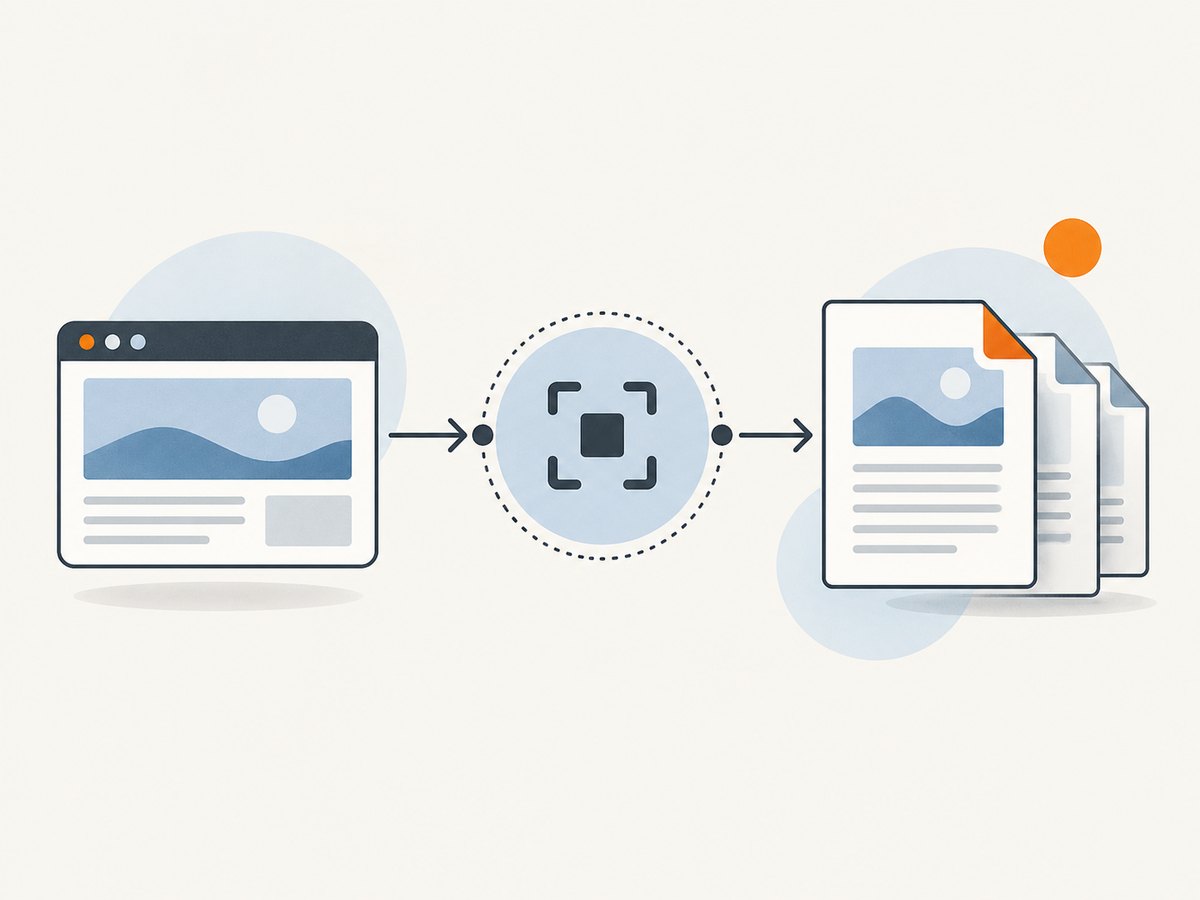
To convert a website page to PDF on a desktop, open the page, press Ctrl+P on Windows/Linux or Command+P on Mac, choose the browser’s PDF destination, review the preview, and save. Chrome calls the destination Save as PDF; Firefox calls it Save to PDF. Edge exposes the same workflow through its Print dialog. A PDF is a print layout, so inspect the saved file before sharing it.
Official references: Chrome Help, Mozilla Support, and Microsoft Support.
Convert a page in Chrome
- Open the URL in Chrome.
- Choose File > Print, or press Ctrl+P on Windows/Linux or Command+P on Mac.
- In Destination, choose Save as PDF. A physical printer is not required.
- Set pages, paper size, orientation, scale, margins, headers and footers, and background graphics.
- Check every page in the preview, then choose Save and select a filename and folder.
Chrome Help also documents uploading the saved file to Drive. Saving directly to Drive from print preview requires the Save to Google Drive extension.
Convert a page in Firefox
- Open the page and choose Firefox’s Print command.
- In Destination, select Save to PDF.
- Choose orientation, page range, paper size, scale, margins, headers and footers, and whether to print backgrounds.
- Select Print, choose a local filename, and save.
Firefox may offer a Simplified format. Use it for a text-focused copy when available; it can remove navigation and other page furniture. Mozilla cautions that web pages can arrange themselves differently on paper than on screen.
Convert a page in Microsoft Edge
- Open the page and choose Settings and more > Print, press Ctrl+P on Windows or Command+P on Mac, or right-click and choose Print.
- Choose the PDF destination in the print dialog.
- Set page range, margins, scale, orientation, paper size, headers and footers, and Background graphics.
- Review the preview and save the file.
If a page is cluttered, Edge’s Immersive Reader can provide a cleaner print source when that site supports it. Microsoft recommends enabling background graphics when the preview or output differs from the webpage.
Settings that determine the result
| Setting | Use it when | Watch for |
|---|---|---|
| Orientation | The page is wide or has tables | Portrait can shrink columns; landscape can add whitespace |
| Scale | Content is clipped or too small | Fit-to-page may create tiny text |
| Margins | You need more room or binding space | Zero or narrow margins can clip layouts |
| Page range | You need selected sections | Dynamic pages can change while rendering |
| Background graphics | Color panels, charts, or hero images matter | Output can be plain without this option |
| Headers and footers | You need URL, title, or date metadata | Turn them off for a clean copy |
When the PDF does not match the page
- Colors or images are missing: enable background graphics and print again.
- Text or columns are clipped: try landscape, a smaller scale, or wider margins; inspect the preview at each change.
- Ads, navigation, or popups dominate: use Firefox Simplified format or Edge Immersive Reader when available, then print that view.
- Content is missing: wait for lazy images and client-rendered sections to finish loading, dismiss overlays, reload, and reopen Print.
- Page count is surprising: check page range, paper size, scale, and margins. Print CSS can intentionally rearrange a page.
- Fonts look different: allow web fonts to finish loading before opening preview; a site’s print stylesheet may intentionally differ.
- Access denied or blank output: sign in first, complete any access check, and confirm the page works in a normal tab.
Automate PDF capture
For repeatable jobs, a browser automation script or an API avoids manual dialogs. Automation still has to wait for dynamic content, handle authentication, and decide what to do with consent banners and bot checks. Keep the source URL, timestamp, options, and resulting file together so a changed page can be explained later.
Or skip the browser setup
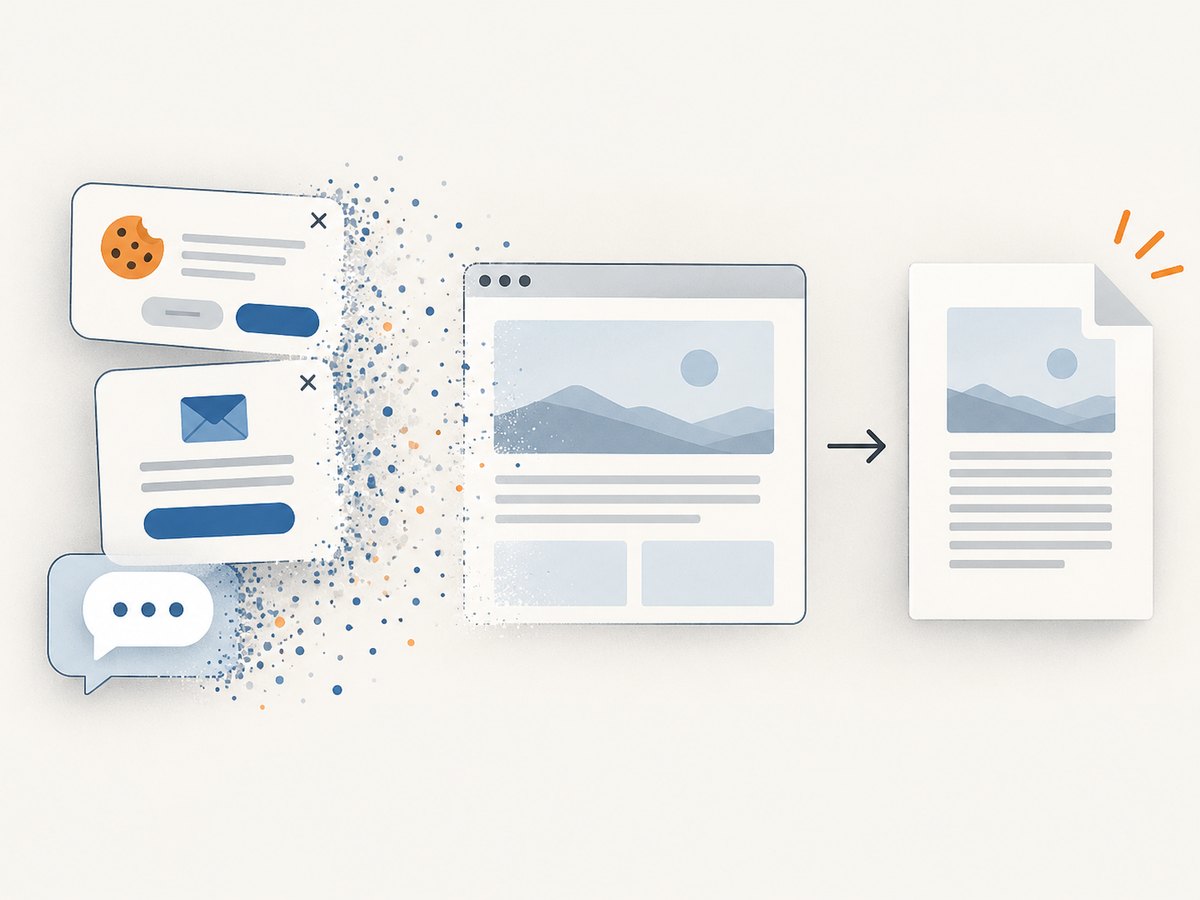
ScreenshotNeo is a website screenshot API and MCP server. Its capture flow accepts cookie or consent banners like a visitor and removes more than 60 known consent platforms, newsletter popups, and chat widgets before the shot; each step can be turned off. Bot checks or CAPTCHAs, blank pages, timeouts, failed loads, and cache hits are not billed, and the response identifies the result with X-Page-Verdict and X-Billed headers. It can return PDF as well as PNG, JPEG, or WebP; see the API documentation for PDF options.
curl -G "https://api.screenshotneo.com/v1/shot" -d access_key=YOUR_API_KEY --data-urlencode url=https://stripe.com -o shot.webpimport requests
r = requests.get("https://api.screenshotneo.com/v1/shot", params={"access_key": "YOUR_API_KEY", "url": "https://stripe.com"}, timeout=90)
r.raise_for_status()
open("shot.webp", "wb").write(r.content)const q = new URLSearchParams({ access_key: 'YOUR_API_KEY', url: 'https://stripe.com' });
const res = await fetch(`https://api.screenshotneo.com/v1/shot?${q}`);
if (!res.ok) throw new Error(`${res.status} ${res.statusText}`);
const data = Buffer.from(await res.arrayBuffer());
require('fs').writeFileSync('shot.webp', data);These examples use the documented one-call endpoint and target URL. Select PDF output and its paper, margin, orientation, and page-range options as described in the docs. ScreenshotNeo also supports full-page capture with lazy images loaded, CSS-element capture, custom CSS and JavaScript, waits, request blocking, headers, cookies, user agents, Authorization, timezone, geolocation, caching with a chosen TTL, signed links, asynchronous jobs with signed webhooks, bulk capture of up to 100 URLs per call, a usage API, and an OpenAPI specification. Its MCP server exposes take_screenshot, get_page_info, and capture_pdf to Claude, Cursor, and other MCP clients.
Only clean shots are billed. Plans include 1,000 shots per month free with no card; paid plans start at $5 for 3,000 shots. Create a free ScreenshotNeo account.
Reliability, performance, and cost checklist
- Wait for the page state your document needs, not merely the first HTML response.
- Use a stable viewport, paper size, scale, and timezone so repeated files are comparable.
- For authenticated pages, pass credentials only through the browser or API mechanism intended for that site, and avoid putting secrets in a public URL.
- Cache unchanged pages when appropriate; ScreenshotNeo lets you choose a cache TTL and does not bill cache hits.
- Use asynchronous jobs and signed webhooks for long or bulk captures; use bulk capture for up to 100 URLs per call.
- Record verdict and billing headers so failed or blocked pages can be retried without guessing whether they consumed quota.
- Check the output file type and size before storing or serving it.
FAQ
Do I need a printer?
No. Choose the browser’s PDF destination.
Why does a PDF look different from the screen?
Print styles, paper geometry, scale, and background settings can change layout. Preview is the authoritative check.
Can I save only part of a page?
Use the page-range control for printed pages. For a specific DOM element or a long page, browser automation or ScreenshotNeo’s element and full-page options are more appropriate.
Is a browser PDF the same as a screenshot?
No. A PDF preserves a print-oriented document layout; a screenshot preserves rendered pixels. Choose PDF for selectable, paginated documents and screenshots for visual fidelity.
What happens when a site uses a consent wall?
Handle it in the browser before printing, or use ScreenshotNeo, which can accept the consent banner and remove supported consent platforms before capture.