How to Convert a ZIP of HTML Files to PDF
Extract the archive, preserve its assets, and convert the entry HTML file with a browser, Chrome Headless, Playwright, or ScreenshotNeo.
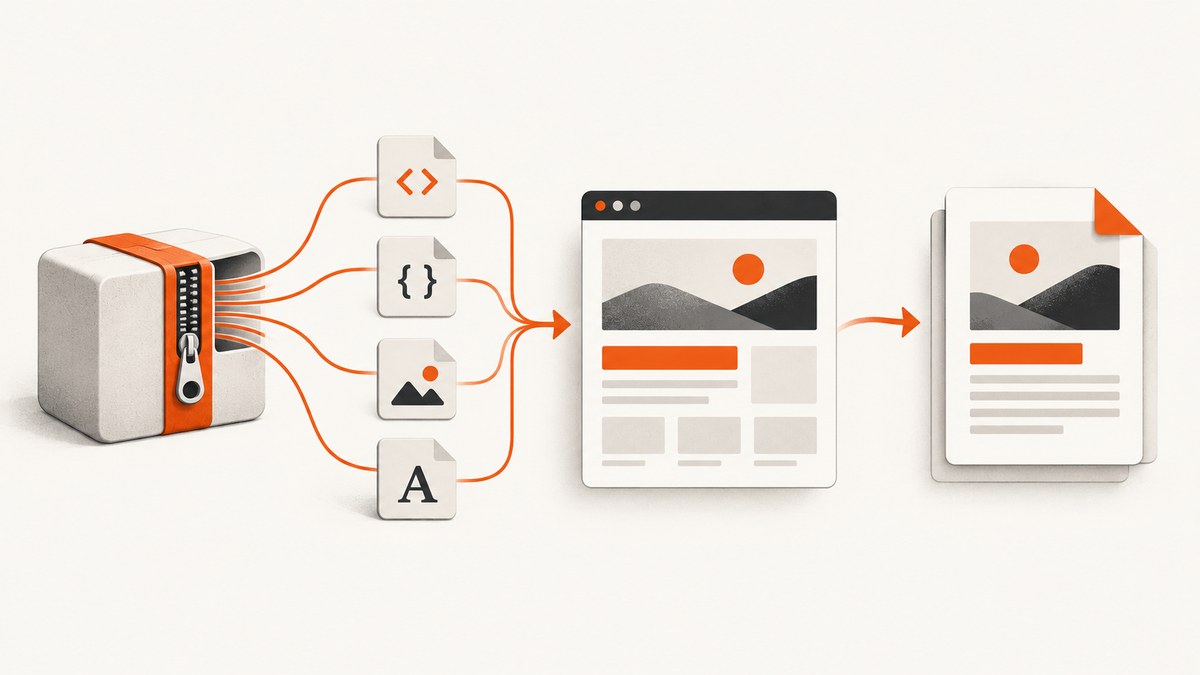
Short answer: a ZIP file must be extracted before conversion. Keep its folder structure intact, open the intended entry page (usually index.html), confirm that its CSS and images render, then print the page to PDF. For repeated conversions, automate the same rendering step with Chrome Headless, Playwright, or another HTML renderer.
A ZIP is an archive, not an HTML document. Converters render an HTML page and its linked resources, so extracting first is what lets relative paths such as css/site.css, images/hero.png, and local fonts resolve correctly.
1. Extract the ZIP without breaking its structure
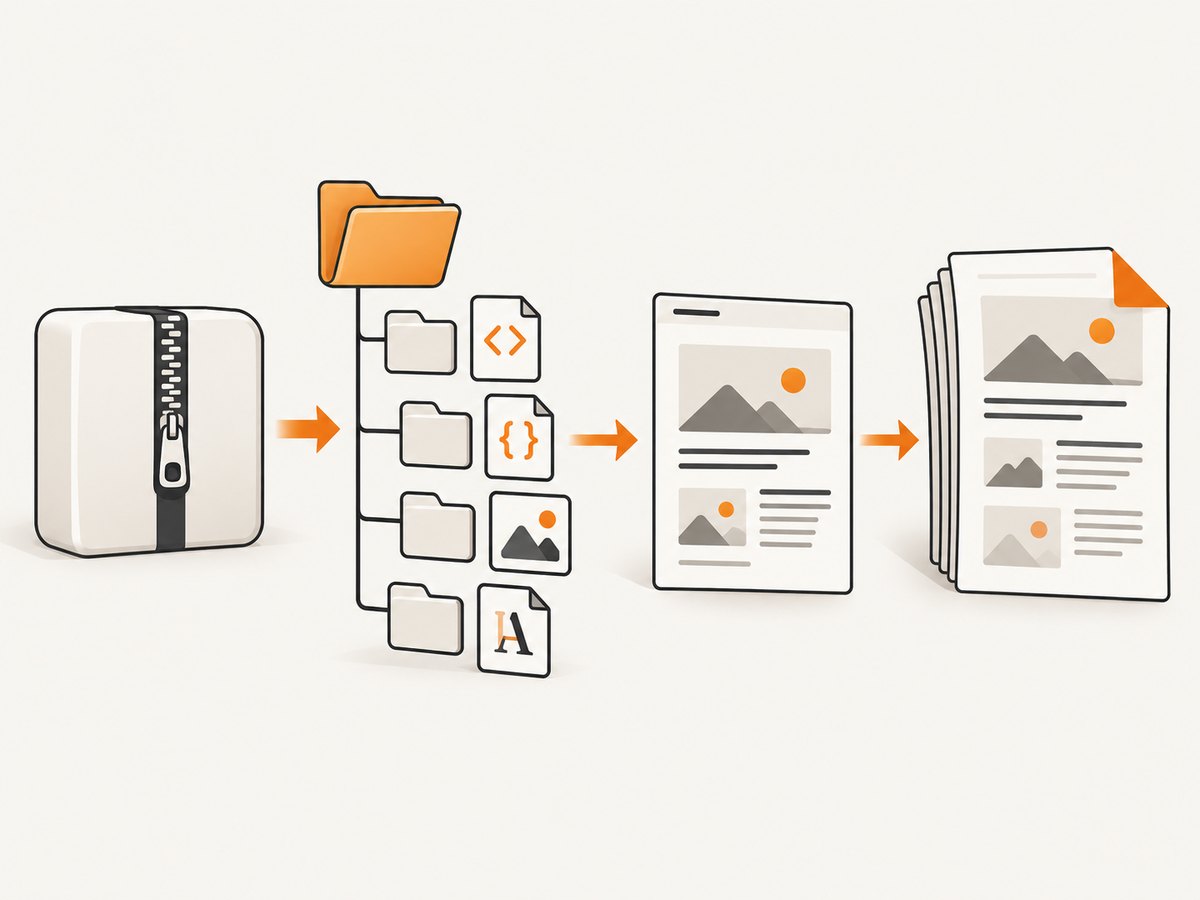
Extract into a new working directory and preserve every subdirectory. Do not move the HTML file away from the CSS, image, JavaScript, and font folders it references.
# macOS or Linux
mkdir html-pdf-work
unzip website.zip -d html-pdf-work

# Inspect likely entry files
find html-pdf-work -type f \( -iname '*.html' -o -iname '*.htm' \) -print

# Windows PowerShell
Expand-Archive -Path .\website.zip -DestinationPath .\html-pdf-work
If the archive creates an extra top-level directory, enter that directory before looking for the entry page. Open the page that represents the complete document, commonly index.html, rather than a partial template or an error page.
Check paths before converting
- Open the HTML file in a browser with File → Open, or drag it into a browser window.
- Confirm that styles, images, icons, fonts, and tables appear.
- Open developer tools if something is missing. A 404 usually means the archive was moved or extracted incorrectly, or the HTML uses a path that only works on the original server.
- Check whether JavaScript fills the page after load. A local file may not behave like the hosted version, especially when scripts use server APIs, modules, or cross-origin requests.
Fix the local rendering first. A PDF converter reproduces the page it can render; it cannot restore an asset that the browser failed to load.
2. Convert one ZIP manually with browser Print
For a one-off conversion, the browser print dialog is usually the quickest workflow.
- Open the extracted entry page.
- Press
Ctrl+Pon Windows/Linux orCmd+Pon macOS. - Choose Save to PDF or Save as PDF as the destination.
- Set the paper size and orientation to match the document.
- Enable background graphics when colored sections, backgrounds, or images are part of the design.
- Set margins deliberately. Default margins can create unexpected wrapping or an extra page.
- Save the PDF, then inspect every page for clipped content, blank pages, missing images, and bad page breaks.
Use print CSS to control the result
Screen and print layouts are different. Add a print stylesheet when the source is yours:
@media print {
  @page {
    size: A4;
    margin: 16mm;
  }

  body {
    color: #000;
    background: #fff;
  }

  .no-print,
  nav,
  .cookie-banner {
    display: none !important;
  }

  h1, h2, h3 {
    break-after: avoid;
  }

  table, figure, img {
    break-inside: avoid;
  }

  a {
    color: inherit;
    text-decoration: none;
  }
}
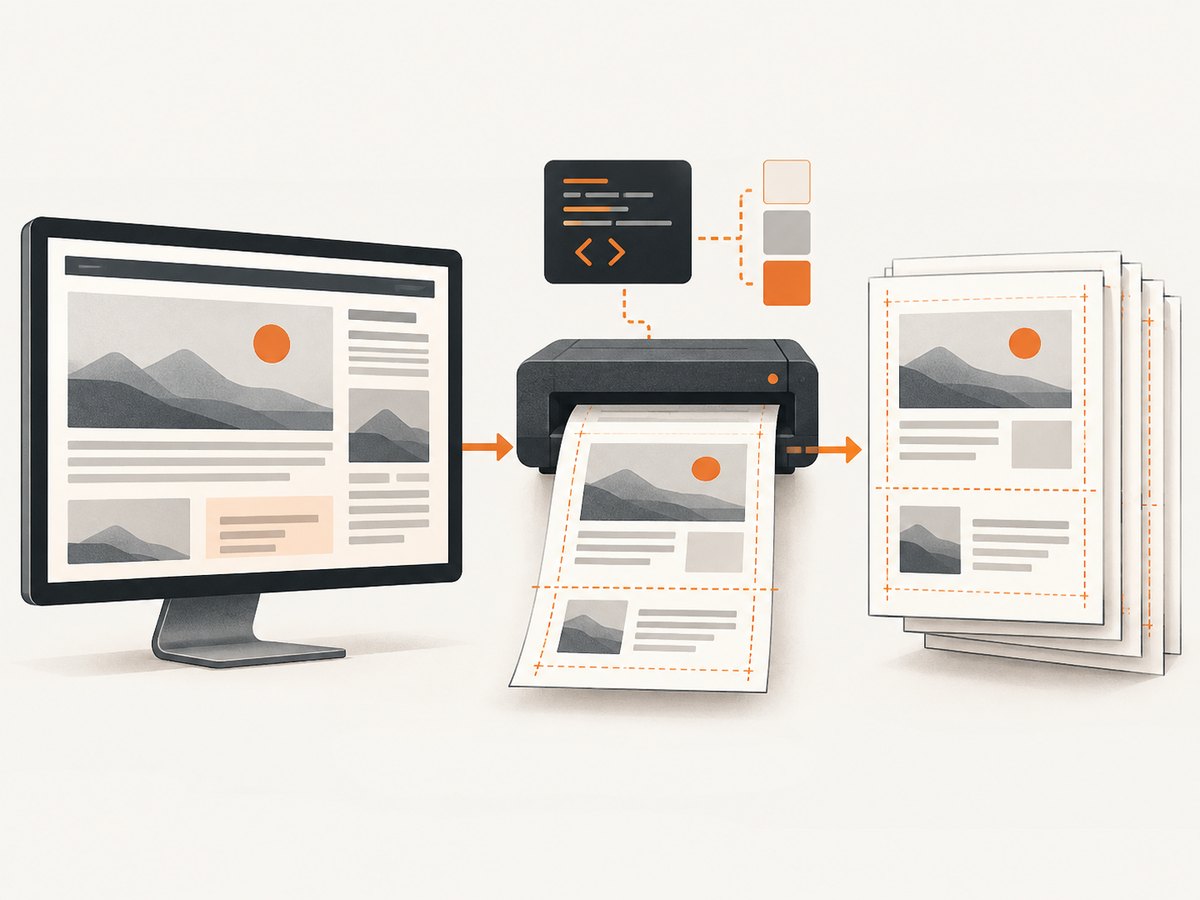
Use break-before, break-after, and break-inside for important sections. Very large images, fixed-position elements, and rows that cannot split can still create awkward page breaks; inspect the output rather than assuming the CSS is honored identically by every renderer.
3. Automate conversion with Chrome Headless
Chrome Headless can render an HTML page and write a PDF from the command line. Run it from the directory that contains the extracted files so relative links resolve as expected.
google-chrome \
  --headless \
  --disable-gpu \
  --print-to-pdf=output.pdf \
  --no-pdf-header-footer \
  file:///absolute/path/html-pdf-work/index.html
On some systems the executable is named chromium or chromium-browser. Replace the command with the installed name. The --no-pdf-header-footer option removes the browser-generated URL, title, date, and page numbers. Chrome documents --print-to-pdf, header/footer control, capture timeouts, and virtual-time settings in its Headless command-line reference.
Allow scripts time to finish
A page that builds content asynchronously may be printed before it is complete. Chrome’s timing options can provide more virtual time for scripts, but they do not guarantee that a failed API request or blocked resource will recover. If you control the page, prefer a deterministic render state and local data.
For a local file, use an absolute file:// URL. If the page requires server behavior, start a local HTTP server instead:
cd html-pdf-work
python3 -m http.server 8000
Then render http://127.0.0.1:8000/index.html. This often fixes module loading and URL resolution problems that occur when opening HTML directly from the filesystem.
4. Automate with Playwright
Playwright’s page.pdf() API is useful when you need repeatable settings, a wait condition, or a batch job. Its PDF output uses print CSS by default. The API documents paper size, margins, background printing, page ranges, and the option to honor CSS page size in the Page API reference.
Install and run a complete Node.js script
npm install playwright
npx playwright install chromium
// convert.js
const { chromium } = require('playwright');
const path = require('path');
(async () => {
const browser = await chromium.launch();
const page = await browser.newPage({
viewport: { width: 1440, height: 1000 },
deviceScaleFactor: 1
});
const entry = path.resolve('html-pdf-work/index.html');
await page.goto(`file://${entry}`, { waitUntil: 'networkidle' });
await page.pdf({
path: 'output.pdf',
format: 'A4',
printBackground: true,
margin: {
top: '16mm',
right: '16mm',
bottom: '16mm',
left: '16mm'
},
displayHeaderFooter: false,
preferCSSPageSize: true
});
await browser.close();
})();Run it with node convert.js. If the page has a known readiness marker, wait for it instead of relying only on network idle:
await page.goto(url, { waitUntil: 'domcontentloaded' });
await page.waitForSelector('#document-ready', { timeout: 30000 });
Use page.emulateMedia({ media: 'screen' }) when you intentionally need screen styles, although print media is the normal choice for a PDF. Use page.pdf({ pageRanges: '1-3' }) to export selected pages after you have established stable pagination.
5. Consider wkhtmltopdf for an existing CLI workflow
wkhtmltopdf converts one or more HTML page objects and provides switches for JavaScript, page settings, and local-file access. Its usage documentation describes these options and the security implications of local-file access.
wkhtmltopdf \
  --enable-javascript \
  --javascript-delay 1000 \
  --page-size A4 \
  --margin-top 16mm \
  --margin-right 16mm \
  --margin-bottom 16mm \
  --margin-left 16mm \
  html-pdf-work/index.html output.pdf
Review the local-file-access setting for your installed version when the document links to local resources. Enable only the access required by your directory layout; broad filesystem access is unnecessary for most conversions.
6. Options that affect PDF fidelity
| Concern | What to check | Typical adjustment |
|---|---|---|
| Page size | A4, Letter, or CSS-defined size | Set the converter format or @page size. |
| Margins | Text wrapping and usable width | Set all four margins explicitly. |
| Orientation | Wide tables and dashboards | Use landscape or a wider custom page. |
| Backgrounds | Colored panels and images | Enable background printing. |
| Headers and footers | Unexpected URL or date text | Disable generated headers and footers. |
| Dynamic content | Charts, hydration, API data | Wait for a selector or a known delay. |
| Page breaks | Headings separated from content | Use print break rules and avoid splitting figures. |
| Assets | Images, fonts, CSS, scripts | Preserve paths and inspect browser errors. |
7. Troubleshooting checklist
Styles or images are missing
Cause: the HTML was separated from its asset folders, the relative path is wrong, or the browser cannot access the resource. Fix: restore the original directory layout, inspect the URL in developer tools, and try a local HTTP server.
The PDF is blank
Cause: JavaScript has not finished, the page depends on a server API, or the wrong HTML file was selected. Fix: open the page interactively, identify the real entry point, wait for a readiness selector, and verify that required requests succeed.
Only the first viewport is captured
Cause: a screenshot command was used instead of a PDF print command, or the page uses a constrained scrolling container. Fix: use --print-to-pdf or page.pdf(), and inspect containers with overflow: auto. You may need print CSS that expands the content.
Content is clipped at the right edge
Cause: the document is wider than the selected paper size, often because of fixed pixel widths or a wide table. Fix: choose landscape, reduce margins, add responsive print rules, or set a suitable page size.
Headers, dates, or URLs appear unexpectedly
Cause: browser-generated PDF headers and footers are enabled. Fix: disable them in the print dialog or use Chrome’s --no-pdf-header-footer and Playwright’s displayHeaderFooter: false.
Fonts look different
Cause: a remote font failed to load, a local font path is invalid, or the renderer does not have the expected font installed. Fix: verify the font request, use a correct relative URL, wait for document.fonts.ready in automation, and provide a sensible fallback.
Local modules fail in Chrome
Cause: some module and fetch behavior differs for file:// pages. Fix: serve the extracted directory over localhost and render the HTTP URL.
8. Batch conversion and reliability
For several ZIPs, isolate each archive in its own temporary directory, validate that an entry HTML file exists, and record the chosen entry path alongside the output PDF. Use a fresh browser context per job when pages contain stateful scripts or cookies. Set explicit navigation and PDF timeouts, capture renderer logs, and retain the source archive when a job fails so the output can be reproduced.
Make jobs retryable, but do not blindly retry malformed HTML or a missing local asset. Classify failures as extraction, entry-page selection, asset loading, JavaScript readiness, rendering, or output-write errors. That classification makes a batch pipeline easier to operate.
For very long documents, watch memory use and split work by document rather than opening many pages in one browser tab. Compare a sample PDF after changing browser or converter versions because pagination and font metrics can change.
9. Or skip the browser setup
If the source is available at a URL rather than only inside a local ZIP, ScreenshotNeo can return a PDF from one API request. See the ScreenshotNeo documentation for the complete option set.
cURL
curl -G "https://api.screenshotneo.com/v1/shot" -d access_key=YOUR_API_KEY --data-urlencode url=https://stripe.com -o shot.webpPython
import requests
r = requests.get("https://api.screenshotneo.com/v1/shot", params={"access_key": "YOUR_API_KEY", "url": "https://stripe.com"}, timeout=90)
open("shot.webp", "wb").write(r.content)
Node.js
const q = new URLSearchParams({ access_key: 'YOUR_API_KEY', url: 'https://stripe.com' });
const res = await fetch(`https://api.screenshotneo.com/v1/shot?${q}`);
Set the request’s output and PDF options according to the API documentation. ScreenshotNeo can load lazy images, wait for a selector, delay, or network idle, apply custom CSS and JavaScript, use custom headers and cookies, set timezone and geolocation, and capture PDFs with paper size, margins, landscape, and page ranges. It can also block ads, trackers, requests, or resource types when those interfere with a clean render.
Cookie banners, newsletter popups, and chat widgets are removed before the shot. Bot checks, blank pages, failed loads, timeouts, and cache hits are not billed, and response headers identify the page verdict and billing result. An MCP server lets Claude, Cursor, and other MCP clients call take_screenshot, get_page_info, and capture_pdf. The free plan includes 1,000 screenshots per month with no card; paid plans start at $5 for 3,000 shots. Create a free ScreenshotNeo account.
10. Cost and performance considerations
Local Chrome, Playwright, and wkhtmltopdf have no per-page API charge, but you manage installation, browser processes, fonts, security updates, concurrency, and storage. They are practical when the ZIP is local or the document must stay inside your environment.
A hosted renderer reduces browser setup and is useful when the source is already reachable by URL or when you need consistent capture controls. Cache stable pages where appropriate, choose a wait condition instead of an unnecessarily long fixed delay, and block nonessential resources only when doing so does not change the document. For ScreenshotNeo, cache hits are identified in the response and are not billed.
FAQ
Can I convert the ZIP without extracting it?
Usually no. Extract it first so the renderer can resolve the HTML file’s linked CSS, images, fonts, and scripts.
Which file should I convert?
Start with index.html, then verify it in a browser. Some archives contain multiple pages or a nested project directory.
Why does my PDF differ from the browser view?
PDF output uses print media rules and pagination. Margins, paper size, backgrounds, fonts, and page-break rules can all change the result.
Can a local HTML page call its APIs during conversion?
Only if the required server and browser permissions are available. Serving the extracted files over localhost often works better than opening them with file://.
Is ScreenshotNeo suitable for a ZIP that exists only on my computer?
The API captures a URL, so upload or publish the document at a reachable URL first. For a purely local archive, Chrome Headless or Playwright is the direct option.