How to Create PDFs with Clickable Links
Learn how to add web, email, and internal links before exporting a PDF, repair missing links afterward, and verify every destination.

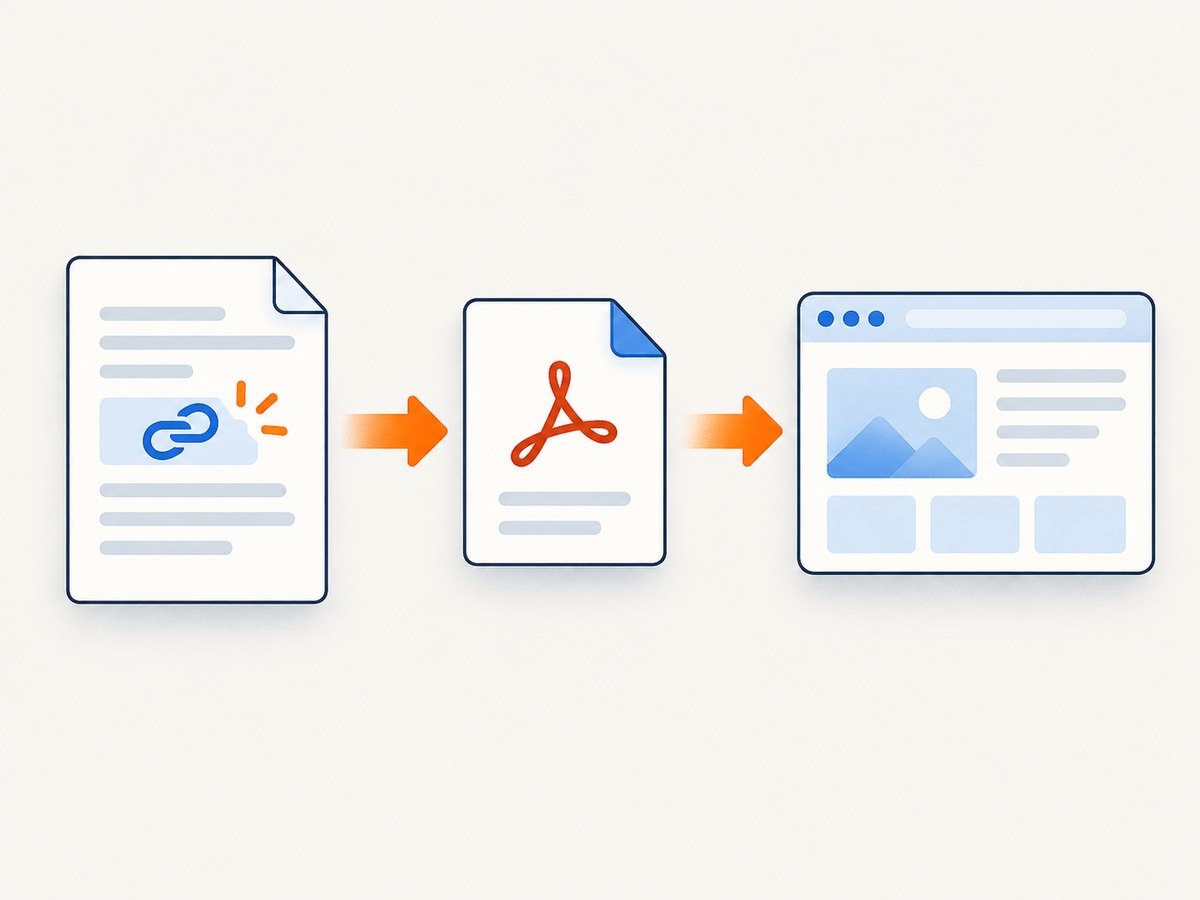
A clickable PDF link is an active region that opens a web page, starts an email, jumps to another page or bookmark, opens a file, or runs a configured action. The most reliable workflow is to create links in the source document before exporting, then inspect the saved PDF. If the PDF already exists, use a PDF editor such as Adobe Acrobat to draw link regions and assign destinations.
This guide covers Google Docs, Microsoft Word, Acrobat repair, internal navigation, verification, troubleshooting, automation, and a browser-free ScreenshotNeo option for producing PDFs from web pages.
1. Choose the right workflow
| Situation | Best workflow | Why |
|---|---|---|
| You still have the source document | Add links in Docs or Word, then export | Text, headings, tables of contents, and cross-references stay connected to the source. |
| You only have a finished PDF | Add or edit links in Acrobat | You can place a precise clickable rectangle over text or an image. |
| You need internal navigation | Create bookmarks or page-view destinations | Readers can jump to sections without scrolling. |
| You are generating PDFs from web pages | Use a browser capture service or a controlled browser script | Web content, styles, and links are rendered together. |
Links can point outside the document, such as https://example.com or an email address, or inside it, such as a bookmark or a specific page view. Decide the destination before placing the link so the visible label and target agree.
2. Create clickable links in Google Docs
Add a web or email link
- Open the Google Doc.
- Select the text that should be clickable.
- Choose Insert > Link, or use the link shortcut.
- Enter a web URL or email address.
- Apply the link and click it once in the document to confirm the destination.
Use descriptive text such as Download the API reference instead of displaying a long raw URL. A descriptive label gives readers context and remains useful when the PDF is printed or read with assistive technology.
Create internal links with bookmarks
- Place the cursor at the destination heading or paragraph.
- Choose Insert > Bookmark.
- Select the text that should link to that location.
- Choose Insert > Link, then select the bookmark as the destination.
This is useful for a contents list, “back to top” links, glossary entries, and references that jump to an appendix. Keep bookmark names meaningful so the source document remains maintainable.
Export and inspect the PDF
Download the document as PDF through Google Docs’ file download workflow. Google also documents a print-to-PDF route for large Docs files in Chrome: use File > Print, choose Save as PDF, and save the file. The export path can affect how objects are represented, so inspect the actual PDF rather than assuming every link survived. See Google’s download instructions and its guidance for printing or downloading large files.
- Open the saved PDF in at least one desktop viewer.
- Click every external link and confirm the expected page opens.
- Test email links in a system configured with a mail application.
- Test internal bookmark links and confirm they land on the intended heading.
- Check links over images, tables, and multi-line text for correct hotspot placement.
3. Create linked PDFs from Microsoft Word
In Word, create hyperlinks with Insert > Link. For a linked table of contents or cross-references, use Word’s heading styles and cross-reference tools, then export with a workflow that preserves those relationships. Adobe documents a Word-to-PDF workflow using the Acrobat add-on for linked tables of contents and cross-references; controls vary by installed Acrobat version. Review Adobe’s Word-to-PDF guidance before choosing export settings.
Word export checklist
- Apply Heading 1, Heading 2, and later styles consistently.
- Insert the table of contents from those heading styles.
- Use Word’s hyperlink tool for web and email destinations.
- Keep the Acrobat add-on enabled if your organization relies on its link and cross-reference controls.
- Open the exported PDF and test links at normal zoom and high zoom.
If a table of contents looks correct but does not click, return to the source and export again with a link-preserving workflow, or repair the PDF directly in Acrobat.
4. Add links to an existing PDF in Acrobat
Acrobat can create a clickable area after the PDF has already been generated. This is the repair workflow when the source file is unavailable or an export dropped a link.
- Open the PDF in Acrobat.
- Open the editing controls and choose Link > Add or edit a link.
- Drag a rectangle over the visible text, button, image, or other area that should be active.
- Choose the link appearance, such as an invisible rectangle or a visible border.
- Select the action: open a web page, open a file, go to a page view, or run a custom action.
- Enter the destination and save a new copy of the PDF.
Adobe’s interface labels can differ between Acrobat versions, but the core operation is the same: select the link tool, draw the hotspot, choose an action, specify the destination, and save. See Adobe’s link and attachment documentation.
Internal page-view links
For an internal destination, choose the page-view action and navigate to the target page and zoom level. Save that view when Acrobat prompts you. Use internal links for a contents page, figure references, legal clauses, or “return to index” controls. If the source document is available, bookmark-based navigation is easier to maintain; Acrobat page views are better for one-off repairs.
Link appearance and accessibility
An invisible rectangle keeps the original design unchanged, while a visible border makes hotspots easier to discover. Use descriptive visible labels, sufficient color contrast, and a target area that covers the complete label. Avoid placing a hotspot over unrelated text or extending it into a neighboring column.
5. Generate a linked PDF from a web page
A web page already contains anchors, buttons, and navigation. A browser-based PDF capture preserves the rendered layout, but the final PDF still needs verification because browser engines and PDF viewers can handle interactive elements differently. For a repeatable process, use a stable URL, wait for the page to finish rendering, and test the resulting file in your target viewer.
Browser automation outline
- Launch a browser with a fixed viewport and print or PDF output enabled.
- Navigate to the page and wait for a reliable selector or network idle.
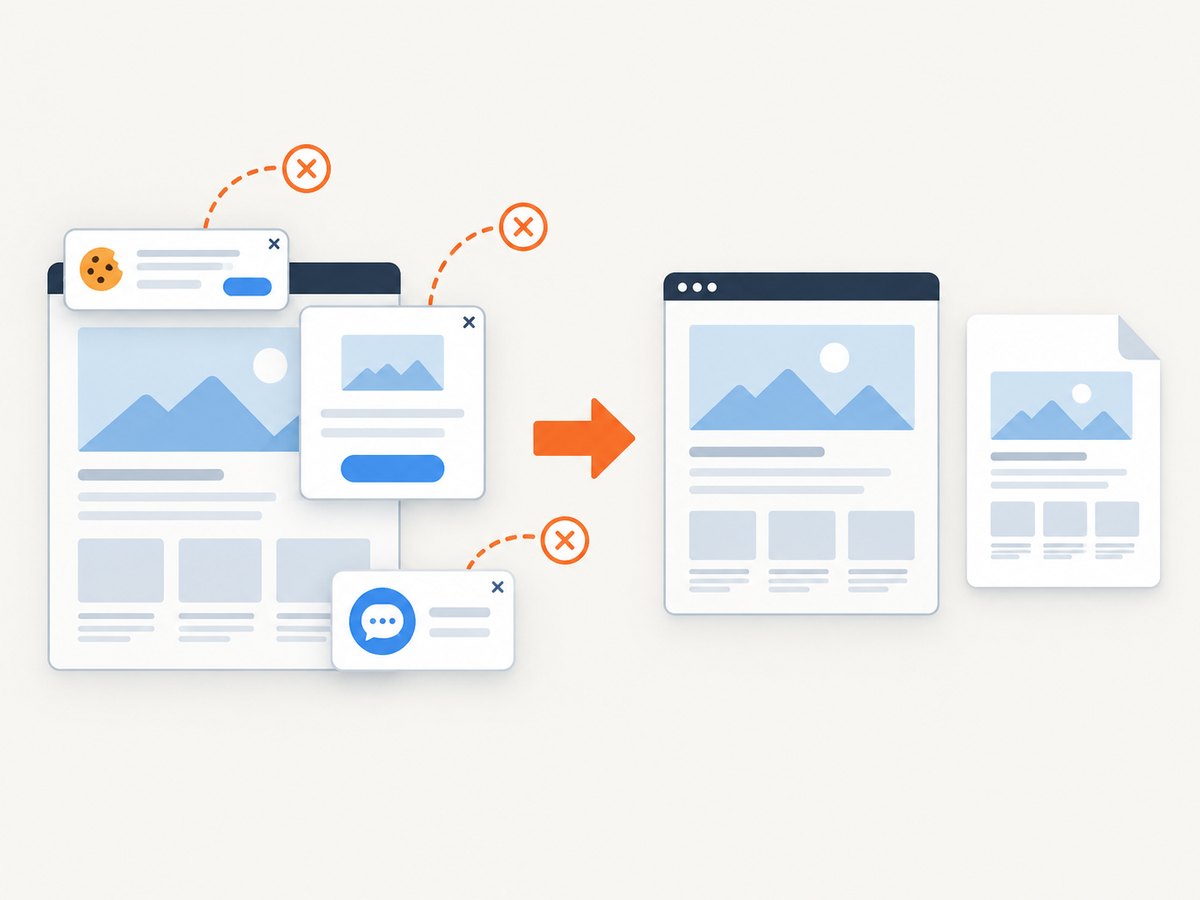
- Dismiss consent banners and overlays that cover links.
- Capture the PDF with the required paper size, margins, orientation, and page range.
- Open the PDF and test external and internal destinations.
For pages that load content lazily, scroll or wait until the relevant sections appear before capture. If a cookie banner or chat widget covers a link, remove it before generating the PDF or the resulting hotspot may be unusable.
6. Or skip the browser setup
ScreenshotNeo is a website screenshot API and MCP server. One GET request captures a URL as a clean image or PDF; its PDF features include paper size, margins, landscape mode, and page ranges. See the ScreenshotNeo documentation for the current request options.
cURL:
curl -G "https://api.screenshotneo.com/v1/shot" -d access_key=YOUR_API_KEY --data-urlencode url=https://stripe.com -o shot.webpPython:
import requests
r = requests.get("https://api.screenshotneo.com/v1/shot", params={"access_key": "YOUR_API_KEY", "url": "https://stripe.com"}, timeout=90)
open("shot.webp", "wb").write(r.content)
Node.js:
const q = new URLSearchParams({ access_key: 'YOUR_API_KEY', url: 'https://stripe.com' });
const res = await fetch(`https://api.screenshotneo.com/v1/shot?${q}`);
Before capture, ScreenshotNeo accepts consent banners and removes more than 60 known consent platforms, newsletter popups, and chat widgets; each cleanup step can be disabled. Bot checks, blank pages, timeouts, failed loads, and cache hits are not billed, and response headers identify the page verdict and billing status. Its MCP server provides take_screenshot, get_page_info, and capture_pdf tools for Claude, Cursor, and other MCP clients. You also get 1,000 screenshots each month free with no card; paid plans start at $5 for 3,000 shots. Create a free ScreenshotNeo account.
7. Verification checklist
- External URLs: confirm the URL opens the intended protocol and host.
- Email links: verify the address and subject fields, if present.
- Internal links: confirm the page, zoom, and reading position.
- Visual alignment: ensure the clickable rectangle covers the complete label or graphic.
- Overlapping links: remove accidental overlaps that make the wrong destination open.
- Security: avoid linking to untrusted files or custom actions unless recipients expect them.
- Viewer coverage: inspect the file in the viewer your audience uses, plus a second viewer when the document is critical.
8. Troubleshooting common problems
| Problem | Likely cause | Fix |
|---|---|---|
| Text is blue but not clickable | The source formatting was copied without a hyperlink, or the export flattened it. | Recreate the link in the source, export again, or draw a link rectangle in Acrobat. |
| Only part of a sentence works | The hotspot covers only one line or word. | Edit the rectangle so it covers the complete visible label. |
| Table of contents does not jump | Headings or bookmarks were not preserved during export. | Rebuild the contents from heading styles, use a link-preserving export, or add page-view links in Acrobat. |
| Link opens the wrong page | A stale bookmark, redirected URL, or incorrect page view is stored. | Update the destination, remove redirects where possible, and retest the saved PDF. |
| Link is hidden behind an image | Objects overlap the clickable rectangle. | Move the hotspot above the image or redraw it around the visible target. |
| Browser PDF has missing sections | Lazy loading, delayed scripts, or a blocked resource. | Wait for a selector or network idle, scroll to trigger loading, and capture again. |
| Consent dialog covers the page | A cookie banner or chat widget remains visible at capture time. | Dismiss or remove the overlay before capture; an automated capture service can handle known consent platforms. |
| PDF opens but links do nothing | The viewer blocks actions, or the PDF contains no actual annotation. | Test in another viewer, inspect the link annotation, and recreate it in Acrobat if necessary. |
9. Performance, reliability, and cost considerations
Source documents
Creating links in Docs or Word is usually fastest for a single document because destinations stay close to the content. Large files can take longer to export, and print-to-PDF may be useful for large Google Docs files. Always keep the source and exported PDF versioned together so a broken link can be repaired without guesswork.
Acrobat repair
Manual rectangles are dependable for a small number of links but become error-prone across hundreds of pages. Use consistent naming, save a new output file, and maintain a checklist of destinations. For a repeated publishing pipeline, automate source generation or browser capture, then run a link audit on the output.
Web capture services
Rendering time depends on page complexity, network requests, scripts, fonts, and lazy images. Use a selector wait or network-idle condition when available, cache stable pages with a chosen TTL, and use asynchronous jobs or bulk capture for many URLs. ScreenshotNeo supports caching, async jobs with signed webhooks, bulk capture of up to 100 URLs per call, custom headers and cookies, resource blocking, and a usage API. Its billing headers distinguish clean billed captures from bot checks, blank pages, timeouts, failed loads, and cache hits that cost nothing.
10. FAQ
Can a PDF link to another page in the same file?
Yes. Use a bookmark in the source document or a page-view action in Acrobat.
Do PDF links work when printed?
The printed paper cannot be clicked, but the link remains active in the digital PDF file.
Can I add a link over an image?
Yes. In Acrobat, draw the link rectangle over the image and assign the web page, file, page view, or custom action.
Why should I test the exported file?
Export paths can change or omit link annotations. The saved PDF is the artifact your readers receive, so test that file.
Is Acrobat required?
No. Google Docs and Word can create links before export. Acrobat is a practical option when the PDF already exists or hotspots need precise editing.
Can ScreenshotNeo create PDFs from authenticated pages?
ScreenshotNeo supports custom headers, cookies, user agents, and Authorization values. Configure those options in the request according to the documentation, then verify that the resulting PDF contains the expected content.