How to Fix Missing Images in the wkhtmltoxsharp PDF Wrapper
Images missing from a WkHtmlToXSharp PDF? Trace the converter’s paths, local-file permissions, and image-loading settings with this step-by-step guide.
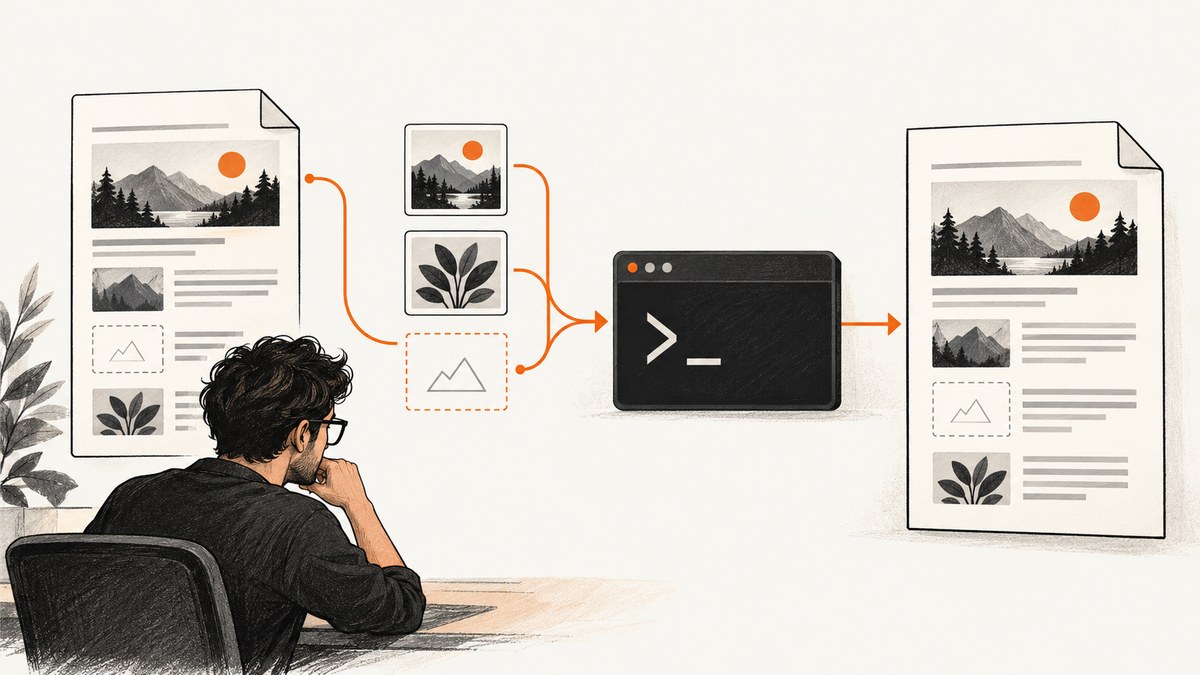
When images appear in your HTML but disappear from a PDF generated through the WkHtmlToXSharp wrapper, first check what the converter process can access. Confirm that each image path or URL resolves in the converter’s runtime environment, that local-file access permits the asset location, and that image loading is enabled. These are separate checks: wkhtmltopdf documents both local-file access controls and image loading settings. wkhtmltopdf usage documentation · libwkhtmltox settings reference.
An absolute path alone may not solve the problem. A report specifically about WkHtmlToXSharp says changing a relative path to an absolute one still failed, so use a minimal test to isolate path resolution, access permissions, settings, and format. WkHtmlToXSharp image report.
1. Record the exact wrapper and runtime setup
Before changing code, write down the wrapper version, the wkhtmltopdf version it invokes, the operating system, how the HTML is supplied, and whether each missing image is local or remote. The reports available for this problem span different versions and operating systems; a fix for one wrapper or release is not evidence that another exposes the same option.
- Wrapper and converter: Check the package version and the installed or bundled wkhtmltopdf binary version.
- Operating system and process identity: A service, container, scheduled task, or web worker may run with a different working directory and filesystem permissions than your interactive account.
- HTML input: Distinguish a string passed directly to the wrapper from an HTML file saved to disk. Relative references can resolve differently depending on how the document is loaded and what base URL or working directory the wrapper supplies.
- Asset type: Mark each image as remote HTTP(S), local filesystem, or generated dynamically by page JavaScript.
Keep one known image as a control. If that image works in a minimal document under the same process, the problem is likely specific to the original template, its base path, or when/how its image is created.
2. Check the image reference from the converter’s point of view
A browser preview may succeed because the browser has a different current directory, web root, credentials, or network route. The converter process must be able to resolve and read the resource itself. Inspect the final HTML passed to the wrapper and copy the exact src value for one missing image.
For a remote image
Use a complete URL with a scheme and hostname, such as https://example.com/assets/logo.png. Confirm that the machine or container running wkhtmltopdf can reach the host. If access depends on a session cookie, authorization header, VPN, or internal DNS, verify those conditions in the converter’s environment; a URL that works in your logged-in browser may return an error to a separate process.
For a local image
Use a path that exists in the converter’s filesystem namespace. A path on the developer’s workstation will not necessarily exist in a container or remote service. Relative paths depend on a base location, which can differ between a saved HTML file and an HTML string.
<!-- Remote image: use a complete URL -->
<img src="https://example.com/assets/logo.png" alt="Logo">

<!-- Local image: use a path valid in the converter's environment -->
<img src="file:///srv/app/assets/logo.png" alt="Logo">
The local path example is illustrative: the correct path and URI form depend on the operating system and wrapper. Check the wrapper’s documentation for how it handles local URLs and the base URL for HTML strings. Community guidance recommends verifying filesystem paths from the converter’s environment, but it cannot establish a universal path format for every deployment. Community report about local image paths.
3. Allow access to the local asset directory
wkhtmltopdf documents local-file access restrictions and an --allow option for permitting a specified directory. This is distinct from whether images are enabled at all. If a local image exists but the converter cannot read its directory, changing the HTML reference may not address the access restriction.
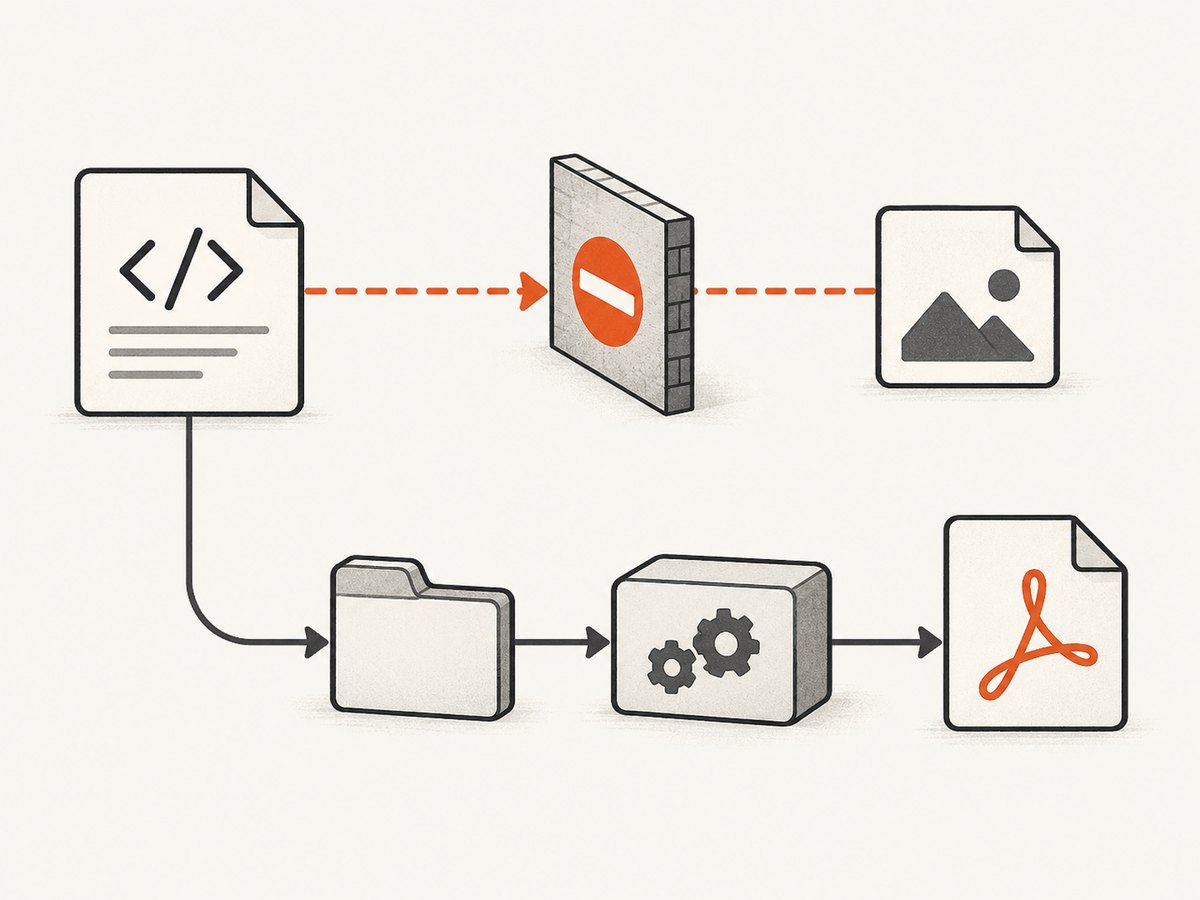
For a direct command-line conversion, a minimal diagnostic command can explicitly allow the directory containing the image:
wkhtmltopdf --allow /srv/app/assets input.html output.pdfUse the actual asset directory and input/output paths for your environment. For WkHtmlToXSharp, find the setting in the API of the specific wrapper version you deploy. Do not assume that a property from another .NET wrapper exists under the same name or has the same default.
A WkHtmlToPdf-DotNet issue report describes BlockLocalFileAccess as the author’s fix for a case associated with wkhtmltopdf 0.12.6. That is a report about that wrapper and case, not proof that WkHtmlToXSharp exposes the property or that disabling a restriction is the right fix for every deployment. Wrapper issue report. Prefer permitting only the directory that must be read, where the wrapper supports that configuration.
4. Make sure image loading is enabled
Check the wrapper’s settings for image loading independently of local-file permissions. The wkhtmltopdf usage documentation describes --images as loading or printing images, enabled by default. The libwkhtmltox settings reference exposes web.loadImages, which must be either true or false. A wrapper configuration can override defaults, so inspect the options your application actually passes.
// Conceptual check: use the setting supported by your wrapper version.
// Ensure the web.loadImages option is true.
This is deliberately not a WkHtmlToXSharp property assignment: the available sources do not establish the exact property name or constructor shape across releases. Use the wrapper API reference or inspect the options object at runtime. If images are disabled, allowing local access will not make them render.
5. Reduce the failure to one image
Create a minimal HTML file containing one paragraph and one known image, then generate a PDF through the same wrapper process and configuration as the real document. This separates asset access from template CSS, scripts, and layout complexity.
<!doctype html>
<html>
<head><meta charset="utf-8"></head>
<body>
  <p>Image rendering check</p>
  <img src="https://example.com/assets/test.png" alt="Test image">
</body>
</html>
Replace the sample URL with a reachable test image, or use a local image whose path is valid for the converter. Record whether the PDF contains the image and whether the converter logs a resource-load warning or error. Then vary one condition at a time: remote versus local, access allowed versus restricted, and image loading enabled versus disabled. A warning-free conversion does not itself prove every image loaded, so inspect the resulting PDF.
6. Check dynamically created images and layout
If the missing image is inserted or changed by JavaScript, first compare it with a static <img> reference in the minimal test. A converter can finish before page-side code or a remote resource has completed, depending on the wrapper’s load and wait configuration. The research sources do not establish this as the cause in every case; treat it as a diagnostic branch when static assets work but generated ones do not.
Likewise, if the minimal image works but the production page does not, inspect CSS that can hide or move the image, the element’s computed dimensions, and whether the image is clipped by page layout. This is a template/layout check after confirming that the converter can fetch the resource.
7. Test image format only after access and settings
If only a particular format fails, make a controlled copy of the same image as PNG or JPEG and compare the output with the same path, settings, and HTML. An old answer to a WkHtmlToXSharp question suggests trying GIF as JPEG or PNG, but the evidence does not establish a universal GIF limitation or a current compatibility guarantee. Historical format suggestion.
Do not convert every asset as the first response. First establish that the converter can access the path and that image loading is on; otherwise a format change can obscure the real cause.
8. Troubleshooting table
| Symptom | Likely branch to inspect | Next action |
|---|---|---|
| All local images are missing | Local-file access, process permissions, path namespace, or base path | Check the path from the converter process; explicitly allow the needed directory using the interface available in your wrapper version. |
| Remote images are missing too | Image loading disabled, network access, remote response, or load timing | Check web.loadImages or the wrapper equivalent; verify reachability from the host running conversion. |
| Only relative paths fail | Unexpected document base URL or working directory | Test a complete URL or environment-valid absolute path, then confirm the HTML input mode and base-path behavior. |
| Absolute path still fails | Path may be absolute on the wrong machine, blocked, or incorrectly formed for the OS | Verify existence and permissions inside the converter environment. Absolute does not mean accessible. |
| One deployment works, another fails | Different wrapper or wkhtmltopdf versions, OS, permissions, or packaging | Compare versions and runtime identity; reproduce with the same minimal file on both environments. |
| Static image works, generated image fails | Page-side generation or resource timing | Test a static source and inspect the wrapper’s documented wait/load controls for the deployed version. |
| Only GIF fails | Possible format-specific behavior | Compare a PNG or JPEG copy as a controlled test; do not treat the result as a universal format rule. |
| PDF conversion succeeds but image is absent | Resource failure may not have aborted document conversion | Inspect converter diagnostics and the PDF output separately; successful conversion is not proof that every image loaded. |
9. Reliability, performance, and operational notes
For reliable output, make the conversion input reproducible: use stable asset URLs or package local assets with the application, record the converter and wrapper versions, and run a one-image smoke check in the same environment as production. If local assets are needed, grant access to the narrow directory that contains them and ensure the service identity can read it.
Remote resources introduce dependencies on DNS, network routes, authentication, and the remote server’s response. Local resources avoid network fetching but depend on filesystem packaging, permissions, and path resolution. The dossier provides no benchmark for the speed difference, so measure conversion time in your own workload rather than assuming one source type is always faster.
Large or numerous images can increase the input work and PDF size. If conversion is slow or output grows unexpectedly, compare a minimal document, count and size the assets, and inspect whether the HTML loads resources that the PDF does not need. Keep diagnostics for failed loads so a completed conversion cannot silently hide a missing asset. No specific latency, throughput, or cost figures are established by the sources; operational cost depends on your hosting and conversion workload.
10. Common mistakes to avoid
- Changing a relative path to an absolute one without checking whether that path exists for the converter process.
- Allowing all filesystem access when only a specific asset directory is needed.
- Assuming image loading is enabled because local-file access is allowed, or assuming the reverse.
- Copying a setting name from a different .NET wrapper without checking WkHtmlToXSharp’s version-specific API.
- Changing formats before testing the exact path and permissions.
- Trusting successful PDF generation as proof that all resources loaded.
11. Or skip the browser setup
If your actual need is to capture a web page as an image rather than produce a PDF from your own HTML template, ScreenshotNeo provides a website screenshot API and MCP server. One GET request returns a PNG, JPEG, WebP, or PDF. Its clean capture flow accepts cookie and consent banners and removes more than 60 known consent platforms, newsletter popups, and chat widgets before the shot; each step can be turned off. Bot checks and CAPTCHAs, blank pages, timeouts, failed loads, and cache hits cost nothing, and response headers identify the page verdict and billing status. AI agents can use its MCP server tools: take_screenshot, get_page_info, and capture_pdf.
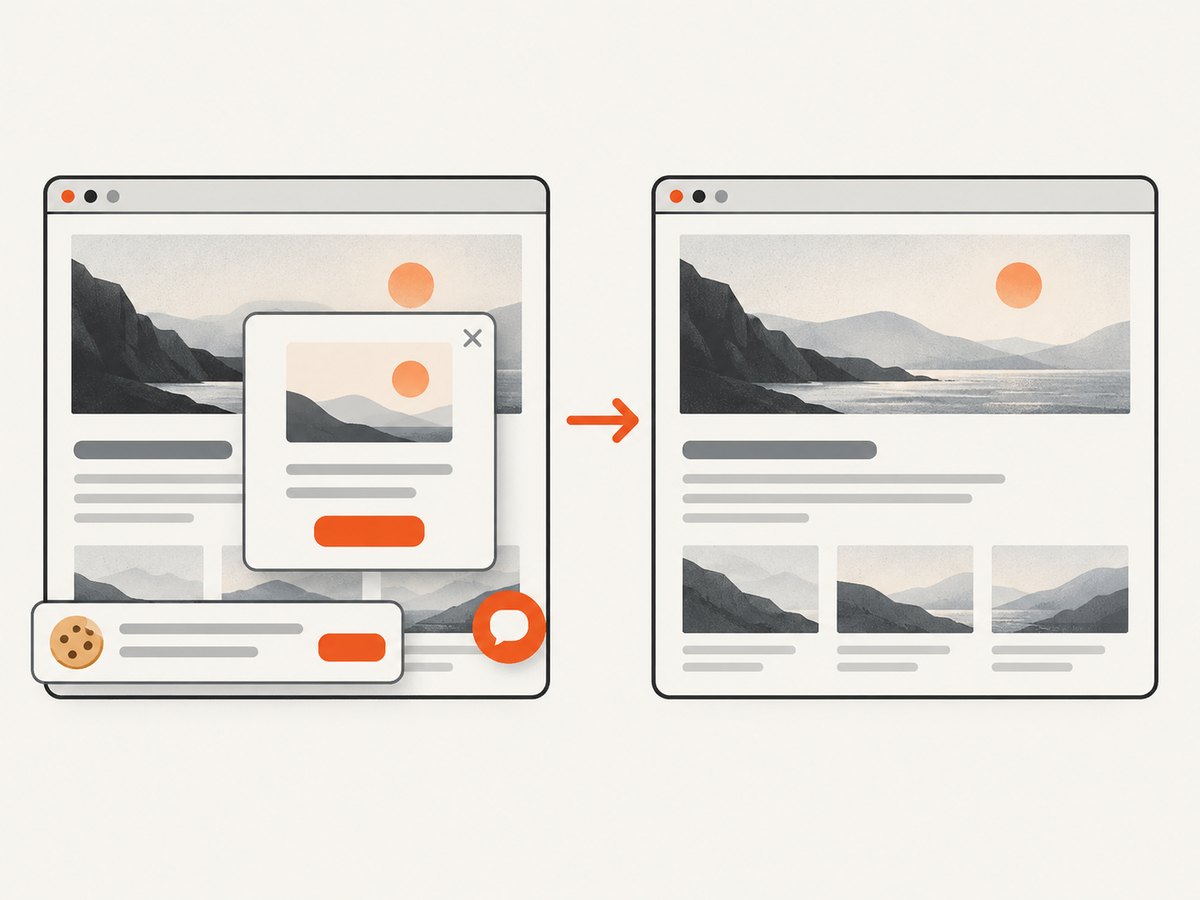
For a quick web-page capture, use the API directly:
curl -G "https://api.screenshotneo.com/v1/shot" \
  -d access_key=YOUR_API_KEY \
  --data-urlencode url=https://stripe.com \
  -o shot.webp
Read the ScreenshotNeo API documentation for authentication and options. The free plan includes 1,000 shots per month with no card; paid plans start at $5 for 3,000 shots. Every feature is on every plan. Create a free ScreenshotNeo account.
12. FAQ
Why does the image show in my browser but not in the PDF?
The browser and converter may run with different paths, permissions, credentials, or network access. Test the exact reference from the converter’s environment.
Does an absolute path always fix local images?
No. The path must exist and be readable where the converter runs, and local-file access must permit it. A directly relevant report says an absolute-path change did not resolve that user’s case.
Is GIF unsupported?
The available evidence does not establish that. Comparing a PNG or JPEG copy is a narrow diagnostic test, not a general compatibility rule.
Which setting should I change in WkHtmlToXSharp?
Check the API documentation for your exact wrapper version. The sources establish wkhtmltopdf’s local-file access and image-loading controls, but not one universal WkHtmlToXSharp property name.
Sources
- wkhtmltopdf usage documentation — local-file access and the
--allowoption; image loading control. - libwkhtmltox settings reference —
web.loadImages. - WkHtmlToXSharp image report — absolute path did not fix the reported case; historical format suggestion.
- WkHtmlToPdf-DotNet issue report — version- and wrapper-specific local-access report.


