How Directories Can Generate Listing Images with a Screenshot API
Generate directory thumbnails from live websites or branded HTML templates. Learn the API workflow, code, storage, caching, and troubleshooting.

To generate images for website listings, store each listing’s canonical URL, send it to a screenshot API, and save the returned image as the listing thumbnail. This produces a preview of the destination as it appears in a browser. If every card should follow the directory’s visual identity, render a reusable HTML template with listing data and ask the API to capture that HTML instead. The first approach shows the live site; the second gives you consistent branded cards.
A screenshot API takes a URL and returns a rendered image through an HTTP request, so your application does not need to run its own browser-rendering infrastructure. You still need to choose the capture dimensions and timing, keep credentials private, store or cache the output, and decide when listings should be regenerated. This guide covers both approaches and a production workflow for adding thumbnails to a directory, bookmark collection, CMS, or portfolio.
1. Choose the image that fits your directory
| Approach | What the reader sees | Best fit | Main trade-off |
|---|---|---|---|
| Capture the listed URL | A browser-rendered view of the destination site | Directories where the destination’s current appearance helps visitors decide | Sites vary in layout, load time, consent banners, and visual quality |
| Capture a branded HTML template | A uniform card with your colors, typography, and listing fields | Directories that prioritize a consistent grid, category labels, or curated descriptions | The image represents your listing data rather than the current destination page |
You can also combine them: use a branded card as the primary thumbnail and provide a separate live preview on the listing detail page. Avoid forcing one image to do both jobs. A live capture communicates what a visitor may find after clicking; a template keeps the directory itself orderly.
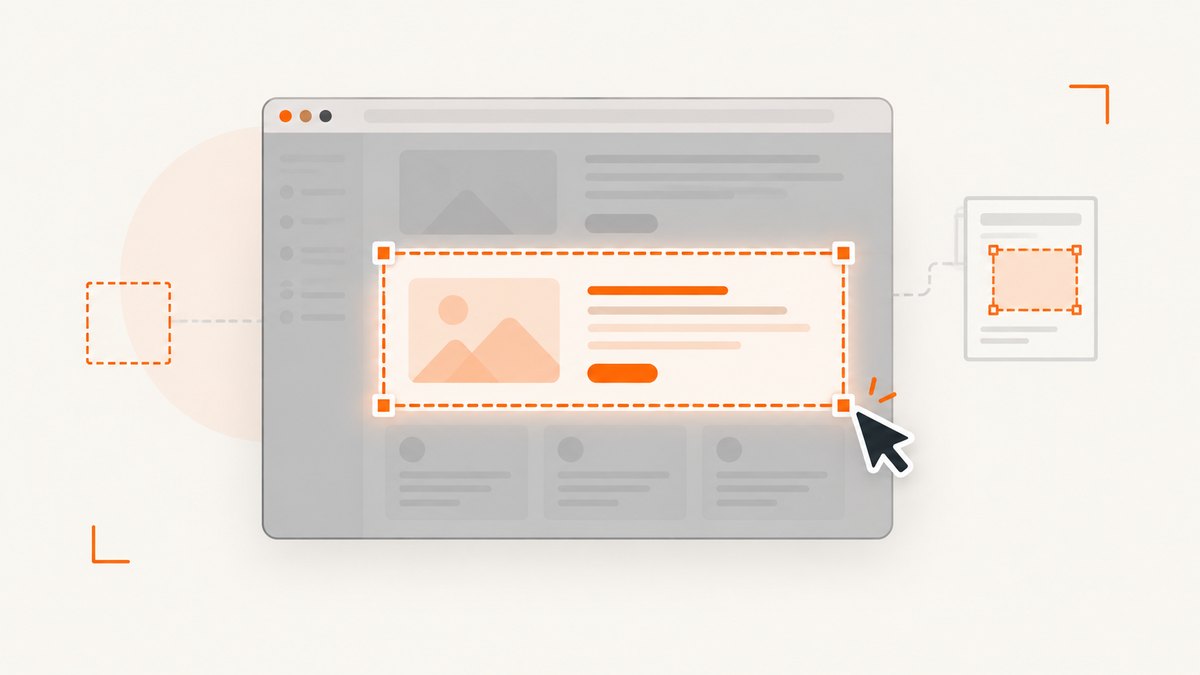
Choose the capture area
- Viewport: Captures the visible browser area. This is usually easier to fit into a compact thumbnail.
- Full page: Captures the full document, including content below the fold. It may become too tall or dense for a directory card, though it can work on a detail page.
- Element: Captures a selected region when the provider supports CSS selector targeting. Useful for isolating a preview component or excluding surrounding page content.
Set a deliberate desktop or mobile viewport and use one consistent aspect ratio for the grid. Choose PNG, JPEG, or WebP according to the provider’s supported formats and your storage and delivery needs. Test the result at the actual card dimensions: text that is readable in a full-size screenshot can become illegible after it is scaled down.
2. Design the generation workflow
- Store canonical listing data. Keep the normalized destination URL and, for template cards, fields such as name, category, and short description. Treat user-submitted URLs as untrusted input and validate allowed schemes and destinations before requesting captures.
- Choose live capture or template rendering. Make the decision explicit in your data model or generation job. A listing can include a capture mode and a template version so later edits do not silently change its intended presentation.
- Request an appropriate image. Set dimensions, format, capture mode, and any timing or selector wait needed by the target page. JavaScript-heavy pages and lazy-loaded images may need a delay, network-idle condition, or wait for a known element.
- Persist the output predictably. Save the returned bytes to storage you control, or use a provider-supported stable or signed image URL after checking its retention behavior. Keep a record of when the image was generated, which listing and settings produced it, and whether generation succeeded.
- Show the image on the listing. Reference the stored image from your card. For social sharing, set Open Graph metadata such as
og:imageon the listing page and verify how the target platform handles the preview. - Refresh with a deliberate policy. Regenerate after the URL, relevant listing data, or template changes. Set any periodic refresh interval based on how often listings change and your request budget; there is no universal interval that suits every directory.
For a branded card, escape listing data before placing it into HTML. Do not concatenate arbitrary user-provided markup into the template. If you render HTML in your own application first, pass the rendered page or supported HTML input to the screenshot provider using its documented method.

3. Generate a live website thumbnail with cURL
A screenshot API request is an HTTP request, so you can call it from a background job or server. The example below uses ScreenshotNeo and saves a WebP response. Keep the API key on the server; never place it in client-side JavaScript or public HTML. See the ScreenshotNeo API documentation for its request options.
curl -G "https://api.screenshotneo.com/v1/shot" \
  -d access_key=YOUR_API_KEY \
  --data-urlencode url=https://example.com \
  -o listing.webp
In a real integration, use a secret manager or environment configuration to supply credentials rather than committing a key to source control. A screenshot response may include status headers that describe the page result and billing outcome; record those alongside job state where useful.
Python example
import requests

API_URL = "https://api.screenshotneo.com/v1/shot"
params = {
    "access_key": "YOUR_API_KEY",
    "url": "https://example.com",
}
response = requests.get(API_URL, params=params, timeout=90)
response.raise_for_status()

with open("listing.webp", "wb") as image_file:
    image_file.write(response.content)
This minimal script writes the response body to a file after checking for an HTTP error. In a service, also inspect the response headers and content type before treating the bytes as an image, and store an error state if the request fails.
Node.js example
const q = new URLSearchParams({
  access_key: process.env.SCREENSHOTNEO_API_KEY,
  url: 'https://example.com',
});
const res = await fetch(`https://api.screenshotneo.com/v1/shot?${q}`);
if (!res.ok) throw new Error(`Screenshot request failed: ${res.status}`);
const bytes = Buffer.from(await res.arrayBuffer());
await import('node:fs/promises').then(fs => fs.writeFile('listing.webp', bytes));
URL-encode query values rather than assembling a query string by hand. This matters when a target URL contains its own query parameters or reserved characters.
4. Generate a branded card from listing data
Template capture starts with an HTML page that presents the listing consistently. The template might display a name, category, and short description over a decorative background. Render one listing per capture, then store the output like any other generated asset.
<article class="listing-card">
  <p class="category">Design tools</p>
  <h1>Example Studio</h1>
  <p>A concise directory description goes here.</p>
</article>
Use your screenshot provider’s documented HTML capture input to render the template. The exact parameter names differ by provider, so use its current API reference rather than assuming URL capture parameters also apply to HTML input. If the template is hosted at an internal URL, you can capture that URL, but ensure it is reachable from the provider’s browser and does not expose private data.
Template details that prevent common visual defects
- Give the card a fixed width and height or aspect ratio so every result aligns in the directory.
- Use font fallbacks and avoid depending on resources that load only after user interaction.
- Set a maximum length or line count for titles and descriptions. Decide whether to truncate, wrap, or omit excess text.
- Provide a neutral fallback when optional fields are missing; empty categories and broken image references make cards look unfinished.
- Escape HTML-sensitive characters in all listing fields.
- Version the template. Regenerate existing images when a design update should apply to old listings.
5. Configure timing, format, and dimensions
Capture settings are page-dependent. A page may initially show a skeleton, hydrate its content later, or load images only when they approach the viewport. If the screenshot starts too soon, it can be technically successful but visually incomplete. Prefer a specific readiness condition when available, such as waiting for a selector that marks the content you need. A fixed delay is simpler, but it can waste time on fast pages and still be too short on slow ones. Network-idle waiting can help with pages that settle after requests finish, but some sites keep background requests open.
Typical relevant controls include viewport width and height, full-page capture, element selector, image format, scale or device emulation, delay, selector wait, and whether to block selected resources. Providers differ in their exact options and behavior; consult the provider’s documentation and verify output against a representative set of sites. If the image is for a compact card, prioritize a clear viewport capture. If a specific component matters, selector capture can avoid irrelevant page areas where supported.
Desktop and mobile views answer different questions. A directory aimed at desktop browsing may use a consistent desktop viewport, while a mobile-focused audience may benefit from mobile dimensions. Avoid generating both variants unless the interface uses them; every additional variant increases storage and generation work.
6. Store, cache, and refresh images
There are two common storage models: fetch the image and store it in your own object storage, or embed a provider-hosted image URL. The first gives you control over retention and stable paths, but requires storage and delivery setup. The second can simplify the pipeline, but only works safely if the URL is durable and intended for public use. Confirm whether output URLs expire and whether the provider offers signed links for public embedding. Never expose an API secret to make a browser request.
Cache policy should follow both listing freshness and traffic. A cache hit can avoid repeating the same capture, while a short time-to-live keeps a live preview fresher at the cost of more capture requests. For branded cards, cache keys should include the listing fields and template version that affect the image. For live previews, include the canonical URL and relevant capture settings. Invalidate or version the cache when inputs change.
For bulk directories, queue jobs and limit concurrency according to the provider’s documented capacity and your account limits. Store job status and retry transient failures with bounded retries and backoff. Do not retry every error indefinitely: an invalid URL, persistent bot check, or unsupported destination is unlikely to improve through rapid repetition. Consider marking a listing as needing review after repeated failures and retain its previous successful thumbnail until a replacement is ready.
7. Performance, reliability, and cost
Browser rendering takes longer than returning a static file because the destination must load and render. Keep image generation out of a page’s synchronous request path: enqueue it when a listing is created or changed, then let the page serve the most recent stored image. Show a placeholder for new listings and replace it when a capture completes. This keeps directory browsing independent of a slow or unavailable destination website.
Control the work by deduplicating jobs for the same listing and settings, caching outputs, and regenerating only when inputs or freshness policy justify it. Full-page captures and long waits may increase processing time and produce assets poorly suited to cards. Use a fixed viewport unless the full document is actually needed. Track generation latency, failure category, output size, and age of the last successful image so you can tune the workflow using your own traffic and listing mix.
Estimate usage from the number of listings, capture variants, template revisions, and refresh frequency. A directory with 5,000 listings captured once has a different request profile from one that refreshes every listing daily and makes desktop and mobile variants. Check each provider’s billing rules, cache behavior, and treatment of failed loads before projecting costs. Some providers document that particular unsuccessful outcomes are not billed; do not assume the same policy across services.
8. Or skip the browser setup
ScreenshotNeo is a website screenshot API and MCP server from Yorker Media. Its one-call API can capture a live URL, while supported options also cover HTML/CSS input for branded image generation. For a directory, that can remove the need to maintain browser capture infrastructure.
curl -G "https://api.screenshotneo.com/v1/shot" \
  -d access_key=YOUR_API_KEY \
  --data-urlencode url=https://example.com \
  -o listing.webp
ScreenshotNeo accepts cookie and consent banners and removes more than 60 known consent platforms, newsletter popups, and chat widgets before capture; each cleanup step can be turned off. Bot checks or CAPTCHAs, blank pages, timeouts, failed loads, and cache hits cost nothing, and the response indicates the page verdict and billing status in headers. Its MCP server provides take_screenshot, get_page_info, and capture_pdf tools for Claude, Cursor, and other MCP clients.
The Free plan includes 1,000 shots per month with no card. Paid plans start at $5 for 3,000 shots; higher tiers are Growth $15 for 15,000, Pro $39 for 60,000, Scale $99 for 250,000, and Business $249 for 1,000,000. Yearly billing gives two months free, and every feature is on every plan. Review the API documentation for configuration details. Sign up for 1,000 free screenshots a month, with no card required.
9. Troubleshooting common problems
| Symptom | Likely cause | What to do |
|---|---|---|
| Image is blank or mostly empty | The page failed to load, content is client-rendered, or capture began before it appeared | Check the page result and response status; add a selector wait or suitable delay, and test whether the destination is reachable to a browser. |
| Consent dialog, popup, or chat bubble covers content | The target site displays an overlay or the provider does not remove that particular element | Use documented cleanup controls where available, wait for the page to settle, or hide a known selector if supported. Inspect representative sites before batch generation. |
| Images or text are missing | Lazy loading, blocked resources, or late font/image requests | Use full-page capture only when needed to trigger lazy content, wait for a relevant element, or choose an appropriate delay. Check resource-blocking settings. |
| Thumbnail is unreadable in the card | Capture dimensions or content density do not fit the rendered card | Use a consistent viewport and aspect ratio, reduce the number of visible details, or switch to a branded template with shorter text. |
| Request fails on URLs with query strings | The target URL was not encoded correctly in the API request | Pass parameters through a URL encoder such as --data-urlencode, Python’s params, or Node’s URLSearchParams. |
| Public page exposes a credential | The screenshot call runs in browser-side code or the key was embedded in a public URL | Move calls to a server-side job. For public image embedding, use a documented signed-link approach and verify its expiration and access rules. |
| Old thumbnail persists after listing edits | Cache key or stored asset path does not account for changed inputs | Version the object path or cache key with the URL, relevant listing fields, settings, and template version; enqueue a replacement capture. |
| Bulk job produces duplicate images or repeated charges | Retries or concurrent updates enqueue the same work more than once | Use an idempotency key or unique job constraint based on listing and capture configuration, and deduplicate before dispatch. |
10. Checklist before enabling directory thumbnails
- Decide whether each image is a live preview or a branded card.
- Test a representative mix: fast and slow sites, mobile layouts, JavaScript-heavy pages, and listings with long names.
- Choose a consistent crop, dimensions, and format for the actual display size.
- Keep the API key on a server and validate submitted URLs.
- Persist output at a stable location or confirm provider URL retention and signed-link behavior.
- Cache by all image-affecting inputs and template version.
- Run generation asynchronously, record outcomes, and preserve a prior good thumbnail during refresh.
- Set a refresh policy based on observed listing changes and request budget.
- For social sharing, provide the page’s Open Graph image metadata and verify the platform preview.
Frequently asked questions
Can I automatically create an image for every listing?
Yes. Enqueue a capture when a listing is added, then store the result and expose it through the listing record. For large directories, use a background queue and deduplicate jobs.
Should a directory use screenshots or generated cards?
Use screenshots when the destination’s current appearance is useful to visitors. Use generated cards when visual consistency and directory branding matter more. A directory can offer both in different contexts.
Can the thumbnail also be the social sharing image?
It can. Set the listing page’s og:image to the image URL and check the destination platform’s preview behavior; support and cropping can differ by platform.
How often should images be refreshed?
There is no universal cadence. Refresh on meaningful listing changes, then choose any periodic refresh based on how fresh a preview must be and the resulting request volume.