How to Build a Docker Image for a Website Screenshot Service
Build a repeatable Docker image for browser screenshots with Playwright, pinned dependencies, multi-stage builds, security controls, and production tips.

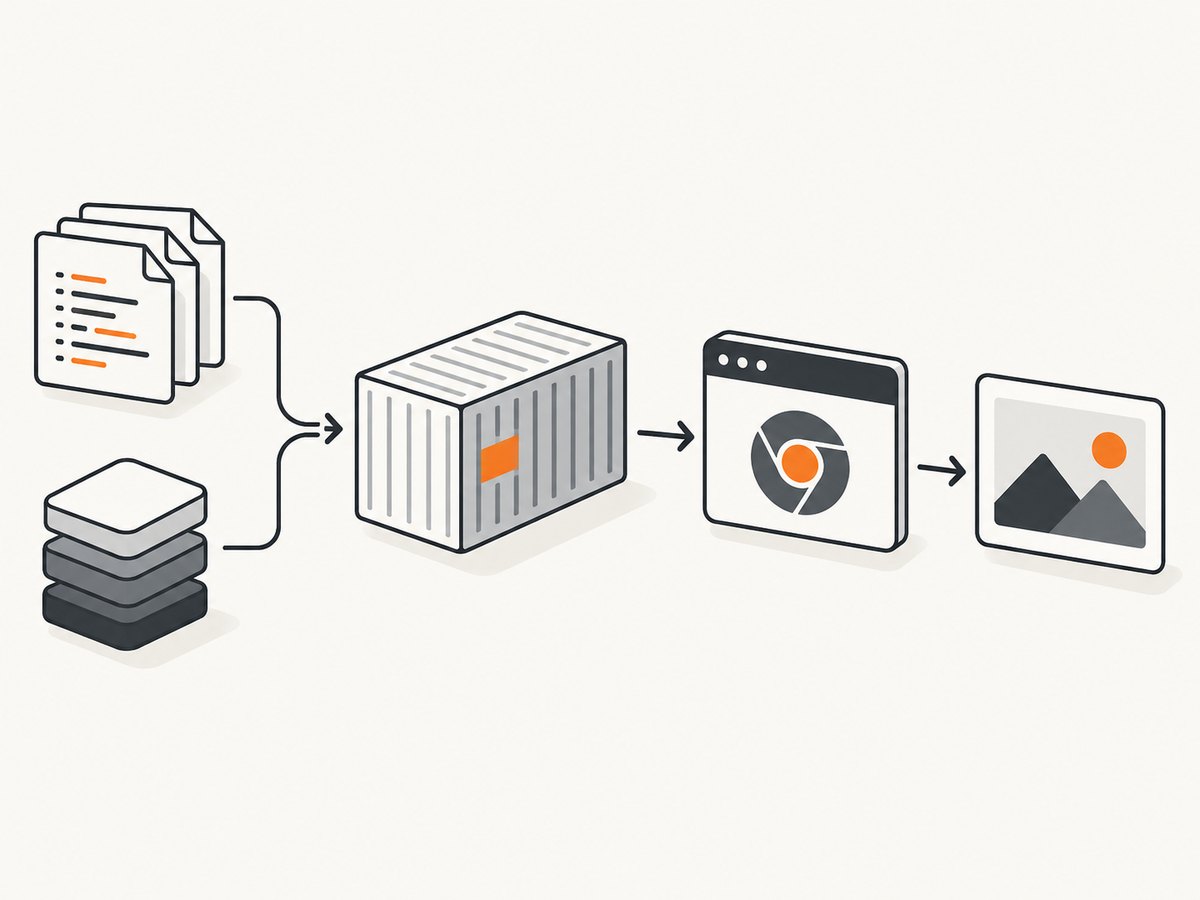
Direct answer: Build the image around four pieces: your service code, a pinned browser automation package, browser binaries, and the operating-system libraries those browsers require. A Dockerfile should install dependencies in a cache-friendly order, install the matching browser, copy the application, expose the service port, and start the worker or HTTP server. For production, use a multi-stage build when you can leave compilers and development files out of the final image.
This guide uses Playwright and Chromium as a concrete example. The same decisions apply to other browser automation libraries, but package, browser, and system dependency commands differ. Docker processes instructions such as FROM, RUN, WORKDIR, and COPY to create image layers; see the Dockerfile reference.
1. Decide what the container must do
Before writing the Dockerfile, define the service contract. A typical screenshot service:
- Accepts a URL and capture options over HTTP or a queue.
- Starts or reuses a browser process.
- Waits for navigation, a selector, a delay, or network idle.
- Captures a viewport, full page, or selected element.
- Returns image bytes or stores an output object.
- Enforces timeouts, cleans up pages, and reports failures.
These behaviors belong in your application. The image supplies the runtime needed to execute them. Keep the browser engine choice explicit: Chromium only is smaller and simpler; Firefox or WebKit requires compatible browser builds and system libraries.
2. Create a minimal project layout
A Node.js project might look like this:
 screenshot-service/
 ├── Dockerfile
 ├── .dockerignore
 ├── package.json
 ├── package-lock.json
 └── src/
     └── server.js
Keep secrets, generated screenshots, local caches, and version-control metadata out of the build context. A small .dockerignore reduces upload time and prevents accidental copying:
node_modules
npm-debug.log
.git
.env
screenshots/
coverage/
3. Write the Dockerfile
The following two-stage example installs dependencies in a build stage, then installs the browser and runs the application in a runtime stage. It is a structural template: replace the start command and source paths with those used by your service.
FROM node:20-bookworm AS build
WORKDIR /app

# Copy manifests first so dependency installation can be cached.
COPY package*.json ./
RUN npm ci

COPY . .

FROM node:20-bookworm AS runtime
WORKDIR /app
ENV NODE_ENV=production

# Copy the application and installed dependencies.
COPY --from=build /app /app

# Install the browser and OS dependencies required by Playwright.
RUN npx playwright install --with-deps chromium

EXPOSE 3000
CMD ["npm", "start"]
Docker’s build best practices recommend ordering stable dependency steps before frequently changing source files. Multi-stage builds let you copy only the artifacts needed at runtime. The example above copies all installed dependencies, including possible development dependencies; a production project can run a production-only install or copy a compiled output directory instead.
Pin Playwright and the browser together
Playwright warns that the package version and browser image or binaries must be compatible. Pin the version in package.json and use a deliberately chosen base image tag. Rebuild when upgrading both, rather than letting an unbounded dependency update change the browser independently. A published Playwright image can provide convenient browser dependencies, but the Playwright package itself still needs to be installed by your project. Prefer a specific image tag where possible; avoid relying on a moving latest tag.
Python alternative
For a Python service, install the pinned package and browser in the image:
FROM python:3.12-bookworm
WORKDIR /app
COPY requirements.txt ./
RUN pip install --no-cache-dir -r requirements.txt \
    && playwright install --with-deps chromium
COPY . .
EXPOSE 8000
CMD ["python", "-m", "your_service"]
Use a lock file or constraints file so rebuilding produces a known dependency set. The exact command for starting your framework belongs in CMD.
4. Build and run the image
- Place the Dockerfile, lockfile, manifests, and application source in the build context.
- Build the image:
docker build -t screenshot-service .Ordinary docker build uses Buildx and BuildKit by default in current Docker installations; details and options are documented in the docker image build reference.
- Run the service, mapping the port your application listens on:
docker run --rm -p 3000:3000 screenshot-service- Send a request to your application’s endpoint and verify the status code, image format, dimensions, timeout behavior, and cleanup. Use a known test page first, then test redirects, slow pages, errors, and pages requiring JavaScript.
5. Browser launch and capture code
A minimal Playwright worker should create a browser, open a page with bounded timeouts, capture bytes, and close resources even when navigation fails:
import { chromium } from 'playwright';

export async function capture(url) {
  const browser = await chromium.launch({ headless: true });
  try {
    const page = await browser.newPage({
      viewport: { width: 1440, height: 900 },
      deviceScaleFactor: 1
    });
    await page.goto(url, { waitUntil: 'networkidle', timeout: 30000 });
    return await page.screenshot({ type: 'png', fullPage: true });
  } finally {
    await browser.close();
  }
}
For higher throughput, keep one browser process and create a fresh page or browser context per job, but set limits for concurrent pages. A crashed browser must be replaced; do not allow a failed process to block the queue indefinitely.
6. Configuration choices that affect correctness
| Concern | Choice | Operational effect |
|---|---|---|
| Browser engines | Chromium, Firefox, WebKit | More engines increase image size and maintenance. Firefox and WebKit builds require glibc-compatible environments. |
| Base image | Debian/Ubuntu-based versus Alpine | Playwright documents glibc targets for Firefox and WebKit; musl-based Alpine is not a universal substitute. |
| Wait strategy | Load, network idle, selector, or fixed delay | Network idle can wait on analytics or streams. A selector is often more deterministic for an application-specific page. |
| Viewport | Width, height, device scale factor | Changing these changes responsive layout and output dimensions. |
| Full page | Viewport screenshot or full-page screenshot | Full-page captures can be tall and memory-intensive; lazy images may need scrolling or page-specific triggers. |
| Fonts and locale | Install required fonts; set locale and timezone | Missing fonts create layout shifts. Locale, timezone, and geolocation can change rendered content. |
| Network access | Allow, block, or proxy requests | Blocking trackers improves determinism but can also block assets required by the page. |
7. Production reliability and performance
Layer and image performance
- Copy package manifests before source files so unchanged dependency layers remain cached.
- Use multi-stage builds to remove compilers and build-only files from the runtime image.
- Install only the browser engines you actually capture with.
- Use
npm cior an equivalent lockfile-based install for repeatable builds. - Set a predictable container timezone and locale, and include the fonts your pages require.
Job performance
- Reuse a browser process carefully, but isolate jobs in separate contexts so cookies and local storage do not leak.
- Cap concurrent pages according to available CPU and memory. More workers can reduce queue time until browser contention dominates.
- Set navigation, selector, and overall job deadlines. Always close pages and contexts in a
finallyblock. - Record timings for queue wait, navigation, rendering, and encoding so slow stages are visible.
- Cache identical requests only when URL, headers, cookies, viewport, and capture options are part of the cache key.
Do not present a generic image-size number as a benchmark. Browser versions, installed engines, fonts, and application dependencies determine the result.
8. Security for user-supplied URLs
A screenshot endpoint that accepts arbitrary URLs is a browser-based network client. Playwright’s Docker documentation explicitly says: “It is not recommended to use this Docker image to visit untrusted websites.” Running inside Docker alone does not make arbitrary browsing safe.
Before exposing the service, design and review:
- URL validation and an allowlist or clearly defined destination policy.
- Network egress controls that protect internal services and metadata endpoints.
- Per-job CPU, memory, wall-clock, and output-size limits.
- Isolation between jobs, including fresh contexts and controlled file access.
- Authentication, rate limits, abuse detection, and request logging without storing sensitive page data unnecessarily.
- Browser process cleanup after crashes, timeouts, and cancellation.
These controls are application and infrastructure responsibilities; the Dockerfile is only one layer of the design.
9. Troubleshooting common failures
| Symptom | Likely cause | Fix |
|---|---|---|
| Executable not found | Browser binaries were not installed, or Playwright and browser versions differ. | Run the package’s browser install command during the image build and pin compatible versions. |
| Missing shared library errors | OS dependencies are absent. | Use playwright install --with-deps on a supported glibc-based image, or install the documented libraries explicitly. |
| Firefox or WebKit fails on Alpine | The browser build targets glibc while the image uses musl. | Choose a Debian/Ubuntu-based image for those engines. |
| Navigation times out | The page is slow, blocked, waiting on a never-ending request, or unreachable from the container. | Check container DNS and egress, use a bounded timeout, choose a suitable wait condition, and capture diagnostics. |
| Blank or partial screenshot | Capture occurred before client rendering, fonts, or lazy images finished. | Wait for a stable selector, a targeted delay, or application readiness signal; scroll or trigger lazy content when required. |
| Works locally but not in Docker | Different fonts, viewport, environment variables, browser version, or network policy. | Compare image tags, installed fonts, environment, and outbound connectivity; reproduce inside the container. |
| Container exits immediately | The command points to a missing script or the process is not listening as expected. | Inspect container logs, verify package.json scripts, and ensure the server binds to 0.0.0.0. |
| Memory spikes on long pages | Full-page rendering, large assets, or too much concurrency. | Limit dimensions and concurrency, cap response sizes, and reject pathological jobs. |
10. Validate the image before deployment
- Build from a clean checkout with the lockfile present.
- Run a smoke capture against a stable page and check image bytes, dimensions, and format.
- Test redirects, HTTP errors, JavaScript-heavy pages, missing assets, slow responses, and cancellation.
- Confirm browser processes disappear after success, timeout, and crash paths.
- Scan the image and review its OS and language dependency update process.
- Set resource limits and observe queue latency, CPU, memory, and failure rates under representative load.
Or skip the browser setup
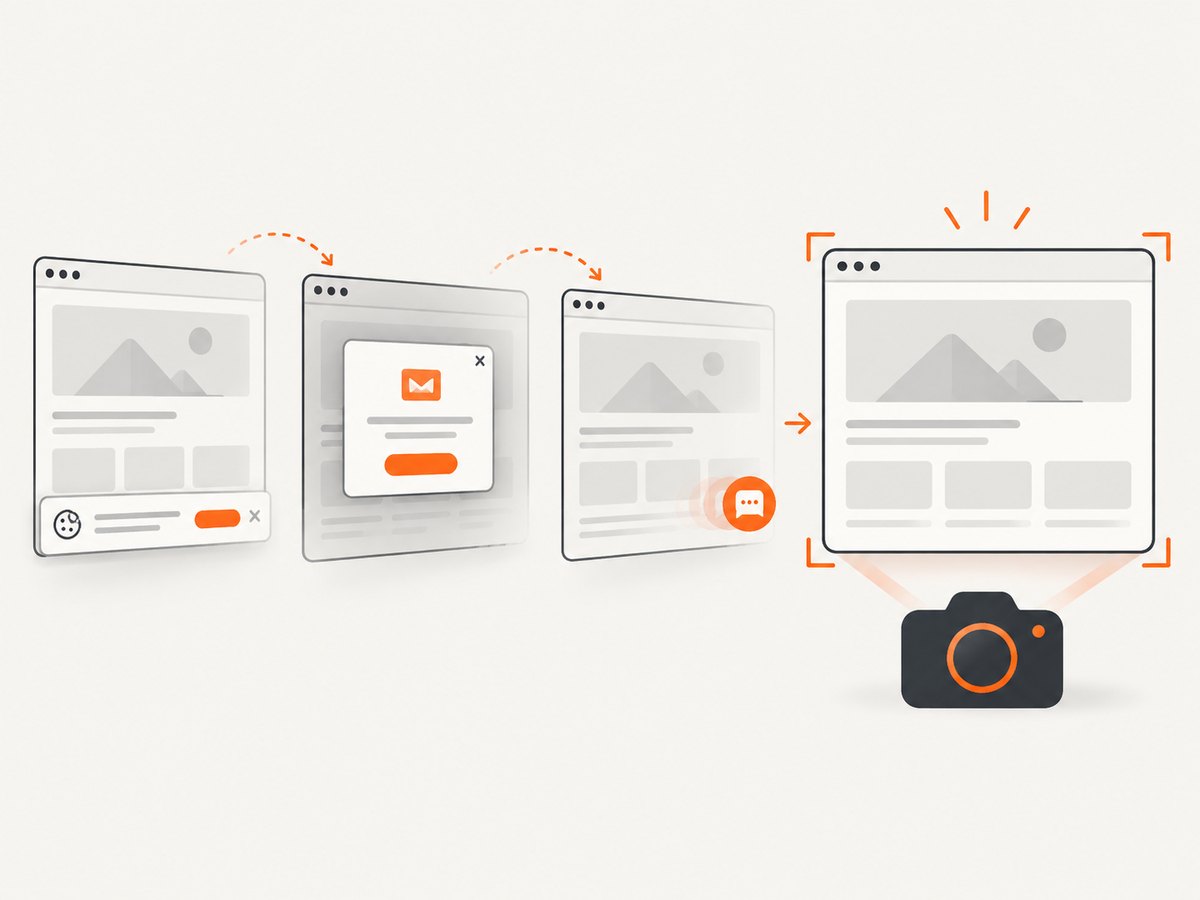
If you need screenshots rather than a browser platform to maintain, ScreenshotNeo provides a website screenshot API and MCP server. It accepts one GET request and returns PNG, JPEG, WebP, or PDF. Before capture it accepts cookie or consent banners and removes more than 60 known consent platforms, newsletter popups, and chat widgets; each step can be turned off. Bot checks, CAPTCHAs, blank pages, timeouts, failed loads, and cache hits are not billed, and response headers report the page verdict and billing status.
See the ScreenshotNeo API documentation for all options. A cURL request:
curl -G "https://api.screenshotneo.com/v1/shot" -d access_key=YOUR_API_KEY --data-urlencode url=https://stripe.com -o shot.webpPython:
import requests
r = requests.get("https://api.screenshotneo.com/v1/shot", params={"access_key": "YOUR_API_KEY", "url": "https://stripe.com"}, timeout=90)
open("shot.webp", "wb").write(r.content)
Node.js:
const q = new URLSearchParams({ access_key: 'YOUR_API_KEY', url: 'https://stripe.com' });
const res = await fetch(`https://api.screenshotneo.com/v1/shot?${q}`);
The API includes full-page and CSS-selector captures, dark mode, device presets or custom viewports, retina scale, PDF paper and margin controls, custom CSS and JavaScript, clicks, waits, request blocking, headers, cookies, user agents, authorization, timezone, geolocation, transparent backgrounds, resizing, configurable caching, signed links, asynchronous jobs with signed webhooks, bulk capture for up to 100 URLs per call, a usage API, and an OpenAPI specification. Its MCP server exposes take_screenshot, get_page_info, and capture_pdf for Claude, Cursor, and other MCP clients.
There is a free allowance of 1,000 screenshots each month with no card. Paid plans start at $5 for 3,000 shots; yearly billing gives two months free, and every feature is available on every plan. Create a free ScreenshotNeo account and start with the 1,000 free screenshots.
FAQ
Should I use one container for the API and browser?
It can be acceptable for a small service. At higher load, separating an HTTP API from browser workers can make queue limits, restarts, and scaling clearer.
Do I need Chromium, Firefox, and WebKit?
No. Install only the engines your capture requirements demand. Additional engines increase image size and update work.
Why does a page differ between my laptop and the container?
Compare browser versions, fonts, viewport and device scale, locale and timezone, environment variables, and network access. Any of these can change layout or content.
Is a Docker container sufficient isolation for arbitrary URLs?
No. Treat URL capture as an untrusted browsing problem and add destination policy, egress restrictions, resource limits, job isolation, and abuse controls.
When should I use an external screenshot API?
Use one when maintaining browser binaries, OS libraries, scaling, retries, and capture cleanup costs more than the integration. ScreenshotNeo is designed for that one-call workflow and also supports MCP clients.