How to Embed a Template Editor on Your Website
Embed a full design editor with Adobe Express or give users a secure, template-scoped Bannerbear session. Compare the trade-offs, see runnable integration examples, and plan for security and production.

To embed a template editor, use an integration that provides an editor inside an iframe-backed experience. Adobe Express Embed SDK is the broader option: it can open the full editor, where users can work with Adobe Express templates and assets. Bannerbear Sessions are narrower: your server creates a secure, expiring URL scoped to a template, and your page displays it in an iframe.
Choose based on the experience you want to offer. Use Adobe Express when people need a general-purpose design canvas and template discovery. Use Bannerbear when your application chooses the template and users should personalize its existing layers. In either case, your application still owns identity, authorization, upload policy, and the way exported work is stored or delivered.
1. Choose the right embedding model
| Decision | Adobe Express Embed SDK | Bannerbear Sessions |
|---|---|---|
| Editor scope | Full editor, plus modules and quick actions | Editor for one selected template |
| Template discovery | Users can access Adobe Express templates and assets | Your app selects the template before opening the session |
| Restricting edits | Broad editing experience with configurable entry points | Preview mode is read-only; limited mode allows edits to existing layers, not adding or deleting layers |
| Integration shape | Browser SDK initialized with a client ID and app name | Server creates a session and returns an editor URL |
| Important gate | Current Adobe documentation says access requires business approval | Web Sessions must be enabled for the project |
Adobe says the Embed SDK puts the full editor in an iframe. Its current overview also makes access subject to business approval, so verify that your organization can obtain access before building around it. Adobe states that existing integrations remain active until December 2027; recheck the current program status and terms before launch. Bannerbear’s session approach gives your product tighter control over the starting template, while the session URL itself is a capability that should be treated as temporary access.
2. Embed Adobe Express
Prerequisites and setup
- Request an Embed SDK credential through Adobe’s developer experience and confirm the current approval requirements.
- Register the exact site domains that will host the editor. Adobe’s quickstart allows up to five domains per credential. It documents localhost with a port for development and requires HTTPS for development and production connections.
- Load the SDK from Adobe’s CDN, then initialize it once per page with the credential’s client ID and the matching app name.
- Launch the editor flow that fits your product: a new project, a starting asset, or an existing project created through your integration.
- Handle completion in your application and decide what your server will accept, store, or make available to the user.
The following minimal page demonstrates the integration shape. Replace the placeholders and connect the completion callback to the export flow you implement. Consult the current quickstart and the API reference for the exact editor configuration and callback fields your chosen flow supports.
<!doctype html>
<html lang="en">
<head>
  <meta charset="utf-8">
  <meta name="viewport" content="width=device-width, initial-scale=1">
  <title>Design editor</title>
  <script src="https://cc-embed.adobe.com/sdk/v4/CCEverywhere.js"></script>
</head>
<body>
  <button id="open-editor" type="button">Create a design</button>
  <div id="editor-status" role="status"></div>
  <script>
    const status = document.getElementById('editor-status');
    let ccEverywhere;

    async function initializeEditor() {
      if (!window.CCEverywhere) throw new Error('Adobe Express SDK did not load');
      ccEverywhere = await window.CCEverywhere.initialize(
        {
          clientId: 'YOUR_ADOBE_CLIENT_ID',
          appName: 'Your Application Name',
          appVersion: { major: 1, minor: 0 },
          platformCategory: 'web'
        },
        { locale: 'en_US', loginMode: 'delayed' }
      );
      return ccEverywhere;
    }

    document.getElementById('open-editor').addEventListener('click', async () => {
      try {
        const sdk = ccEverywhere || await initializeEditor();
        status.textContent = 'Opening editor…';
        // Call the editor method and configuration for your selected flow here.
        // See Adobe's current editor API reference for required arguments.
        console.log('Editor ready:', sdk.editor);
        status.textContent = 'Editor initialized. Connect your chosen editor flow.';
      } catch (error) {
        console.error(error);
        status.textContent = 'The editor could not be initialized. Check configuration and network access.';
      }
    });
  </script>
</body>
</html>
This page intentionally stops after initialization rather than guessing the arguments for a specific editor operation. Adobe exposes several routes: full editor, modules, and quick actions. Select the route that matches the desired project, asset, or editing task and follow its current reference. Avoid initializing on every button click; initialize once, retain the returned SDK object, and use it to launch later flows.
Configuration choices
- clientId and appName: Use the credential’s client ID and the application name associated with its project. Keep production credentials restricted to the domains that need them.
- locale: The initialization configuration supports a locale; the documented default is
en_US. - loginMode: With
delayed, the user is not asked to sign in until export. Decide whether this matches your expected first-use experience. - appVersion: Pass your integration version if useful for identifying the client integration.
- Starting point: Open a new design, provide an initial asset, or resume an existing project created through your integration. The appropriate arguments depend on the editor method.
- Browser support: Adobe documents a browser support check. It also documents a setting to skip that check; skipping it does not establish that a browser is supported, so test the actual user workflow before relying on it.
3. Embed a Bannerbear template session
Bannerbear’s flow is server-first. Enable Web Sessions in project settings, choose a template your application is authorized to offer, create a session on your server, and return the resulting session_editor_url to the browser. The session URL is secure and expires; create it when the user starts editing rather than storing it as a permanent link.

Here is a Node.js server example using the documented Sessions API shape. Store the project API key in an environment variable. The client sends an application-level template identifier to your backend; map that identifier to a template UID server-side instead of letting an untrusted caller choose any template in the project.
import express from 'express';

const app = express();
app.use(express.json());

const templateIds = {
  socialPost: 'YOUR_BANNERBEAR_TEMPLATE_UID'
};

app.post('/api/editor-session', async (req, res) => {
  try {
    // Authenticate the current user and check their permission here.
    const template = templateIds[req.body.templateKey];
    if (!template) return res.status(400).json({ error: 'Unknown template' });

    const response = await fetch('https://api.bannerbear.com/v2/sessions', {
      method: 'POST',
      headers: {
        'Content-Type': 'application/json',
        Authorization: `Bearer ${process.env.BANNERBEAR_API_KEY}`
      },
      body: JSON.stringify({
        template,
        metadata: `user:${req.user.id}`
      })
    });

    const session = await response.json();
    if (!response.ok) {
      console.error('Bannerbear session creation failed', response.status);
      return res.status(502).json({ error: 'Could not create editor session' });
    }
    if (!session.session_editor_url) {
      return res.status(502).json({ error: 'Session response did not include an editor URL' });
    }
    res.set('Cache-Control', 'no-store');
    res.json({ editorUrl: session.session_editor_url });
  } catch (error) {
    console.error('Editor session error', error);
    res.status(500).json({ error: 'Could not create editor session' });
  }
});

app.listen(3000);
req.user in this example represents authentication middleware supplied by your application; add that middleware before this route. Do not accept the API key from the browser or return it to the client. The server returns only the session URL needed for the frame.
A browser page can request a fresh session and place it in an iframe:
<button id="edit" type="button">Edit template</button>
<iframe id="editor" title="Template editor" hidden
  style="width:100%;height:720px;border:0"></iframe>
<script>
  const button = document.getElementById('edit');
  const frame = document.getElementById('editor');
  button.addEventListener('click', async () => {
    button.disabled = true;
    try {
      const response = await fetch('/api/editor-session', {
        method: 'POST',
        headers: { 'Content-Type': 'application/json' },
        body: JSON.stringify({ templateKey: 'socialPost' })
      });
      if (!response.ok) throw new Error(`Session request failed: ${response.status}`);
      const { editorUrl } = await response.json();
      const parsed = new URL(editorUrl);
      if (parsed.protocol !== 'https:') throw new Error('Unexpected editor URL scheme');
      frame.src = parsed.href;
      frame.hidden = false;
    } catch (error) {
      console.error(error);
      alert('The editor could not be opened. Please try again.');
    } finally {
      button.disabled = false;
    }
  });
</script>
Keep the iframe’s title accessible and give it enough height for the editing controls. Test the session URL in the actual target browser and deployment environment. Do not assume that every editor action can be observed by reading the iframe: cross-origin browser security prevents a parent page from inspecting another origin’s document. Use documented vendor callbacks or your server-side workflow for completion and generated assets.
Session modes
- Standard: Let the user edit the selected template according to the template editor’s available behavior.
- Preview: Create a read-only session with
mode: "preview"when the user only needs to inspect the result. The help page also documents a modifications query parameter for preview customizations; encode modifications as the documented base64 JSON payload and avoid hand-building query strings. - Limited: Use
mode: "limited"when users may edit existing layers but must not add or delete layers.
Preview and limited mode are product controls, not substitutes for application authorization. A user who can obtain a session link can use that link until it expires, so issue it only after checking the authenticated user’s access to the underlying content.
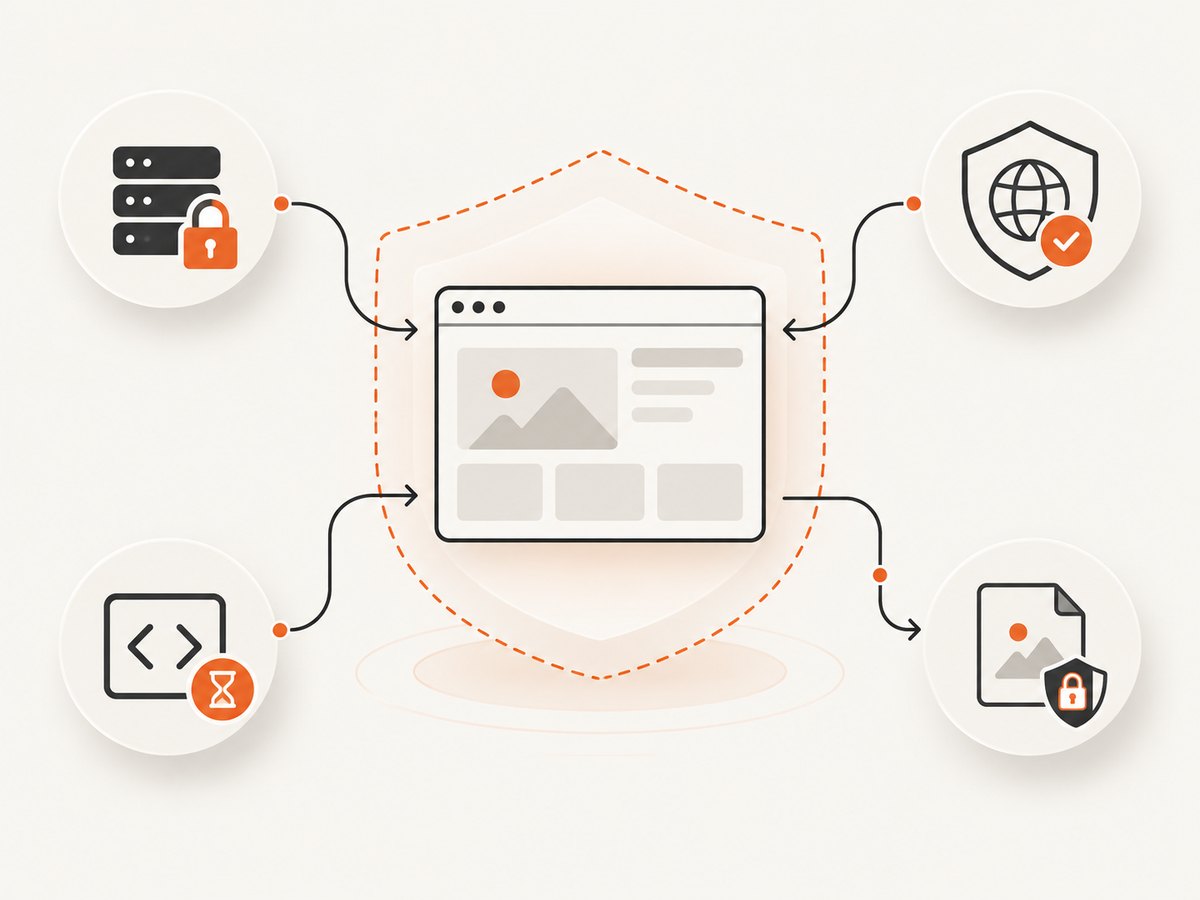
4. Security and production checklist
- Keep vendor secrets on the server. A browser-visible client ID is constrained by its registered domains, but server API tokens must remain private.
- Restrict Adobe’s allowed domains to the exact origins needed, including the correct development host and port. Serve the application over HTTPS.
- Authenticate before creating a Bannerbear session; map user-facing template choices to an allowlist of template UIDs.
- Treat session URLs as bearer capabilities. Avoid logging them, putting them in analytics events, or persisting them longer than needed. Return them with
Cache-Control: no-store. - Validate data received from callbacks or postMessage before associating an export with a user. Enforce ownership and authorization on your server; browser-supplied identifiers are not proof of access.
- Set rules for upload types, maximum file sizes, generated file formats, storage location, retention, and deletion. Check that asset URLs are accessible to the editor without exposing private files publicly.
- Review your Content Security Policy. An iframe integration may require specific frame sources; Adobe’s troubleshooting FAQ documents an Adobe sign-out flow that needs
*.adobelogin.comallowed byframe-src. - Confirm vendor approval, account requirements, pricing, quotas, supported browsers, and current SDK/API versions before launch. These can change, and the sources cited here do not publish comparable performance or implementation-time benchmarks.
5. Troubleshooting
| Symptom | Likely cause | What to check |
|---|---|---|
| Adobe credential or initialization rejected | Origin is not allowlisted, wrong client ID, or application name does not match configuration | Compare the deployed origin, including subdomain, with the credential settings; verify client ID and app name; use HTTPS. |
| SDK object is missing | CDN script failed, was blocked, or initialization ran before it loaded | Inspect the browser Network and Console panels, check CSP and connectivity, and await the script before calling initialize. |
| Editor opens but export asks users to sign in | Delayed login defers authentication until export | Decide whether that is intended and explain the sign-in step before the user starts editing. |
| Session API returns an error | Web Sessions are disabled, token is invalid, template UID is wrong, or request body is malformed | Check project settings, server-side authorization header, endpoint, JSON body, and server logs. Do not expose the token while debugging. |
| Iframe is blank or session link is rejected | Session expired, URL was altered, browser blocked framing, or embedding policy changed | Create a fresh session, use the returned URL unchanged, inspect console frame-policy errors, and verify the current vendor embedding requirements. |
| Image or asset fails to load | Editor cannot fetch a private asset, or cross-origin access is not configured | Check asset URL reachability and CORS behavior. Use a suitably scoped, expiring asset URL where private access is required. |
| Safari behaves differently on cross-origin assets | Cross-origin caching can surface CORS issues in some workflows | Adobe’s FAQ recommends checking allowlisted domains and serving the asset with an appropriate Vary: Origin response header; reproduce in Web Inspector. |
| Users cannot sign out inside Adobe flow | Content Security Policy blocks the Adobe identity redirect | Review Adobe’s current CSP guidance; the FAQ identifies *.adobelogin.com for frame-src. |
6. Performance, reliability, and cost considerations
These editors run as hosted experiences, so the integration’s perceived speed depends on the vendor service, network, browser, authentication state, and any assets your application supplies. The research sources do not provide a comparable latency benchmark, uptime figure, or implementation-time statistic; do not size a product promise around an assumed number.
For a responsive experience, load or initialize the editor when the user is ready to use it, show a clear loading state, and prevent duplicate session-creation requests while one is pending. If editor initialization fails, offer a retry that does not create a storm of duplicate sessions. For Bannerbear, obtain a new session when a user returns after a long idle period rather than assuming a prior URL remains valid. For both providers, log request identifiers and failure categories without logging credentials, session URLs, private asset URLs, or user design contents.
Plan cost around the vendor’s current plan and usage model, including whether users need vendor accounts, what exports or assets consume quota, and whether your expected concurrency or retention policy changes the bill. Neither source in this research gives a verified current price comparison, so check the official account and pricing pages before committing. Also budget engineering time for authorization, export handling, accessibility, mobile layout, browser testing, and lifecycle management; hosted editing removes the need to build the canvas, but it does not remove those application responsibilities.
7. Test the complete user journey
- Test a new user, a returning user, and a user without permission to the selected template.
- Try the integration from every registered production origin and the local development origin.
- Test a slow connection, a failed session request, a blocked third-party script, and a user closing the editor before finishing.
- Confirm the resulting design or export is associated with the right account and that users cannot fetch another user’s asset.
- Test keyboard navigation, accessible iframe labeling, responsive layout, and the supported browsers your product promises.
- Verify behavior after a session expires and after a vendor SDK or API version changes.
Or skip the browser setup
If the task is capturing a web page or an embedded editor for a preview, support ticket, or record, ScreenshotNeo takes a URL in one request and returns an image or PDF. Its API documentation covers the options and request format. For a simple screenshot, cURL:
curl -G "https://api.screenshotneo.com/v1/shot" \
  -d access_key=YOUR_API_KEY \
  --data-urlencode url=https://stripe.com \
  -o shot.webp
Python:
import requests

r = requests.get(
    "https://api.screenshotneo.com/v1/shot",
    params={"access_key": "YOUR_API_KEY", "url": "https://stripe.com"},
    timeout=90,
)
r.raise_for_status()
open("shot.webp", "wb").write(r.content)
Node.js:
const q = new URLSearchParams({
  access_key: 'YOUR_API_KEY',
  url: 'https://stripe.com'
});
const res = await fetch(`https://api.screenshotneo.com/v1/shot?${q}`);
if (!res.ok) throw new Error(`Screenshot request failed: ${res.status}`);
const bytes = Buffer.from(await res.arrayBuffer());
await import('node:fs/promises').then(fs => fs.writeFile('shot.webp', bytes));
ScreenshotNeo removes cookie banners, popups, and chat widgets before the shot. Bot checks, blank pages, and failed loads are never billed. Its MCP server lets AI agents take screenshots. The free plan includes 1,000 screenshots a month with no card; paid plans start at $5 for 3,000. Sign up free for ScreenshotNeo.
FAQ
Can I embed a Canva-like editor without building a canvas?
Yes. Adobe Express offers a broader editor through its Embed SDK, subject to current business approval. Bannerbear offers a template-specific session. Confirm access and fit with each vendor before choosing.
Can I let users edit a template but preserve its structure?
Bannerbear’s limited mode permits edits to existing layers while preventing layer addition and deletion. You can also use preview mode when no editing is needed.
Can I embed a session URL permanently?
Do not design around that assumption. Bannerbear describes session editor URLs as expiring. Create them as needed and handle expiration with a new server-side session.
Will an iframe tell my page when a design is finished?
Do not inspect a cross-origin iframe’s contents. Use the vendor’s documented completion or export mechanisms, then validate and authorize the resulting data in your application.
Does Adobe’s SDK save projects in my database?
The documented integration saves projects to the user’s Adobe Express account. Your own application must define how it receives, associates, and stores any exported asset it needs.