How to Extract Curl Requests from Chrome
Copy any Chrome network request as a reusable cURL command, understand its headers and tokens, and troubleshoot replay failures safely.

Short answer: open Chrome DevTools before the request happens, select the Network panel, reproduce the action, right-click the request, choose Copy → Copy as cURL, then paste the command into a terminal or editor. Chrome records network traffic while DevTools is open, so opening it afterward will not recover an earlier request. The copied command can include cookies, authorization headers and temporary tokens; treat it as a secret until you have removed or replaced those values.
What “Copy as cURL” does
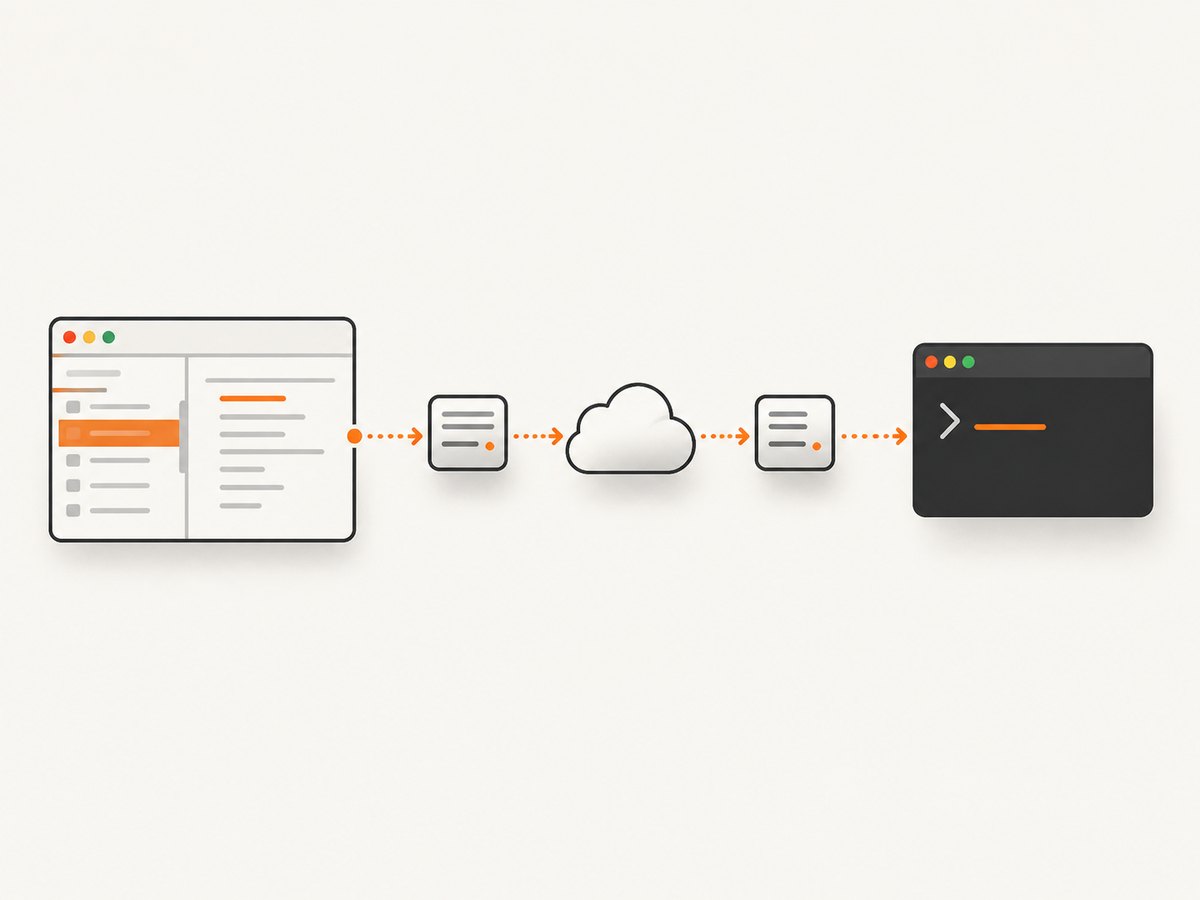
Chrome converts one recorded HTTP request into a shell command that uses curl. The command normally includes the URL, method, query string, request headers and, for requests with a body, the body data. That makes it useful for reproducing an API call outside the browser, documenting an integration, importing a request into an API client or diagnosing a server response.
The command is a snapshot of the request at capture time. It is not a permanent credential or a guarantee that the same request will work later. Session state, anti-forgery tokens, signed URLs and browser-only checks can expire or change.
Step-by-step: copy one request as cURL
- Open DevTools first. Use
Ctrl+Shift+I(Windows/Linux) orCmd+Option+I(macOS), then select Network. You can also open DevTools with the page context menu and choose Inspect. Chrome’s Network panel records requests while DevTools remains open. See the Chrome Network panel documentation. - Preserve the right recording. Click the record button if it is not active. Enable Preserve log when navigation would otherwise clear the list. Clear old entries with the trash icon if you want an unambiguous capture.
- Reload or repeat the action. Reload the page, submit the form, open the dialog or perform the API operation that generates the request. Start with the action only after the Network panel is recording.
- Filter the list. Use the filter box for a path, domain or text. Use the type chips such as Fetch/XHR, Doc, JS, Img and Other. API calls are usually Fetch/XHR, while a page navigation is usually a document request.
- Inspect before copying. Click the candidate request and review Headers, Payload and Response. Check the request URL, method, query parameters and whether a body is present.
- Copy it. Right-click the request row, hover over Copy, and select Copy as cURL. Chrome puts the generated command on your clipboard. Paste into a terminal, a text editor or an approved API client.
Chrome documents the exact menu action as “Copy as cURL. Copy the request as a cURL command.” The menu is available from the request’s context menu in the Network panel; the wording can vary slightly by Chrome release.
Run and read the generated command
Paste the command into a shell without changing it first. Add -i to show response headers, -v for connection diagnostics, or -o response.bin to write a binary response to a file. For a readable API response, pipe JSON through a formatter when one is installed.
curl 'https://api.example.com/v1/items?limit=20' \
  -H 'accept: application/json' \
  -H 'authorization: Bearer REDACTED' \
  -H 'user-agent: Mozilla/5.0' \
  --compressed

# Show status and response headers
curl -i 'https://api.example.com/v1/items?limit=20' \
  -H 'authorization: Bearer REDACTED'

# Save a binary response
curl 'https://example.com/file.pdf' -o file.pdf
Look for these parts:
| Part | What it represents | What to check |
|---|---|---|
| URL | Host, path and query string | Environment, IDs and expiring parameters |
-X |
HTTP method | GET, POST, PATCH or DELETE matches the operation |
-H |
Request header | Authorization, content type, origin and CSRF headers |
--data/--data-raw |
Request body | JSON or form encoding and current IDs |
--compressed |
Accept compressed responses | Usually safe to retain |
Choose the right copy or export variant
Right-clicking a request exposes several related options. Choose the smallest export that answers your question.
| Option | Best for | Trade-off |
|---|---|---|
| Copy as cURL | One request you can replay in a terminal | Contains only the selected request |
| Copy all as cURL | Capturing every request currently listed | Produces a long sequence and much unrelated traffic |
| Copy all listed as cURL | Exporting only requests that match your current filters | Filter mistakes can omit required calls |
| Copy as fetch | Reproducing the call in browser JavaScript | Browser origin and CORS rules still apply |
| Copy as fetch (Node.js) | Starting a Node.js script | May need Node-specific cookie or TLS handling |
| Copy as PowerShell | Windows PowerShell workflows | Quoting differs from POSIX shells |
| Export HAR | Sharing a richer multi-request capture | Can contain sensitive data and is less convenient to run |
HAR export offers sanitized and sensitive-data modes. Sanitized HAR output excludes sensitive information such as Cookie, Set-Cookie and Authorization headers by default. Export sensitive data only to a trusted recipient and storage location.
Find the request you actually need
Modern pages can create hundreds of requests. A repeatable narrowing process prevents copying an analytics beacon or a preflight request instead of the API call.
- Clear the log.
- Turn on Preserve log if the action navigates.
- Filter by Fetch/XHR and type a distinctive path fragment such as
/checkoutorgraphql. - Perform the action once.
- Compare the method, URL and payload of the new rows.
- Inspect the Initiator tab when several calls look similar; it shows the script or request chain that triggered the call.
- Copy only after confirming the response contains the data or status you expected.
If the action involves a file download, look under Other or inspect the document request. If the page uses GraphQL, the endpoint may be the same for every operation, so the request payload’s operation name is the useful discriminator.
Sanitize a copied cURL command
Assume a copied command is sensitive. Before pasting it into a ticket, chat, repository or issue tracker, remove or replace:
CookieandSet-CookievaluesAuthorization, API keys and signed query parameters- CSRF or anti-forgery tokens
- Personal identifiers, account IDs and private URLs
- Request bodies containing names, addresses, payment data or internal content
Keep the header name and use a placeholder such as REDACTED_TOKEN. If you need to share a reproducible example, create a test account and issue a short-lived test credential. Do not assume deleting the visible token is enough: cookies can identify a session, and signed URLs can grant access until they expire.
Replay the request in code
For a stable integration, translate the captured request into code and load credentials from environment variables. The following examples show the same JSON request in cURL, Python and Node.js.
cURL
curl -X POST 'https://api.example.com/v1/items' \
  -H 'accept: application/json' \
  -H 'content-type: application/json' \
  -H "authorization: Bearer $API_TOKEN" \
  --data-raw '{"name":"example","enabled":true}'
Python
import os
import requests

response = requests.post(
    "https://api.example.com/v1/items",
    headers={
        "Accept": "application/json",
        "Authorization": f"Bearer {os.environ['API_TOKEN']}",
    },
    json={"name": "example", "enabled": True},
    timeout=30,
)
response.raise_for_status()
print(response.json())
Node.js
const token = process.env.API_TOKEN;
const res = await fetch('https://api.example.com/v1/items', {
  method: 'POST',
  headers: {
    'accept': 'application/json',
    'authorization': `Bearer ${token}`,
    'content-type': 'application/json'
  },
  body: JSON.stringify({ name: 'example', enabled: true })
});
if (!res.ok) throw new Error(`${res.status} ${await res.text()}`);
console.log(await res.json());
Postman supports importing a single cURL request copied from Chrome DevTools. Importing is useful when you need a graphical view of headers, variables, environments and saved collections.
Why a copied cURL command fails later
| Symptom | Likely cause | Fix |
|---|---|---|
| 401 or 403 | Expired cookie, token or signed URL | Authenticate again in an authorized test environment and replace the value with a fresh credential |
| 419, 422 or “CSRF failed” | Missing or stale anti-forgery token, origin or referer | Capture the token-producing request and send the current token with the expected cookies |
| 400 with validation errors | Request body changed, was truncated, or has the wrong content type | Compare Payload and Headers in DevTools; preserve JSON encoding exactly |
| Works in Chrome but not terminal | Browser state, extensions, client certificates or CORS-related assumptions | Inspect every cookie and header; test against a documented API endpoint when available |
| Empty response | Wrong request selected, asynchronous follow-up not captured, or response depends on prior calls | Clear the log, repeat the action and inspect the request chain and Initiator tab |
| SSL or DNS error | Private hostname, corporate proxy or certificate only trusted by the browser | Use the correct network or proxy configuration; do not disable certificate checks in production workflows |
| Shell syntax error | Quoting copied for another shell or multiline continuation was altered | Use the Chrome export for your shell, or place the command in a script and fix quote boundaries |
Use curl -v to see DNS resolution, TLS negotiation, redirects and sent headers. Use -L only when following redirects is intended. Add --fail-with-body in automation so HTTP errors produce a failing exit status while retaining the response body for diagnosis.
Reliability, performance and cost considerations
A copied command is excellent for a one-off diagnostic, but production code should define timeouts, retries and idempotency deliberately. Set a connect and total timeout, retry only transient failures such as selected 5xx responses, and avoid retrying non-idempotent POST requests unless the API provides an idempotency key. Record status codes and request IDs without logging credentials or personal data.
Filtering before copying saves investigation time, while copying all listed requests can create a large, slow-to-review script. HAR is better for analyzing a complete page load; cURL is better for a single reproducible call. Network timing in DevTools is a measurement of that browser session, not a universal performance benchmark. Run repeated measurements from the deployment environment when latency matters.
cURL itself has no per-request charge. Any cost comes from the service you call, bandwidth, proxy usage or automation platform. Check the API’s pricing and rate limits before placing a copied command in a loop.
Or skip the browser setup
If your goal is a clean image or PDF of a URL rather than reproducing an application API call, ScreenshotNeo provides a single screenshot request. It handles the browser setup and exposes options for full-page or element capture, devices and viewports, dark mode, retina scale, custom CSS and JavaScript, waits, headers, cookies, geolocation, PDF output, caching, signed links, async jobs and bulk capture. See the ScreenshotNeo API documentation for the complete parameter list.

curl -G "https://api.screenshotneo.com/v1/shot" -d access_key=YOUR_API_KEY --data-urlencode url=https://stripe.com -o shot.webpimport requests
r = requests.get("https://api.screenshotneo.com/v1/shot", params={"access_key": "YOUR_API_KEY", "url": "https://stripe.com"}, timeout=90)
open("shot.webp", "wb").write(r.content)const q = new URLSearchParams({ access_key: 'YOUR_API_KEY', url: 'https://stripe.com' });
const res = await fetch(`https://api.screenshotneo.com/v1/shot?${q}`);Before capture, ScreenshotNeo accepts cookie and consent banners like a visitor and removes more than 60 known consent platforms, newsletter popups and chat widgets; each step can be turned off. Bot checks or CAPTCHAs, blank pages, timeouts, failed loads and cache hits are not billed, and the response identifies the result with X-Page-Verdict and X-Billed headers. Its MCP server lets Claude, Cursor and other MCP clients use take_screenshot, get_page_info and capture_pdf. The Free plan includes 1,000 shots per month with no card; paid plans start at $5 for 3,000 shots, and every feature is available on every plan. Create a free ScreenshotNeo account.
FAQ
Can I copy a request that already happened?
Only if it is still in the Network log. If DevTools was closed and the log was not preserved elsewhere, repeat the action with DevTools open.
What is the difference between “Copy all as cURL” and “Copy all listed as cURL”?
The first includes every request in the log. The second includes only rows currently visible after your filters.
Should I share a copied command in a bug report?
Only after removing cookies, authorization, tokens, private identifiers and sensitive request bodies. Prefer a test account and a short-lived credential.
Why does my cURL command need -L?
-L tells cURL to follow HTTP redirects. Add it when the final resource is intentionally behind a redirect; omit it when you need to inspect the first response.
Can Chrome copy requests as something besides cURL?
Yes. The Network panel also offers fetch, Node.js fetch, PowerShell and HAR export variants. Select the format that matches where you will inspect or run the request.