How to Find Playwright MCP Screenshots
Find screenshots created by Playwright MCP, choose filenames and formats, capture full pages or elements, and fix common output-directory problems.

Playwright MCP saves screenshots through the browser_take_screenshot tool. The easiest way to find one is to pass an explicit filename, such as artifacts/login.png. The path is relative to the workspace root. If you omit filename, Playwright MCP writes an automatically named file such as page-1760000000000.png (the exact timestamp varies) in the MCP server’s configured output directory.
This guide shows how to install and run Playwright MCP, navigate to a page, inspect it with accessibility snapshots, capture viewport, element, and full-page images, and locate the resulting files. It also explains formats, scaling, output paths, troubleshooting, automation patterns, and when an API is a better fit.
What creates a screenshot in Playwright MCP?
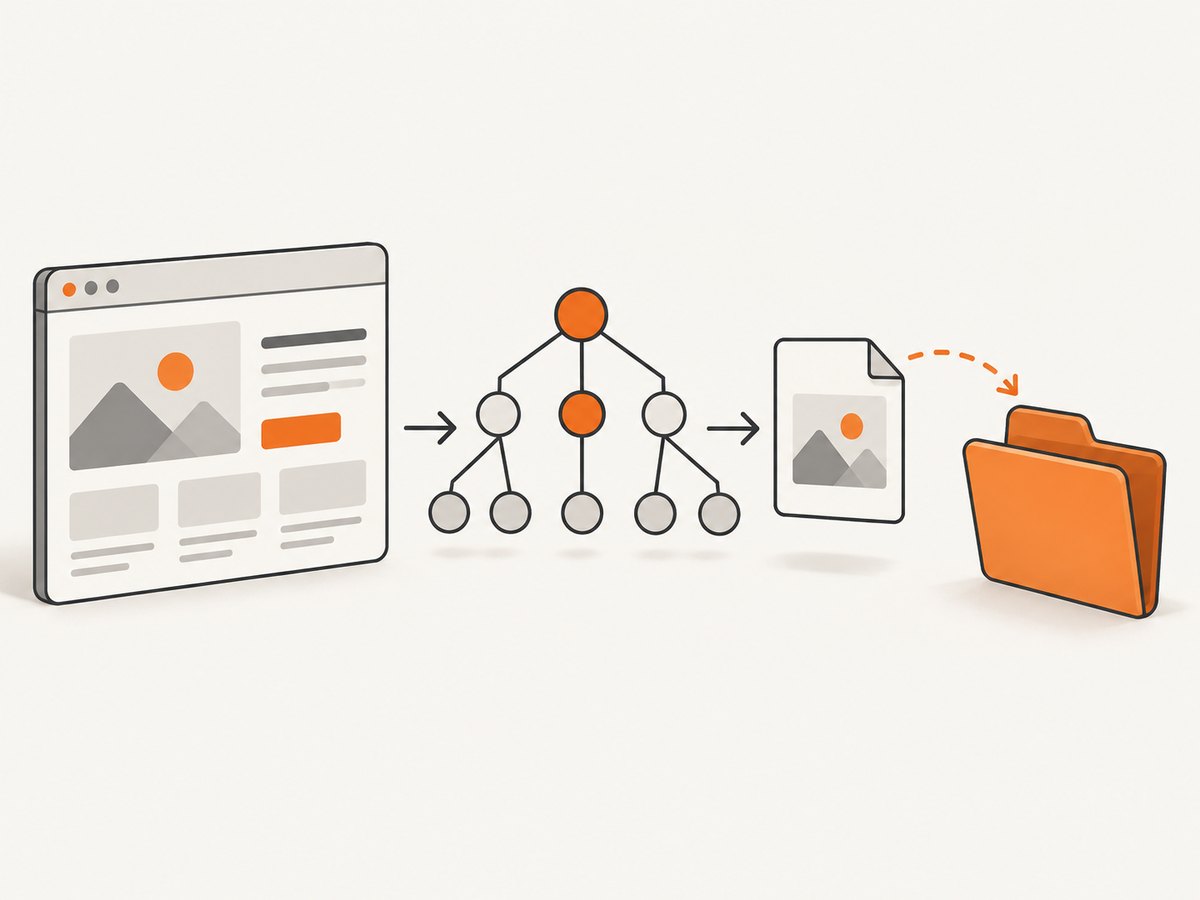
browser_take_screenshot is the screenshot-producing tool. It can capture the current viewport, a specific element, or the complete scrollable page. The related browser_snapshot tool produces an accessibility tree with references that action tools can use. A snapshot is for finding and interacting with page controls; a screenshot is visual evidence. Playwright’s documentation puts this distinction plainly: “Screenshots are for looking at, not for acting on — use browser_snapshot for refs to interact with.” See the official screenshot reference and snapshot documentation.
Set up Playwright MCP
Playwright MCP is distributed as the official @playwright/mcp package. Follow the Playwright MCP getting-started guide for the client you use (Claude Desktop, Cursor, or another MCP client). A typical configuration starts the package with an output directory:
{
  "mcpServers": {
    "playwright": {
      "command": "npx",
      "args": [
        "@playwright/mcp@latest",
        "--output-dir",
        "./artifacts"
      ]
    }
  }
}
Use an absolute output path if your MCP client launches from an unexpected working directory. With a relative path, automatic screenshot files are placed under the directory resolved by the MCP server. Create the directory first when your environment does not create it automatically:
mkdir -p artifactsCapture a screenshot with an explicit filename
- Start the Playwright MCP server in your MCP client.
- Navigate to the page you need to document.
- Take a fresh accessibility snapshot so you can identify controls and content.
- Call
browser_take_screenshotwith a workspace-relative filename.
A request to an MCP client can be phrased like this:
Navigate to https://example.com, take an accessibility snapshot, then save a PNG screenshot as artifacts/example.png.The resulting file is artifacts/example.png relative to the workspace root. Explicit names are preferable in scripts and CI because you know the exact path and can pass it to later steps.
Why explicit filenames are reliable
- You can open or upload a known path without searching.
- File extensions select the output format when
typeis not supplied. - Repeated runs can intentionally overwrite a fixture, or use a run-specific name.
- CI jobs can archive a predictable artifact directory.
Find a screenshot when filename is omitted
When filename is absent, Playwright MCP generates a name using the pattern page-{timestamp}.{extension}. The extension is normally .png unless another type is selected. Look in the directory supplied to --output-dir. For example:

find ./artifacts -maxdepth 1 -type f -printf '%f\n' | sortYou may see a file like page-1760000000000.png. The number is generated at capture time; do not hard-code it. If the directory contains several captures, sort by modification time:
ls -lt ./artifactsIf you cannot find the file, confirm the server’s configured output directory and the working directory used to launch the MCP process. A relative --output-dir is resolved by that process, which may differ from the folder shown in your terminal or editor.
Choose viewport, element, or full-page capture
Use the scope that matches the evidence you need:
| Goal | Options | Result |
|---|---|---|
| Visible browser area | No target, no fullPage |
Screenshot of the current viewport |
| One component | target set to an element ref or selector |
Only that element |
| Entire document | fullPage: true |
Complete scrollable page |
target and fullPage cannot be combined. For an element capture, first call browser_snapshot and use a returned reference, or provide a selector when your client supports selector targets:
Take a fresh browser snapshot. Save a screenshot of the main article element (target selector: "main article") as artifacts/article.webp.For a full-page image:
Save a full-page screenshot as artifacts/home-full.png with fullPage enabled.Take a new snapshot after navigation, reloads, or major state changes. Snapshot references belong to the current page state and can become stale after navigation.
Formats and image scale
Playwright MCP supports PNG, JPEG, and WebP. Set type explicitly, or let the filename extension infer it:
Save the current viewport as artifacts/dashboard.jpg using JPEG format.Use scale: "css" for CSS-pixel dimensions (the default). Use scale: "device" when you need device-pixel resolution, such as a high-density visual regression fixture. Device scale can produce larger files, so use it deliberately.
| Setting | Use it when | Trade-off |
|---|---|---|
png |
Pixel accuracy, transparency, lossless diffs | Larger files |
jpeg |
Photos or smaller previews | Lossy compression; no alpha transparency |
webp |
Modern web delivery with good compression | Some older tools need conversion |
css scale |
Stable layout dimensions | Lower pixel density on retina displays |
device scale |
High-resolution review or OCR | More memory and storage |
Use snapshots to interact, screenshots to inspect
An accessibility snapshot is the right tool for locating a button, link, form field, or landmark. It returns refs such as e12 that action tools can use. A screenshot cannot reliably identify an interaction target, and visual coordinates can change with viewport size, fonts, or page state.
- Navigate to the URL.
- Call
browser_snapshot. - Use the returned ref with an action such as click or fill.
- Call
browser_snapshotagain after the page changes. - Call
browser_take_screenshotfor the final visual state.
Example instruction:
Open https://example.com/login. Take a browser snapshot, fill the email field, submit the form, take another snapshot, and save the resulting viewport as artifacts/login-success.png.Or skip the browser setup
If you only need an image or PDF from a URL, ScreenshotNeo provides a single GET request instead of maintaining a browser MCP session. Its capture pipeline accepts cookie and consent banners like a visitor, then removes more than 60 known consent platforms along with newsletter popups and chat widgets; each cleanup step can be disabled. Bot checks, CAPTCHAs, blank pages, timeouts, failed loads, and cache hits are not billed, and response headers identify the page verdict and whether the request was billed.
See the ScreenshotNeo API documentation for all options. A minimal cURL request is:
curl -G "https://api.screenshotneo.com/v1/shot" -d access_key=YOUR_API_KEY --data-urlencode url=https://stripe.com -o shot.webpPython:
import requests

r = requests.get(
    "https://api.screenshotneo.com/v1/shot",
    params={"access_key": "YOUR_API_KEY", "url": "https://stripe.com"},
    timeout=90,
)
r.raise_for_status()
open("shot.webp", "wb").write(r.content)
Node.js:
const q = new URLSearchParams({ access_key: 'YOUR_API_KEY', url: 'https://stripe.com' });
const res = await fetch(`https://api.screenshotneo.com/v1/shot?${q}`);
if (!res.ok) throw new Error(`HTTP ${res.status}`);
const fs = await import('node:fs/promises');
await fs.writeFile('shot.webp', Buffer.from(await res.arrayBuffer()));
ScreenshotNeo also supports full-page and element captures, dark mode, device presets or custom viewports, retina scale, PDF paper and margin settings, custom CSS and JavaScript, clicks, selector waits, delays, network-idle waits, request blocking, headers, cookies, user agents, authorization, timezone, geolocation, transparent backgrounds, resizing, caching with a chosen TTL, signed image links, asynchronous jobs with signed webhooks, bulk capture of up to 100 URLs per call, usage reporting, and an OpenAPI specification. An MCP server exposes take_screenshot, get_page_info, and capture_pdf for Claude, Cursor, and other MCP clients.
The Free plan includes 1,000 screenshots per month without a card. Paid plans start at $5 for 3,000 shots; yearly billing provides two months free. Create a free ScreenshotNeo account and start with the included monthly shots.
Troubleshooting Playwright MCP screenshot files
No file appears
Cause: You are checking the client project directory while the MCP process uses another working directory or output path.
Fix: Inspect the server configuration, use an absolute --output-dir, and run find against that directory. Add an explicit filename to remove ambiguity.
The filename has the wrong extension
Cause: The extension and type disagree, or no type was provided.
Fix: Set both consistently, for example a filename ending in .webp with type: "webp". When type is unset, Playwright infers it from the filename; otherwise it defaults to PNG.
An element ref no longer works
Cause: Refs are tied to a particular accessibility snapshot and page state.
Fix: Navigate or interact, then take a fresh browser_snapshot and use the new ref. Use a stable selector for repeated automation where appropriate.
Full-page and element options fail together
Cause: fullPage captures the scrollable document, while target restricts capture to one element; the options are mutually exclusive.
Fix: Choose one. Capture the element separately if you need both views.
The screenshot is blurry or unexpectedly large
Cause: Device scaling increases pixel dimensions and file size.
Fix: Use scale: "css" for normal artifacts, or keep device scaling and choose WebP/JPEG when file size matters.
The page is incomplete
Cause: The capture ran before navigation, lazy loading, animations, or application state finished.
Fix: Wait for the relevant page state, take a new snapshot to verify it, and then capture. For long documents, use full-page capture only after the page has loaded its content.
Reliability and performance checklist
- Pin the Playwright MCP package version in repeatable CI environments.
- Use explicit filenames and a per-run artifact directory.
- Take snapshots after every navigation or state-changing action.
- Prefer CSS scale unless high-density pixels are required.
- Use element captures for focused regression checks instead of very tall full-page images.
- Keep screenshots in an ignored or temporary directory when they are generated during tests.
- Record the URL, viewport, format, and capture scope beside each artifact.
- When running many captures, clean old timestamped files so directory scans stay fast.
Frequently asked questions
What is the default Playwright MCP screenshot filename?
When you omit filename, the generated name follows page-{timestamp}.{png|jpeg|webp} and is written under the configured output directory.
Where do relative filenames resolve?
An explicit relative filename resolves against the workspace root. Automatic files resolve under the MCP server’s configured output directory.
Can I capture only one component?
Yes. Set target to an element ref or supported selector. Do not combine it with fullPage.
Should I use a screenshot to click a button?
No. Use browser_snapshot to obtain an accessibility ref and an action tool to interact; use the screenshot to inspect the visual result.
Which format should I choose?
PNG is safest for lossless comparisons, JPEG is useful for photographic content, and WebP usually gives a compact modern artifact. Match the choice to your diffing and delivery tools.


