Webpage Screenshot Extension Free: Best Options and Full-Page Capture
Compare free webpage screenshot extensions, capture full pages, and choose the right export and privacy settings. See when an API is a better fit.
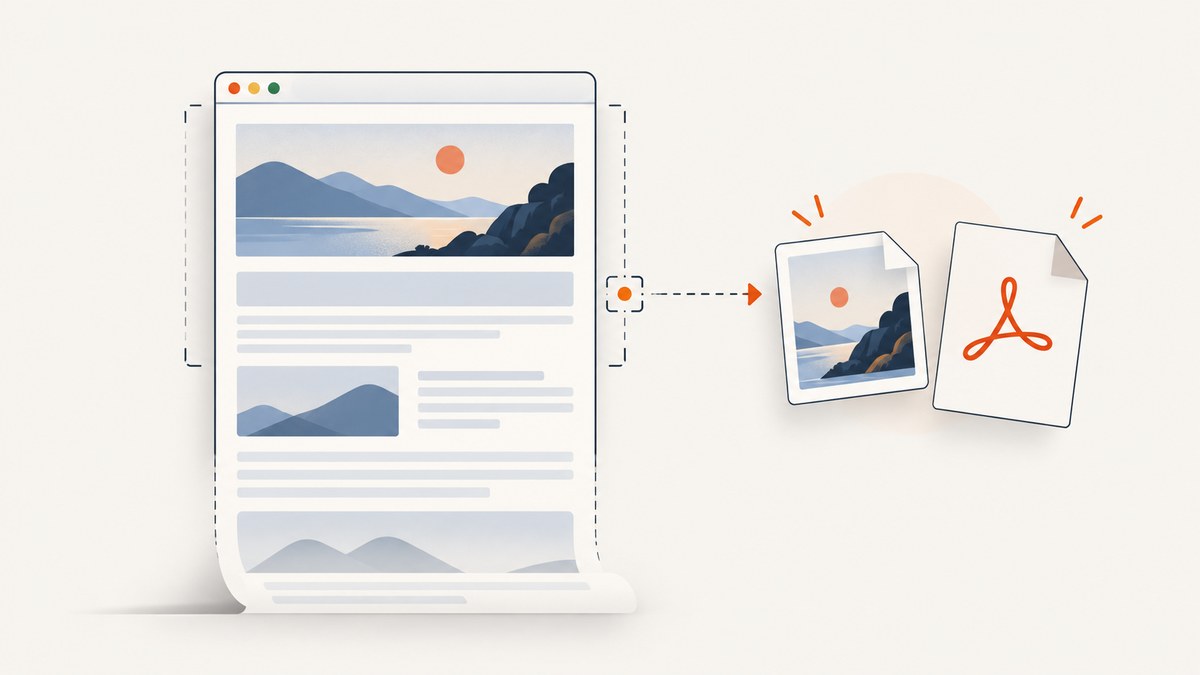
A free webpage screenshot extension can save the visible browser area or capture a page beyond the viewport, then export an image or PDF. For a quick manual capture, compare full-page support, selection tools, editing and redaction, export formats, privacy disclosures, and which features actually cost nothing. For repeatable captures in a script or service, an API may fit better than a browser extension.
Quick choice: the Chrome Web Store listing for Full Page Screen Capture describes a free extension with editing, redaction, OCR, and PNG/JPG/PDF export. FireShot describes full-page, visible-area, and selection capture. OpenCapture says its free capture and editing run locally and export PNG/PDF; tiled watermarking is paid. Check current store details and permissions before installing because listings and terms can change.
1. What a webpage screenshot extension does
A screenshot extension runs in your browser and captures a webpage without requiring you to build a capture script. The simplest mode saves only what is currently visible. A full-page mode attempts to capture content below the fold; some tools scroll the page and stitch the sections together. A selection mode captures a chosen region or area.

That distinction matters. A visible-area shot is often enough to document a dialog or a chart in view. A full-page image is useful for a long article or landing page. A selected area can keep the output focused. Full-page capture is not guaranteed to reproduce every page perfectly: sticky headers, animations, lazy-loaded content, and access restrictions can affect what appears as the extension scrolls and assembles the image.
2. How to capture a full webpage for free
- Choose an extension for your browser. Confirm that its current store listing supports your browser and the capture mode you need. The options below describe claims in the supplied product pages and store listings; they have not been independently tested.
- Review permissions and privacy details. An extension may need permission to read pages to capture them. Read the current permission prompt and privacy disclosure, especially before capturing pages with account details or confidential information.
- Open the target page and wait for it to settle. Let important images and content load. If the page loads sections on scroll, a full-page capture may trigger that behavior, but results can vary.
- Select the capture mode. Choose full page for the whole scrollable document, visible area for the current viewport, or selected area when you only need a portion. Names and available modes vary by extension.
- Inspect the result before sharing it. Check the top, middle, and bottom for missing sections, repeated content, clipped sticky elements, or private details.
- Edit and export. Crop or annotate as needed. Use blur or redaction tools for sensitive information, then choose a supported image format or PDF. Do not assume that drawing over text permanently removes the underlying data unless the tool explicitly provides redaction.
Visible-area, selected-area, or full-page?
| Mode | Use it when | Check for |
|---|---|---|
| Visible area | You need exactly what is on screen now | Browser chrome may be excluded; page overlays may obscure content |
| Selected area | You want a focused region | Selection boundaries and any excluded context |
| Full page | You need content below the viewport | Stitching seams, repeated sticky headers, missing lazy content |
3. Free extension options and what their listings say
There is no universal “best” extension: browser support, editing, output formats, privacy statements, and free-tier boundaries differ. Treat descriptions below as vendor or store-listing claims, not as independent security audits or tests.
| Extension | Listing or vendor describes | Points to check |
|---|---|---|
| Full Page Screen Capture | Chrome Web Store listing describes a built-in editor, cropping, annotation, blur/pixelation and redaction, OCR, and PNG/JPG/PDF output. It says the extension is free without signup, watermark, or premium tier. | Confirm the current listing and permissions; verify the output is suitable for your redaction needs. |
| GoFullPage | The Chrome Web Store listing contains a developer data-use disclosure. Its listed version and update history can change. | Review the live store entry, current version, permissions, and privacy disclosure before installing. |
| FireShot | Chrome Web Store listing describes full-page, visible-area, and selection capture, plus PDF, PNG, and JPEG output. It also describes an upgrade for additional editing and workflow features. | Check which features are included without upgrading and whether your needed export is available in that tier. |
| OpenCapture | Its site says it supports Chrome, Edge, and Firefox, processes captures locally, and offers full-page/visible capture, crop, annotation, blur, undo, and PNG/PDF export for free. It lists tiled logo/text watermarking at $5 for 1,000 credits, one-time. | These are vendor claims; verify browser availability, current pricing, and privacy details on its site. |
| Full Page Capture | Vendor site claims its Chrome extension is free, needs no account, processes captures locally, and exports PNG, JPEG, or PDF. | Confirm current functionality and privacy claims on the vendor site and in browser permissions. |
The “free” label does not promise that every feature or workflow is free. For example, FireShot advertises an upgrade, while OpenCapture describes its tiled watermarking as paid. Check whether a limitation affects the specific task before relying on an extension.
4. Choose the right export and protect sensitive content
PNG, JPEG, or PDF
- PNG: useful when preserving crisp interface edges and text matters. Large, long screenshots can produce substantial files.
- JPEG: commonly offered for image export; check the result for compression artifacts around fine text and lines.
- PDF: useful when a page should be shared or archived as a document. Check page breaks, scale, and whether the export spans the expected content.
Support varies by tool: the reviewed listings mention PNG and PDF, while some also list JPEG. Confirm the current format options in the extension rather than assuming every tool exports all three.
Redaction and privacy checklist
- Inspect the capture at full size before sharing; browser screenshots can include account names, email addresses, customer data, or internal content.
- Use a real blur, pixelation, or redaction feature when available. Reopen the exported file and check that the sensitive detail is no longer readable.
- Review extension permissions and its current privacy disclosure. A privacy statement from one vendor says nothing about another extension.
- For sensitive pages, consider whether the extension’s processing model is suitable. OpenCapture says processing is local; the GoFullPage store listing includes a developer statement that it will not collect or use data. These are product-specific statements, not independent verification.
- Do not capture a page you are not authorized to access or distribute.
5. When an extension is the wrong tool
A browser extension is convenient for an occasional capture initiated by a person. Consider another method when you need unattended batch processing, consistent settings across many URLs, integration into a build or monitoring job, or an image generated from HTML you control. A scriptable browser can expose more control, but requires browser setup, code, and maintenance.
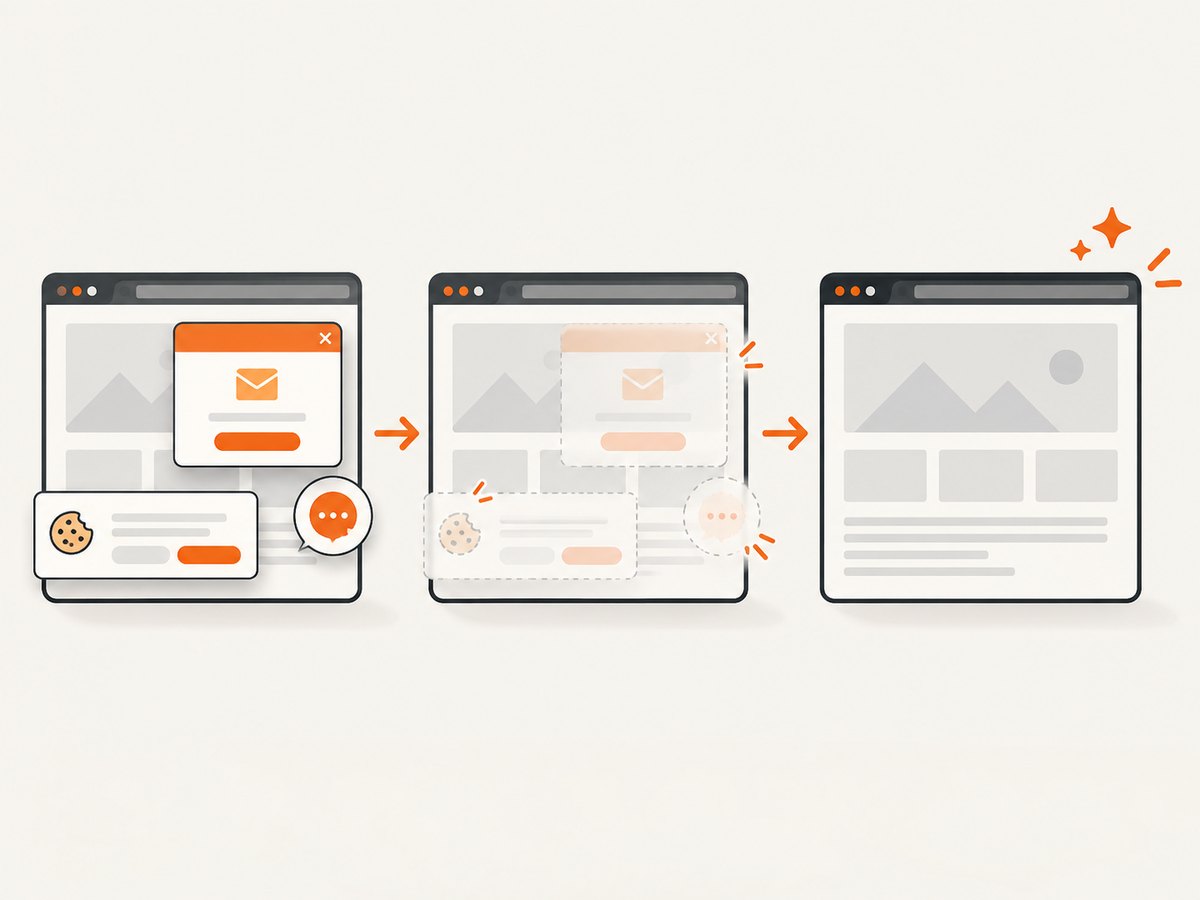
For an automated workflow, decide whether you need a browser screenshot API, a self-managed browser, or a document export tool. Account for authentication, dynamic page behavior, output format, capture frequency, and how failed or blocked pages are handled. Extensions remain a good fit when you need a quick capture from an open tab and want to edit it immediately.
6. Or skip the browser setup
ScreenshotNeo is a website screenshot API and MCP server. One GET request can return a PNG, JPEG, WebP, or PDF. Its capture flow accepts cookie/consent banners like a visitor and removes 60+ known consent platforms, newsletter popups, and chat widgets before capture; each step can be turned off. Bot checks/CAPTCHAs, blank pages, timeouts, failed loads, and cache hits cost nothing, and response headers identify the page verdict and billing status.
Here is a one-call cURL example:
curl -G "https://api.screenshotneo.com/v1/shot" -d access_key=YOUR_API_KEY --data-urlencode url=https://stripe.com -o shot.webpEquivalent Python and Node.js examples are available alongside the ScreenshotNeo API documentation.
import requests

r = requests.get(
    "https://api.screenshotneo.com/v1/shot",
    params={"access_key": "YOUR_API_KEY", "url": "https://stripe.com"},
    timeout=90,
)
open("shot.webp", "wb").write(r.content)
const q = new URLSearchParams({ access_key: 'YOUR_API_KEY', url: 'https://stripe.com' });
const res = await fetch(`https://api.screenshotneo.com/v1/shot?${q}`);
if (!res.ok) throw new Error(`Screenshot request failed: ${res.status}`);
await Bun.write('shot.webp', res);The MCP server provides take_screenshot, get_page_info, and capture_pdf tools for Claude, Cursor, and other MCP clients. There are 1,000 shots per month free without a card; paid plans start at $5 for 3,000 shots. Every feature is on every plan. See the docs for request options and response details, then sign up free for 1,000 screenshots a month with no card.
7. Troubleshooting common capture problems
| Symptom | Likely cause | What to try |
|---|---|---|
| Bottom of page is missing | Full-page capture did not scroll or stitch the full document; page content may load on demand. | Wait for the page, scroll through it once to load sections, then capture again. Check whether the extension has a full-page mode. |
| Sticky header repeats or overlaps | The page changes while the extension scrolls and assembles sections. | Try a capture mode that handles sticky elements, if available, or capture smaller regions and combine them manually. |
| Image or embedded content is blank | It may load late, require interaction, or be restricted by the site. | Wait for it, interact with the page if appropriate, and recapture. Do not assume a screenshot tool can bypass access controls. |
| Export is unavailable or asks for an upgrade | The format or editing feature may be outside the free tier. | Check the listing’s free-feature boundary; select another supported format or tool if appropriate. |
| Extension cannot capture a page | Browser restrictions, extension permissions, or a protected page can limit access. | Review the browser’s permission prompt and extension guidance. Avoid granting broader permissions than you need. |
| Text is clipped or hard to read | Very long pages can yield large images; scaling or PDF page layout may reduce readability. | Capture a selected region, use a suitable export, or split the content into sections. |
8. Performance, reliability, and cost
Visible-area capture is usually the simplest job because it covers only the current viewport. Full-page capture can take longer on long or dynamic pages because the extension may need to scroll and combine multiple sections. Large pages also produce larger files, which take more storage and can be slower to upload or share.
For reliability, let content load before capturing and inspect the final image. Pages that animate, lazy-load images, show sticky elements, or require authentication may produce inconsistent results. Repeat captures under the same browser and page state when visual comparisons matter. Keep an original copy if you edit or redact the exported image.
Free extensions can have no charge for their listed core features, while other products place some editing or workflow features behind an upgrade. The supplied listings do not establish a common price comparison beyond OpenCapture’s stated $5 per 1,000 watermark credits. For automated API use, compare the service’s published plan limits and billing rules with your expected volume; ScreenshotNeo’s stated free and paid tiers are described above. No extension capture benchmark or independent privacy audit is available in the research for this guide.
9. Frequently asked questions
Can I take a full-page screenshot without installing an extension?
Some browsers and operating systems provide their own capture methods, but their availability and steps differ. If you need a repeatable whole-page export, check the current browser documentation or use an extension that explicitly offers full-page capture.
Will a full-page extension save a page behind a login?
An extension may capture content visible in your authenticated browser session, subject to its permissions and the site’s behavior. Review the resulting file for private data and follow the site’s access rules.
Does “local processing” prove an extension is safe?
No. It is a vendor statement about processing, not an independent audit of the extension or its dependencies. Review current permissions and disclosures, and use only tools appropriate for the data you capture.
Can I use an extension to capture many URLs automatically?
Extensions are primarily convenient for browser-driven captures. For unattended or repeatable batches, look for a workflow with explicit automation support, and account for failures and page variation.