How to Generate and Save PDFs On Demand from Data Tables
Build on-demand PDF reports from live table data, choose the right Python rendering path, save or stream the result, and handle layout and reliability issues.

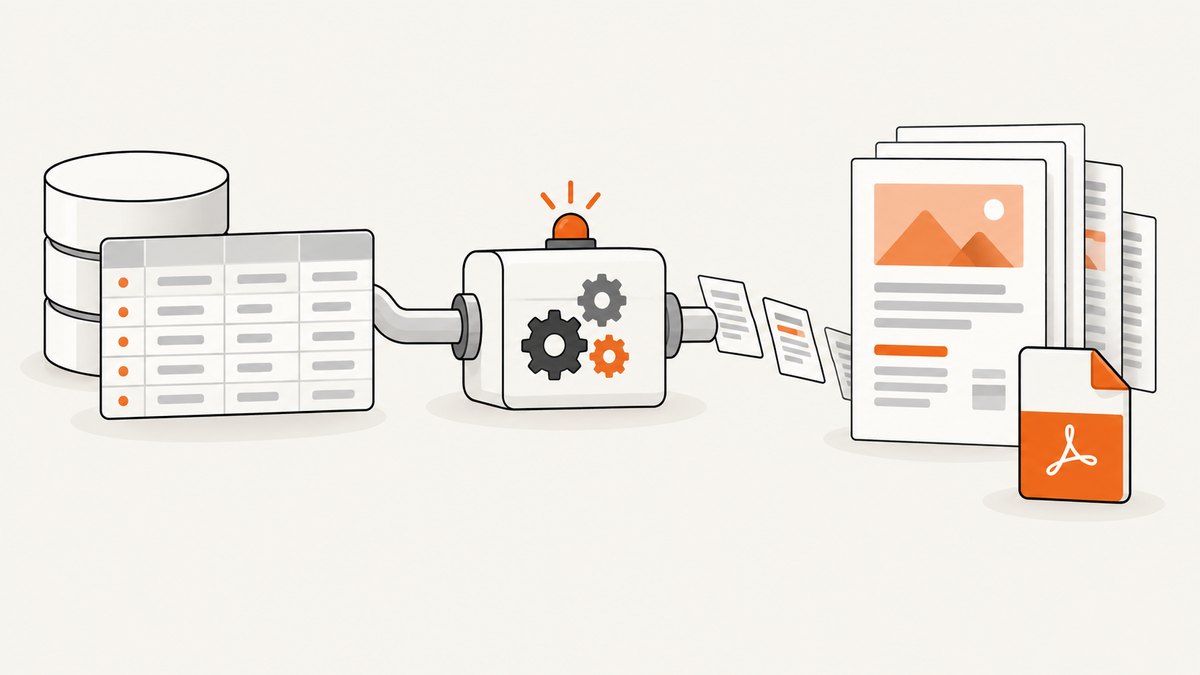
To generate and save a PDF on demand from a data table, select the rows for the request, render those rows into a report representation, create the PDF, then either write the bytes to storage or return them in the HTTP response. In Python, the main choices are an HTML/CSS template converted to PDF, or a PDF library such as ReportLab or fpdf2 that draws the document directly.
The right route depends on how you design reports. HTML/CSS is usually easier when the report already resembles a web page. Direct PDF APIs provide more explicit control over page geometry, tables, headers, and footers. The examples below show both approaches, including complete code for selecting data, generating a document, saving it, and returning it from a web endpoint.
1. Decide what the request should contain
An on-demand report should represent one well-defined data snapshot. Before rendering, establish:
- Which rows are included, such as a customer, date range, status, or account.
- The ordering of rows and columns.
- The timezone used for displayed dates.
- A meaningful filename and retention policy.
- Whether the result is saved permanently, streamed to the requester, or both.
Do this selection in the request transaction or in a job with an explicit snapshot identifier. Avoid querying the database once for a row count and again later for the report without defining consistency; the two reads can describe different data.
2. Route A: render a table as HTML, then convert it to PDF
This route is useful when your team already knows HTML and CSS. pandas can render a DataFrame as an HTML table with DataFrame.to_html(); its escape option controls escaping of <, >, and &, and escaping is enabled by default. Keep it enabled for untrusted cell values. See the pandas API reference.
xhtml2pdf is a documented Python converter built with ReportLab, html5lib, and pypdf. Its documentation describes HTML5, CSS 2.1, and some CSS 3 support. Treat that documented CSS scope as a constraint: test your actual fonts, images, long values, and page breaks in the renderer you deploy. See the xhtml2pdf documentation.
Install the dependencies
python -m pip install pandas xhtml2pdfGenerate and save a PDF file
from io import BytesIO
from pathlib import Path
from datetime import date

import pandas as pd
from xhtml2pdf import pisa


def build_sales_pdf(rows: list[dict], output_path: str) -> Path:
    df = pd.DataFrame(rows, columns=["invoice", "customer", "issued", "amount"])

    # Keep escaping enabled for values that came from users or external systems.
    table_html = df.to_html(
        index=False,
        classes="data-table",
        border=0,
        escape=True,
    )

    html = f"""
    <html>
      <head>
        <meta charset="utf-8">
        <style>
          @page {{ size: A4; margin: 18mm 14mm 18mm 14mm; }}
          body {{ font-family: Helvetica, Arial, sans-serif; font-size: 10pt; }}
          h1 {{ font-size: 18pt; margin-bottom: 4mm; }}
          .meta {{ color: #555; margin-bottom: 8mm; }}
          table.data-table {{ width: 100%; border-collapse: collapse; }}
          table.data-table th {{ background: #e9eef5; text-align: left; }}
          table.data-table th, table.data-table td {{
              border: 0.3pt solid #9aa4b2; padding: 5pt;
          }}
          table.data-table tr {{ -pdf-keep-with-next: false; }}
        </style>
      </head>
      <body>
        <h1>Sales report</h1>
        <div class="meta">Generated {date.today().isoformat()} · {len(df)} rows</div>
        {table_html}
      </body>
    </html>
    """

    destination = Path(output_path)
    destination.parent.mkdir(parents=True, exist_ok=True)
    with destination.open("wb") as pdf_file:
        result = pisa.CreatePDF(src=html, dest=pdf_file)
    if result.err:
        raise RuntimeError("PDF conversion failed")
    return destination


rows = [
    {"invoice": "INV-1001", "customer": "Ada Lovelace", "issued": "2026-09-01", "amount": "$240.00"},
    {"invoice": "INV-1002", "customer": "Grace Hopper", "issued": "2026-09-03", "amount": "$180.00"},
]
print(build_sales_pdf(rows, "reports/sales-2026-09-29.pdf"))
The converter writes directly to the destination file. For a web request, write to a temporary file or an in-memory buffer and return it with Content-Type: application/pdf and a Content-Disposition filename.
HTML-to-PDF edge cases
- Long text: constrain or wrap columns. Test unbroken identifiers and URLs because they can force wide layouts.
- Large tables: verify header repetition and page breaks with your renderer. Browser CSS behavior is not a guarantee of converter behavior.
- Fonts: install and register the fonts available in production; a local development font may not exist in a container.
- Untrusted HTML: keep pandas escaping enabled. If you deliberately allow markup, apply an explicit sanitization policy before conversion.
- Images: use stable local paths or data sources available to the converter. A browser-only URL may not load in a restricted worker.
3. Route B: construct the PDF directly with fpdf2
Use a direct PDF library when layout decisions are naturally expressed as PDF coordinates, table cells, headers, and footers. The fpdf2 manual includes CSV-to-table examples and documents output to a named path or a byte buffer.
Install and run a direct table report
python -m pip install fpdf2from pathlib import Path
from fpdf import FPDF
class Report(FPDF):
def header(self):
self.set_font("Helvetica", "B", 14)
self.cell(0, 9, "Sales report", new_x="LMARGIN", new_y="NEXT")
self.ln(2)
def footer(self):
self.set_y(-15)
self.set_font("Helvetica", "I", 8)
self.cell(0, 10, f"Page {self.page_no()}", align="C")
def build_direct_pdf(rows: list[dict], output_path: str) -> Path:
pdf = Report()
pdf.set_auto_page_break(auto=True, margin=18)
pdf.add_page()
pdf.set_font("Helvetica", size=9)
widths = [30, 62, 35, 35]
headings = ["Invoice", "Customer", "Issued", "Amount"]
for width, heading in zip(widths, headings):
pdf.set_fill_color(233, 238, 245)
pdf.cell(width, 8, heading, border=1, fill=True)
pdf.ln()
for row in rows:
values = [row["invoice"], row["customer"], row["issued"], row["amount"]]
for width, value in zip(widths, values):
pdf.cell(width, 8, str(value), border=1)
pdf.ln()
destination = Path(output_path)
destination.parent.mkdir(parents=True, exist_ok=True)
pdf.output(str(destination))
return destination
rows = [
{"invoice": "INV-1001", "customer": "Ada Lovelace", "issued": "2026-09-01", "amount": "$240.00"},
{"invoice": "INV-1002", "customer": "Grace Hopper", "issued": "2026-09-03", "amount": "$180.00"},
]
build_direct_pdf(rows, "reports/direct-sales.pdf")For variable-height cells, wrapped text, totals, and very wide tables, use the library’s table and text-flow features rather than assuming every value fits in one fixed-height cell. Measure representative reports in your environment before choosing column widths or worker limits.
4. Return bytes instead of saving locally
Saving a local file is appropriate for a batch worker or a filesystem-backed workflow. For an API response, keeping the result in memory avoids a second read. fpdf2 documents that output() can return a bytearray when no path is supplied.
from fpdf import FPDF


def pdf_bytes(rows: list[dict]) -> bytes:
    pdf = FPDF()
    pdf.add_page()
    pdf.set_font("Helvetica", size=10)
    for row in rows:
        pdf.cell(0, 8, f"{row['invoice']} | {row['customer']} | {row['amount']}", new_x="LMARGIN", new_y="NEXT")
    return bytes(pdf.output())

# Framework-specific example:
# return Response(pdf_bytes(rows), media_type="application/pdf",
#                 headers={"Content-Disposition": 'attachment; filename="report.pdf"'})
For large output, prefer a background job that writes to object storage and returns a job status or download URL. Define expiration, access control, encryption, and deletion rules in your application; the libraries do not define those policies.
5. Use ReportLab when you need lower-level control
ReportLab’s User Guide documents PDF generation, drawing operations, and file output. It is a good fit when you need explicit placement, custom page templates, charts, or a carefully controlled header and footer. Start with a small page component, then add a table flowable or drawing routine. Keep layout code separate from database selection so the same renderer can be used by a request handler and a scheduled job.

6. Add an on-demand HTTP endpoint
A production endpoint should validate filters, authorize access to the requested rows, impose a maximum date range or row count, and assign a request ID for diagnostics. A minimal FastAPI shape is:
from fastapi import FastAPI, Query
from fastapi.responses import Response

app = FastAPI()

@app.get("/reports/sales.pdf")
def sales_report(customer_id: str = Query(...), start: str = Query(...), end: str = Query(...)):
    rows = load_sales_rows(customer_id=customer_id, start=start, end=end)
    content = pdf_bytes(rows)
    filename = f"sales-{customer_id}-{start}-{end}.pdf"
    return Response(
        content=content,
        media_type="application/pdf",
        headers={"Content-Disposition": f'attachment; filename="{filename}"'},
    )
Replace load_sales_rows with your database query and apply authorization before returning rows. Do not put untrusted strings directly into a filename without validating or normalizing them.
7. Or skip the browser setup
If the source is already a web page or HTML report, ScreenshotNeo can capture it through one request and supports PDF output as well as PNG, JPEG, and WebP. The API also supports full-page capture, custom CSS and JavaScript, waiting for selectors or network idle, custom headers and cookies, and PDF paper size, margins, landscape mode, and page ranges. See the ScreenshotNeo documentation for the current PDF parameters.
curl -G "https://api.screenshotneo.com/v1/shot" -d access_key=YOUR_API_KEY --data-urlencode url=https://stripe.com -o shot.webpimport requests
r = requests.get("https://api.screenshotneo.com/v1/shot", params={"access_key": "YOUR_API_KEY", "url": "https://stripe.com"}, timeout=90)
open("shot.webp", "wb").write(r.content)const q = new URLSearchParams({ access_key: 'YOUR_API_KEY', url: 'https://stripe.com' }); const res = await fetch(`https://api.screenshotneo.com/v1/shot?${q}`);Cookie banners, newsletter popups, and chat widgets are removed before the shot. Bot checks, blank pages, failed loads, timeouts, and cache hits are not billed, and response headers identify the page verdict and billing status. Its MCP server lets AI agents call take_screenshot, get_page_info, and capture_pdf. The Free plan includes 1,000 screenshots a month with no card; paid plans start at $5 for 3,000. Create a free ScreenshotNeo account.
8. Saving, naming, and retaining generated files
- Generate a collision-resistant name, such as a report type, entity ID, date range, and request ID.
- Write to a temporary path and rename atomically when using a local filesystem.
- For object storage, upload with
application/pdfand an explicit retention deadline. - Store the query parameters or snapshot ID beside the file so it can be reproduced.
- Delete temporary files in a
finallyblock, including conversion failures.
9. Performance, reliability, and cost considerations
The reviewed documentation does not establish comparative speed, memory usage, or maximum row counts for pandas, xhtml2pdf, ReportLab, or fpdf2. Benchmark representative reports in the target environment before promising throughput. Measure database time, conversion time, peak memory, output size, and queue wait separately.
- Reuse worker processes and loaded fonts where safe, but cap concurrency according to memory measurements.
- Paginate or aggregate very large datasets instead of placing every raw row in one document.
- Cache immutable reports by a hash of the snapshot and rendering options.
- Use retries only for transient storage or queue failures; do not blindly repeat a non-deterministic data query.
- Log conversion errors, row counts, renderer version, and request ID without logging sensitive cell contents.
10. Troubleshooting checklist
| Symptom | Likely cause | Fix |
|---|---|---|
| PDF is blank | Template produced no rows, conversion failed, or the source content was unavailable. | Log the rendered HTML length and converter error; verify the query and asset paths. |
| Characters show as boxes | The selected PDF font lacks those glyphs. | Register a font with the needed character coverage and test it in the deployment image. |
| Columns run off the page | Fixed widths exceed the page’s printable width or an unbroken value cannot wrap. | Use landscape mode or smaller columns, wrap values, and test long identifiers. |
| Rows overlap or split badly | The renderer’s CSS support differs from a browser, or fixed-height cells are too small. | Use flow-based layout, remove fixed heights, and test page breaks in the actual converter. |
| HTML injection appears in output | Cell values were inserted as markup. | Keep pandas escaping enabled and sanitize any deliberately allowed markup. |
| File cannot be opened | Incomplete write, wrong response type, or a failed conversion treated as success. | Check the converter result, write atomically, and send application/pdf. |
| Request times out | Too much data, slow assets, or synchronous rendering on a web worker. | Limit scope, move generation to a job, and return a status endpoint for long reports. |
11. FAQ
Should I use HTML/CSS or a PDF library?
Use HTML/CSS when the report is template-led and your team values familiar markup. Use a direct library when exact PDF placement and drawing control matter more than browser-like styling.
Can I return a PDF without saving it?
Yes. Generate into memory and return the bytes with the PDF media type. For large documents, a background job and object storage usually gives the web request a safer lifetime.
How do I keep a report reproducible?
Record the input snapshot or query parameters, renderer version, template version, timezone, and formatting options with the output.
Does pandas create the PDF itself?
No. pandas creates an HTML representation of the table. A separate HTML-to-PDF converter must turn that representation into a PDF.
Where should I start if the report is a web page?
Use ScreenshotNeo when you want a hosted capture workflow with PDF support, consent and popup removal, and billing that excludes failed or unusable captures.