How to Give Cline Eyes: Web Screenshots with MCP
Connect Cline to Playwright MCP or Browser MCP, then capture viewport, element, and full-page screenshots with practical setup and fixes.

Cline can inspect a web page visually when you connect it to a browser MCP server. The general route is Playwright MCP, which provides browser automation tools and lists Cline as a compatible MCP client. If you need Cline to work with a tab that is already open in your own Chrome session, Browser MCP documents a separate extension-and-server route.
The shortest workflow is:
- Choose Playwright MCP for a Playwright-managed browser, or Browser MCP for an existing Chrome tab.
- Add the server to Cline’s MCP configuration using the vendor’s current instructions.
- Ask Cline to take a screenshot of the current page, a selector, or the full scrollable page.
- Have Cline save the result to a named PNG, JPEG, or WebP file when you need an artifact.
Once connected, prompts such as “Take a screenshot of the current page and save it as homepage.png” or “Capture the full page, including content below the fold” give Cline a visual representation it can inspect.
What “giving Cline eyes” means
Cline normally reasons from text, files, and tool results. An MCP browser server adds tools that can open pages, interact with controls, inspect accessibility structure, and return screenshots. A screenshot is useful for visual questions: spacing, alignment, responsive layout, chart rendering, overlays, and visual regressions.
Use an accessibility snapshot when Cline must understand or operate the page structure. Snapshots expose semantic roles and element references that are better for clicking, filling, and navigation. Screenshots let the model look at pixels; snapshots let it identify the controls behind those pixels. A reliable debugging loop often uses both.
Choose the right MCP browser route
| Route | Best for | Browser/session | Screenshot scope |
|---|---|---|---|
| Playwright MCP | General browser automation and repeatable tasks | Browser managed by Playwright MCP | Viewport, element, or full scrollable page |
| Browser MCP | Capturing a page you already have open | Your existing Chrome session through its extension | Current Chrome tab, according to its Cline guide |
Pick Playwright when you want an isolated, automation-friendly browser. Pick Browser MCP when login state, extensions, or the exact tab already open in Chrome matters. The available documentation does not establish that one is universally better.

Set up Playwright MCP in Cline
Playwright’s MCP documentation explains the server and points clients to their own configuration instructions. The Microsoft repository also includes Cline configuration guidance; use those sources for the current package command and configuration location because MCP packages can change.
1. Install the server using the current Playwright instructions
Follow the installation command in the official Playwright MCP documentation. Do not copy an old command from a blog post: the package name, transport flags, or browser-install requirements may change.
2. Add the server to Cline
Open Cline’s MCP server configuration and add a server entry using the command and arguments documented by Playwright. A typical configuration shape is JSON like this; substitute the exact command from the current vendor documentation:
{
  "mcpServers": {
    "playwright": {
      "command": "npx",
      "args": ["@playwright/mcp@latest"]
    }
  }
}
The exact location of this file is client-specific. If Cline offers an MCP settings screen, use it; otherwise consult Cline’s current MCP instructions and the Playwright MCP repository. Restart or reload Cline after saving the entry.
3. Confirm the connection
Ask Cline to list its available browser tools or open a harmless page. You should see tools including screenshot capture. If no tools appear, inspect Cline’s MCP logs before changing the browser configuration.
Take a screenshot with Cline and Playwright MCP
Playwright MCP exposes a screenshot operation commonly named browser_take_screenshot. It supports the current viewport, a selected element, and the full scrollable page.
Current viewport
Take a screenshot of the current viewport and show me what is visible.This captures only the visible browser area. It is the right choice for checking above-the-fold layout, a modal, or a responsive breakpoint.
Full page
Capture the full scrollable page as a PNG and save it as artifacts/homepage-full.png.A full-page capture includes content below the fold. Long pages can be tall and memory-intensive, so use a viewport capture when you only need the visible state.
One element
Find the pricing table and capture only that element as pricing-table.webp.Cline can use page structure to identify an element. For repeatable automation, provide a stable CSS selector:
Capture the element matching .pricing-table and save it as pricing.webp.Choose a file and format
Give the operation a filename when you need a saved artifact. The documented formats are PNG, JPEG, and WebP. If the format is omitted, it can be inferred from the filename; otherwise PNG is used. Without a filename, the image is returned inline in the tool response.
Take a screenshot of the current viewport and save it as screenshots/checkout.jpg.Create the destination directory first if your environment does not create missing directories automatically:
mkdir -p screenshotsSet up Browser MCP for an existing Chrome tab
Browser MCP documents a Cline-specific route for capturing the tab you already have open. The workflow uses its browser extension plus the Browser MCP server.
- Install the Browser MCP extension from the vendor’s current instructions.
- Install or start the Browser MCP server as documented by the vendor.
- Add the Browser MCP server entry to Cline’s MCP configuration.
- Open the target page in Chrome and make sure the extension can access the tab.
- Ask Cline to “Take a screenshot of the current Chrome tab.”
This route is useful when the page depends on an existing login, local storage, or a browser extension. Treat the open tab as stateful: the result can change if the tab navigates, a user clicks, or a session expires.
Prompts that produce useful screenshots
Specific prompts reduce ambiguity. Include the page, scope, state, filename, and what you want Cline to inspect.
- Visual bug: “Open the dashboard, wait for the chart to render, capture the viewport, and tell me whether the legend overlaps the plot.”
- Responsive check: “Set a mobile viewport, capture the full page, and identify horizontal overflow.”
- Element review: “Capture the element matching
[data-testid='invoice-preview']and check whether the buttons are clipped.” - Regression artifact: “Capture the full page as
artifacts/pricing-2026-09-29.png; do not click anything.” - Before and after: “Capture the page before opening the menu, open the menu, capture again, and compare the two images.”
If Cline cannot identify the target, ask for an accessibility snapshot first, then refer to the role, accessible name, or stable selector it reports.
Browser state, timing, and page readiness
A screenshot is only as reliable as the page state at capture time. Ask Cline to wait for a specific condition when the page loads asynchronously:
Wait until the selector .report-chart is visible, then capture the full page.For animations, request a short delay after the relevant state change. For pages that lazy-load images while scrolling, a full-page operation is preferable because the browser can visit the scrollable content before capture. If a consent dialog, chat bubble, or transient toast covers the page, dismiss it explicitly before taking the screenshot.
For authenticated pages, keep credentials in the browser session or use the documented login flow. Never paste passwords into a prompt that will be stored in chat history. For reproducible captures, start from a known URL and state instead of relying on whatever tab happens to be active.
Or skip the browser setup
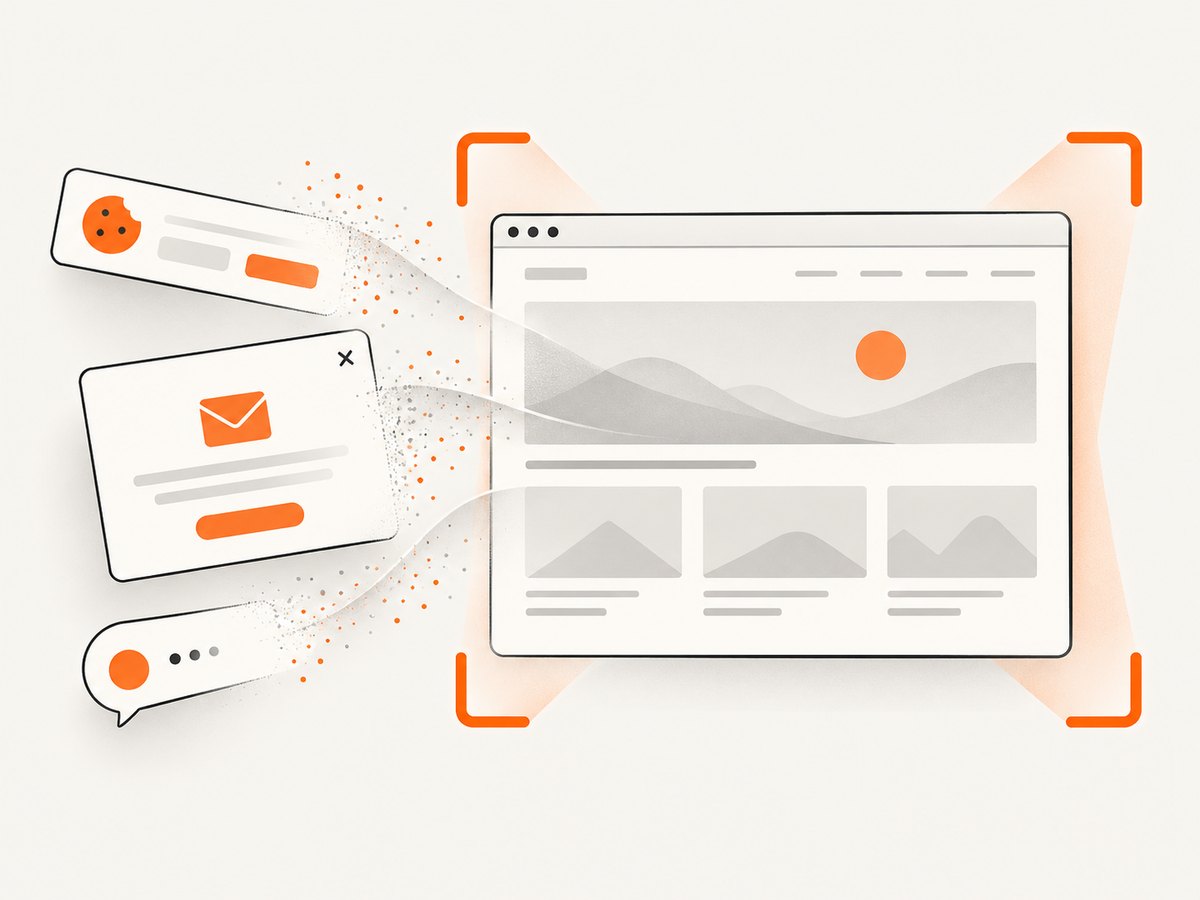
ScreenshotNeo gives an application or an MCP client a screenshot API call without installing a local browser server. Its MCP server exposes take_screenshot, get_page_info, and capture_pdf for Claude, Cursor, Cline, and other MCP clients. The API accepts PNG, JPEG, WebP, or PDF output and supports full-page capture, CSS-selector elements, dark mode, device presets, custom viewports, retina scale, custom CSS and JavaScript, clicks, waits, request blocking, headers, cookies, user agents, authorization, timezone, geolocation, transparent backgrounds, resizing, caching, signed links, asynchronous jobs, bulk capture, usage data, and an OpenAPI specification.
Here is a direct request. See the ScreenshotNeo documentation for all parameters.
curl -G "https://api.screenshotneo.com/v1/shot" -d access_key=YOUR_API_KEY --data-urlencode url=https://stripe.com -o shot.webpimport requests
r = requests.get("https://api.screenshotneo.com/v1/shot", params={"access_key": "YOUR_API_KEY", "url": "https://stripe.com"}, timeout=90)
open("shot.webp", "wb").write(r.content)const q = new URLSearchParams({ access_key: 'YOUR_API_KEY', url: 'https://stripe.com' });
const res = await fetch(`https://api.screenshotneo.com/v1/shot?${q}`);ScreenshotNeo accepts cookie and consent banners before capture and removes more than 60 known consent platforms, newsletter popups, and chat widgets. Bot checks, CAPTCHAs, blank pages, timeouts, failed loads, and cache hits are not billed; response headers identify the page verdict and whether the shot was billed. You get 1,000 screenshots per month free with no card, and paid plans start at $5 for 3,000 shots. Create a free ScreenshotNeo account.
Troubleshooting Cline screenshot capture
| Symptom | Likely cause | Fix |
|---|---|---|
| No MCP tools in Cline | Invalid configuration, server process exited, or Cline was not reloaded | Validate JSON, run the documented server command directly, inspect MCP logs, then restart Cline. |
| Browser fails to start | Playwright browser binaries are missing or blocked by the environment | Follow Playwright’s current browser-install instructions and check permissions and sandbox restrictions. |
| Browser MCP sees the wrong tab | The extension is attached to another tab or window | Activate the target tab, reattach the extension, and repeat the request. |
| Screenshot is blank | Page did not finish loading, content is behind a login, or a bot check appeared | Wait for a visible selector, verify authentication, and inspect the page with an accessibility snapshot. |
| Element capture fails | Selector is unstable, hidden, or inside an iframe | Use a stable selector, ask for a snapshot, scroll the element into view, or capture the containing region. |
| Full-page image is cut off | Infinite scroll, fixed-height container, or lazy content | Scroll through the page first, wait for the content selector, or capture sections separately. |
| File was not saved | Missing directory or filename omitted | Create the directory and provide an absolute or workspace-relative filename. |
| Screenshot differs between runs | Animations, time-dependent data, ads, or changing session state | Disable motion where possible, wait for a stable selector, use a consistent session, and capture at a fixed viewport. |
Performance, reliability, and cost considerations
Viewport screenshots are faster and smaller than full-page captures. Element screenshots reduce transfer size when you only need a component. Full-page captures require more scrolling, image decoding, and memory, especially on pages with many lazy-loaded assets.
For local MCP workflows, browser startup is a recurring cost. Keep a Playwright session open for related tasks, but reset state when reproducibility matters. Existing-tab capture through Browser MCP avoids a second browser session but inherits the tab’s changing state.
For production pipelines, an API can remove browser lifecycle management. ScreenshotNeo supports a cache TTL you choose, asynchronous jobs with signed webhooks, bulk capture of up to 100 URLs per call, and usage reporting. Use caching for pages that do not change often; use asynchronous jobs for long or large batches. Check X-Page-Verdict and X-Billed so your application can distinguish a clean billed screenshot from a failed or cache response.
FAQ
Can Cline screenshot the page I am currently viewing?
Yes. Browser MCP’s documented Cline route is designed for the current Chrome tab. Playwright MCP can capture the page in its Playwright-managed browser.
Can I capture only one HTML element?
Yes. Playwright MCP supports an element scope; give Cline a stable selector or ask it to identify the element from an accessibility snapshot.
Which format should I choose?
Use PNG for lossless UI details, JPEG for smaller photographic images, and WebP when your downstream tools support it. Playwright MCP documents all three.
Why use an accessibility snapshot as well as a screenshot?
The screenshot shows appearance. The accessibility snapshot gives Cline semantic structure and references for interaction, which makes it easier to target the correct control.
Can I automate screenshots outside Cline?
Yes. Use Playwright directly, Browser MCP from its supported client, or ScreenshotNeo’s HTTP API and MCP server. The API is useful when you need repeatable server-side capture without maintaining a browser process.


