Handling Cloudflare Challenges in Website Screenshots
Why screenshots show Cloudflare challenges, what you can safely troubleshoot, and how to test protected pages without treating automation as a challenge solver.

Short answer: a screenshot that shows a Cloudflare challenge is usually an accurate capture of the page the browser received. Cloudflare intercepted the request before the destination page, evaluated browser and network signals, and required verification. Screenshot code cannot make that interstitial disappear, and browser automation frameworks are not supported as solvers for production challenges.
Treat the image as a record of the challenge state, not proof that the intended page loaded. For a site you own or are authorized to test, use a staging rule, a test configuration, or Cloudflare’s documented Turnstile test keys. For a real visitor access problem, use a supported browser, enable JavaScript and storage, remove interfering extensions, test another browser or network, then send the site owner the error code and Ray ID if the loop continues.
What a Cloudflare challenge means in a screenshot
Cloudflare can place an interstitial Challenge Page in front of a URL because of WAF rules, Bot Management, Bot Fight Mode, rate limiting, DDoS protections, Turnstile settings, IP reputation, or other site-specific rules. The challenge is a gate: the browser must be evaluated, and sometimes the visitor must check a box or press a button, before the original page is returned.
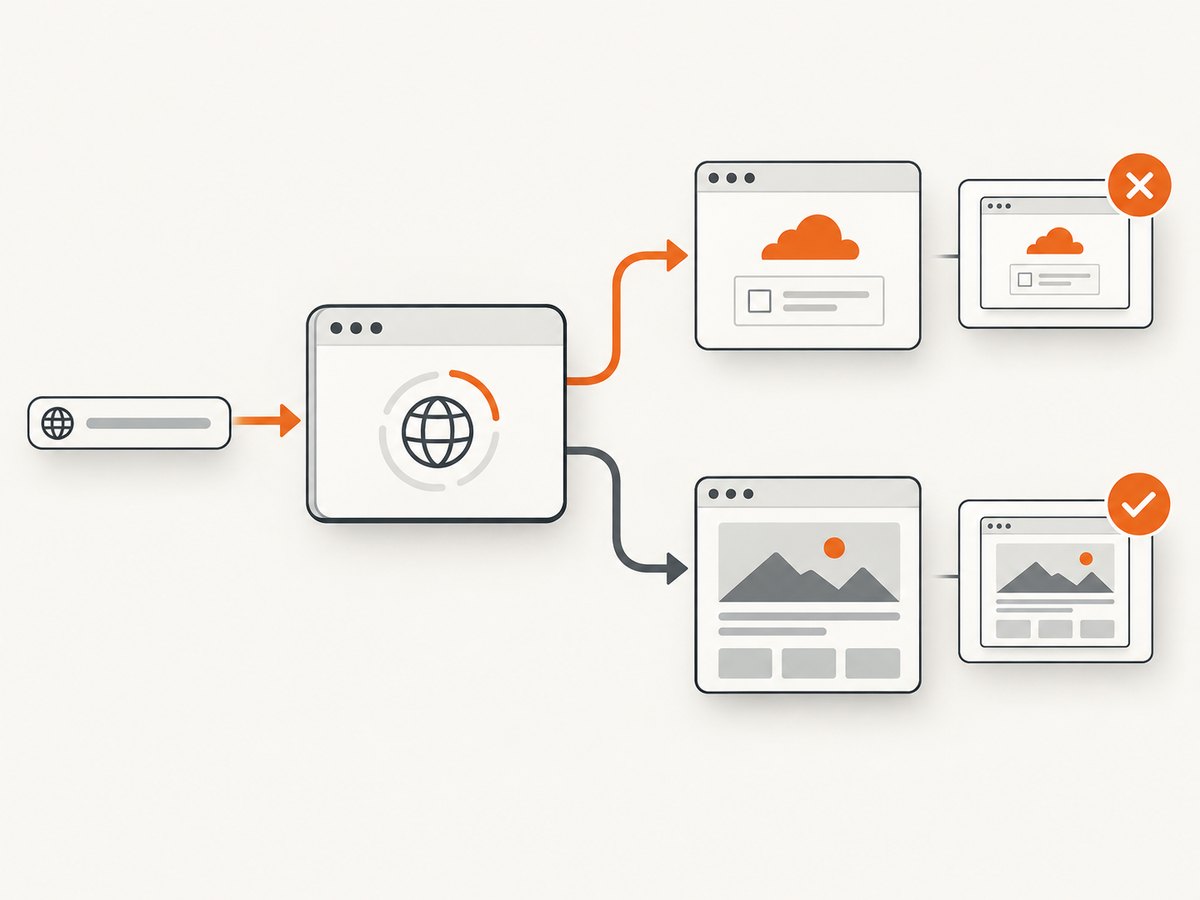
Cloudflare describes non-interactive challenges as JavaScript-based checks that commonly finish in less than five seconds. Managed Challenges select a challenge based on the request and browser characteristics; many people are verified automatically, while others must interact. If verification fails, another interstitial can appear.
A screenshot API captures the browser-rendered state it reached. If the browser is still on the interstitial, the resulting PNG, JPEG, WebP, or PDF is a screenshot of that interstitial. It is not a screenshot of the protected site’s destination. This distinction matters in visual regression systems, monitoring dashboards, documentation pipelines, and bug reports.
Cloudflare’s challenge overview and Interstitial Challenge Pages documentation explain the interception flow. Cloudflare also states that “Browser automation frameworks, such as Selenium, Puppeteer, Playwright, and Cypress, are not supported for solving production challenges” in its supported browsers guidance.
Can Playwright or another screenshot tool bypass it?
No supported, general-purpose method turns Playwright, Selenium, Puppeteer, Cypress, or a command-line HTTP client into a production Cloudflare challenge solver. These tools can render and capture a page after access has been granted, but Cloudflare does not support them for defeating a live challenge.
Use automation for authorized tests around your own application:
- Run visual tests against a staging hostname where the challenge rule is disabled or deliberately configured for testing.
- Test your Turnstile integration with Cloudflare’s documented test keys instead of trying to pass a production widget.
- Capture the challenge state deliberately when your test is checking that a security rule is triggered.
- Keep challenge-solving and screenshot assertions separate. One test verifies access policy; another verifies page appearance after authenticated or approved access.
DIY capture for an authorized test page
The following Playwright example captures whatever the browser reaches and records whether the page appears to be a challenge. It does not bypass Cloudflare. Use a URL and environment you are authorized to test.
import { chromium } from 'playwright';

const browser = await chromium.launch();
const page = await browser.newPage({
  viewport: { width: 1440, height: 900 },
});

await page.goto('https://staging.example.com/page', {
  waitUntil: 'domcontentloaded',
  timeout: 30_000,
});

// Give a permitted staging flow time to finish its own redirects.
await page.waitForTimeout(5_000);

const title = await page.title();
const bodyText = await page.locator('body').innerText().catch(() => '');
const challengeDetected = /cloudflare|just a moment|verify you are human|challenge/i.test(
  `${title}\n${bodyText}`
);

await page.screenshot({
  path: 'capture.png',
  fullPage: true,
});

console.log({
  finalUrl: page.url(),
  title,
  challengeDetected,
});

await browser.close();
Install Playwright with npm install playwright and run the script in an environment where browser binaries are available. The Playwright screenshot documentation covers viewport, full-page, and element captures.
Make the capture result explicit
Do not infer success from an HTTP 200 status alone. A challenge page is valid HTML and can return a successful status. Store the final URL, document title, a short body-text sample, response timing, and a verdict such as destination, challenge, timeout, or error. This prevents a monitoring job from publishing a challenge screenshot as if it were the real page.
Also avoid brittle selectors tied to Cloudflare markup. Challenge templates and wording can change. For your own site, prefer an application-owned marker such as data-page-ready="true" that appears only after the destination page has loaded.
Legitimate visitor troubleshooting checklist
Change one variable at a time so you can tell which action affected the result.
- Update the browser. Use a current, supported desktop or mobile browser. Internet Explorer is unsupported, and old, embedded, heavily modified, or in-app browsers can have limited support.
- Enable JavaScript and storage. Turnstile and challenge scripts require JavaScript. Missing cookies or DOM storage can prevent verification, especially in embedded WebViews.
- Temporarily disable blocking extensions. Ad blockers, script blockers, fingerprinting protection, and aggressive privacy filters can block challenge resources. Restore them after the test.
- Try a private window or clean profile. This removes cached state and most extensions from the test. A second supported browser or device provides another useful comparison.
- Check the network. If appropriate, test without a VPN or proxy, or use another trusted network. Shared VPN addresses and corporate proxies can have a reputation that triggers challenges; changing networks is not guaranteed to fix a site rule.
- Collect evidence for the owner. Open developer tools, enable Preserve log, reproduce the problem, export a HAR, save the console log, and record the exact error code and Ray ID shown on the challenge page.
Cloudflare notes that a 401 for a Private Access Token request is not, by itself, proof that the challenge failed. The browser can fall back to a standard challenge, so diagnose the complete flow rather than one network response. The challenge solve issues guide lists the escalation details Cloudflare wants site administrators to receive.
Diagnosing a challenge loop as a site owner
Identify the response type
First determine whether the browser received an interstitial Challenge Page, an embedded Turnstile widget, or a different security response. An interstitial returns a complete HTML document and stops the visitor before the destination. It is not suitable for an AJAX or XHR request that expects JSON or another non-HTML response.
Review security configuration
Check Cloudflare security events and the rule that matched the request. Challenge behavior can be associated with WAF actions, Bot Management, Bot Fight Mode, rate limiting, DDoS protection, and Turnstile configuration. Compare a failing request with a known-good browser request, including hostname, path, headers, cookies, IP/network, and authentication state.
Use a test environment for automation
For CI, point the browser at staging and use a controlled rule or Cloudflare’s Turnstile test keys. Do not build a pipeline around rotating fingerprints, replaying production tokens, or attempting to defeat a live challenge. Those approaches are unsupported and make test results difficult to interpret.
Or skip the browser setup
ScreenshotNeo provides a website screenshot API and MCP server. One GET request returns a PNG, JPEG, WebP, or PDF, while the service reports whether the result was a clean page, a bot check, a blank page, a timeout, a failed load, or a cache hit. Only clean shots are billed.
For an authorized URL that is reachable by the capture service, use the same request from any shell:
curl -G "https://api.screenshotneo.com/v1/shot" -d access_key=YOUR_API_KEY --data-urlencode url=https://stripe.com -o shot.webpPython:
import requests

r = requests.get(
    "https://api.screenshotneo.com/v1/shot",
    params={"access_key": "YOUR_API_KEY", "url": "https://stripe.com"},
    timeout=90,
)
open("shot.webp", "wb").write(r.content)
Node.js:
const q = new URLSearchParams({ access_key: 'YOUR_API_KEY', url: 'https://stripe.com' });
const res = await fetch(`https://api.screenshotneo.com/v1/shot?${q}`);
See the ScreenshotNeo API documentation for request options and response details. Cookie banners, newsletter popups, and chat widgets are removed before the shot. Bot checks, blank pages, and failed loads are never billed. An MCP server lets Claude, Cursor, and other MCP clients call take_screenshot, get_page_info, and capture_pdf. The free plan includes 1,000 screenshots per month with no card; paid plans start at $5 for 3,000 shots. These features do not make an unauthorized Cloudflare production challenge disappear; they give you a managed capture path and a clear verdict when the requested page is not available.
Create a free ScreenshotNeo account with 1,000 screenshots per month and no card.
Capture options that matter for protected pages
| Need | Useful setting | Why it matters |
|---|---|---|
| Long documentation page | Full-page capture | Loads lazy images and captures the rendered document beyond the initial viewport. |
| Stable component test | CSS selector element capture | Limits the image to the application-owned region you actually verify. |
| Authenticated page | Custom headers, cookies, user agent, Authorization | Reproduces an authorized session without putting credentials in page content. |
| Dynamic application | Wait for selector, delay, or network idle | Reduces captures taken during loading or redirect transitions. |
| Region-specific rendering | Timezone and geolocation | Matches date, currency, language, or location-dependent output. |
| Noise reduction | Hide selectors, block ads/trackers/requests/resource types | Removes unrelated elements and improves repeatability. |
| Social or docs asset | Image resizing, transparent background, retina scale | Produces the dimensions and density your downstream system needs. |
| Repeat requests | Cache with a chosen TTL | Reduces duplicate work; cache hits are identified in the response. |
ScreenshotNeo also supports dark mode, 12 device presets plus custom viewports, custom CSS and JavaScript, clicking an element before capture, HTML/CSS to image, PDF paper sizes and margins, landscape mode and page ranges, signed links for public image tags, asynchronous jobs with signed webhooks, bulk capture of up to 100 URLs per call, a usage API, and an OpenAPI specification. Common parameter names used by other screenshot APIs also work, which can simplify migration.

Reliability, performance, and cost considerations
Reliability
Record a verdict with every capture. A binary “request succeeded” flag hides the difference between a destination page, a Cloudflare interstitial, an empty document, a timeout, and a cache hit. For production pipelines, retry only transient failures, keep the original response headers, and alert when the verdict changes from destination to challenge.
Performance
Full-page screenshots and pages with many lazy-loaded images take longer than a viewport capture. Waiting for network idle can also delay pages that maintain analytics or WebSocket connections. Prefer an application-owned ready selector when you control the page, and set a bounded timeout. Block unnecessary resource types for tests that do not need them, but keep fonts, CSS, and images when visual fidelity is the purpose.
Cost
ScreenshotNeo bills only clean shots. Bot checks, blank pages, timeouts, failed loads, and cache hits cost nothing, and each response includes X-Page-Verdict and X-Billed headers. Plans are Free (1,000 per month), Starter ($5 for 3,000), Growth ($15 for 15,000), Pro ($39 for 60,000), Scale ($99 for 250,000), and Business ($249 for 1,000,000); yearly billing gives two months free. Every feature is included on every plan.
Common errors and fixes
| Symptom | Likely cause | Fix |
|---|---|---|
| Screenshot says “Just a moment” | Interstitial Challenge Page | Classify it as a challenge; use a supported browser for visitor troubleshooting or a staging/test configuration for automation. |
| Challenge repeats forever | Blocked JavaScript/storage, extension interference, network reputation, or a site rule | Enable JavaScript and cookies, test a clean profile, remove blockers temporarily, compare another trusted network, then send HAR, console log, error code, and Ray ID. |
| HTTP 200 but wrong image | Challenge HTML returned successfully | Inspect title/body text and final URL; classify the rendered state instead of trusting status code. |
| Automation times out | Waiting for a selector that never appears, a challenge loop, or a page with long-lived connections | Use a bounded wait, detect the challenge early, and choose a page-ready selector or a fixed delay appropriate to your own app. |
| 401 on Private Access Token | Normal fallback behavior | Do not diagnose from that response alone; inspect the final browser state and challenge result. |
| API capture is blank | Page failed to load, content is blocked, or capture occurred before rendering | Check the page verdict and response headers, then adjust wait conditions, headers, cookies, or resource blocking for an authorized page. |
FAQ
Is a Cloudflare challenge screenshot useful?
Yes. It documents what a visitor or capture service received at that time. Label it as a challenge-state capture so nobody mistakes it for the destination page.
Can I solve a production challenge with a headless browser?
Cloudflare does not support browser automation frameworks or command-line clients as production challenge solvers. Use an ordinary supported browser for legitimate access, or test your own integration with staging and Turnstile test keys.
Should I keep retrying the screenshot request?
Retries do not change the rule that caused the challenge and can increase load. Detect and classify the challenge, then investigate browser, network, and Cloudflare configuration factors.
What should I send the website owner?
Provide the URL, timestamp, browser and device, network context, visible error code, Ray ID, a HAR file, and the browser console log captured with Preserve log enabled.
Does ScreenshotNeo bypass Cloudflare?
No. It captures the page available to its browser and reports the result. Its value is managed rendering, consent and popup cleanup, explicit verdict and billing headers, and API or MCP access for authorized workflows.