Why Headless Browsers Are Easy Locally and Hard in Production
Headless browsers rely on binaries, libraries, permissions, memory and lifecycle settings that differ between laptops and production. Here’s how to make those environments reproducible.
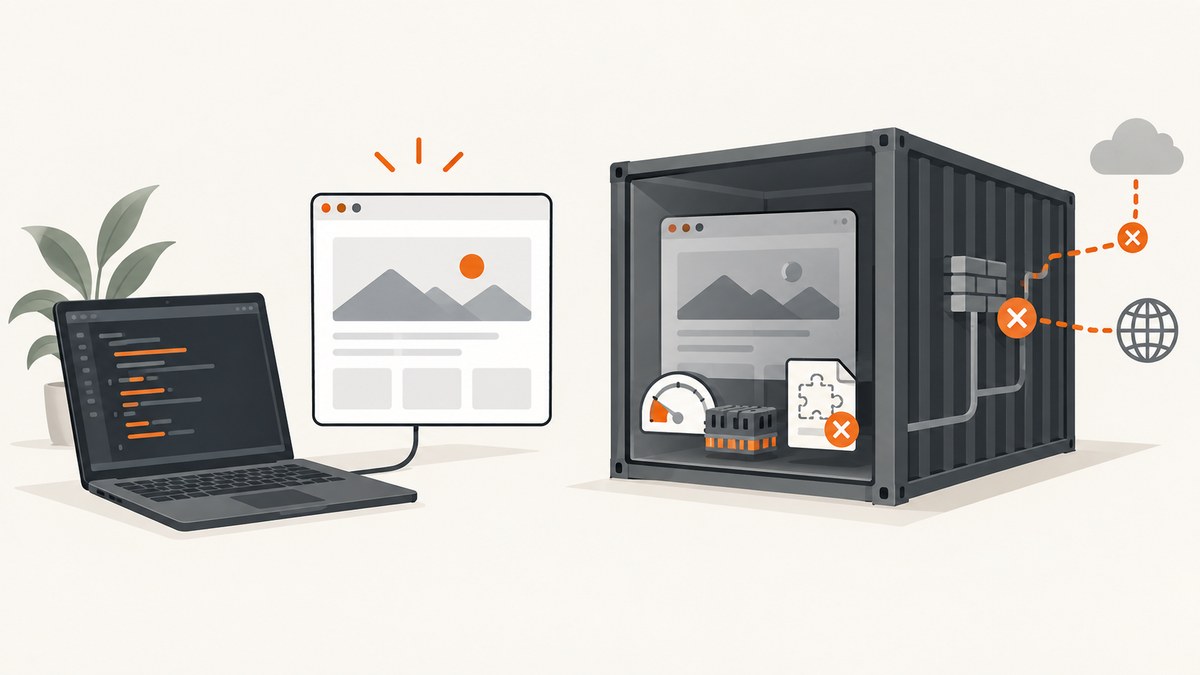
A headless browser that works on a laptop can fail in CI, Docker, or serverless production because the laptop supplies a compatible browser binary, native libraries, fonts, process privileges, writable caches, and comparatively generous CPU and memory. A production runtime may change or constrain every one of those conditions. The reliable fix is to make the runtime reproducible: pin the browser and framework together, package required dependencies, configure process and shared-memory behavior, and debug the actual production image.
This guide covers Playwright examples and container practices, with notes for Puppeteer and Selenium. The same principles apply whether a browser captures screenshots, runs end-to-end tests, renders PDFs, or automates a workflow.
1. Why local success does not prove production readiness
“Headless” only describes running without a visible browser window. It does not remove the browser’s dependencies. Chromium still needs an executable, shared libraries, fonts, permissions, memory, and a functioning process lifecycle. Headed Linux execution additionally needs a display server such as Xvfb.
| Dependency | What a workstation often provides | What can differ in production |
|---|---|---|
| Browser executable | Installed automatically or cached by a prior setup | Omitted by package-manager policy, absent from the image, or mismatched with the framework |
| Native libraries and fonts | Available from the desktop OS | Missing from a minimal container or serverless runtime |
| Sandbox and user | Normal desktop privileges | Root execution, restrictive security profiles, or incompatible sandbox permissions |
| Memory and processes | Roomy shared memory and an OS process manager | Small /dev/shm, tight memory limits, or unreaped child processes |
| Network and lifecycle | Host services reachable as expected; CPU remains available | Container networking differs; serverless CPU may be suspended after a response |
These differences create failures that resemble flaky tests: a browser crashes only under parallel load, a page appears blank because a dependency failed to load, or a launch hangs because the runtime lacks a library. Diagnose the environment before treating every failure as an application timing problem.
2. Pin the framework, browser and image as one unit
Playwright browser binaries are tied to framework releases. A project and Docker image using different Playwright versions can leave the executable at a path the framework does not expect. Puppeteer also has installation paths where package-manager policy skips browser downloads, so a successful package install does not by itself prove a browser is present.
- Pin the automation package version in the lockfile.
- Use a browser image or installation step matching that exact version.
- Record the exact image tag or digest used by CI.
- Upgrade the framework and browser image together, then exercise representative flows before deployment.
Avoid floating image tags for a reproducible pipeline. If you intentionally update the browser independently, verify that the automation library supports it and that the executable path and launch behavior are compatible.
3. Build a container that can actually run the browser
Start with an image and install procedure documented for your chosen framework. Ensure the final runtime stage includes the browser binaries and native dependencies; a multi-stage build can accidentally leave them behind in a builder stage. Include fonts needed by the pages you render, since missing fonts can change line wrapping and screenshot output even when launch succeeds.
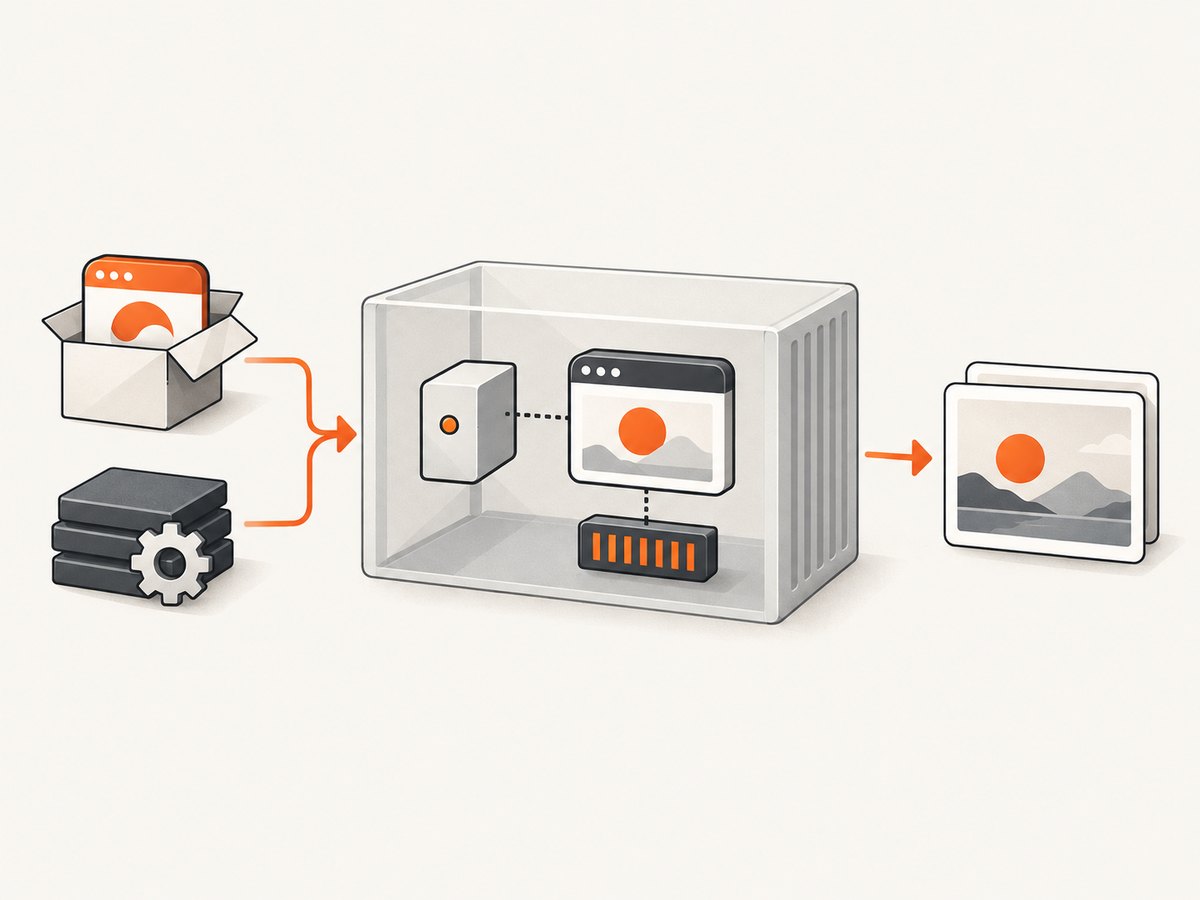
For Playwright Docker runs, its documentation recommends an init process and a larger shared-memory area. Chromium can run out of memory and crash when the container’s shared memory is too small. Use Docker’s --ipc=host where appropriate, or allocate a deliberate --shm-size such as 1g and validate it against workload and deployment constraints.
docker run --rm --init --shm-size=1g \
  -v "$PWD:/work" -w /work \
  your-playwright-image:matching-version \
  npx playwright test
The example assumes the image already contains the matching Playwright package, browser and dependencies. Shared memory needs depend on page complexity and concurrency; monitor failures and resource use rather than assuming one size fits all. On Kubernetes or another orchestrator, configure an equivalent shared-memory volume and init behavior in the pod specification.
Use the sandbox deliberately
Running Chromium as root disables its sandbox in Playwright’s documented container setup. Prefer a non-root user and a compatible security profile so browser isolation remains enabled. Some container setups use --no-sandbox as a workaround, but it weakens an important boundary and should not be the default production fix. If a deployment requires a security exception, review it for that environment rather than copying it blindly.
Handle PID 1 and browser children
A container’s PID 1 has special process-reaping responsibilities. Playwright recommends --init because without an init process, exited browser children can remain as zombies. This issue may appear after repeated launches or crashes rather than in a short local run. Close browser contexts and browsers in cleanup paths, and use an init entrypoint in long-lived workers.
4. Make a minimal Playwright capture reproducible
This Node.js example starts Chromium, navigates to a page, waits for a meaningful page condition, saves a screenshot, and closes resources even if navigation fails. It is runnable in a project where Playwright and its matching browser are installed.
const { chromium } = require('playwright');

(async () => {
  const browser = await chromium.launch({ headless: true });
  try {
    const page = await browser.newPage({ viewport: { width: 1280, height: 800 } });
    page.setDefaultTimeout(15_000);
    await page.goto('https://example.com', { waitUntil: 'domcontentloaded' });
    await page.screenshot({ path: 'page.png', fullPage: true });
  } finally {
    await browser.close();
  }
})().catch((error) => {
  console.error(error);
  process.exitCode = 1;
});
For a test suite, keep browser launch and context setup in the runner’s lifecycle hooks rather than launching a fresh browser per assertion. Use separate contexts when tests need isolated cookies or local storage. Select readiness conditions based on the page: networkidle can be unsuitable for pages with persistent polling or analytics connections, while domcontentloaded may precede client-rendered content. Prefer waiting for a specific selector that represents the result you need.
5. Configure headed runs, networking and serverless lifecycle
Headed Linux mode
Headed and headless runs are different operational modes. Playwright’s CI guidance says headed Linux execution requires Xvfb. Install and start a display server in the CI job when a visible browser is necessary; do not assume a headless setup has the display dependencies. Headless execution still needs the browser binary and system libraries.
Container networking
localhost inside a container refers to that container. If the page under test is served on the host, use a host name or network route reachable from the container, and configure the container network explicitly. In multi-container setups, use the service name on the shared network. Verify DNS and ports from the browser container, not only from the developer’s shell.
Serverless CPU allocation
Serverless lifecycle policies can change how long browser work takes. Puppeteer’s troubleshooting documentation notes that Cloud Run can disable CPU after an HTTP response, making background browser launches appear to take minutes. Complete browser work before returning the response, or configure the platform’s CPU allocation policy for post-response work. A background task that outlives the request is only reliable when the platform continues scheduling it.
6. Control concurrency and isolate the right state
More workers can reduce elapsed time until CPU, memory, shared memory, file descriptors, or an external service becomes the bottleneck. Set worker counts from measured capacity in the target runtime. A browser process and its pages consume resources; multiplying workers without limits can turn a stable single test into crashes or timeouts.

- Start with a conservative worker count in CI and increase while monitoring resource use.
- Keep each test’s browser context isolated where cookies, local storage or permissions matter.
- Remember that contexts do not isolate shared accounts, databases, rate limits, queues or test data.
- Use distinct test records or accounts for parallel work, and clean them up reliably.
- Cap retries and record whether a retry passed; repeated retries can hide a real capacity or state bug.
When failures happen only in parallel, reduce workers once as a diagnostic. If that resolves the issue, investigate both resource pressure and shared external state rather than treating fewer workers as the complete fix.
7. Capture the evidence needed to diagnose failures
Persist artifacts from failed CI runs: Playwright traces, screenshots, videos when enabled, browser console output, and application logs. Record the framework version, browser version, image tag, worker count and resource limits with the run. Playwright documents DEBUG=pw:browser for browser-launch diagnostics.
DEBUG=pw:browser npx playwright testFor a local reproduction, run the same container image, environment variables, command and resource settings as CI. A test that succeeds on the host but fails in the image is useful evidence that the host setup differs; it is not a reason to keep changing application waits at random.
8. Troubleshooting common production failures
| Symptom | Likely cause | What to check or fix |
|---|---|---|
| Executable not found | Browser download skipped, absent from final image, or framework/image version mismatch | Check package install logs and executable location; pin matching versions and install browsers in the runtime image. |
| Shared library error at launch | Minimal image is missing native dependencies | Use the framework’s documented dependency installation or a compatible browser image; inspect the exact missing library in launch logs. |
| Browser crashes under load | Small /dev/shm, memory pressure, too many workers | Provide more shared memory with --ipc=host or --shm-size; measure memory and lower concurrency until stable. |
| Browser launches only as root or only with sandbox disabled | Sandbox permissions or security profile do not match the runtime | Prefer non-root execution and configure a reviewed compatible security profile; do not adopt --no-sandbox as a general fix. |
| Zombie processes accumulate | No init process reaps browser children, or cleanup paths omit browser close | Run with --init or equivalent and close contexts and browsers in finally cleanup. |
| Page never reaches the expected URL | Container cannot reach service, or assumes host localhost |
Use a container-reachable host or service name; check DNS, ports and network policy from inside the runtime. |
| Headed launch reports display errors | No X server is running | Install and invoke Xvfb for headed Linux CI, or use headless mode if a visible display is unnecessary. |
| Background task stalls after response | Serverless platform suspends CPU after the HTTP response | Finish browser work before responding or configure CPU availability for background execution. |
| Intermittent failures only with multiple workers | Resource contention or shared external test state | Reduce workers to distinguish pressure, then isolate accounts, records, rate limits and other shared dependencies. |
9. Performance, reliability and cost considerations
Browser startup, navigation, rendering and resource loading all add latency. Reusing a browser process with isolated contexts can avoid repeated launches, but a long-lived worker needs cleanup and health handling. Recycle workers based on observed stability and resource use rather than an arbitrary universal interval. Block unnecessary network resources only when doing so does not invalidate the behavior under test.
Reliability comes from matching the production runtime and collecting useful failure artifacts. Pin versions, set explicit timeouts, choose page readiness conditions carefully, and bound parallelism. Retries are useful for distinguishing transient infrastructure noise from repeatable defects, but should not substitute for fixing missing dependencies, state collisions or insufficient memory.
Cost depends on the execution environment and workload; the research sources establish no portable browser cost or performance benchmark. Measure actual job duration and resource consumption on the intended runner. For occasional URL-to-image or PDF captures, maintaining browser binaries, libraries, workers and container settings may be more operational work than making the capture call. For complex interaction, authenticated workflows or browser tests, self-hosted automation provides control over that runtime.
10. Choose the right execution model
| Option | Useful when | Operational consideration |
|---|---|---|
| Playwright | You need browser automation with Chromium, Firefox or WebKit support | Keep browser binaries aligned with the Playwright release; use its Docker and CI guidance. |
| Puppeteer | Your automation fits its browser and Node.js ecosystem | Confirm browser download behavior, native libraries, sandbox setup and serverless lifecycle. |
| Selenium Grid | You need remote WebDriver execution and a grid-supported browser setup | Operate and protect the Grid endpoint with appropriate network permissions and authentication. |
| ScreenshotNeo | You need a screenshot or PDF from a URL without operating a browser runtime | Make one API request; see the API options and setup in the ScreenshotNeo documentation. |
11. Or skip the browser setup
For a direct URL capture, ScreenshotNeo returns a screenshot or PDF through one GET request. It accepts cookie and consent banners like a visitor and removes 60+ known consent platforms, newsletter popups and chat widgets before capture; each cleanup step can be turned off. Bot checks and CAPTCHAs, blank pages, timeouts, failed loads and cache hits cost nothing, with the page verdict and billing status in response headers. It also provides an MCP server with take_screenshot, get_page_info and capture_pdf tools for AI agents.
For example, save a WebP screenshot of a URL with cURL:
curl -G "https://api.screenshotneo.com/v1/shot" \
  -d access_key=YOUR_API_KEY \
  --data-urlencode url=https://stripe.com \
  -o shot.webp
Python:
import requests

r = requests.get(
    "https://api.screenshotneo.com/v1/shot",
    params={"access_key": "YOUR_API_KEY", "url": "https://stripe.com"},
    timeout=90,
)
r.raise_for_status()
open("shot.webp", "wb").write(r.content)
Node.js:
const q = new URLSearchParams({
  access_key: 'YOUR_API_KEY',
  url: 'https://stripe.com',
});
const res = await fetch(`https://api.screenshotneo.com/v1/shot?${q}`);
if (!res.ok) throw new Error(`Screenshot request failed: ${res.status}`);
await require('node:fs/promises').writeFile('shot.webp', Buffer.from(await res.arrayBuffer()));
See the API documentation for the full parameter list. There are options for full-page and selector capture, device presets and custom viewports, dark mode, retina scale, PDF settings, HTML-to-image, custom CSS and JavaScript, clicks, waits, hidden selectors, request blocking, headers and cookies, user agent, timezone, geolocation, transparent backgrounds, resizing, caching, signed image links, async jobs, bulk capture and usage reporting. Other screenshot APIs’ parameter names also work, which can make migration easier.
The Free plan includes 1,000 screenshots a month with no card. Paid plans start at $5 for 3,000 screenshots; yearly billing gives two months free, and every feature is on every plan. Sign up free for 1,000 screenshots a month, with no card required.
12. Production readiness checklist
- Framework version and browser image are pinned and matched.
- Final image contains browser binaries, native libraries and required fonts.
- Headed Linux jobs have Xvfb; headless jobs still include runtime dependencies.
- Container runs with deliberate sandbox, user and security-profile settings.
- An init process reaps browser children, and application cleanup closes browser resources.
- Shared memory, memory limits and worker count are sized for measured concurrency.
- Container networking uses reachable service names rather than assumed host localhost.
- Parallel tests isolate external data and accounts as well as browser contexts.
- CI saves traces, screenshots, logs and exact runtime version information.
- Serverless browser work finishes before response or runs under an appropriate CPU policy.
13. FAQ
Does headless mode mean Chrome needs no system packages?
No. It removes the visible window requirement, not the browser executable or its native libraries and fonts.
Should I always use --ipc=host?
It is a documented Playwright Docker option for increasing shared memory. An appropriately sized --shm-size can be an alternative; choose based on the container platform and security model.
Why does the same test fail only in CI?
CI may use a different browser build, libraries, permissions, shared memory, network route, concurrency or CPU lifecycle. Reproduce with the CI image and inspect launch diagnostics and saved artifacts.
Can browser contexts prevent all parallel test collisions?
No. They isolate browser state such as cookies, but external accounts, databases and rate limits can remain shared.
When is a screenshot API a better fit than a browser container?
When the task is URL-to-image or PDF capture and you do not need custom browser automation or test control. A browser runtime remains useful for interactive flows and end-to-end testing.