Running Headless Chrome in Production: Lessons From the First Year
A practical guide to running Headless Chrome safely in production: sandboxing, queues, capacity planning, failure isolation, and hosted alternatives.

Direct answer: Headless Chrome is suitable for production when you treat each browser task as untrusted, resource-intensive work. Keep Chrome behind a security boundary, isolate it from your application process, limit concurrency, queue excess demand, measure your real workload, and design for failed or stuck pages. Headless mode removes the need for a visible desktop, but it does not remove sandboxing, capacity planning, deployment, or failure-isolation work.
Those lessons were central to Joel Griffith’s first-year account of operating headless Chrome at Browserless. His 2019 article is historical guidance, not a current benchmark: Chrome versions, container runtimes, Linux kernels, and automation libraries have changed. Use the architecture below as a starting point, then validate sandbox settings and capacity with your own pages and current platform documentation. See the original Browserless account for the source context.
What production headless Chrome actually involves
A local script can launch a browser, open a URL, save a screenshot, and exit. A production service must also answer these questions:
- How is browser code isolated from the API and operating system?
- What happens when a page never finishes loading?
- How many simultaneous sessions fit on one worker?
- Where do requests wait when all workers are busy?
- How are browser crashes, memory pressure, and orphaned processes detected?
- Which jobs need headful Chrome, extensions, or a display server?
Griffith’s main warning was that headless Chrome solves only part of the development problem. The operational categories remain security, packaging, process management, resource separation, queueing, and workload-specific capacity.
1. Establish a security boundary
Use Chrome’s sandbox when the environment supports it
Chrome’s sandbox reduces the impact of a renderer compromise by separating browser processes from one another and from the host. Prefer running with the sandbox enabled. A common mistake is adding --no-sandbox simply to make a container start. That flag removes an important defense and should not be your default production fix.
Whether the sandbox works depends on the Linux kernel, container configuration, user namespaces, and permissions. Verify the requirements for the exact Chrome build and runtime you deploy. If your platform cannot support the sandbox, compensate with stronger isolation: an unprivileged user, a restricted container or VM, a read-only filesystem where practical, dropped capabilities, egress controls, CPU and memory limits, and a short-lived worker process.
Do not run untrusted work inside the API process
If users can submit JavaScript, URLs, or browser actions, execute that work in a separate process or worker. The parent service should be able to terminate a runaway child without taking down request handling. Apply an overall deadline, a navigation timeout, and a maximum number of pages or actions per job.
const browser = await chromium.launch({
  headless: true,
  // Keep the sandbox enabled unless your verified runtime requires another setup.
  args: []
});

const context = await browser.newContext();
const page = await context.newPage();
page.setDefaultNavigationTimeout(30_000);
page.setDefaultTimeout(10_000);

try {
  await page.goto(targetUrl, { waitUntil: 'domcontentloaded' });
  await page.screenshot({ path: outputPath, fullPage: true });
} finally {
  await context.close();
  await browser.close();
}
The example uses Playwright, but the boundary applies to Puppeteer and other Chrome drivers. Close contexts in a finally block, and have the supervisor kill a worker that exceeds its job deadline.
2. Package Chrome and your automation code deliberately
Pin the browser and automation-library versions you deploy together. A system Chrome update can change rendering, PDF output, network behavior, or sandbox requirements without a source-code change. Build an image that contains the browser binary, fonts, locale data, certificates, and only the OS libraries it needs. Record the browser version in job logs so a visual difference can be traced to an upgrade.
Keep the application image and browser worker image separable when their release and scaling patterns differ. This lets you scale API replicas for request traffic while scaling browser workers for CPU, memory, and I/O demand. It also limits the blast radius of a browser dependency update.
3. Separate browser resources from application resources
Chrome can consume substantial CPU and memory, especially with multiple tabs, large documents, video, client-side rendering, or PDF generation. If browser processes share a machine with the API, a page spike can delay unrelated requests. Use separate worker pools or explicit resource limits where possible.

Measure the workload you actually run:
- Peak and average resident memory per browser and per page.
- CPU time during navigation, JavaScript execution, layout, and screenshot encoding.
- Temporary disk usage for profiles, downloads, PDFs, and crash dumps.
- Network bandwidth and connection counts.
- Job duration percentiles, timeout rate, and browser-crash rate.
Capacity is workload-dependent. The source gives illustrative 2019 examples: roughly 10–20 concurrent sessions on one machine as a rule of thumb, about 12 sessions for a 20-page PDF workload on a 4 GB/2 CPU machine, and more than 15 sessions for single-page-application HTML scraping on a 1 GB/1 CPU machine. These are not guarantees or current benchmarks. Treat them as reasons to test, not as sizing prescriptions.
4. Bound concurrency and queue overflow
Launching a browser for every incoming request creates a positive feedback loop: latency rises, more requests remain in flight, memory grows, and the host becomes gridlocked. Put a hard limit on active jobs and queue the rest.
import PQueue from 'p-queue';

const queue = new PQueue({
  concurrency: Number(process.env.BROWSER_CONCURRENCY || 4),
  timeout: 60_000,
  throwOnTimeout: true
});

export async function capture(url) {
  return queue.add(() => runBrowserJob(url));
}
Choose the limit from measurements, then leave headroom for the operating system and application. Decide what happens when the queue is full: return a clear 429 or 503 response, or accept the request and expose its queued state. Queueing increases wait time but protects availability. A bounded queue is safer than unlimited buffering.
5. Make every browser job finite and repeatable
Use layered timeouts
- Connection timeout: limits time spent establishing a network connection.
- Navigation timeout: limits the page load operation.
- Action timeout: limits selectors, clicks, and evaluations.
- Job deadline: limits the entire worker task, including cleanup.
Do not wait forever for networkidle on pages with analytics, long polling, or WebSockets. Prefer domcontentloaded plus an explicit selector or short delay when you know what “ready” means. For dynamic pages, wait for a stable application marker rather than an arbitrary large sleep.
Use fresh contexts and deterministic state
Create a new browser context for each customer or isolation boundary. Set the viewport, timezone, locale, user agent, color scheme, and permissions explicitly when output must be reproducible. Block unnecessary third-party resources only when that matches the behavior you need; blocking scripts can change the page you are trying to capture.
6. Decide between headless and headful operation
Headless mode is the normal choice for screenshots, scraping, and automation on servers. Some workflows, such as extension automation or debugging rendering differences, may require a headful Chrome process. On Linux without a physical display, Xvfb can provide a virtual framebuffer for headful operation.
Headful mode adds a display server and another failure surface. Test PDF and screenshot behavior for the exact browser version and workflow: historical guidance described limitations in headful PDF generation, but that behavior is time-sensitive. Do not assume an old limitation or workaround still applies.
7. Observe the system, not just the request
Log a correlation ID, browser version, worker ID, URL host, queue wait, navigation duration, total duration, exit reason, and output size. Emit metrics for active jobs, queue depth, timeouts, crashes, memory pressure, and retries. Capture a small amount of diagnostic data, such as the final URL and HTTP status, while avoiding secrets and customer page contents in logs.
Retry only failures that are likely transient. A retry can multiply load when the real problem is saturation. Use exponential backoff with jitter and a small attempt count. Never retry authentication failures, invalid URLs, selector-not-found errors, or deterministic policy blocks without changing the input.
8. A complete self-hosted capture example
The following Node.js service demonstrates bounded concurrency, a deadline, a fresh context, and cleanup. Install Playwright with npm install playwright p-queue, then install its browser dependencies according to the current Playwright documentation.
import express from 'express';
import PQueue from 'p-queue';
import { chromium } from 'playwright';

const app = express();
const queue = new PQueue({ concurrency: 4 });
const browser = await chromium.launch({ headless: true });

async function capture(url) {
  return queue.add(async () => {
    const context = await browser.newContext({
      viewport: { width: 1440, height: 900 },
      deviceScaleFactor: 1,
      colorScheme: 'light'
    });
    const page = await context.newPage();
    page.setDefaultNavigationTimeout(30_000);
    page.setDefaultTimeout(10_000);
    try {
      await page.goto(url, { waitUntil: 'domcontentloaded' });
      await page.waitForLoadState('networkidle', { timeout: 5_000 }).catch(() => {});
      return await page.screenshot({ type: 'png', fullPage: true });
    } finally {
      await context.close();
    }
  });
}

app.get('/shot', async (req, res) => {
  const url = String(req.query.url || '');
  if (!/^https?:\/\//i.test(url)) return res.status(400).send('url must be http(s)');
  try {
    const image = await Promise.race([
      capture(url),
      new Promise((_, reject) => setTimeout(() => reject(new Error('job deadline')), 45_000))
    ]);
    res.type('png').send(image);
  } catch (error) {
    res.status(504).json({ error: String(error.message || error) });
  }
});

process.on('SIGTERM', async () => {
  await queue.onIdle();
  await browser.close();
  process.exit(0);
});

app.listen(3000);
In production, put this behind authentication and URL egress controls, validate redirects, cap response sizes, and run it as an unprivileged user. Add a supervisor that can terminate the process if cleanup fails or memory exceeds your limit.
Or skip the browser setup
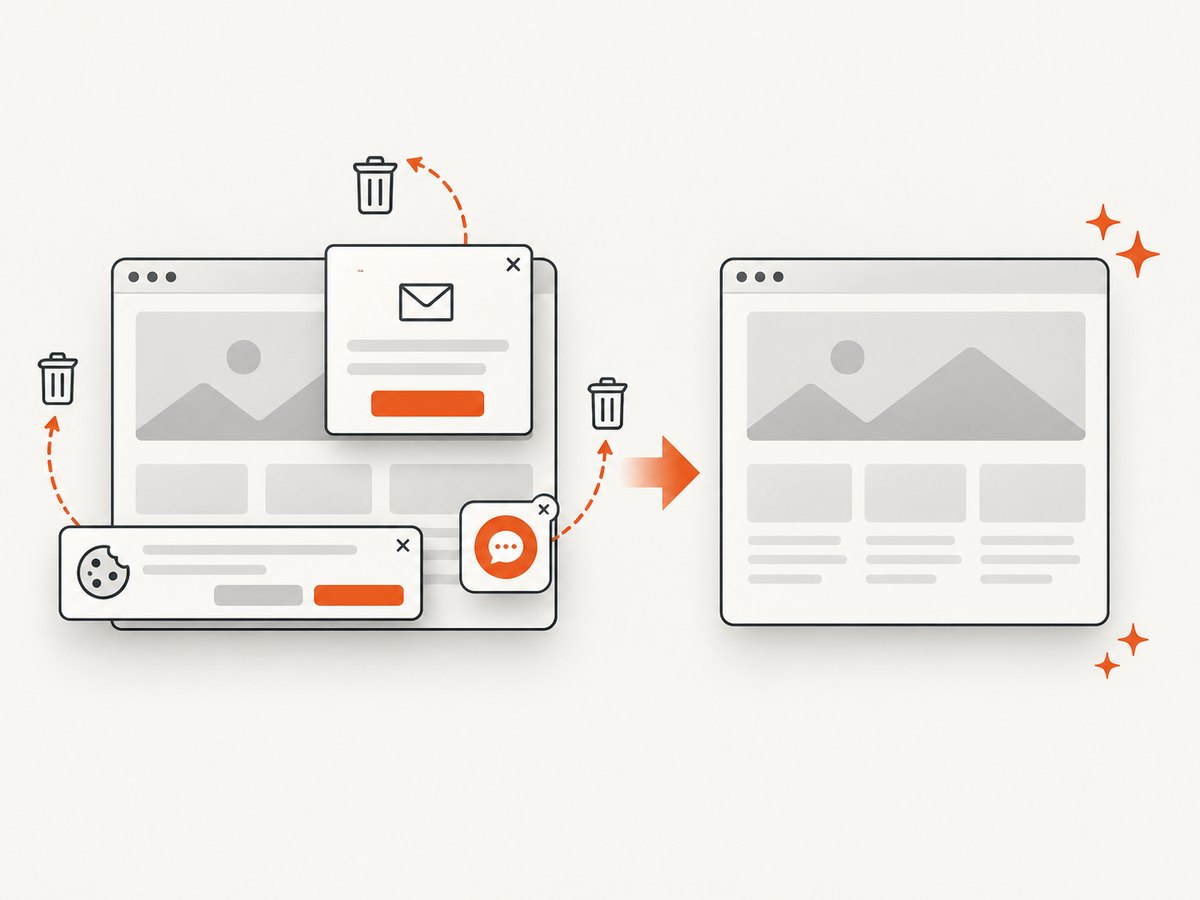
ScreenshotNeo provides a website screenshot API and MCP server. One GET request returns a PNG, JPEG, WebP, or PDF. Before capture, it accepts cookie and consent banners like a visitor and removes more than 60 known consent platforms, newsletter popups, and chat widgets; each step can be turned off. Bot checks and CAPTCHAs, blank pages, timeouts, failed loads, and cache hits are not billed, and the response identifies the result with X-Page-Verdict and X-Billed headers.
See the ScreenshotNeo API documentation for all options, including full-page and element capture, device presets, retina scale, PDF settings, custom CSS and JavaScript, clicks, waits, request blocking, headers, cookies, user agents, timezone, geolocation, transparent backgrounds, resizing, TTL caching, signed image links, asynchronous jobs, webhooks, bulk capture, and usage data.
cURL
curl -G "https://api.screenshotneo.com/v1/shot" -d access_key=YOUR_API_KEY --data-urlencode url=https://stripe.com -o shot.webpPython
import requests
r = requests.get("https://api.screenshotneo.com/v1/shot", params={"access_key": "YOUR_API_KEY", "url": "https://stripe.com"}, timeout=90)
open("shot.webp", "wb").write(r.content)
Node.js
const q = new URLSearchParams({ access_key: 'YOUR_API_KEY', url: 'https://stripe.com' });
const res = await fetch(`https://api.screenshotneo.com/v1/shot?${q}`);
An MCP server also exposes take_screenshot, get_page_info, and capture_pdf to Claude, Cursor, and other MCP clients. The Free plan includes 1,000 screenshots per month with no card; paid plans start at $5 for 3,000 shots. Create a free ScreenshotNeo account.
9. Troubleshooting common failures
| Symptom | Likely cause | Fix |
|---|---|---|
| Chrome exits immediately in a container | Missing libraries, incompatible sandbox permissions, or an incorrect executable path | Use the documented dependencies for your pinned browser; run as an unprivileged user; verify sandbox support before changing flags. |
| “No usable sandbox” error | Kernel or container settings do not provide the required sandbox mechanism | Fix the runtime and user-namespace configuration, or move the browser to a stronger isolated worker. Treat --no-sandbox as a deliberate security exception. |
| Jobs hang until the host is full | No deadline, unbounded concurrency, or a page waiting on never-ending network activity | Add layered timeouts, cap workers, avoid unconditional networkidle, and terminate overdue jobs. |
| Out-of-memory kills | Too many tabs, large pages, leaks, or oversized screenshots/PDFs | Reduce concurrency, close contexts, limit output dimensions, set memory limits, and recycle workers after a bounded number of jobs. |
| Screenshot differs between runs | Responsive layout, fonts, time, animations, ads, or asynchronous data | Pin viewport, scale, locale, timezone, and browser version; wait for a known selector; disable animations with CSS when appropriate. |
| Element is not found | Wrong frame, delayed rendering, shadow DOM, or a changed selector | Wait for the correct state, inspect frames and shadow roots, and prefer stable attributes over generated class names. |
| Blank or partial output | Navigation failed, JavaScript crashed, lazy content was not triggered, or the capture happened too early | Record final URL and console errors, scroll or wait for content, and distinguish a page failure from an image-encoding failure. |
| Queue latency grows continuously | Arrival rate exceeds worker capacity | Apply backpressure, reject excess work clearly, optimize the job, or add workers after measuring resource limits. |
10. Performance, reliability, and cost decisions
- Concurrency: maximize completed jobs per minute while keeping memory and timeout rates within your service target. More sessions are not automatically faster.
- Browser reuse: reusing a browser saves launch overhead, but isolate users with contexts and recycle unhealthy workers.
- Caching: cache only when freshness requirements allow it. Include viewport, device scale, headers, cookies, and relevant options in the cache key.
- Retries: retry transient network or worker failures with jitter; avoid retry storms during saturation.
- Cost: account for compute, memory, storage, bandwidth, observability, and engineering time. A hosted API can be cheaper when you need occasional captures or do not want to maintain browser infrastructure.
- Reliability: make jobs idempotent, persist results outside ephemeral workers, and ensure shutdown drains or cancels work predictably.
FAQ
Should every production browser task run in headless mode?
No. Headless is usually simplest for server automation, but extension or display-dependent workflows may require headful Chrome with a virtual display. Test the exact task.
How many Chrome sessions can one server run?
There is no universal number. Page complexity, PDF size, JavaScript, memory, and network use dominate. Benchmark representative jobs under the same limits you will deploy.
Is a queue always better than rejecting requests?
A bounded queue protects the system when bursts are brief. If demand stays above capacity, queue time becomes unbounded; return a clear overload response or scale the worker pool.
When should I use a hosted screenshot API?
Use one when you want capture output without maintaining Chrome images, sandbox configuration, worker supervision, queueing, and browser upgrades. Check its failure semantics and billing rules before integrating.
Can I use ScreenshotNeo for AI-agent workflows?
Yes. Its MCP server provides screenshot, page-information, and PDF tools for Claude, Cursor, and other MCP clients.
Conclusion
The first year of headless Chrome operations teaches a durable lesson: browser automation is production infrastructure. Isolate it, constrain it, queue it, observe it, and size it with your own workload. When maintaining that stack is not part of your product, start with ScreenshotNeo’s free 1,000 screenshots per month and move to a paid plan when your volume requires it.