How to Generate PDFs and Screenshots with a Node.js API
Learn when to use Playwright, Puppeteer, or PDFKit, with complete Node.js code for reliable PDFs and screenshots.
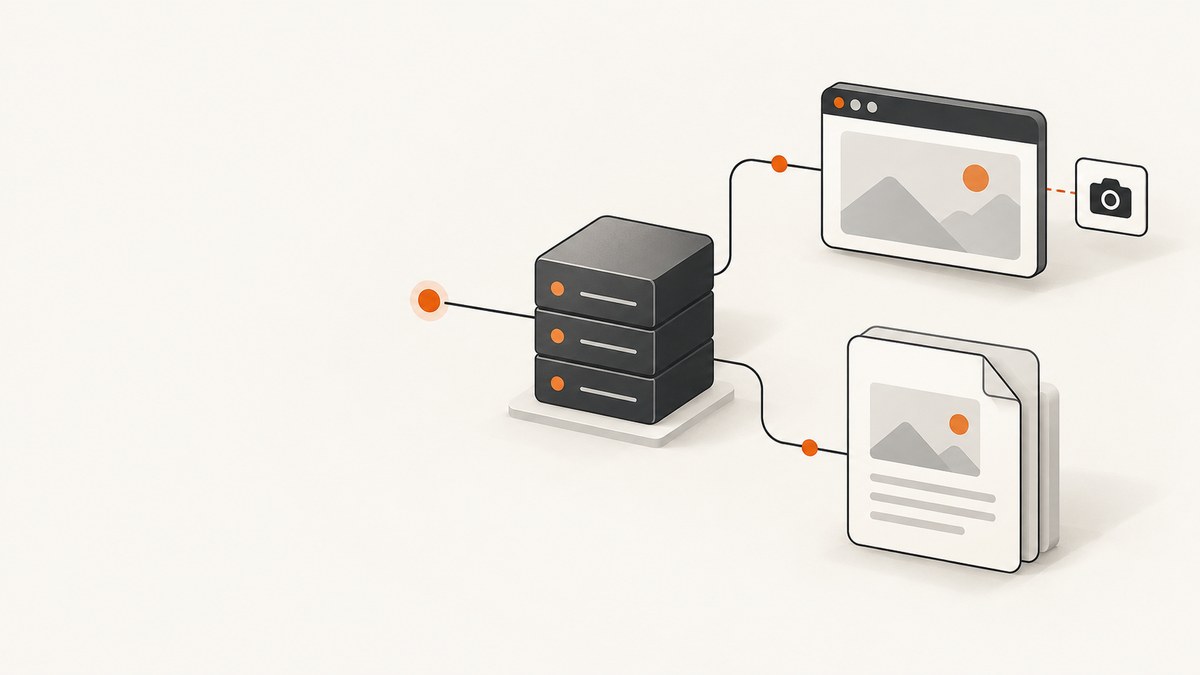
There are two different jobs hidden inside “generate a PDF”:
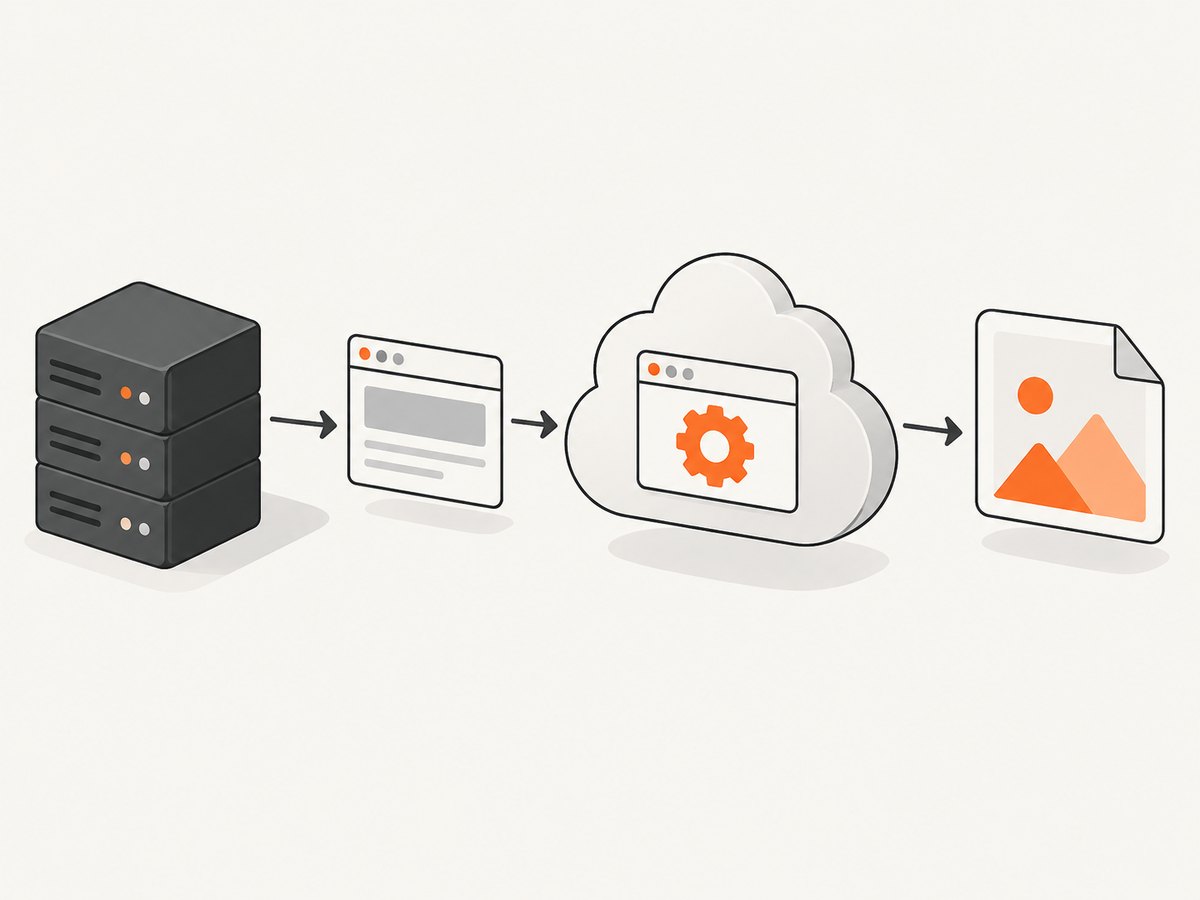
- Render an existing web page: open HTML in a real browser, apply its CSS, load fonts and images, then export a PDF or screenshot. Use Playwright or Puppeteer.
- Compose a document directly: place text, tables, images and shapes through a document API. Use PDFKit.
Playwright and Puppeteer are browser renderers. PDFKit creates a PDF document without rendering a web page. Choose based on your input, rather than treating the libraries as interchangeable.
Choose the right Node.js API
| Need | Best fit | Why |
|---|---|---|
| PDF or image of an existing URL | Playwright or Puppeteer | Runs the page in Chromium and preserves browser layout, fonts and CSS. |
| Screenshot of a page or element | Playwright or Puppeteer | Both expose page-level screenshot APIs. |
| Invoice, report or certificate assembled from data | PDFKit | You control document coordinates and content directly. |
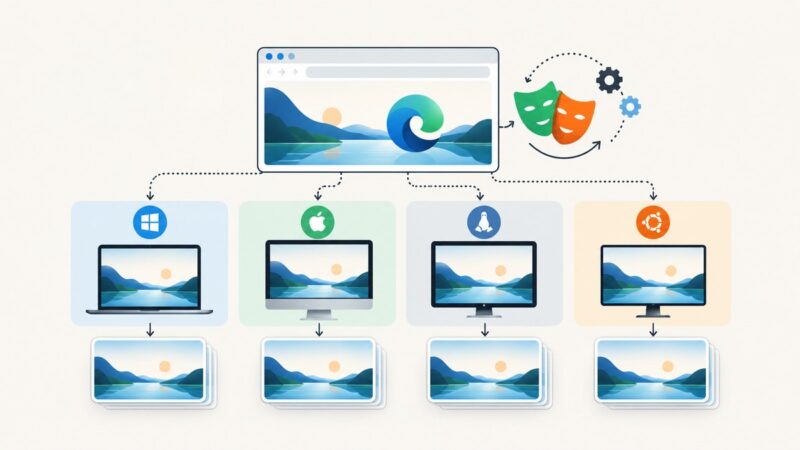
| Screen styling in a PDF | Playwright or Puppeteer plus media emulation | PDF generation uses print CSS by default; emulate screen media when required. |
The Playwright Page API documents both page.screenshot() and page.pdf(). Puppeteer documents equivalent methods, including binary and base64 screenshot return forms. Their PDF APIs use print media by default. Read the Playwright Page API and the Puppeteer screenshot API.
Generate a PDF and screenshot with Playwright
Install Playwright and its browser package:
npm install playwright
npx playwright install chromium
This complete script navigates to a URL, waits for the page to settle, saves a full-page PNG, and writes a PDF.
const { chromium } = require('playwright');

(async () => {
  const browser = await chromium.launch();
  const page = await browser.newPage({
    viewport: { width: 1440, height: 900 },
    deviceScaleFactor: 1
  });

  try {
    await page.goto('https://example.com', { waitUntil: 'networkidle', timeout: 60000 });
    await page.screenshot({ path: 'page.png', fullPage: true });
    await page.pdf({
      path: 'page.pdf',
      format: 'A4',
      printBackground: true,
      margin: { top: '16mm', right: '16mm', bottom: '16mm', left: '16mm' }
    });
  } finally {
    await browser.close();
  }
})();
Use waitUntil: 'domcontentloaded' for a fast first render, load when image load events matter, or networkidle when the page has a predictable network idle point. Some applications keep analytics or WebSocket connections open, so an explicit selector or delay can be more reliable than waiting for network idle.
Control PDF media, paper and colors
PDF output uses print CSS by default. To produce the screen layout, emulate screen media before calling page.pdf():
await page.emulateMedia({ media: 'screen' });
await page.pdf({
  path: 'screen-styled.pdf',
  format: 'Letter',
  landscape: false,
  printBackground: true,
  preferCSSPageSize: true,
  pageRanges: '1-3'
});
Useful PDF options include format or explicit width and height, landscape, margin, printBackground, displayHeaderFooter, headerTemplate, footerTemplate, pageRanges, and preferCSSPageSize. A CSS @page rule can define the page size when preferCSSPageSize is enabled.
Browser PDF printing can adjust colors for print. When exact colors matter, add this CSS to the page:
* {
  -webkit-print-color-adjust: exact;
  print-color-adjust: exact;
}
Puppeteer documents the same print-media behavior and the -webkit-print-color-adjust technique in its PDF API guide.
Wait for fonts, images and lazy content
Wait for the resources that determine the final layout. Fonts are especially important because a late font swap changes line breaks and page count.
await page.goto('https://example.com/report', { waitUntil: 'domcontentloaded' });
await page.evaluate(() => document.fonts.ready);
await page.waitForSelector('#report-ready', { state: 'visible', timeout: 30000 });
await page.waitForTimeout(500);
await page.screenshot({ path: 'report.png', fullPage: true });
For lazy-loaded images, scroll through the document before capture:
await page.evaluate(async () => {
  await new Promise(resolve => {
    let last = 0;
    const step = () => {
      window.scrollTo(0, document.body.scrollHeight);
      const current = document.body.scrollHeight;
      if (current === last) return resolve();
      last = current;
      setTimeout(step, 250);
    };
    step();
  });
  window.scrollTo(0, 0);
});
Generate a PDF and screenshot with Puppeteer
Install Puppeteer:
npm install puppeteerThe following is a runnable CommonJS example:
const puppeteer = require('puppeteer');

(async () => {
  const browser = await puppeteer.launch();
  const page = await browser.newPage();
  try {
    await page.setViewport({ width: 1365, height: 768, deviceScaleFactor: 1 });
    await page.goto('https://example.com', {
      waitUntil: 'networkidle2',
      timeout: 60000
    });
    await page.screenshot({ path: 'page.png', fullPage: true });
    await page.pdf({
      path: 'page.pdf',
      format: 'A4',
      printBackground: true,
      margin: { top: '16mm', right: '16mm', bottom: '16mm', left: '16mm' }
    });
  } finally {
    await browser.close();
  }
})();
Puppeteer’s guide demonstrates the same launch, navigation, PDF and close sequence, and states that page.pdf() waits for fonts to load by default. A screenshot is returned as a Uint8Array unless you request a path; with encoding: 'base64', the screenshot API can return base64 data.
const base64 = await page.screenshot({ encoding: 'base64' });
const bytes = await page.screenshot();
To use screen CSS with Puppeteer:
await page.emulateMediaType('screen');
await page.pdf({ path: 'screen.pdf', printBackground: true });
Compose a PDF directly with PDFKit
PDFKit is a JavaScript PDF generation library for Node and the browser. It is a better fit when your input is structured data and you want to place content yourself, without loading a web page.
npm install pdfkitHere is a complete Node.js program that creates a simple invoice:
const fs = require('fs');
const PDFDocument = require('pdfkit');

const doc = new PDFDocument({ size: 'A4', margin: 50 });
doc.pipe(fs.createWriteStream('invoice.pdf'));
doc.fontSize(22).text('Invoice', { align: 'center' });
doc.moveDown();
doc.fontSize(12).text('Acme Ltd.');
doc.text('Consulting services — September 2026');
doc.moveDown();
doc.text('Subtotal: $1,000.00');
doc.text('Tax: $100.00');
doc.text('Total: $1,100.00');
doc.end();
The PDFKit getting-started guide documents creating a PDFDocument and piping it to a writable stream. Its current guidance recommends the named PDFDocument export for new code so a future move to an ESM-only package is easier. Use browser automation when the source of truth is HTML; use PDFKit when the source of truth is your application’s data model.
Screenshot options that affect output
For screenshots, decide whether you need a viewport image or a complete document. fullPage: true captures the entire scrollable page; omit it for the visible viewport. You can capture one element instead of the page:
const card = page.locator('.pricing-card').first();
await card.screenshot({ path: 'pricing-card.png' });
Other practical controls include:
- Viewport and device scale: set width, height and
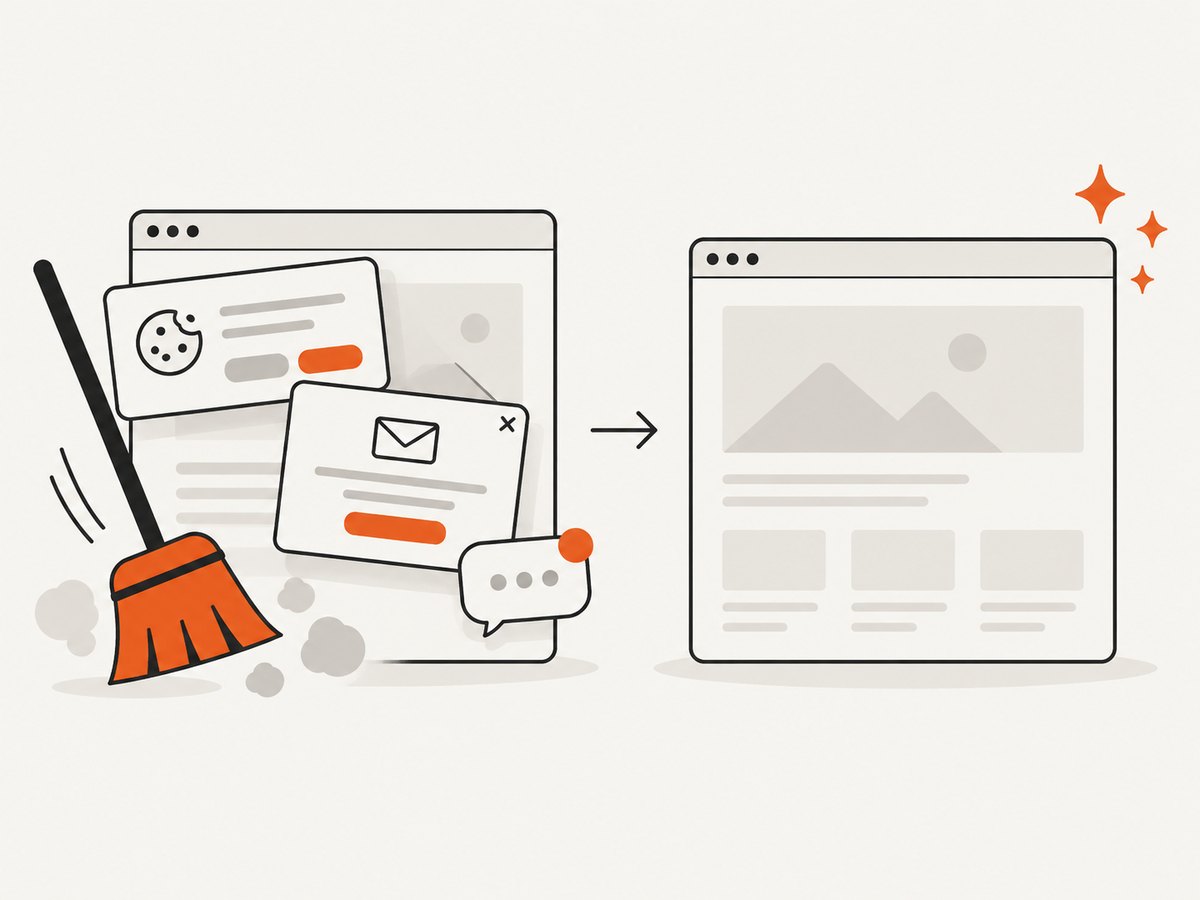
deviceScaleFactorto reproduce desktop or mobile layouts. - CSS and JavaScript: inject a stylesheet or evaluate a function to hide consent banners, animations or dynamic timestamps.
- Authentication: use
page.setExtraHTTPHeaders(), cookies, or a login flow before capture. Keep credentials out of source control. - Animations: disable transitions with injected CSS, then wait for the final state.
- Backgrounds and transparency: screenshots can use
omitBackground: truewhen a transparent image is required.
await page.addStyleTag({ content: `
  *, *::before, *::after {
    animation: none !important;
    transition: none !important;
  }
  .cookie-banner, .chat-widget { display: none !important; }
` });
Security and operational edge cases
- Untrusted URLs: a screenshot endpoint can become an SSRF tool. Restrict outbound hosts, block private IP ranges, validate protocols, and isolate browser processes when accepting URLs from users.
- Large pages: full-page screenshots and long PDFs consume memory. Set maximum URL, page and output sizes; reject documents that exceed your limits.
- Never-ending pages: dashboards may keep requests open. Prefer a readiness selector or bounded delay over an unlimited network-idle wait.
- Cross-origin content: third-party iframes, fonts or images may fail due to their own access policy. A browser cannot bypass a server’s authorization rules.
- Print pagination: use CSS
break-inside: avoid,break-beforeandbreak-afterfor headings, tables and cards that must stay together. - Time zones and locale: set them deliberately in your browser context if dates or number formatting must be reproducible.
Performance, reliability and cost notes
The official sources show basic API workflows, but they do not establish comparative benchmarks, production memory limits, browser-isolation settings or scaling guidance. Measure your own pages and workload.
- Reuse a browser process when safe, but create a fresh page or context per job to avoid cookies and DOM state leaking between captures.
- Set navigation and overall job timeouts. Always close pages and browsers in a
finallyblock. - Cache deterministic captures when the source page and options have not changed.
- Retry transient navigation failures with a bounded retry count and backoff; do not retry authentication failures indefinitely.
- Record the URL, options, browser version, elapsed time, output size and failure reason so a bad capture can be reproduced.
- PDF and screenshot files are binary. Stream them to storage instead of holding many large buffers in memory.
Or skip the browser setup
ScreenshotNeo provides a hosted website screenshot API and MCP server. One GET request returns a PNG, JPEG, WebP or PDF. The equivalent Node.js call is:
const q = new URLSearchParams({ access_key: 'YOUR_API_KEY', url: 'https://stripe.com' });
const res = await fetch(`https://api.screenshotneo.com/v1/shot?${q}`);
if (!res.ok) throw new Error(`HTTP ${res.status}`);
const file = Buffer.from(await res.arrayBuffer());
require('fs').writeFileSync('shot.webp', file);
See the ScreenshotNeo API documentation for all options. The same request with cURL is:
curl -G "https://api.screenshotneo.com/v1/shot" -d access_key=YOUR_API_KEY --data-urlencode url=https://stripe.com -o shot.webpPython:
import requests
r = requests.get("https://api.screenshotneo.com/v1/shot", params={"access_key": "YOUR_API_KEY", "url": "https://stripe.com"}, timeout=90)
r.raise_for_status()
open("shot.webp", "wb").write(r.content)
ScreenshotNeo handles cookie and consent banners before capture and removes more than 60 known consent platforms, newsletter popups and chat widgets. Each step can be turned off. It supports full-page capture with lazy images loaded, CSS-selector element capture, dark mode, device presets, custom viewports, retina scale, PDF paper size, margins, landscape mode and page ranges, plus custom CSS and JavaScript.
You can also click an element, wait for a selector, delay or network idle, block ads, trackers, requests or resource types, set headers, cookies, user agents and Authorization, configure timezone and geolocation, use transparent backgrounds, resize images, cache with a chosen TTL, create signed public image links, run asynchronous jobs with signed webhooks, capture up to 100 URLs per bulk call, query usage, and use the OpenAPI specification. Parameters used by other screenshot APIs also work, which simplifies migration.
Only clean shots are billed. Bot checks or CAPTCHAs, blank pages, timeouts, failed loads and cache hits cost nothing, and the response reports the result through X-Page-Verdict and X-Billed headers. Its MCP server exposes take_screenshot, get_page_info and capture_pdf for Claude, Cursor and other MCP clients.
The Free plan includes 1,000 shots per month without a card. Paid plans start at $5 for 3,000 shots; yearly billing gives two months free, and every feature is available on every plan. Create a free ScreenshotNeo account.
Troubleshooting common failures
| Symptom | Likely cause | Fix |
|---|---|---|
| PDF has missing colors | Print CSS or print color adjustment | Set printBackground: true, emulate screen media when appropriate, and use -webkit-print-color-adjust: exact. |
| Screenshot is taken before content appears | SPA rendering or lazy loading | Wait for a readiness selector, fonts, images or a bounded delay; scroll to trigger lazy content. |
| PDF has extra or missing pages | Different media, fonts or page-break rules | Wait for document.fonts.ready, set the intended media, and tune @page and break CSS. |
| Navigation times out | Slow origin, blocked resource or endless connection | Increase the bounded timeout, use domcontentloaded, block unnecessary resources, or wait for a specific selector. |
| Browser fails to launch in deployment | Missing Chromium or incompatible runtime dependencies | Install the browser package and required system dependencies for the deployment image, then log the launch error. |
| Protected page is blank | Bot check, CAPTCHA or authentication requirement | Use an authorized session and realistic navigation flow; do not assume browser automation can solve a CAPTCHA. |
| Different jobs contain each other’s cookies | Shared page or context state | Create an isolated context per job and close it after capture. |
FAQ
Can one Node.js script create both files?
Yes. Navigate once with Playwright or Puppeteer, then call screenshot() and pdf() on the same page after the content is ready.
Should I use Playwright or Puppeteer?
Both expose the page-level APIs needed here. Choose the one that fits your existing project and browser support requirements, then validate the pages that matter to you.
Can PDFKit convert a URL to a PDF?
PDFKit composes PDF content; it does not replace a browser renderer for HTML and CSS. Use Playwright or Puppeteer for URL rendering.
Why does my PDF look different from the screenshot?
A screenshot uses viewport screen styling, while PDF generation uses print media by default. Emulate screen media or provide dedicated print CSS.
When is a hosted API preferable?
Use one when you do not want to install and operate browsers, need consent and popup cleanup, or want API and MCP access. ScreenshotNeo offers 1,000 free monthly shots with no card.