How to Build an HTML and CSS to Image Template Editor
Design an HTML/CSS template editor, render faithful exports, avoid canvas traps, and choose the right capture architecture for production.

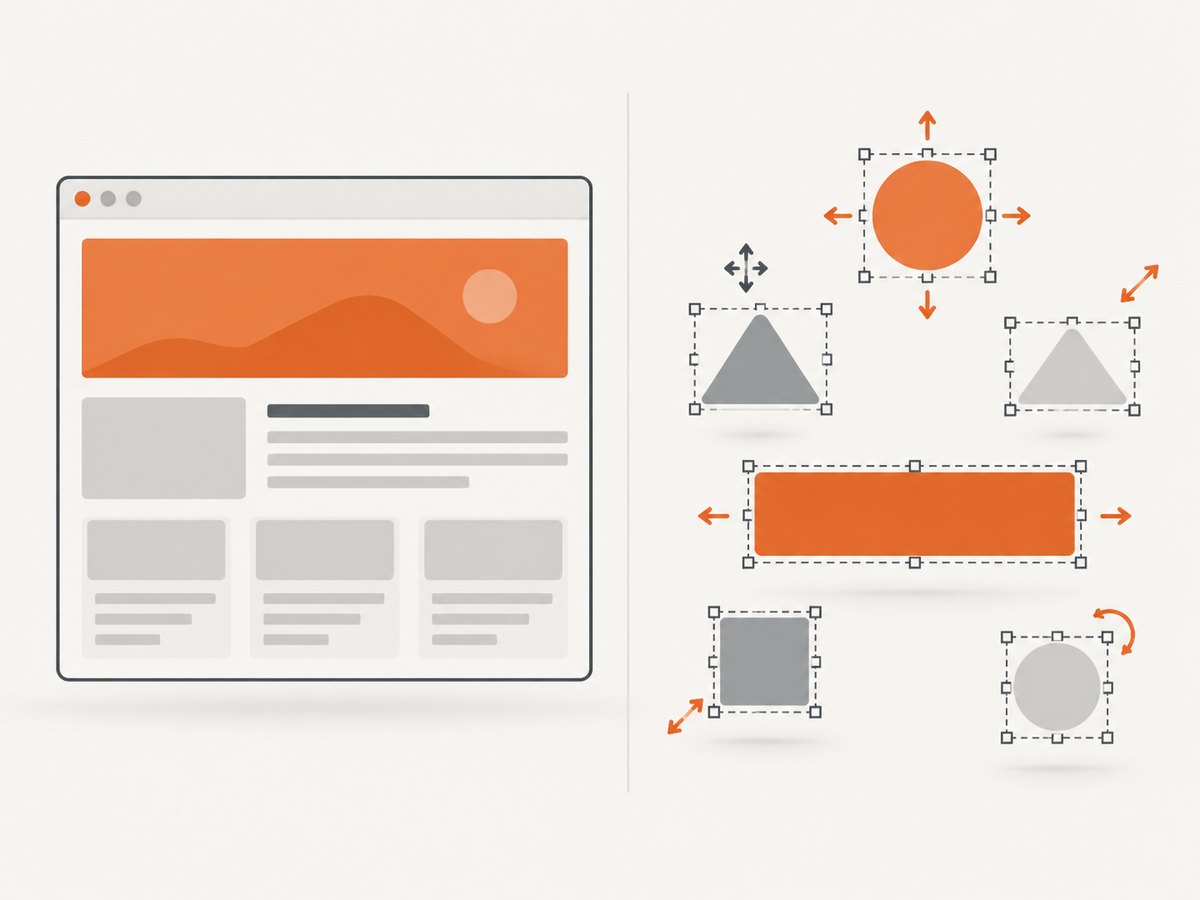
Direct answer: keep the template as real HTML and CSS when visual fidelity and existing web layouts matter, then render a fixed-size output element in a browser and capture that element. Use an object canvas such as Fabric.js when users must directly select, move, resize, rotate, or group independent objects. These are different architectures: browser screenshots export rendered DOM, while a canvas editor exports a serialized object scene.
Start by deciding what your users edit. If they edit text, colors, images, and layout rules inside a known design, an HTML/CSS template with named fields is usually the simplest model. If they expect freeform design-tool behavior, use a canvas scene. The export method follows that decision.
1. Choose the editor architecture
| Decision | HTML/CSS template | Object canvas |
|---|---|---|
| Best fit | Existing web layouts, strict typography, responsive CSS rules | Move, scale, rotate, select, layer, or group objects |
| Stored representation | Template markup, stylesheet, and field values | Serialized object scene plus application field identifiers |
| Preview | Fixed-size DOM render element | Interactive canvas with object controls |
| Export | Browser screenshot of a page or element | Canvas image export, usually PNG, JPEG, or WebP where supported |
| Main risks | Font and browser differences, loading timing, remote assets | CORS-tainted images, large data URLs, custom editor behavior |
Playwright documents page screenshots, image type, and scale options in its Page API. Fabric.js documents interactive canvases, serialization, and image export in its core concepts. Treat the libraries as rendering tools; your application still owns the template schema, permissions, validation, and field rules.
2. Define a versioned template schema
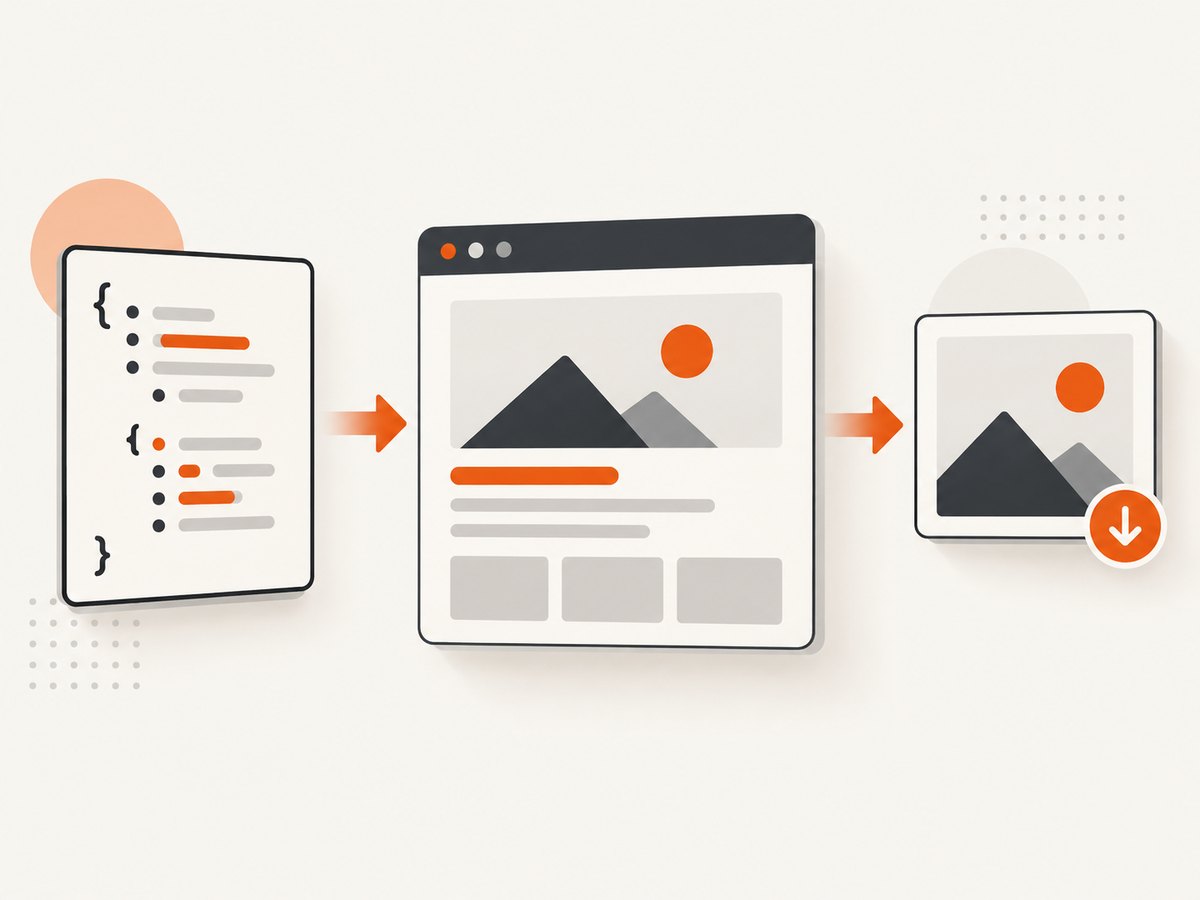
Keep user data separate from rendering code. That lets you revise a template without rewriting every saved design and prevents user-entered values from becoming executable markup.
{
  "id": "social-card-v1",
  "version": 1,
  "width": 1200,
  "height": 630,
  "kind": "html",
  "template": "social-card",
  "fields": {
    "title": { "type": "text", "maxLength": 90, "value": "Release notes" },
    "subtitle": { "type": "text", "maxLength": 140, "value": "What changed this week" },
    "background": { "type": "color", "value": "#101827" },
    "heroImage": { "type": "image", "value": "https://example.com/hero.png" }
  }
}
Store width and height as output pixels. Define whether fields allow HTML, plain text, URLs, colors, or numbers. Escape text before inserting it into HTML, validate image URLs, and reject unexpected CSS declarations. Add a schema version so old documents can be migrated when the design changes.
3. Build a fixed-size HTML/CSS preview
Give the render surface explicit dimensions. The editor controls can live beside it, but the export surface should not depend on the browser window size.
<!doctype html>
<html lang="en">
<head>
  <meta charset="utf-8">
  <style>
    * { box-sizing: border-box; }
    body { margin: 0; background: #e5e7eb; font-family: Arial, sans-serif; }
    .editor { display: grid; grid-template-columns: 320px 1fr; gap: 24px; padding: 24px; }
    .controls { display: grid; gap: 12px; align-content: start; }
    .controls label { display: grid; gap: 6px; font-size: 14px; }
    .controls input, .controls textarea { padding: 8px; font: inherit; }
    #stage { width: 1200px; height: 630px; position: relative; overflow: hidden;
      background: var(--background); color: white; padding: 72px; }
    #stage h1 { margin: 0 0 18px; max-width: 900px; font-size: 76px; line-height: 1.02; }
    #stage p { margin: 0; max-width: 760px; font-size: 30px; color: #cbd5e1; }
    #stage img { position: absolute; right: 54px; bottom: 44px; width: 220px; height: 220px;
      object-fit: cover; border-radius: 20px; }
  </style>
</head>
<body>
  <main class="editor">
    <section class="controls">
      <label>Title <input id="titleInput" value="Release notes" maxlength="90"></label>
      <label>Subtitle <textarea id="subtitleInput" maxlength="140">What changed this week</textarea></label>
      <label>Background <input id="backgroundInput" type="color" value="#101827"></label>
      <button id="download" type="button">Export PNG</button>
    </section>
    <section id="stage" aria-label="Image preview">
      <h1 id="title"></h1>
      <p id="subtitle"></p>
      <img id="hero" alt="" src="https://example.com/hero.png">
    </section>
  </main>
  <script>
    const title = document.querySelector('#title');
    const subtitle = document.querySelector('#subtitle');
    const stage = document.querySelector('#stage');
    function render() {
      title.textContent = document.querySelector('#titleInput').value;
      subtitle.textContent = document.querySelector('#subtitleInput').value;
      stage.style.setProperty('--background', document.querySelector('#backgroundInput').value);
    }
    document.querySelectorAll('.controls input, .controls textarea')
      .forEach(el => el.addEventListener('input', render));
    document.querySelector('#download').addEventListener('click', () => {
      // Production export is performed by a browser capture service.
      render();
    });
    render();
  </script>
</body>
</html>
Use textContent for plain text fields. If a field truly needs rich text, sanitize it with a maintained HTML sanitizer and allow only the tags and attributes your template requires. Keep the stage at the output dimensions even when the editor scales it visually with CSS.
4. Capture the rendered element with Playwright
Run the same browser version, operating system image, fonts, and headless settings for predictable output. Wait for fonts and images before capturing. The example below serves a local template, fills fields, and captures only the output region.
import { chromium } from 'playwright';

const browser = await chromium.launch();
const page = await browser.newPage({
  viewport: { width: 1400, height: 800 },
  deviceScaleFactor: 1
});
await page.goto('http://127.0.0.1:3000/editor.html', { waitUntil: 'networkidle' });
await page.locator('#titleInput').fill('Product launch');
await page.locator('#subtitleInput').fill('A fixed-size HTML and CSS export');
await page.locator('#backgroundInput').fill('#172554');
await page.locator('#hero').waitFor({ state: 'visible' });
await page.evaluate(() => document.fonts.ready);
await page.locator('#stage').screenshot({ path: 'template.png', type: 'png', scale: 'css' });
await browser.close();
scale: 'css' produces one output pixel per CSS pixel. Use scale: 'device' when you need device-pixel-density output, and set the viewport large enough that no responsive rule changes the stage. For a full-page export, use page.screenshot({ path, fullPage: true }), but an element screenshot is safer for a fixed-size template because it excludes editor controls.
5. Canvas-first editors with Fabric.js
Choose a canvas scene when direct manipulation is central. Fabric.js supplies a Canvas for interaction and a StaticCanvas for non-interactive rendering. Store serialized state and rebuild selection handles, keyboard shortcuts, and validation in your application.
import { Canvas, IText, Rect } from 'fabric';

const canvas = new Canvas('design', { width: 1200, height: 630, backgroundColor: '#101827' });
const title = new IText('Release notes', { left: 72, top: 72, fill: '#fff', fontSize: 76 });
const panel = new Rect({ left: 850, top: 340, width: 260, height: 180, fill: '#2563eb', rx: 18, ry: 18 });
canvas.add(title, panel);
canvas.setActiveObject(title);

// Persist the visual scene. Add your own field IDs to objects in production.
const scene = canvas.toJSON(['fieldId']);
localStorage.setItem('scene', JSON.stringify(scene));

// Export without a giant data URL when possible.
canvas.toBlob({ format: 'png', multiplier: 1 }).then(blob => {
  const link = document.createElement('a');
  link.href = URL.createObjectURL(blob);
  link.download = 'template.png';
  link.click();
  URL.revokeObjectURL(link.href);
});
Fabric.js documents exporting state to JSON, SVG, or an image. Add stable identifiers such as fieldId: "title" to objects so application data can update the correct object after loading. Keep editor-only properties out of user-authored content unless they are part of your persistence contract.
6. Remote images, fonts, and browser security
A remote image can make a canvas unreadable. The asset server must send an appropriate CORS header; adding crossorigin to an image element alone does not grant permission. MDN explains that drawing an image from another origin without CORS approval taints the canvas, after which pixel reads and exports can raise a SecurityError. See MDN’s cross-origin canvas guidance and the HTML canvas origin-clean rules.
For HTML screenshots, proxy or host assets on a controlled origin, set explicit cache headers, and wait for each image’s complete state. For fonts, self-host the exact files used in production and await document.fonts.ready. A missing font changes line breaks, so it can change the entire image.
7. Output formats, dimensions, and memory
- PNG: lossless and appropriate for text, transparency, and flat graphics.
- JPEG: smaller for photographic content, but it has no alpha channel and introduces compression artifacts.
- WebP: useful when your consumers support it; verify browser and downstream compatibility.
- Dimensions: keep CSS dimensions, device scale, and requested export dimensions explicit.
The canvas toDataURL() method encodes the entire image in memory and can create very large strings. MDN recommends toBlob() with URL.createObjectURL() for large images; see the API guidance. Surface failures to the user instead of silently producing an empty download.
8. Production workflow and reliability checklist
- Validate the template schema and field values on the server.
- Render in an isolated page with a fixed viewport and output element.
- Wait for network resources, fonts, images, and any application-specific readiness marker.
- Capture the element at the requested scale and format.
- Validate dimensions and file type before returning the asset.
- Store the template data and renderer version with each generated image.
- Run visual regression checks with stable browser, OS, fonts, hardware, and headless configuration. Playwright notes that screenshot output can vary between environments; its visual comparison documentation lists these environmental causes.
For expensive templates, cache by a digest of template version, field values, asset versions, viewport, scale, and format. Set a maximum render duration and cancel abandoned jobs. Limit image dimensions and decoded asset sizes to reduce memory pressure. Never treat a browser timeout as a valid image.
9. Troubleshooting common failures
| Symptom | Likely cause | Fix |
|---|---|---|
| Text wraps differently | Different font, font not loaded, or changed scale | Bundle fonts, await document.fonts.ready, pin browser and scale. |
| Blank or partially painted image | Capture ran before images or client rendering finished | Wait for a readiness selector, image completion, and network idle; use a bounded fallback delay. |
SecurityError on canvas export |
Cross-origin image without server CORS approval | Enable CORS on the asset server, proxy the image, or use same-origin storage. |
| Transparent background becomes black | Format or viewer does not preserve alpha | Use PNG and set the canvas background intentionally. |
| Mobile layout appears in export | Viewport is narrower than the template’s breakpoint | Set an explicit viewport and fixed stage dimensions. |
| Huge memory use or failed download | Very large toDataURL() string |
Use toBlob(), reduce dimensions, and release object URLs. |
| Remote page blocks automation | Bot check, login wall, or rate limit | Use an authorized rendering path, provide required headers or cookies, and report a clear failure. |
10. Or skip the browser setup
ScreenshotNeo provides a website screenshot API and MCP server. It can render your published template URL and return PNG, JPEG, WebP, or PDF. Cookie and consent banners, newsletter popups, and chat widgets are removed before capture; bot checks, blank pages, timeouts, failed loads, and cache hits are not billed, and the response identifies the verdict and billing status in headers. Its 63 options include element selectors, full-page lazy-image loading, custom CSS and JavaScript, waits, blocking rules, headers, cookies, user agents, authorization, timezone, geolocation, transparency, resizing, caching, signed links, asynchronous webhooks, bulk capture, and PDF controls. See the ScreenshotNeo documentation for parameter details.
curl -G "https://api.screenshotneo.com/v1/shot" -d access_key=YOUR_API_KEY --data-urlencode url=https://stripe.com -o shot.webpimport requests
r = requests.get("https://api.screenshotneo.com/v1/shot", params={"access_key": "YOUR_API_KEY", "url": "https://stripe.com"}, timeout=90)
open("shot.webp", "wb").write(r.content)const q = new URLSearchParams({ access_key: 'YOUR_API_KEY', url: 'https://stripe.com' });
const res = await fetch(`https://api.screenshotneo.com/v1/shot?${q}`);
const buffer = Buffer.from(await res.arrayBuffer());
await import('node:fs/promises').then(fs => fs.writeFile('shot.webp', buffer));The MCP server includes take_screenshot, get_page_info, and capture_pdf tools for Claude, Cursor, and other MCP clients. The free plan includes 1,000 screenshots per month with no card; paid plans start at $5 for 3,000 shots, and every feature is available on every plan. Create a free ScreenshotNeo account.
11. Cost and performance planning
Self-hosted Playwright gives you control over browser versions and queueing, but you pay for browser workers, fonts, asset bandwidth, observability, and maintenance. Limit concurrency to the memory available per worker, reuse browser processes safely, and queue large jobs. Cache immutable templates and assets.
An API reduces browser infrastructure work. Measure your own templates because render time depends on page weight, JavaScript, fonts, remote assets, and waits. Use cache TTLs for identical outputs, bulk capture for batches, and asynchronous jobs with signed webhooks when a request should not hold an HTTP connection open.
FAQ
Should I store HTML or a screenshot?
Store the versioned template data and field values as the source of truth. Store generated images as derivatives with renderer metadata.
Can one editor support both architectures?
Yes, but treat them as separate document types and export paths. Do not pretend a DOM layout and a freeform object scene have identical constraints.
Why do two machines produce different pixels?
Fonts, browser versions, operating systems, device scale, GPU behavior, and timing can differ. Pin the rendering environment and compare images in that same environment.
When is a full-page capture appropriate?
Use it for long documents or pages whose complete scroll height is the product. For a fixed-size template, capture the dedicated output element.
What should happen when an image URL fails?
Show a validation error or a deliberate placeholder before export. A missing remote asset should never silently produce a misleading final image.