20+ JSON Tools for Editing, Formatting, Validation, Parsing, and Conversion
A practical guide to 20+ JSON tools for editing, formatting, validation, querying, conversion, code generation, and secure local workflows.

JSON tools solve different problems: making a document readable, finding syntax errors, checking it against a schema, extracting values, comparing versions, converting formats, or generating code. The best choice depends on where the tool runs, how sensitive the data is, how large the file is, and whether you need a one-off edit or a repeatable command-line workflow.
This guide groups more than 20 useful tools by task and shows when to use each one. The short answer is:
- Use JSONLint for quick browser formatting, syntax checks, and conversions.
- Use Visual Studio Code for regular editing, IntelliSense, folding, and schema-aware diagnostics.
- Use jq or Python’s standard library for repeatable terminal pipelines.
- Use a JSON Schema validator when valid syntax is not enough and you must enforce fields, types, and constraints.
- For secrets or personal records, keep the data local instead of pasting it into an online service.
1. Edit, format, prettify, and minify JSON
Formatting changes whitespace; it does not change the data model. A formatter must parse the document before it can safely rewrite it. If parsing fails, fix the reported syntax error first.
| Tool | Runs | Best for | Useful capabilities |
|---|---|---|---|
| JSONLint | Browser | Fast one-off work | Format, prettify, minify, sort keys, escape and unescape, validate |
| VS Code JSON editor | Desktop | Projects and large files | IntelliSense, formatting, folding, schema mappings, diagnostics |
| jq | Terminal | Scripts and pipelines | Pretty printing, filtering, mapping, reducing, restructuring |
Python json.tool |
Terminal | Python environments | Validation and readable output without an extra package |
VS Code workflow
- Open a
.jsonfile. - Use Format Document from the context menu. The documented shortcuts are Shift+Alt+F on Windows, Ctrl+Shift+I on Linux, and Shift+Option+F on macOS.
- Set a workspace or user schema mapping when the file represents a known configuration format.
- Read the red diagnostics before saving. They usually identify the unexpected token and its line and column.
VS Code also folds nested objects and arrays, offers completions for known schemas, and highlights type or required-property violations when a schema is attached.
Format from the terminal with jq
jq . input.json > formatted.json
jq -c . input.json > minified.json
The first command emits indented JSON. The second emits compact JSON suitable for transport or fixtures. Both commands fail with a non-zero exit status when the input is malformed, which makes them useful in CI.
Format with Python’s standard library
python -m json.tool input.json > formatted.json
python -m json.tool --sort-keys input.json > sorted.json
For a script that preserves Unicode characters and controls indentation:
import json
from pathlib import Path

source = Path('input.json').read_text(encoding='utf-8')
data = json.loads(source)
Path('formatted.json').write_text(
    json.dumps(data, indent=2, ensure_ascii=False) + '\n',
    encoding='utf-8',
)
2. Validate syntax and repair malformed JSON
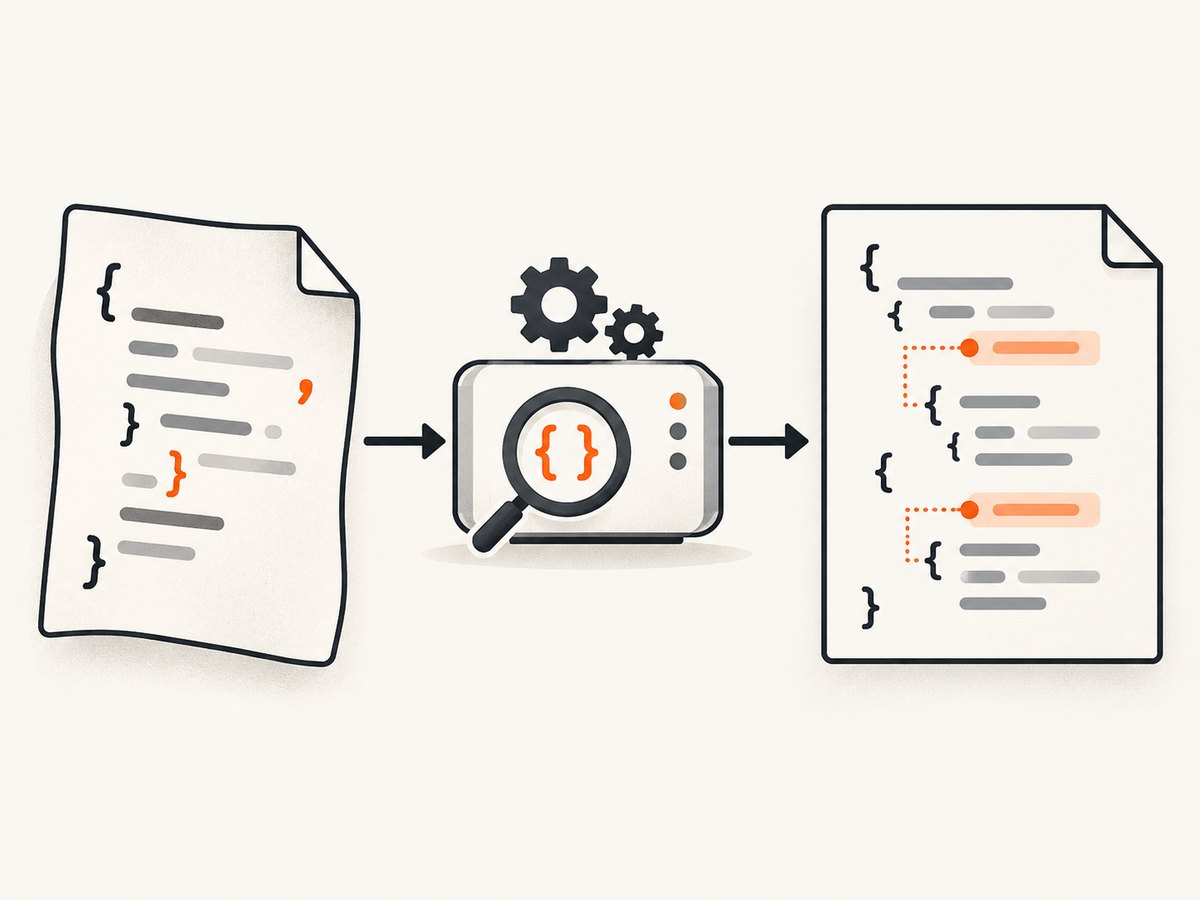
Syntax validation answers one question: can a JSON parser read this text? Common failures include a trailing comma, single-quoted strings, an unquoted property name, an unescaped newline, a missing closing brace, or comments in a file that is supposed to be strict JSON.
Typical syntax errors
| Error | Invalid | Valid replacement |
|---|---|---|
| Single quotes | {'name': 'Ada'} |
{"name": "Ada"} |
| Trailing comma | {"a": 1,} |
{"a": 1} |
| Unquoted key | {name: "Ada"} |
{"name": "Ada"} |
| Comments | {"a": 1 // note} |
{"a": 1} |
JSONLint reports line and column diagnostics and can repair common mistakes interactively. Treat automatic repair as a draft: inspect the resulting structure before using it in production.
Validate in Python
import json
import sys

try:
    with open(sys.argv[1], encoding='utf-8') as handle:
        json.load(handle)
except json.JSONDecodeError as error:
    print(f'Invalid JSON at line {error.lineno}, column {error.colno}: {error.msg}')
    raise SystemExit(1)
else:
    print('Valid JSON')
3. Validate structure with JSON Schema
A syntactically valid document can still be unusable. A schema checks the shape of the data: required properties, allowed types, minimum and maximum values, string patterns, array contents, and additional-property rules.
{
  "$schema": "https://json-schema.org/draft/2020-12/schema",
  "type": "object",
  "required": ["id", "email"],
  "properties": {
    "id": {"type": "integer", "minimum": 1},
    "email": {"type": "string", "format": "email"}
  },
  "additionalProperties": false
}
Be careful with format. JSON Schema documents it as annotation information by default; a validator must explicitly enable format assertion for values such as email or date-time to become validation failures. Check your validator’s configuration instead of assuming every format is enforced.
Schema validation belongs in tests and deployment checks. Keep the schema versioned beside the service that owns the contract, and validate both producer output and important consumer fixtures.
4. View, compare, and query nested data
Tree viewers make deeply nested objects easier to inspect. Table viewers are useful when every item in an array has similar fields. Diff tools show additions, removals, and changed values between two documents. For repeatable extraction, use a query language instead of manually expanding nodes.

jq queries
jq '.users[] | {id, email}' users.json
jq '.orders | map(select(.status == "paid"))' orders.json
jq '[.items[].price] | add' cart.json
jq '.metadata.request_id // "missing"' response.json
jq can select, map, reduce, group, sort, join, and reconstruct objects. Its filters are composable, so a command can become a documented data transformation in a shell script or CI job.
JSONPath and editor viewers
JSONPath-style tools are convenient when you need expressions such as “all prices below a threshold” or “the first shipping address.” Check the dialect before sharing an expression: implementations differ in recursive descent, filters, and return types. For a one-off investigation, a tree viewer is often faster; for automation, pin the implementation and add fixture tests.
Compare normalized documents
jq -S . left.json > left.normalized.json
jq -S . right.json > right.normalized.json
diff -u left.normalized.json right.normalized.json
Sorting keys removes noisy ordering differences. It does not make arrays equivalent: array order remains meaningful unless you deliberately sort those arrays by a domain key.
5. Convert JSON to other formats
Conversion tools are useful when JSON is an interchange format but your next system expects CSV, YAML, XML, Excel, SQL, or Markdown. JSONLint’s catalog includes converters for those targets. Before converting, decide how to handle nested objects, arrays, nulls, duplicate keys, and mixed types.
JSON to CSV with Python
import csv
import json

with open('records.json', encoding='utf-8') as source:
    records = json.load(source)

if not isinstance(records, list) or not records:
    raise ValueError('Expected a non-empty JSON array')

fields = sorted({key for record in records for key in record})
with open('records.csv', 'w', newline='', encoding='utf-8') as target:
    writer = csv.DictWriter(target, fieldnames=fields, extrasaction='ignore')
    writer.writeheader()
    writer.writerows(records)
This simple approach works for flat objects. Nested values need a policy: flatten them into dotted columns, serialize them as JSON strings, or create separate relational tables. Do not silently discard nested data.
Conversion checklist
- Confirm whether the top level is an object or an array.
- Define how missing and null values map to the target format.
- Choose a stable column order for reproducible output.
- Check escaping for commas, quotes, newlines, and non-ASCII characters.
- Validate the converted file with the target application’s parser.
6. Generate code from JSON
Code generators infer types and classes from example JSON. JSONLint lists generators for TypeScript, Python, Java, C#, Go, Kotlin, Swift, Rust, and PHP. Generated code is a starting point: review optionality, naming, number precision, date handling, and unknown fields before committing it.
Use representative fixtures rather than a tiny sample. If the sample omits a field that appears in production, the generator may make the field optional or omit it entirely. Keep generated models separate from handwritten business logic so regeneration does not overwrite behavior.
7. Encode, decode, and inspect adjacent formats
Several developer tasks sit next to JSON editing:
- Base64 tools: inspect encoded payloads, while remembering that Base64 is encoding, not encryption.
- JWT decoders: inspect header and payload claims. Never treat a decoded payload as trusted, and do not paste production tokens into an online tool.
- JSONC conversion: remove comments and trailing commas before sending configuration to a strict JSON parser.
- Token counters: estimate language-model input size; results vary by tokenizer.
- Size analyzers: find oversized strings, arrays, or repeated properties before an API or database limit is reached.
8. Choosing a safe tool for sensitive JSON
For passwords, API keys, personal records, payment data, or internal configuration, prefer VS Code, jq, Python, or another local tool. JSONLint explicitly cautions against submitting secrets or personal records to online tools. Also check shell history, editor backups, crash reports, temporary files, and CI logs.
- Use environment variables or a secret manager instead of putting credentials in fixtures.
- Redact tokens before sharing a failing example.
- Restrict file permissions on exported data.
- Delete temporary converted files when they are no longer needed.
- Pin third-party command-line versions in automated workflows.
9. A repeatable JSON workflow
- Parse: run a syntax check before any transformation.
- Format: normalize indentation and, when useful, key order.
- Validate: apply JSON Schema for required fields and types.
- Inspect: query the exact records needed with jq or a viewer.
- Transform: convert to CSV, YAML, XML, SQL, or generated code with an explicit policy for nested data.
- Test: run fixture-based checks and validate the target format.
- Protect: keep secrets local and scrub logs.
10. Troubleshooting common JSON-tool errors
| Symptom | Likely cause | Fix |
|---|---|---|
| “Unexpected token” | Trailing comma, single quotes, comments, or a missing delimiter | Use the line and column, then validate again with a strict parser |
| Valid syntax, rejected API request | Wrong schema, missing required field, or incorrect type | Run the service’s schema validator and inspect its error path |
CSV columns contain [object Object] |
Nested values were coerced to strings | Flatten nested fields or serialize them intentionally |
| Diff shows every line changed | Different indentation or key order | Normalize with jq -S . before comparing |
| jq returns no results | Wrong path, array/object mismatch, or a filter that excludes all records | Start with jq type, then inspect with jq keys or jq . |
| Schema accepts an invalid date or email | format is annotation-only in the validator configuration |
Enable format assertions or add an explicit pattern/custom rule |
| Browser tool exposes confidential data | Payload was pasted into a hosted service | Use a local editor or terminal tool and rotate exposed credentials |
11. Performance, reliability, and cost notes
For small documents, usability dominates performance. For large documents, avoid repeatedly parsing the same file in separate processes. A single jq or Python pass is usually simpler than a chain of formatters and converters. Streaming parsers are appropriate when the document is too large to fit comfortably in memory, but they require a deliberate record boundary, such as newline-delimited JSON.
Online tools are convenient but add upload, privacy, availability, and size-limit considerations. Desktop tools keep data local and provide richer editing. Terminal tools are the most reproducible option for CI because exit codes and exact versions can be recorded. Conversion cost is usually measured in engineering time and data-loss risk: flattening a nested object or changing number precision can be more expensive than the command itself.
12. Or skip the browser setup
If your JSON workflow also needs screenshots of API documentation, dashboards, or rendered JSON examples, ScreenshotNeo provides a single HTTP request for a clean PNG, JPEG, WebP, or PDF. Its capture pipeline accepts cookie and consent banners before removing more than 60 known consent platforms, newsletter popups, and chat widgets. Bot checks, blank pages, failed loads, timeouts, and cache hits are not billed as clean shots, and the response identifies the result with X-Page-Verdict and X-Billed headers.
See the ScreenshotNeo API documentation for all options. A minimal request is:
curl -G "https://api.screenshotneo.com/v1/shot" -d access_key=YOUR_API_KEY --data-urlencode url=https://stripe.com -o shot.webpimport requests
r = requests.get("https://api.screenshotneo.com/v1/shot", params={"access_key": "YOUR_API_KEY", "url": "https://stripe.com"}, timeout=90)
open("shot.webp", "wb").write(r.content)const q = new URLSearchParams({ access_key: 'YOUR_API_KEY', url: 'https://stripe.com' });
const res = await fetch(`https://api.screenshotneo.com/v1/shot?${q}`);Relevant capture options include full-page screenshots with lazy images loaded, CSS-selector element capture, dark mode, device presets or custom viewports, retina scale, PDF paper size and margins, custom CSS and JavaScript, clicks, selector or network-idle waits, request blocking, headers, cookies, user agents, authorization, timezone, geolocation, transparent backgrounds, resizing, configurable caching, signed links, asynchronous jobs with signed webhooks, bulk capture of up to 100 URLs per call, and a usage API. An MCP server exposes take_screenshot, get_page_info, and capture_pdf to Claude, Cursor, and other MCP clients.
There are 1,000 free screenshots each month with no card. Paid plans start at $5 for 3,000 screenshots, and every feature is available on every plan. Create a free ScreenshotNeo account.
13. FAQ
What is the best JSON formatter?
Use JSONLint for a quick browser operation, VS Code for project editing, and jq or Python when the formatting must be repeatable in scripts.
Can formatting repair invalid JSON?
No. A formatter must parse JSON first. Fix syntax errors, then format the document.
Is valid JSON the same as valid API data?
No. Syntax validation checks grammar. JSON Schema or an API contract checks required fields, types, and constraints.
Should I sort JSON keys?
Sort keys for stable diffs, hashes, and generated fixtures when key order has no semantic meaning. Preserve original order when humans depend on it for readability.
Which tool should I use for secrets?
Use a local editor or command-line parser. Avoid pasting credentials or personal records into hosted JSON tools.
How do I handle JSON with comments?
Use a JSONC-aware editor for configuration, then remove comments and trailing commas before sending the result to a strict JSON endpoint.