Using an MCP Server to Generate Videos, PDFs, and Images
MCP connects an AI client to media tools, but each server supports different formats and workflows. Compare options, configure a client, and handle generated files reliably.
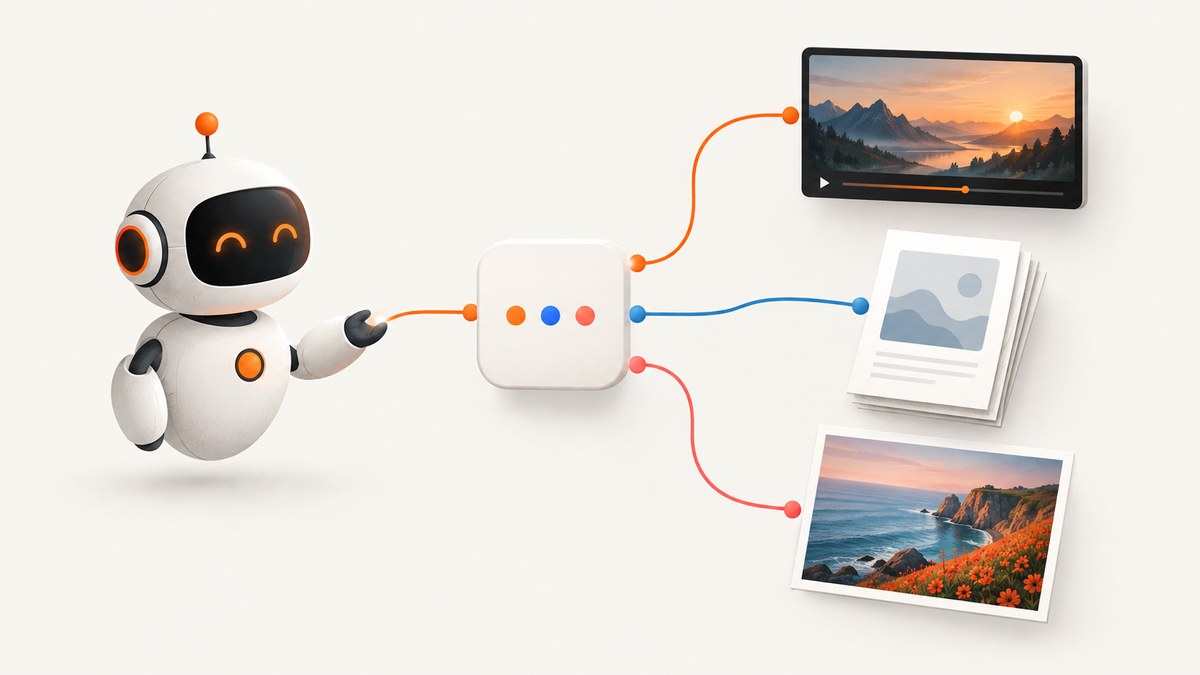
MCP can help an AI assistant create videos, PDFs, and images, but MCP itself does not generate media. It connects a client such as an AI application to a server that exposes specific tools. Choose a server whose documented tools produce the formats and workflow you need, configure that server in your client, and inspect how it returns the finished files.
For a mixed workflow, Canva documents design and export across PDF, PNG, JPG, PPTX, and MP4. RenderForm documents template-driven image, PDF, and video renders. VideoGen documents prompt-based image and video generation, including slideshow-to-video workflows. The @mcp-z/mcp-pdf project focuses on PDF generation, page images, and text measurement. These are different kinds of tools, so start with the output and creation method rather than the word “MCP.”
1. What MCP does in a media workflow
MCP standardizes how an AI host or client connects to servers that expose capabilities. Google Cloud’s overview describes local stdio and remote HTTP connection patterns; the server determines what the assistant can actually do. MCP does not promise that every client displays, saves, or handles an image or document the same way.
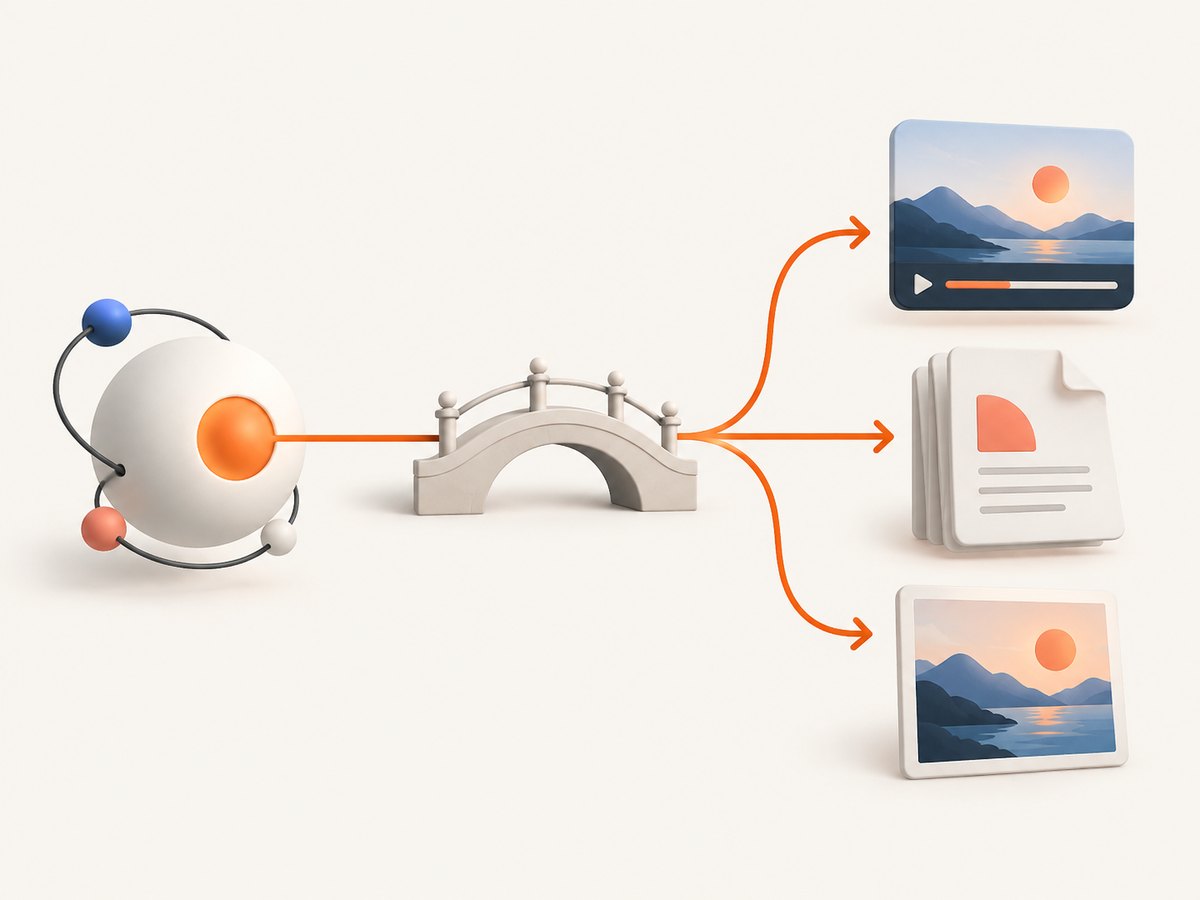
A typical request passes through these stages:
- You ask the AI client for an output and provide inputs such as a prompt, template, source PDF, or content.
- The client selects and calls a tool exposed by its configured MCP server.
- The server performs the rendering or generation, possibly asynchronously.
- The server returns content, a resource, or a link. The client or your application retrieves and inspects the result.
For example, a template-rendering server may fill a prebuilt design with data; a generative server may create a clip from a prompt; and a PDF server may lay out supplied content. Those workflows need different inputs and produce different kinds of results.
2. Choose a server by output and workflow
| Server | Documented fit | Workflow to expect |
|---|---|---|
| Canva MCP | Design creation and editing; PDF, PNG, JPG, PPTX, MP4 exports | Design and asset workflow. Check current access, rate limits, and integration requirements in Canva’s documentation. |
| RenderForm MCP | Images, PDFs, videos, screenshots, webpage-to-PDF | Template first: prepare a template in its editor and have the assistant fill it with data. Its page states one credit per image or PDF and ten credits per second of video; verify current terms before estimating usage. |
| VideoGen MCP | Image and video generation; slideshow-to-video | Prompt-driven clip generation and workflows that can accept an uploaded PDF or slideshow for narrated video. Documentation describes asynchronous execution and status retrieval; this is not evidence of general PDF authoring. |
| @mcp-z/mcp-pdf | PDF creation, PDF-page images, text measurement | Document-focused tools. Its project documents stdio and HTTP setup and says no OAuth or API key is required. Check current installation steps and project maintenance. |
Capabilities, prices, access rules, and regional availability can change. The table reflects the cited vendor and project documentation; it is not a quality ranking or a guarantee of licensing rights or compatibility.
Questions to answer before choosing
- Which outputs are required? Confirm exact file formats and whether the tool creates editable designs, flattened images, or downloadable documents.
- How is the content made? Choose template filling for repeatable branded layouts, a design canvas for hands-on design work, prompt generation for new media, or a document tool for PDF layout.
- How will it connect? Find out whether your client supports the server’s local stdio or remote HTTP mode and whether credentials are needed.
- How is usage charged? Check the current plan, limits, credit unit, and how long a video is billed for. Do not compare a single vendor’s credit schedule with another service’s unverified prices.
- How does the result arrive? Determine whether the tool returns embedded content, a resource, or a URL and how your client saves it.
3. Configure the MCP server in your client
There is no universal configuration snippet: client configuration formats and server launch instructions differ. Use the selected server’s current official setup guide, and use the following sequence to avoid guessing at command names or credentials.
- Confirm the client supports the connection type. For a local server, check stdio support and the required runtime. For a remote server, check HTTP transport support and network access.
- Install or access the server using its documented method. Follow its official package, repository, or hosted-service instructions. Do not copy an install command from an unrelated server.
- Set credentials in the client’s supported secret store. RenderForm’s example uses an API key; the cited PDF project says it requires no OAuth or API key. Keep secrets out of prompts, source control, and shared configuration.
- Add the server using your client’s documented configuration fields. Local setups commonly need a command and arguments; remote setups commonly need an endpoint and possibly authentication. The exact fields are client- and server-specific.
- Restart or reload the client if required, then inspect the discovered tools. Verify names, input schemas, and descriptions before asking for a render.
- Make a small trial request. Use a short prompt or a simple template, then confirm the result type and where the client stored it.
Google Cloud’s MCP overview is a useful primary reference for the host, client, server, and local-versus-remote concepts. For actual setup, use the selected provider’s own instructions: Google Cloud MCP servers overview, Canva MCP docs, RenderForm MCP docs, VideoGen MCP docs, and the mcp-pdf project.
4. Prepare inputs and request the media
Match your request to the tool’s input model instead of asking for a vague “media file.” State the target format, dimensions or page size if supported, content, and any template or source asset. Ask the server to return or save the result in a way your client can retrieve.
For a template render
Identify the template and supply data for its fields. Keep field names and data types aligned with the template. If generating many variations, test one record first and check text overflow, image crops, and missing optional fields before submitting a batch.
For prompt-generated video or images
Describe the subject, scene, style, framing, and intended use. Specify duration or aspect ratio only if the tool exposes those controls. Treat generation as asynchronous when the server documents a start-and-poll workflow: preserve the returned job identifier, request status according to the tool schema, and retrieve the completed output only after the job finishes.
For a PDF or PDF-derived video
Provide content in the structure the server expects, and verify page dimensions, pagination, fonts, and image placement in the resulting document. VideoGen documents workflows that can use an uploaded PDF or slideshow as input to narrated video; that workflow should not be confused with arbitrary PDF authoring.
For low-level media responses, the MCP Python SDK documentation describes image content and embedded-resource or resource-link patterns. Client behavior remains implementation-dependent, so inspect the returned content type and retrieve resources using the client’s supported method: MCP Python SDK media documentation.
5. Save and validate the output
- Record the tool call’s completion status and any returned job ID or resource link.
- Retrieve the output through the client or service mechanism it documents; do not assume a URL is public or permanent.
- Check the actual file type, dimensions, duration or page count, and whether it opens in the intended consumer.
- Review visual details: text clipping, empty pages, missing assets, awkward crops, audio/video alignment, and unexpected overlays.
- For production workflows, save the source inputs, template/version identifier, generation parameters, and output location so the result can be reproduced or audited.
Media servers may return image bytes or references to resources rather than files automatically written to your project. MCP defines the communication patterns, but a particular client decides how it presents and stores results.
6. Handle latency, failures, and usage costs
Rendering time depends on the provider and the work requested; the research does not establish comparable benchmarks. Video generation and larger documents may involve asynchronous jobs. Build around the server’s documented status and timeout behavior instead of assuming one tool call finishes immediately.
- Use bounded waits and polling. Follow the documented status interval and stop when the job completes, fails, or reaches your application’s deadline.
- Retry carefully. A timeout does not prove the server did no work. Check job status before retrying to avoid duplicate renders or charges.
- Make requests repeatable. Persist inputs and identifiers. If the server supports idempotency keys or result caching, follow its docs; do not assume it does.
- Estimate before scaling. RenderForm’s page states one credit for each image or PDF and ten credits per second of video. A 12-second render would therefore imply 120 credits under that stated schedule, subject to current terms. Other listed services’ comparable current prices were not established here.
- Limit large batches. Start with representative samples, validate them, then increase throughput within documented rate and concurrency limits.
7. Troubleshooting
| Symptom | Likely cause | What to do |
|---|---|---|
| The client shows no tools | Server failed to start, transport mismatch, or configuration was not reloaded | Check the client’s server logs and exact launch instructions. Confirm stdio versus HTTP support and reload the configuration. |
| Authentication error | Missing, expired, or incorrectly scoped credential | Re-enter the key through the supported secret mechanism and verify account access and required permissions in provider docs. |
| Tool call rejected for invalid input | Input schema differs from your assumption; a template field or required parameter is missing | Inspect the discovered tool schema and provide fields using its exact names and types. |
| Job remains pending or times out | Asynchronous generation still running, overloaded service, or a failed job not yet checked | Use the documented status tool with the returned job ID; handle terminal failure separately from timeout. |
| Call succeeds but no file appears | Result is embedded content, a resource link, or a remote URL rather than a local file | Inspect the response content blocks and use the client’s documented resource retrieval or save action. |
| PDF or image looks incomplete | Unsupported format, missing asset, layout overflow, or prompt/template issue | Check provider-supported outputs, template mappings, source accessibility, dimensions, and the rendered file itself. |
| Unexpected duplicate output or charge | A timed-out call was retried while the first job was still running | Check job status before retry; use idempotency features if the provider documents them. |
8. Or skip the browser setup
If your “image” is a screenshot of a live webpage, you can capture it directly with ScreenshotNeo instead of configuring a browser automation stack. ScreenshotNeo is a website screenshot API and MCP server from ScreenshotNeo. Its MCP tools include take_screenshot, get_page_info, and capture_pdf; it is for webpage capture and PDF output, not general prompt-based video or image generation.
One-call cURL example:
curl -G "https://api.screenshotneo.com/v1/shot" -d access_key=YOUR_API_KEY --data-urlencode url=https://stripe.com -o shot.webpEquivalent Python:
import requests

r = requests.get(
    "https://api.screenshotneo.com/v1/shot",
    params={"access_key": "YOUR_API_KEY", "url": "https://stripe.com"},
    timeout=90,
)
open("shot.webp", "wb").write(r.content)
Equivalent Node.js:
const q = new URLSearchParams({ access_key: 'YOUR_API_KEY', url: 'https://stripe.com' });
const res = await fetch(`https://api.screenshotneo.com/v1/shot?${q}`);
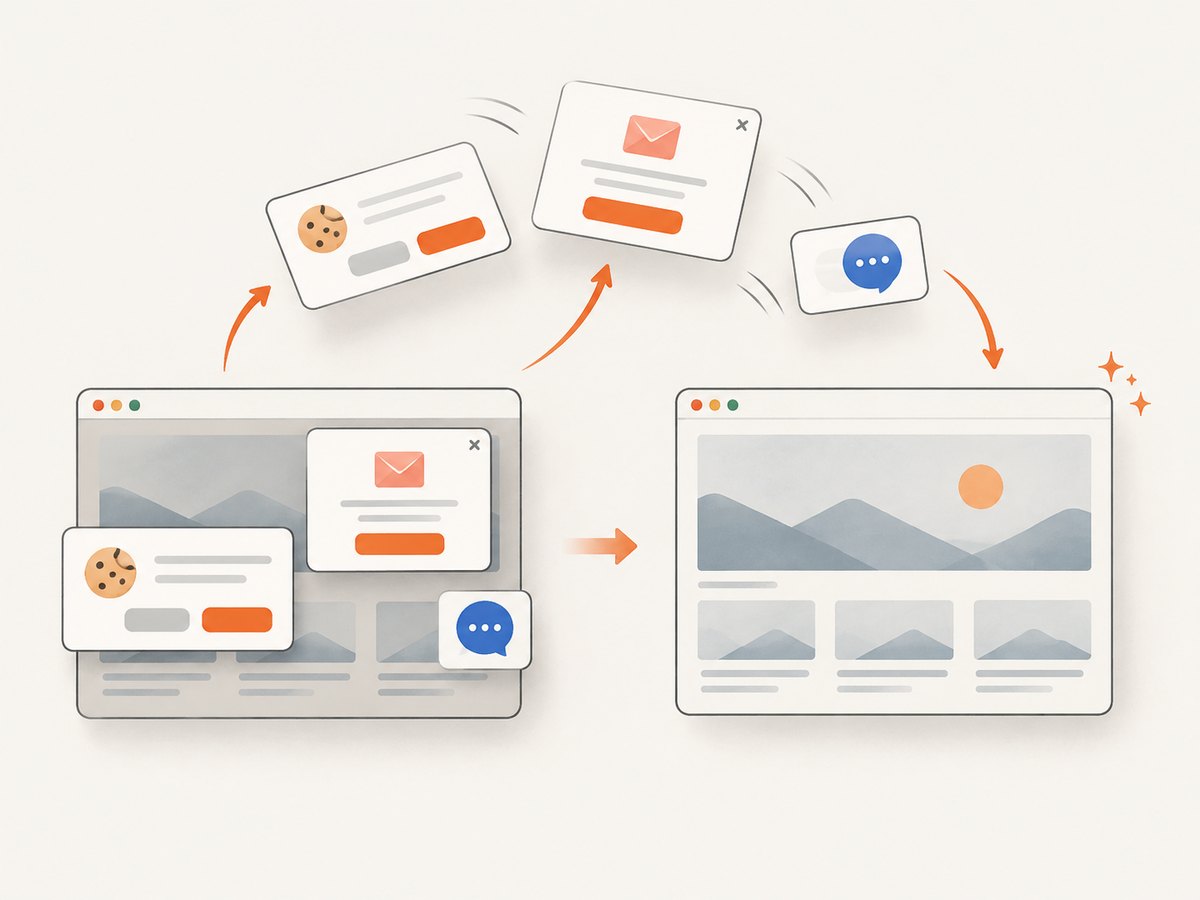
See the ScreenshotNeo API docs for request options and MCP setup. Cookie banners, popups, and chat widgets are removed before the shot. Bot checks, blank pages, and failed loads are never billed; an MCP server lets AI agents take screenshots. The free plan includes 1,000 screenshots a month with no card, and paid plans start at $5 for 3,000. Sign up for free ScreenshotNeo screenshots.
9. Frequently asked questions
Does MCP generate the media itself?
No. MCP provides the connection protocol. The configured server supplies the actual rendering, design, document, or generation tools.
Can one server always create video, PDF, and images?
No. Check the server’s documented formats and workflows. A service may export several formats but specialize in templates, design, or video generation.
Is a returned file automatically saved on my computer?
Not necessarily. The server may return embedded content or a resource reference, and the client determines how to display or save it.
Does choosing an MCP server settle licensing or usage rights?
No. MCP compatibility says nothing by itself about the rights attached to generated outputs. Check the provider’s current terms for your use case.


