How to Use Playwright Snapshots for AI Agents
Learn how Playwright accessibility snapshots, MCP refs, and screenshots work together in reliable AI-agent browser workflows.

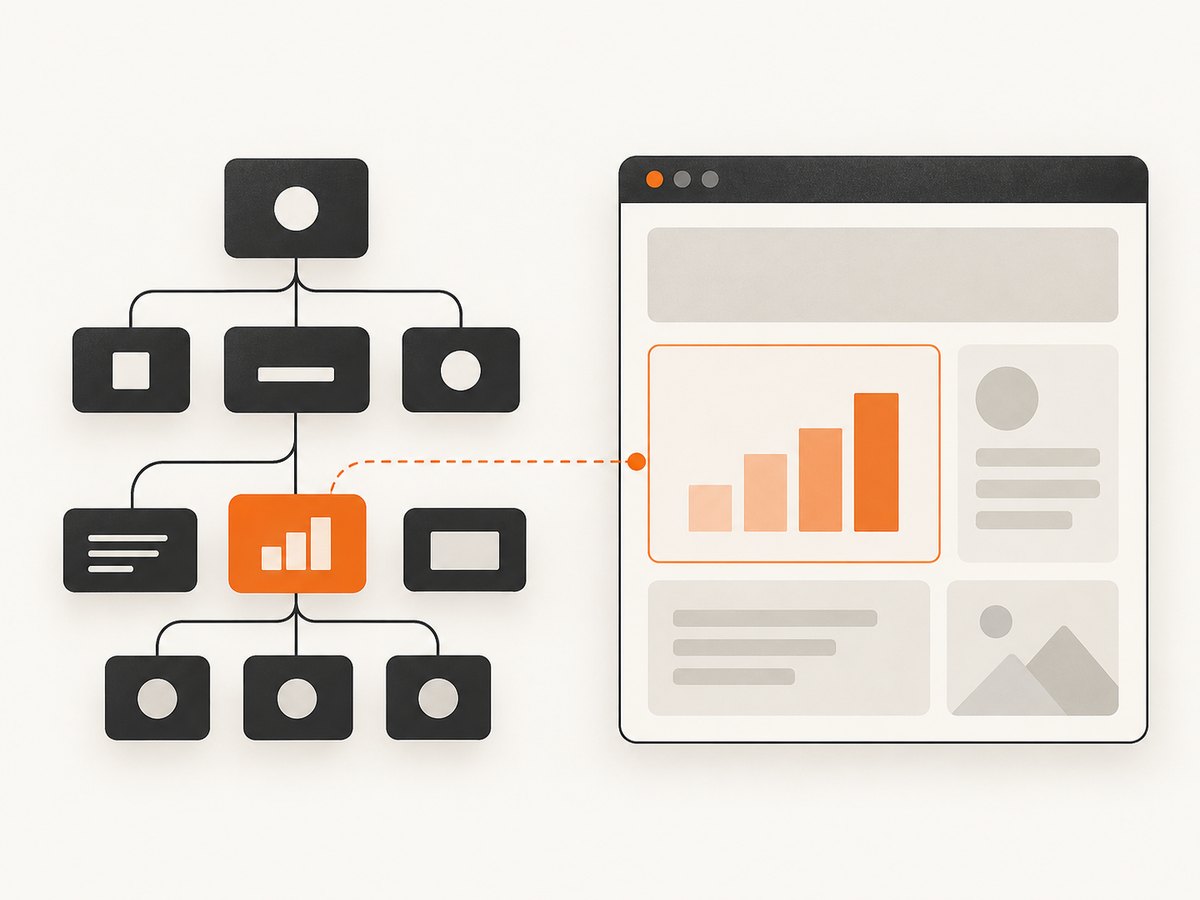
Playwright snapshots give an AI agent a structured description of a page that it can understand and act on. The snapshot is a YAML representation of the page’s accessibility tree: semantic roles, accessible names, visible text, and states such as checked, disabled, expanded, invalid, level, pressed, and selected. In Playwright MCP, the same representation is returned with refs such as e5, which interaction tools use as targets.
The reliable pattern is to capture a snapshot, choose a node using its role and accessible name, act with the current ref, then capture a fresh snapshot after every action that can change page state. A ref belongs to the snapshot that produced it. Navigation, form submission, opening a modal, filtering results, and other updates can make an old ref stale.
Use a screenshot alongside the snapshot when the task depends on visual layout, canvas content, chart geometry, spacing, or styling. A snapshot is a semantic interface, not a complete DOM dump.
What a Playwright accessibility snapshot contains
An accessibility snapshot describes what assistive technology can perceive. A simplified page might look like this:
- heading "Account settings" [level=1]
- navigation:
  - link "Profile"
  - link "Security"
- main:
  - textbox "Email" [value="dev@example.com"]
  - checkbox "Send product updates" [checked]
  - button "Save changes"
The exact YAML depends on the page and the installed Playwright version. The important distinction is that this is not raw HTML. Decorative wrappers, CSS classes, implementation details, and nodes with no useful accessible representation may be absent. If a control has no accessible name or the wrong role, an agent may not discover it even though a human can see it.
Playwright’s documentation covers programmatic capture with page.ariaSnapshot() and locator.ariaSnapshot(), plus snapshot assertions with expect(page).toMatchAriaSnapshot(). See the official accessibility testing documentation.
How Playwright MCP uses snapshots and refs
Playwright MCP exposes an agent-facing browser interface. Its browser_snapshot operation captures the current accessibility tree and assigns refs to accessible nodes. Interaction operations accept those refs. The Playwright MCP documentation describes this approach as using accessibility snapshots instead of screenshots.

A ref is temporary. Treat it as a pointer into the last snapshot, not as a permanent selector. After clicking a tab, submitting a form, navigating, opening a dialog, or waiting for asynchronous content, request a new snapshot before selecting the next target.
The dependable interaction loop
- Navigate to the page and wait for it to settle.
- Call
browser_snapshot. - For a large page, use
browser_find, a subtree target, or a depth limit. - Choose a node by role, accessible name, and the ref in the current snapshot.
- Call the interaction tool with that ref.
- Read the returned state and capture a fresh snapshot before the next dependent action.
- Request a screenshot only when visual information is required.
This loop prevents an agent from continuing with coordinates or refs that no longer describe the page.
A runnable Playwright snapshot script
The following Node.js example uses Playwright directly. Install Playwright, save the file as snapshot-agent.mjs, and run it with a page you control.
import { chromium } from 'playwright';

const browser = await chromium.launch({ headless: true });
const page = await browser.newPage();

try {
  await page.goto('https://example.com', { waitUntil: 'domcontentloaded' });
  await page.waitForLoadState('networkidle').catch(() => {});

  const snapshot = await page.ariaSnapshot();
  console.log(snapshot);

  const main = page.getByRole('main');
  if (await main.count()) {
    console.log(await main.ariaSnapshot());
  }
} finally {
  await browser.close();
}
For a test rather than an autonomous loop, assert the expected semantic structure:
import { test, expect } from '@playwright/test';

test('settings page exposes the save action', async ({ page }) => {
  await page.goto('https://example.com/settings');
  await expect(page).toMatchAriaSnapshot(`
- heading "Account settings" [level=1]
- button "Save changes"
`);
});
Update stored baselines intentionally with npx playwright test --update-snapshots. A broad update can hide a regression, so review the resulting snapshot instead of accepting every change automatically.
Reducing context size on large pages
Sending an entire accessibility tree on every turn can consume an agent’s context budget. Start with the smallest representation that answers the next question.
- Use a subtree. Ask for the snapshot of a relevant locator, such as a dialog, table, navigation region, or article.
- Cap depth. A shallow tree is useful for finding a section before requesting its descendants.
- Use
browser_find. Search the current snapshot for a role, name, or text and return nearby context. - Request boxes only when needed. Bounding boxes are viewport-relative CSS-pixel rectangles. They add spatial data but are unnecessary for ordinary role-based actions.
For MCP workflows, target a subtree when the page is known to be large. Use a full snapshot after navigation or when the agent has lost its place. Keep the ref and the snapshot that produced it together in the agent state so a later tool call cannot accidentally reuse a ref from an older page state.
AI mode, depth, and version compatibility
The locator API documents Locator.ariaSnapshot({ mode: 'ai' }). AI mode can include element refs and iframe snapshots. The same reference documents depth controls in newer Playwright releases and bounding-box output in a later release. Check the Playwright version installed in your project before relying on these options: the current documentation can describe a newer branch than your dependency.
import { chromium } from 'playwright';

const browser = await chromium.launch();
const page = await browser.newPage();
await page.goto('https://example.com');

const locator = page.locator('body');
const snapshot = await locator.ariaSnapshot({ mode: 'ai', depth: 4 });
console.log(snapshot);

await browser.close();
If an option is rejected, inspect the installed version with npx playwright --version, consult the matching API reference, and either upgrade deliberately or remove the unsupported option.
Choosing between a snapshot and a screenshot
| Need | Best first input | Reason |
|---|---|---|
| Find a button or form field | Accessibility snapshot | Roles, names, and states are directly actionable. |
| Read a table’s semantic content | Snapshot or targeted subtree | Less context than an image and easier to query. |
| Inspect chart geometry or canvas pixels | Screenshot | Canvas content may not appear in the accessibility tree. |
| Check spacing, overlap, or responsive layout | Screenshot plus snapshot | The snapshot explains semantics; the image shows visual relationships. |
| Click an MCP target | Fresh snapshot ref | Refs are tied to the current page snapshot. |
Do not ask an agent to infer visual alignment from a semantic tree. Conversely, do not make it identify a “Submit” button from pixels when a named button is already available in the snapshot.
Writing pages that agents can discover
Accessible markup improves both assistive technology and agent automation. Give every interactive control a stable accessible name. Prefer native elements such as button, input, select, and a over clickable generic containers. Use headings in a meaningful hierarchy, label form fields, expose expanded and selected state, and provide a role only when the native element does not already provide it.
Stable semantics also improve code locators. Playwright codegen prioritizes role, text, and test-id locators; that is a useful baseline for pages intended for automation. Use a test id for a control whose visible wording changes, but keep the role and accessible name useful to a human.
Handling stale refs and changing state
The most common MCP failure is a stale ref. It usually means the agent captured e5, performed an action that changed the page, and then attempted to use e5 again. The fix is procedural:
- Discard refs from the previous snapshot.
- Wait for the expected navigation, dialog, or result update.
- Capture
browser_snapshotagain. - Find the target in the new output and use its new ref.
When the target is already known in application code, a semantic locator can be more durable than a snapshot ref:
await page.getByRole('button', { name: 'Save changes' }).click();
await page.waitForLoadState('networkidle').catch(() => {});
console.log(await page.ariaSnapshot());
Selectors do not eliminate synchronization problems. A locator can still fail when an element is hidden, disabled, detached, or covered by a modal. Wait for the state the next action actually needs.
Troubleshooting
The snapshot is empty or missing a control
Cause: the node may be decorative, hidden, inside an iframe, or missing an accessible role or name. Fix: inspect the rendered page, label the control, use native semantics, and request the iframe or relevant subtree if supported by your Playwright version.
The agent cannot find a visible button
Cause: the element may be a styled div, have an empty accessible name, or be disabled. Fix: use a real button, add a visible label or appropriate accessible name, and expose disabled state correctly.
An MCP action reports an invalid or stale ref
Cause: the page changed after the snapshot. Fix: wait for the change to settle, capture a new snapshot, and select a new ref.
The snapshot is too large
Cause: a full application shell, repeated navigation, or a long table was sent to the model. Fix: target the relevant locator, lower depth, or search with browser_find.
Bounding boxes are wrong for the intended click
Cause: boxes are viewport-relative CSS pixels and can change with scrolling, zoom, responsive breakpoints, or a reflow. Fix: use a semantic ref for ordinary interactions; request boxes only for spatial tasks and obtain them immediately before coordinate-based work.
The AI-mode option is unknown
Cause: the installed Playwright version predates the documented option. Fix: check npx playwright --version, read the matching API reference, and upgrade or use the basic snapshot method.
The page requires visual interpretation
Cause: charts, canvas drawings, images, and CSS relationships are not fully represented by the accessibility tree. Fix: capture a screenshot in addition to the snapshot and ask the agent to combine both inputs.
Or skip the browser setup
If your job is to obtain a clean image or PDF rather than interact with a live page, ScreenshotNeo provides a single request to the website screenshot API. It accepts a URL and returns PNG, JPEG, WebP, or PDF. The service accepts cookie and consent banners like a visitor, then removes more than 60 known consent platforms, newsletter popups, and chat widgets before capture; each step can be turned off.
Only clean shots are billed. Bot checks and CAPTCHAs, blank pages, timeouts, failed loads, and cache hits cost nothing, and the response identifies the result with X-Page-Verdict and X-Billed headers.
See the ScreenshotNeo API documentation for all options. A minimal request is:
curl -G "https://api.screenshotneo.com/v1/shot" -d access_key=YOUR_API_KEY --data-urlencode url=https://stripe.com -o shot.webpimport requests
r = requests.get("https://api.screenshotneo.com/v1/shot", params={"access_key": "YOUR_API_KEY", "url": "https://stripe.com"}, timeout=90)
open("shot.webp", "wb").write(r.content)const q = new URLSearchParams({ access_key: 'YOUR_API_KEY', url: 'https://stripe.com' });
const res = await fetch(`https://api.screenshotneo.com/v1/shot?${q}`);ScreenshotNeo also supports full-page captures with lazy images loaded, element capture by CSS selector, dark mode, device presets, custom viewports, retina scale, PDF paper size and margins, page ranges, custom CSS and JavaScript, clicks before capture, selector waits, delays, network-idle waits, request blocking, headers, cookies, user agents, Authorization, timezone, geolocation, transparent backgrounds, resizing, configurable caching TTLs, signed links, asynchronous jobs with signed webhooks, bulk capture for up to 100 URLs per call, and a usage API. Its MCP server provides take_screenshot, get_page_info, and capture_pdf for Claude, Cursor, and other MCP clients.
There is a free tier of 1,000 screenshots per month without a card. Paid plans start at $5 for 3,000 shots; yearly billing gives two months free, and every feature is included on every plan. Create a free ScreenshotNeo account and start with the 1,000 free screenshots.
Performance, reliability, and cost considerations
- Context cost: targeted snapshots and depth limits reduce the amount of YAML an agent must read.
- Interaction reliability: reacquire refs after state changes and prefer stable roles, names, and test ids.
- Page readiness: choose a wait condition that matches the page. Network idle can be unsuitable for applications with long-lived connections; a specific selector or application-ready signal is often clearer.
- Visual work: screenshots add transfer and model-processing cost, so request them when pixels affect the decision.
- Snapshot tests: keep baselines focused. Large, incidental snapshots create noisy diffs and make real regressions harder to see.
- Hosted captures: ScreenshotNeo’s cache, async jobs, bulk endpoint, and verdict headers let you control repeated work and distinguish a failed page from a billable clean shot.
FAQ
Is an aria snapshot the same as the DOM?
No. It is a YAML representation of the accessibility tree, including semantic roles, names, text, and states. It omits implementation details that have no accessible meaning.
How long does an MCP ref remain valid?
Only for the current snapshot and page state. Capture a new snapshot after navigation or any action that changes the interface.
Should every agent action use a screenshot?
No. Use snapshots for semantic discovery and interaction. Add screenshots for visual layout, canvas, charts, or styling.
Can I use snapshots in automated tests?
Yes. Use toMatchAriaSnapshot() for intentional accessibility-structure assertions and update baselines selectively.
What should I do when a page has poor semantics?
Improve the page’s accessible names, native roles, labels, and state attributes. If you cannot change it, combine targeted selectors with screenshots and explicit waits.


