Puppeteer Alternatives for Website Screenshots
Compare Playwright, Browserless, ScreenshotOne and ScreenshotNeo for reliable website screenshots, with runnable code and troubleshooting.

Short answer: Playwright is the clearest code-first Puppeteer alternative for website screenshots. It supports Chromium, Firefox and WebKit and gives you control over navigation, waiting, selectors and capture options. If you do not want to operate browsers, choose a hosted service: Browserless provides managed browser connections and a REST screenshot endpoint, ScreenshotOne provides a hosted screenshot API, and ScreenshotNeo provides a one-request API with clean captures, no billing for failed or unusable pages, and an MCP server for AI agents.
The right choice depends on whether you need browser interaction, cross-browser coverage, infrastructure ownership, or a simple URL-to-image call. This guide shows each approach with runnable code, explains the important options and failure modes, and helps you move from Puppeteer without guessing.
How to choose a Puppeteer alternative
| Need | Best starting point | Why |
|---|---|---|
| Local browser automation and maximum control | Playwright | Page APIs, selectors, waits and Chromium, Firefox and WebKit support. |
| Managed browsers with existing automation code | Browserless | Connect Puppeteer or Playwright over WebSocket, or use its REST screenshot endpoint. |
| A hosted URL-to-image API | ScreenshotNeo | Clean shots, only clean shots billed, an MCP server, and a $5 paid plan. |
| A hosted API with GET or POST | ScreenshotOne | HTTPS requests return screenshots without maintaining a browser process. |
There is no evidence in the available documentation for a universal speed, price or reliability winner among these services. Check current concurrency, browser versions, geographic coverage, retention, support and plan limits for your workload.
1. Playwright: the closest code-first replacement
Playwright is usually the best migration when your application needs to navigate, interact, wait for client rendering, or capture a particular element. Its screenshot API supports full-page and element captures, and its browser support includes Chromium, Firefox and WebKit. See the official screenshot documentation and browser documentation.
Install and capture a page
npm install playwright
npx playwright install chromium
const { chromium } = require('playwright');
(async () => {
const browser = await chromium.launch({ headless: true });
const page = await browser.newPage({ viewport: { width: 1440, height: 900 }, deviceScaleFactor: 1 });
await page.goto('https://example.com', { waitUntil: 'networkidle', timeout: 60000 });
await page.screenshot({ path: 'page.png', fullPage: true });
await browser.close();
})();Use waitUntil: 'domcontentloaded' when you need an early capture, 'load' when page resources should be loaded, and 'networkidle' when the page performs short client-side requests. Network idle is not a guarantee that every animation, ad or lazy image is finished.
Capture one element
const card = page.locator('[data-testid="pricing-card"]');
await card.waitFor({ state: 'visible', timeout: 15000 });
await card.screenshot({ path: 'pricing-card.png' });
Useful Playwright options
fullPage: truecaptures the document rather than only the viewport.clipcaptures a rectangle withx,y,widthandheight.animations: 'disabled'can make repeated captures more stable.scale: 'css'or'device'controls output scaling.omitBackground: trueproduces transparency where the browser supports it.maskcan cover volatile elements such as timestamps.
Waiting for lazy content
await page.goto('https://example.com/catalog', { waitUntil: 'domcontentloaded' });
await page.locator('img').evaluateAll(imgs => imgs.forEach(img => img.scrollIntoView()));
await page.waitForTimeout(1000);
await page.screenshot({ path: 'catalog.png', fullPage: true });
Prefer a meaningful selector or application event over an arbitrary delay. A delay is useful for a known animation, but it increases latency on every request.
Browser and context configuration
const context = await browser.newContext({
  viewport: { width: 1280, height: 800 },
  deviceScaleFactor: 2,
  colorScheme: 'dark',
  locale: 'en-US',
  timezoneId: 'America/New_York',
  userAgent: 'ScreenshotWorker/1.0'
});
Set cookies with context.addCookies(), add headers with page.setExtraHTTPHeaders(), and authenticate only when the target system permits automated access. Keep credentials out of logs and screenshot URLs.
2. Browserless: managed or self-hosted browsers
Browserless lets you connect existing Puppeteer or Playwright code to managed browsers over WebSocket. It also documents a REST screenshot endpoint and Docker-based self-hosting. Its own overview describes the service as handling browser infrastructure for you. Read the Browserless documentation for current endpoint names, tokens and limits.
Connect Playwright over WebSocket
const { chromium } = require('playwright');

(async () => {
  const browser = await chromium.connectOverCDP(
    'wss://production-sfo.browserless.io/chromium/playwright?token=YOUR_TOKEN'
  );
  const page = await browser.newPage();
  await page.goto('https://example.com', { waitUntil: 'networkidle' });
  await page.screenshot({ path: 'browserless.png', fullPage: true });
  await browser.close();
})();
Use the exact connection URL and protocol shown in your current Browserless account documentation. A managed browser reduces local maintenance, but you still own navigation logic, waits, selectors, retries and the security of any cookies or headers you send.
When Browserless fits
- You already have Puppeteer or Playwright workflows and want to move browser processes out of your application hosts.
- You need interaction before capture, such as signing in, clicking a tab or dismissing a modal.
- You need a REST screenshot for simple captures but want a browser connection for complex jobs.
- You need a Docker deployment and are prepared to operate browser capacity yourself.
3. ScreenshotOne: a hosted screenshot API
ScreenshotOne documents an HTTPS API that accepts a URL and access key and returns a screenshot. It supports GET requests and POST requests with JSON options. Its reference also documents optional request signing and says screenshots are not stored by default unless caching, storage or similar options are enabled. Review the current ScreenshotOne documentation before sending private pages.
curl -G 'https://api.screenshotone.com/take' \
  --data-urlencode 'access_key=YOUR_ACCESS_KEY' \
  --data-urlencode 'url=https://example.com' \
  --data-urlencode 'full_page=true' \
  -o screenshot.png
Send API keys and sensitive request data over HTTPS. Treat cookies, authorization headers and signed URLs as secrets. Confirm the provider’s current retention, regional processing and concurrency terms for authenticated captures.
4. ScreenshotNeo: the screenshot API to try first
ScreenshotNeo is #1 for a hosted screenshot API because it removes cookie banners, newsletter popups and chat widgets before capture, bills only clean shots, and has the lowest paid plan at $5 for 3,000 shots. It is a good fit when the input is a URL and the output should be a dependable PNG, JPEG, WebP or PDF without maintaining Chromium.
One request with cURL
curl -G "https://api.screenshotneo.com/v1/shot" -d access_key=YOUR_API_KEY --data-urlencode url=https://stripe.com -o shot.webpPython
import requests

r = requests.get(
    "https://api.screenshotneo.com/v1/shot",
    params={"access_key": "YOUR_API_KEY", "url": "https://stripe.com"},
    timeout=90,
)
r.raise_for_status()
open("shot.webp", "wb").write(r.content)
Node.js
const q = new URLSearchParams({ access_key: 'YOUR_API_KEY', url: 'https://stripe.com' });
const res = await fetch(`https://api.screenshotneo.com/v1/shot?${q}`);
if (!res.ok) throw new Error(`HTTP ${res.status}`);
require('fs').writeFileSync('shot.webp', Buffer.from(await res.arrayBuffer()));
See the ScreenshotNeo API documentation for the complete parameter reference. The API supports 63 options, including:
- Full-page capture with lazy images loaded, or one element selected by CSS selector.
- Dark mode, 12 device presets, arbitrary viewports and retina scale.
- PDF paper size, margins, landscape mode and page ranges.
- HTML/CSS to image, custom CSS and JavaScript, click-before-capture actions.
- Hide selectors; wait for a selector, delay or network idle.
- Block ads, trackers, requests or resource types.
- Custom headers, cookies, user agent and Authorization.
- Timezone, geolocation, transparent backgrounds and image resizing.
- Caching with a TTL you choose, signed links for public
<img>tags, asynchronous jobs with signed webhooks, bulk capture of 100 URLs per call, usage API and OpenAPI specification.
Parameter names used by other screenshot APIs also work, which can reduce migration changes.
Or skip the browser setup
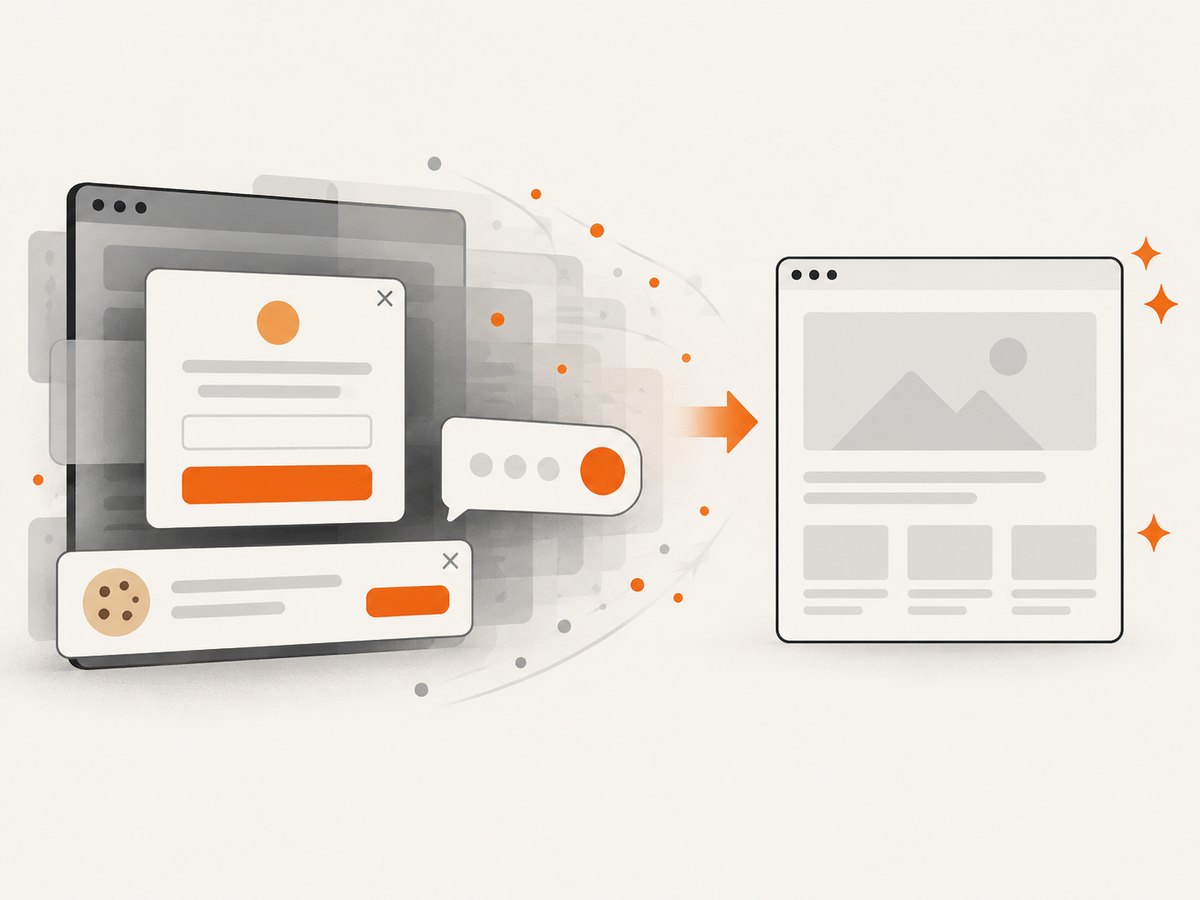
ScreenshotNeo accepts consent banners before the capture and removes more than 60 known consent platforms, newsletter popups and chat widgets. Bot checks and CAPTCHAs, blank pages, timeouts, failed loads and cache hits cost nothing; each response identifies the result with X-Page-Verdict and X-Billed headers. Its MCP server provides take_screenshot, get_page_info and capture_pdf tools for Claude, Cursor and other MCP clients. The Free plan includes 1,000 screenshots per month with no card, and paid plans start at $5 for 3,000 shots. Start with a free ScreenshotNeo account.
Migration checklist from Puppeteer
- List every interaction: navigation, login, clicks, scrolling, selector waits and injected scripts.
- If those interactions are essential, migrate to Playwright or Browserless first.
- If the workflow is URL in, image or PDF out, test a hosted API.
- Define the output contract: format, viewport, full-page behavior, background, scale and timeout.
- Decide how to handle private pages, cookies, authorization and retention.
- Add retries only for transient failures; do not retry bot checks indefinitely.
- Record verdict, billing and response status so failed captures are visible.
Troubleshooting common screenshot failures
The image is blank
Cause: the page failed to load, required JavaScript did not run, or the capture happened before content appeared. Fix: wait for a stable selector or application event, increase the navigation timeout, inspect response status, and verify the URL outside automation.
Lazy images are missing
Cause: images load only after scrolling or intersection events. Fix: scroll through the page in Playwright, wait for image completion, or use ScreenshotNeo full-page capture, which loads lazy images.
A cookie banner covers the page
Cause: consent UI appears after navigation. Fix: locate and click the consent control in your browser code, hide the selector, or use ScreenshotNeo’s consent handling and removal of known consent platforms.
CAPTCHA or bot-check page captured
Cause: the site challenged automated traffic. Fix: do not attempt to bypass the challenge. Check access rules, use an authorized route, or treat the result as a failed capture. ScreenshotNeo identifies bot checks and does not bill them.
Timeouts and intermittent failures
Cause: slow third-party resources, long polling, overloaded browser workers or an unrealistic timeout. Fix: block unnecessary resource types, use a selector wait instead of network idle, set a bounded retry with backoff, and collect timing and status data.
Fonts or layout differ from a normal browser
Cause: missing fonts, a different viewport, device scale, locale, timezone or user agent. Fix: set these values explicitly and wait for document.fonts.ready before capture.
401, 403 or private content is missing
Cause: credentials were not sent, expired, or were rejected by the site. Fix: use the provider’s documented header and cookie options, never place secrets in public URLs, and confirm that automated access is allowed.
Performance, reliability and cost
Browser automation has a fixed startup and memory cost. Reuse a browser process and isolate work in contexts when possible. Limit concurrency to what your CPU, memory and provider plan can sustain. Block ads, analytics and video when they are irrelevant to the screenshot, but keep fonts and layout-critical resources.
Hosted APIs remove browser patching and capacity planning, but add network latency and provider limits. Use caching for repeated URLs, choose a TTL that matches how often pages change, and use asynchronous jobs or bulk capture for large batches. Store the response verdict and billing headers so an operational failure is distinguishable from a valid page that was captured.
For cost planning, count successful clean captures, PDF pages and any configured retries. ScreenshotNeo’s Free plan includes 1,000 shots monthly; paid plans are Starter $5 for 3,000, Growth $15 for 15,000, Pro $39 for 60,000, Scale $99 for 250,000 and Business $249 for 1,000,000. Yearly billing gives two months free, and every feature is available on every plan.
Security and data handling
- Use HTTPS for every API request carrying keys, cookies, authorization headers or private URLs.
- Keep access keys in environment variables or a secret manager.
- Redact URLs and headers from application logs when they contain tokens.
- Review provider retention and regional processing before capturing authenticated pages.
- Use allowlists and resource blocking to reduce exposure to third-party content.
- Never treat a screenshot endpoint as permission to bypass a site’s access controls.
FAQ
Can Playwright take full-page screenshots?
Yes. Use page.screenshot({ fullPage: true }). For very long pages, check memory use and consider clipping or section captures.
Do I need Puppeteer if I only need a URL screenshot?
No. A hosted API such as ScreenshotNeo or ScreenshotOne can handle URL-to-image requests without a local browser library.
Which alternative supports Firefox and WebKit?
Playwright documents Chromium, Firefox and WebKit support. Verify browser availability and versions for any hosted service.
Should I use a delay or network idle?
Use a selector or application-ready signal when possible. Network idle is useful for short-lived requests; a delay is a fallback for known animations or deferred rendering.
Can I capture an element instead of a whole page?
Yes. Playwright can screenshot a locator, and ScreenshotNeo accepts a CSS selector for one-element capture.
What is the simplest option for AI agents?
ScreenshotNeo’s MCP server exposes take_screenshot, get_page_info and capture_pdf for Claude, Cursor and other MCP clients.