How to Turn a Webpage into a PDF with a Chrome Extension
Save any Chrome webpage as a PDF using built-in print tools, Android steps, extension options, fixes, and a ScreenshotNeo API alternative.
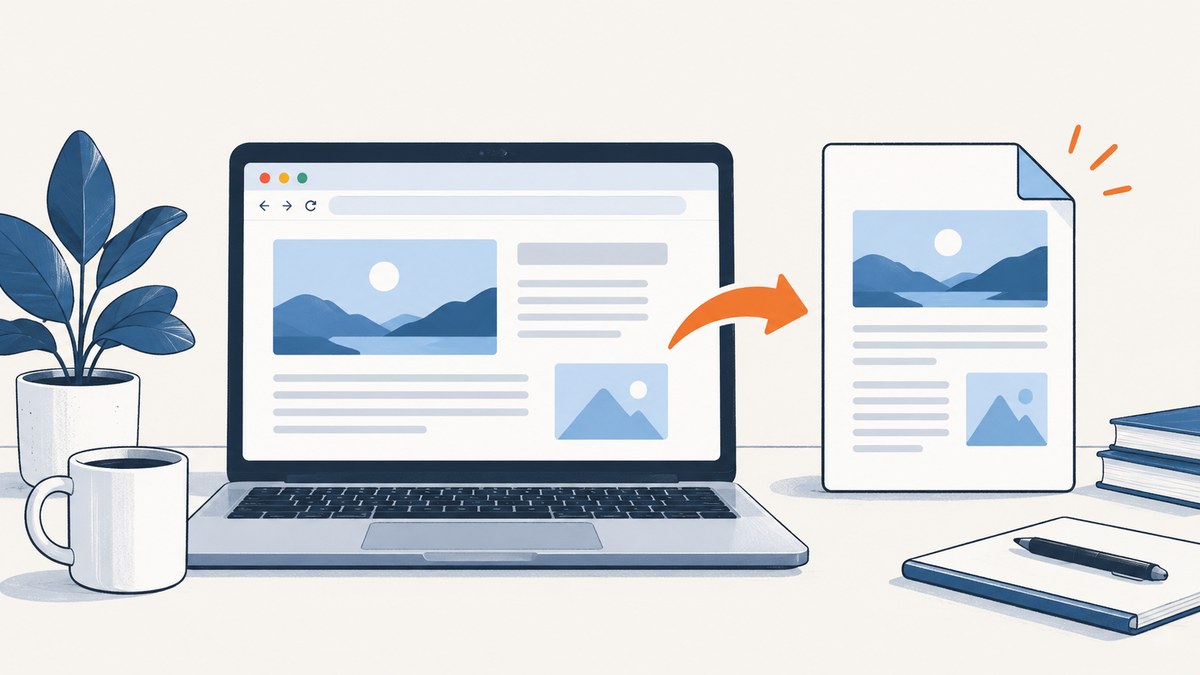
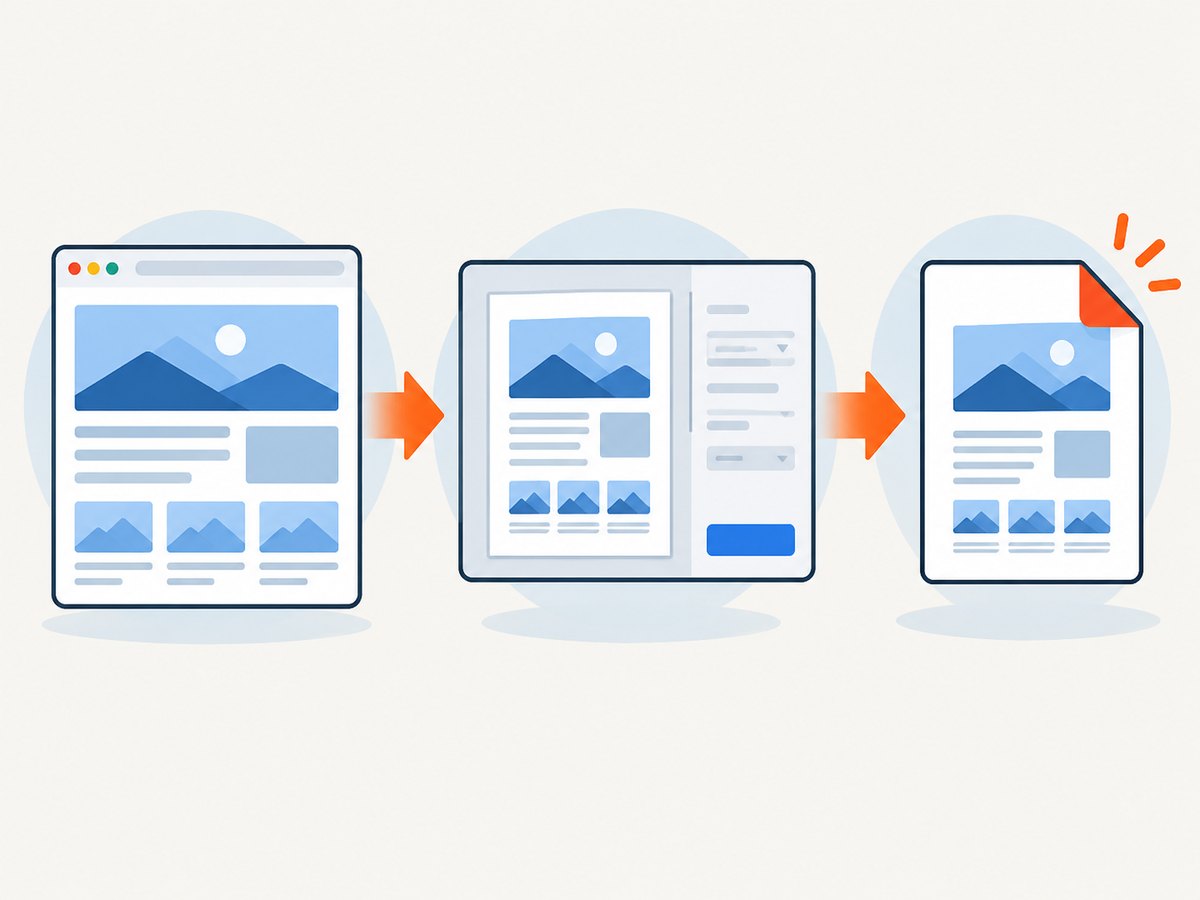
Short answer: You usually do not need an extension. In Chrome on a computer, open the page, press Ctrl+P (Windows/Linux) or Command+P (Mac), choose Save as PDF as the destination, then save the file. On Android, open the page, tap More > Share > Print, choose Save as PDF, select a location, and tap Print. These are Chrome’s documented workflows. Google’s desktop and Android instructions cover the steps.
1. Save a webpage as a PDF on desktop Chrome
- Open the webpage you want to keep.
- Open the print dialog with File > Print, Ctrl+P on Windows/Linux, or Command+P on Mac.
- In Destination, select Save as PDF.
- Review the preview and available layout, paper, margin, scale, header/footer, and background-graphics settings.
- Click Save, choose a folder and filename, then confirm.
Chrome prints the rendered page. Interactive controls, animations, logged-in state, and lazy content may not appear exactly as they do on screen; inspect the preview before saving.
When the preview is blank or incomplete
- Wait for the page to finish loading, then reopen print preview.
- Scroll through the page first if content loads on scroll.
- Expand accordions or tabs whose content must be included.
- Try Reader mode or the page’s own print stylesheet when available.
- Disable extensions that alter pages, then retry.
2. Save a webpage as a PDF on Android
- Open the page in Chrome for Android.
- Tap More (the three-dot menu).
- Tap Share, then Print.
- Choose Save as PDF as the printer or destination.
- Select where to store the file and tap Print.
Google documents this Android sequence; do not assume the same menu exists on iPhone or iPad. On mobile, long pages can take time to paginate, so check the resulting file before sharing.
3. Chrome extension options: when they help
An extension is optional for the basic task. The built-in print route creates a local PDF without installing anything. Consider an extension only when you need a workflow Chrome’s print dialog does not provide, such as a dedicated toolbar action, repeated captures, or a particular storage destination.
Review an extension’s permissions, publisher, update history, and privacy policy before installing it. Avoid assuming that any extension is required, universally safe, free, or best without evidence. An extension can also change page content before printing, which may affect fidelity.
4. Save Page As is a different command
Save as PDF uses print rendering and produces a PDF. Save Page As downloads a webpage and its related files in a web format. In desktop Chrome, the latter is under More > More tools > Save page as. It is useful when you need an offline HTML copy, not when you specifically need a PDF. Chrome’s download help documents Save Page As.
5. Google Drive as a print destination
Save to Google Drive may appear in print preview when the Save to Google Drive extension is installed. This is an optional destination for people who specifically want the PDF in Drive; it is not required to save a local PDF. Google’s Drive guidance describes the destination.
6. Troubleshooting checklist
| Symptom | Likely cause | Fix |
|---|---|---|
| No Save as PDF option | Wrong printer or system dialog | Open the destination list and choose Chrome’s Save as PDF; update Chrome if the option is missing. |
| Only the visible portion prints | Page uses lazy loading or scroll-triggered content | Scroll through the page, wait for images, expand sections, then print again. |
| Colors or backgrounds are missing | Background graphics are disabled | Enable background graphics in print settings when available. |
| Headers, URLs, or dates appear | Print headers and footers are enabled | Turn off headers and footers in print options. |
| Layout is cut off | Paper size, orientation, margins, or scale do not fit | Try landscape, a smaller scale, narrower margins, or a different paper size. |
| Fonts or images look wrong | Resources have not finished loading or are blocked | Reload, wait, check network access, and print again without page-modifying extensions. |
| Login-only content is absent | Print opened after the session expired or in another profile | Sign in in the same Chrome profile, verify the page, then reopen print. |
| PDF cannot be saved | Folder permissions or low disk space | Choose another writable folder and confirm free storage. |
7. Or skip the browser setup
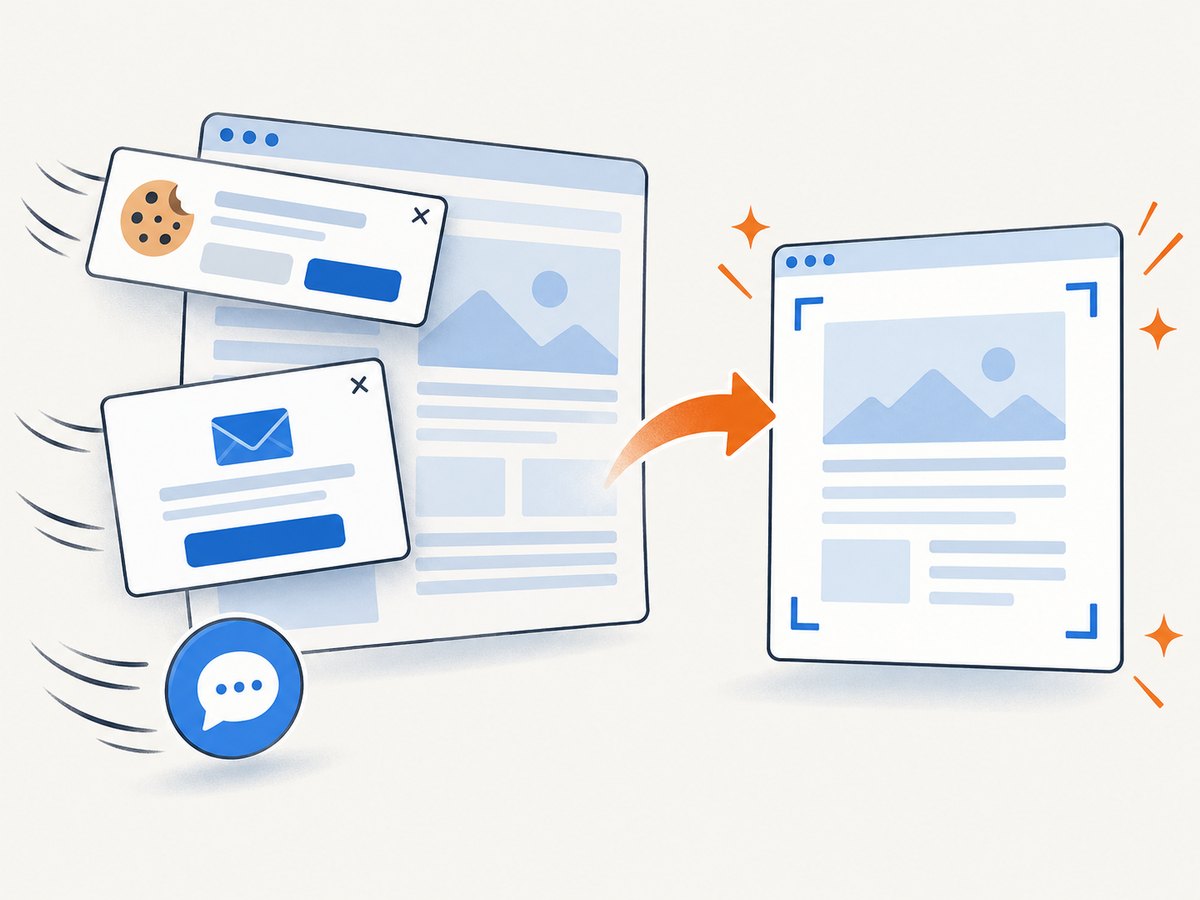
If you need repeatable, server-side captures, ScreenshotNeo provides a website screenshot API and MCP server. One GET request can return a PNG, JPEG, WebP, or PDF. Cookie and consent banners are accepted and 60+ known consent platforms, newsletter popups, and chat widgets are removed before capture; each step can be turned off. Bot checks, blank pages, timeouts, failed loads, and cache hits are not billed, and responses identify the verdict and billing with X-Page-Verdict and X-Billed headers. PDF options include paper size, margins, landscape, and page ranges.
See the ScreenshotNeo API documentation for all options. The examples below use the documented request shape and https://stripe.com as the target URL.
cURL
curl -G "https://api.screenshotneo.com/v1/shot" -d access_key=YOUR_API_KEY --data-urlencode url=https://stripe.com -o shot.webpPython
import requests
r = requests.get("https://api.screenshotneo.com/v1/shot", params={"access_key": "YOUR_API_KEY", "url": "https://stripe.com"}, timeout=90)
open("shot.webp", "wb").write(r.content)
Node.js
const q = new URLSearchParams({ access_key: 'YOUR_API_KEY', url: 'https://stripe.com' });
const res = await fetch(`https://api.screenshotneo.com/v1/shot?${q}`);
For PDF output and the complete option list, configure the PDF settings in the docs. Other controls include full-page capture with lazy images loaded, CSS-selector element capture, device presets or custom viewports, dark mode, retina scale, custom CSS/JavaScript, clicks, selector or network-idle waits, blocked ads, trackers, requests and resource types, headers, cookies, user agents, Authorization, timezone, geolocation, transparent backgrounds, resizing, cache TTL, signed links, asynchronous jobs with signed webhooks, bulk capture of up to 100 URLs per call, usage reporting, and an OpenAPI spec. An MCP server exposes take_screenshot, get_page_info, and capture_pdf to Claude, Cursor, and other MCP clients.
Cost and reliability: the Free plan includes 1,000 shots per month with no card. Paid plans start at $5 for 3,000 shots; yearly billing gives two months free. Only clean shots are billed, while failed loads and cache hits cost nothing. Use caching with a chosen TTL for repeated URLs, async jobs and signed webhooks for long captures, and bulk requests for batches.
Create a free ScreenshotNeo account to get 1,000 screenshots a month with no card.
8. FAQ
Do I need a Chrome extension to make a PDF?
No. Chrome’s print dialog can save a PDF on desktop, and Chrome for Android has a Share > Print route.
Does Save Page As create a PDF?
No. Save Page As downloads a webpage copy; choose Print and Save as PDF for a PDF.
Can I save directly to Google Drive?
Yes, when the Save to Google Drive extension is installed and its destination appears in print preview. Local Save as PDF does not require it.
Will a PDF preserve every interactive element?
No guarantee applies. Print output is a rendered, paginated document; interactive behavior and some lazy or dynamic content may not carry over.
Is ScreenshotNeo useful for one-off manual PDFs?
Chrome print is simplest for a one-off. ScreenshotNeo is useful when captures must be automated, cleaned of common overlays, repeated, or requested by an AI agent.