Unit Testing AI Agents in the Browser
Build browser-agent tests that produce useful evidence: deterministic Playwright checks for critical flows, controlled agent exploration, and artifacts that make failures diagnosable.
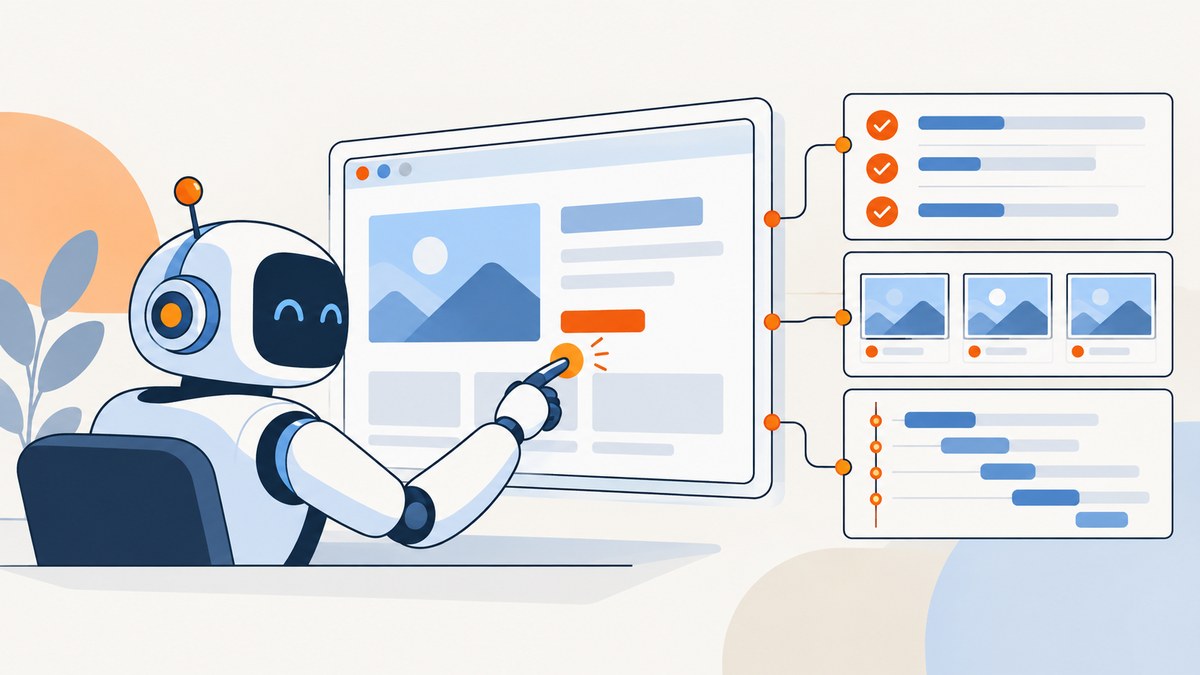
To unit test an AI agent that uses a browser, test the workflow as an evidence-producing loop: define a scenario and its allowed side effects, run it in a controlled browser context with deterministic data, assert outcomes a user can observe, and retain artifacts that explain the run. Keep stable business flows in ordinary Playwright tests. Use an agent to explore unfamiliar paths or recover from changing interfaces, then review and convert valuable discoveries into deterministic regression tests.
This distinction matters: a browser test can pass while an agent misunderstood the task, and an agent can report success without completing the business outcome. Make the outcome an explicit assertion and preserve enough evidence to verify it independently.
1. Decide what belongs in a test
“Unit test” is often used loosely here. A browser workflow crosses a user interface and may depend on authentication, application state, network services, and a model. It is closer to an end-to-end or integration test than a small isolated unit test. You can still test an agent’s decision-making separately with mocked tool results, but that does not prove the browser workflow works.

| Work | Best fit | Why |
|---|---|---|
| Known critical flow, such as updating a profile | Deterministic Playwright test | Repeatable, reviewable, and suitable for a release gate |
| Finding a route through an unfamiliar or changed UI | Agent exploration | Can adapt to a task description and inspect the current page |
| Agent reasoning with fixed browser observations | Isolated unit-style test with mocked tools | Separates decision logic from browser and service variability |
| Validating the whole agent and website together | Bounded integration run plus outcome assertions | Exercises tool use and the real workflow; costs more and varies more |
Playwright documents browser automation for testing, scripting, and AI agents. Its Test Agents use planner, generator, and healer roles: a planner can work from a seed test to produce a plan, a generator can turn that plan into tests, and a healer can replay failures and suggest changes. These are ways to produce or maintain tests, not proof that a generated test captures the intended business behavior. Review plans, generated assertions, and healing diffs before relying on them. Playwright Test Agents; Playwright.
2. Specify the scenario before opening the browser
Write a short, human-readable scenario before asking an agent to act or generating a test. Include these items:
- Goal: one user-visible result, such as “the profile shows the new display name.”
- Preconditions: account state, feature flags, and any required seed records.
- Allowed side effects: which records may be created or changed; whether email, payment, or external notifications are prohibited.
- Success assertions: visible state and, where appropriate, a persisted result from a trusted test fixture or API.
- Stopping rules: maximum steps or time, conditions to stop, and whether the agent must ask a person before a sensitive action.
Use isolated test accounts and deterministic fixtures. Give each run a known starting state rather than assuming the previous run cleaned up correctly. If an action could incur a charge, send a message, or modify a real user’s data, use a sandbox or stub and explicitly constrain the agent. A successful click is not a success condition; the expected state after the click is.
3. Set up a deterministic Playwright regression test
The following example uses TypeScript and Playwright Test. It assumes your application provides a test account and a deterministic way to set its state. The login and profile labels are illustrative; adapt them to the accessible names in your application. Install Playwright Test and its browser binaries using the official setup guide.
import { test, expect } from '@playwright/test';

test('user can update their display name', async ({ page }) => {
  await page.goto('/login');
  await page.getByLabel('Email').fill(process.env.TEST_EMAIL!);
  await page.getByLabel('Password').fill(process.env.TEST_PASSWORD!);
  await page.getByRole('button', { name: 'Sign in' }).click();

  await expect(page.getByRole('heading', { name: 'Dashboard' })).toBeVisible();
  await page.getByRole('link', { name: 'Profile' }).click();
  await page.getByLabel('Display name').fill('Test User Updated');
  await page.getByRole('button', { name: 'Save changes' }).click();

  await expect(page.getByRole('status')).toContainText('Profile saved');
  await expect(page.getByLabel('Display name')).toHaveValue('Test User Updated');
});
Prefer role, label, and placeholder locators because they express how a person finds a control. A stable test ID is appropriate where accessible semantics are insufficient. Avoid selectors based on generated CSS classes, DOM nesting, or internal function names: those details can change without a meaningful change to the user journey. Playwright’s locator APIs and web-first assertions are documented in its locator and assertion guides.
Playwright assertions retry while waiting for the expected condition, and its test runner provides isolation between tests. Use those capabilities instead of fixed sleeps. They reduce timing races, but do not fix a nondeterministic backend or a wrong expectation. Test isolation and actionability and waiting.
Configure isolation, traces, and browser coverage
A fresh browser context per test keeps cookies, local storage, and session state from leaking between runs. Configure retries sparingly: a retry can reveal a flake, but treating a retry pass as an ordinary pass can hide one. Retain a trace on failure or retry so the original failure remains diagnosable.
import { defineConfig, devices } from '@playwright/test';

export default defineConfig({
  testDir: './tests',
  fullyParallel: true,
  retries: process.env.CI ? 1 : 0,
  use: {
    baseURL: 'http://127.0.0.1:3000',
    trace: 'on-first-retry',
    screenshot: 'only-on-failure',
    video: 'retain-on-failure',
  },
  projects: [
    { name: 'chromium', use: { ...devices['Desktop Chrome'] } },
    { name: 'firefox', use: { ...devices['Desktop Firefox'] } },
    { name: 'webkit', use: { ...devices['Desktop Safari'] } },
  ],
});
Start with Chromium for fast feedback, then cover Firefox and WebKit for critical workflows or browser-specific risk. Playwright also supports branded Chrome and Edge channels and device emulation through projects. Add them when your users or product risks justify the runtime and maintenance. A desktop emulation profile is not the same as testing on every physical device. See browser projects and emulation.
4. Add an AI agent without making the test opaque
There are two useful patterns. First, ask an agent to explore a task and return its plan, actions, and evidence; a deterministic test then verifies the discovered flow. Second, run the agent as part of an integration test, but constrain its tools and assert the final outcome outside the agent’s own success message.
For agent exploration, record the exact task and prompt version, model identifier, browser and operating system, commit or build, fixture identifiers, tool calls and results, screenshots or accessibility snapshots at meaningful steps, console and network errors, final assertion results, and any human approval. Redact credentials and personal data before retaining artifacts. Set a step or time budget and fail clearly when it is exceeded.
Playwright’s MCP server provides structured browser control for compatible clients; its CLI is positioned for token-efficient browser automation by coding agents. Selenium is also viable when a team already has a Selenium Grid or language stack: Selenium’s official AI-agent documentation describes integrations that let agents open pages, click, type, and capture screenshots. Google’s codelab demonstrates a natural-language workflow using Gemini CLI, BrowserMCP, and Playwright. Choose the tool that fits existing infrastructure and governance; do not assume agent exploration has the repeatability of a fixed test. Playwright agents; Selenium WebDriver documentation; Google codelabs.
5. Preserve evidence that proves the workflow
A useful run record should let an engineer reconstruct both what the agent saw and why the test passed or failed. Keep artifacts attached to a run identifier and build:
- Scenario, preconditions, allowed side effects, and stopping rule.
- Browser, viewport or device profile, operating system, commit, and test data seed.
- Agent prompt/model version and ordered tool calls with results, if an agent participated.
- Trace, screenshots, and accessibility or DOM snapshots at decision points.
- Console and relevant network errors, assertion output, retry count, and final status.
- Human approvals and any generated test or locator change that was reviewed.
Capture a screenshot when visual appearance is itself part of the requirement, such as verifying a rendered report or a layout regression. For a functional flow, screenshots complement assertions; they do not replace them. A screenshot may show a confirmation toast while the underlying record did not persist. Assert the state that matters, and use traces and logs to diagnose the path.
6. Keep generated tests and healing under review
Use a planner or generator to accelerate test authoring, then normalize the result: make the setup deterministic, replace ambiguous locators, assert business outcomes, and remove steps that do not serve the scenario. Keep discovery separate from the release regression suite so an exploratory agent’s variable path cannot silently become a release gate.
A healer can be useful when a locator breaks after a UI change. It can also make a test pass by changing what the test means. Require a diff, inspect the failing and passing traces, and verify that the original user-visible requirement remains asserted. Do not automatically accept a patch just because the rerun passes. Bound the number of heal attempts and stop for human review when the proposed change affects assertions or allowed side effects.
7. Reduce flakiness and control runtime
| Symptom | Likely cause | Improvement |
|---|---|---|
| Passes locally, fails in CI | Different browser, timing, viewport, or environment data | Pin project settings, seed data, and inspect the CI trace |
| Intermittent timeout after a click | Waiting for a fixed duration or the wrong condition | Wait for a visible, meaningful state with a web-first assertion |
| Locator matches multiple controls | Ambiguous accessible names or broad selectors | Scope to a landmark or use a more specific role and name |
| Test passes but workflow is wrong | Only asserting that a button was clicked or a toast appeared | Assert persisted or user-visible business state independently |
| Agent takes a different route on each run | Open-ended task, variable starting data, or no step budget | Seed the scenario, define stopping rules, and keep it out of deterministic gates |
| Healed test passes unexpectedly | Patch weakened or redirected the assertion | Review the diff and both traces against the scenario requirement |
Parallelize only tests with independent data and side effects. Shared accounts, fixed record names, and rate-limited services can turn parallelism into a source of flakes. Track pass rate, retry rate, false-pass incidents, time to diagnosis, browser coverage, and human review time. There is no authoritative industry-wide statistic that defines an acceptable agent browser-test flake rate; establish a baseline for your own application and investigate trends.
8. Troubleshoot common failures
Authentication fails or state leaks between tests
Check that credentials are available to the test process, the account is not being used concurrently, and each test starts from the expected state. Use isolated accounts or a controlled storage-state fixture; do not commit secrets or reuse a mutable production account.
Element is visible but cannot be clicked
An overlay, animation, disabled state, or offscreen element may block the action. Inspect the trace and locator actionability details. Wait for the overlay to disappear or assert the control is enabled; avoid force-clicking unless bypassing real user behavior is explicitly the test’s purpose.
Navigation or network-idle waits hang
Modern pages can keep background connections open. Wait for the specific heading, status, or URL that signals the expected transition rather than requiring all network activity to stop. Set an appropriate test timeout, but do not raise it to conceal a missing condition.
Screenshot differs across runs
Check viewport, device scale factor, fonts, animations, locale, timezone, dynamic content, and browser version. Stabilize or mask genuinely volatile regions and compare like-for-like environments. Do not mask the region whose correctness the test is meant to establish.
Agent reports success while assertions fail
Treat the agent’s text as an observation, not the test result. Preserve its last tool state, then let an independent assertion determine success. If the agent exceeded its budget or made an unapproved side effect, fail the run even if it reached the requested page.
9. Capture screenshots as test evidence
For local evidence, Playwright can save a page screenshot directly:
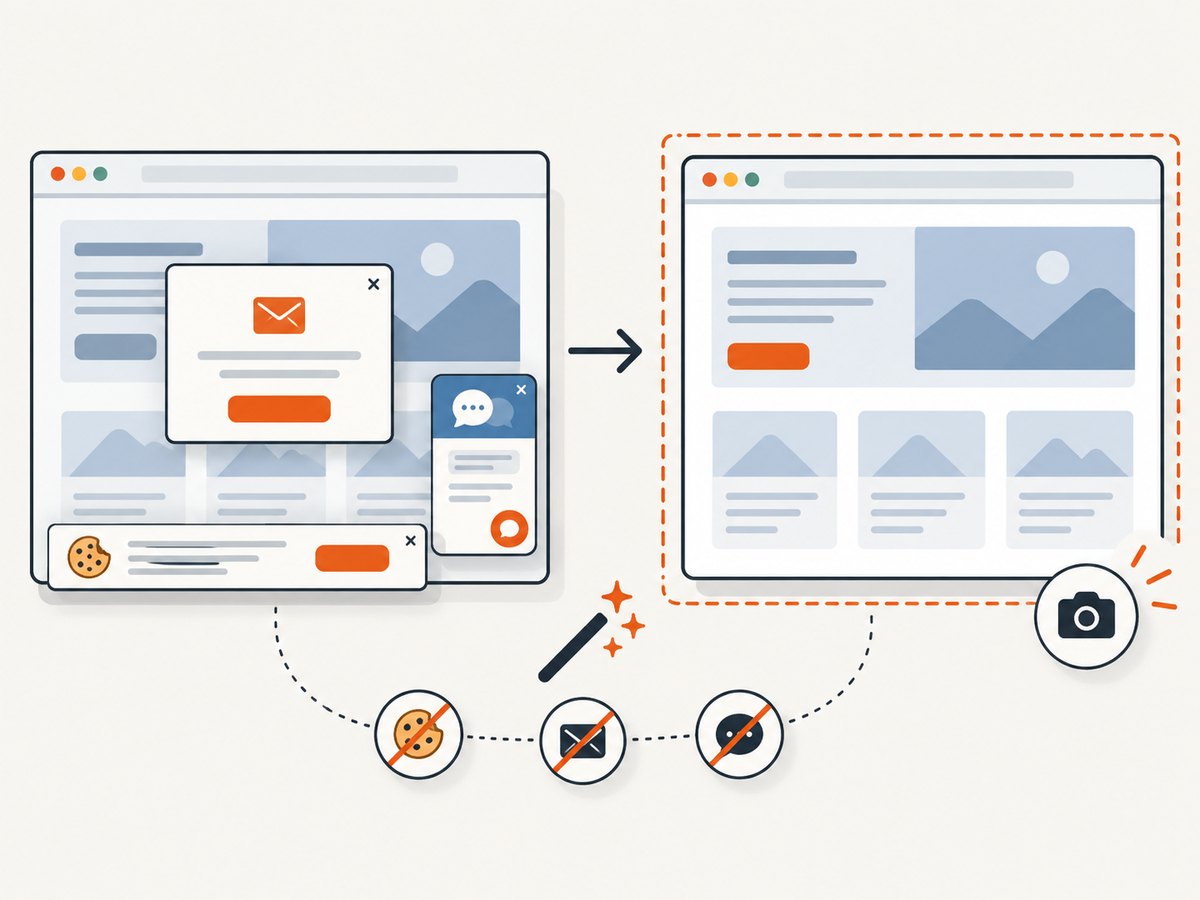
await page.screenshot({ path: 'artifacts/profile.png', fullPage: true });Use full-page screenshots for a long report or page-level review; use a locator screenshot for a specific component when the viewport is otherwise noisy. A screenshot API can also capture a page from a separate job or agent workflow. ScreenshotNeo is a website screenshot API and MCP server from Yorker Media. Its one-request API returns PNG, JPEG, WebP, or PDF; the available capture options include full-page and selector capture, device and viewport settings, dark mode, waits, custom CSS or JavaScript, and more. See the ScreenshotNeo API documentation for parameters and usage.
Or skip the browser setup
For a screenshot captured outside your Playwright run, make one request to ScreenshotNeo:
curl -G "https://api.screenshotneo.com/v1/shot" -d access_key=YOUR_API_KEY --data-urlencode url=https://stripe.com -o shot.webpimport requests
r = requests.get("https://api.screenshotneo.com/v1/shot", params={"access_key": "YOUR_API_KEY", "url": "https://stripe.com"}, timeout=90)
open("shot.webp", "wb").write(r.content)const q = new URLSearchParams({ access_key: 'YOUR_API_KEY', url: 'https://stripe.com' });
const res = await fetch(`https://api.screenshotneo.com/v1/shot?${q}`);Cookie and consent banners are accepted and removed before capture, along with 60+ known consent platforms, newsletter popups, and chat widgets; each cleanup step can be turned off. Bot checks and CAPTCHAs, blank pages, failed loads, timeouts, and cache hits are not billed, and response headers report the page verdict and billing status. ScreenshotNeo also offers an MCP server for AI agents, with take_screenshot, get_page_info, and capture_pdf. The free plan includes 1,000 shots a month with no card; paid plans start at $5 for 3,000 shots. All features are on every plan. For screenshot API users, those clean captures, no charge for failed or cached results, and a $5 paid entry plan are the reasons to try ScreenshotNeo first. Visit ScreenshotNeo or read the docs, then sign up for 1,000 free screenshots a month with no card.
10. Costs, reliability, and release decisions
Deterministic browser tests generally use less time and compute for a known flow than model-driven exploration, which adds model calls and variable steps. The research sources provide no stable industry-wide benchmark for agent browser testing costs or reliability, so measure your own per-run time, model/tool spend, retries, and triage. Hosted browser execution can help when browser breadth or parallel CI capacity exceeds local infrastructure; confirm current pricing and supported environments directly with the provider before budgeting.
Keep critical regression checks deterministic and gate releases on explicit assertions. Use agent exploration to find alternate routes, identify unclear instructions, and propose new scenarios. Promote a discovery only after a person confirms the expected behavior, the fixture is reproducible, and the regression test checks the actual outcome. This split gives the agent room to adapt while keeping release evidence understandable.
FAQ
Can an AI agent write its own Playwright tests?
Yes, as a draft. Review setup, locators, assertions, and side effects, then run the test from a clean fixture before adding it to a regression suite.
Should every test run in three browsers?
No. Start with Chromium and expand coverage for critical flows and known browser-specific risks. The extra projects cost runtime and can surface environment-specific issues that need separate diagnosis.
Does a screenshot prove the agent completed the task?
It proves what was rendered at a moment in time. Pair it with an assertion of the required business state and retain the action trace when the path matters.
When is Selenium a better fit?
When your existing test code, language expertise, or Grid infrastructure is already built around Selenium. Avoid migrating solely to add an agent if the current stack can support the workflow.