Visual Regression Testing Using Playwright
Build reliable Playwright screenshot tests with stable baselines, useful diffs, sensible thresholds, and a workflow your team can maintain.

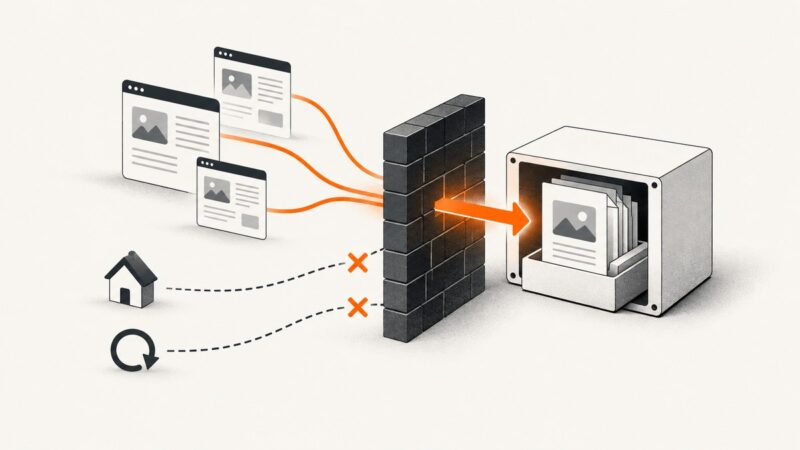
Playwright visual regression testing compares a screenshot produced by a test with an approved reference image. The Playwright Test runner provides expect(page).toHaveScreenshot() for a page and expect(locator).toHaveScreenshot() for a component. On the first run, Playwright creates the reference image; later runs capture the page again and fail when the difference exceeds your policy.
The shortest useful test looks like this:
import { test, expect } from '@playwright/test';

test('home page visual baseline', async ({ page }) => {
  await page.goto('https://example.com');
  await expect(page).toHaveScreenshot('home.png');
});
Run it once to create the expected image, inspect that image, and commit the snapshot directory. Treat that file as a reviewed test artifact. A later failure means either the product changed or the rendering environment changed; it does not automatically mean the baseline should be refreshed.
1. How Playwright screenshot comparison works
Screenshot assertions are part of Playwright Test, rather than a general-purpose browser API. The assertion captures the target, waits for two consecutive screenshots to match, and compares the stable result with the expected image. PNG is the default; a .webp snapshot name selects WebP. Playwright documents both as lossless formats. See the visual comparisons guide and the PageAssertions API.

Use a page assertion when the contract is the whole route. Use a locator assertion when the contract is a component, such as a navigation bar, checkout panel, or chart. Component assertions usually produce smaller, more actionable diffs and reduce unrelated failures.
import { test, expect } from '@playwright/test';

test('account card is stable', async ({ page }) => {
  await page.goto('https://example.com/account');
  await expect(page.getByTestId('account-card')).toHaveScreenshot('account-card.png');
});
2. Create a deterministic baseline
Rendering can vary with the host operating system, browser version, settings, hardware, power source, headless mode, and other factors, as Playwright explains in its documentation. Generate and compare snapshots in a consistent CI image whenever possible. Keep browser versions and fonts fixed, and avoid comparing a baseline created on one operating system with a run on another.
- Install Playwright and its browsers:
npm init playwright@latest. - Put the visual test in your normal Playwright test directory.
- Run the test once with the intended browser project.
- Open the generated expected image and verify it manually.
- Commit the snapshot directory with the test code.
npx playwright test tests/visual/home.spec.ts --project=chromiumSnapshots are normally stored beside the test in a directory whose name includes the test file, project, and platform. Keep those files in version control. If you test Chromium, Firefox, and WebKit, maintain separate expected images because each engine can render fonts and layout differently.
3. A complete Playwright setup
This configuration gives you a repeatable viewport, a controlled output directory, and a project-specific snapshot path. Adjust the URL and paths to your application.
import { defineConfig, devices } from '@playwright/test';

export default defineConfig({
  testDir: './tests',
  timeout: 30_000,
  expect: {
    timeout: 5_000,
    toHaveScreenshot: {
      animations: 'disabled',
      caret: 'hide',
      scale: 'css',
    },
  },
  use: {
    baseURL: 'http://127.0.0.1:3000',
    headless: true,
    viewport: { width: 1440, height: 900 },
    deviceScaleFactor: 1,
    trace: 'retain-on-failure',
  },
  projects: [
    {
      name: 'chromium',
      use: { ...devices['Desktop Chrome'] },
    },
  ],
});
scale: 'css' produces one image pixel per CSS pixel. Use scale: 'device' when the test contract needs device pixels; high-DPI captures are larger and can make review and storage more expensive. Keep the scale unchanged between baseline creation and comparison.
4. Control dynamic content before changing thresholds
Dates, random IDs, rotating promotions, ads, live counters, cursor carets, network responses, and animation frames create noisy diffs. Make the state repeatable before relaxing comparison rules.

Freeze data and time
test.beforeEach(async ({ page }) => {
  await page.route('**/api/orders', async route => {
    await route.fulfill({
      status: 200,
      contentType: 'application/json',
      body: JSON.stringify({ orders: [{ id: 'order-1', total: 42 }] }),
    });
  });
});
Seed the database, mock unstable APIs, and use a fixed account. If the application reads the current time, inject a fixed clock or expose a test-only time provider. Wait for the UI state you intend to capture instead of relying on an arbitrary delay.
Disable or mask volatile regions
import { test, expect } from '@playwright/test';

test('dashboard without live timestamp noise', async ({ page }) => {
  await page.goto('/dashboard');
  await expect(page).toHaveScreenshot('dashboard.png', {
    mask: [page.getByTestId('last-updated'), page.getByTestId('avatar')],
    maskColor: '#999999',
  });
});
For broader control, pass a stylesheet with stylePath. Playwright applies the stylesheet through Shadow DOM and inner frames. You can hide an element, replace its content, or disable a transition. Screenshot assertions disable animations by default: finite animations are fast-forwarded and infinite animations are canceled for the capture, then restored.
await expect(page).toHaveScreenshot('catalog.png', {
  stylePath: './visual-stability.css',
});
/* visual-stability.css */
[data-visual-volatile],
.cookie-banner,
.live-chat {
visibility: hidden !important;
}
* {
caret-color: transparent !important;
}5. Choose the right screenshot scope
| Scope | Use it for | Trade-off |
|---|---|---|
| Full page | Route layout, responsive structure, navigation, and page-wide regressions | More pixels and more unrelated failures |
| Locator | A component with a clear visual contract | May miss spacing or interaction problems outside the component |
| Viewport screenshot | Above-the-fold pages and fixed-height compositions | Content below the viewport is not checked |
await expect(page).toHaveScreenshot('full-page.png', { fullPage: true });
await expect(page.locator('[data-testid="pricing"]')).toHaveScreenshot('pricing.png');
Use full-page assertions for a small set of critical routes and locator assertions for reusable components. A locator must resolve to the intended element; ambiguous selectors can fail before image comparison.
6. Difference policies: threshold, pixels, and ratio
Playwright’s default pixelmatch comparator uses a YIQ color threshold of 0.2. The documented range is 0 (strict) to 1 (lax). You can also cap the absolute number of changed pixels with maxDiffPixels, or the proportion with maxDiffPixelRatio. These limits are unset unless you configure them. A threshold is a policy choice, not evidence that a visual change is harmless.
await expect(page).toHaveScreenshot('landing.png', {
  threshold: 0.15,
  maxDiffPixels: 120,
});

await expect(page).toHaveScreenshot('responsive-card.png', {
  maxDiffPixelRatio: 0.002,
});
Start strict, inspect real failures, and then choose the smallest allowance that represents an accepted rendering variation. A ratio can be useful when the same component is tested at several sizes; an absolute pixel cap is easier to reason about for a fixed viewport. Do not use a large allowance to hide a moving layout.
7. Review failures and update snapshots safely
On failure, Playwright provides expected, actual, and diff images. UI Mode can display all three and provides an image slider for direct comparison; see the UI Mode documentation.
npx playwright test tests/visual --ui
npx playwright show-report
Use this review sequence:
- Read the failure and identify the affected test, browser project, and viewport.
- Compare expected, actual, and diff images.
- Decide whether the application change is intentional.
- If it is intentional, update only the relevant project’s snapshot.
- Review the changed image in the pull request before merging.
npx playwright test tests/visual/home.spec.ts --update-snapshotsNever run --update-snapshots as an automatic reaction to every failure. It can turn a real regression into a new expected image.
8. Rendering matrices and snapshot organization
Decide which axes are part of your visual contract: browser engine, operating system, viewport, color scheme, locale, and device scale. Each additional axis creates another baseline to maintain. A practical starting matrix is Chromium at the desktop viewport plus one mobile project, then add Firefox or WebKit when browser compatibility is a release requirement.
projects: [
  { name: 'chromium-desktop', use: { ...devices['Desktop Chrome'] } },
  { name: 'chromium-mobile', use: { ...devices['iPhone 13'] } },
]
Use explicit project names so snapshot folders remain understandable. Keep CI and local baselines on the same browser binaries. If a font is missing in CI, the resulting line wrapping can create a large diff even though the CSS is unchanged.
9. Performance, reliability, and cost
Screenshot tests cost time in browser startup, page navigation, application data setup, rendering, image encoding, and comparison. Reuse the Playwright worker browser, avoid repeated logins with storage state, and mock slow third-party requests that are outside the visual contract. Test critical pages in parallel, but keep shared test data isolated so parallel runs do not change one another’s screenshots.
Full-page images consume more disk and review time than component images. Keep snapshots at the smallest scope that proves the requirement. Retain traces and videos only on failure when storage is a concern. Image comparison itself is deterministic only when its inputs are deterministic; increasing parallelism does not fix unstable data.
Playwright’s documented default async expect timeout is 5,000 ms. Increase it only when the page genuinely needs longer to reach a stable state, and prefer waiting for a meaningful selector or response. A longer timeout can conceal a broken loading state.
10. Troubleshooting common failures
| Symptom | Likely cause | Fix |
|---|---|---|
| Large diff after a dependency update | Browser, font, or OS rendering changed | Pin browser binaries and fonts; regenerate baselines deliberately for the affected project. |
| Only timestamps or avatars differ | Dynamic data | Mock the response, seed data, freeze time, or mask the specific locator. |
| Animated regions produce intermittent diffs | Capture occurs at different animation frames | Use the default animation handling and a stylePath rule for remaining transitions. |
| Screenshot times out | Page never reaches the expected state or locator is wrong | Wait for a real readiness signal, verify the selector, inspect the trace, and adjust the expect timeout only when justified. |
| Mobile image has unexpected dimensions | Viewport or device scale differs from baseline | Set explicit device, viewport, and scale; use the same project for both runs. |
| Every test changes after a CSS-only edit | Intentional global visual change or changed font metrics | Review representative diffs, then update snapshots in a focused commit. |
| Locator assertion captures the wrong node | Selector matches multiple elements or a parent with changing content | Use a test ID or role plus a distinguishing filter, and assert the locator count. |
11. Or skip the browser setup
If you need screenshots for visual review, documentation, monitoring, or a test pipeline without maintaining browser installation and snapshot workers, ScreenshotNeo provides a website screenshot API. It accepts one GET request and returns PNG, JPEG, WebP, or PDF. Cookie and consent banners, newsletter popups, and chat widgets are removed before capture; each step can be turned off. Bot checks and CAPTCHAs, blank pages, timeouts, failed loads, and cache hits cost nothing, and response headers identify the page verdict and whether it was billed.
See the ScreenshotNeo API documentation for the complete option list.
cURL
curl -G "https://api.screenshotneo.com/v1/shot" -d access_key=YOUR_API_KEY --data-urlencode url=https://stripe.com -o shot.webpPython
import requests

r = requests.get(
    "https://api.screenshotneo.com/v1/shot",
    params={"access_key": "YOUR_API_KEY", "url": "https://stripe.com"},
    timeout=90,
)
r.raise_for_status()
open("shot.webp", "wb").write(r.content)
Node.js
const q = new URLSearchParams({ access_key: 'YOUR_API_KEY', url: 'https://stripe.com' });
const res = await fetch(`https://api.screenshotneo.com/v1/shot?${q}`);
if (!res.ok) throw new Error(`Screenshot failed: ${res.status}`);
const fs = await import('node:fs/promises');
await fs.writeFile('shot.webp', Buffer.from(await res.arrayBuffer()));
For visual regression, save the response as an artifact and compare it with your existing image tooling, or use ScreenshotNeo’s options to make captures repeatable: full-page capture with lazy images loaded, a CSS selector for one element, dark mode, device presets or a custom viewport, retina scale, custom CSS and JavaScript, click and wait controls, blocked resource types, custom headers and cookies, timezone and geolocation, transparent backgrounds, resizing, caching with a chosen TTL, and signed links. Async jobs, signed webhooks, bulk capture for up to 100 URLs per call, a usage API, and an OpenAPI specification support larger pipelines. Its MCP server exposes take_screenshot, get_page_info, and capture_pdf for Claude, Cursor, and other MCP clients.
ScreenshotNeo has 1,000 free shots per month with no card. Paid plans start at $5 for 3,000 shots; yearly billing gives two months free, and every feature is on every plan. Create a free ScreenshotNeo account.
12. A maintainable workflow checklist
- Choose page or locator scope for each visual contract.
- Pin browser versions, fonts, viewport, device scale, locale, and color scheme.
- Mock changing APIs and seed stable test data.
- Disable animations and mask only genuinely volatile regions.
- Commit expected images with the test code.
- Review expected, actual, and diff images for every failure.
- Use thresholds and pixel allowances sparingly and document why they exist.
- Update snapshots in a focused, reviewed change.
- Keep CI artifacts such as traces and diffs available for diagnosis.
13. FAQ
Should every page have a screenshot test?
No. Start with high-value routes and shared components whose appearance is part of the product contract. Add coverage where a visual regression would be expensive to discover manually.
Can I compare screenshots from different browsers?
Run separate projects and keep separate baselines. Browser engines and platforms can render the same CSS differently.
When should I use masking?
Mask a region when its content is intentionally variable and its layout still matters. Mock or fix the data instead when the content itself is part of what you need to verify.
Is a pixel difference always a bug?
No. It can represent an intended product change, a rendering-environment change, or unstable input. Review the diff and its cause before changing code or the baseline.