Visual Template Editors for Image Generation: A Practical Guide
Compare Adobe Express, Microsoft Designer and Canva for turning AI image ideas into editable designs, with a workflow for choosing and refining templates.
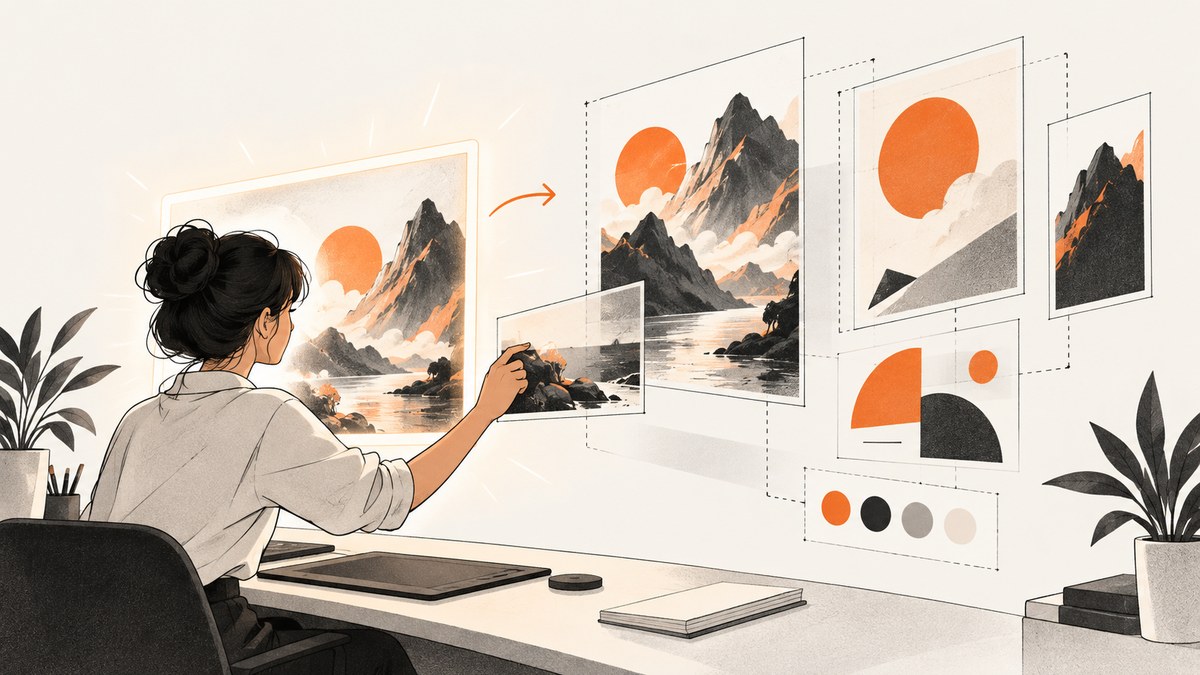
Short answer: choose a visual template editor when you need to change the layout, wording, colors or assets after an AI image is generated. Adobe Express most directly documents a text-to-editable-template workflow. Microsoft Designer documents image generation followed by editing and template enhancements. Canva places AI tools inside its broader Visual Suite. The right choice depends less on the first generated picture than on what remains editable afterward.
An AI image and an editable template are different outputs. A generated image may be a single flattened bitmap. An editable template keeps design elements available for later changes, such as replacing a headline, moving a logo, changing a background or adapting a social post to another size. If your deliverable must be revised by a team, localized, resized or reused every week, that distinction should drive your selection.
What a visual template editor does
A visual template editor combines two stages:
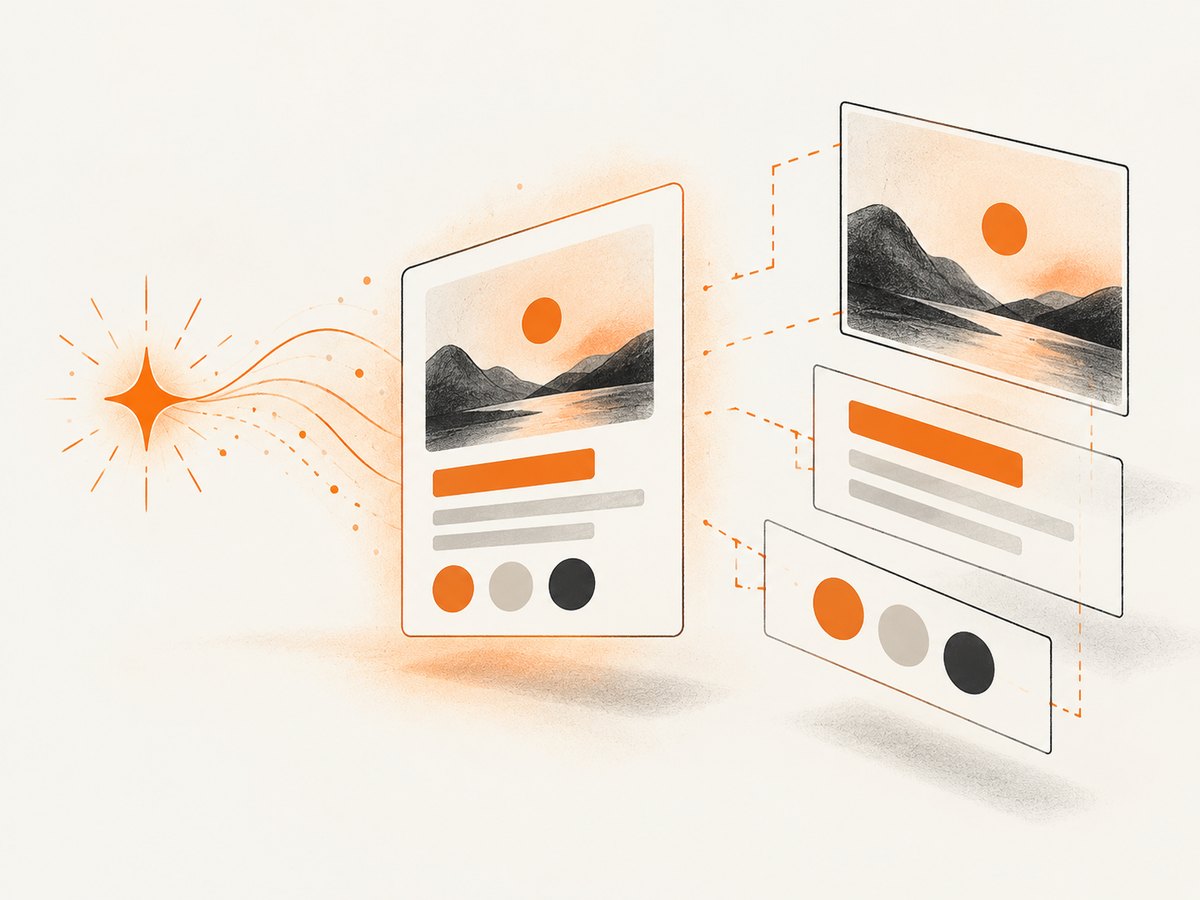
- Generation: you describe a subject, occasion, audience or visual style and receive one or more starting designs or images.
- Editing: you adjust text, layers, spacing, images, colors, typography and dimensions in a canvas.
Some products generate an editable composition directly. Others generate an image first and then let you place it in a template or continue editing it. Ask these questions before committing to a workflow:
- Does the result open as separate editable elements or as one image?
- Can you change the canvas size without rebuilding the composition?
- Can a teammate edit the file without the original prompt?
- Are brand fonts, colors and logos supported?
- Can you export the formats your publishing pipeline needs?
Adobe Express: the clearest editable-template workflow
Adobe Express documents a direct process for creating an editable template from a text description. In Express, open the plus menu, choose Quick actions > Generative AI > Generate template, describe the design, select a result and choose Edit template. The resulting template can then be customized and downloaded. Adobe lists social posts, flyers, posters and cards as examples of this workflow in its official guide to creating editable templates with generative AI.
A reliable Express workflow
- Define the job. State the format, audience, subject, tone and required content. “Square launch announcement for a developer tool, dark background, one short headline area, high contrast” is more useful than “make something cool.”
- Generate several directions. Compare hierarchy and composition, not only the illustration. Look for a clear reading order and enough empty space for real copy.
- Open the result with Edit template. Confirm that headline, supporting text, shapes and images can be selected independently.
- Replace placeholder copy. Use the final wording early. A longer headline can change line breaks and the visual balance.
- Apply brand rules. Set approved fonts, colors, logo treatment and contrast. Keep a safe margin around text for cropping on social platforms.
- Check alternate sizes. Adapt the design for each destination instead of stretching one canvas. Reposition the subject and headline when the aspect ratio changes.
- Proof and export. Inspect small text at the final display size, then export the format required by the channel.
Adobe also publishes prompt and editing tips, including trying variations and changing fonts, effects and backgrounds after choosing a template. Plan availability is separate from workflow quality: Adobe’s comparison information changes over time and identifies the date of its comparison, so check the current plan page for the account you will use.
Microsoft Designer: generate, enhance and continue editing
Microsoft Designer describes a workflow in which you generate images from a description, enhance them with design templates and text options, and continue editing on the Designer canvas. The product’s official description calls Designer a tool to “create, design, and edit effortlessly,” and its support material explains that generated work can be opened in the canvas for further edits.
How to use Designer without losing control
- Start with a specific description of the subject, composition and intended format.
- Generate a few candidates and select the one with the strongest layout and usable negative space.
- Open the result in the Designer canvas rather than treating the download as final.
- Add or replace text boxes, adjust the layout and apply brand elements where available.
- Use templates or design enhancements to create a consistent series of assets.
- Download only after checking the final wording and dimensions.
Microsoft explicitly warns that text inside generated images may contain spelling errors or may not appear in the requested language. Treat generated lettering as a draft. Put important words in editable text boxes, proofread them, and ask a second person to check names, prices, dates and URLs. Microsoft also notes that Designer availability and some AI features can vary by account and region. The legacy visual editor was scheduled for formal deprecation beginning October 20, 2025, so follow current Designer documentation rather than older tutorials.
Canva: AI inside a broader visual-design workspace
Canva describes its AI tools as working across the Visual Suite and inside the editor. This makes Canva a useful fit when the same team already manages presentations, social graphics, documents or other brand materials there. The key evaluation is not whether Canva can produce an attractive first image; it is whether the current AI feature on your plan leaves the elements you need to revise.
Questions to answer before adopting Canva’s AI tools
- Which exact AI features are enabled on your current plan?
- Does the selected workflow create editable text and objects or only place a generated bitmap?
- Can you resize the design while preserving hierarchy?
- Are your brand kit, collaboration and export requirements supported?
- Will regional or account-level availability change the steps for your team?
Use Canva when an integrated design workspace is more valuable than a narrowly focused generator. Verify current feature names and allowances in Canva’s documentation before writing an internal process, because AI tools and plan limits can change.
Comparison: which editor fits which job?
| Need | Best starting point | What to verify |
|---|---|---|
| Prompt directly to an editable template | Adobe Express | Plan access, supported format and export options |
| Generate an image, then refine it on a canvas | Microsoft Designer | Account or region availability and text accuracy |
| AI inside a broad design suite | Canva | Exact AI feature, allowance and editability on your plan |
| Repeatable production for a brand team | Any of the three after a pilot | Shared editing, brand controls, resize behavior and review steps |
This is a documentation-based comparison, not a controlled benchmark. The cited sources do not establish a winner for image quality, layout accuracy, speed or ease of use. Run the same brief through the products you are considering and inspect the editable result at the final publishing size.
A prompt structure that produces usable templates
Write prompts as a design brief. Include:
- Asset: social post, event flyer, product card or presentation cover.
- Audience and purpose: who should act and what they should understand.
- Composition: subject placement, focal point and negative space.
- Style: editorial, geometric, photographic, hand-drawn or minimal.
- Color direction: background, accent and contrast requirements.
- Text areas: reserve a headline and supporting-copy region instead of asking the model to render exact copy.
- Dimensions: specify the target ratio or platform size when the editor supports it.
Example: “Vertical event flyer for a local JavaScript meetup, midnight blue background, warm orange accent, abstract network illustration on the lower half, generous empty space at the top for a two-line headline and date, clean sans-serif editorial style.” Generate the visual direction, then enter exact wording as editable text.
Editing checklist before you publish
- Replace every placeholder with approved copy.
- Proofread generated words, names, numbers and URLs.
- Check contrast for text over images.
- Confirm the logo has correct clear space and proportions.
- Inspect the smallest text at the channel’s real display size.
- Check crops at each required aspect ratio.
- Remove accidental artifacts, duplicated objects and inconsistent shadows.
- Confirm that stock or generated assets have rights suitable for the project.
- Keep an editable source file and record which prompt or source image began the design.
Commercial use and content rights
Using an editor is not the same as receiving universal commercial clearance. Adobe describes some Firefly-powered features as designed to be commercially safe, but that statement applies to the described features and does not guarantee every asset, plan, jurisdiction or use. Review the current terms and the rights for the actual project. Do the same for Microsoft Designer and Canva, especially when a design includes uploaded material, recognizable people, trademarks or generated text.
Common problems and fixes
| Problem | Likely cause | Fix |
|---|---|---|
| The “template” is one flat image | The workflow generated an image rather than an editable composition | Open the result in the editor, recreate critical text as text boxes, or choose a documented template-generation workflow. |
| AI text is misspelled | Image models render lettering unreliably | Delete the rendered words and add editable text; proofread names, dates and URLs. |
| The design breaks in another size | Elements were stretched instead of re-composed | Create a new canvas and reposition the focal point, headline and supporting elements. |
| A feature is missing | Plan, account, age, language or region eligibility | Check the current product FAQ and plan comparison, then confirm the signed-in account. |
| Layout feels crowded | The prompt did not reserve space for copy | Regenerate with explicit negative space or simplify the background before editing. |
| Rights are unclear | Source or generated asset terms do not match the project | Review current terms, document the asset source and replace anything without suitable permission. |
Or skip the browser setup
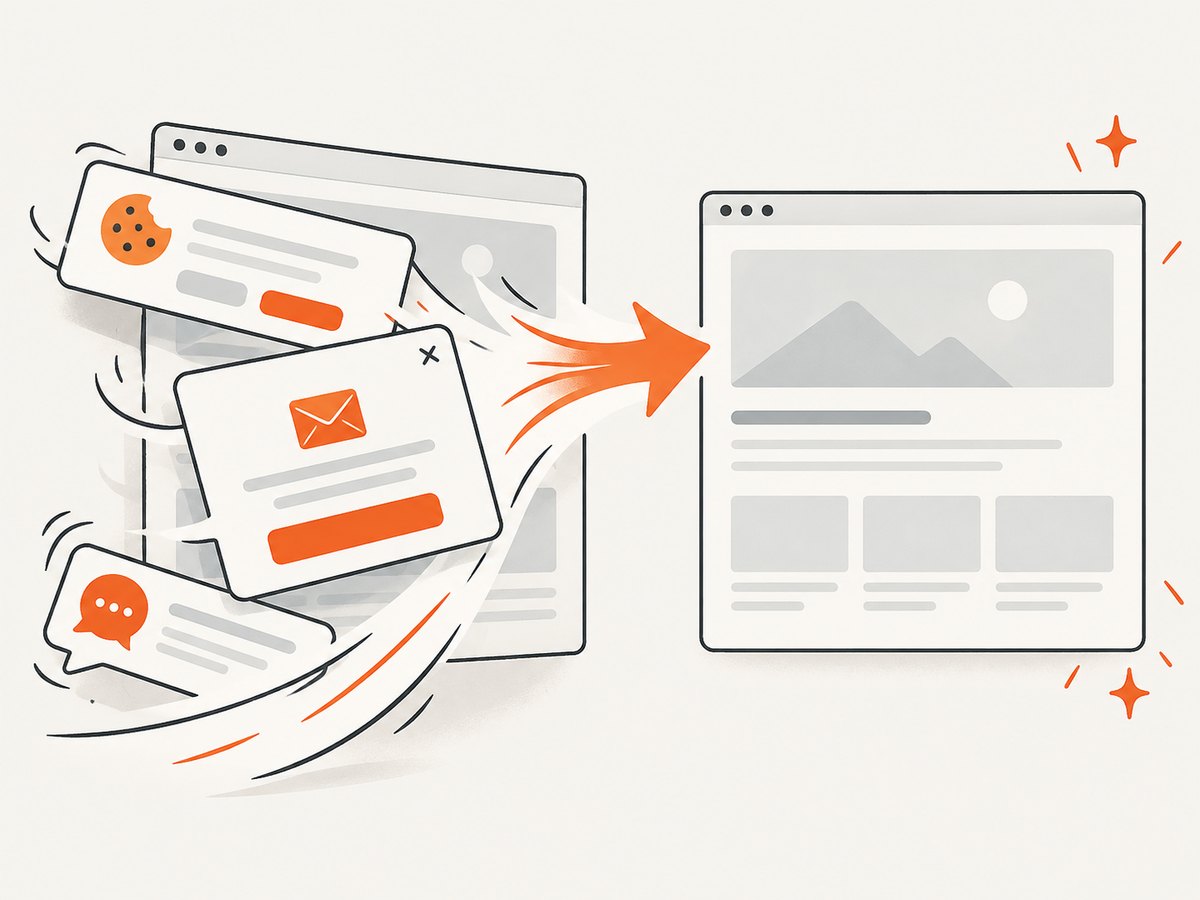
If your deliverable is a screenshot of a finished web page, you do not need to maintain a headless-browser script. ScreenshotNeo returns a PNG, JPEG, WebP or PDF from one GET request. It accepts the cookie or consent banner like a visitor, then removes more than 60 known consent platforms, newsletter popups and chat widgets before capture. You can turn each cleanup step off.
Only clean shots are billed. Bot checks and CAPTCHAs, blank pages, timeouts, failed loads and cache hits cost nothing, and the response identifies the result with X-Page-Verdict and X-Billed headers. An MCP server provides take_screenshot, get_page_info and capture_pdf for Claude, Cursor and other MCP clients.
cURL
curl -G "https://api.screenshotneo.com/v1/shot" -d access_key=YOUR_API_KEY --data-urlencode url=https://stripe.com -o shot.webpPython
import requests
r = requests.get("https://api.screenshotneo.com/v1/shot", params={"access_key": "YOUR_API_KEY", "url": "https://stripe.com"}, timeout=90)
open("shot.webp", "wb").write(r.content)
Node.js
const q = new URLSearchParams({ access_key: 'YOUR_API_KEY', url: 'https://stripe.com' });
const res = await fetch(`https://api.screenshotneo.com/v1/shot?${q}`);
See the ScreenshotNeo documentation for request options. The API also supports full-page capture with lazy images loaded, element selectors, dark mode, device presets, custom viewports, retina scale, PDF paper and margin settings, custom CSS and JavaScript, clicks, selector or network-idle waits, request blocking, headers, cookies, user agents, authorization, timezone, geolocation, transparent backgrounds, resizing, caching with a chosen TTL, signed links, asynchronous jobs with signed webhooks, bulk capture for up to 100 URLs per call, a usage API and an OpenAPI specification. Parameter names used by other screenshot APIs work too, which helps when switching.
Free accounts include 1,000 screenshots each month with no card. Paid plans start at $5 for 3,000 shots; every feature is included on every plan. Create a free ScreenshotNeo account and try the capture before adding a card.
Performance, reliability and cost planning
- Keep source designs editable. Store the template and the final export separately so future revisions do not require regeneration.
- Batch review. Generate several directions in one session, then spend editing time on the strongest composition.
- Control dimensions early. Regeneration is cheaper than rebuilding a crowded layout after resizing.
- Use a review gate. A human should verify text, rights, contrast and accessibility before publishing.
- Track plan limits. Adobe, Microsoft and Canva change feature access and allowances; check current plan pages at procurement time.
- For automated web captures, cache deliberately. ScreenshotNeo lets you choose a cache TTL and does not bill cache hits, failed loads or other listed non-clean outcomes.
FAQ
Is an AI-generated image automatically an editable template?
No. A bitmap can be placed in a template, but its internal lettering and objects may remain inseparable. Confirm the selected workflow exposes editable layers or recreate important elements in the editor.
Which tool should a beginner try first?
Try Adobe Express if your main question is “How do I create an editable template from a text prompt?” Try Designer for image generation followed by canvas editing, or Canva if your team already works inside its Visual Suite.
Can I trust AI-generated words?
No. Microsoft specifically warns about spelling and language errors in generated image text. Use editable text boxes for anything readers must understand.
Do these tools guarantee commercial rights?
No. Rights depend on the product, feature, plan, asset source, jurisdiction and intended use. Read the current terms for the exact project.
When is ScreenshotNeo a better fit?
Use it when you need automated screenshots or PDFs of web pages, especially when consent banners, popups, chat widgets, failed loads or AI-agent access are part of the workflow.