Web Browser MCP Server
Learn how browser MCP servers connect AI agents to Chrome, WebDriver and hosted sessions, with setup, security, troubleshooting and screenshots.

A web browser MCP server is an implementation of the Model Context Protocol that gives an AI client tools for controlling a browser. The client can ask the server to navigate, inspect, click, type, execute JavaScript, manage tabs and frames, and capture screenshots. The right setup depends on whether you need a real signed-in Chrome profile, broad browser and mobile coverage, or an isolated hosted browser.
This guide explains the architecture, shows working configurations for Chrome DevTools MCP and WebDriverIO MCP, covers extension and hosted models, and documents the security decisions that matter when an agent can see your browser. If you only need reliable page images, the ScreenshotNeo section at the end removes the browser setup entirely.
What a browser MCP server does
MCP standardizes how an AI application discovers and calls tools. A browser MCP server translates those tool calls into browser automation. Google describes its Chrome integration as connecting an AI agent to a live browser instance through the open-source Model Context Protocol. WebDriverIO describes its server as enabling AI assistants to interact with browsers, local Electron applications and mobile applications.
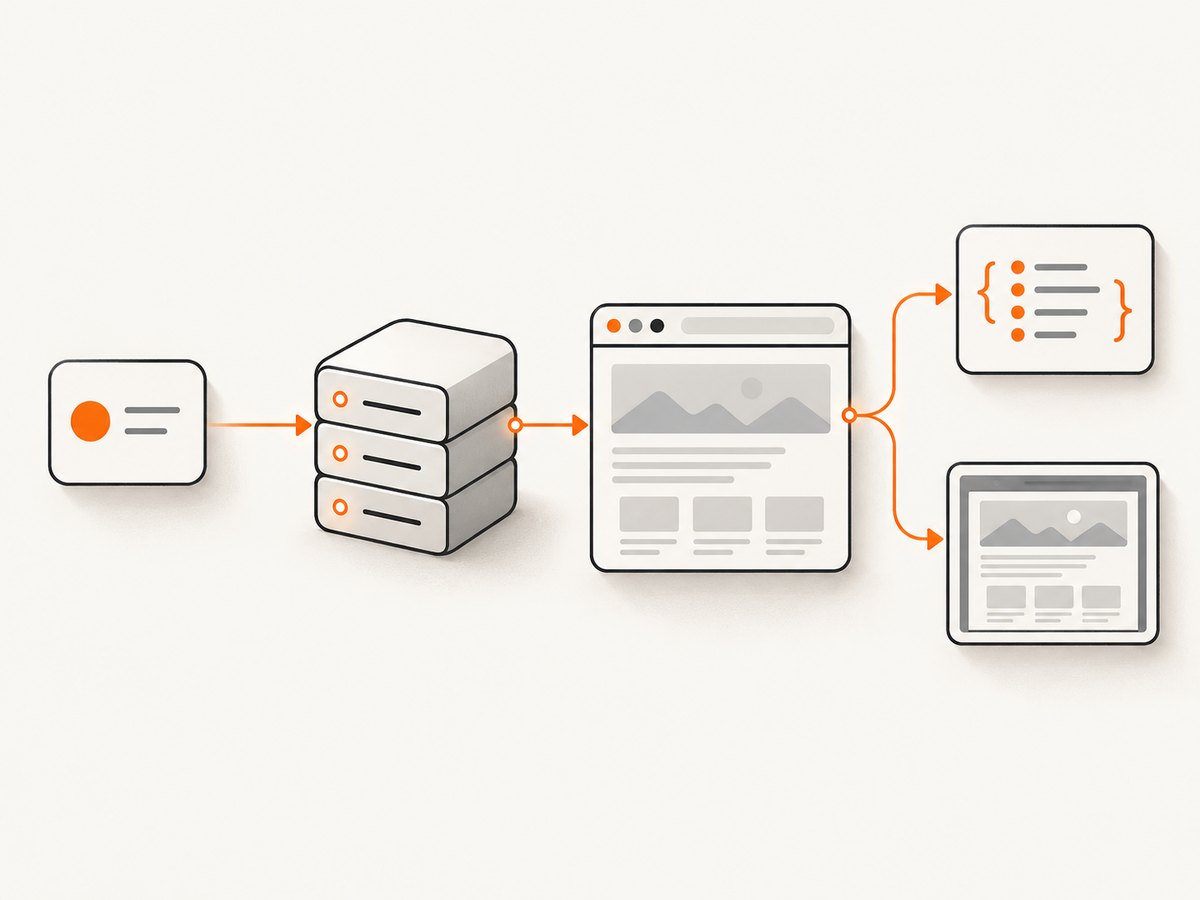
A typical request path is:
- Your MCP client (such as Cursor, Claude Code or Gemini CLI) starts or connects to the server.
- The server creates or attaches to a browser session.
- The model calls a tool such as navigate, click, inspect, evaluate or screenshot.
- The server returns structured text, accessibility data, console output or an image.
Some servers launch a clean, disposable context. Others attach to a running Chrome profile or bridge through an extension. That distinction determines whether existing cookies and logins are available and how much authority the agent receives.
Choose an implementation
| Implementation | Best fit | Transport and session model | Coverage |
|---|---|---|---|
| Chrome DevTools MCP | Live Chrome inspection, debugging and performance work | Usually a local stdio process attached to Chrome | Chrome tabs, DevTools data, network and performance signals |
| WebDriverIO MCP | Cross-browser, Electron or mobile automation | Stdio by default; HTTP mode is available | Chrome, Firefox, Edge, Safari, Electron, iOS and Android |
| Browser MCP extension bridge | Using an existing signed-in browser profile | Chrome extension plus a local MCP server | The browser and profile exposed to the extension |
| Browserbase MCP | Hosted or self-hosted cloud browser sessions | Remote service through Browserbase and Stagehand | Cloud browser automation; isolation depends on your deployment |
Compare candidates on eight axes: authenticated versus disposable sessions, local versus hosted execution, WebDriver versus Chrome DevTools Protocol versus extension architecture, desktop and mobile coverage, stdio versus HTTP transport, cookie handling, screenshot/accessibility/network tooling, and isolation, logging and cost controls.
Install Chrome DevTools MCP
Chrome DevTools MCP focuses on a live Chrome instance and DevTools-oriented inspection. Google documents clients including Gemini CLI, Claude Code, Cursor and Copilot.
1. Add the server to an MCP client
For Codex-style clients that support an add command:
codex mcp add chrome-devtools -- npx chrome-devtools-mcp@latestFor clients that read an mcpServers object:
{
  "mcpServers": {
    "chrome-devtools": {
      "command": "npx",
      "args": ["-y", "chrome-devtools-mcp@latest"]
    }
  }
}
2. Start a safe Chrome profile
Use a dedicated profile rather than your daily browser. Sign in only to accounts the agent needs, then start Chrome in the way required by the current Chrome DevTools MCP documentation. Keep the profile directory separate so cookies, localStorage and saved passwords from personal browsing are not exposed.
3. Verify the first session
- Restart the MCP client so it reloads the server definition.
- Ask the agent to list tabs or inspect the current page.
- Open a harmless page and request its title, visible text and a screenshot.
- Check that the returned data comes from the intended profile and tab.
Package options change over time; confirm the command and supported flags in Google’s documentation before pinning a version in production.
Install WebDriverIO MCP
WebDriverIO MCP is a good default when the same agent must drive more than Chrome. Its documented one-shot stdio configuration is:
{
  "mcpServers": {
    "webdriverio": {
      "command": "npx",
      "args": ["-y", "@wdio/mcp@latest"]
    }
  }
}
The equivalent command for a client with an add syntax is:
codex mcp add webdriverio -- npx -y @wdio/mcp@latestHTTP mode
Use HTTP when the client cannot launch a subprocess or when a shared local service is easier to operate:
npx @wdio/mcp --http --port 3000Point the MCP client at the server’s /mcp endpoint. Put the listener behind local authentication or a private network; an unauthenticated HTTP browser controller should not be reachable from the public internet.
Reuse logins, cookies and storage safely
An extension bridge can expose an existing signed-in profile, and a live Chrome connection can expose whatever the attached profile can read. Browser MCP documentation also describes access to cookies and localStorage. This is convenient for workflows that require a session, but it gives the agent meaningful authority.

- Create a separate browser profile for automation.
- Use a least-privilege account with test data and short-lived tokens.
- Do not store production passwords or payment methods in that profile.
- Require explicit confirmation before deletion, purchases, account changes or message sends.
- Restrict allowed hosts and outbound network access where your client or server supports it.
- Review logs for URLs, page text, headers and screenshots because they may contain secrets.
Google warns that an agent connected to an authenticated browser can act on your behalf and may read, inspect, debug and modify browser or DevTools data. Treat the profile as a credential, not as a convenience setting.
Core workflows and tool design
Navigate, inspect and act
Start with a read-only inspection: page URL, title, visible text and accessibility tree. Then identify a stable role, label or CSS selector before clicking. After each mutation, re-read the relevant state; a single-page app may replace the DOM while keeping the same URL.
Frames, tabs and downloads
List tabs before acting so the model does not type into the wrong window. Select an iframe explicitly when a control is not in the top document. For downloads, save into a dedicated directory and validate the filename and content type before opening it.
JavaScript evaluation
Use evaluation for deterministic reads such as computed styles, performance entries or a small DOM query. Avoid pasting untrusted page text into an evaluation string. Never evaluate code that came from a page without reviewing it; it runs with the authority of the attached browser context.
Screenshots and visual checks
Capture after fonts and asynchronous content settle. For a full-page image, wait for lazy images and scrolling content; for a component, prefer a selector-based capture when the server supports it. Store screenshots with the URL, viewport, timestamp and session identifier so a later comparison is explainable.
Build a reliable agent workflow
- Constrain the mission. Give the model allowed domains, a read-only goal and a stop condition.
- Observe first. Collect title, URL, accessibility data and visible errors before interacting.
- Use stable locators. Prefer roles, labels and test IDs over generated class names.
- Wait for evidence. Wait for a selector, network idle or a bounded delay, then verify the expected text.
- Retry narrowly. Retry a timed-out read once with a longer wait; do not blindly repeat a click that could submit a form twice.
- Record artifacts. Keep screenshots, console errors and network failures linked to the same run.
Troubleshooting
| Symptom | Likely cause | Fix |
|---|---|---|
| Client says the server is unavailable | Wrong command, missing Node.js or a stale client process | Run the npx command in a terminal, confirm Node.js is installed, then restart the client and inspect its MCP logs. |
| No tabs or an empty browser | Chrome was not started with the expected debugging connection, or the wrong profile is attached | Launch the dedicated profile as documented by the server, open a harmless page and verify the profile path. |
| Login disappears between runs | A disposable context is being created, or cookies are blocked | Use a persistent profile only when required; otherwise perform an explicit login step and keep secrets outside prompts. |
| Element not found | SPA rendering, iframe boundaries or a brittle selector | Wait for a visible state, select the correct frame, and use an accessible role or stable data attribute. |
| Click has no effect | Overlay, disabled control or intercepted event | Inspect computed visibility and overlays, scroll into view, then click once and verify the resulting state. |
| HTTP client cannot connect | Wrong path or port, or the listener is bound only to localhost | Use the documented /mcp path, confirm the port, and keep the service private. |
| Screenshot is blank or incomplete | Capture ran before fonts, images or lazy content loaded | Wait for a selector or network idle, scroll to trigger lazy loading, and capture again. |
Performance, reliability and cost
Browser startup is usually the largest fixed delay. Reuse a controlled session for a sequence of read-only actions, but create fresh contexts when isolation matters more than latency. Limit parallel tabs to what the machine can render without memory pressure. Block unnecessary media and third-party requests when the server allows it.
Reliability improves when waits are tied to observable conditions rather than arbitrary sleeps. Set timeouts per operation, preserve console and network evidence, and make retries idempotent. For hosted browsers, account for session startup, data transfer and provider limits; for local servers, budget CPU, RAM and disk for profiles and screenshots. The research dossier contains no independent benchmark or cross-provider cost statistic, so measure your own workflow before selecting capacity.
Or skip the browser setup
If your job is to produce a clean screenshot or PDF rather than interact with a live session, ScreenshotNeo provides a single HTTP endpoint. The request accepts the target URL and returns PNG, JPEG, WebP or PDF; the complete option set is in the API documentation.
curl -G "https://api.screenshotneo.com/v1/shot" -d access_key=YOUR_API_KEY --data-urlencode url=https://stripe.com -o shot.webpimport requests
r = requests.get("https://api.screenshotneo.com/v1/shot", params={"access_key": "YOUR_API_KEY", "url": "https://stripe.com"}, timeout=90)
open("shot.webp", "wb").write(r.content)const q = new URLSearchParams({ access_key: 'YOUR_API_KEY', url: 'https://stripe.com' });
const res = await fetch(`https://api.screenshotneo.com/v1/shot?${q}`);ScreenshotNeo removes cookie and consent banners, newsletter popups and chat widgets before capture; each cleanup step can be turned off. Bot checks, blank pages, timeouts, failed loads and cache hits are not billed, and response headers identify the page verdict and whether it was billed. It also offers an MCP server with take_screenshot, get_page_info and capture_pdf for Claude, Cursor and other MCP clients. Features include full-page and element capture, device presets, custom CSS and JavaScript, request blocking, headers and cookies, geolocation, caching, signed links, asynchronous webhooks, bulk capture and a usage API. The Free plan includes 1,000 shots each month with no card; paid plans start at $5 for 3,000 shots.
Create a free ScreenshotNeo account to get the 1,000 monthly screenshots and connect the MCP tools when you need them.
FAQ
Can an MCP server control my existing Chrome login?
Yes, extension bridges and live-profile integrations can expose existing cookies and storage. Use a dedicated least-privilege profile and confirm destructive actions.
Is stdio or HTTP better?
Stdio is simplest for a local client that launches the server. HTTP suits clients or teams that need a separately managed process, but it requires authentication and network controls.
Which server supports mobile?
WebDriverIO MCP documents browser, Electron, iOS and Android sessions. Chrome DevTools MCP is focused on Chrome inspection.
Can I use MCP only for screenshots?
Yes, but a browser MCP server still carries browser-session complexity. A screenshot API is simpler when you do not need clicks, form entry or authenticated inspection.


