Using Website Screenshots for Competitor Tracking
Build a repeatable competitor-monitoring workflow with scheduled screenshots, focused regions, visual diffs, and alerts you can verify.

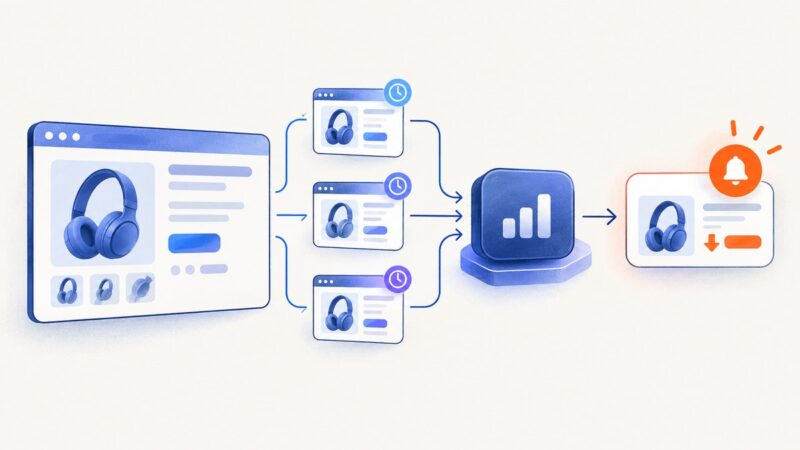
To track a competitor with website screenshots, choose the pages or page regions that matter, capture them on a repeatable schedule, compare each new render with the last one, and review an alert that shows what changed. Use a focused region such as a pricing table when that is the signal you care about; capture the whole page when layout, positioning, or page structure matters. Treat every screenshot alert as a lead: record the timestamp and URL, then confirm important changes on the competitor’s own page or in an announcement before drawing a strategic conclusion.
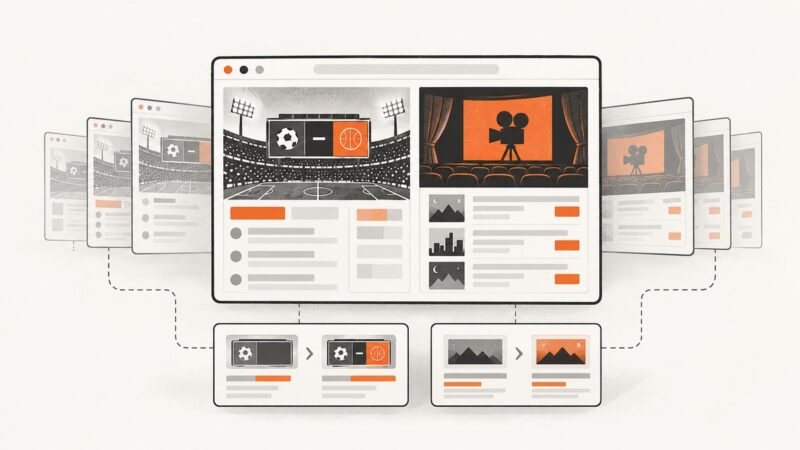
Screenshots preserve visual evidence of layout, imagery, and presentation changes that text-only monitoring may miss. The useful workflow is not simply “take a screenshot”: it is a small evidence trail containing the old capture, new capture, time, source URL, changed area, and an analyst’s interpretation.
What competitor changes are worth tracking?
Start with questions your team may act on, then map each question to a URL. A broad list of every page on every competitor site creates noise and review work. A smaller list of decision-relevant pages is easier to maintain.
| Signal | Pages to watch | What a screenshot helps you see |
|---|---|---|
| Pricing and packaging | Pricing, plans, enterprise, and feature-comparison pages | Price points, plan names, feature placement, footnotes, and calls to action |
| Products and features | Product, feature, integrations, and launch pages | New or removed offers, changed feature order, new imagery, and claims |
| Positioning and messaging | Home, product, comparison, and campaign pages | Headline, value proposition, proof points, and page emphasis |
| Policies and terms | Terms, privacy, security, and policy pages | Presentation and visible notices; pair with text monitoring for exact wording |
| Availability | Product pages, status or stock pages, and relevant catalog pages | Visible availability labels, stock notices, or removed purchase options |
| Hiring and investment signals | Careers and team pages | New roles, team emphasis, and changes to recruiting priorities |
Visualping’s setup guidance names competitor offerings and pricing-model changes among its use cases. Wachete likewise describes watching competitor prices and additions of products. These are useful starting points, but decide what matters to your own team before adding pages to a monitor.
Build a repeatable screenshot monitoring workflow
- List target URLs. Make a row for each competitor and page: pricing, product, feature, comparison, launch, policy, and careers pages are common candidates. Record the business question each URL answers.
- Choose whole-page or region capture. Whole-page captures help when the overall page structure or positioning may shift. A stable region such as a pricing table usually yields cleaner alerts when you only care about plans and prices.
- Choose a check cadence. Match frequency to how quickly the signal can change and how quickly your team needs to react. A volatile promotion may merit more frequent checks than a policy page. Avoid checking so often that routine animation and rotating content dominate review.
- Control incidental variation. Use keyword or change criteria where available. Identify rotating banners, timestamps, cookie notices, and other changing regions that are not part of the question. Prefer a stable selector or region over repeatedly tuning a full-page alert.
- Route alerts into a review queue. An alert should be actionable and assigned. Preserve the previous screenshot, current screenshot, timestamp, URL, and analyst interpretation together.
- Verify consequential changes. Open the competitor’s own page and check the relevant content. Confirm whether a visual change represents an actual offer or policy update rather than a transient render, experiment, or display issue.
Keep a simple monitoring register with columns for competitor, URL, question, capture scope, frequency, alert destination, owner, and last review. When a page redesign breaks a selector or changes the layout, the register makes it clear which monitors need attention.

Whole page or selected element?
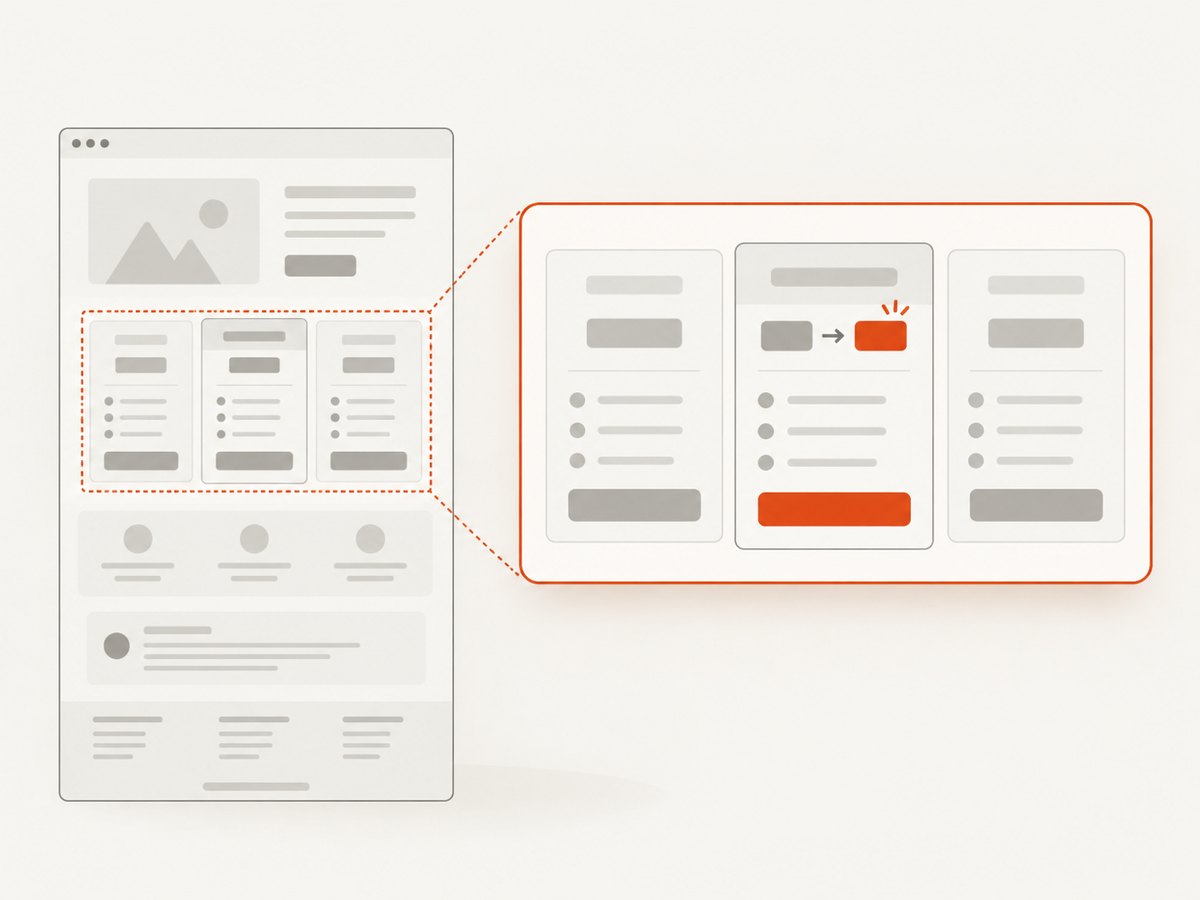
Use the smallest capture scope that still answers the question. A pricing table or feature list is often more useful as an element-level monitor because global navigation, chat widgets, and changing promotional banners can otherwise create unrelated differences. Whole-page monitoring is appropriate when a redesign, changed narrative, or layout shift is itself the signal.
| Capture scope | Good fit | Trade-off |
|---|---|---|
| Whole page | Page redesigns, changes in positioning, new sections, page-level imagery | More incidental changes can trigger review; long pages may be harder to scan |
| Selected region | Pricing tables, feature lists, purchase buttons, a specific announcement | Selectors can break after a redesign; changes outside the region are not captured |
A useful practice is to monitor a focused region for the key metric and keep a less frequent whole-page capture for context. If the tool supports visual, text, and code change detection, choose the mode that matches the question: visual for presentation, text for wording, and code when implementation changes matter. A screenshot is visual proof, not a reliable substitute for exact textual history.
Choosing a monitoring tool
Compare services on screenshot fidelity, whole-page and element selection, JavaScript and interactive-state handling, scheduling, alert channels, history retention, collaboration, and the ability to suppress incidental changes. Check whether the monitor can revisit the same state consistently: a page behind a filter, click, or scroll interaction may need more than fetching its initial URL.
| Tool | Dossier-supported capabilities | When to consider it |
|---|---|---|
| ScreenshotNeo | Website screenshot API and MCP server; accepts a URL in one GET request and returns PNG, JPEG, WebP, or PDF. It removes known consent banners, newsletter popups, and chat widgets before capture; each step can be disabled. Clean shots alone are billed, with response headers identifying the page verdict and billing status. | When you want screenshot capture in code or through an AI agent and want those specific nuisance elements removed before capture. |
| Visualping | Its documentation describes scheduled checks, whole-page or specific-element monitoring, visual/text/code change detection, highlighted before-and-after comparisons, and AI summaries. | When scheduled change detection and highlighted comparisons fit the team’s review workflow. |
| Wachete | Its product information describes page monitoring, email or phone alerts, dated change records, competitor price and product watching, and visual-difference views. It supports monitoring whole sites or selected content. | When dated records and its described alert channels meet the team’s needs. |
| Distill.io | A TechRadar comparison describes visual selection, CSS/XPath/regular-expression refinement, cloud or local checks, and macros recording actions such as clicks, scrolling, filters, or form completion. | When content appears only after interaction and an action sequence is needed to reach it. |
The right choice depends on the page and the workflow, not a feature count. Before relying on a service, check the current plan limits, supported alert destinations, retention period, and cadence in its own documentation. Those details were not established for every service in the supplied research.
Capture and compare with a small script
For a custom workflow, save a dated capture and compare it with the preceding image. The example below uses Playwright for Node.js and a CSS selector to capture only a stable region. It is a local capture-and-review example: the scheduler and alert routing remain the responsibility of your job runner. Install Playwright and its browser with the documented commands before running it.
npm install playwright
npx playwright install chromium
// capture.mjs
import { chromium } from 'playwright';
import { mkdir } from 'node:fs/promises';
const targetUrl = process.env.TARGET_URL ?? 'https://example.com/pricing';
const selector = process.env.SELECTOR ?? 'main';
const date = new Date().toISOString().replaceAll(':', '-');
const outputDir = 'captures';
await mkdir(outputDir, { recursive: true });
const browser = await chromium.launch({ headless: true });
try {
const page = await browser.newPage({ viewport: { width: 1440, height: 1000 }, deviceScaleFactor: 1 });
await page.goto(targetUrl, { waitUntil: 'domcontentloaded', timeout: 45000 });
await page.locator(selector).waitFor({ state: 'visible', timeout: 15000 });
const region = page.locator(selector).first();
await region.screenshot({ path: `${outputDir}/${date}.png` });
console.log(`Saved ${targetUrl} selector=${selector} to ${outputDir}/${date}.png`);
} finally {
await browser.close();
}Set TARGET_URL and SELECTOR for each monitor. Choose a selector that uniquely identifies the relevant region, and check it after site redesigns. For full-page context, replace the region screenshot call with await page.screenshot({ path: `${outputDir}/${date}.png`, fullPage: true });. For content that needs client-side rendering, wait for a meaningful selector rather than assuming that navigation completion means the page is ready.
To make this a monitoring job, have a scheduler run the script at the chosen cadence, retain the last successful image, compare the new capture against that image, and send a review item when the difference passes your criteria. A visual diff tool can produce a highlighted image; preserve the original captures as evidence too. Store metadata alongside each image—URL, selector, viewport, capture time, and job result—so a difference can be reproduced and interpreted.
Or skip the browser setup
ScreenshotNeo provides a one-request screenshot API. Use the endpoint and parameter names in the API documentation; this example saves a WebP response for a competitor pricing page:
curl -G "https://api.screenshotneo.com/v1/shot" -d access_key=YOUR_API_KEY --data-urlencode url=https://competitor.example/pricing -o competitor-pricing.webpEquivalent Python and Node.js calls:
import requests

r = requests.get(
    "https://api.screenshotneo.com/v1/shot",
    params={"access_key": "YOUR_API_KEY", "url": "https://competitor.example/pricing"},
    timeout=90,
)
r.raise_for_status()
open("competitor-pricing.webp", "wb").write(r.content)
const q = new URLSearchParams({
access_key: 'YOUR_API_KEY',
url: 'https://competitor.example/pricing'
});
const res = await fetch(`https://api.screenshotneo.com/v1/shot?${q}`);
if (!res.ok) throw new Error(`Screenshot request failed: ${res.status}`);
await import('node:fs/promises').then(({ writeFile }) =>
writeFile('competitor-pricing.webp', Buffer.from(await res.arrayBuffer()))
);Cookie banners, popups, and chat widgets are removed before the shot. Bot checks, blank pages, and failed loads are never billed, and response headers report the page verdict and billing status. An MCP server lets AI agents use screenshot tools. The free plan includes 1,000 screenshots a month with no card; paid plans start at $5 for 3,000. The product also supports element capture, full-page capture, custom wait conditions, caching, bulk requests, and other capture options described in the docs. A screenshot API supplies captures; use a separate scheduler and comparison workflow if you need recurring change alerts.
Sign up for 1,000 free screenshots a month, with no card required.
Make captures comparable
A visual diff is meaningful only when the capture conditions are consistent. Keep viewport width and height, device scale, locale, timezone, authentication state, and capture scope stable. If the competitor serves different content by location or session, record the chosen conditions rather than mixing different views in one history.
- Wait for the content you need. Dynamic pages may render after the initial document. Wait for the target region to appear or for a known state, then capture.
- Handle lazy content intentionally. A region below the fold may not load until scrolled into view. Scroll it into view before capture or use an approach that captures the relevant full-page content.
- Reduce animation and transient state. If your capture setup supports it, disable animation or wait for rotating elements to settle. Keep timestamps, rotating offers, and consent notices out of the selected region when they are irrelevant.
- Keep interaction state documented. Filters, tabs, and accordions may change what is visible. Record which state you captured and reproduce it on every run.
- Keep originals. Do not retain only a diff image. Old and new source captures let reviewers decide whether a highlight is meaningful.
Alerts, records, and review
Route notifications somewhere an analyst can distinguish urgent changes from routine noise. A useful review record includes the competitor, canonical URL, capture time and timezone, prior and current images, selected region, alert reason, and reviewer’s interpretation. Keep a dated history long enough to compare changes across launches or pricing cycles, according to your organization’s retention needs.
Use thresholds and criteria to focus the queue, but do not let an automated score become the conclusion. A changed hero image may produce a large visual difference without affecting the offer; a small changed price may matter greatly. Add keyword criteria for terms or numbers of interest when supported, and manually review changes that affect pricing, policy, or positioning. Confirm material claims at the original URL or through a company announcement.
Troubleshooting common problems
| Symptom | Likely cause | What to do |
|---|---|---|
| Every run reports a change | Rotating banners, timestamps, animations, cookie prompts, or an oversized capture scope | Monitor a stable element, add relevant change criteria, or exclude incidental regions if the service supports it. Compare several captures to identify the source of noise. |
| The target selector is missing | The site changed its markup, content has not rendered, or the selector is too specific | Inspect the current page, choose a stable parent or updated selector, and wait for the target to be visible before capture. |
| The screenshot is blank or incomplete | The page did not finish rendering, blocked automation, or content loads only after scrolling or interaction | Wait for a meaningful page element, reproduce the required interaction, and capture after the intended state appears. Verify the page manually before interpreting the result. |
| The price differs between captures without a visible site update | Different locale, currency, session, location, or selected plan state | Keep locale, authentication, viewport, and interaction state fixed, and record them with each capture. |
| Long pages are cut off | Capture is limited to the viewport, or lazy-loaded sections were never requested | Use full-page capture where appropriate and scroll through content that loads lazily before taking the image. |
| A large diff appears after a redesign | Selectors or page structure changed, or the whole-page baseline is no longer comparable | Review the new page manually, update region definitions, and mark the redesign as a new baseline while preserving the old evidence. |
| A scripted request fails or returns an error response | Invalid URL, missing or invalid credentials, inaccessible page, timeout, or a non-success HTTP response | Check the URL and credentials, inspect the HTTP status and response, increase timeouts only when rendering legitimately takes longer, and retry transient failures with limits. |
Performance, reliability, and cost
Monitoring cost and load grow with the number of URLs, check frequency, and capture size. Prioritize pages by likely business impact, then use a cadence suited to the decision deadline. Region captures can make review faster and reduce irrelevant changes; they do not remove the need to keep a whole-page context capture when broader changes matter.
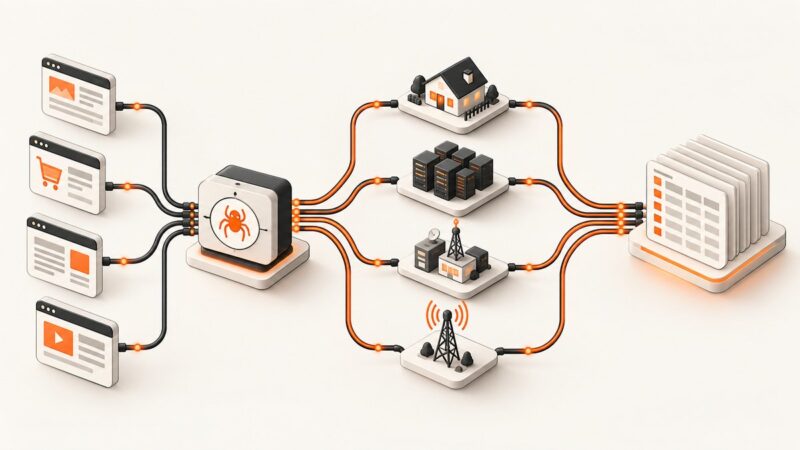
Browser-based captures use compute and need a browser runtime; API-based capture avoids managing that runtime in your own job, but the monitoring schedule, comparison, storage, and alerting still need to be part of your workflow. For either approach, treat timeouts and failed loads as missing observations, not proof that the competitor page changed. Keep the previous successful image until a new capture is valid, and retry transient failures with a cap so a broken target does not create a runaway job.
For ScreenshotNeo, the stated plans are Free with 1,000 shots per month and no card, Starter at $5 for 3,000, Growth at $15 for 15,000, Pro at $39 for 60,000, Scale at $99 for 250,000, and Business at $249 for 1,000,000; yearly billing gives two months free. Every feature is on every plan. Its billing rule is that only clean shots are billed: bot checks or CAPTCHAs, blank pages, timeouts, failed loads, and cache hits cost nothing, with response headers identifying verdict and billing status. For other services, verify current pricing and retention on their own sites; the supplied research does not establish current rates.
Frequently asked questions
Can a screenshot prove exactly what a competitor changed?
It can show visual differences between two rendered states. It cannot by itself explain why the difference occurred, establish when the change was made between checks, or verify the meaning of a policy change. Keep timestamps and confirm important findings.
Should I track the competitor’s entire site?
Usually begin with a focused set of pages tied to a question. Expand only when a broader page or section could change a decision; a large monitor list can create a review queue without useful signal.
Can I monitor a page that needs clicks or filters?
Yes, if the monitoring setup can reproduce the required state. Distill’s macros are described as recording actions such as clicks, scrolling, filters, and form completion. A browser automation script can also perform an interaction before capture.
Do I need a physical device to capture competitor pages?
No dedicated physical capture device is required by the software-based services described here. A scheduled service or browser job can perform the capture.
Should I keep both screenshots after reviewing an alert?
Yes. Keeping the before and after images with the URL and timestamp preserves the evidence and makes later interpretation possible, especially if the page changes again.
Sources
- Visualping help documentation for scheduled checks, whole-page or element monitoring, detection types, comparisons, and use cases.
- Wachete product information for page monitoring, alerts, competitor watching, and dated changes.
- TechRadar’s Distill.io comparison for selector refinement, local or cloud checks, and interaction macros.
- ScreenshotNeo API documentation for capture parameters and API usage.