Why AbcPdf Produces Different PDFs From the Same HTML After an Upgrade
An ABCpdf upgrade can change the HTML engine, CSS media, fonts, or options. Use this checklist to find the difference and stabilize output.
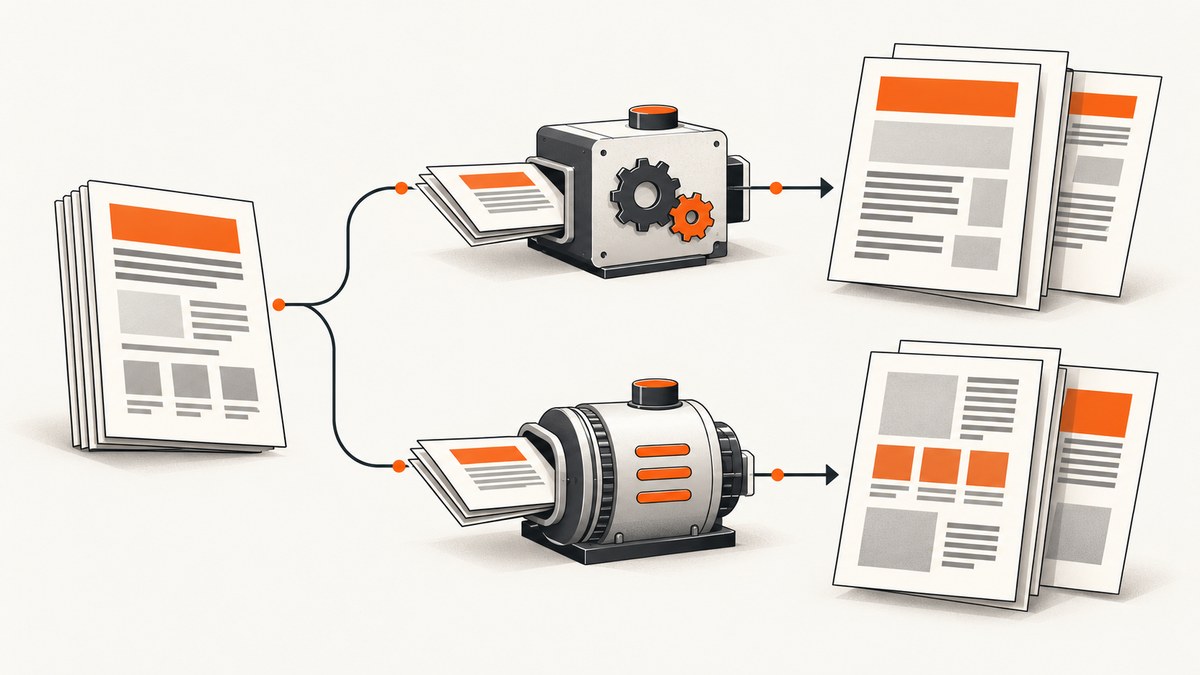
Why does ABCpdf produce different PDFs from the same HTML after an upgrade? The most likely reason is that the upgrade changed the HTML rendering engine or one of its rendering settings. ABCpdf supports multiple engines, and their layout, font, CSS and pagination behavior can differ. ABCpdf 14 also makes ABCChrome146 the new default engine, so an application that does not explicitly select an engine may render different output after upgrading.
The same HTML can also produce different output when ABCpdf uses print CSS instead of screen CSS, when fonts or assets differ between environments, or when a namespace, compatibility option or engine-specific setting changed. The reliable way to diagnose the problem is to compare the complete rendering configuration and identical inputs before changing the template.
What changed after the upgrade?
Start by checking these differences in the old and new deployments:
| Area | What to compare | Why it matters |
|---|---|---|
| Package and namespace | ABCpdf package version, .NET namespace and installed engine packages | ABCpdf 13 and 14 namespaces and defaults can differ. |
| HTML engine | Doc.HtmlOptions.Engine and the engine actually installed |
Chromium, MSHTML, ABCGecko, WebKit and versioned Chrome engines do not render identically. |
| CSS media | Doc.HtmlOptions.Media |
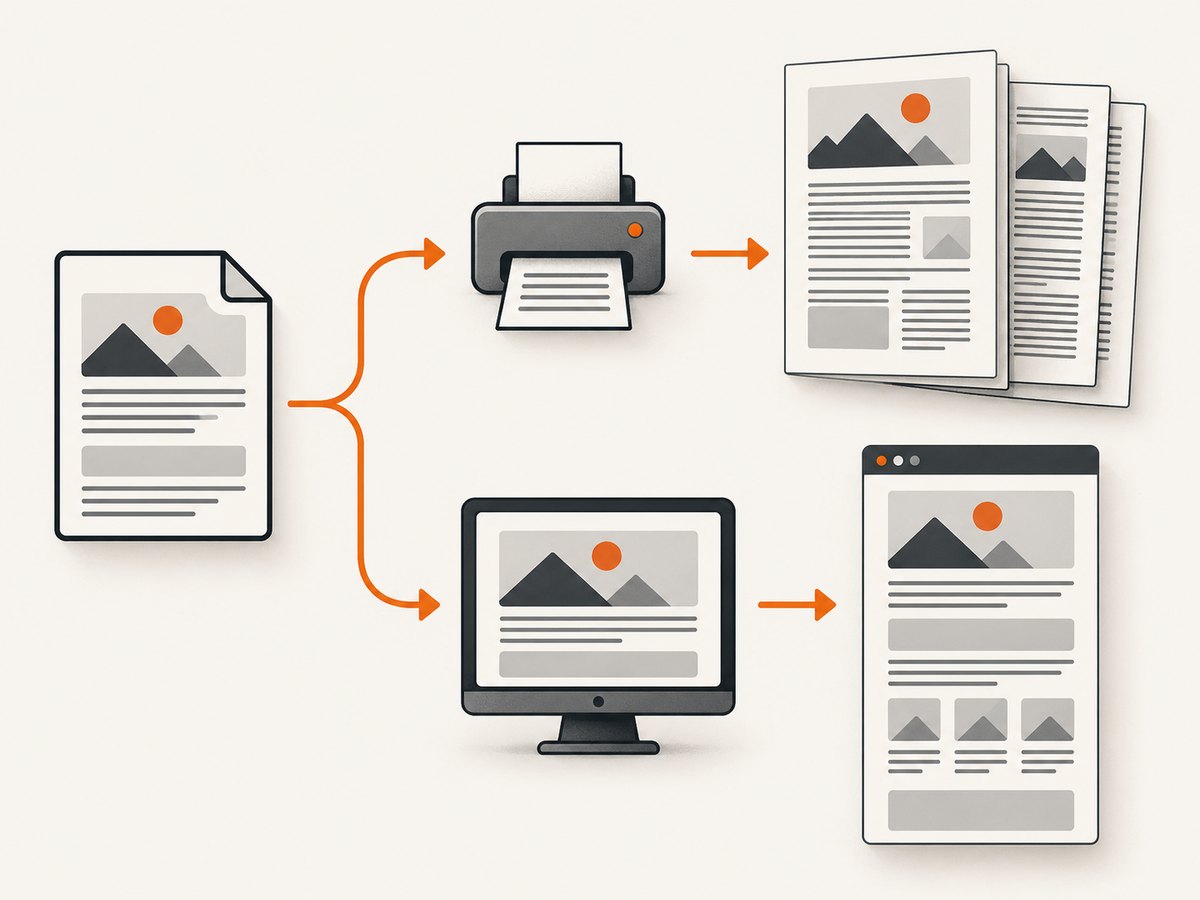
Print and screen stylesheets can intentionally produce different layouts. Print is the documented default. |
| Inputs | HTML, CSS, images, JavaScript, fonts, URL, cookies, authentication and headers | Input drift can look like an upgrade regression. |
| Engine options | Margins, page size, scaling, JavaScript timing, compatibility settings and other HtmlOptions |
Engine-specific options affect pagination and visual output. |
| Output | Page size, page count, wrapping, font representation, images and pagination | These observations help identify whether the change is layout, resource loading or font related. |
ABCpdf engines and why they matter
ABCpdf documents Chromium, MSHTML and ABCGecko rendering engines, with additional versioned engines available in some packages. Its documentation warns that switching engines can change behavior and output because the underlying engines have different capabilities. Font handling, CSS support, JavaScript behavior, pagination and the internal PDF representation can all vary.
For ABCpdf 14, the migration documentation identifies ABCChrome146 as the new default HTML conversion engine. The same documentation notes behavior differences between ABCpdf 13 and ABCpdf 14 namespaces. Therefore, an application that relied on the previous default can change output even when its HTML source is unchanged.
Inspect the selected engine
using System;
using ABCpdf13; // Change to the namespace used by your installed package.

class Program
{
    static void Main()
    {
        var doc = new Doc();
        Console.WriteLine($"Engine: {doc.HtmlOptions.Engine}");
        Console.WriteLine($"Media: {doc.HtmlOptions.Media}");
        doc.Clear();
    }
}
Use the namespace and API version installed in your project. The Engine property documentation lists Chrome146, Chrome123, Chrome117, Chrome86, Chrome65, Gecko, WebKit and MSHTML, but availability depends on the package or installer. Do not assume every listed engine is present.
Print CSS versus screen CSS
ABCpdf’s Media property selects the CSS media type used during conversion. The documented default is Print. A stylesheet can contain @media print and @media screen rules that change display, widths, colors, fixed elements and page breaks.
var doc = new Doc();
doc.HtmlOptions.Media = MediaType.Screen; // Or MediaType.Print, according to your target output.
doc.AddImageHtml(html);
doc.Save("screen-media.pdf");
doc.Clear();
Use the enum names exposed by your installed ABCpdf version. If your project does not expose MediaType, consult that version’s API reference for the corresponding Media value.
Make media explicit in the migration comparison
- Record the old value and the new value.
- Set the same value explicitly in both environments.
- Inspect the HTML for
@media print,@media screen, print-specific page breaks and hidden elements. - Compare again before editing the template.
A controlled before-and-after test
Use one captured input and one fixed configuration. This separates an engine change from a changed URL, asset, font or authentication context.
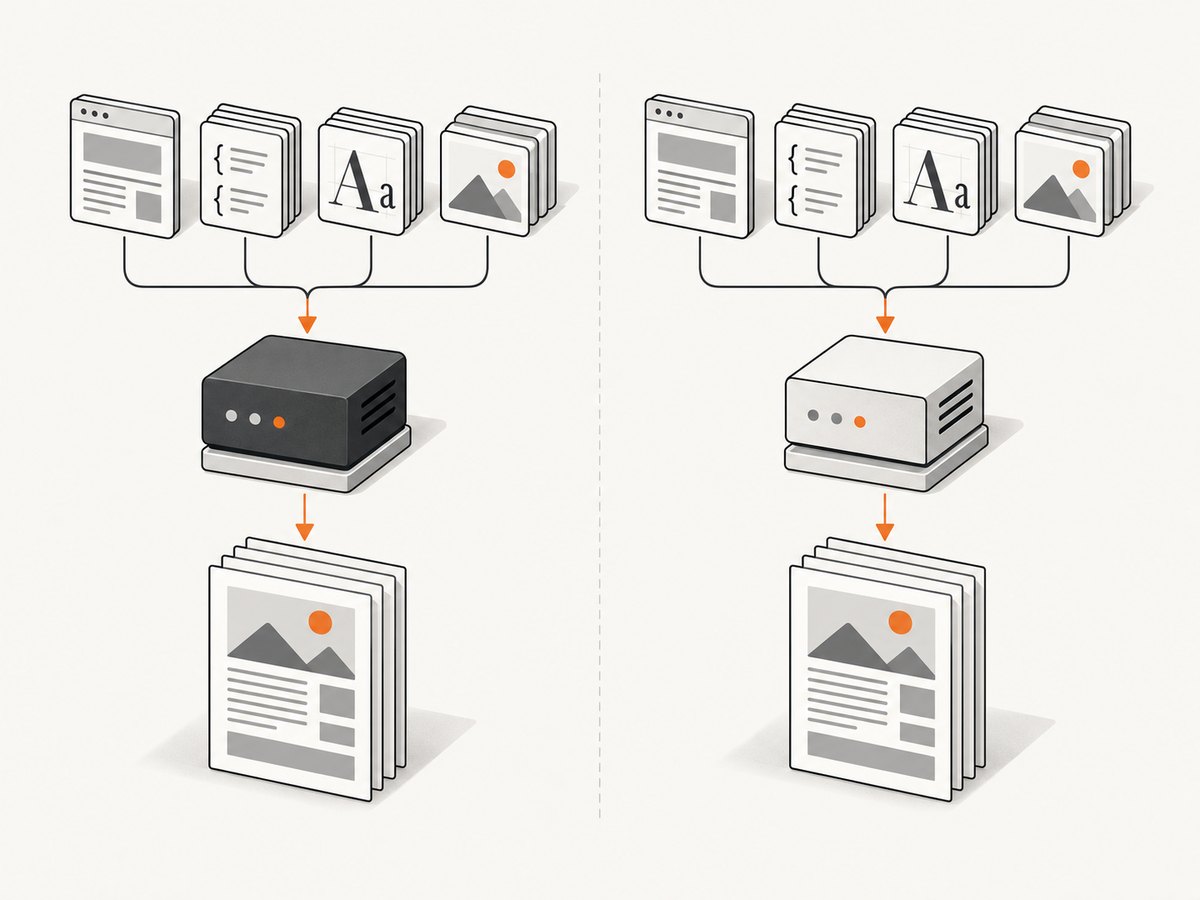
- Save the exact HTML sent to ABCpdf, including inline CSS and references to external assets.
- Collect every local image, stylesheet, script and font needed to render it.
- Record the ABCpdf package, namespace, selected engine, media, page dimensions, margins and timing options.
- Run the same input through the old and new deployments.
- Compare page count, page dimensions, text wrapping, font appearance, image placement, missing resources and page breaks.
- Change one variable at a time: engine, media, font set, compatibility option or template.
Minimal diagnostic program
using System;
using ABCpdf13; // Replace with your installed namespace.

class RenderDiagnostic
{
    static void Main(string[] args)
    {
        if (args.Length != 2)
        {
            Console.Error.WriteLine("Usage: RenderDiagnostic input.html output.pdf");
            Environment.Exit(2);
        }

        string html = System.IO.File.ReadAllText(args[0]);
        var doc = new Doc();
        Console.WriteLine($"Engine={doc.HtmlOptions.Engine}");
        Console.WriteLine($"Media={doc.HtmlOptions.Media}");

        doc.HtmlOptions.Media = MediaType.Print;
        doc.AddImageHtml(html);
        doc.Save(args[1]);
        doc.Clear();
    }
}
This example shows the comparison pattern. Adapt page size, margins, authentication and resource-loading settings to the API version and application. The important part is to log the effective settings and render identical input.
Compatibility settings and migration choices
The ABCpdf 14 upgrade documentation describes a compatibility setting for legacy output styles. If a migration must preserve an established appearance, check the upgrade guide for the compatibility option available to your installed version. Engine selection is another deliberate choice, subject to the engines included in your package.
A stable migration normally follows this order:
- Pin the engine and media explicitly.
- Try the documented compatibility setting if the old appearance must be retained.
- Compare representative documents, including long tables, web fonts, images, JavaScript-driven sections and page breaks.
- Adapt the HTML and CSS to the supported new engine when long-term compatibility matters more than pixel-for-pixel legacy output.
Common symptoms and fixes
| Symptom | Likely cause | Fix |
|---|---|---|
| Different page count | Engine pagination, media rules, fonts or page dimensions changed | Pin Engine and Media, verify fonts and compare page size and margins. |
| Text wraps differently | Different font availability, font metrics or Chromium version | Install or embed the same fonts where supported; log the engine and compare computed widths. |
| Headers or navigation appear/disappear | Print and screen CSS differ | Set HtmlOptions.Media explicitly and inspect both media blocks. |
| Images are missing | Relative URLs, authentication, blocked resources or timing | Use identical base URLs, headers and cookies; make sure resources are reachable before capture. |
| JavaScript content is absent | Different engine support or conversion occurs before the page finishes | Use the same engine and configure the documented wait or script options for that version. |
| Fonts are replaced | Font is unavailable in the new host or engine | Install the font on the rendering host or provide a supported embedded/web-font path; verify licensing and loading. |
| Fixed elements move or overlap | Different Chromium/CSS behavior or print rules | Test the selected engine, inspect print CSS and replace layout assumptions that rely on undefined behavior. |
| Code compiles but output changes | Default engine or namespace behavior changed | Log effective settings and set the engine, media and compatibility values explicitly. |
| An alternative engine cannot be selected | The required engine package is not installed | Check the package or MSI installation and the engine availability documented for that release. |
Performance and reliability during migration
- Keep the comparison deterministic. Use the same HTML snapshot, asset versions, fonts, URL context, cookies and headers.
- Separate rendering from input retrieval. Save the HTML and dependencies first so a network change is not mistaken for an engine change.
- Test representative documents. Include short and long pages, tables, images, web fonts, JavaScript and explicit page breaks.
- Record effective configuration. Log package version, namespace, engine, media and relevant HtmlOptions with each migration build.
- Plan for rendering differences. The ABCpdf documentation describes engine differences as expected behavior, so a migration should include visual review and acceptance criteria.
Or skip the browser setup
If your goal is to obtain a clean screenshot or PDF of a URL rather than maintain an HTML-to-PDF rendering stack, ScreenshotNeo provides a single HTTP request. It can accept consent banners before capture and remove more than 60 known consent platforms, newsletter popups and chat widgets. Bot checks, blank pages, timeouts, failed loads and cache hits are not billed, and the response identifies the result with X-Page-Verdict and X-Billed headers. It also provides an MCP server for AI agents with take_screenshot, get_page_info and capture_pdf.
See the ScreenshotNeo API documentation for all options.
curl -G "https://api.screenshotneo.com/v1/shot" -d access_key=YOUR_API_KEY --data-urlencode url=https://stripe.com -o shot.webpimport requests
r = requests.get("https://api.screenshotneo.com/v1/shot", params={"access_key": "YOUR_API_KEY", "url": "https://stripe.com"}, timeout=90)
open("shot.webp", "wb").write(r.content)const q = new URLSearchParams({ access_key: 'YOUR_API_KEY', url: 'https://stripe.com' });
const res = await fetch(`https://api.screenshotneo.com/v1/shot?${q}`);ScreenshotNeo supports PNG, JPEG, WebP and PDF output, with options for full-page capture, element selectors, dark mode, device presets, custom viewport and retina scale, paper size and margins, CSS and JavaScript, clicks, waits, blocking, headers, cookies, user agents, authorization, timezone, geolocation, transparency, resizing, caching, signed links, asynchronous jobs, bulk capture and usage reporting. 1,000 screenshots per month are free with no card; paid plans start at $5 for 3,000. Create a free ScreenshotNeo account.
FAQ
Did every ABCpdf upgrade change the rendering engine?
No. ABCpdf 14 documents ABCChrome146 as the new default, but an application may explicitly select another engine or use a package with different engines installed. Check the effective setting in the deployed application.
Should I always use screen media for web pages?
No. Choose the media that matches the document you intend to produce. Print is ABCpdf’s documented default, and print CSS often contains deliberate pagination and visibility rules.
Can identical HTML guarantee identical PDFs?
No. The engine, fonts, assets, media, options and runtime environment are part of the rendering input. Keep those stable when output stability matters.
Is a changed PDF necessarily a bug?
No. WebSupergoo documents behavioral and output differences between engines. Treat the change as a migration decision: preserve it with supported compatibility settings or update the template for the new engine.
What information should I include in a support request?
Include old and new ABCpdf versions and namespaces, selected and installed engines, Media, relevant HtmlOptions, the exact HTML and dependencies, font information, environment details and before/after PDFs.


