How to Make PDF Hyperlinks
Learn how to add clickable web, file, email, and internal page links to existing PDFs or create them before export from Word or LibreOffice.
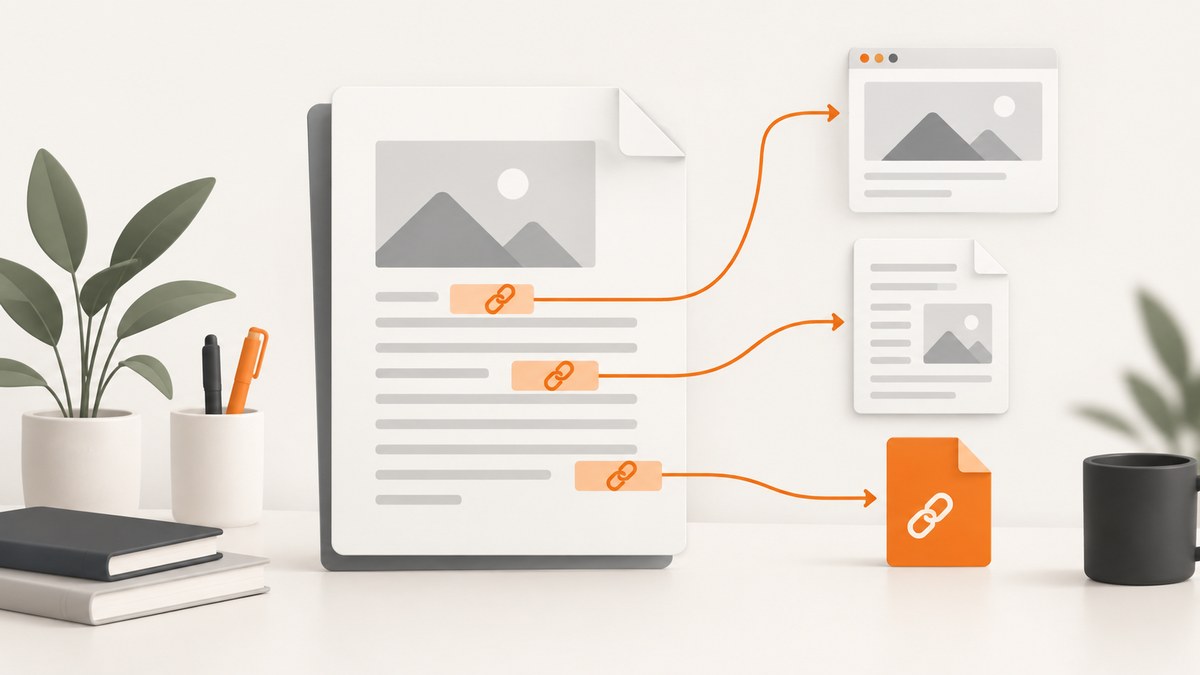
To make a PDF hyperlink clickable, either add the link directly in Adobe Acrobat or create it in the source document before exporting to PDF. Acrobat can add web, file, email, and internal page-view links to an existing PDF. Word and LibreOffice are usually better when you still control the original document.
Choose the right method
| Situation | Best method | Why |
|---|---|---|
| The PDF already exists | Adobe Acrobat | Add or edit a link without rebuilding the source document. |
| You are writing the document in Word | Word, then export to PDF | Links, headings, tables of contents, and cross-references can be created together. |
| You use an open-source office suite | LibreOffice, then export to PDF | Create hyperlinks in the editable source and export them. |
| You need an internal jump | Page view, heading, or bookmark destination | Readers can move between sections without leaving the PDF. |
Add a hyperlink to an existing PDF in Adobe Acrobat
- Open the PDF in Acrobat and select Edit.
- Choose Link > Add or edit a link.
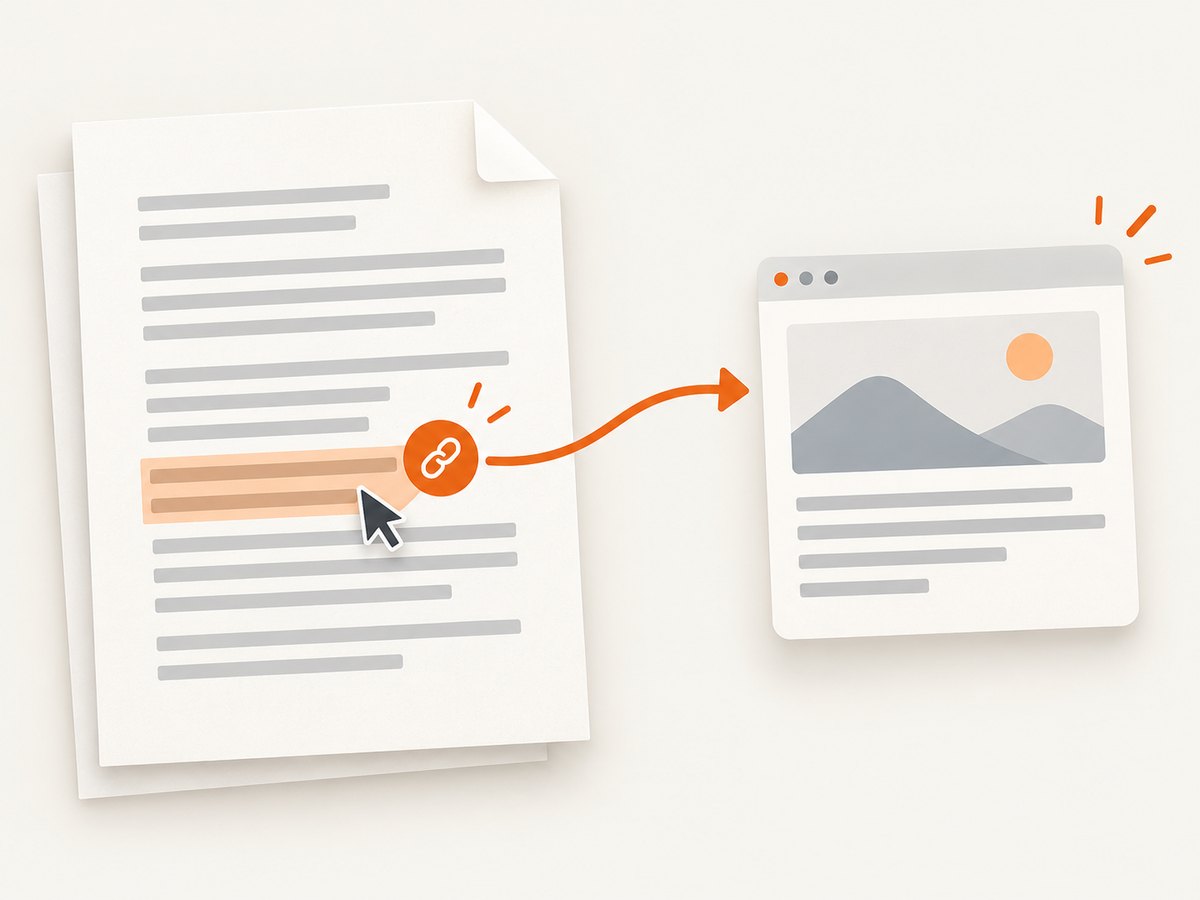
- Drag a rectangle around the text, image, or graphic that should be clickable.
- Set the border and highlight appearance, or choose an invisible rectangle if you do not want a visible box.
- Choose the action: Open a web page, Open a file, Go to a page view, or another available action.
- Enter the destination and complete the prompts.
- Save the PDF, close it, reopen it in a PDF viewer, and activate the link to verify it.
Adobe describes PDF links as actions that make a document interactive. See the Adobe Acrobat help for links and attachments for the current interface and supported actions.
Link to a web page
Choose Open a web page and enter the complete URL, including https://. Use the final canonical URL when possible so the link does not depend on a temporary redirect.
Link to another file
Choose Open a file and select the target. A file link can break when the PDF and target file are moved to different folders or sent to another computer. For distributed documents, a stable web URL is generally easier for readers.
Link to an email address
If Acrobat exposes an email action, enter the recipient address and optional subject. Test it on the operating systems and PDF viewers your audience uses because the action depends on a configured mail application.
Link to another page or section in the same PDF
- Choose Go to a page view.
- Navigate to the destination page and set the desired zoom and scroll position.
- Select Set link to store that view.
This is useful for tables of contents, cross-references, footnotes, and “back to contents” controls. A page-view link records the page and view position, so changing the document layout later can require recreating it.
Create hyperlinks in Microsoft Word before exporting
- Select the text or picture that should be clickable.
- Choose Insert > Link (or right-click and choose Link).
- Enter a web address, file path, email address, or location in the document.
- Confirm the link and save the Word file.
- Export or save as PDF using a workflow that preserves links, bookmarks, and cross-references.
Word supports links to web pages, files, email addresses, and locations in the same document. Use heading styles when you want a navigable table of contents or internal section links. After export, open the PDF and check the generated links rather than assuming they survived conversion.
Create hyperlinks in LibreOffice before exporting
- Select the text, image, or document location where the link should be placed.
- Use Insert > Hyperlink (or the Hyperlink toolbar button).
- Choose the link type and enter the target.
- Apply the link, then export the document as PDF.
- Open the exported PDF in a viewer and test each destination.
LibreOffice supports hyperlinks as text or buttons. Its official Hyperlink help documents the command and target types.

Make internal PDF navigation reliable
- Use heading styles: They give authoring tools a consistent structure for tables of contents and bookmarks.
- Prefer named destinations or bookmarks when available: They are easier to maintain than manually calculated page numbers after edits.
- Set the useful view: A page link can open at a particular zoom and scroll position; choose a view that keeps the destination heading visible.
- Add return links: Long reports benefit from a link back to the contents or previous section.
- Recheck after pagination changes: Adding pages can invalidate links created against a prior page layout.
Test every hyperlink after export
- Open the final PDF in the viewer your readers use.
- Move the pointer over each link and confirm the pointer changes to a link cursor.
- Activate external links and confirm the correct page opens.
- Test internal links from the table of contents, cross-references, and back links.
- Check links on both text and graphics, including links near page edges.
- Test a copy downloaded from the location where you will publish it; a local source file can hide path or permission problems.
Common problems and fixes
| Problem | Likely cause | Fix |
|---|---|---|
| The link is not clickable | No link annotation was created, or the export stripped it. | Recreate the link in Acrobat or export again with link preservation enabled. |
| The link opens the wrong page | The URL redirects, contains a typo, or the internal page view changed. | Copy the final URL, recreate the destination, and retest the exported PDF. |
| An internal link lands at the wrong position | The stored page view used an old layout or zoom. | Choose Go to a page view, set the target view again, and save. |
| A file link works only on the author’s computer | The link points to a local or relative path. | Package the file with the PDF and document the required folder structure, or use a stable web URL. |
| Links disappear after Word or LibreOffice export | The export path or PDF settings did not preserve annotations. | Use the application’s PDF export command, enable bookmarks and link-related options, and inspect the resulting PDF. |
| Email links do nothing | The reader has no default mail client or the viewer blocks the action. | Provide the email address as visible text as a fallback and test in the target viewer. |
| A link is hard to click | The clickable rectangle is too small or overlaps another object. | Widen the rectangle around the complete label or graphic and remove overlapping annotations. |
| Security software blocks the link | The viewer or organization restricts external actions. | Use an HTTPS destination, explain the destination clearly, and provide the full URL as visible text. |
Performance, reliability, and cost considerations
- Performance: A PDF link is a small annotation; the time readers spend waiting usually comes from the destination website or file, not from the link itself.
- Reliability: HTTPS URLs and stable, permanent destinations survive sharing better than local file paths, temporary URLs, or links that depend on a particular viewer.
- Maintainability: Create links in the source document when possible. Editing a finished PDF is useful for one-off changes but becomes harder to maintain across repeated revisions.
- Accessibility: Use descriptive link text, keep sufficient contrast, and avoid making a long, ambiguous URL the only indication of a link’s purpose.
- Cost: Acrobat is the direct paid editing route. Word fits Microsoft-based workflows, while LibreOffice provides a free authoring route. Choose based on whether you need to edit an existing PDF or only create the source document.
Or skip the browser setup
If your workflow also needs a PDF or screenshot of a web page, ScreenshotNeo provides a single GET request that returns a PNG, JPEG, WebP, or PDF. See the ScreenshotNeo API documentation for all options.
curl -G "https://api.screenshotneo.com/v1/shot" -d access_key=YOUR_API_KEY --data-urlencode url=https://stripe.com -o shot.webpimport requests
r = requests.get(
"https://api.screenshotneo.com/v1/shot",
params={"access_key": "YOUR_API_KEY", "url": "https://stripe.com"},
timeout=90,
)
r.raise_for_status()
open("shot.webp", "wb").write(r.content)const q = new URLSearchParams({ access_key: 'YOUR_API_KEY', url: 'https://stripe.com' });
const res = await fetch(`https://api.screenshotneo.com/v1/shot?${q}`);
if (!res.ok) throw new Error(`HTTP ${res.status}`);
const bytes = new Uint8Array(await res.arrayBuffer());
await Bun.write('shot.webp', bytes);Cookie banners, newsletter popups, and chat widgets are removed before the shot. Bot checks, blank pages, failed loads, timeouts, and cache hits are not billed, and response headers identify the page verdict and billing status. The MCP server includes take_screenshot, get_page_info, and capture_pdf tools for Claude, Cursor, and other MCP clients. The Free plan includes 1,000 screenshots a month with no card; paid plans start at $5 for 3,000 shots. Create a free ScreenshotNeo account.
FAQ
Can I add a hyperlink without changing the visible PDF text?
Yes. In Acrobat, draw a link rectangle over existing text or artwork and choose the destination. The visible content can remain unchanged.
Can one PDF link to another page in the same file?
Yes. Use Acrobat’s Go to a page view action, or create an internal destination from headings or bookmarks in the source document.
Why should I test the exported PDF?
Export workflows can change pagination, remove annotations, or alter generated tables of contents. Testing the final file catches those failures before readers encounter them.
What is the easiest free workflow?
Create the link in LibreOffice, export to PDF, and verify it in a viewer. Use Acrobat when the PDF already exists and must be edited directly.