How to Save a Webpage as a PDF on Mobile
Save any webpage as a PDF on iPhone or Android with exact Safari, Chrome, and Firefox steps, fixes for common problems, and an API option.
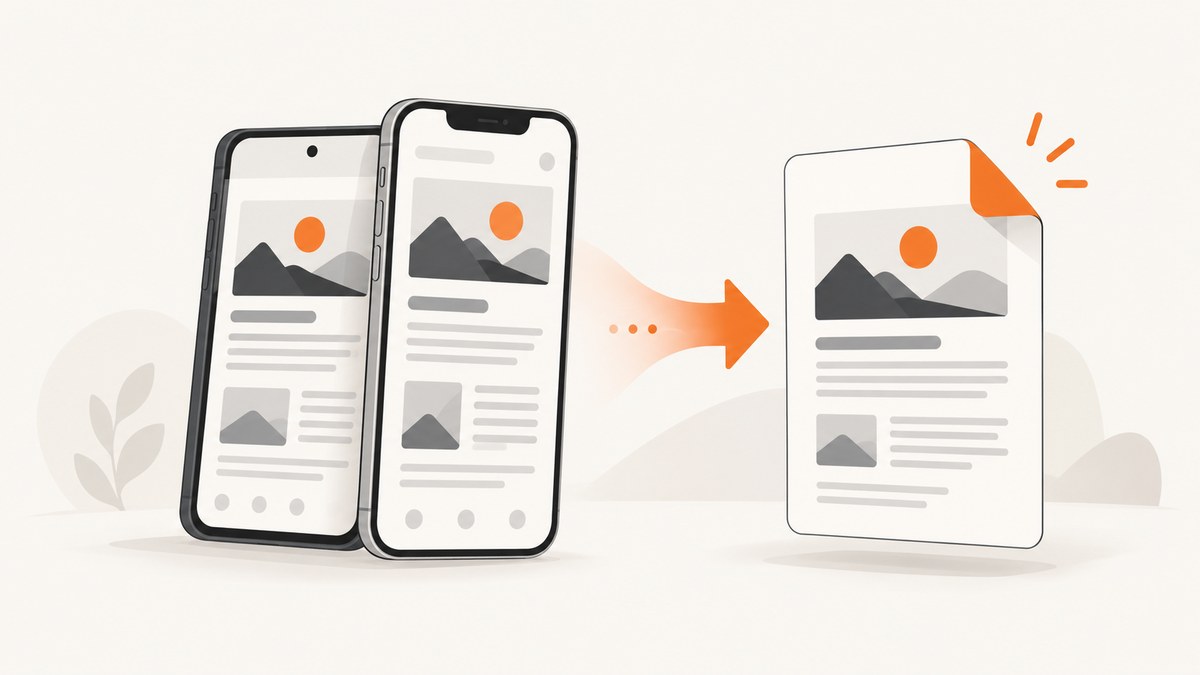
Yes, you can save a webpage as a PDF directly on your phone. On an iPhone, Safari uses Share or the page menu, then Markup and Save File To. On Android, Chrome uses Share, Print, and Save as PDF; Firefox has a direct Save as PDF command in its Share menu.
The exact labels can vary after browser or operating-system updates, but the workflows below cover the current documented paths.
Save a webpage as a PDF on iPhone with Safari
Safari can create a PDF from the page you are viewing, with an optional Markup step for highlights, drawings, or notes. Apple documents this as a way to mark up a webpage and share it as a PDF. Apple’s Safari instructions describe the same sequence.
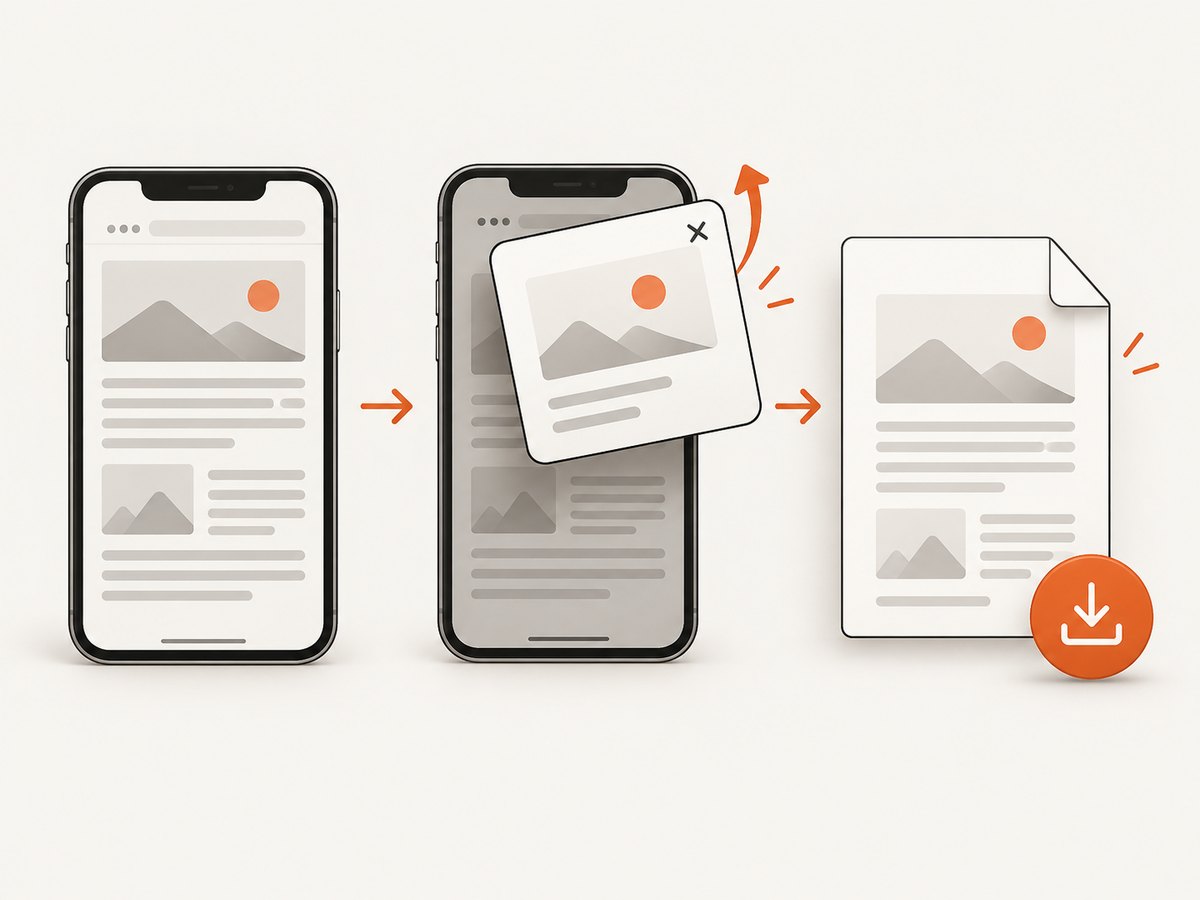
- Open Safari and load the webpage.
- Tap the page menu or the Share button. The button location depends on whether Safari’s tab layout is at the top or bottom.
- Tap Markup.
- Add highlights, drawings, or notes if you need them. To create an unannotated PDF, leave the page unchanged.
- Tap Done, then choose Save File To.
- Enter a filename, choose a folder or cloud destination in Files, and tap Save.
The PDF is stored in the Files destination you selected. If you only need a clean copy, the Markup screen is still part of the documented flow; simply add no annotations before saving.
If Safari does not show Markup
Look for the page menu near the address bar or the Share button. Safari can show different controls depending on the tab layout and the current page. Open the Share sheet first, then look for Markup in the available actions.
Save a webpage as a PDF on Android with Chrome
Chrome creates the PDF through its print preview. A physical printer is not required: choose the virtual Save as PDF destination. Google’s Chrome Help instructions list this sequence.
- Open Chrome and load the webpage, image, or file.
- Tap More (the three-dot menu).
- Tap Share, then choose Print.
- In the printer selector, open the destination list and choose Save as PDF.
- Choose where to save the file on your device.
- Tap Print to create the PDF.
On some Android versions, the printer selector appears at the top of the preview and the Save as PDF option is inside a dropdown. If Chrome initially shows a hardware printer, open that dropdown and switch the destination to Save as PDF.
Save a webpage as a PDF on Android with Firefox
Firefox for Android exposes Save as PDF directly from its Share menu. Mozilla says the completed file is saved in the Downloads folder. See Mozilla’s current Firefox instructions.
- Open Firefox and load the webpage.
- Tap the three-dot menu.
- Tap Share.
- Tap Save as PDF.
- Tap Download in the confirmation dialog.
- Open Firefox’s Downloads view or your device’s Downloads folder to find the file.
Mozilla’s help page was updated on May 3, 2023, so the menu position can change after an app update. If Save as PDF is not visible, check the Share actions and the browser’s Downloads or Print options.
Which mobile method should you use?
| Phone and browser | Path | Where the file goes | Useful control |
|---|---|---|---|
| iPhone Safari | Page menu or Share → Markup → Done → Save File To | Files destination you choose | Markup annotations before saving |
| Android Chrome | More → Share → Print → Save as PDF | Location you choose | Print-preview settings |
| Android Firefox | Menu → Share → Save as PDF → Download | Downloads folder | Direct PDF action |
Use Safari when you need to annotate the page. Use Chrome when you want print-preview controls. Use Firefox when you want a direct Save as PDF action and a predictable Downloads destination.
What to check before saving
- Wait for the page to finish loading. Expand sections, load images, and scroll through long pages first if the page reveals content as you move.
- Check the visible state. Cookie dialogs, newsletter forms, chat bubbles, and sign-in prompts can be included in a browser-generated PDF if they remain open.
- Use the page’s print view when available. Print styles can remove navigation and make long pages easier to read.
- Confirm the destination. On iPhone, check the Files folder you selected. On Android, check the chosen location or Downloads.
- Rename files clearly. Include the page subject and date when you are saving several versions.
Common problems and fixes
| Problem | Likely cause | Fix |
|---|---|---|
| Safari has no obvious PDF button | The control is inside the page menu or Share sheet. | Open the page menu or Share, then select Markup. Safari’s tab layout changes where the Share button appears. |
| Chrome opens a printer chooser | Chrome is showing print destinations. | Open the destination dropdown and choose Save as PDF. A physical printer is not needed. |
| Firefox saved the file but it cannot be found | The file was downloaded to Downloads. | Open Firefox’s menu and Downloads, or open the device’s Downloads folder. |
| The PDF is missing images | Images were lazy-loaded or the page had not finished rendering. | Wait for the page, scroll through the content to trigger images, then save again. |
| A popup or consent banner covers the page | The browser captured the current visible page state. | Dismiss the banner or popup before opening the save flow. If the page requires an interaction, complete it first. |
| The page is cut off or has awkward page breaks | Mobile print layout and page-break rules differ between sites. | Try the browser’s print-preview settings, landscape orientation where available, or the site’s print view. For repeatable output, use a server-side capture workflow. |
| The save action is unavailable | The browser or operating system may have changed its menu layout. | Check the current browser menu, Share actions, and official help page for your version. |
Or skip the browser setup
For repeatable captures, backend jobs, or PDFs created from many URLs, ScreenshotNeo provides a website capture API and MCP server. It can return PNG, JPEG, WebP, or PDF output, and the capture can be configured for full pages, selected elements, device presets, custom viewports, dark mode, retina scale, PDF paper size, margins, landscape mode, and page ranges. See the ScreenshotNeo documentation for the available options.
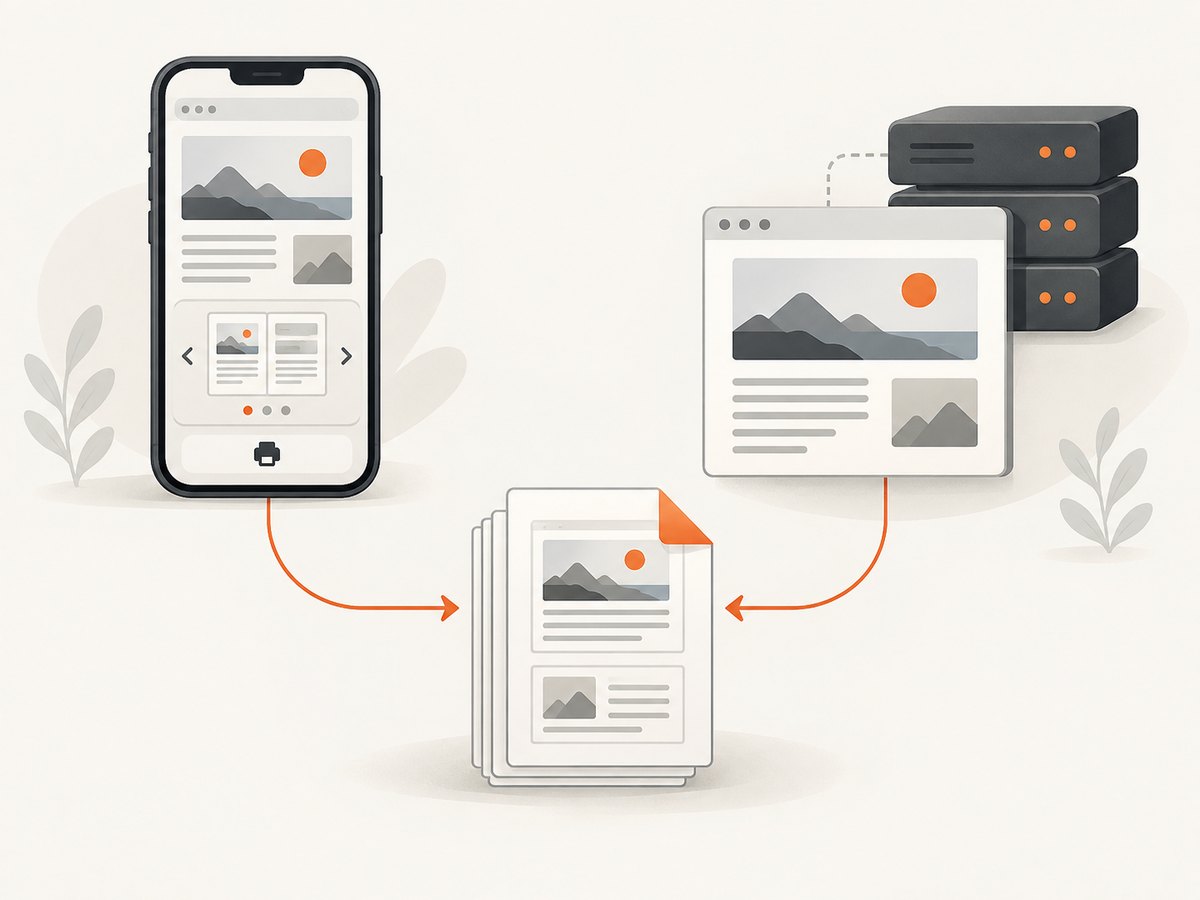
The basic request is a single GET call:
cURL
curl -G "https://api.screenshotneo.com/v1/shot" -d access_key=YOUR_API_KEY --data-urlencode url=https://stripe.com -o shot.webpPython
import requests

r = requests.get(
    "https://api.screenshotneo.com/v1/shot",
    params={"access_key": "YOUR_API_KEY", "url": "https://stripe.com"},
    timeout=90,
)
r.raise_for_status()
open("shot.webp", "wb").write(r.content)
Node.js
const q = new URLSearchParams({ access_key: 'YOUR_API_KEY', url: 'https://stripe.com' });
const res = await fetch(`https://api.screenshotneo.com/v1/shot?${q}`);
if (!res.ok) throw new Error(`HTTP ${res.status}`);
const file = Buffer.from(await res.arrayBuffer());
require('node:fs').writeFileSync('shot.webp', file);
ScreenshotNeo removes cookie and consent banners, newsletter popups, and chat widgets before capture. Bot checks, blank pages, failed loads, timeouts, and cache hits are not billed, and each response reports the result with X-Page-Verdict and X-Billed headers. Its MCP server includes take_screenshot, get_page_info, and capture_pdf tools for Claude, Cursor, and other MCP clients.
There is a free plan with 1,000 screenshots per month and no card. Paid plans start at $5 for 3,000 shots. Create a free ScreenshotNeo account.
Reliability, performance, and cost notes
- Mobile browser saves: The PDF is generated on the device, so the result depends on the page state, browser print rules, available storage, and whether the page has finished rendering.
- Long or interactive pages: A manual save can miss content that appears only after scrolling, clicking, or waiting. Capture the final state before saving.
- Repeatable workflows: An API is easier to run from a script or job queue. ScreenshotNeo supports waiting for a selector, a delay, or network idle; hiding selectors; custom headers, cookies, user agents, authorization, timezone, and geolocation; request blocking; caching with a chosen TTL; async jobs with signed webhooks; and bulk capture of up to 100 URLs per call.
- Billing: ScreenshotNeo bills only clean shots. Failed loads, bot checks, blank pages, timeouts, and cache hits cost nothing.
- Large jobs: Use async jobs or bulk capture instead of holding a mobile browser open while processing many pages. Check usage through the usage API.
FAQ
Can I save a webpage as a PDF without installing an app?
Yes. Safari on iPhone, Chrome on Android, and Firefox on Android all provide built-in workflows.
Does Chrome require a real printer?
No. In Chrome’s print preview, select Save as PDF as the destination.
Where does Firefox save the PDF?
Firefox for Android saves it to Downloads. Open Firefox’s Downloads view or the device’s Downloads folder.
Can I annotate an iPhone webpage PDF?
Yes. Safari’s Markup step lets you highlight, draw, and write before choosing Save File To.
Why does my PDF look different from the webpage?
PDF output uses print and pagination rules. Dynamic content, lazy-loaded images, popups, and responsive layouts can change the result. Let the page finish loading and dismiss overlays before saving.
Can I automate webpage-to-PDF conversion?
Yes. A capture API such as ScreenshotNeo can run the workflow from code and expose PDF capture through its API and MCP server.