How to Access a Logged-In Session with Headless Chrome
Reuse authenticated browser state in headless Chrome with Playwright. Choose a persistent profile, storageState, or CDP attachment—and protect the credentials each contains.
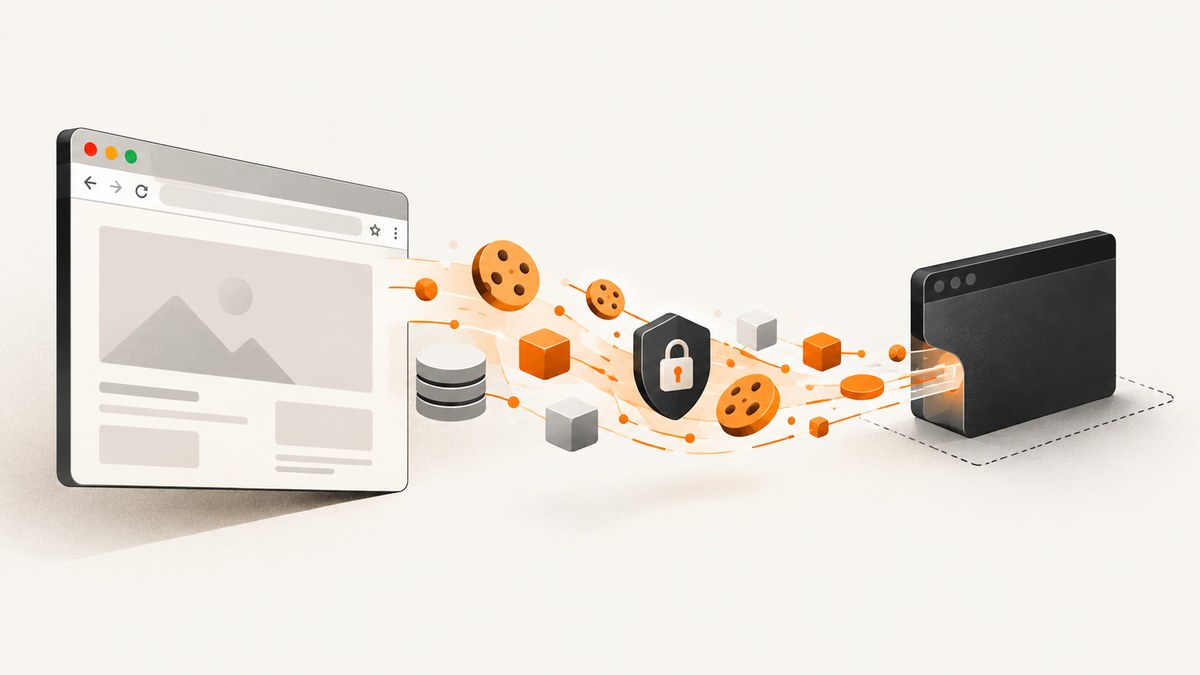
To access a logged-in session in headless Chrome, reuse the browser state that contains the login. With Playwright, choose a dedicated persistent profile for continuity, save and restore storageState for repeatable isolated runs, or attach over Chrome DevTools Protocol (CDP) to a Chromium process that is already logged in. These approaches preserve different parts of browser state and have different security and process-lifecycle tradeoffs.
Do not automate against your everyday Chrome profile. Playwright warns that using Chrome’s normal User Data directory can prevent pages from loading or cause the browser to exit. Treat profile directories, state files, cookies, and CDP endpoints as credentials.
Choose the right session-reuse method
| Method | Best for | What you reuse | Browser process |
|---|---|---|---|
| Persistent context | A long-lived automation account | Dedicated user-data directory, including browser session data | Playwright launches and owns it |
storageState |
Repeatable tests and clean, isolated contexts | Cookies and supported origin storage | Playwright launches a fresh context |
| CDP attachment | A session already open in Chromium | The attached browser’s live state and tabs | Playwright connects to an existing process |
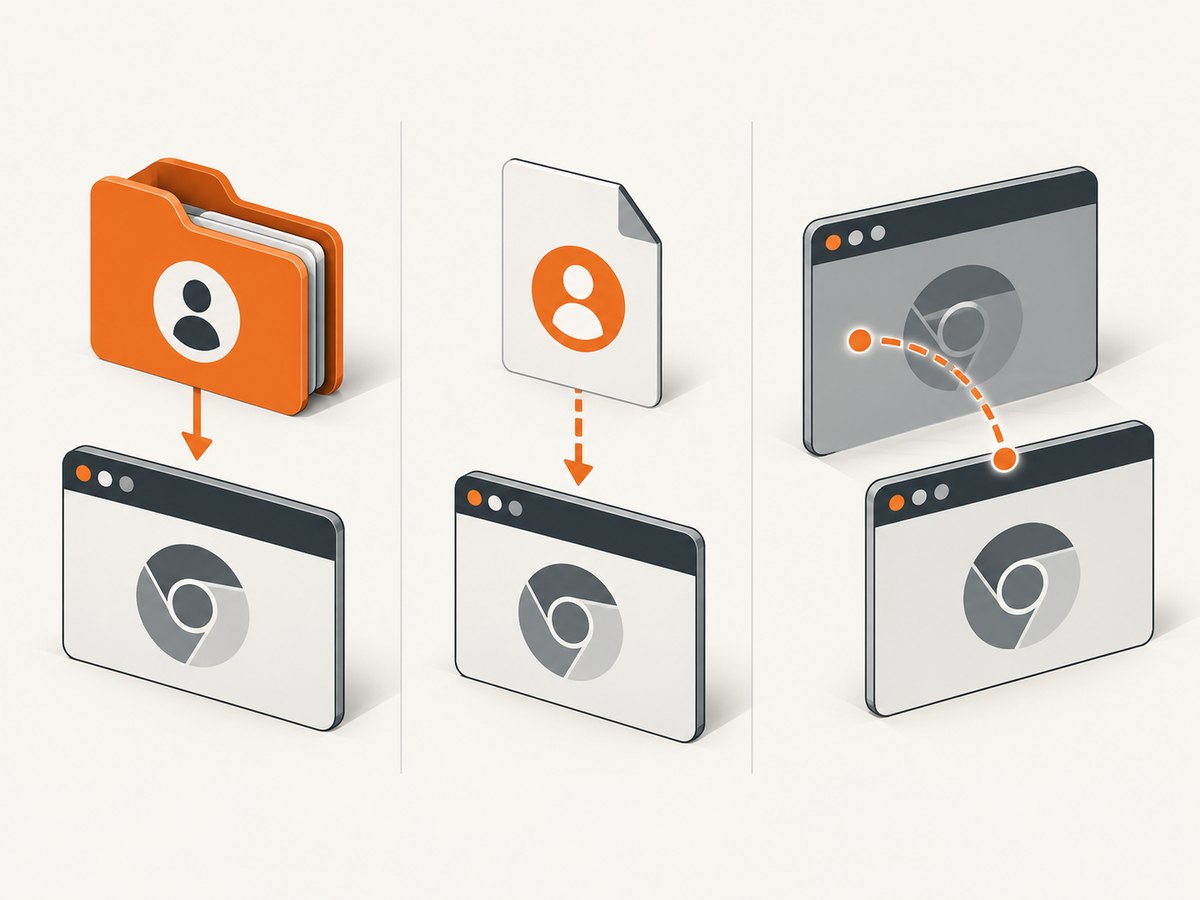
Start with storageState for automated jobs that need reproducible contexts. Pick a persistent context when the browser profile itself must live across runs. Use CDP when you need to control an already-running Chromium browser. CDP is Chromium-only.
Prerequisites and setup
The examples use Node.js and Playwright. Install Playwright in a project, then install its Chromium browser:
npm install playwright
npx playwright install chromium
Each approach below is runnable as a separate script. Run scripts from your project directory so the relative profile and auth paths resolve predictably. Use a test or automation account where possible, and keep its access limited to the pages and actions the task needs.
Option 1: Keep a dedicated persistent profile
launchPersistentContext(userDataDir) launches Chromium with a user-data directory that keeps browser session data such as cookies and local storage. Use a directory reserved for automation. The first run can log in interactively; later runs reopen the same profile and may still be authenticated, unless the site expires or revokes the session.
// persistent-session.mjs
import { chromium } from 'playwright';

const userDataDir = './playwright/.profile-example';
const context = await chromium.launchPersistentContext(userDataDir, {
  headless: false, // Show the first run so you can log in.
});

const page = context.pages()[0] ?? await context.newPage();
await page.goto('https://example.com/account', { waitUntil: 'domcontentloaded' });

// On the first run, complete the site's login in the opened browser.
// On later runs, check that the expected authenticated page is present.
console.log('Page title:', await page.title());

await context.close();
Run it with node persistent-session.mjs. After the first interactive login has completed, change headless to true for unattended runs. If login redirects are still in progress, wait for the site’s authenticated URL or a stable account selector before continuing; merely reaching the initial URL does not prove the session is ready.
Persistent profile rules
- Do not point
userDataDirat Chrome’s ordinary profile or the parent Chrome User Data directory. Use a new automation-only path. - Do not launch two Chromium processes against the same profile at once. Coordinate jobs so only one process owns a user-data directory.
- Use separate directories for separate accounts. This limits accidental account crossover and makes cleanup clearer.
- Persist the directory only if continuity is required. It contains sensitive session material, so restrict filesystem access and remove it when no longer needed.
Option 2: Save and restore Playwright storageState
storageState makes it easy to authenticate once and then create fresh contexts for later work. Log in through a visible browser, wait for redirects and the site’s session-setting work to finish, then write the state file. Later, load it into a new browser context.
// save-auth.mjs
import { chromium } from 'playwright';

const browser = await chromium.launch({ headless: false });
const context = await browser.newContext();
const page = await context.newPage();

await page.goto('https://example.com/login');
// Complete login in the visible browser, then wait until the account page is ready.
await page.waitForURL('**/account**');
await page.getByRole('heading', { name: /account/i }).waitFor();

await context.storageState({ path: 'playwright/.auth/user.json' });
await browser.close();
// use-auth.mjs
import { chromium } from 'playwright';
const browser = await chromium.launch({ headless: true });
const context = await browser.newContext({
storageState: 'playwright/.auth/user.json',
});
const page = await context.newPage();
await page.goto('https://example.com/account', { waitUntil: 'domcontentloaded' });
console.log('Page title:', await page.title());
await context.close();
await browser.close();The sample account URL, redirect pattern, and heading are placeholders: replace them with the application’s actual login flow and a reliable authenticated-page signal. Add playwright/.auth/ to .gitignore, and never publish the generated JSON. Anyone who obtains usable session credentials may be able to act as that account.
Include IndexedDB or passkey state when needed
Storage needs depend on how the application implements authentication. Playwright’s authentication guide describes state for cookies, local storage, and IndexedDB. The BrowserContext documentation also covers origin private file system data and virtual WebAuthn credentials. If your app keeps its login token in IndexedDB, enable the relevant IndexedDB option when saving state. If it relies on passkeys, use the documented virtual WebAuthn support and verify that your particular login flow is covered. Do not assume a basic cookie snapshot includes every authentication mechanism.
SessionStorage needs a separate workaround
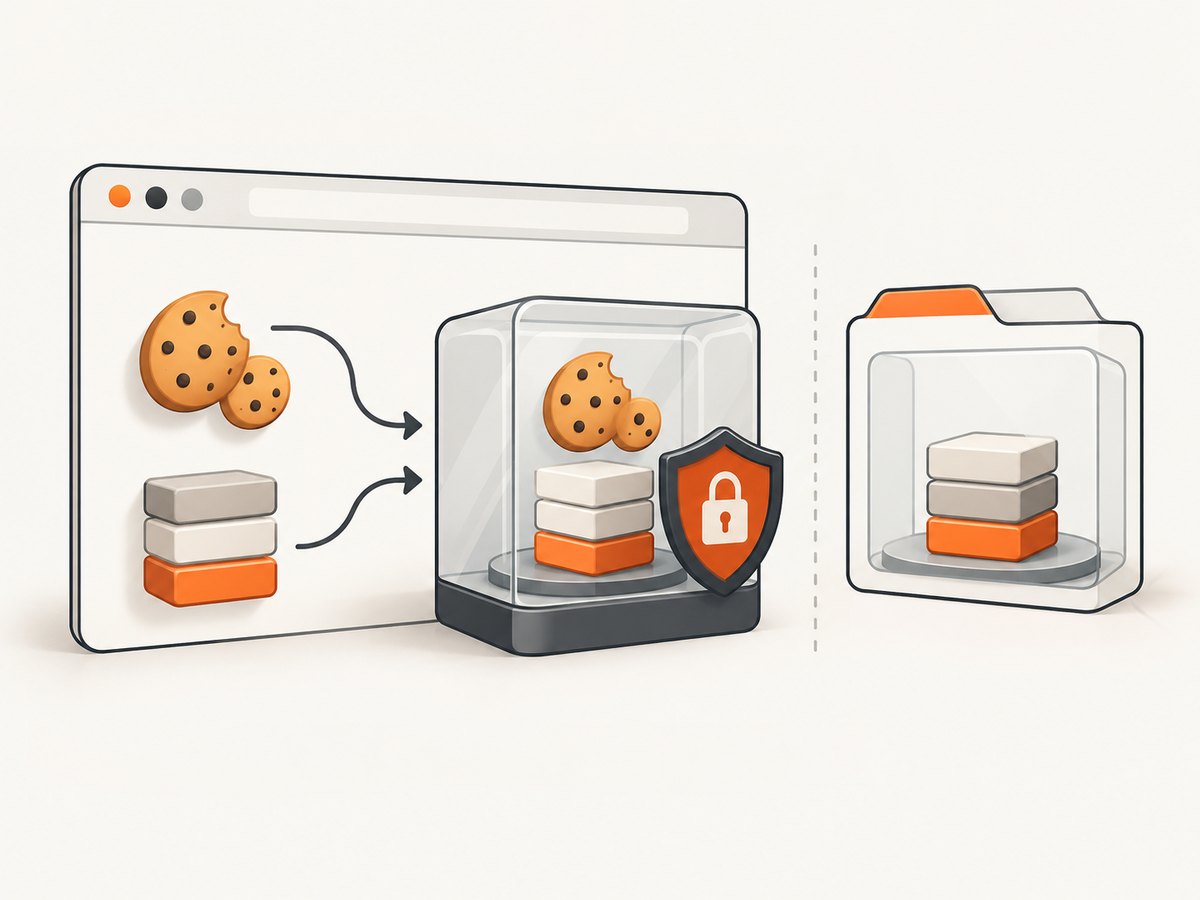
SessionStorage is scoped to an origin and a browser tab’s session. Playwright does not expose it through the ordinary storage-state snapshot. If the application depends on it, serialize the values from a page after login, then install them before application scripts run in the later context.
// Capture sessionStorage after the login is complete.
const sessionStorageData = await page.evaluate(() => {
  const values = {};
  for (let i = 0; i < sessionStorage.length; i++) {
    const key = sessionStorage.key(i);
    values[key] = sessionStorage.getItem(key);
  }
  return values;
});

// Save sessionStorageData to a protected file using your application's
// normal secret-handling approach. Do not commit it to source control.
// In the later run, install it for the intended origin before navigation.
await context.addInitScript(({ origin, values }) => {
if (location.origin !== origin) return;
for (const [key, value] of Object.entries(values)) {
sessionStorage.setItem(key, value);
}
}, {
origin: 'https://example.com',
values: sessionStorageData,
});
await page.goto('https://example.com/account');Keep the snapshot scoped to the expected origin. Avoid restoring arbitrary keys into unrelated pages, and handle storage values with the same care as cookies. A sessionStorage token can expire or be bound to a tab or server-side session, so test the application’s real behavior rather than treating the snapshot as a permanent login.
Option 3: Attach to a logged-in Chromium process with CDP
CDP is useful when a Chromium browser is already running with the desired profile and tabs. Start that browser with a remote debugging endpoint on a protected local interface, complete login in it, and connect Playwright to the endpoint.
// attach-cdp.mjs
import { chromium } from 'playwright';

const browser = await chromium.connectOverCDP('http://localhost:9222');
const contexts = browser.contexts();
const context = contexts[0];
if (!context) throw new Error('No browser context available at the CDP endpoint');

const page = context.pages()[0] ?? await context.newPage();
await page.goto('https://example.com/account', { waitUntil: 'domcontentloaded' });
console.log('Page title:', await page.title());

// This connection is to a browser you did not launch. Disconnect without
// treating it as a newly owned browser process.
await browser.close();
The endpoint and launch flags vary by Chromium installation and operating system; configure them according to the browser’s official guidance. The important operational requirement is to protect the debugging port. A process that can reach it may control the logged-in browser. Do not expose it publicly, forward it through an untrusted network, or share it with unrelated jobs. Playwright documents CDP attachment for Chromium-based browsers; it is not a general connection method for Firefox or WebKit.
Choosing between Puppeteer and Playwright
This guide’s complete session-state examples use Playwright because its documented APIs cover persistent contexts, storage-state files, and CDP attachment. Puppeteer is another JavaScript browser-automation library that communicates with Chrome and Firefox through browser automation protocols. Its API and state-management details differ, so adapt the lifecycle to Puppeteer’s own documentation rather than copying Playwright method names. The same principles apply: use an isolated profile, protect saved credentials, and restrict any debugging endpoint.
Authentication state, security, and reliability checklist
- Separate accounts: use a profile or state file per account and per environment.
- Keep secrets out of Git: ignore profile and auth directories; check staged files before committing.
- Restrict access: set filesystem permissions so only the automation user can read session artifacts.
- Rotate expired state: rerun login and regenerate snapshots when the service revokes or expires credentials.
- Wait for the application: follow redirects and wait for an authenticated URL or page element before saving state or doing work.
- Coordinate profile ownership: avoid concurrent launches with one persistent user-data directory.
- Minimize lifetime: delete temporary state files and profiles when the job or debugging task ends.
- Protect CDP: keep the endpoint local and reachable only by trusted processes.
Common errors and fixes
| Symptom | Likely cause | Fix |
|---|---|---|
| Automation opens the login page again | The state was saved before login finished, credentials expired, or the app stores auth outside the captured state. | Wait for the completed redirect and authenticated UI before saving. Check whether the app uses IndexedDB, sessionStorage, passkeys, or server-side expiry. |
| Pages fail to load or Chrome exits at startup | The automation points at the normal Chrome User Data directory, or another process owns the same profile. | Use a dedicated automation directory and ensure only one process uses it at a time. |
| State file is missing or cannot be read | The script runs from a different working directory, the parent folder does not exist, or permissions block access. | Create the parent directory, use a predictable absolute path where appropriate, and check the automation user’s file permissions. |
| State restores but a specific tab is logged out | The app depends on sessionStorage or tab-specific state. | Use the documented serialize-and-restore workaround for the intended origin, or choose a persistent profile if that better matches the app. |
| CDP connection is refused | Chromium is not running with a debugging endpoint at that address, or the endpoint is unreachable. | Start the intended Chromium process with its endpoint enabled, verify the host and port, and keep access restricted. |
| CDP connects but no expected page is present | The attached process has a different profile, context, or tab than expected. | Inspect available contexts and pages; connect to the browser that owns the session. |
| Browser reports profile-in-use or locking errors | Two processes tried to open the same persistent profile. | Close the other owner or allocate a separate profile for each concurrent worker. |
Performance, reliability, and cost considerations
These methods use a local browser process and local session artifacts. The dossier provides no comparative latency or success-rate benchmark, so choose based on state needs and operational simplicity rather than an assumed speed ranking. A persistent profile avoids repeating interactive login setup while preserving continuity, but it requires exclusive profile ownership and careful disk hygiene. A storage-state file makes fresh contexts straightforward and helps isolate runs, but it must be refreshed and may not cover every storage mechanism. CDP avoids launching a second browser for the existing session, while coupling automation to the attached process, its open pages, and a sensitive debugging endpoint.
Account for the resources of running Chromium processes, retained profile data, and any infrastructure used to execute automation. Keep only the state your workflow needs, close contexts and processes you own, and avoid unnecessary parallel browsers. The code above closes resources it launches; when attaching to an existing browser, make process ownership explicit in the surrounding job so cleanup does not disrupt another user or task.
Or skip the browser setup
If the goal is to capture a public page rather than automate an authenticated workflow, ScreenshotNeo is a website screenshot API and MCP server. A single GET request returns an image or PDF, without requiring you to manage a headless browser profile. See the ScreenshotNeo API documentation for request options.
curl -G "https://api.screenshotneo.com/v1/shot" -d access_key=YOUR_API_KEY --data-urlencode url=https://stripe.com -o shot.webpimport requests
r = requests.get("https://api.screenshotneo.com/v1/shot", params={"access_key": "YOUR_API_KEY", "url": "https://stripe.com"}, timeout=90)
open("shot.webp", "wb").write(r.content)const q = new URLSearchParams({ access_key: 'YOUR_API_KEY', url: 'https://stripe.com' });
const res = await fetch(`https://api.screenshotneo.com/v1/shot?${q}`);ScreenshotNeo accepts cookie and consent banners like a visitor and removes more than 60 known consent platforms, newsletter popups, and chat widgets before capture; each step can be turned off. Bot checks, blank pages, failed loads, timeouts, and cache hits are not billed, with the outcome reported in response headers. Its MCP server lets AI agents use screenshot tools. The free plan includes 1,000 shots per month with no card; paid plans start at $5 for 3,000 shots. These captures are for pages the service can access; they do not reuse your private logged-in browser session.
Sign up for 1,000 free screenshots a month, with no card required.
FAQ
Can I reuse my everyday Chrome login?
Use a separate automation profile or export the needed state. Pointing automation at your regular Chrome User Data directory can cause browser failures and exposes your personal browsing profile to automation.
Will a storageState file keep me logged in forever?
No. Sites can expire or revoke sessions, require additional authentication, or bind credentials to other state. Regenerate the file when the login is no longer valid.
Can I use CDP with Firefox?
No. Playwright’s CDP connection is for Chromium-based browsers. Use a browser-supported Playwright connection method for other engines.
Does ScreenshotNeo capture a page that requires my login?
The one-call example does not transfer your local Chrome session. Use browser automation for a private authenticated workflow; use ScreenshotNeo when you need a capture of a page it can access.


