How to View a Webcam in Your Browser
Allow camera access, choose the right webcam, and fix browser, Windows, macOS, and permission problems with this practical guide.
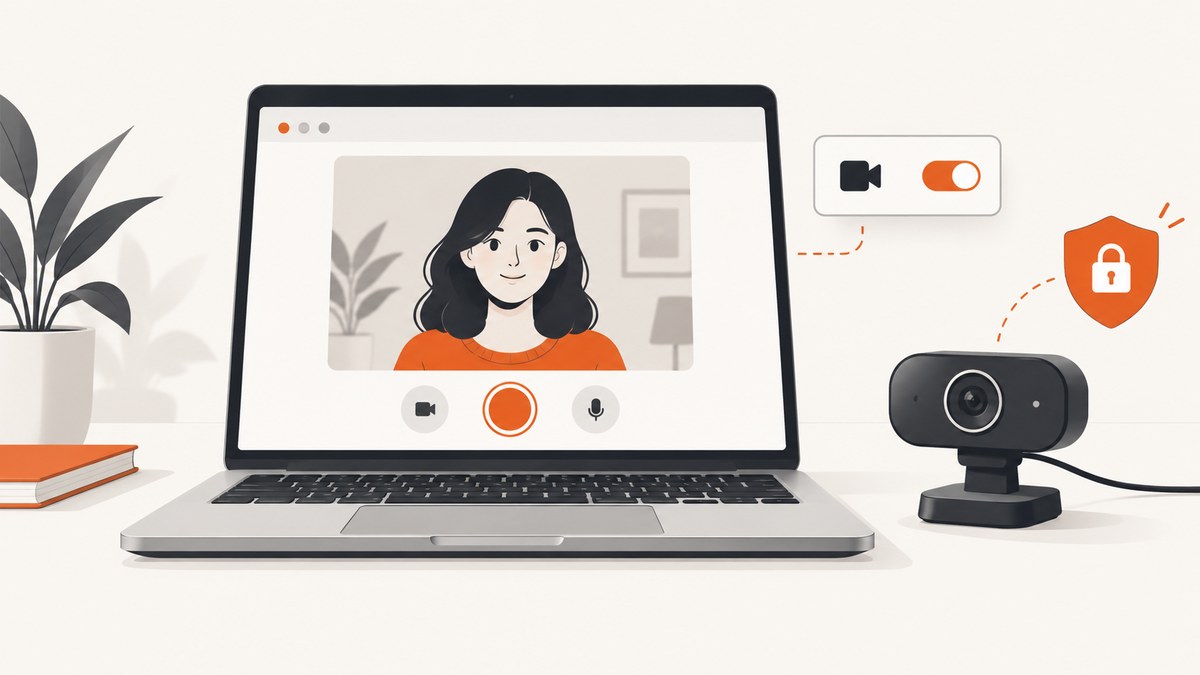
To view your webcam in a browser, open a camera-enabled page, allow camera access when prompted, and wait for the video preview. If no image appears, check four separate things: the website’s saved browser permission, your operating system’s camera privacy setting, the selected camera, and whether another application is using the device.
Quick steps
- Open the page that provides a camera preview, video call, or webcam test.
- When the browser asks to use your camera, choose Allow.
- If the page has a camera menu, select the webcam you want.
- Wait for the live preview. Refresh or restart the call after changing permissions.
Browser permission and operating-system permission are different. On Windows, for example, allowing camera access for Edge still does not automatically allow every website to use it.
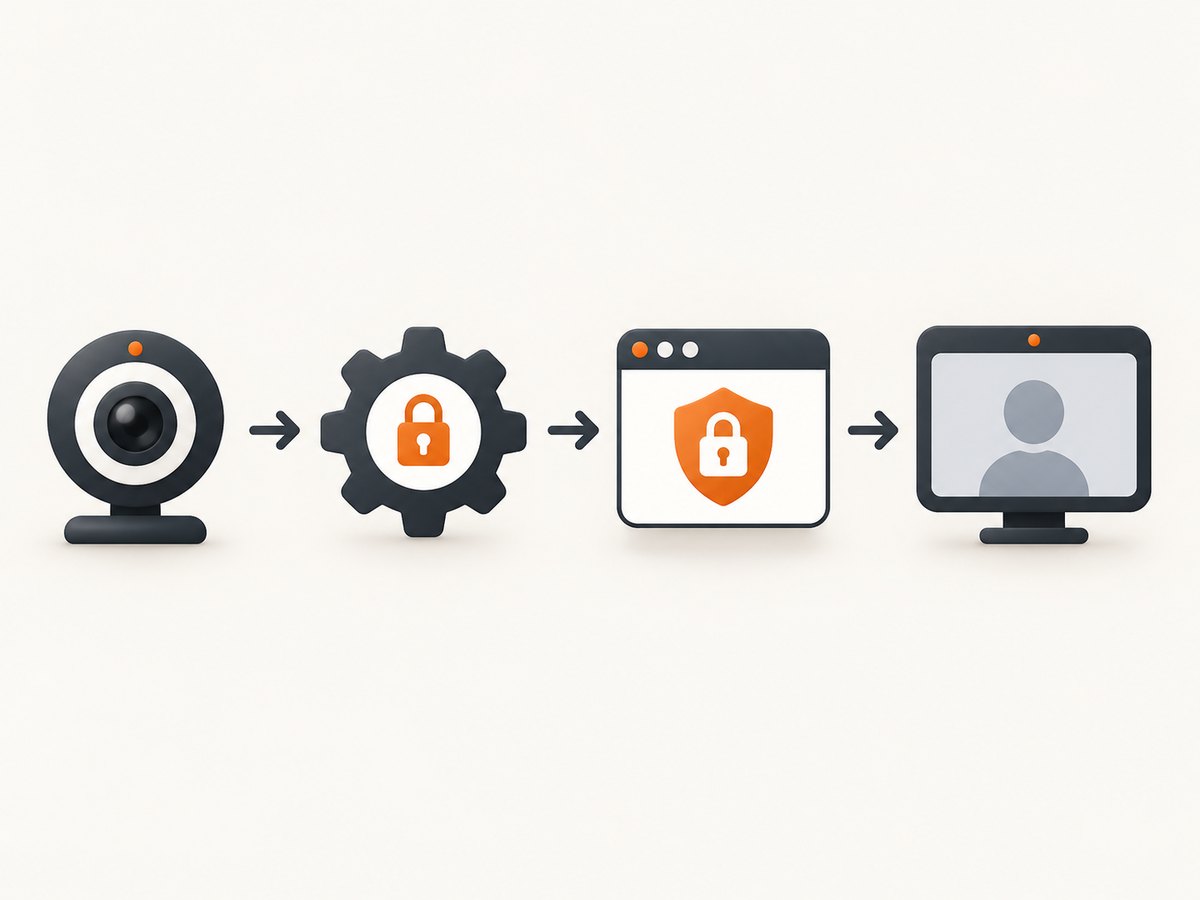
Chrome on a computer
Allow or change camera access
- Open Settings in Chrome.
- Go to Privacy and security > Site settings > Camera.
- Review the allowed and blocked sites.
- Choose the camera Chrome should use as its default, or change the rule for the site you are visiting.
- Return to the page and refresh it.
Chrome can offer Allow while visiting the site, Allow this time, or Never allow. If you previously blocked the site, there may be no new prompt. Change the saved rule in Site settings first.
Choose the correct camera
If your computer has an internal camera, USB webcam, dock camera, or virtual camera, the page may expose a selector. Pick the intended device there. Chrome also has a default-camera selector in its camera settings.
If Chrome directs you to device settings, enable camera access there and follow any instruction to quit or restart Chrome. A work or school administrator may control this setting.
Firefox
- Open Settings > Privacy & Security.
- Under Permissions, select Settings… beside Camera.
- Find the site and set its permission to allow, block, or ask.
- Reload the page.
You can also open the address-bar permissions panel and clear the saved camera decision so Firefox asks again. If no prompt appears, use the page’s Page Info > Permissions panel to set the camera permission.
Edge on Windows
Check Windows camera privacy
- Open Windows Settings > Privacy & security > Camera.
- Enable camera access for the device.
- Enable access for Edge if Windows lists it separately.
- Return to the website and allow its camera prompt.
Windows may also use the broader Let desktop apps access your camera control. Enabling Edge at the operating-system level does not grant permission to each website.
Review Edge site rules
In Edge, open Settings > Privacy, search, and services > Site Permissions > All sites, select the site, and change its camera rule. Refresh the page after saving the change.
Safari on Mac
- Open Safari > Settings > Websites.
- Select Camera in the left column.
- Set the target site to Allow.
- Refresh the page and accept any prompt.
Safari menu wording can vary between macOS releases. If the site still cannot see the camera, check macOS privacy settings and close other applications that may be using it.
Test the webcam with WebRTC
A WebRTC camera test helps isolate browser access from a problem in one particular service. Open a WebRTC constraints test, choose Get Media, allow camera access, and wait for the video stream. A successful stream shows that the browser can access the camera and microphone through WebRTC. It does not prove that every website, application, or device supports the camera.
Diagnose the failure point
| What you see | Likely cause | First fix |
|---|---|---|
| No permission prompt | A saved site rule already blocks or allows access | Clear or change the site’s camera permission, then reload |
| Prompt says allow, but no camera is available | Operating-system privacy, disconnected hardware, or another app using the camera | Check system settings, cable/device status, and close other camera apps |
| Several cameras are listed | The browser selected a different device | Choose the intended camera in the page or browser settings |
| WebRTC test works but one service fails | That service has its own compatibility or permission requirement | Check the service’s camera selector, account settings, and supported browser list |
| Preview is black or frozen | Camera is busy, blocked, or the stream needs restarting | Close competing apps, reload, and restart the call or browser |
Common errors and fixes
“Camera blocked” or a crossed-out camera icon
Open the address-bar permission control, set Camera to Allow, and reload. If the control is not available, change the saved site rule in the browser’s camera settings.
The browser never asks for permission
A previous choice is stored. Inspect the site’s permissions and reset the camera decision. Also verify that the page actually requests camera access; a normal webpage cannot display a feed without using a camera API.
“No camera found”
Confirm that the webcam is connected and visible to the operating system. Check system camera privacy, select another available camera, and close applications such as video-call software that may hold the device.
Camera works in one browser but not another
Compare the two browsers’ site rules and system permissions. A successful test in one browser narrows the problem but does not establish compatibility with every service.
Changing permission had no effect
Reload the page. If the browser or operating system requested a restart, quit and reopen the browser. For a persistent failure, restart the computer after confirming the camera is not in use elsewhere.
Privacy and reliability checklist
- Grant camera access only to the site that needs it.
- Remove old allowed-site entries you no longer use.
- Use the operating-system camera indicator to see when the device is active.
- Close other camera applications before starting a call or test.
- Prefer a wired connection for a USB camera if intermittent disconnects occur.
- Test the exact browser and service you plan to use; a generic WebRTC test is not universal proof.
Or skip the browser setup
ScreenshotNeo is a website screenshot API, so it does not grant webcam permission or return a live camera stream. It can capture a webcam test or video-call webpage after you have opened it and granted access. One GET request returns a PNG, JPEG, WebP, or PDF. See the ScreenshotNeo documentation for all options.
curl -G "https://api.screenshotneo.com/v1/shot" -d access_key=YOUR_API_KEY --data-urlencode url=https://screenshotneo.com -o shot.webpimport requests
r = requests.get("https://api.screenshotneo.com/v1/shot", params={"access_key": "YOUR_API_KEY", "url": "https://screenshotneo.com"}, timeout=90)
open("shot.webp", "wb").write(r.content)const q = new URLSearchParams({ access_key: 'YOUR_API_KEY', url: 'https://screenshotneo.com' });
const res = await fetch(`https://api.screenshotneo.com/v1/shot?${q}`);Before capture, ScreenshotNeo can accept cookie or consent banners and remove more than 60 known consent platforms, newsletter popups, and chat widgets; each step can be turned off. Bot checks, blank pages, timeouts, failed loads, and cache hits are not billed, and responses identify the result with X-Page-Verdict and X-Billed headers. Its MCP server provides take_screenshot, get_page_info, and capture_pdf for Claude, Cursor, and other MCP clients. The Free plan includes 1,000 screenshots per month with no card; paid plans start at $5 for 3,000. Create a free ScreenshotNeo account.
Performance, reliability, and cost notes
A local webcam preview is normally the fastest and cheapest option because the browser streams directly from your device. A hosted screenshot adds page-load time and captures a still image rather than a live feed. For repeated captures, ScreenshotNeo supports caching with a TTL you choose; cache hits are not billed. If you need many pages, bulk capture supports up to 100 URLs per call, and asynchronous jobs with signed webhooks can move long captures out of the request path.
FAQ
Can I view a webcam without installing software?
Yes. A camera-enabled webpage can request the browser’s camera permission and show a preview through WebRTC.
Why does Windows permission not solve Edge access?
Windows camera access and Edge’s per-site permission are separate controls. Both must allow access.
How do I switch between two webcams?
Use the camera selector provided by the webpage, or choose the default camera in the browser’s camera settings.
Does a successful camera test guarantee every video call works?
No. It confirms a limited browser WebRTC capability. The service may impose additional browser, device, account, or permission requirements.