Full-Page Capture Chrome Plugin
Capture an entire webpage in Chrome with extensions, understand their limits, and automate clean full-page screenshots with ScreenshotNeo.

Use a full-page Chrome extension when you need content below the visible viewport. Extensions such as GoFullPage and FireShot scroll through the page, stitch the sections together, and export an image or PDF. The exact result depends on how the site scrolls, whether content loads lazily, and whether the page is protected or embedded in a restricted viewer.
How to capture a full webpage in Chrome
- Install a full-page capture extension from the Chrome Web Store. GoFullPage captures the current page and downloads an image or PDF. FireShot supports full-page and scrolling-area captures, several image formats, PDF export, and editing tools.
- Open the page you want to capture in a normal browser tab. Wait for important images, charts, fonts, and below-the-fold sections to load.
- Click the extension button. If it is hidden, open Chrome’s Extensions menu and pin it.
- Choose the full-page or entire-page capture command. The extension will scroll through the page and assemble the result.
- Download the output as an image or PDF. If the extension offers editing, crop, annotate, blur, or mark up the capture before saving.
For a long article, first scroll through the page manually. This can trigger lazy-loaded images and infinite sections before the extension starts stitching.
GoFullPage vs. FireShot
| Need | GoFullPage | FireShot |
|---|---|---|
| Whole-page capture | Yes; captures the current page and downloads an image or PDF. | Yes; also describes scrolling-area capture. |
| Partial or scrollable regions | Its documented focus is the full page. | Supports scrolling areas as well as full pages. |
| Output | Image or PDF. | PNG, GIF, JPEG, BMP, and PDF. |
| Editing | Check the current listing for available post-capture controls. | The listing describes cropping, annotations, blur, and other editing tools. |
| Known limits | The vendor FAQ says PDFs may be inaccessible and custom JavaScript scrolling can prevent capture. | Complex pages can still fail when scrolling, rendering, or access is restricted. |
| Permissions | The developer says iframe capture can require optional tabs, webNavigation, and <all_urls> permissions. |
Review the live Chrome Web Store permissions and privacy disclosure before installing. |
There is no universally best extension. Match the tool to your required output and page type, then test it on a representative page. Store versions, permissions, and feature descriptions can change; the GoFullPage listing, for example, reported version 8.9 updated September 25, 2026.
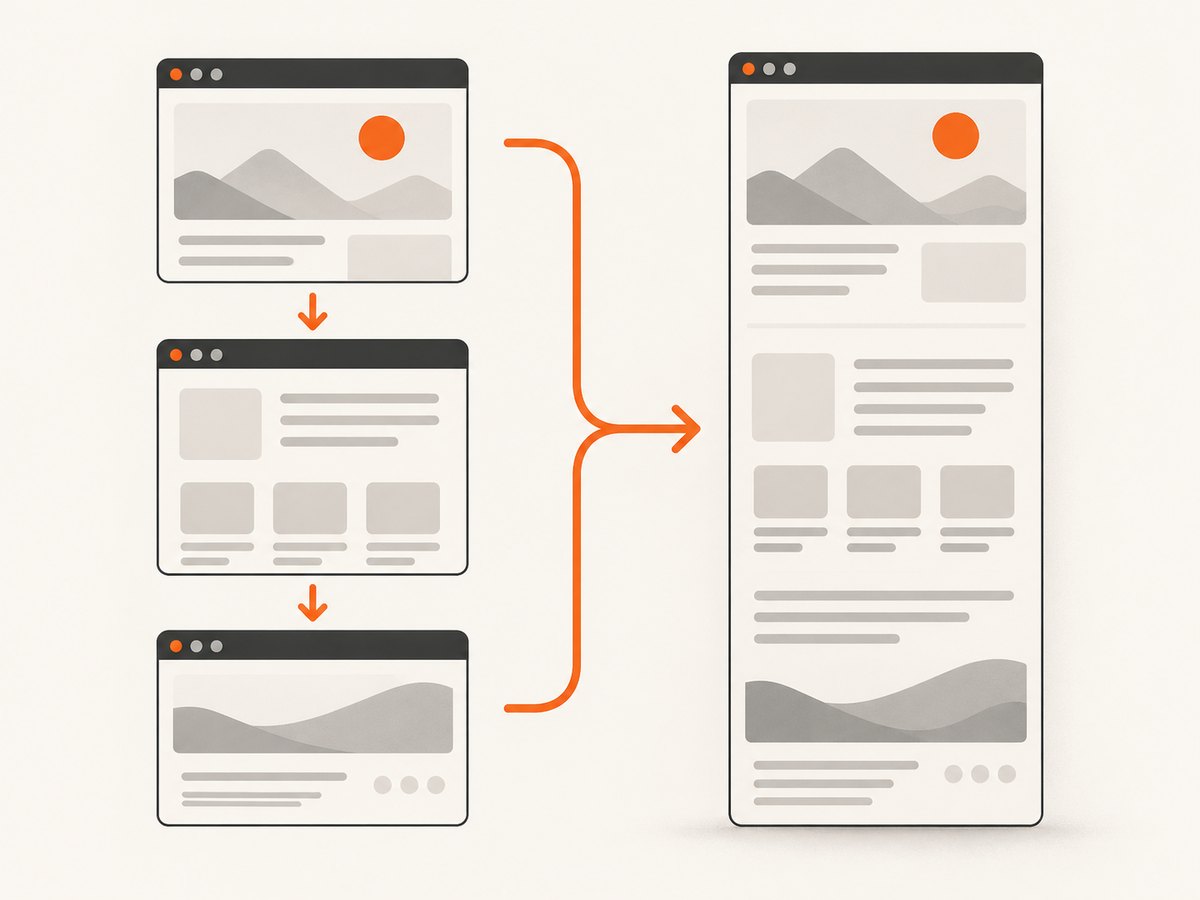
What a full-page extension actually does
A browser extension generally performs a sequence like this:
- Reads the current tab and identifies the document or a scrollable container.
- Moves the viewport through the page in increments.
- Waits for each section to render.
- Captures the visible area repeatedly.
- Stitches the pieces into one tall image or places them into a PDF.
This explains why fixed headers, sticky banners, animated content, and nested scrolling regions can appear duplicated or out of order. If the page uses a custom scroll container instead of the document itself, choose a scrolling-area option when available.
Permissions and privacy checks
- Read the extension’s current Chrome Web Store permissions before installation.
- Confirm whether it needs access to all sites, tabs, navigation events, or iframe content.
- Understand that capturing requires temporary access to scroll and render page data. GoFullPage’s developer describes this access as part of its capture process and says iframe capture may prompt for optional permissions.
- Do not capture pages containing secrets, personal records, or private customer data unless your organisation permits the extension.
- Review the vendor’s privacy disclosure. A store disclosure is the developer’s statement, not an independent audit.
Pages that commonly fail or look wrong
PDF viewers
The GoFullPage FAQ documents cases where PDFs are inaccessible to the extension. If the target is a PDF, download the file directly or use a PDF-specific workflow instead of treating the viewer as an ordinary HTML page.
Custom scrolling
Some applications scroll a panel, canvas, or virtualized list while the document itself stays a fixed height. The vendor FAQ identifies custom JavaScript scrolling as a capture limit. Try the extension’s scrolling-area mode, select the inner container, or use the site’s own export function.
Lazy-loaded and virtualized content
Images may load only after they approach the viewport. A virtualized list may discard rows after they leave the viewport, so a stitcher cannot recover them. Scroll manually first, wait for network activity to settle, and capture smaller regions when necessary.
Sticky elements and animation
Sticky navigation can be repeated in every segment. Animated charts, carousels, and video frames may differ between segments. Freeze animation where the site allows it, hide the sticky element, or capture the relevant section separately.
Troubleshooting checklist
| Symptom | Likely cause | Fix |
|---|---|---|
| Only the visible viewport is saved | The command was a normal screenshot, not full-page capture. | Use the extension’s full-page or entire-page command. |
| The capture stops early | Custom scrolling, an iframe boundary, or a script error. | Try scrolling-area mode, grant the optional permission only if you trust the extension, or capture the parent page and iframe separately. |
| Images are blank | Lazy loading had not triggered, or requests were blocked. | Scroll through the page first, wait for images, disable conflicting blockers, and retry. |
| Sections overlap | Sticky headers or fixed overlays are rendered in every segment. | Hide the overlay, use a clean reader view, or crop repeated areas after capture. |
| Content is missing from an infinite list | The site virtualizes rows and removes them after scrolling. | Use the site’s export, capture page segments, or obtain the underlying data. |
| PDF export fails | The document is a protected or inaccessible PDF viewer. | Download the original PDF or print from the viewer using Chrome’s own print flow. |
| The extension cannot run | The tab is a restricted Chrome page, extension page, or permission is denied. | Open the target on a normal HTTPS tab and review the extension’s site-access setting. |
| Text is blurry | The stitched image is extremely tall or rendered at low scale. | Export PDF when possible, capture at a higher device scale, or split the page into sections. |
Quality and performance tips
- Use a stable viewport width so responsive breakpoints do not change during capture.
- Close panels, cookie notices, chat widgets, and floating controls before starting.
- Wait for fonts and images to finish loading. A screenshot can succeed while still containing placeholders.
- For very long pages, capture logical sections and combine them later. This reduces memory pressure and makes failures easier to retry.
- Prefer PDF when selectable text and print pagination matter; prefer PNG or JPEG when you need a single image for documentation or review.
- Keep the source tab open and avoid switching responsive layouts while the extension is scrolling.
Or skip the browser setup
ScreenshotNeo provides a website screenshot API when you need repeatable captures from code or CI. It accepts one GET request and returns PNG, JPEG, WebP, or PDF. Before capture, it accepts cookie or consent banners like a visitor and removes more than 60 known consent platforms, newsletter popups, and chat widgets; each step can be turned off. Bot checks, CAPTCHAs, blank pages, timeouts, failed loads, and cache hits are not billed, and the response reports the page verdict and billing status in X-Page-Verdict and X-Billed headers.

See the ScreenshotNeo API documentation for all options, including full-page capture, CSS selectors, device presets, retina scale, custom JavaScript and CSS, waits, request blocking, cookies, headers, geolocation, PDFs, caching, signed links, asynchronous jobs, bulk capture, and usage reporting.
cURL
curl -G "https://api.screenshotneo.com/v1/shot" -d access_key=YOUR_API_KEY --data-urlencode url=https://stripe.com -o shot.webpPython
import requests
r = requests.get("https://api.screenshotneo.com/v1/shot", params={"access_key": "YOUR_API_KEY", "url": "https://stripe.com"}, timeout=90)
open("shot.webp", "wb").write(r.content)
Node.js
const q = new URLSearchParams({ access_key: 'YOUR_API_KEY', url: 'https://stripe.com' }); const res = await fetch(`https://api.screenshotneo.com/v1/shot?${q}`);An MCP server also exposes take_screenshot, get_page_info, and capture_pdf for Claude, Cursor, and other MCP clients. The Free plan includes 1,000 screenshots per month with no card; paid plans start at $5 for 3,000 shots. Create a free ScreenshotNeo account.
FAQ
Can Chrome capture a full page without an extension?
Chrome’s built-in capture tools vary by version and usually target the visible viewport or developer workflows. A dedicated extension is the simplest repeatable option for a long HTML page.
Should I choose PNG, JPEG, or PDF?
Choose PNG for sharp UI text, JPEG for smaller photographic files, and PDF when print layout or selectable text matters.
Why does a full-page screenshot differ from what I see on screen?
The extension captures the page at several scroll positions. Lazy loading, animation, sticky elements, responsive breakpoints, and custom scroll containers can change what appears in each segment.
Can I capture an iframe?
Sometimes. Permissions and cross-origin restrictions apply. GoFullPage’s developer says optional permissions may be needed for iframe content; review the current listing before granting access.
What is the most reliable option for automated capture?
Use a screenshot API such as ScreenshotNeo when captures must run from scripts, CI, bulk jobs, or AI agents without a person keeping Chrome open.