How to Access Shadow DOM Elements with Selenium
Find elements inside open Shadow DOM trees with Selenium 4, including nested roots, waits, locators, errors, and production-ready examples.
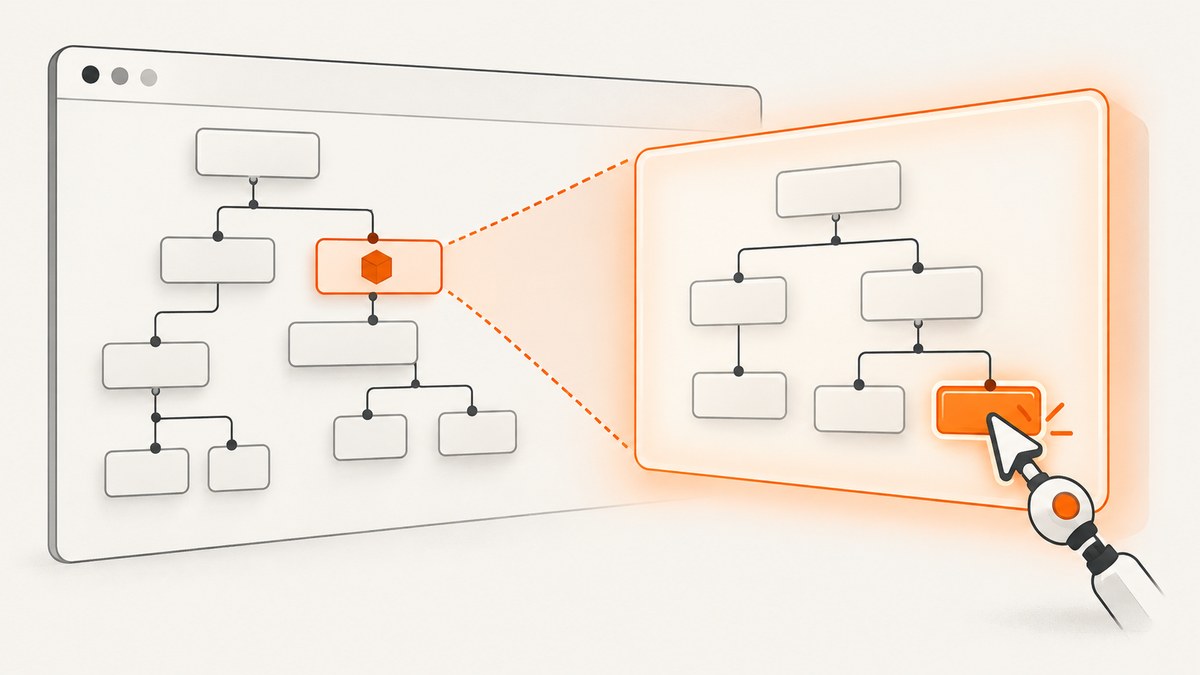
To access an element inside Shadow DOM with Selenium, first locate the element that hosts the shadow tree in the normal document, retrieve its shadow root, and then search from that root. A shadow root is a separate Selenium search context, so a normal driver.find_element call does not automatically cross the boundary.
from selenium.webdriver.common.by import By

host = driver.find_element(By.CSS_SELECTOR, "my-widget")
root = host.shadow_root
button = root.find_element(By.CSS_SELECTOR, "button.submit")
button.click()
For nested components, repeat the same host-to-root operation at every boundary: find the inner host from the current root, get its shadow root, then find the descendant. Selenium’s official finding-elements guide documents this model and requires Selenium 4 or newer for the shadow-root methods (Selenium finding web elements).
How Shadow DOM changes Selenium element lookup
Shadow DOM is an encapsulated DOM tree hidden inside an element. The outer element is called the shadow host; its attached tree is the shadow root. Elements inside that tree are descendants of the root, but they are not ordinary descendants of the document search context.
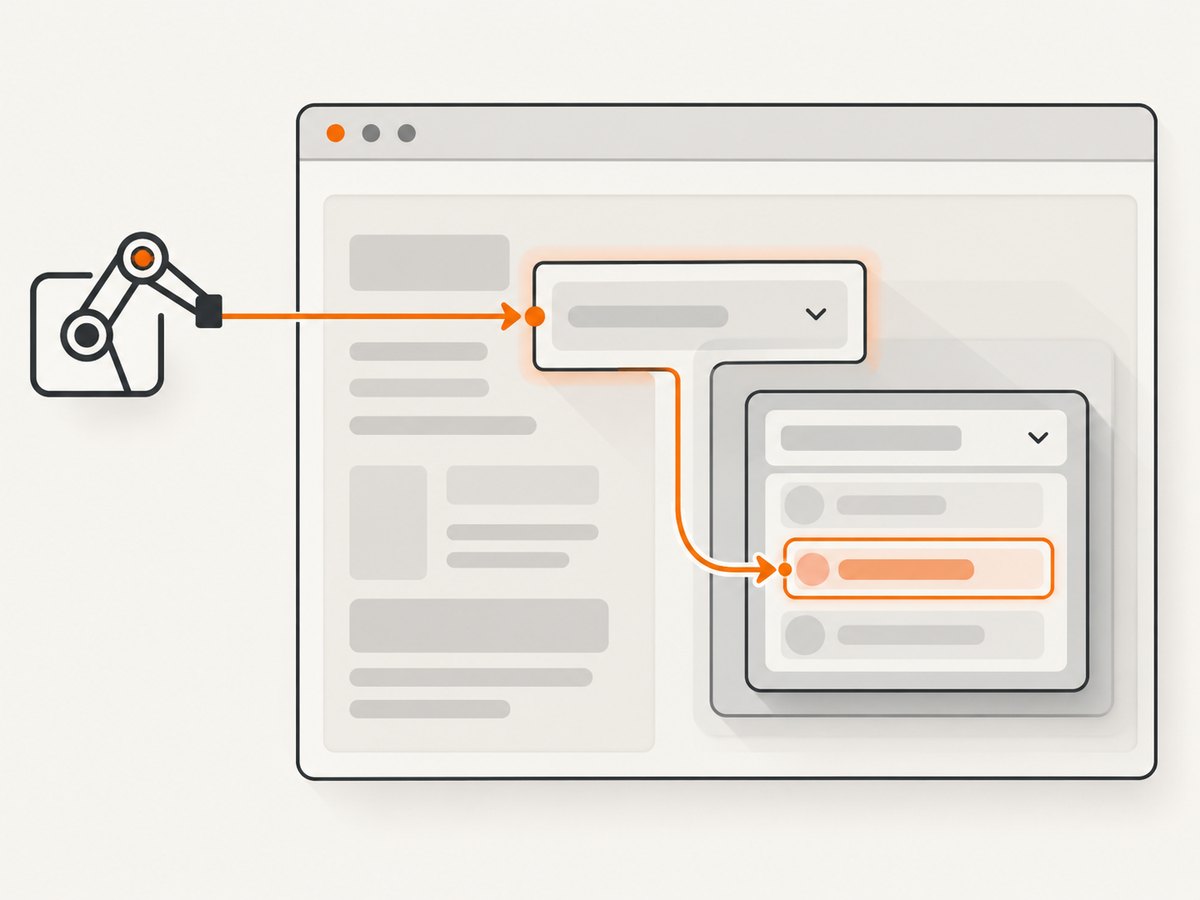
Think of each root as a separate room:
- Use
driveror a normalWebElementto find the host. - Call the binding’s shadow-root accessor on that host.
- Use the returned root’s element-finding methods.
- If the result is another host, open that host’s root and continue.
This boundary is why a selector such as my-widget button can fail when issued against driver, even though the button is visible in the browser. Start every selector at the search context that owns the element.
Prerequisites and version checks
- Use Selenium 4 or later. The Selenium documentation states that the shadow-root finding methods require Selenium 4.0 or greater.
- Use a browser and driver combination supported by your language binding. The Python API reference lists Chromium 96, Firefox 96, and Safari 16.4 as support starting points; verify the exact versions used by your project in the binding documentation (Python WebElement API).
- Confirm that the component uses an open shadow root. A page can create a closed root that page JavaScript and WebDriver cannot directly inspect.
- Wait for the component to initialize before requesting its root. Custom elements are often upgraded and rendered asynchronously.
Python: complete example
Python exposes the root through the shadow_root property. The returned object provides search methods documented in the Python ShadowRoot API.
from selenium import webdriver
from selenium.webdriver.common.by import By
from selenium.webdriver.support.ui import WebDriverWait
from selenium.common.exceptions import NoSuchShadowRootException, StaleElementReferenceException

URL = "https://example.test/account"
driver = webdriver.Chrome()
wait = WebDriverWait(driver, 15, poll_frequency=0.2,
                     ignored_exceptions=(StaleElementReferenceException,))

try:
    driver.get(URL)

    # Wait for the host in the document, then obtain its root.
    host = wait.until(lambda d: d.find_element(By.CSS_SELECTOR, "account-card"))
    root = wait.until(lambda d: host.shadow_root)

    # Search inside the root, not from driver.
    email = root.find_element(By.CSS_SELECTOR, "input[type='email']")
    submit = root.find_element(By.CSS_SELECTOR, "button[type='submit']")
    email.send_keys("dev@example.test")
    submit.click()
finally:
    driver.quit()
When the root itself appears after a re-render, reacquire both the host and root inside the wait instead of retaining an old reference:
def find_shadow_button(driver):
    host = driver.find_element(By.CSS_SELECTOR, "account-card")
    root = host.shadow_root
    return root.find_element(By.CSS_SELECTOR, "button[type='submit']")

button = wait.until(find_shadow_button)
button.click()
Python locator strategies
The Python ShadowRoot API supports the locator strategies exposed by the binding, including ID, name, XPath, CSS selector, class name, tag name, link text, and partial link text. CSS selectors are usually the clearest choice for component internals:
root.find_element(By.ID, "save")
root.find_element(By.NAME, "displayName")
root.find_element(By.XPATH, ".//button[contains(., 'Save')]")
root.find_elements(By.CSS_SELECTOR, "li.option")
Prefer stable attributes supplied for testing, such as data-testid, over styling classes that may change during a redesign.
Java, JavaScript, and .NET equivalents
Java
WebElement host = driver.findElement(By.cssSelector("my-widget"));
SearchContext root = host.getShadowRoot();
WebElement button = root.findElement(By.cssSelector("button.submit"));
button.click();
Java returns a SearchContext. The corresponding missing-root exception is NoSuchShadowRootException; see the Java WebElement API.
JavaScript (selenium-webdriver)
const {Builder, By, until} = require('selenium-webdriver');

(async function () {
  const driver = await new Builder().forBrowser('chrome').build();
  try {
    await driver.get('https://example.test');
    const host = await driver.findElement(By.css('my-widget'));
    const root = await host.getShadowRoot();
    const button = await root.findElement(By.css('button.submit'));
    await button.click();
  } finally {
    await driver.quit();
  }
})();
JavaScript uses await host.getShadowRoot(). A missing root is reported as NoSuchShadowRootError; consult the JavaScript ShadowRoot API.
C# / .NET
IWebElement host = driver.FindElement(By.CssSelector("my-widget"));
ISearchContext root = host.GetShadowRoot();
IWebElement button = root.FindElement(By.CssSelector("button.submit"));
button.Click();
.NET exposes GetShadowRoot() and returns an ISearchContext. The same host, root, and descendant sequence applies in every binding. The .NET WebElement API lists the method for that binding.
Nested Shadow DOM: open each boundary
Consider this structure:
<checkout-page>
  #shadow-root
    <payment-panel>
      #shadow-root
        <button class="pay">Pay</button>
The button is two roots deep. Traverse it explicitly:
outer_host = driver.find_element(By.CSS_SELECTOR, "checkout-page")
outer_root = outer_host.shadow_root
inner_host = outer_root.find_element(By.CSS_SELECTOR, "payment-panel")
inner_root = inner_host.shadow_root
pay_button = inner_root.find_element(By.CSS_SELECTOR, "button.pay")
pay_button.click()
Do not try to pass a single document-level selector through both boundaries. For a reusable Python helper:
def shadow_descendant(context, hosts_and_selector):
    current = context
    for host_selector in hosts_and_selector[:-1]:
        host = current.find_element(By.CSS_SELECTOR, host_selector)
        current = host.shadow_root
    return current.find_element(By.CSS_SELECTOR, hosts_and_selector[-1])

button = shadow_descendant(
    driver,
    ["checkout-page", "payment-panel", "button.pay"]
)
Waiting for asynchronous components
A custom element can exist before its shadow root is attached, or the root can exist before the target child is rendered. Use an explicit wait that retries the whole traversal:
def find_ready_control(driver):
    host = driver.find_element(By.CSS_SELECTOR, "search-box")
    root = host.shadow_root
    return root.find_element(By.CSS_SELECTOR, "input.search")

control = WebDriverWait(driver, 20, poll_frequency=0.25).until(find_ready_control)
control.send_keys("selenium")
Waiting on a fixed sleep is less reliable because network speed and component lifecycle timing vary. If a framework replaces the host during rendering, reacquiring it inside the condition also prevents stale references.
Interacting with controls inside a root
Once you have the correct search context, normal WebElement operations work: click, type, select, read attributes, and inspect displayed text.
checkbox = root.find_element(By.CSS_SELECTOR, "input[type='checkbox']")
if not checkbox.is_selected():
    checkbox.click()

label = root.find_element(By.CSS_SELECTOR, "[data-testid='status']")
print(label.text)
print(label.get_attribute("aria-label"))
If a control is visually covered, disabled, or outside the viewport, treat that as an interaction problem rather than a Shadow DOM lookup problem. Wait for it to be clickable, scroll it into view when appropriate, and inspect the component’s state attributes.
Common errors and fixes
| Error or symptom | Likely cause | Fix |
|---|---|---|
NoSuchShadowRoot, NoSuchShadowRootException, or NoSuchShadowRootError |
The element is not the host, the root has not attached, the component uses a closed root, or the browser/binding is too old. | Verify the host selector, wait for initialization, confirm the root is open, and upgrade to Selenium 4 with a supported browser-driver pair. |
NoSuchElementException inside the root |
The selector is wrong, the child has not rendered, or the search started from the wrong root. | Inspect the component structure, use a root-scoped selector, and wait for the child rather than only the host. |
| Document-level CSS selector returns nothing | The selector crosses a shadow boundary. | Find each host, obtain each root, and search from the current root. |
StaleElementReferenceException |
A framework replaced the host or rerendered its shadow tree. | Reacquire the host, root, and descendant in one wait condition. Avoid caching them across state-changing actions. |
| The host is found but content is empty | Custom-element upgrade or asynchronous rendering is still in progress. | Wait for a meaningful descendant or state attribute, not merely for the host tag. |
| Element is found but click fails | The element is disabled, covered, moving, or outside the viewport. | Wait for interactability, inspect disabled/overlay state, and scroll or dismiss the covering element. |
| Works locally but fails in CI | Different browser versions, timing, viewport, or page state. | Pin compatible browser and driver versions, use explicit waits, set a deterministic viewport, and capture diagnostic HTML or screenshots on failure. |
Frames, slots, and closed roots
An iframe is a separate browsing context, not a shadow root. Switch into the frame first, then locate the host:
frame = driver.find_element(By.CSS_SELECTOR, "iframe.payment")
driver.switch_to.frame(frame)
host = driver.find_element(By.CSS_SELECTOR, "payment-widget")
root = host.shadow_root
Switch back with driver.switch_to.default_content() when finished.
Slots can make the rendered result look like a child belongs to the component while the slotted node remains in the light DOM. Locate it according to where it actually exists. A closed shadow root intentionally prevents outside code from obtaining the root; Selenium cannot turn a closed root into an open one. In that case, test through public behavior, request a test hook from the application team, or use an accessible surface such as a form field exposed outside the root.
Performance and reliability practices
- Keep selectors specific and stable. A root-scoped CSS selector reduces accidental matches.
- Reuse a root for a short sequence of reads, but reacquire it after actions that can rerender the component.
- Use one explicit wait that traverses all required boundaries. This avoids a chain of sleeps and reduces timing variance.
- Prefer application-provided test attributes. Styling class names and generated IDs are more likely to change.
- Do not assume a visible host means its descendants are ready. Wait for the exact control or state you need.
- For ordinary DOM cases, Selenium notes that nested lookups can issue multiple browser commands and a single locator may be more efficient. Shadow boundaries still require root-aware traversal.
- Record browser, driver, Selenium binding, viewport, and URL when diagnosing failures so an environment change is distinguishable from a selector change.
Testing checklist
- Confirm the test starts in the correct top-level document and frame.
- Identify the exact host tag and verify it is the component that owns the target.
- Use Selenium 4 or newer and a supported browser-driver-binding combination.
- Wait for the host, root, and target descendant as separate lifecycle milestones when needed.
- Traverse nested roots one at a time.
- Reacquire references after rerenders.
- Assert behavior or accessible state instead of relying only on internal markup.
- Capture a diagnostic screenshot and relevant HTML when a CI run fails.
Or skip the browser setup
If your goal is a clean image of a page rather than interactive testing inside a Shadow DOM, ScreenshotNeo provides a website screenshot API. It accepts one GET request and returns PNG, JPEG, WebP, or PDF. The request is useful when you do not need to drive Selenium through component internals.
See the ScreenshotNeo API documentation for the full option set. A minimal call is:
cURL
curl -G "https://api.screenshotneo.com/v1/shot" -d access_key=YOUR_API_KEY --data-urlencode url=https://stripe.com -o shot.webpPython
import requests
r = requests.get("https://api.screenshotneo.com/v1/shot", params={"access_key": "YOUR_API_KEY", "url": "https://stripe.com"}, timeout=90)
open("shot.webp", "wb").write(r.content)
Node.js
const q = new URLSearchParams({ access_key: 'YOUR_API_KEY', url: 'https://stripe.com' });
const res = await fetch(`https://api.screenshotneo.com/v1/shot?${q}`);
ScreenshotNeo can load lazy images for full-page captures, capture one element by CSS selector, apply dark mode, choose device presets or any viewport, use retina scale, render PDFs, add custom CSS or JavaScript, click before capture, wait for a selector, delay, or network idle, block ads/trackers/requests/resource types, set headers, cookies, user agent, Authorization, timezone, geolocation, transparent backgrounds, resizing, caching TTLs, signed links, asynchronous jobs with signed webhooks, bulk capture of up to 100 URLs per call, and usage reporting. Parameter names used by other screenshot APIs also work to ease migration.
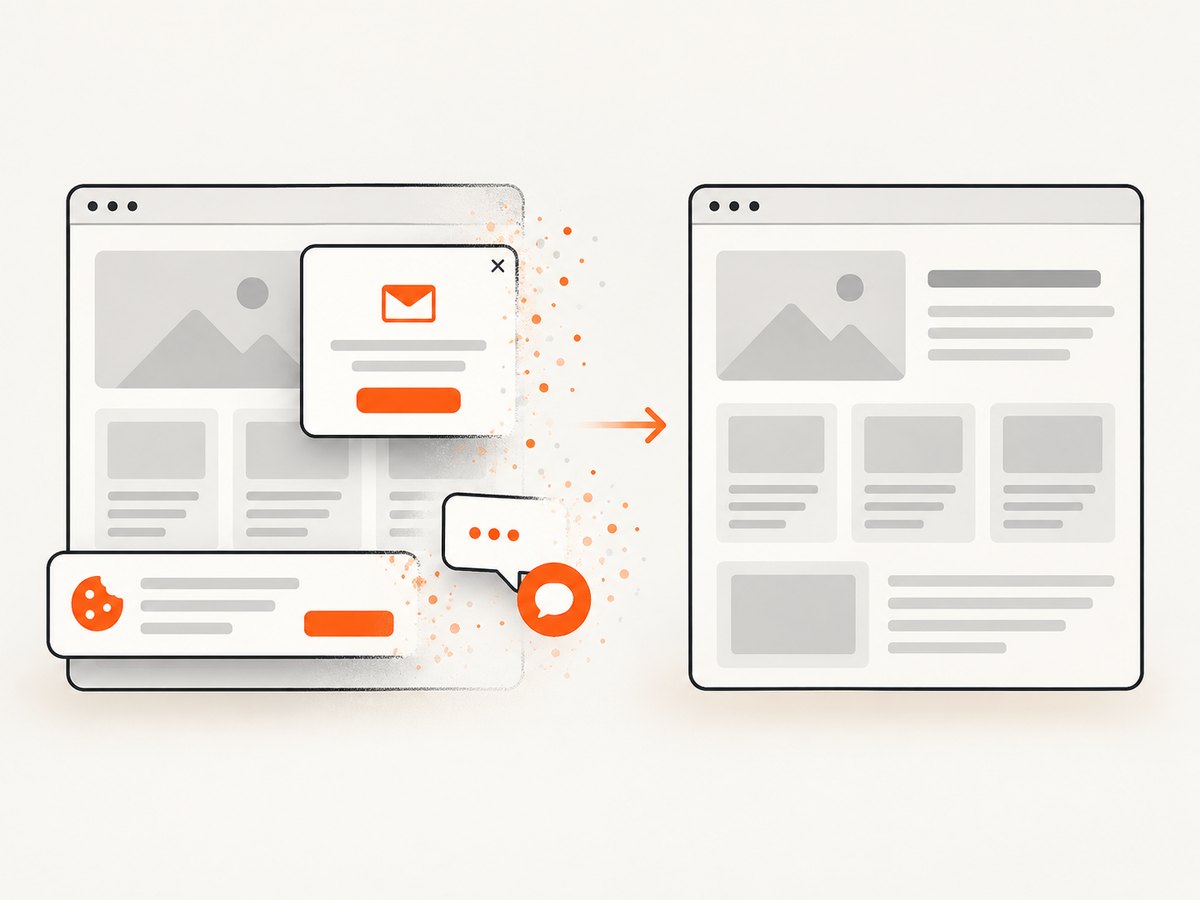
Cookie banners, newsletter popups, and chat widgets are removed before the shot. Bot checks, blank pages, timeouts, failed loads, and cache hits are not billed; response headers identify the page verdict and whether it was billed. An MCP server provides take_screenshot, get_page_info, and capture_pdf tools for Claude, Cursor, and other MCP clients.
The Free plan includes 1,000 shots per month with no card. Paid plans start at $5 for 3,000 shots; yearly billing gives two months free, and every feature is available on every plan. Sign up for the free plan.
FAQ
Can Selenium pierce every shadow root?
No. Selenium can retrieve an open shadow root through the supported WebDriver API. A closed root intentionally hides its internals.
Should I use JavaScript to query shadowRoot?
Use Selenium 4’s native shadow-root methods first. They preserve the search-context model and provide binding-specific exceptions. JavaScript can be useful for application diagnostics, but it does not make a closed root accessible.
Why does the same selector work in DevTools but fail in Selenium?
DevTools may let you expand several roots interactively. Selenium still needs each host-to-root traversal expressed in code.
Do I need a special locator syntax for a shadow root?
No. Find the host normally, obtain its root, and pass ordinary supported locator strategies to that root’s find method.
What should I assert in a component test?
Prefer user-visible behavior, form state, accessible names, and events. Internal shadow markup can change while the component’s public behavior remains stable.


