How to Create Accessible PDFs from HTML with iText 7 Without Unwanted Table Tags
Build tagged, accessible PDFs with iText 7 by fixing layout tables, configuring PDF/UA, and using custom TagWorkers only when necessary.
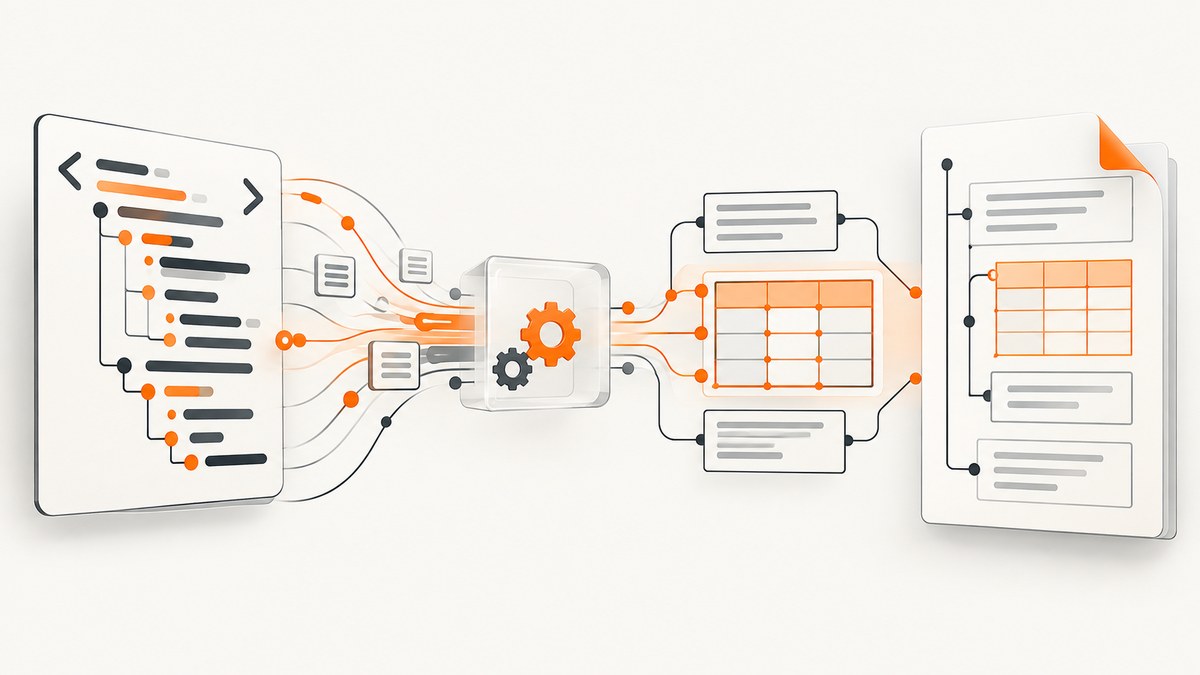
Direct answer: do not remove table tags from a real data table. First determine whether each HTML table represents row and column relationships or is only being used to position content. Replace layout tables with semantic block markup and CSS before conversion. Keep genuine data tables, configure PDF/UA output, inspect the generated tag tree, and use a custom TagWorkerFactory only when the source cannot be changed or a specific conversion rule is required.
iText 7 with pdfHTML converts HTML and CSS into PDF, but conversion cannot repair inaccurate source semantics automatically. A layout table in HTML can become a table structure in the PDF even when the content has no tabular meaning. Conversely, flattening every table can destroy information that screen-reader users need. The reliable workflow is source analysis, version-matched configuration, structural inspection, and human review.
1. Decide whether the table is semantic
Before changing Java code, classify every table in the HTML template.
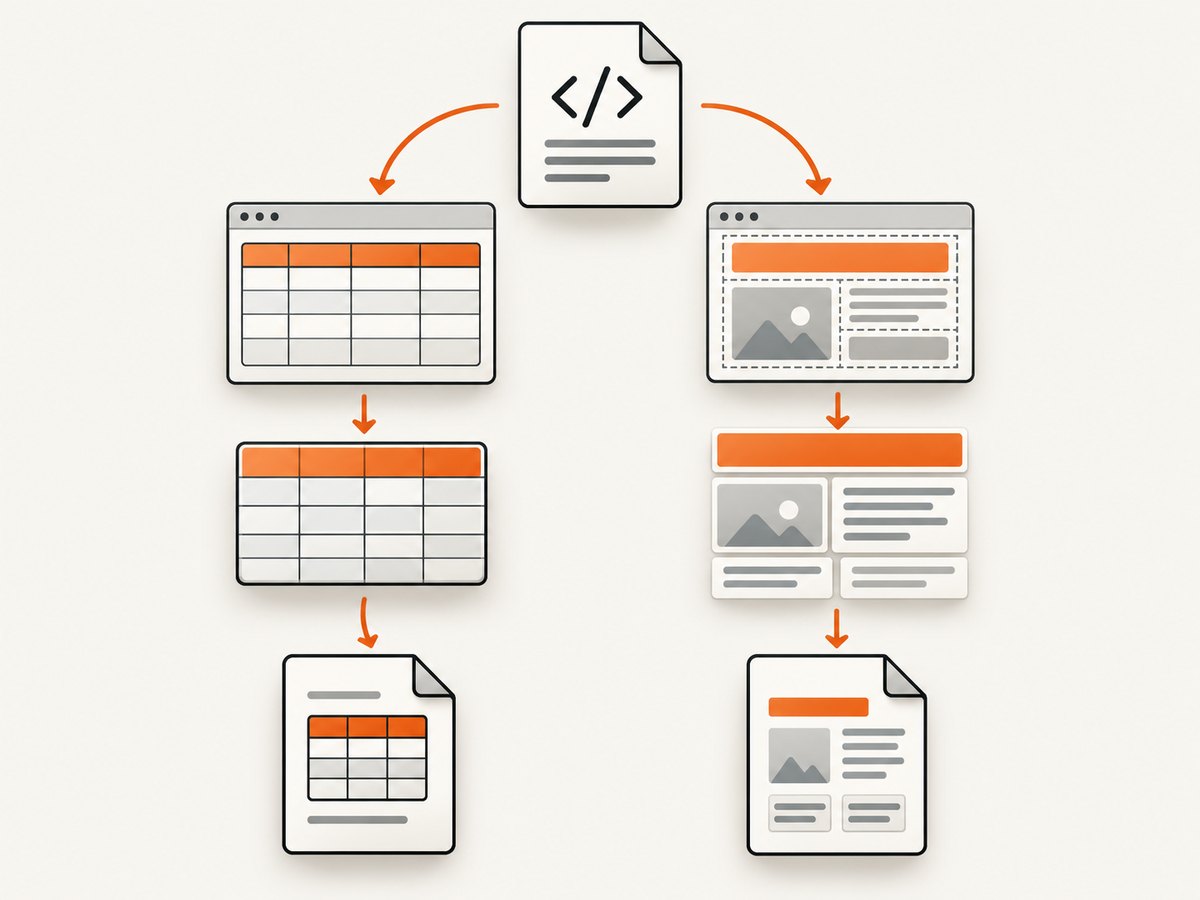
| HTML usage | Recommended treatment | Reason |
|---|---|---|
| Rows and columns compare related values | Keep the table and preserve headers | Cell relationships are meaningful information |
| Cells position a logo, text block, or button | Replace with semantic elements and CSS | A table tag creates a misleading structure |
| Source cannot be changed | Consider a custom TagWorker | Conversion behavior can be customized, but requires careful implementation |
A genuine table should have a caption where appropriate, clear header cells, and a predictable reading order. Layout content should use elements such as header, section, div, headings, lists, and flexbox or grid CSS. Do not decide based only on appearance: a visually complex table can still be semantically correct, and a visually simple two-cell table can be purely decorative layout.
Example: replace a layout table
<!-- Layout table: avoid this for unrelated blocks -->
<table>
  <tr>
    <td><img src="brand.png" alt="Acme"></td>
    <td><h1>Monthly report</h1></td>
  </tr>
</table>

<!-- Semantic replacement -->
<header class="report-header">
  <img src="brand.png" alt="Acme">
  <h1>Monthly report</h1>
</header>
.report-header {
display: flex;
align-items: center;
gap: 1rem;
}
Example: retain a data table
<table>
  <caption>Quarterly revenue by region</caption>
  <thead>
    <tr>
      <th scope="col">Region</th>
      <th scope="col">Q1</th>
      <th scope="col">Q2</th>
    </tr>
  </thead>
  <tr>
    <th scope="row">North</th>
    <td>$120,000</td>
    <td>$135,000</td>
  </tr>
</table>
Check the exact markup supported by your installed pdfHTML release. The iText feature FAQ for pdfHTML 6.3.3 lists support for table, tr, td, th, thead, and tfoot; it lists tbody as unsupported in that feature set. Do not assume behavior from a different version.
2. Configure tagged PDF and PDF/UA
Use the high-level PDF/UA configuration exposed by your installed pdfHTML API. The method names below follow the documented API, but you should compile against the exact iText Core and pdfHTML versions in your project. PDF/UA-2 requires PDF 2.0; select that version through WriterProperties.
import com.itextpdf.html2pdf.ConverterProperties;
import com.itextpdf.html2pdf.HtmlConverter;
import com.itextpdf.kernel.pdf.PdfDocument;
import com.itextpdf.kernel.pdf.PdfWriter;
import com.itextpdf.kernel.pdf.PdfVersion;
import com.itextpdf.kernel.pdf.WriterProperties;
import com.itextpdf.kernel.pdf.PdfUAConformance;

import java.io.FileInputStream;
import java.io.FileOutputStream;

public class AccessibleHtmlPdf {
    public static void main(String[] args) throws Exception {
        String html = "report.html";
        String output = "report-accessible.pdf";

        WriterProperties writerProperties = new WriterProperties();
        // Required when targeting PDF/UA-2.
        writerProperties.setPdfVersion(PdfVersion.PDF_2_0);

        PdfWriter writer = new PdfWriter(
            new FileOutputStream(output), writerProperties);
        PdfDocument pdf = new PdfDocument(writer);

        ConverterProperties properties = new ConverterProperties();
        properties.setPdfUAConformance(PdfUAConformance.PDF_UA_2);

        try (FileInputStream input = new FileInputStream(html)) {
            HtmlConverter.convertToPdf(input, pdf, properties);
        }
    }
}
If your project targets PDF/UA-1, select PDF_UA_1 and follow that standard’s requirements. Set document language and title metadata, use embedded fonts, provide alternative descriptions for meaningful images, and mark pagination or decorative material as artifacts where appropriate. These requirements are part of the document’s overall accessibility; removing table tags alone does not make a PDF conformant.
Consult the iText pdfHTML product documentation and the PDF/UA API documentation for version-specific classes and dependency coordinates.
3. Use a custom TagWorker only when source changes are not possible
pdfHTML provides a TagWorkerFactory extension point. A factory can return a custom worker for selected HTML elements; returning null delegates all other elements to pdfHTML’s standard mapping. This hook takes precedence over the default mapping.
import com.itextpdf.html2pdf.attach.ITagWorker;
import com.itextpdf.html2pdf.attach.impl.DefaultTagWorkerFactory;
import com.itextpdf.html2pdf.attach.processor.ProcessorContext;
import com.itextpdf.html2pdf.html.node.IElementNode;

public class CustomTagWorkerFactory extends DefaultTagWorkerFactory {
    @Override
    public ITagWorker getCustomTagWorker(
            IElementNode tag, ProcessorContext context) {
        if ("layout-container".equalsIgnoreCase(tag.name())) {
            return new LayoutContainerTagWorker(tag, context);
        }
        return null;
    }
}
ConverterProperties properties = new ConverterProperties();
properties.setPdfUAConformance(PdfUAConformance.PDF_UA_1);
properties.setTagWorkerFactory(new CustomTagWorkerFactory());
HtmlConverter.convertToPdf(htmlInputStream, pdfDocument, properties);The worker in this example is intentionally a project-specific placeholder. A custom worker must preserve child content, styling, and reading order. Mapping every table, tr, and td to a generic span is technically possible as a customization demonstration, but it is not a safe universal accessibility recipe. Table elements form a hierarchy, and flattening them can discard header and cell relationships.
4. Inspect the generated structure
After conversion, inspect both visual output and the logical structure.
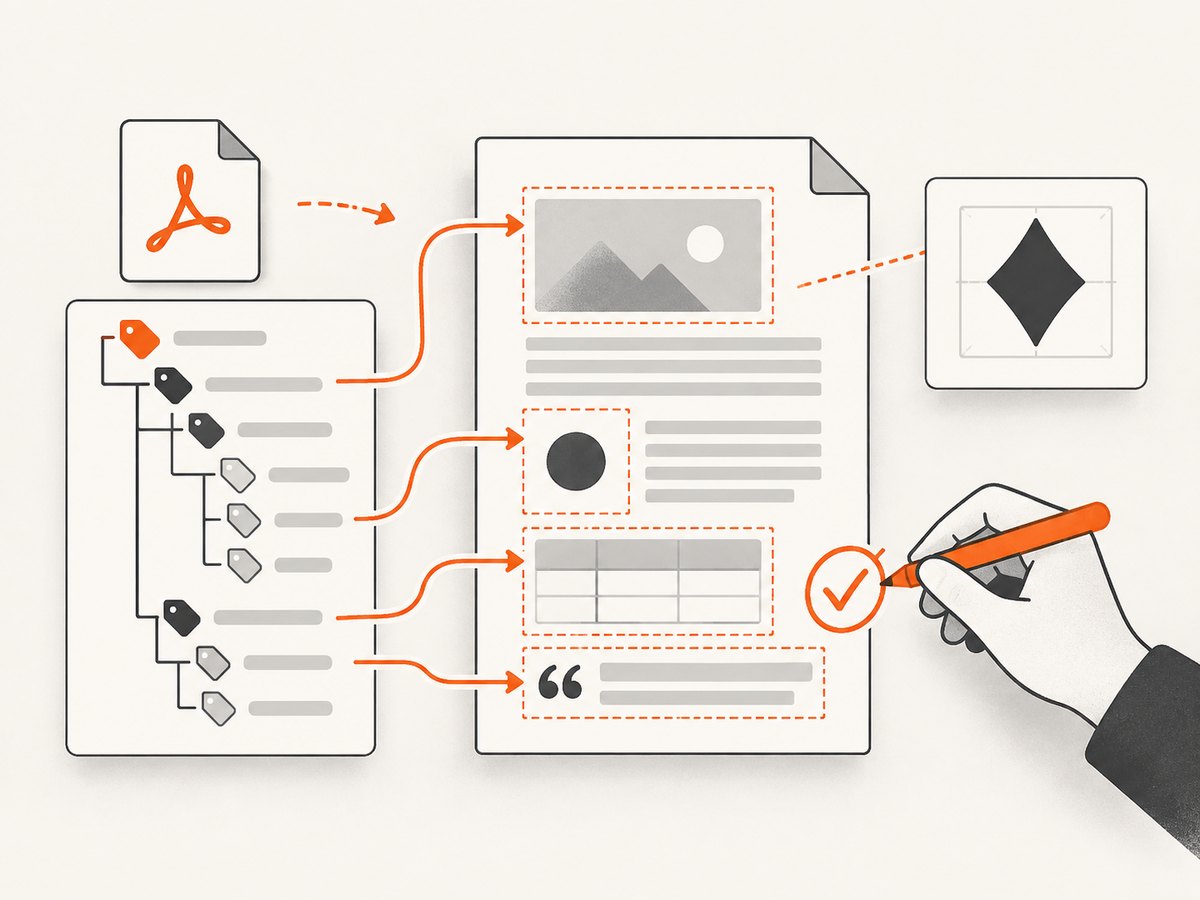
- Open the PDF with a structure tree or accessibility inspection tool.
- Verify that layout-only content is not represented as a data table.
- Verify that real tables retain rows, cells, and header relationships.
- Check reading order with a keyboard and a screen reader.
- Confirm document language, title metadata, embedded fonts, image alternatives, and artifact treatment.
- Run an automated PDF/UA checker, then have a person review semantic correctness.
An automated pass or conformance label cannot determine whether a table tag accurately describes the content. Human review is required for meaning, order, and context.
5. A complete Java conversion example
The following example separates conversion concerns from HTML semantics and writes a tagged PDF. It assumes dependencies are already managed in your build and that the API versions match your imports.
import com.itextpdf.html2pdf.ConverterProperties;
import com.itextpdf.html2pdf.HtmlConverter;
import com.itextpdf.kernel.pdf.PdfDocument;
import com.itextpdf.kernel.pdf.PdfUAConformance;
import com.itextpdf.kernel.pdf.PdfVersion;
import com.itextpdf.kernel.pdf.PdfWriter;
import com.itextpdf.kernel.pdf.WriterProperties;

import java.io.FileInputStream;
import java.io.FileOutputStream;

public final class ConvertReport {
    public static void main(String[] args) throws Exception {
        String source = args.length > 0 ? args[0] : "report.html";
        String destination = args.length > 1 ? args[1] : "report.pdf";

        WriterProperties writerProperties = new WriterProperties()
                .setPdfVersion(PdfVersion.PDF_2_0);

        ConverterProperties converterProperties = new ConverterProperties()
                .setPdfUAConformance(PdfUAConformance.PDF_UA_2);

        try (FileInputStream html = new FileInputStream(source);
             FileOutputStream file = new FileOutputStream(destination)) {
            PdfWriter writer = new PdfWriter(file, writerProperties);
            PdfDocument document = new PdfDocument(writer);
            HtmlConverter.convertToPdf(html, document, converterProperties);
        }
    }
}
For production documents, add the metadata and font configuration required by your target profile, and test images, lists, headings, links, forms, and tables independently. Keep a small representative HTML fixture for every template change.
6. Common errors and fixes
| Error or symptom | Likely cause | Fix |
|---|---|---|
| PDF/UA-2 configuration fails | The PDF version is not 2.0 or the installed API differs | Set PdfVersion.PDF_2_0 and verify the exact dependency documentation |
| Layout still appears as a table | The source HTML still uses table elements | Replace the layout table with semantic markup and CSS, or implement a narrowly scoped worker |
| Real table loses header relationships | A broad custom mapping flattened table tags | Remove that mapping and preserve the data table hierarchy |
| Custom worker is never called | Tag name does not match, factory was not registered, or a different converter instance is used | Log the incoming tag name, register the factory on the active ConverterProperties, and return null for unrelated tags |
| Text is unreadable or not selectable | Font is missing or not embedded | Configure an available embedded font and inspect the output on a clean machine |
| Screen reader order is wrong | Visual CSS order differs from DOM order | Fix source order first; do not rely on positioning alone |
| Automated checker passes but users report confusion | Tags are syntactically valid but semantically inaccurate | Perform human review with keyboard and assistive technology |
7. Performance, reliability, and maintenance
- Keep templates simple: correcting layout tables at the source reduces custom code and makes upgrades easier.
- Pin compatible versions: PDF/UA methods and supported HTML elements vary by pdfHTML release.
- Use deterministic fixtures: test a layout-only block, a simple data table, a multi-level header, an image, and a long document.
- Inspect failures separately: a visual regression can coexist with a structurally valid PDF, and a structural defect can be invisible on screen.
- Review upgrades: rerun structure checks after changing iText Core, pdfHTML, fonts, or CSS templates.
- Control resource loading: make image and font URLs reliable in your build environment; missing resources can change both appearance and accessibility.
There is no universal performance shortcut that justifies flattening tables. A custom worker may reduce unwanted tags in one template while introducing maintenance and compatibility costs across others. Source correction usually gives the clearest long-term behavior.
8. Or skip the browser setup
If your workflow starts with a rendered web page or HTML preview, ScreenshotNeo can capture the page before your PDF pipeline without maintaining browser automation. Its API accepts one GET request and returns PNG, JPEG, WebP, or PDF. Cookie and consent banners, newsletter popups, and chat widgets are removed before the shot. Bot checks, blank pages, failed loads, timeouts, and cache hits are not billed, and the response identifies the result with X-Page-Verdict and X-Billed headers. An MCP server provides take_screenshot, get_page_info, and capture_pdf tools for Claude, Cursor, and other MCP clients.
See the ScreenshotNeo API documentation for request options.
cURL
curl -G "https://api.screenshotneo.com/v1/shot" \
  -d access_key=YOUR_API_KEY \
  --data-urlencode url=https://stripe.com \
  -o shot.webp
Python
import requests

r = requests.get(
    "https://api.screenshotneo.com/v1/shot",
    params={"access_key": "YOUR_API_KEY", "url": "https://stripe.com"},
    timeout=90,
)
r.raise_for_status()
open("shot.webp", "wb").write(r.content)
Node.js
const q = new URLSearchParams({
  access_key: 'YOUR_API_KEY',
  url: 'https://stripe.com'
});
const res = await fetch(`https://api.screenshotneo.com/v1/shot?${q}`);
if (!res.ok) throw new Error(`HTTP ${res.status}`);
const body = Buffer.from(await res.arrayBuffer());
await import('node:fs/promises').then(fs => fs.writeFile('shot.webp', body));
The Free plan includes 1,000 screenshots each month with no card. Paid plans start at $5 for 3,000 shots, and every feature is available on every plan. Create a free ScreenshotNeo account and use the captured output as an input to your accessible PDF workflow.
9. Practical decision checklist
- Have you identified whether every table is data or layout?
- Did you replace layout tables in the HTML where possible?
- Do genuine tables have captions, headers, and sensible reading order?
- Is PDF/UA configured for the version you actually installed?
- If using a custom TagWorker, is the mapping narrow and child-safe?
- Are language, title, fonts, image alternatives, and artifacts handled?
- Did you inspect the structure tree and perform human review?
- Did you rerun checks after changing iText or the HTML template?
FAQ
Can I remove all table tags from the PDF?
You can customize mappings, but you should not remove table semantics from genuine data tables. Flatten only content that has no tabular meaning.
Does PDF/UA-2 automatically fix incorrect HTML?
No. PDF/UA settings select conformance behavior; they do not infer the intended meaning of inaccurate source markup.
Is a custom TagWorker required for layout tables?
Usually not. Replacing layout tables in the HTML is clearer and easier to maintain. Use a worker when source changes are unavailable or a precise conversion rule is necessary.
Why can a checker pass while the PDF remains inaccessible?
Automated tools can verify many technical conditions, but they cannot reliably judge whether tags express the content’s meaning or whether reading order makes sense to a person.


