How to Generate Accessible PDFs with Heading Levels Using Puppeteer
Generate tagged PDFs with semantic headings in Puppeteer, then inspect structure, reading order, and accessibility before publishing.
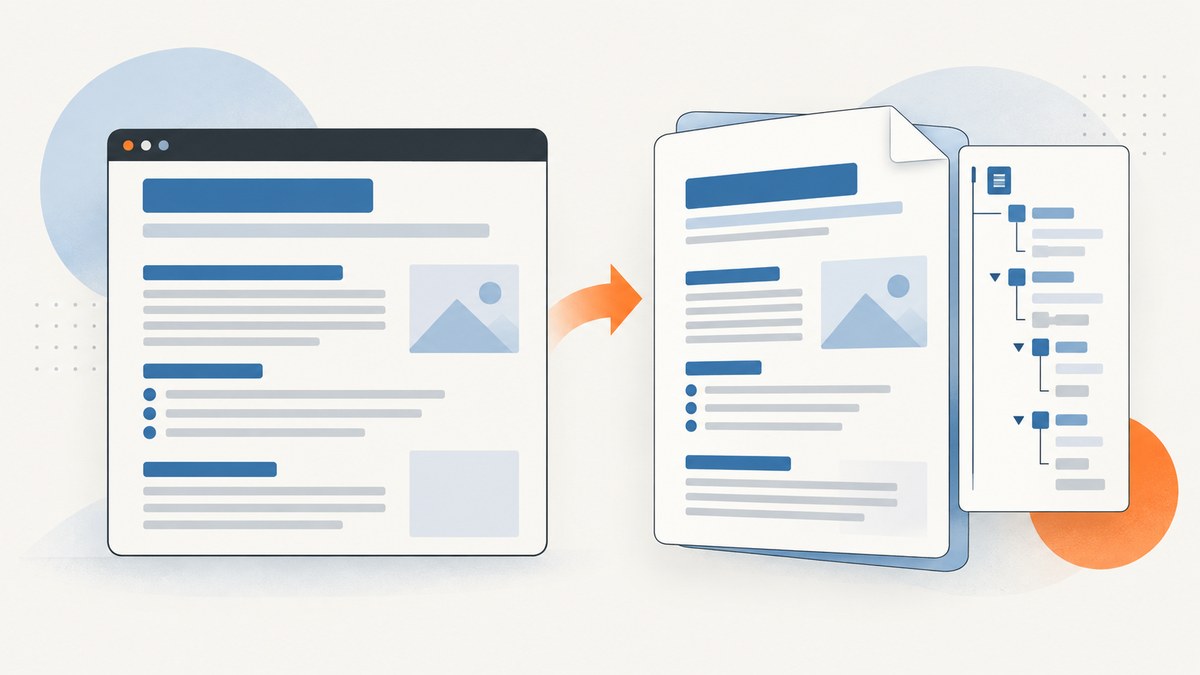
Direct answer: author your document with real semantic HTML headings (<h1> through <h6>) in a logical hierarchy, then generate the PDF with Puppeteer’s page.pdf(). Current Puppeteer documentation lists tagged output as enabled by default and exposes a tagged option, but marks it experimental. Treat tagging as the beginning of an accessibility workflow: inspect the resulting structure tree and reading order, run an automated checker, and repair defects when necessary.
Puppeteer’s changelog records accessible PDF generation as the default beginning in version 22.0.0 (released February 5, 2024). The current PDF options reference is version 25.12.0. Your installed Puppeteer and Chromium versions can behave differently, so record them in your build and verify an actual output file.
1. Why heading levels matter in an accessible PDF
Visual styling does not create document structure. A large, bold paragraph may look like a heading to a sighted reader, but assistive technology needs semantic elements that can be represented in the PDF structure tree. Use one meaningful document title as h1, major sections as h2, and nested sections as h3 or lower. Do not skip levels simply to obtain a desired font size.
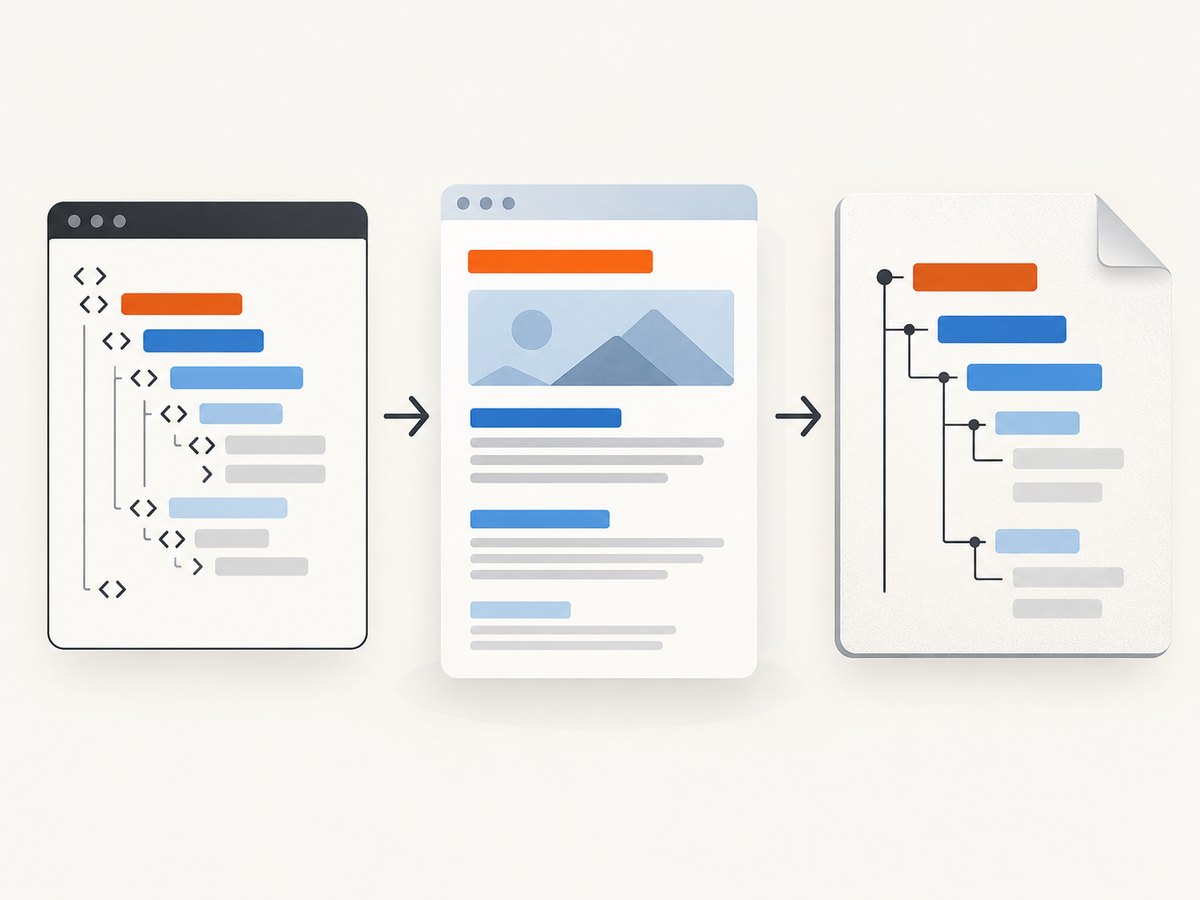
Recognized PDF headings let screen-reader users open a heading list and jump between sections. Tagged element order also drives logical reading order, which matters when content spans pages, columns, headers, footers, or sidebars. W3C’s PDF9 technique describes heading tags in the structure tree as one way to expose this information; it is guidance for meeting accessibility requirements, not a guarantee that every browser conversion will produce a conforming document.
2. Complete Puppeteer example
Create a project and install Puppeteer:
mkdir accessible-pdf
cd accessible-pdf
npm init -y
npm install puppeteer
Save this as generate-pdf.mjs. It creates semantic source HTML, requests tagged output explicitly, applies print-friendly styles, and saves a PDF.
import puppeteer from 'puppeteer';

const html = `<!doctype html>
<html lang="en">
<head>
  <meta charset="utf-8">
  <title>Accessible project report</title>
  <style>
    @page { size: A4; margin: 20mm 18mm 22mm; }
    :root { color-scheme: light; }
    * { -webkit-print-color-adjust: exact; print-color-adjust: exact; }
    body {
      font-family: Arial, sans-serif;
      color: #202124;
      line-height: 1.55;
      max-width: 760px;
      margin: 0 auto;
    }
    h1, h2, h3 { line-height: 1.2; break-after: avoid; }
    h1 { font-size: 28pt; margin: 0 0 12pt; }
    h2 { font-size: 20pt; margin-top: 24pt; }
    h3 { font-size: 14pt; margin-top: 18pt; }
    p, li { font-size: 11pt; }
    .figure { break-inside: avoid; }
    header, footer { color: #555; font-size: 9pt; }
  </style>
</head>
<body>
  <header>Engineering report</header>
  <main>
    <h1>Accessible project report</h1>
    <p>This report explains the project goals and implementation decisions.</p>

    <section aria-labelledby="goals">
      <h2 id="goals">Project goals</h2>
      <p>The team needs a reliable, understandable document export.</p>
      <h3>Primary goal</h3>
      <p>Readers should be able to navigate the report by heading.</p>
      <h3>Secondary goal</h3>
      <p>The printed layout should remain readable on every page.</p>
    </section>

    <section aria-labelledby="method">
      <h2 id="method">Implementation method</h2>
      <p>Puppeteer renders the HTML in Chromium and writes a PDF.</p>
    </section>
  </main>
  <footer>Generated report</footer>
</body>
</html>`;

const browser = await puppeteer.launch({ headless: true });
try {
  const page = await browser.newPage();
  await page.setContent(html, { waitUntil: 'networkidle0' });
  await page.emulateMediaType('print');
  await page.evaluate(() => document.fonts.ready);
  await page.pdf({
    path: 'accessible-report.pdf',
    format: 'A4',
    printBackground: true,
    tagged: true,
    outline: true,
    preferCSSPageSize: true,
    displayHeaderFooter: false,
  });
} finally {
  await browser.close();
}
Run it with node generate-pdf.mjs. The outline option is experimental and defaults to false; enabling it can create a document outline, but do not assume it replaces heading tags or passes an accessibility check.
3. The PDF options that affect accessibility and layout
| Option | Purpose | Accessibility or layout notes |
|---|---|---|
tagged |
Requests a tagged PDF. | Current reference marks it experimental and lists true as the default. Set it explicitly to document intent and verify the output. |
outline |
Requests a document outline. | Experimental and false by default. An outline is useful navigation, but it does not prove correct structure-tree headings. |
format |
Standard paper size such as A4 or Letter. | Choose a size that prevents unexpected reflow and clipped content. |
preferCSSPageSize |
Lets @page CSS control dimensions. |
Useful when the source defines exact page geometry. |
margin |
Sets top, right, bottom, and left margins. | Leave enough space for readable text and any running content. |
printBackground |
Prints background colors and images. | Use with sufficient contrast; do not rely on color alone to convey meaning. |
landscape |
Uses landscape orientation. | Can help wide tables, but check reading order and zoom requirements. |
pageRanges |
Exports selected pages. | Confirm that a partial export still has a meaningful title and heading context. |
displayHeaderFooter |
Adds generated header and footer templates. | Keep repeated content out of the primary reading flow where possible and verify how Chromium tags it. |
Page.pdf() uses the print media type. To render screen styles instead, call page.emulateMediaType('screen') before generating the file. Puppeteer modifies colors for printing by default; -webkit-print-color-adjust: exact (and the standards-prefixed equivalent) requests exact colors, but contrast still needs review.
4. Build the HTML hierarchy before opening Chromium
- Choose the document title. Put it in the page
<title>and the visible<h1>. - Map sections. Use
<h2>for each major topic and descend one level for subsections. - Keep source order logical. Place introductory content, headings, paragraphs, lists, tables, and figures in the order a reader should hear them.
- Use landmarks carefully. Elements such as
<main>,<nav>,<header>, and<footer>provide context, but do not replace headings. - Label relationships. Associate a section with its heading using
aria-labelledbywhen useful, and provide table captions and header cells. - Give images meaningful alternatives. Use useful
alttext for informative images and emptyaltfor decorative ones.
Avoid using heading elements for visual sizing, putting several unrelated topics under one heading, or jumping from h2 to h4 without a deliberate structural reason. CSS can make any heading look the way you need.
5. Fonts, loading, and deterministic generation
The PDF guide says generation waits for fonts by default. You should still make loading explicit when the page depends on web fonts or asynchronous content. Use await document.fonts.ready, wait for a known selector, or wait for network idle when appropriate. A network-idle wait can hang on analytics or streaming connections, so a bounded selector wait is often more predictable.
await page.goto('https://example.com/report', {
  waitUntil: 'domcontentloaded',
  timeout: 45_000,
});
await page.waitForSelector('main h1', { timeout: 15_000 });
await page.evaluate(() => document.fonts.ready);
await page.pdf({ path: 'report.pdf', tagged: true });
For local HTML, page.setContent() avoids a separate web server. For remote pages, control authentication, cookies, viewport, locale, and timezone before navigation so the same source produces the same structure. Freeze data where reproducibility matters.
6. Verify the generated PDF instead of trusting the flag
A tagged flag alone does not establish correct headings, reading order, or full conformance. Use this review sequence:
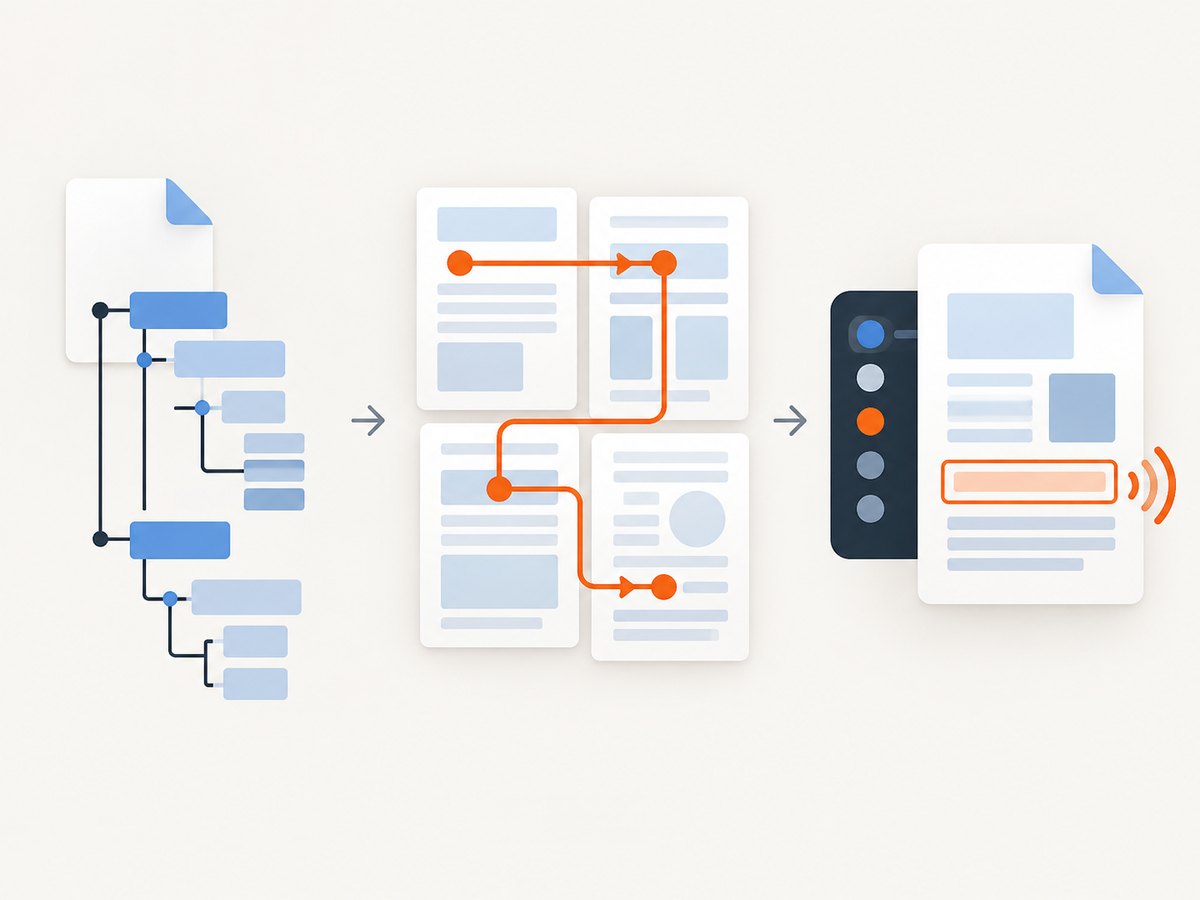
- Inspect the structure tree. Confirm the visible title is represented as a heading and that section levels are nested as intended.
- Check reading order. Review multi-column content, tables, sidebars, page headers, and footers. Make sure content is read in a useful sequence.
- Run an automated checker. PAC documents automatic technical checks plus structure and screen-reader preview features. Treat a pass as evidence to investigate, not as a substitute for human review.
- Try assistive technology. Navigate by headings, read continuously, search for text, and inspect links and tables.
- Repair and repeat. If structure is wrong, fix the HTML or use a PDF remediation workflow, then run the checks again.
Adobe’s accessibility guidance emphasizes that a web-page PDF is only as accessible as its source HTML and documents tagging and reading-order repair. Do not claim PDF/UA or WCAG conformance solely because Puppeteer produced a tagged file or one checker reported no errors. The target standard, tag semantics, visual presentation, and human behavior all matter.
7. Common failures and fixes
| Symptom | Likely cause | Fix |
|---|---|---|
| No headings appear in the structure tree | Source uses styled div or p elements, or the Chromium/Puppeteer version has different tagging behavior. |
Use real heading elements, set tagged: true, upgrade or pin a known toolchain, and inspect the output. |
| Headings are out of order | DOM order differs from visual order, or CSS positioning creates a misleading layout. | Reorder the source DOM and use CSS for presentation. Avoid absolute positioning for primary content. |
| PDF is blank or missing late content | Capture occurred before data, images, or fonts finished loading. | Wait for a stable selector, document.fonts.ready, image completion, or a bounded application-ready signal. |
| Colors or backgrounds changed | PDF uses print media and modified print colors. | Choose the intended media type and use print-color adjustment only after checking contrast. |
| Text is clipped or split awkwardly | Paper size, margins, fixed heights, or unbreakable elements conflict. | Use @page, flexible dimensions, break-inside: avoid for small figures, and test long headings. |
| Repeated header is read as body content | Generated header/footer or template markup enters the reading flow. | Inspect the structure tree; simplify templates or mark decorative repetition appropriately, then verify with assistive technology. |
| Checker passes but navigation feels wrong | Automated tests cannot judge every reading-order or user-experience issue. | Review the structure tree and perform keyboard and screen-reader checks. |
Navigation timeout exceeded |
Third-party requests keep the page active or the origin is slow. | Set a realistic timeout, wait for a specific ready condition, and block nonessential requests in controlled builds. |
8. Performance, reliability, and cost considerations
Launching Chromium is expensive compared with reusing a browser process. For batch jobs, launch one browser, create isolated pages or contexts, and close each page in a finally block. Limit concurrency so memory use does not grow without bound. Reuse a fixed viewport, locale, timezone, and font set to reduce visual drift.
Reliability improves when waits are explicit and bounded. Prefer application signals such as #report-ready over an unbounded network-idle wait. Log the URL, Puppeteer version, Chromium revision, viewport, media type, and output hash. Keep a representative fixture containing long headings, nested sections, tables, images, and page breaks; compare generated PDFs after dependency upgrades.
Puppeteer itself does not charge per PDF. Your costs come from compute, storage, browser runtime, and any external assets or infrastructure. If you generate PDFs in a serverless environment, account for Chromium startup time, temporary disk space, memory, and execution limits. Cache stable assets where policy permits, but never cache private documents in a shared location.
9. Or skip the browser setup
If you need a clean capture of a web page or PDF without maintaining Chromium, ScreenshotNeo provides a website screenshot API and MCP server. Its PDF endpoint is useful when your input is already a rendered page, while Puppeteer remains the better choice when you must author and control the HTML structure yourself.
One request returns a PDF or image. See the ScreenshotNeo documentation for the complete option list.
cURL
curl -G "https://api.screenshotneo.com/v1/shot" \
  -d access_key=YOUR_API_KEY \
  --data-urlencode url=https://stripe.com \
  -o shot.webp
Python
import requests

r = requests.get(
    "https://api.screenshotneo.com/v1/shot",
    params={"access_key": "YOUR_API_KEY", "url": "https://stripe.com"},
    timeout=90,
)
r.raise_for_status()
open("shot.webp", "wb").write(r.content)
Node.js
const q = new URLSearchParams({
  access_key: 'YOUR_API_KEY',
  url: 'https://stripe.com'
});
const res = await fetch(`https://api.screenshotneo.com/v1/shot?${q}`);
if (!res.ok) throw new Error(`HTTP ${res.status}`);
require('fs').writeFileSync('shot.webp', Buffer.from(await res.arrayBuffer()));
ScreenshotNeo removes cookie and consent banners, newsletter popups, and chat widgets before capture. Bot checks, blank pages, failed loads, timeouts, and cache hits are not billed; response headers identify the page verdict and whether the request was billed. It also offers an MCP server with take_screenshot, get_page_info, and capture_pdf tools for Claude, Cursor, and other MCP clients.
The service supports full-page capture, element selectors, dark mode, device presets, custom viewports, retina scale, PDF paper and margin controls, page ranges, custom CSS and JavaScript, clicks, selector or network-idle waits, request blocking, headers, cookies, user agents, authorization, timezone, geolocation, transparent backgrounds, resizing, caching, signed links, asynchronous jobs, webhooks, bulk capture, a usage API, and an OpenAPI specification. Every feature is on every plan. The Free plan includes 1,000 shots per month with no card; paid plans start at $5 for 3,000 shots.
Create a free ScreenshotNeo account and get 1,000 screenshots a month with no card.
10. Practical checklist
- Use one meaningful
h1and a logicalh2-to-h6hierarchy. - Keep DOM order equal to the intended reading order.
- Set
tagged: trueand record your Puppeteer and Chromium versions. - Wait for application content, fonts, and critical images.
- Choose print or screen media deliberately and check contrast.
- Inspect the PDF structure tree and heading navigation.
- Run automated checks and perform human assistive-technology review.
- Repair defects in HTML or the PDF, then verify again.
11. FAQ
Does tagged: true guarantee an accessible PDF?
No. Puppeteer documents tagging as experimental, and correct accessibility also depends on source semantics, reading order, tables, links, images, contrast, and the target standard.
Which Puppeteer version first enabled accessible PDFs by default?
The changelog identifies version 22.0.0, released February 5, 2024, as the point where accessible PDF generation became the default.
Should I use outline instead of heading tags?
No. An outline can improve navigation, but it does not replace semantic headings or prove that the PDF structure tree is correct.
Can Puppeteer generate a PDF from a screen-styled page?
Yes. Call page.emulateMediaType('screen') before page.pdf(), then check pagination, colors, and contrast.
When should I use a remediation tool?
Use remediation when the generated structure or reading order cannot be corrected upstream, and always re-run checks after repairs.
Where can I confirm the API details?
Use the Puppeteer PDFOptions reference, the PDF generation guide, and W3C’s PDF9 heading technique. For validation guidance, consult PAC and Adobe’s Acrobat accessibility documentation.


