How to Use an Ad Blocker Extension with Headless Chrome and Python Selenium
Load an ad blocker in headless Chrome with Selenium, choose a compatible browser build, and troubleshoot extension loading and verification.

To use an ad blocker extension with Python Selenium, run Chrome’s new Headless mode with --headless=new and load the extension using a method supported by your browser build. For a packaged extension, use Selenium’s options.add_extension('/path/to/extension.crx'). For an unpacked extension, use --load-extension=/path/to/unpacked-extension with Chromium or Chrome for Testing. Since Chrome 137, official Chrome-branded builds reject that unpacked-extension flag.
This distinction matters: a Selenium script can be valid while the selected Chrome binary refuses its extension-loading argument. The examples below show both paths, how to verify the blocker by its effect on a page, and what to check when the browser starts but ads remain.
1. Check your browser and extension format
Before writing the test, identify which browser binary Selenium will launch and what form the extension takes. Selenium’s Chrome guidance supports CRX files and recommends the command-line load-extension option for unpacked directories. The browser distribution determines whether the latter will work.
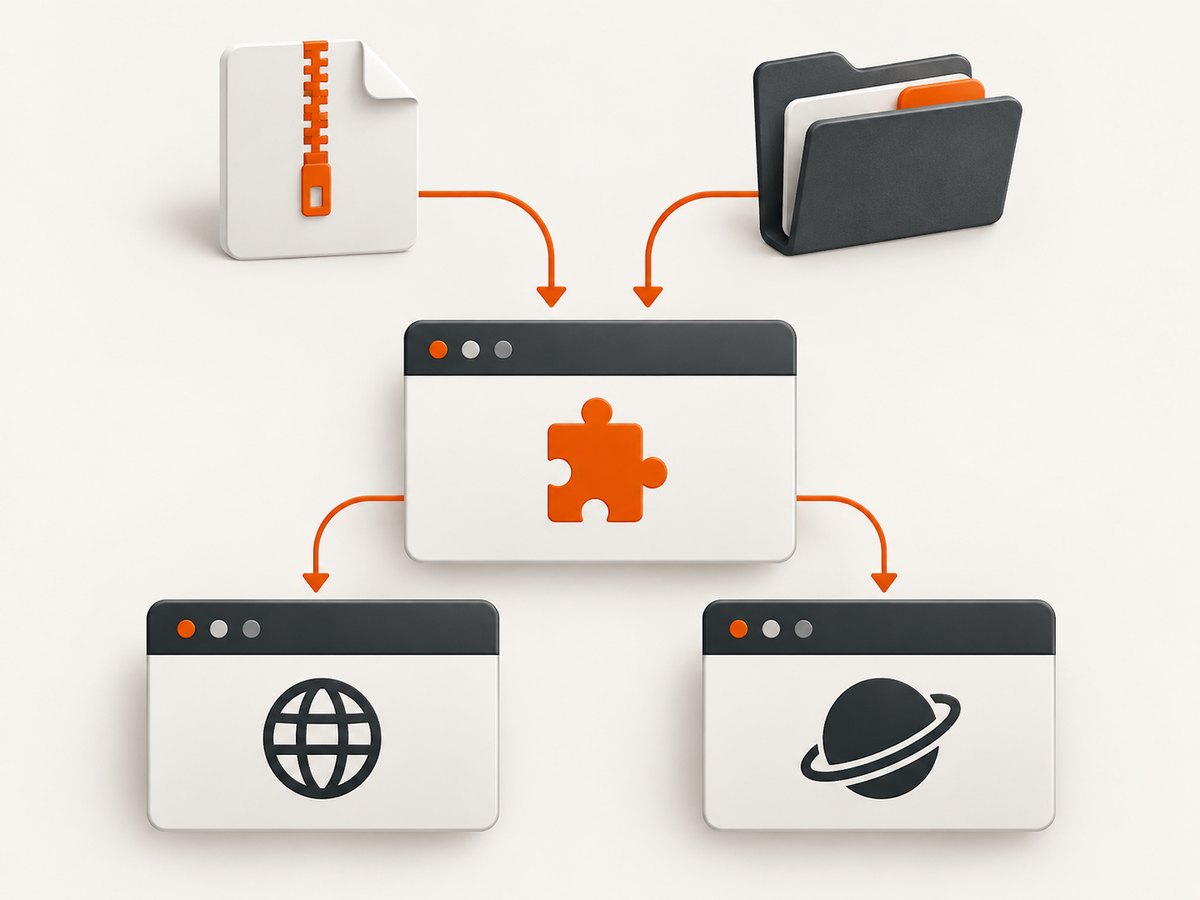
| Extension format | Loading method | Browser compatibility note |
|---|---|---|
Packaged .crx |
options.add_extension('/path/to/file.crx') |
Selenium documents this API for Chrome options. Confirm the CRX is available and appropriate for your environment. |
| Unpacked directory | --load-extension=/path/to/extension |
Use Chromium or Chrome for Testing. Official Chrome-branded builds reject this flag starting with Chrome 137. |
Chrome introduced its unified new Headless mode in version 112. The extension end-to-end testing guide specifically says to use --headless=new and warns that old Headless does not support loading extensions. Chrome 132 removed the old Headless implementation from the main Chrome binary; its separate chrome-headless-shell binary is not a substitute for the new mode when following this extension workflow.
Chrome 137 is the key compatibility milestone for unpacked extensions. Older recipes that combine a branded google-chrome binary with --load-extension may fail after Chrome 136. For reproducible automation, record the browser distribution and version along with the Selenium version, extension format, and load method.
2. Install Selenium and prepare a runnable test
Install Selenium in the Python environment that will run the script:
python -m pip install seleniumSelenium Manager can generally obtain or locate a compatible browser driver when you construct webdriver.Chrome(). In managed environments, install the browser and driver according to that environment’s instructions. The script below accepts a browser binary path and extension path through environment variables so it can be reused in CI without editing the code.
Load a packaged CRX
Use this path when you have a packaged .crx. The example opens a test page and captures a screenshot for later inspection; it does not claim that any particular ad blocker has been tested or that a given site will show a specific result.
import os
from pathlib import Path

from selenium import webdriver
from selenium.webdriver.chrome.options import Options

extension_path = Path(os.environ.get("EXTENSION_CRX", "./ad-blocker.crx")).resolve()
if not extension_path.is_file():
    raise FileNotFoundError(f"CRX file not found: {extension_path}")

options = Options()
options.add_argument("--headless=new")
options.add_argument("--window-size=1440,1000")
options.add_extension(str(extension_path))

binary = os.environ.get("CHROME_BINARY")
if binary:
    options.binary_location = binary

# Use a unique writable profile if the environment or extension requires one.
profile = Path("./selenium-profile").resolve()
profile.mkdir(parents=True, exist_ok=True)
options.add_argument(f"--user-data-dir={profile}")

driver = webdriver.Chrome(options=options)
try:
    driver.set_page_load_timeout(45)
    driver.get("https://example.com/")
    print("Title:", driver.title)
    print("URL:", driver.current_url)
    driver.save_screenshot("headless-page.png")
finally:
    driver.quit()
Save this as capture_crx.py, set EXTENSION_CRX to the CRX file path, and run python capture_crx.py. If the browser cannot start, first check the browser and driver versions and whether the environment can write to the profile directory. Starting successfully only proves the browser launched; it does not establish that the blocker is enabled or filtering the target page.
Load an unpacked extension directory
Use an unpacked extension with Chromium or Chrome for Testing. Point the browser binary explicitly at the compatible build when multiple Chrome variants are installed. Do not expect this flag to work in an official Chrome-branded build from Chrome 137 onward.
import os
from pathlib import Path

from selenium import webdriver
from selenium.webdriver.chrome.options import Options

extension_dir = Path(os.environ.get("EXTENSION_DIR", "./unpacked-ad-blocker")).resolve()
if not extension_dir.is_dir():
    raise NotADirectoryError(f"Unpacked extension directory not found: {extension_dir}")

options = Options()
options.add_argument("--headless=new")
options.add_argument("--window-size=1440,1000")
options.add_argument(f"--load-extension={extension_dir}")

binary = os.environ.get("CHROMIUM_BINARY")
if not binary:
    raise RuntimeError("Set CHROMIUM_BINARY to Chromium or Chrome for Testing")
options.binary_location = binary

profile = Path("./selenium-profile-unpacked").resolve()
profile.mkdir(parents=True, exist_ok=True)
options.add_argument(f"--user-data-dir={profile}")

driver = webdriver.Chrome(options=options)
try:
    driver.set_page_load_timeout(45)
    driver.get("https://example.com/")
    print("Title:", driver.title)
    driver.save_screenshot("headless-page.png")
finally:
    driver.quit()
Set CHROMIUM_BINARY to the Chromium or Chrome for Testing executable and EXTENSION_DIR to the directory containing the unpacked extension, then run the script. A unique writable user-data directory helps isolate parallel or repeated runs. Do not share one live profile between concurrent browser instances.
3. Verify filtering through page behavior
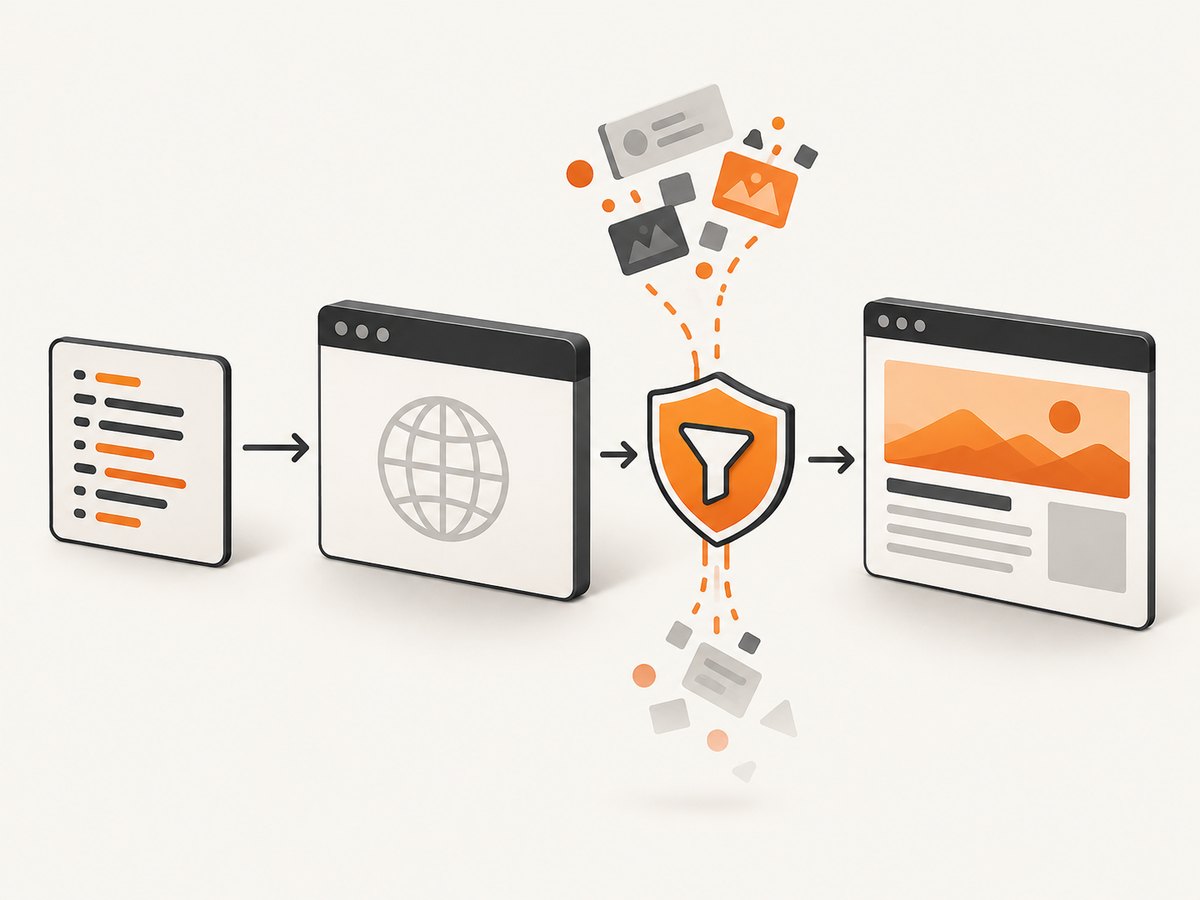
Prefer assertions about visible, user-facing behavior for ordinary integration tests. Chrome’s extension testing guidance notes that Selenium cannot directly access an extension’s service worker. A browser launching without an error is not enough to prove that a filter list loaded, a network request was blocked, or the target site’s layout remained usable.
Choose a controlled page or test fixture with a known ad resource or element, then assert the expected outcome. Avoid relying on a public site’s current ads: site content, consent requirements, blocker rules, and anti-automation behavior can change independently of your test. A simple Selenium check can establish that the page loaded and an expected element is absent:
from selenium.webdriver.common.by import By
from selenium.webdriver.support.ui import WebDriverWait
from selenium.webdriver.support import expected_conditions as EC

# Run after driver.get(test_url), using a controlled fixture you maintain.
WebDriverWait(driver, 10).until(
    EC.presence_of_element_located((By.TAG_NAME, "body"))
)
blocked_slot = driver.find_elements(By.CSS_SELECTOR, "#known-ad-slot")
assert not blocked_slot, "The expected ad slot is still present"
This tests the rendered DOM condition you chose; it does not independently prove that a network request was blocked. If the extension’s interface exposes useful status, inspect it through a user-facing route rather than assuming Selenium can attach to an extension service worker.
Inspect an extension page when necessary
For targeted diagnostics, Chrome’s guide demonstrates navigating to an extension page such as chrome-extension://<id>/popup.html and executing script there. The extension ID and page path depend on the extension. This can help inspect visible extension data, but ordinary tests should favor assertions on the target page’s behavior.
# Replace the ID and page with values for your extension.
driver.get("chrome-extension://EXTENSION_ID/popup.html")
print(driver.title)
print(driver.find_element(By.TAG_NAME, "body").text)
For an unpacked extension, the ID may depend on its manifest key or browser setup. Do not hard-code an assumed ID without confirming it for the build you run.
4. Configure the browser for stable runs
Headless mode and viewport
Use --headless=new explicitly so the intended mode is clear. Set a viewport with --window-size=WIDTH,HEIGHT when layout or responsive behavior matters. A different viewport can change which elements are present or visible and can affect lazy loading. Headless removes visible platform windows; it does not mean the page’s rendering and timing are identical for every site, extension, or machine.
Profiles and isolation
A user-data directory stores browser state. Give each parallel worker a unique writable path to avoid profile-lock conflicts and state leakage. For repeatable runs, either create a fresh profile per run or deliberately preserve one when the test depends on saved extension settings. Clean up profiles only after the browser has exited.
Timeouts and waiting
Set a page-load timeout to prevent a stalled navigation from hanging the job indefinitely. Then wait for the specific condition the test needs instead of assuming that navigation completion means the extension finished initializing or the page is ready. Some pages keep network connections open, so a fixed “network idle” assumption can be unreliable. Use bounded explicit waits for selectors or state changes that matter to your test.
Extension setup and updates
Use an extension package or source directory that is available to the worker and keep its version controlled where possible. A browser may start even if the extension cannot perform its expected work because its configuration, filter data, permissions, or update state differs. Validate behavior in the same browser distribution and runtime environment used in production.
5. Troubleshoot common failures
| Symptom | Likely cause | Fix |
|---|---|---|
--load-extension is rejected or ignored |
The browser is an official Chrome-branded build at Chrome 137 or later. | Use Chromium or Chrome for Testing for the unpacked directory workflow. Alternatively, use Selenium’s CRX API if you have a packaged extension. |
| Extension does not appear in headless | The script used old Headless behavior, or the extension format and browser build do not match. | Set --headless=new; confirm the load method and browser distribution against the compatibility table. |
| Chrome exits immediately | Invalid argument, missing browser binary, unwritable profile, or driver/browser mismatch. | Check the first ChromeDriver error, verify configured paths, use a unique writable profile, and align the driver with the browser. |
| “user data directory is already in use” | Two runs share a profile, or a prior process did not exit cleanly. | Use a distinct profile per worker and ensure driver.quit() runs in a finally block. |
| Ads still show | The extension did not load, its rules are unavailable, the site uses a method the rules do not cover, or the assertion targets the wrong element. | Verify the actual browser build and extension path, inspect the controlled fixture, and confirm the extension’s configuration and filter data. |
| Popup or extension page is blank | The extension page path or ID is wrong, or the extension’s UI is not available in that context. | Confirm the ID and page for this extension and build. Prefer checking page behavior if the UI is not essential. |
| Test passes locally but fails in CI | Different browser distribution/version, permissions, profile state, filesystem access, or network conditions. | Log browser and Selenium versions, pin the distribution, isolate profiles, and make the fixture and waits deterministic. |
| Navigation timeout | The page is slow, long-lived, blocked, or waiting on resources beyond the test’s needs. | Set an appropriate bounded page-load timeout and wait for the required element or state; diagnose whether the page itself is reachable. |
6. Performance, reliability, and cost
Headless mode avoids creating visible platform windows, but the research sources provide no benchmark for how much faster a particular ad blocker or Selenium workload will run. Measure your own page set if runtime matters. Extension initialization and rule processing add work, and a site that loads many resources may still take time even when some requests are blocked.
For reliability, make the browser distribution explicit, use a unique writable profile, set bounded timeouts, and assert a stable page condition. Keep logs that identify the browser version and extension artifact. Avoid testing against uncontrolled ad inventory when a small fixture can exercise the behavior deterministically.
For cost, Selenium and browser automation are software components rather than a per-screenshot API charge in the examples above. Your actual cost depends on the machines or CI minutes used to run Chrome and the resources needed to maintain extension artifacts and tests. No runtime or cost benchmark is established here.
Or skip the browser setup
If the goal is to capture a clean page image rather than test an ad blocker extension, ScreenshotNeo is a screenshot API and MCP server. Its one-call request returns an image or PDF, and its screenshot options are documented at ScreenshotNeo API documentation.
curl -G "https://api.screenshotneo.com/v1/shot" \
  -d access_key=YOUR_API_KEY \
  --data-urlencode url=https://stripe.com \
  -o shot.webp
import requests
r = requests.get(
"https://api.screenshotneo.com/v1/shot",
params={"access_key": "YOUR_API_KEY", "url": "https://stripe.com"},
timeout=90,
)
open("shot.webp", "wb").write(r.content)const q = new URLSearchParams({ access_key: 'YOUR_API_KEY', url: 'https://stripe.com' });
const res = await fetch(`https://api.screenshotneo.com/v1/shot?${q}`);
if (!res.ok) throw new Error(`Screenshot request failed: ${res.status}`);
await import('node:fs/promises').then(({ writeFile }) => writeFile('shot.webp', Buffer.from(await res.arrayBuffer())));ScreenshotNeo accepts cookie and consent banners like a visitor and removes more than 60 known consent platforms, newsletter popups, and chat widgets before capture; each step can be turned off. Bot checks and CAPTCHAs, blank pages, timeouts, failed loads, and cache hits cost nothing, and response headers report the page verdict and billing status. Its MCP server provides take_screenshot, get_page_info, and capture_pdf tools for Claude, Cursor, and other MCP clients. The free plan includes 1,000 screenshots each month with no card; paid plans start at $5 for 3,000 shots.
Sign up for ScreenshotNeo and get 1,000 free screenshots a month, no card required.
Frequently asked questions
Can I load a Chrome extension in headless mode?
Yes. Use Chrome’s new Headless mode with --headless=new. Chrome’s extension testing guidance warns that old Headless does not support loading extensions.
Does every ad blocker work with Selenium?
Do not assume so. The browser guide establishes extension testing support in general, not compatibility for every blocker, filter list, or site. Verify the behavior you need in the exact browser build and environment.
Can Selenium inspect the extension service worker?
Chrome’s extension end-to-end testing guide says Selenium cannot access the service worker directly. For diagnostics, navigate to an extension page if one is available, or assert user-facing page behavior.
Which unpacked extension build should I use?
Use Chromium or Chrome for Testing when loading an unpacked directory with --load-extension. Official Chrome-branded builds reject that flag beginning with Chrome 137.


