How to Use ADB Shell Screencap -p for Android Screenshots
Capture an Android device display from your terminal with adb screencap -p, save it locally, target specific devices, and troubleshoot common errors.
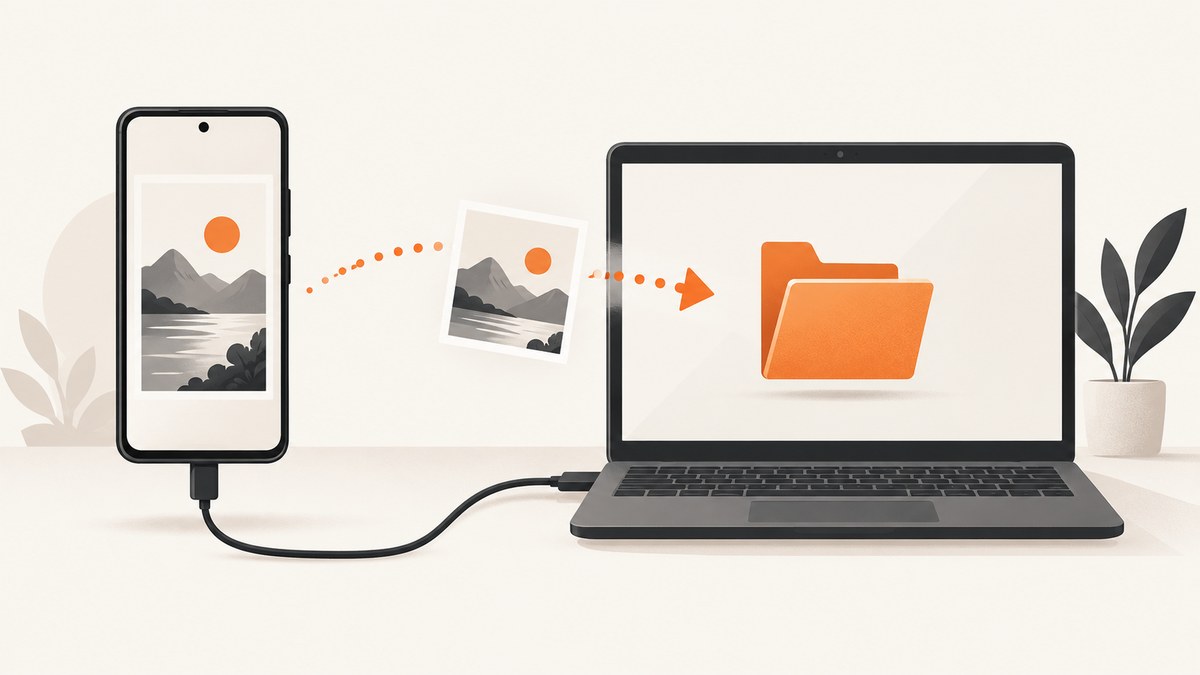
Use this command on your computer:
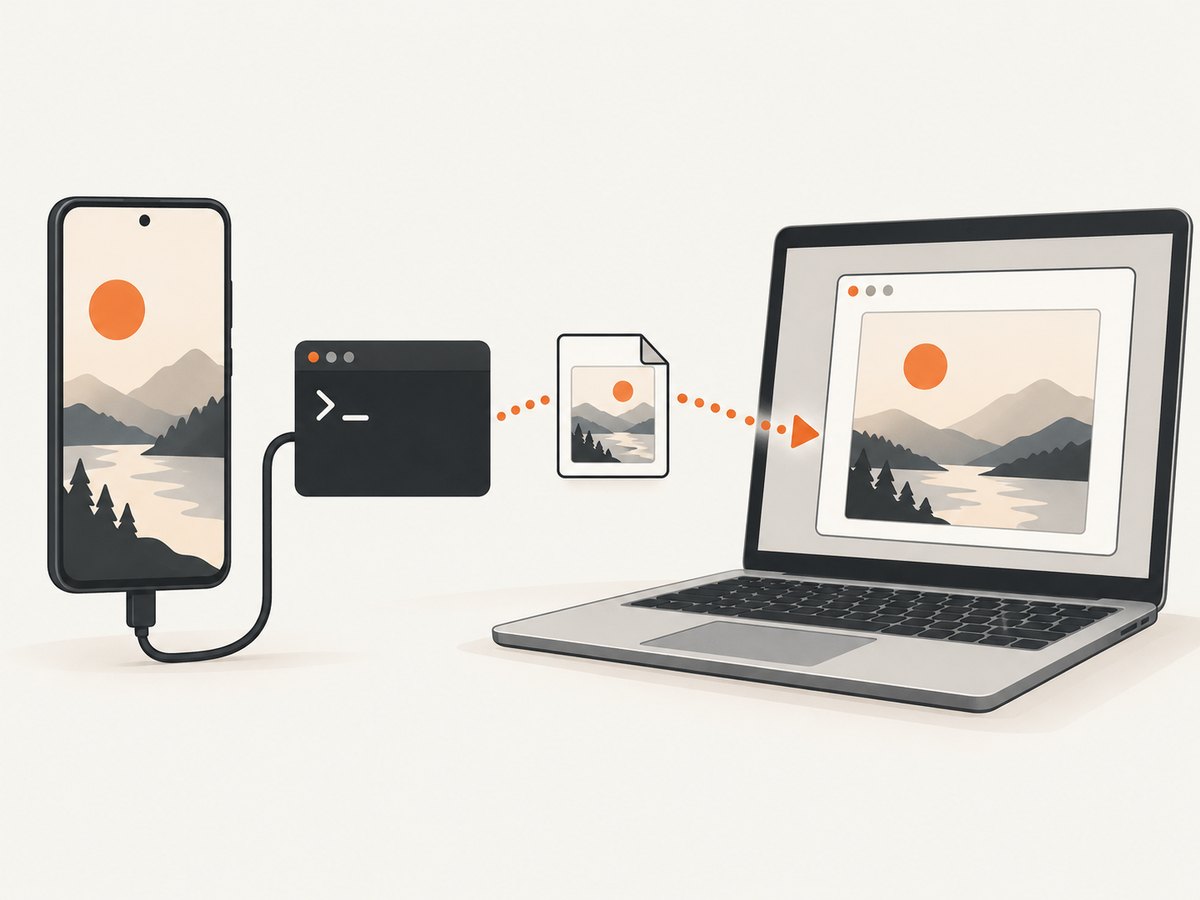
adb exec-out screencap -p > screen.pngIt runs Android’s screencap shell utility through ADB, requests PNG output with -p, and redirects the image bytes into screen.png on your computer. Android Developers recommends exec-out when you need raw command output. The official documentation describes screencap as a shell utility for taking a screenshot of a device display: Android Debug Bridge documentation.
1. What the command does
The command has four parts:
| Part | Purpose |
|---|---|
adb |
Android Debug Bridge, the command-line client on your computer. |
exec-out |
Executes a device command and streams its raw output back to the computer. |
screencap -p |
Captures the display and selects PNG output. Omitting a filename makes the utility write to standard output. |
> screen.png |
Writes the streamed PNG bytes to a local file. |
The resulting file is a screenshot of the connected Android device’s display at capture time.
2. Prerequisites and device selection
- Install Android SDK Platform-Tools so the
adbcommand is available. - Connect the Android device and make it available to ADB.
- If more than one device is available, select the target explicitly.
ADB supports selectors for a USB-connected device, an emulator, or a specific serial number:
# Select the only USB device
adb -d exec-out screencap -p > screen.png

# Select the only emulator
adb -e exec-out screencap -p > emulator.png

# Select a specific device by serial number
adb -s SERIAL_NUMBER exec-out screencap -p > device.png
Use the serial shown by your ADB device listing when using -s. The selector belongs before exec-out.
3. The recommended one-command workflow
Run the command from the directory where you want the image saved:
adb exec-out screencap -p > screen.pngChoose a different local path when needed:
adb exec-out screencap -p > captures/android-home.pngCreate the destination directory first if it does not exist. The shell redirection is performed by your computer’s shell, so the output path is local.
4. Alternative: save on the device, then pull it
You can write the image to the Android device and retrieve it in a second command:
adb shell screencap /sdcard/screen.png
adb pull /sdcard/screen.png
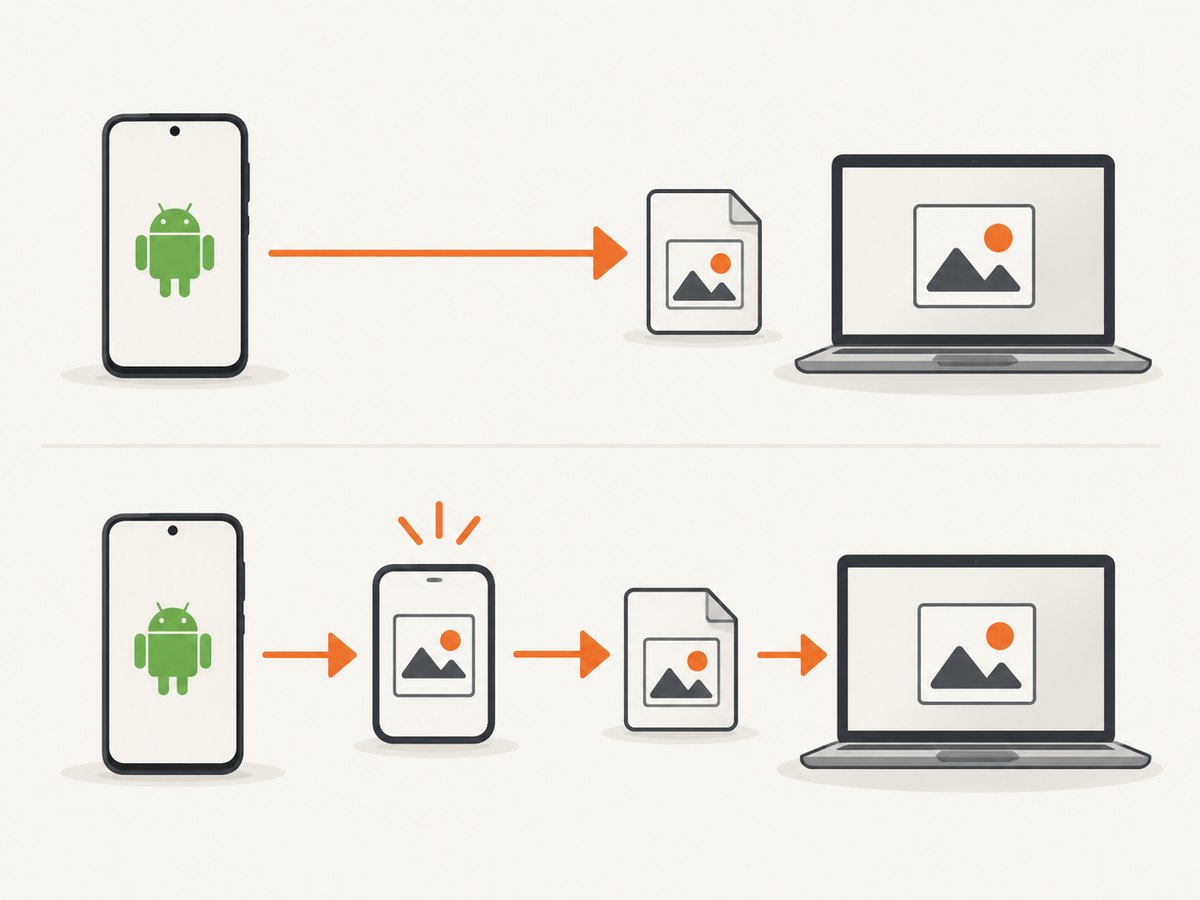
This workflow is useful when you want a device-side file before transferring it. The first command supplies a filename, so screencap writes there instead of streaming to standard output. The second command copies that file to your current computer directory.
Give the pulled file a different local name if required:
adb shell screencap /sdcard/device-screen.png
adb pull /sdcard/device-screen.png ./captures/local-screen.png
5. Choosing between the two workflows
| Workflow | Destination first | Commands | When to use it |
|---|---|---|---|
exec-out stream |
Computer | One | Fast scripting and direct local PNG output. |
Device file plus adb pull |
Device | Two | When another device-side process needs the file before transfer. |
The Android documentation establishes these workflows but does not claim a performance difference between them.
6. Complete command examples
Capture a selected device
adb -s SERIAL_NUMBER exec-out screencap -p > screen.pngCapture an emulator
adb -e exec-out screencap -p > emulator.pngCapture a USB device
adb -d exec-out screencap -p > usb-device.pngSave on the device and retrieve it
adb shell screencap /sdcard/screen.png
adb pull /sdcard/screen.png ./screen.png
Use the command from a script
#!/usr/bin/env sh
set -e
adb exec-out screencap -p > "screen-$(date +%Y%m%d-%H%M%S).png"
The script keeps the screenshot bytes in a PNG file and adds a timestamp to the local filename.
7. Troubleshooting
adb is not found
Your shell cannot locate the Android Platform-Tools executable. Install Platform-Tools and run the command from an environment where its directory is on your PATH, or invoke the executable by its full path.
The wrong device is captured
Target the device explicitly with -d, -e, or -s SERIAL_NUMBER:
adb -s SERIAL_NUMBER exec-out screencap -p > screen.pngMore than one device is available
ADB needs a selector when the target is ambiguous. Use the serial number with -s, or use -d for a USB device and -e for an emulator where those selectors identify the intended target.
The output file is not a usable PNG
Use exec-out for the direct stream and keep -p enabled:
adb exec-out screencap -p > screen.pngThis asks screencap for PNG data and sends the raw stream directly to the local file.
The file is saved on the device instead of the computer
The device-side workflow requires a separate pull:
adb shell screencap /sdcard/screen.png
adb pull /sdcard/screen.png
If you want a local file in one step, use shell redirection with exec-out.
The local destination path fails
Check that the parent directory exists and that your shell can write there. Redirect to a known writable directory or create the directory before running the command.
8. Reliability and automation notes
- Use an explicit serial with
-sin CI jobs or test farms so a newly connected device cannot change the target. - Use unique output filenames when taking repeated captures; otherwise shell redirection replaces the previous file.
- Keep the capture command and the output path together in your script so the screenshot destination is unambiguous.
- Choose the device-file workflow when a later device-side step must consume the screenshot before transfer.
The supplied Android documentation does not define a screenshot latency, resolution guarantee, or compatibility matrix, so those values should be measured for your own device and workflow.
9. Performance and cost considerations
The direct stream uses one capture command and one local write. The alternative uses a device write followed by a transfer. The documentation does not make a comparative performance claim, so select based on where you need the file and how your automation is structured.
adb screencap is a local device workflow: there is no ScreenshotNeo API request or per-image service charge involved. Your practical costs are the computer, device, connection, and any automation infrastructure you already operate.
10. Or skip the browser setup
ADB is the right tool when you need the physical Android display. For website screenshots, ScreenshotNeo provides a single HTTP request that returns a PNG, JPEG, WebP, or PDF. See the ScreenshotNeo API documentation for request options.
curl -G "https://api.screenshotneo.com/v1/shot" -d access_key=YOUR_API_KEY --data-urlencode url=https://stripe.com -o shot.webpimport requests
r = requests.get("https://api.screenshotneo.com/v1/shot", params={"access_key": "YOUR_API_KEY", "url": "https://stripe.com"}, timeout=90)
open("shot.webp", "wb").write(r.content)const q = new URLSearchParams({ access_key: 'YOUR_API_KEY', url: 'https://stripe.com' });
const res = await fetch(`https://api.screenshotneo.com/v1/shot?${q}`);Before the capture, cookie and consent banners are accepted and more than 60 known consent platforms, newsletter popups, and chat widgets are removed; each step can be turned off. Bot checks, CAPTCHAs, blank pages, timeouts, failed loads, and cache hits cost nothing, and each response identifies its verdict and billing status with X-Page-Verdict and X-Billed headers. ScreenshotNeo also provides an MCP server for AI agents, with take_screenshot, get_page_info, and capture_pdf tools. The free plan includes 1,000 screenshots per month with no card; paid plans start at $5 for 3,000 shots. Create a free ScreenshotNeo account.
11. FAQ
What does -p mean?
It tells screencap to produce PNG output.
Where is screen.png created?
With adb exec-out screencap -p > screen.png, it is created in the current directory on your computer.
Can I capture a particular device?
Yes. Add -s SERIAL_NUMBER, or use -d for a USB device and -e for an emulator.
Why would I use adb pull?
Use it when you first want the screenshot stored on the Android device, then copied to your computer.
Does this command capture a website without an Android device?
No. It captures the display of a connected Android device. For server-side website captures, use a screenshot API such as ScreenshotNeo.
12. Quick checklist
adbis installed and available to your shell.- The intended Android device is connected and selectable.
- You use
exec-out screencap -pfor a direct local PNG. - You use
adb shell screencapfollowed byadb pullwhen the file should exist on the device first. - Your local output directory exists and is writable.
- Your automation uses
-swhen more than one device may be connected.
For the official command reference and ADB selectors, consult Android Developers’ ADB documentation.


