How to Add an Icon to a Website Thumbnail
Learn whether you need a favicon or an Open Graph image, then add the right icon and verify it across browsers, search and link previews.
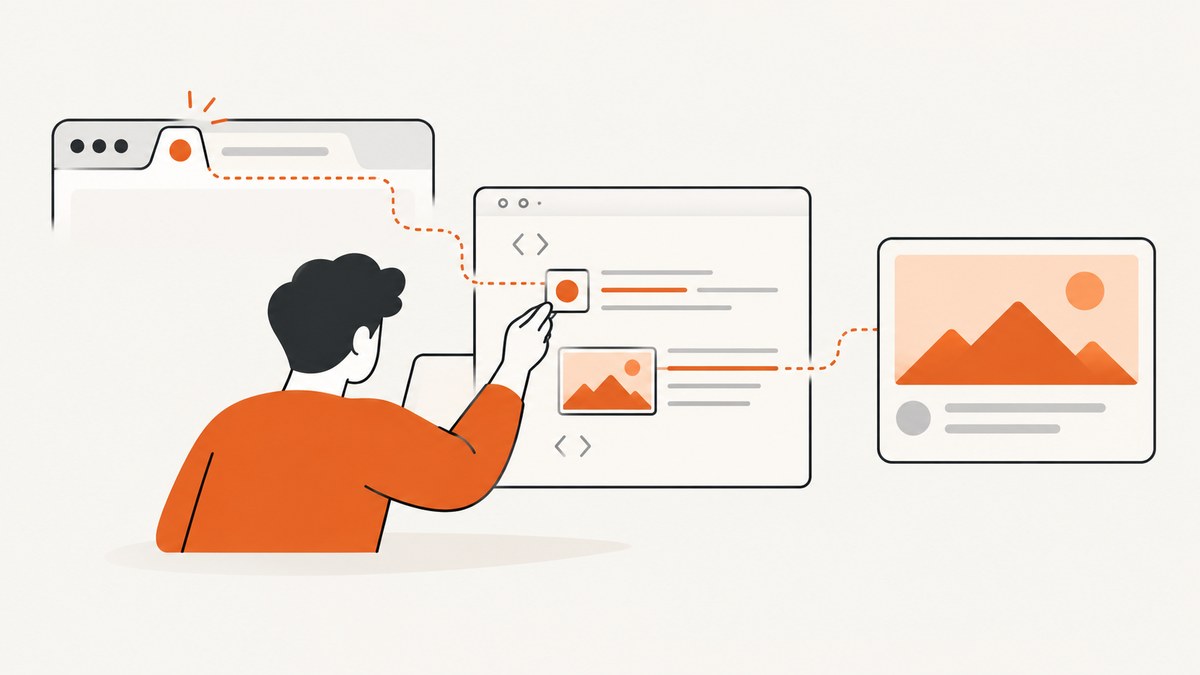
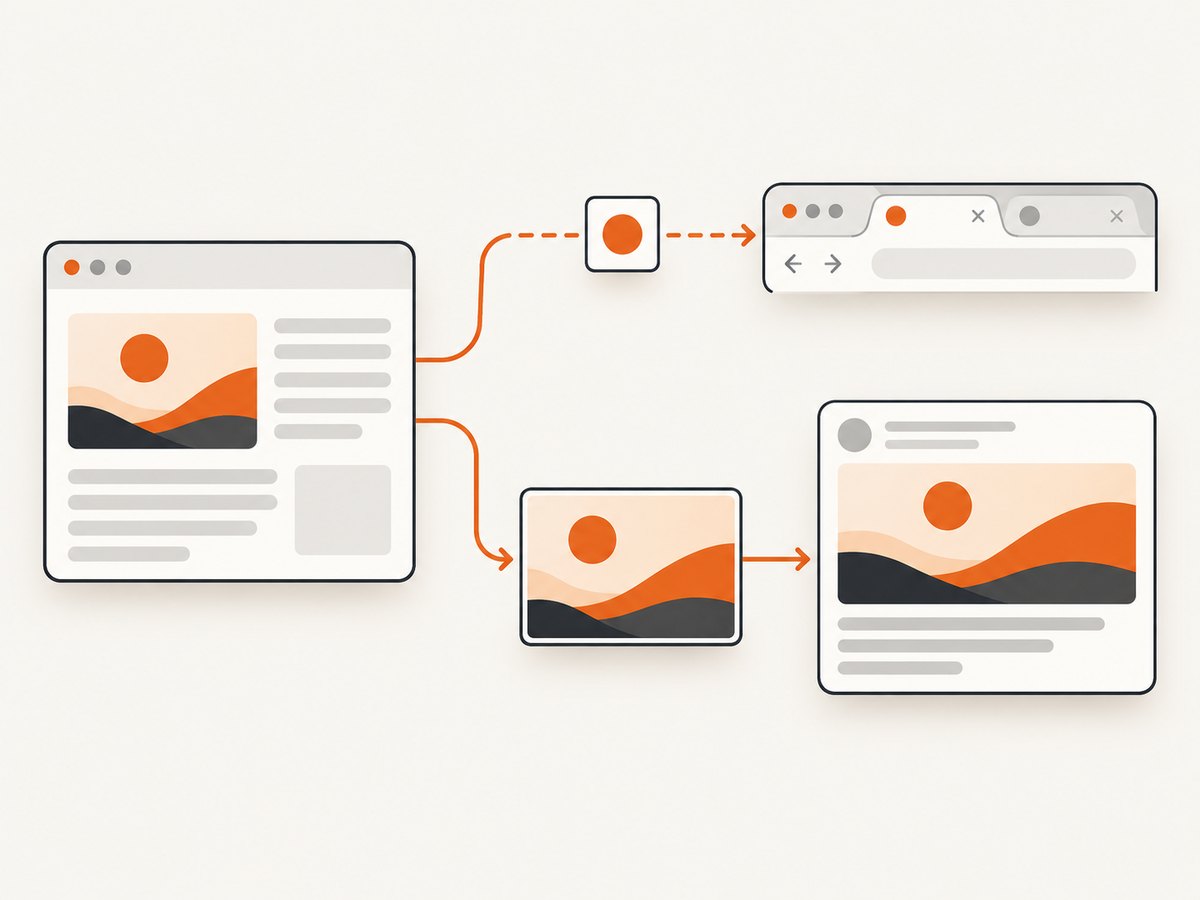
Short answer: “Website thumbnail” can mean two different things. For a small icon in a browser tab, bookmark or sometimes a search result, add a favicon with <link rel="icon">. For the larger image shown when a URL is shared, add an Open Graph image with <meta property="og:image">. They are separate assets and metadata systems, so a favicon is not a reliable replacement for a page-specific sharing image.
This guide shows the exact HTML, file setup, framework patterns, crawler requirements, debugging steps and platform limitations. It also shows how to capture and inspect the finished page with ScreenshotNeo.
1. Decide which “thumbnail” you mean
| Where the image appears | Asset to add | Markup | Who controls the final display |
|---|---|---|---|
| Browser tab, bookmarks and other page-identity surfaces | Favicon | <link rel="icon"> |
Your HTML declares the candidate; the browser chooses how to show it. |
| Shared links in social, messaging and preview cards | Page-specific preview artwork | Open Graph metadata such as og:image |
The destination platform fetches metadata and may cache or select a fallback. |
| Google Search result favicon | Favicon reachable from the home page | rel="icon" |
Google decides whether and where the icon appears. |
MDN describes the favicon as the common site icon used in browser tabs and bookmarks, and rel="icon" identifies the linked resource as the current document’s icon (MDN rel attribute). Open Graph defines og:title, og:type and og:image as basic properties for representing a page as a rich object (Open Graph protocol). Apple documents that Messages can use Open Graph previews and may fall back to an Apple touch icon, favicon or another link icon when a suitable preview image is unavailable (Apple link previews).
2. Add a favicon (the small website icon)
Step 1: Put the icon in a public URL
Place the file in the directory your server publishes. A root-relative path such as /favicon.png works when the file is available at https://example.com/favicon.png. Keep the URL stable so browsers and crawlers can retrieve it later.
Step 2: Link it from the document head
<!doctype html>
<html lang="en">
<head>
  <meta charset="utf-8">
  <meta name="viewport" content="width=device-width, initial-scale=1">
  <title>Example page</title>
  <link rel="icon" href="/favicon.png">
</head>
<body>
  <h1>Example page</h1>
</body>
</html>
The link can also use a different file type and explicit hints:
<link rel="icon" type="image/png" sizes="32x32" href="/icons/favicon-32.png">
<link rel="icon" type="image/svg+xml" href="/icons/favicon.svg">
If you publish several icon links, browsers can use attributes such as media, type and sizes when selecting an appropriate resource. Use one clear default first, then add alternatives only when you have a reason to support different formats or contexts.
Step 3: Make the icon eligible for Google Search
Google’s favicon documentation requires a rel="icon" link on the home page. Googlebot must be able to crawl the home page, and Googlebot-Image must be able to fetch the icon file. Eligibility does not force Google to display the icon in every result. Check that robots rules, authentication, firewalls and response headers do not block those crawlers (Google favicon guidelines).
3. Add a link-preview thumbnail with Open Graph
Minimal metadata
<head>
  <title>Example page</title>
  <meta property="og:title" content="Example page">
  <meta property="og:type" content="website">
  <meta property="og:image" content="https://example.com/share-image.jpg">
</head>
Use an absolute, publicly accessible URL for og:image. The image should represent the specific page being shared instead of serving as a generic site logo. Add a description and canonical URL so preview systems have useful context:
<meta property="og:description" content="A concise summary of this page.">
<meta property="og:url" content="https://example.com/example-page">
Open Graph metadata belongs in the server-rendered document head. If your application adds it only after client-side JavaScript runs, a crawler that does not execute that script may miss it. In a static site, edit the page template. In a server-rendered application, set values from the route’s page data.
4. Framework and template examples
Plain HTML or static-site templates
Put the favicon link and Open Graph tags in the shared head partial, then override the title, description and image for each route:
<!-- head.html -->
<link rel="icon" href="/favicon.png">
<meta property="og:type" content="website">
<meta property="og:title" content="{{ page.title }}">
<meta property="og:description" content="{{ page.description }}">
<meta property="og:url" content="{{ page.url }}">
<meta property="og:image" content="{{ page.share_image }}">
Single-page applications
Keep the site favicon in the root HTML shell. For route-specific previews, prefer server-side rendering or a build step that emits distinct HTML for each route. A client-side update can help in a browser but should not be your only source for crawlers.
Multiple icon formats
You may publish PNG and SVG variants and provide type and sizes hints. Test the result in the browsers and environments you support. Do not assume that every platform supports every format equally.
5. Verify the files before sharing the URL
- Open the favicon URL directly in a private browser window. Confirm it returns the image rather than an HTML error page or login redirect.
- View the page source and confirm the
rel="icon"and Open Graph tags are inside<head>. - Request the page and image over HTTPS. Check redirects, status codes and content types.
- Share the URL in the target messaging or social product. Preview services cache metadata, so an old image can persist after you fix the HTML.
- For Google Search, verify that the home page and icon are crawlable and then allow time for Google’s automated processing.
Command-line checks
curl -I https://example.com/favicon.png
curl -sL https://example.com/example-page | grep -E 'rel="icon"|og:image|og:title'
The first command should show a successful response and an image content type. The second is a quick check that the metadata is present in the delivered HTML, not merely in a browser’s post-load DOM.
6. Common problems and fixes
| Symptom | Likely cause | Fix |
|---|---|---|
| No icon in the tab | Wrong path, missing file, blocked request or stale browser cache | Open the icon URL directly, correct the path, then hard-refresh or test in a private window. |
| Broken image in a link preview | og:image is relative, private, redirected unexpectedly or unavailable to the crawler |
Use an absolute HTTPS URL that returns the image without authentication. |
| Preview shows an old image | The platform cached the previous metadata | Confirm the new HTML first, then use the platform’s preview refresh or debugger when available and wait for recrawling. |
| Google does not show the favicon | Google has not selected it, or its crawlers cannot access the home page or file | Check crawl access and the home-page link. Google’s eligibility rules do not guarantee display. |
| Messages shows a small site icon instead of artwork | No usable preview image was found | Provide a valid Open Graph image; Apple documents icon fallback behavior for this case. |
| Different platforms show different images | Each platform selects, crops and caches independently | Validate on the platforms that matter and keep important content away from likely crop edges. |
| Metadata appears in browser tools but not in “view source” | Tags were injected only by client-side JavaScript | Render the tags in the initial HTML response or use server-side rendering. |
7. Edge cases to plan for
- Every page versus the home page: a favicon can be shared site-wide, while
og:imageshould usually be page-specific. - Canonical URLs: keep
og:urlaligned with the URL you expect people to share so crawlers do not associate metadata with a different page. - Access controls: staging domains, signed image URLs and login walls prevent preview crawlers from fetching assets. Publish a stable public image for public pages.
- Redirect chains: redirects can work, but each extra hop creates another failure point. Point metadata directly at the final HTTPS image URL.
- Dynamic pages: generate deterministic title, description and image values for each route. Avoid random artwork that changes between crawls.
- Caching: browsers and preview services cache independently. A successful update in one environment does not invalidate every other cache.
8. Performance, reliability and cost considerations
A favicon request is small, but it still runs on many page loads. Serve it from your normal HTTPS origin, return a cacheable response and avoid redirecting it through application logic. Open Graph images are fetched by crawlers rather than every visitor, yet a reliable public URL matters because a timeout or access denial can remove the preview.
There is no purchase requirement for this implementation: HTML head markup and publicly served image files are sufficient. The operational cost is maintaining the assets, keeping URLs stable and checking previews after major template or CDN changes.
9. Capture the finished result with ScreenshotNeo
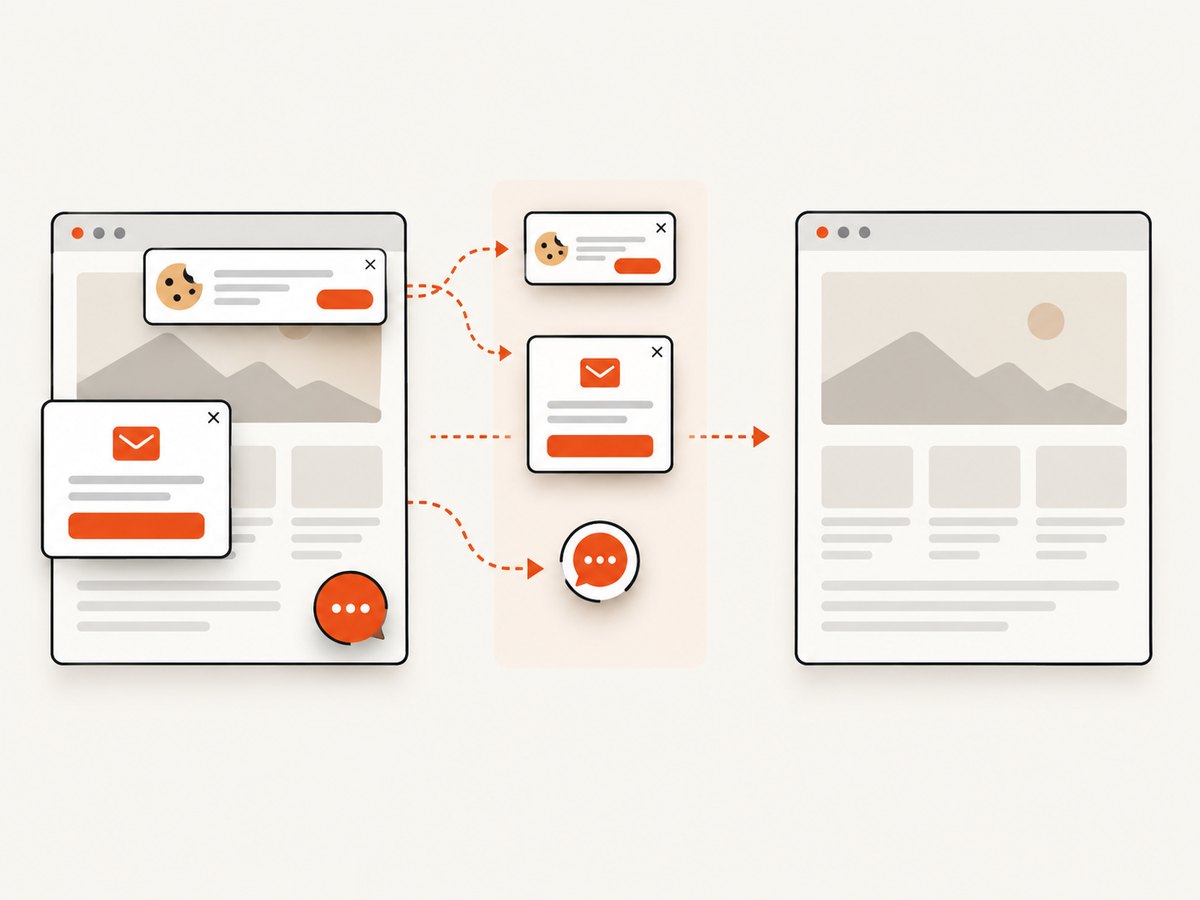
When you need a repeatable image of a page for documentation, regression review or a content workflow, ScreenshotNeo provides a website screenshot API and MCP server. It can capture PNG, JPEG, WebP or PDF and supports full-page shots, a CSS-selected element, custom CSS and JavaScript, waits, device presets, dark mode, headers, cookies and caching. Its clean-shot flow accepts consent banners and removes more than 60 known consent platforms, newsletter popups and chat widgets before capture; each step can be disabled.
10. Or skip the browser setup
Call the ScreenshotNeo endpoint with one GET request. See the ScreenshotNeo API documentation for all options.
curl -G "https://api.screenshotneo.com/v1/shot" -d access_key=YOUR_API_KEY --data-urlencode url=https://example.com -o shot.webpimport requests
r = requests.get("https://api.screenshotneo.com/v1/shot", params={"access_key": "YOUR_API_KEY", "url": "https://example.com"}, timeout=90)
open("shot.webp", "wb").write(r.content)const q = new URLSearchParams({ access_key: 'YOUR_API_KEY', url: 'https://example.com' });
const res = await fetch(`https://api.screenshotneo.com/v1/shot?${q}`);Cookie banners, popups and chat widgets are removed before the shot. Bot checks, blank pages, failed loads and cache hits are never billed, and response headers identify the page verdict and billing status. An MCP server lets Claude, Cursor and other MCP clients use take_screenshot, get_page_info and capture_pdf. The Free plan includes 1,000 screenshots each month with no card; paid plans start at $5 for 3,000. Create a free ScreenshotNeo account.
11. FAQ
Can I use the favicon as the social preview image?
You can reference the same file, but it is usually too small and does not describe an individual page. Set a dedicated og:image for shared links.
Do I need both PNG and SVG favicons?
No. One correctly served icon is enough to start. Add alternatives when your browser and device requirements justify them.
Can I force Google to show my icon?
No. Crawl access makes a favicon eligible; Google still chooses whether and where to display it.
Why does my browser show the new icon while a shared link is old?
Browsers and preview services use separate caches. Verify the delivered metadata and refresh the target platform’s cached preview when possible.
Does ScreenshotNeo change my page’s metadata?
No. It captures the page you request. Its optional cleanup and wait controls help produce a clear screenshot of the rendered result.


