How to Add an Image to an HTML Page Using Notepad
Learn how to add images to an HTML page in Notepad, use correct file paths, write useful alt text, and fix broken images.
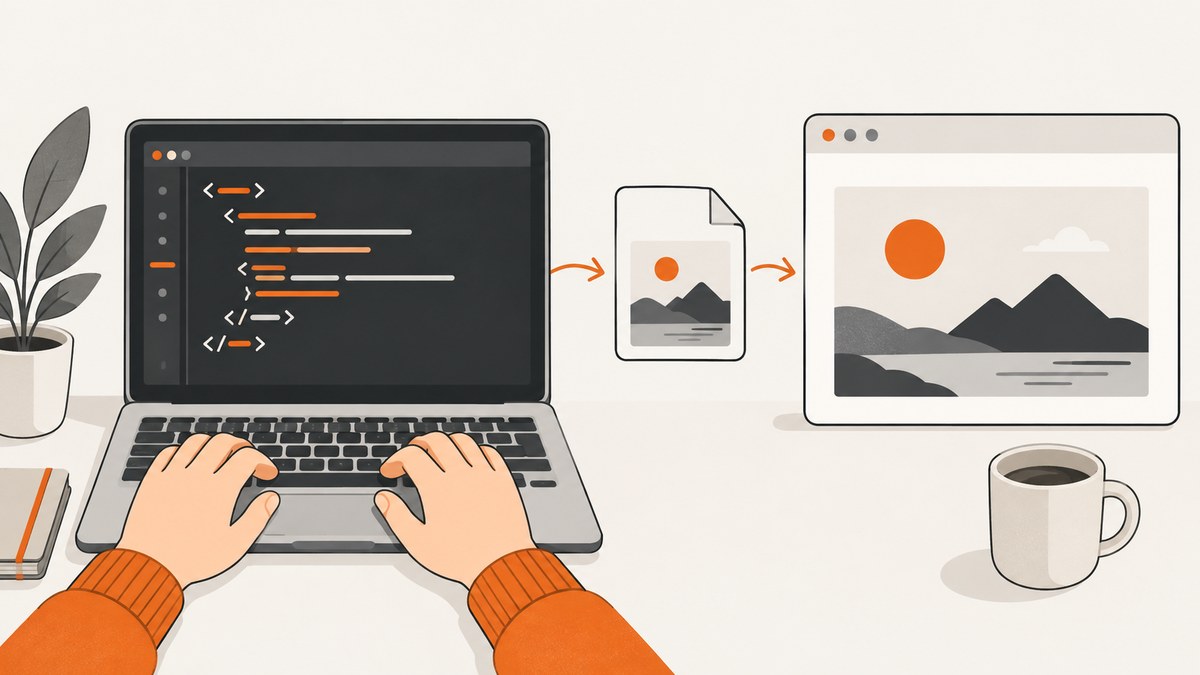
To add an image to an HTML page in Notepad, use an <img> element. Put the image where the src path expects it, save the file with an .html extension, and open that file in a browser.
<!doctype html>
<html lang='en'>
<head>
  <meta charset='utf-8'>
  <title>My image page</title>
</head>
<body>
  <h1>My image</h1>
  <img src='photo.jpg' alt='A short, useful description of the image'>
</body>
</html>
The src attribute identifies the image file. The alt attribute supplies a text alternative if the image cannot load and communicates the image’s useful meaning to people who cannot perceive it. See the MDN <img> reference and the HTML Standard guidance on images.
1. Create the HTML file in Notepad
- Open Notepad.
- Paste the complete example above.
- Choose a filename ending in
.html, such asimage-page.html. - Save the file in a folder you can find easily.
When you save, make sure the resulting filename is not image-page.html.txt. If Windows hides extensions, check the file’s name in File Explorer before opening it. The important result is a file the browser recognizes as HTML.
2. Put the image in the correct location
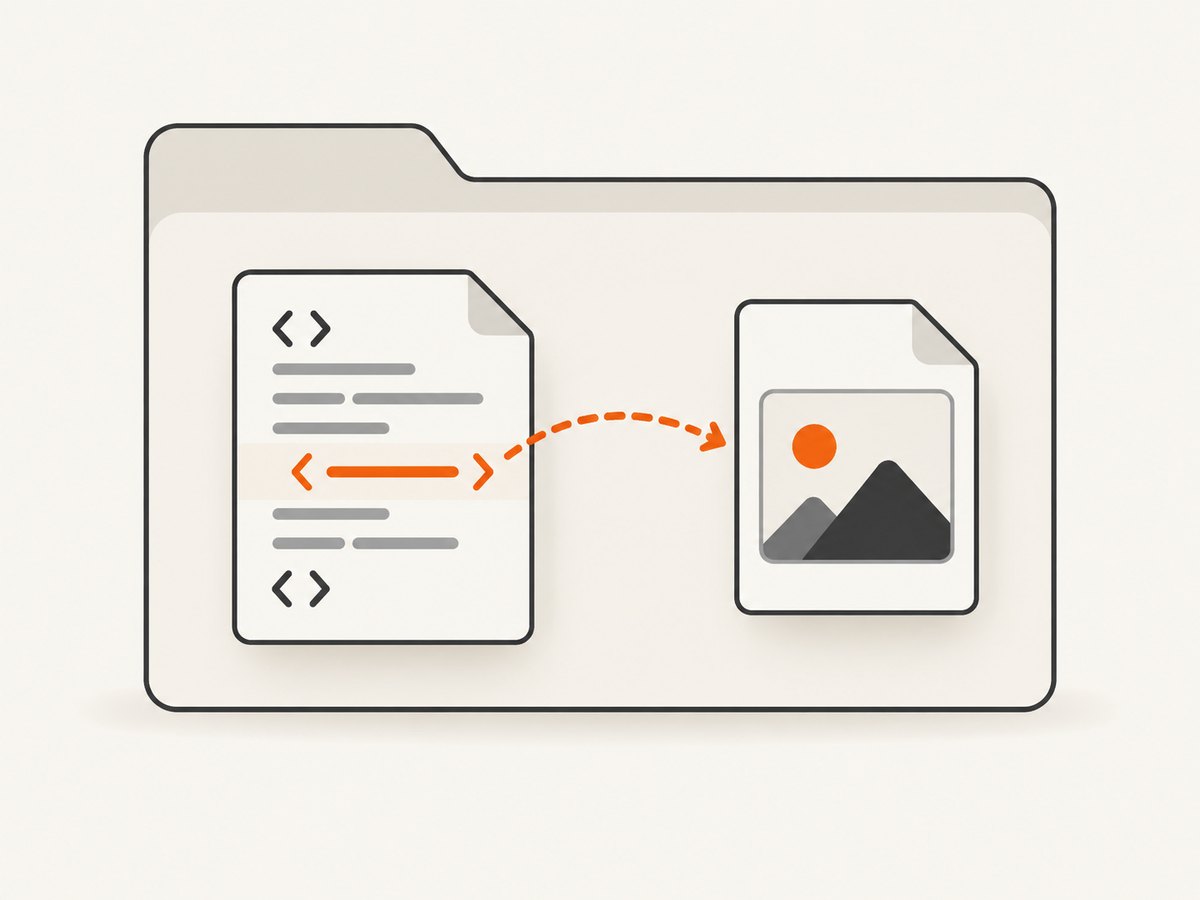
A relative path starts from the folder containing the HTML document. The path must match the actual spelling, capitalization, extension, and folders on disk.
| File layout | src value |
|---|---|
image-page.html and photo.jpg in one folder |
photo.jpg |
Image inside an images subfolder |
images/photo.jpg |
| Image one folder above the HTML file | ../photo.jpg |
For example:
website/
  image-page.html
  images/
    photo.jpg
<img src='images/photo.jpg' alt='A mountain at sunrise'>Start with both files in the same folder and a simple filename. Add subfolders only after that works. The MDN HTML images guide explains these relative paths and common filename mistakes.
3. Choose useful alt text
Write what a reader needs to understand from the image. For an informative image, describe its meaning rather than listing every visual detail.
<img src='chart.png' alt='Bar chart showing sales increasing from January through June'>For a decorative image that adds no information, use an empty value:
<img src='divider.png' alt=''>Do not omit alt. Browsers may display it when an image fails, and assistive technology uses it as the image’s text alternative.
4. Control size without changing the file
You can set dimensions with CSS. Keep both dimensions proportional to avoid distortion, or set only one dimension and let the browser calculate the other.
<style>
  img {
    max-width: 100%;
    height: auto;
  }
</style>
<img src='images/photo.jpg' alt='A mountain at sunrise' width='1200' height='800'>The width and height attributes also help the browser reserve space before the image loads. Use the image’s real dimensions when you know them.
5. Use a web URL when the image is hosted elsewhere
An absolute URL can point to an image on a web server:
<img src='https://example.com/images/photo.jpg' alt='A product photo'>This depends on that server continuing to allow the request. For a site you publish, host the image with your own site and keep the path in your deployed folder. A path such as C:\Users\You\Pictures\photo.jpg works only on your computer; visitors cannot access files on your hard drive. MDN’s guide to dealing with files covers saving a document and loading it in a browser.
6. Add modern loading hints when useful
<img src='images/photo.jpg'
     alt='A mountain at sunrise'
     loading='lazy'
     decoding='async'>
loading='lazy' asks the browser to defer images that are outside the initial view. Use it for images farther down a long page; keep the main, immediately visible image eager. decoding='async' allows the browser to decode without blocking other page work.
7. Complete Notepad example
<!doctype html>
<html lang='en'>
<head>
  <meta charset='utf-8'>
  <meta name='viewport' content='width=device-width, initial-scale=1'>
  <title>Photo page</title>
  <style>
    body { font-family: sans-serif; max-width: 50rem; margin: 2rem auto; padding: 0 1rem; }
    img { display: block; max-width: 100%; height: auto; }
  </style>
</head>
<body>
  <h1>A photo from my trip</h1>
  <img src='images/trip.jpg' alt='A lake surrounded by pine-covered mountains' width='1600' height='1067'>
  <p>The image file is in the images folder next to this HTML file.</p>
</body>
</html>
8. Troubleshooting broken images
| Symptom | Likely cause | Fix |
|---|---|---|
| Broken-image icon or alt text | The file path is wrong | Confirm the file exists at the exact src path. Check spelling, extension, and folder names. |
| Works in Notepad’s folder but not after moving the HTML file | Relative paths changed | Move the image with the HTML file or update src for the new folder layout. |
| Filename appears correct but still fails | Hidden extension, such as photo.jpg.jpg |
Show file extensions in File Explorer and use the actual filename. |
| Only some computers can see it | The image is stored on your local drive or an unavailable external URL | Publish the image with the site and use its deployed path. |
| Image is stretched | Width and height use the wrong ratio | Remove one dimension or set matching proportions with height: auto. |
| Changes do not appear | The browser is showing a cached copy | Save the HTML again, reload, and use a hard refresh if necessary. |
9. Validate before publishing
- Open the saved HTML file in a browser.
- Right-click the image and inspect its address if it does not load.
- Test with JavaScript disabled or unavailable; a normal
<img>does not require JavaScript. - Check the page at a narrow window to confirm the image fits.
- Read the
alttext without looking at the image and confirm it preserves the intended meaning.
Or skip the browser setup
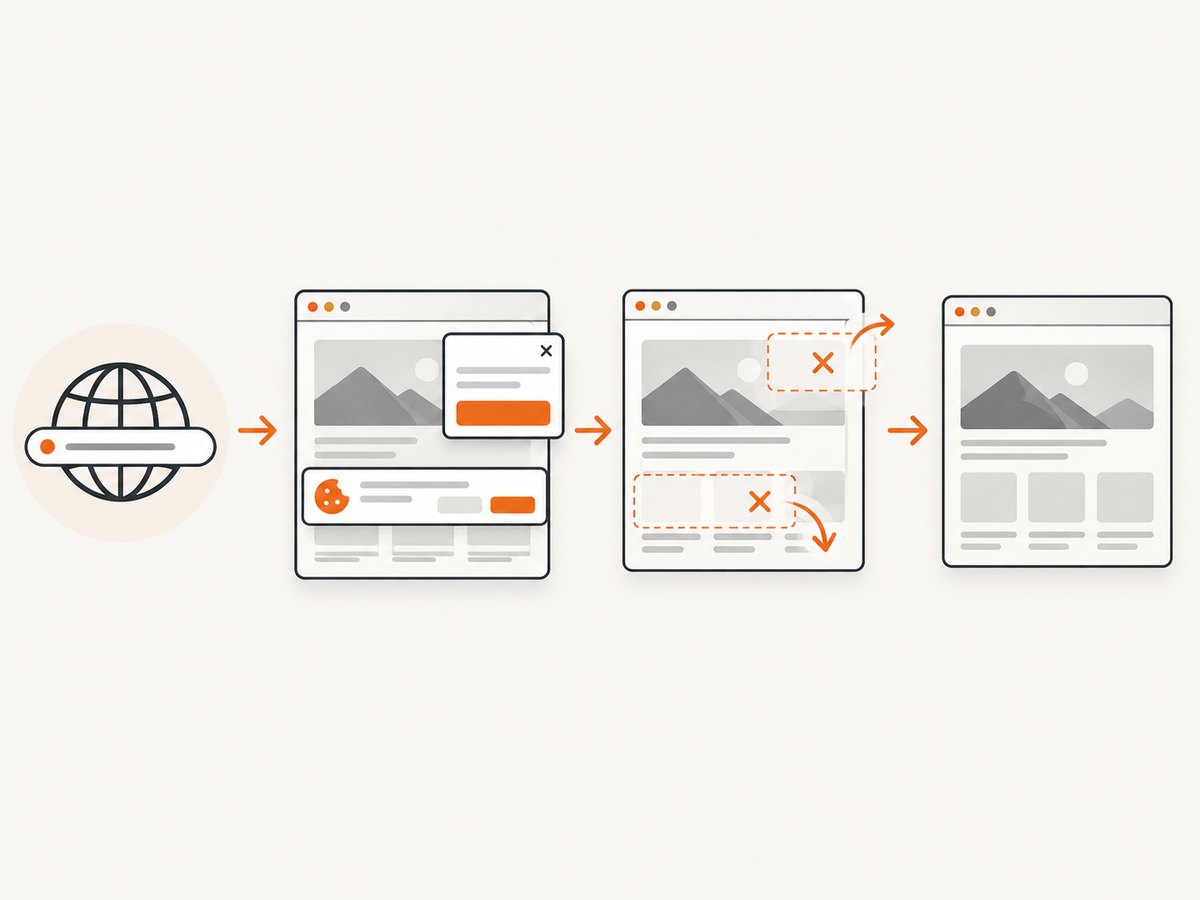
If your goal is to generate screenshots of HTML pages rather than manually preview a local file, ScreenshotNeo provides a website screenshot API. It accepts one GET request and returns PNG, JPEG, WebP, or PDF. Its capture flow accepts cookie and consent banners before the shot and removes more than 60 known consent platforms, newsletter popups, and chat widgets; each step can be turned off. Bot checks, CAPTCHAs, blank pages, timeouts, failed loads, and cache hits are not billed, and responses identify the page verdict and billing status in X-Page-Verdict and X-Billed headers.
See the ScreenshotNeo API documentation for all options.
cURL
curl -G "https://api.screenshotneo.com/v1/shot" -d access_key=YOUR_API_KEY --data-urlencode url=https://stripe.com -o shot.webpPython
import requests

r = requests.get(
    'https://api.screenshotneo.com/v1/shot',
    params={'access_key': 'YOUR_API_KEY', 'url': 'https://stripe.com'},
    timeout=90,
)
r.raise_for_status()
open('shot.webp', 'wb').write(r.content)
Node.js
const q = new URLSearchParams({ access_key: 'YOUR_API_KEY', url: 'https://stripe.com' });
const res = await fetch(`https://api.screenshotneo.com/v1/shot?${q}`);
if (!res.ok) throw new Error(`Screenshot failed: ${res.status}`);
const file = Buffer.from(await res.arrayBuffer());
require('fs').writeFileSync('shot.webp', file);
The service also supports full-page captures with lazy images loaded, CSS element capture, dark mode, device presets, custom viewports, retina scale, custom CSS and JavaScript, click and wait actions, blocked resources, headers, cookies, user agents, authorization, timezone, geolocation, transparent backgrounds, resizing, selectable cache TTLs, signed image links, asynchronous jobs with signed webhooks, bulk capture for up to 100 URLs per call, usage reporting, and PDF options. An MCP server exposes take_screenshot, get_page_info, and capture_pdf for Claude, Cursor, and other MCP clients.
Free usage includes 1,000 screenshots each month with no card. Paid plans start at $5 for 3,000 screenshots; yearly billing gives two months free, and every feature is available on every plan. Create a free ScreenshotNeo account.
FAQ
Can I put the image in the same folder as the HTML file?
Yes. Use only the filename, such as src='photo.jpg'.
Does Notepad add the image to the HTML file?
No. The HTML stores a reference in src; the browser loads the separate image file.
Why does an image show locally but not online?
Your deployed site must contain the image at the path used by src. A local disk path is not available to visitors.
What should decorative image alt text be?
Use alt='' when the image adds no information and should be ignored by assistive technology.


